
2-) Voice Agent Menu Content
The Voice Agent menu is the central area where all voice agent configurations created and managed through Supsis AI are administered. From this menu, voice agents can be created, edited, call processes can be monitored, and integrated workflows with automations can be configured.
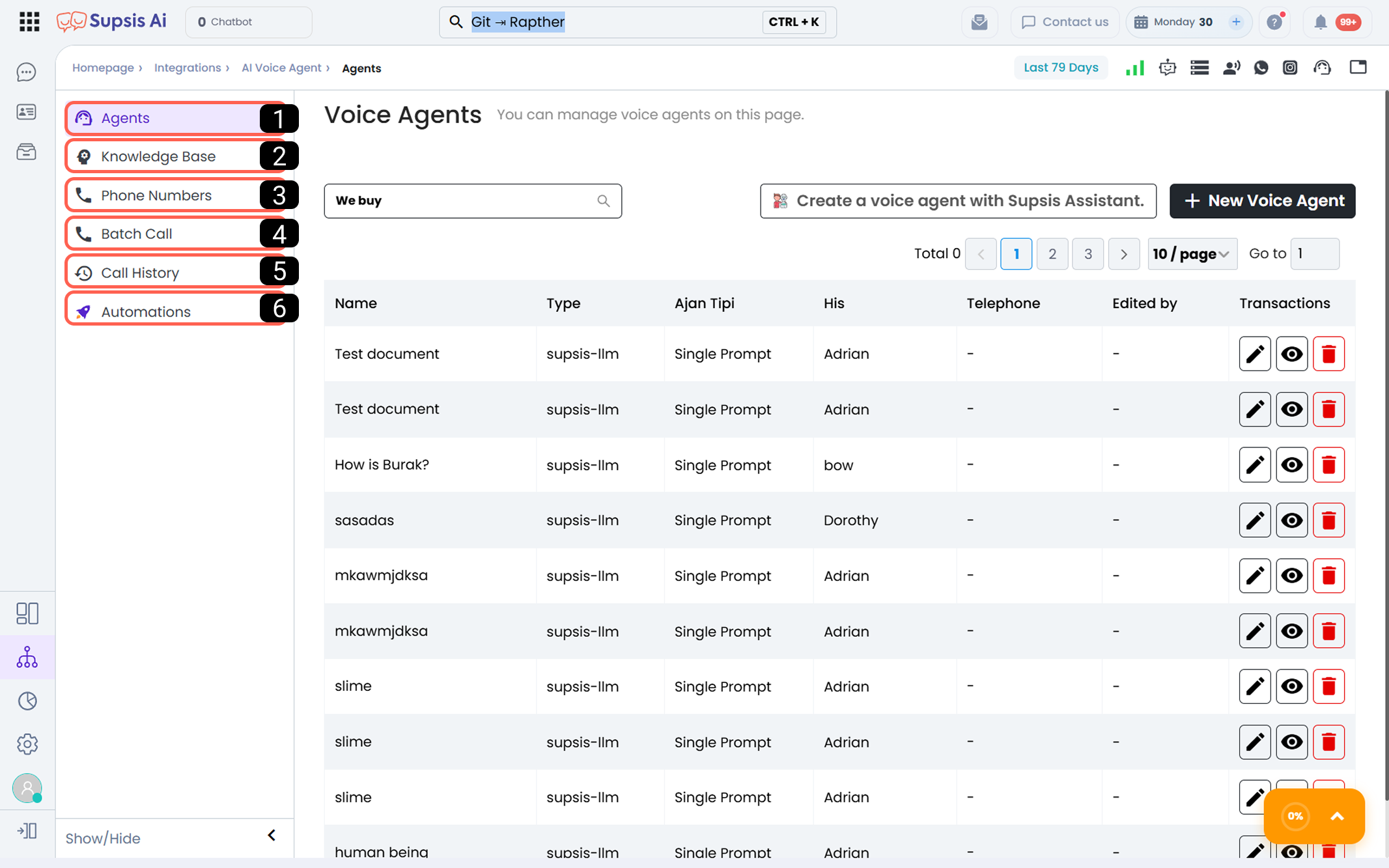
| No | Menu |
|---|---|
| 1 | Voice Agents |
| 2 | Knowledge Base |
| 3 | Phone Numbers |
| 4 | Bulk Calling |
| 5 | Call History |
| 6 | Automations |
| 7 | Channel Analytics & Reporting (Analytics Tab) |
1-) Voice Agents
The Voice Agents section is where all voice agents created in the system are listed and managed. From this area, you can create a new voice agent, edit the settings of existing agents, or access agent configurations.
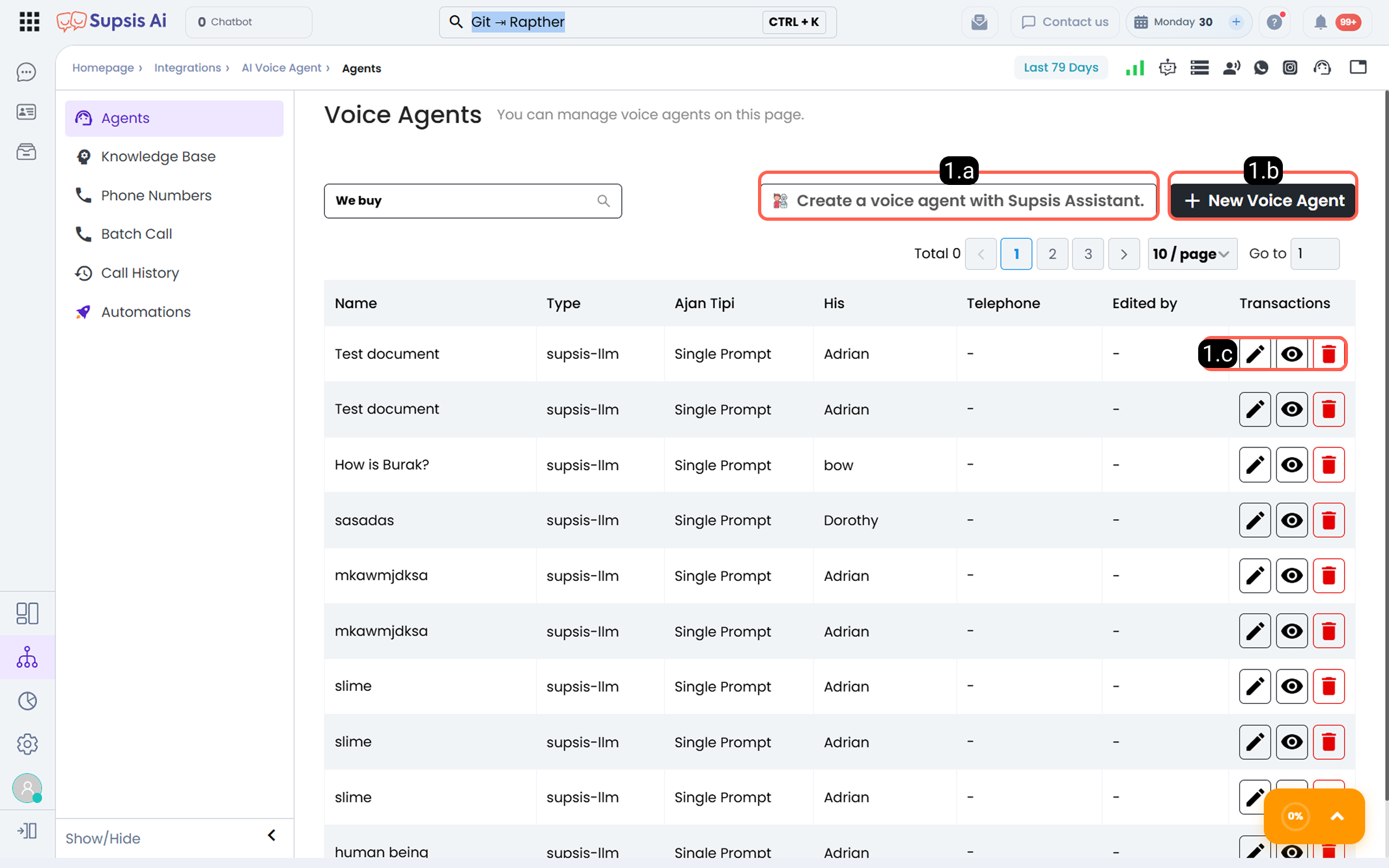
1.a – Create Voice Agent with Supsis Assistant:
Using this button, you can create a Voice Agent with Supsis Assistant. Based on the instructions you provide, the assistant understands which tasks you want the voice agent to perform and generates a voice assistant prompt and name aligned with your instructions.
1.b – Create New Voice Agent:
Using this button, a voice agent can be quickly created with Supsis Assistant.
According to the instructions given to Supsis Assistant:
- The tasks the voice agent will undertake are analyzed
- A suitable voice assistant prompt is generated
- A recommended name for the agent is determined
This method provides a fast and practical starting point, especially for users creating a voice agent for the first time.
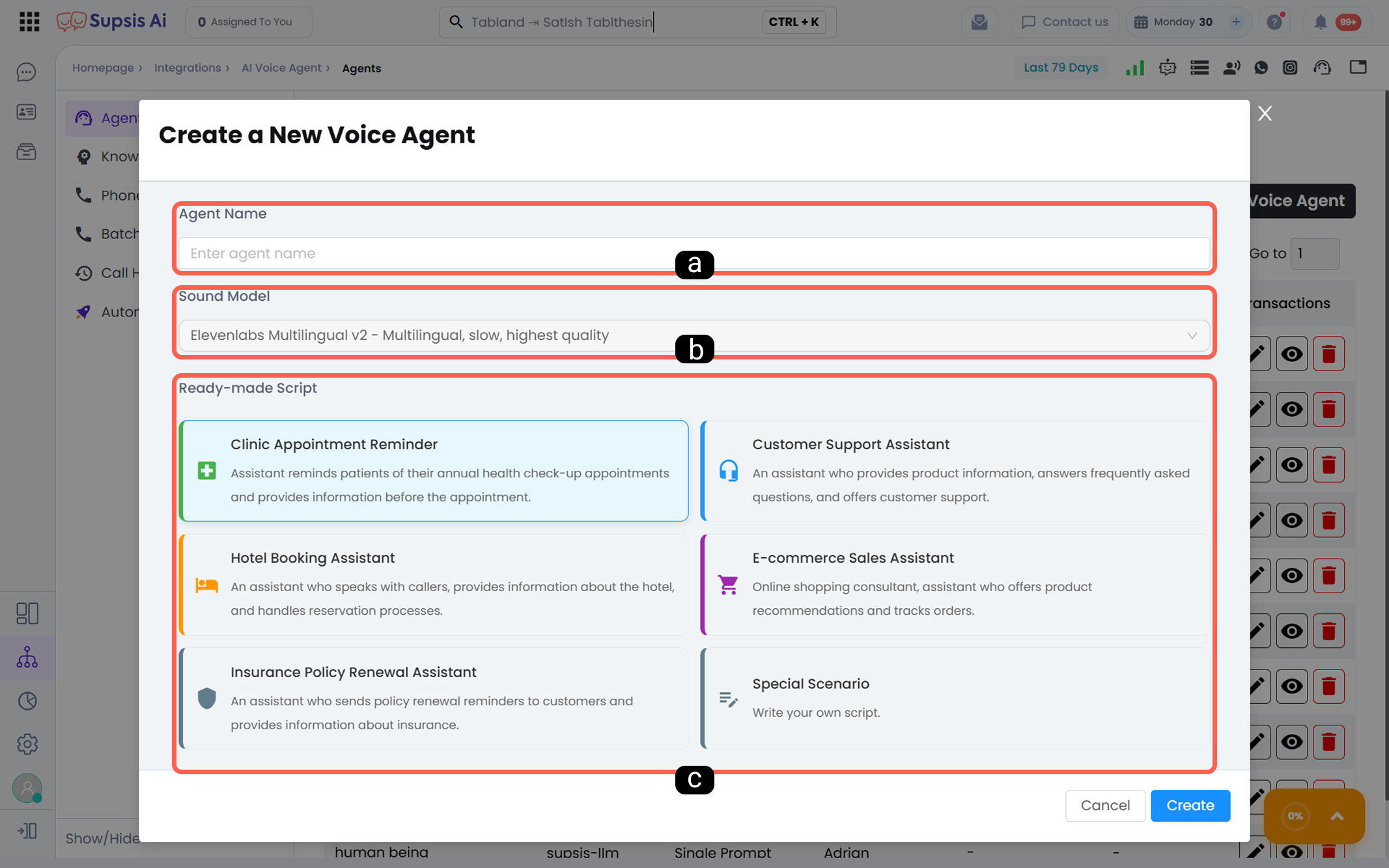
This option is used to manually create a new voice agent. During the creation process, the following fields are configured:
a) Define Agent Name:
The name that will be displayed in the system for the created voice agent is defined here.
b) Voice Model Selection:
Voice model selection is one of the most important configuration steps determining the Voice Agent’s speaking speed, voice quality, and multilingual support capability.
Supsis AI Voice Agent supports voice models with different performance and quality levels through the ElevenLabs infrastructure.
The appropriate voice model should be selected by balancing speed, quality, and latency according to your needs.
The voice models supported in the system are listed below:
-
ElevenLabs Multilingual v2
This model provides the most natural and human-like voice generation.
While offering high voice clarity and naturalness, its response time is relatively slower. This model is suitable for scenarios where quality is prioritized. It is especially preferred for brand representation, greeting announcements, and long conversations. -
ElevenLabs Turbo v2.5
This model offers balanced performance between speed and voice quality.
Turbo v2.5 provides high voice clarity and fast response time, making it suitable for real-time interaction scenarios. While maintaining minimal quality loss, its response time is shorter compared to the Multilingual v2 model.
It is especially preferred in customer information, routing, and high call traffic scenarios. -
ElevenLabs Flash v2.5
This model is optimized for scenarios requiring minimum latency.
It has the fastest response time, with moderate voice quality compared to other models. Flash v2.5 is suitable for scenarios where speed is prioritized over quality.
It is especially preferred for short interactions, quick verification flows, and instant-response calls.
c) Scenario Selection:
The first step of the voice agent’s conversation and interaction design is determined in this section. The scenario can be further detailed later.
-
Predefined Scenario: Select one of the pre-configured agent structures suitable for specific use cases within the system.
-
Custom Scenario: Allows the creation of a fully customized scenario for the voice agent.
1.c – Actions:
You can use the following actions for each agent listed in the Voice Agents section:
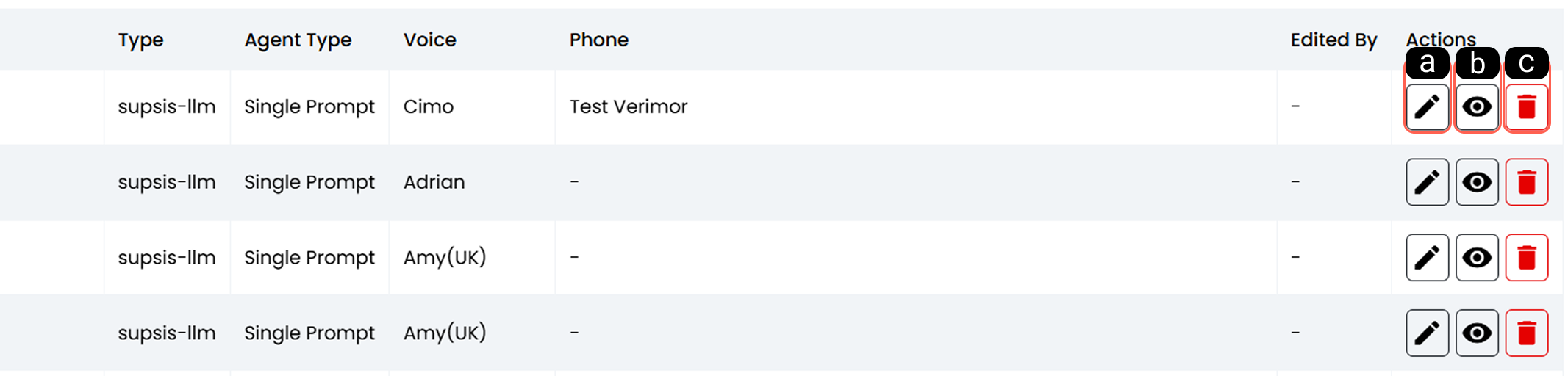
-
a - Pencil (Edit)
Used to edit the basic information of an existing voice agent.
The agent name and description can be updated here. -
b - Eye (View)
Provides access to the scenario and configuration details of the voice agent.
The agent’s conversation flow and configurations can be viewed on this screen. -
c - Trash (Delete)
Used to remove the selected voice agent from the system.
Deleted voice agents cannot be used in active call processes.
2-) Knowledge Base
The Knowledge Base section is where shared information pools used by Voice Agents during conversations are created and managed.
Knowledge bases created here can be shared across multiple voice agents.
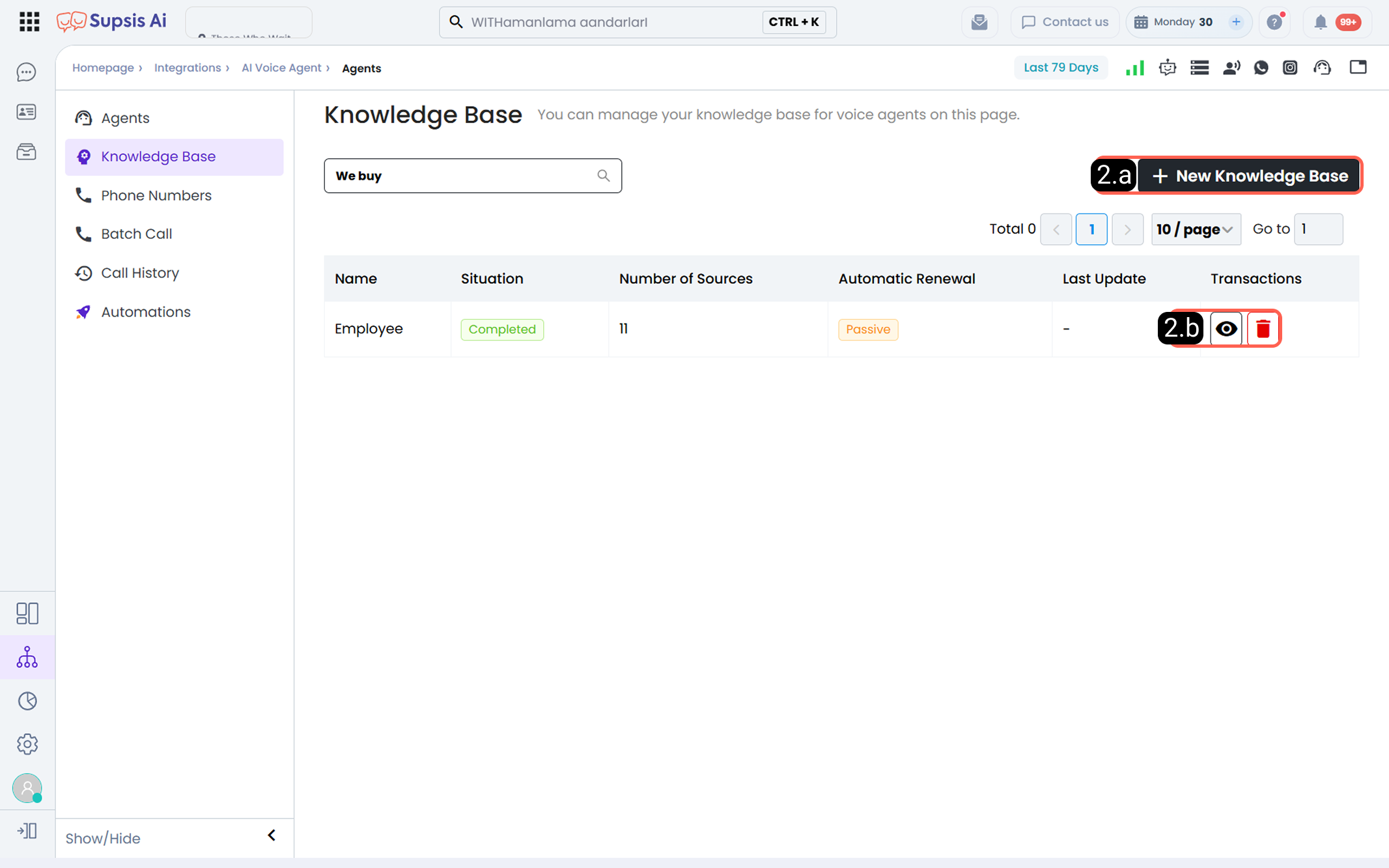
2.a – New Knowledge Base:
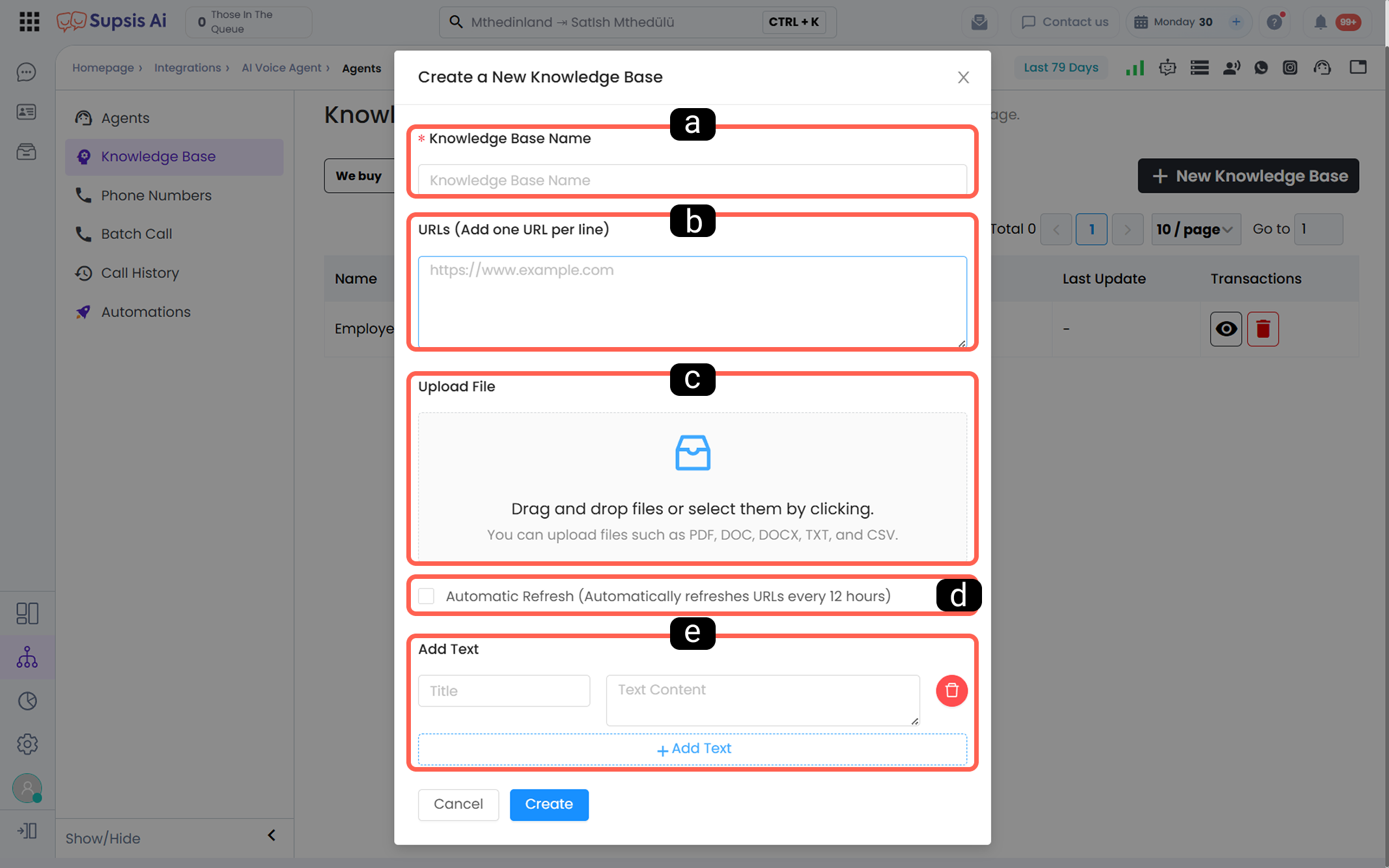
To create a new knowledge base, use the “New Knowledge Base” button. The following fields are configured on the creation screen:
-
a - Knowledge Base Name
The name displayed in the system for the created knowledge pool.
This name is used when assigning the knowledge base to voice agents. -
b - URLs
The URLs of web pages to be included in the knowledge base are added here. The data in these URLs is automatically retrieved. -
Each row must contain one URL whose content will be fetched
- Added URLs are scanned by the system and their contents are included in the knowledge base
-
Automatic refresh is recommended for dynamic or frequently updated pages
-
c - File Upload:
Used to directly upload files to the knowledge base.
Supported file types: PDF, DOC/DOCX, TXT, and CSV.
Files can be uploaded via drag-and-drop or click-to-upload. The text within uploaded files is processed into the knowledge base. -
d - Automatic Refresh
When this option is enabled, the URLs added to the knowledge base from the URLs section are automatically rescanned every 12 hours. The data in the URL is updated every 12 hours. -
e - Add Text
Used to manually add information without using external sources.
Free text can be directly entered into the knowledge base through this field.
2.b – Actions:
Created knowledge bases are displayed on the list screen. The following actions are available for each knowledge base:

-
a - Eye (View)
Used to view the sources added to the knowledge base, content status, and details. -
b - Trash (Delete)
Used to remove the relevant knowledge base from the system.
Deleted knowledge bases are no longer used by the connected voice agents.
3-) Phone Numbers
The Phone Numbers section is where phone numbers to be used for Voice Agents are defined and managed.
From this page, you can:
- Add a new phone number
- Assign responsible agents for incoming and outgoing calls
- Start manual calls using existing numbers
3.a – Add New Number:
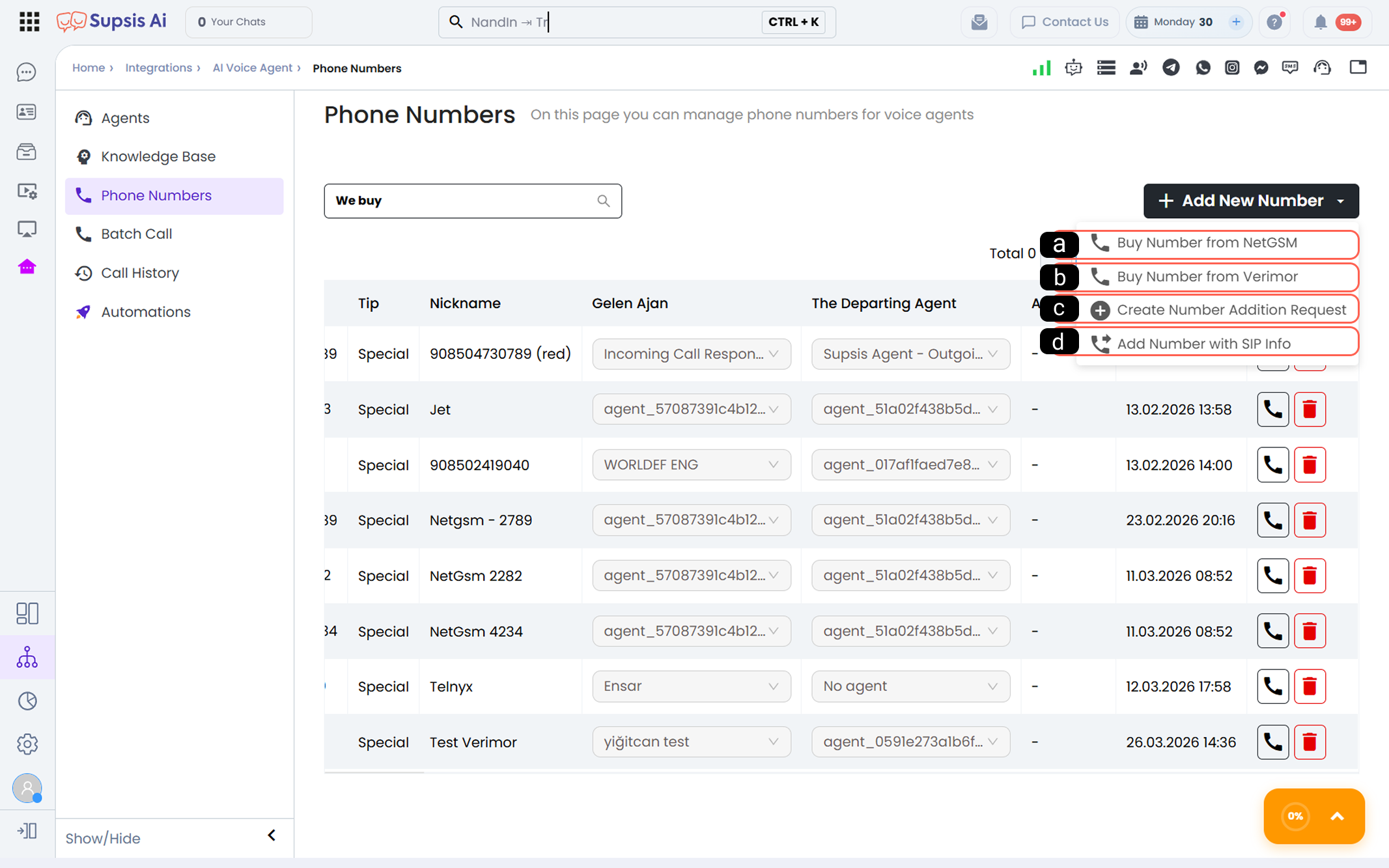
Use the “Add New Number” button to add a new phone number. Different methods are available under this button:
-
a - Purchase Number from NetGSM
Redirects to the NetGSM subscription application form.
The application process is managed by NetGSM, and the number can be used in the system after provisioning is completed. -
b - Purchase Number from Verimor
Redirects to the Verimor subscription application form.
The number purchase and activation process is handled by Verimor. -
c - Create Number Addition Request:
Opens a number addition request form.
By providing your number details through the form, you can create a ticket request for Supsis AI team to add the number. -
d - Add Number via SIP Information:
Users with existing SIP infrastructure can manually add their numbers to the system. The following fields must be filled in:
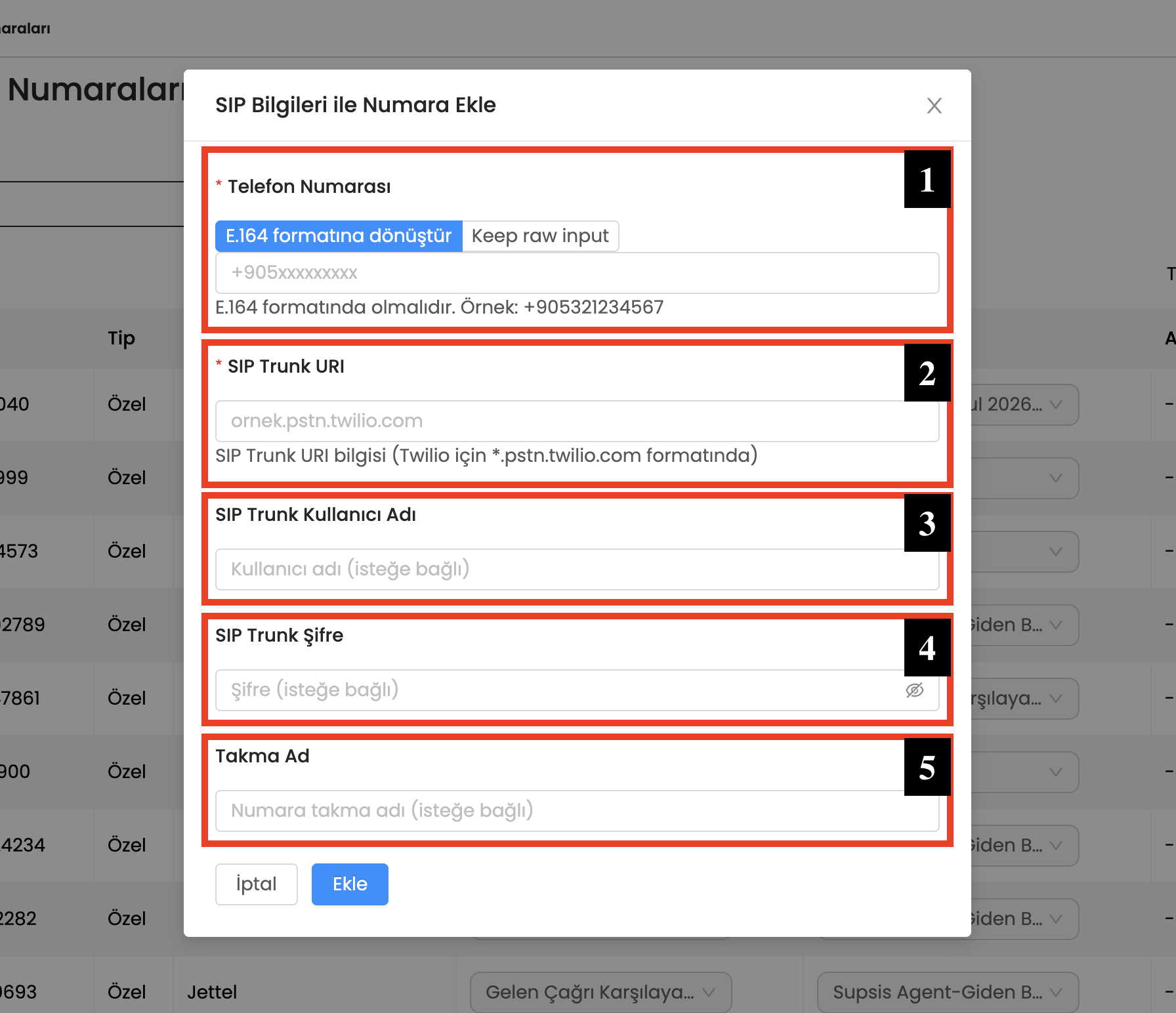
1- Phone Number & Format Selection:
Enter the phone number to be added and select the desired number formatting mode:
* Convert to E.164 format (Default): Automatically converts the entered phone number into standard international E.164 format (e.g. +905321234567).
* Keep raw input: Preserves the entered phone number in its raw unformatted state without applying E.164 conversion, passing it directly to exchange setups. Recommended for custom PBX setups, internal extensions, and specialized routing configurations.
2- SIP Trunk URL:
Enter the trunk address of the SIP service provider.
Example: For Twilio, use *.pstn.twilio.com format.
3- SIP Trunk Username:
The username used for SIP trunk access.
This field is optional and may vary depending on the service provider.
4- SIP Trunk Password:
The password used for SIP trunk connection.
This field is optional but recommended for secure connections.
5 - Alias:
A name defined to easily distinguish the number within the system.
After entering the information, click the Add button to complete the process.
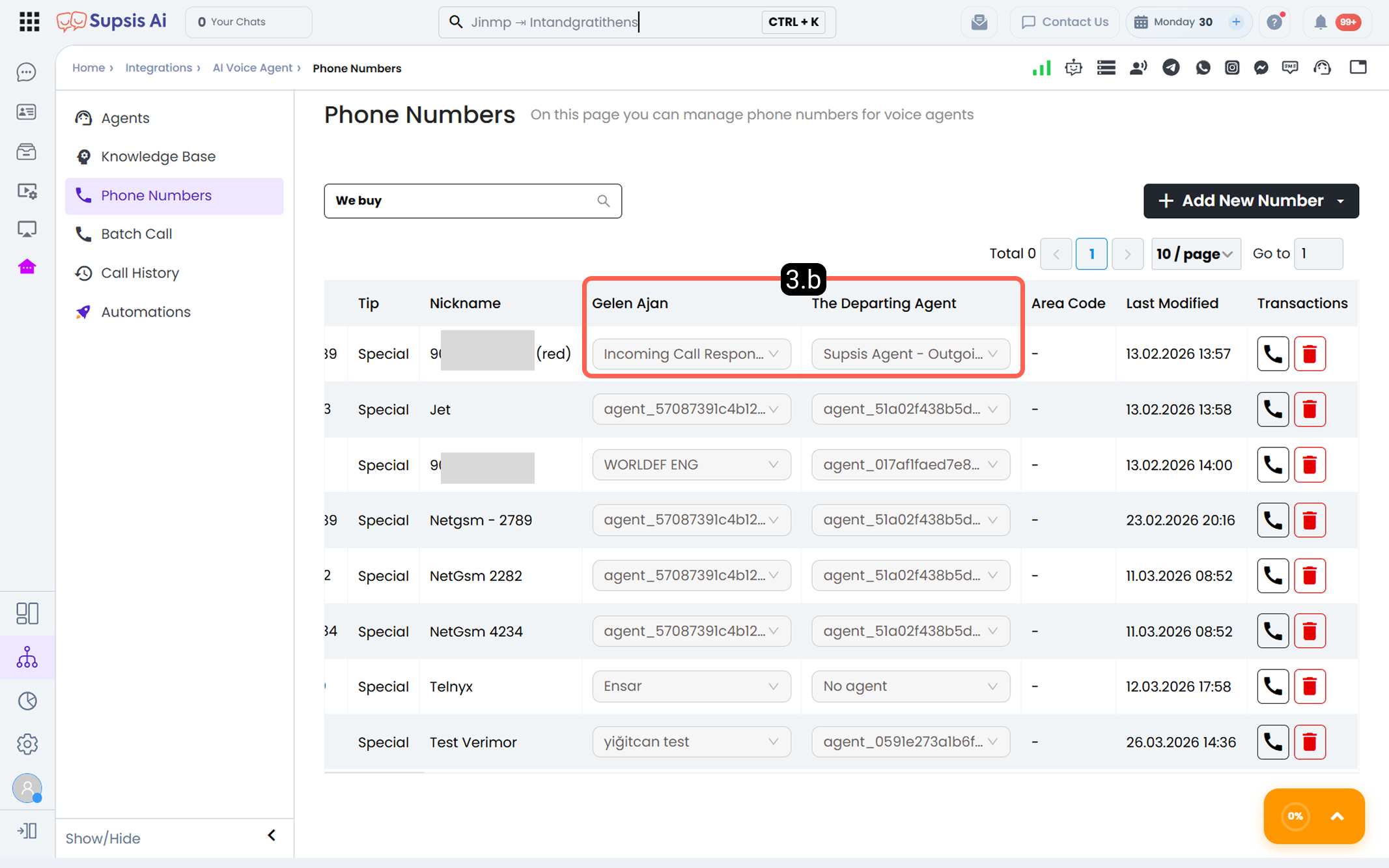
3.b – Responsible Agent Selection:
For each phone number listed, separate Incoming Agent and Outgoing Agent can be assigned.
- Incoming Agent: The voice agent that answers the call when the number is dialed.
- Outgoing Agent: The voice agent used for calls made through that number.
Previously created voice agents can be selected here to configure call flows.
3.c – Actions:
The following action options are available for each phone number listed:
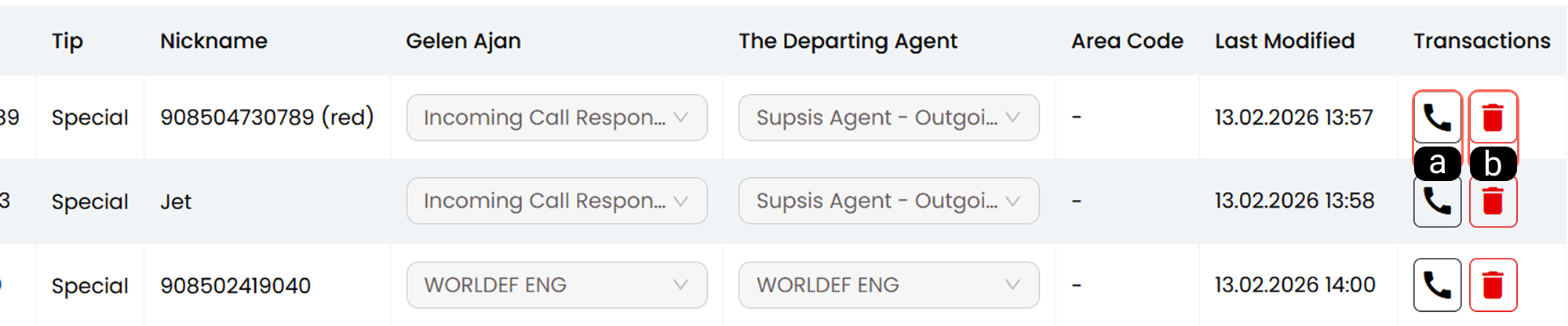
-
a - Start Call
Used to initiate a manual call.
Enter the phone number to be called, and the call will be initiated via the selected number and outgoing agent. -
b - Trash (Delete)
Used to remove the selected phone number from the system.
Deleted numbers cannot be used in active call processes.
3.d – Inbound Call Low Balance Restriction & Auto-Restoration:
When your WhatsApp wallet balance falls below the site low balance threshold (maxLowBalance) set by administrators, inbound call agents assigned to your Voice Agent phone numbers are automatically disabled by the system and unassigned.
This safeguard prevents extra service charges from incurring on incoming calls while your wallet balance is insufficient, avoiding negative balance states. Outbound calls are already restricted by existing wallet balance checks; this feature extends identical financial protection to inbound calls.
- Menu Path:
Integrations → Voice Agent → Phone Numbers. - Warning Banner: When your balance falls below the minimum threshold, a yellow alert banner appears at the top of the Phone Numbers page: "Your balance is insufficient, which may restrict incoming calls. Please check your wallet balance."
- API & Panel Restrictions: If you attempt to reassign an incoming agent via the Customer Panel UI or API while the restriction is active, the request is rejected by the backend.
- Notification Email: When a restriction is triggered, a single notification email ("Incoming Calls Disabled" template, complete with a direct wallet link) is sent to the account. Duplicate email protection ensures only one email is sent per restriction cycle.
- Auto-Restoration: When a customer deposits funds into their wallet (
Settings → Wallet), the backend automatically reassigns previously saved incoming agent configurations to the respective phone numbers.
Step-by-Step Usage Guide
- Assign an Incoming Agent to your phone number on
Integrations → Voice Agent → Phone Numbers. - During usage, your WhatsApp wallet balance drops below the low balance limit (
maxLowBalance). - The system automatically unassigns incoming agents while safely backing up your previous agent settings.
- A notification email is dispatched to your account and a yellow warning banner appears on the Phone Numbers page.
- Upon depositing funds in
Settings → Wallet, the system automatically restores your saved incoming agent settings.
Use Cases
- Negative Balance Prevention: Prevents incoming calls from driving your wallet balance below zero during high AI usage or voice call spikes.
- Preventing Invalid Agent Re-assignments: Blocks users from reassigning incoming agents via UI or API when their wallet balance is depleted.
- Automatic Service Restoration: Resumes incoming call operations seamlessly after a deposit without requiring manual re-configuration.
Customer Benefits
- Protects customers from unexpected negative balance states caused by inbound call charges.
- Restores incoming agent configurations automatically upon wallet deposits, saving time.
- Prompts timely wallet deposits via clear in-panel warning banners.
Control & Technical Notes
- Minimum Threshold: The low balance threshold (
maxLowBalance) is configured per-site in the Admin Panel. - Prerequisites: Active Voice Agent channel with valid API keys configured.
- Outbound Call Protection: Outbound call restrictions remain governed by standard balance checks.
- Email Duplicate Protection: Notification email is restricted to 1 email per low-balance period.
- Multi-Language Support: Fully localized in 8 languages (TR, EN, DE, ES, FR, IT, RU, AR).
4-) Bulk Call Initiation
The Bulk Call feature enables automatic voice calls to a defined list of numbers. With this feature, informational, announcement, reminder, or campaign calls can be performed in bulk within a short time.
4.a – Start New Bulk Call:
Use the “Start New Bulk Call” option to create a new bulk call. The following fields are configured on the screen:
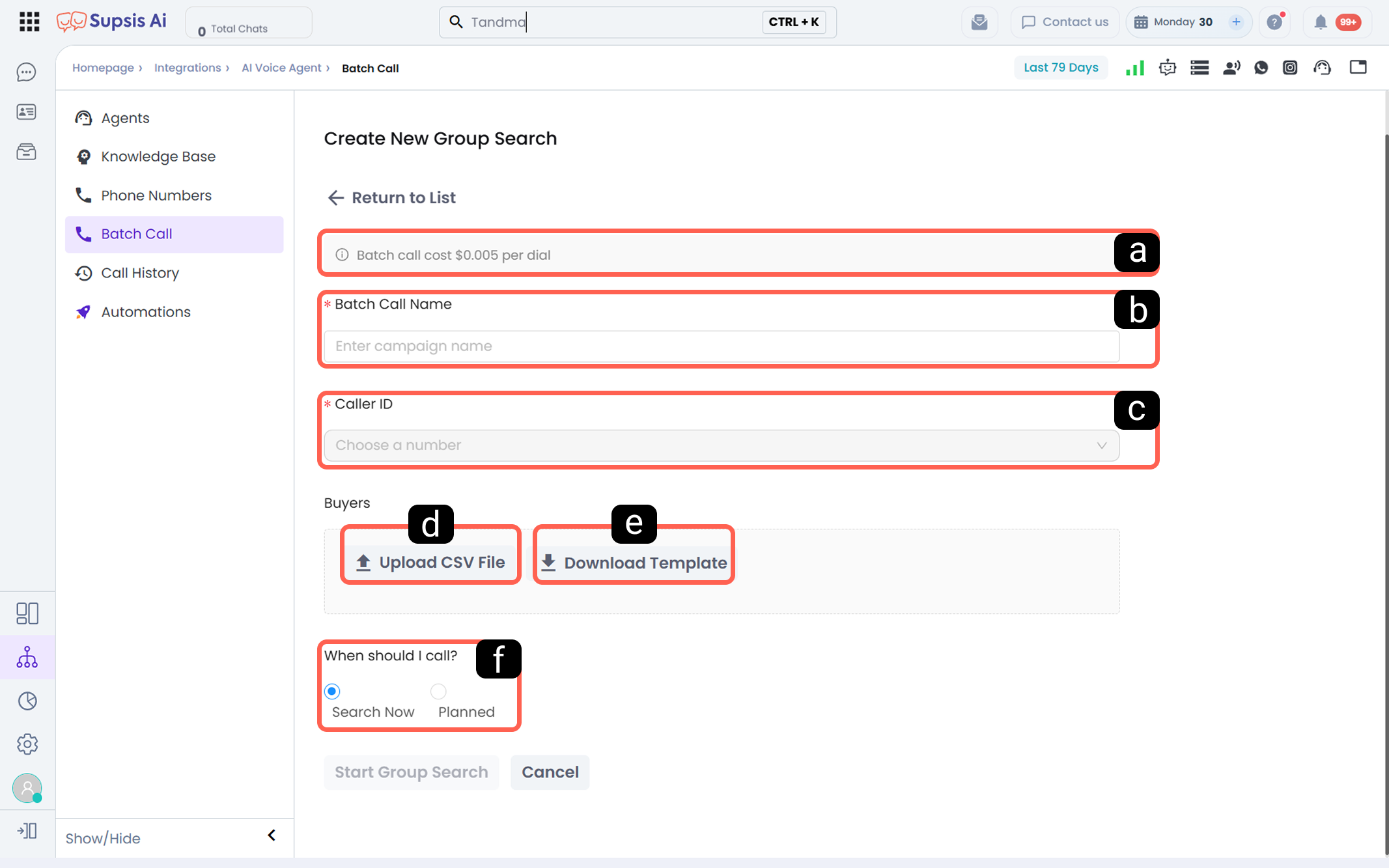
-
a - Bulk Call Name in the System:
The name that will be displayed in the panel for the created bulk call.
This name is used as an identifier when listing and reporting bulk calls. -
b - Caller Number:
Select the outbound number to be used for bulk calls.
The selected number will appear as the caller ID on the recipient’s side, and calls will be made using the Outgoing Agent assigned to that number. -
c - Upload CSV File:
Upload the CSV file containing the phone numbers to be called.
Each row must contain one phone number. Numbers must be in E.164 format and located in a column named “phone number.”
To ensure full system compatibility, download the sample template and structure your CSV file accordingly. -
d - Download Call Template:
Allows downloading a sample template to prepare the CSV file in the correct format.
The “phone number” column must be used as defined in the template. Other columns may vary. -
e - When Should the Bulk Call Be Made:
Determines when the bulk call will be initiated. - Call Now: The bulk call starts immediately after configuration is completed.
- Schedule: The bulk call starts automatically at the specified date and time.
Used for future campaigns and informational calls.
5-) Call History
The Call History section displays all incoming and outgoing calls performed by Voice Agents in detail.
From this page, call records can be reviewed, analyzed, exported, and call content can be accessed.
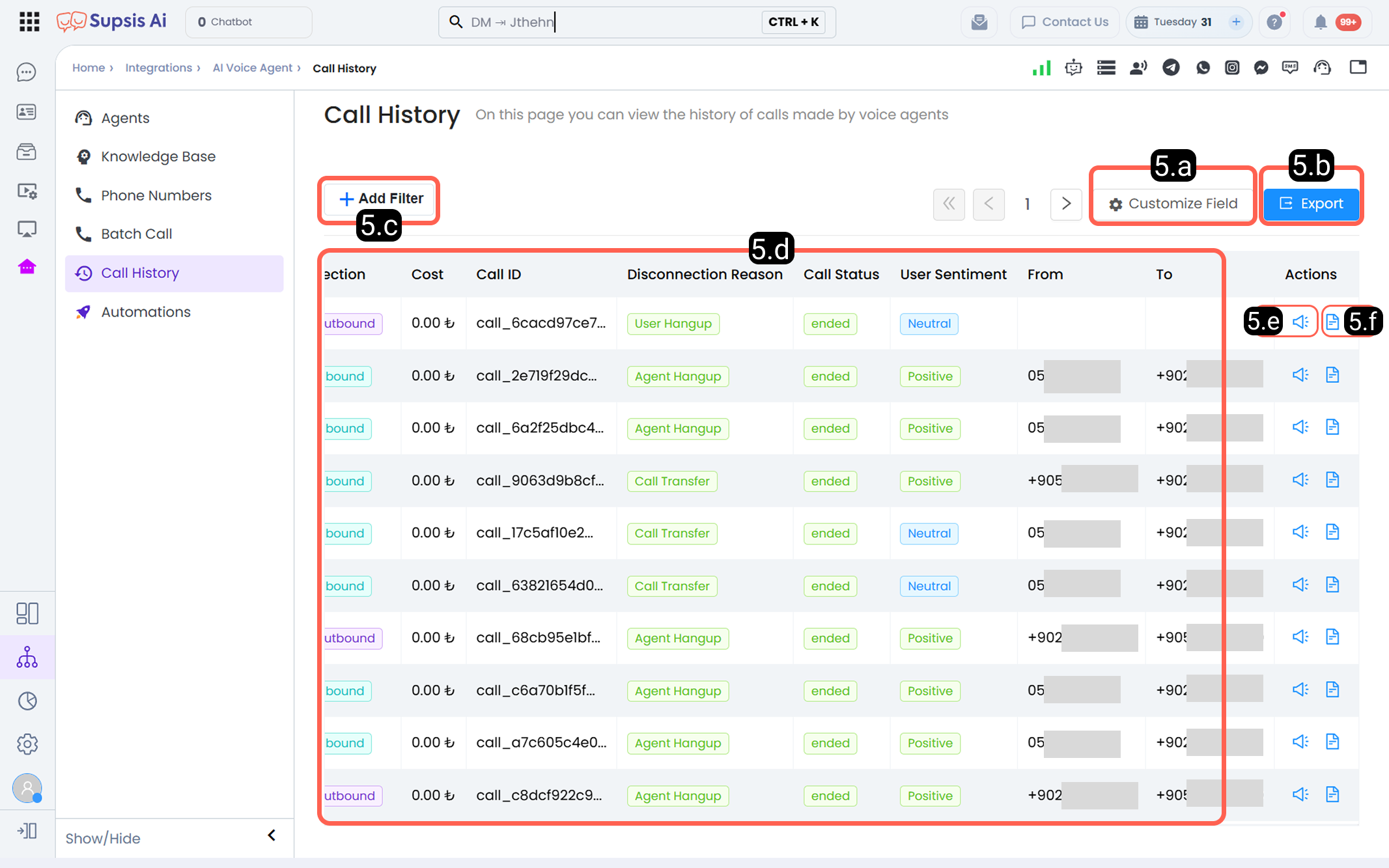
5.a – Define Table Data Content:
The Table Customization area allows managing which columns are displayed in the call history table.
Fields can be enabled or disabled according to user needs.
Customizable fields include:
- Call Duration
- Type
- Direction
- Cost
- Call ID
- Disconnection Reason
- Call Status
- User Sentiment
- From
- To
- Agent
- Call Successful
- End to End Latency
5.b – Export Table Content:
Using the Export button, the data displayed in the call history table can be exported.
- Only data matching active filters is exported
- Customized table view is respected
- Can be used for reporting and archiving purposes
5.c – Add Filter:
The Add Filter area allows filtering call history records based on specific criteria:
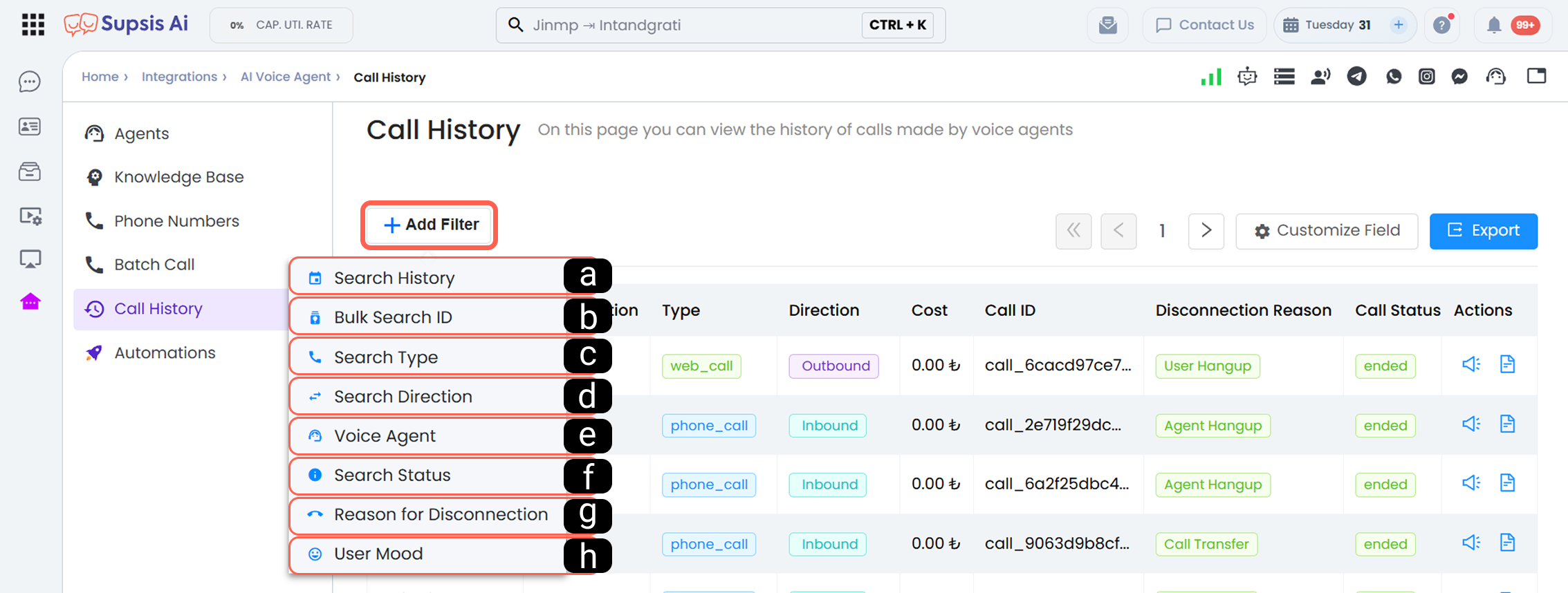
- Call Date
- Bulk Call ID
- Call Type
- Call Direction
- Voice Agent
- Call Status
- Disconnection Reason
- User Sentiment
5.e – Table Performance & Sticky Header:
When handling high volumes of call records and columns, the table stays within its container bounds. The table header remains fixed (sticky) while the list scrolls smoothly both vertically and horizontally. Additionally, the top toolbar adapts dynamically on narrower viewports by wrapping buttons onto new rows.
5.f – Call Detail Modal (Advanced Detail View)
Clicking any call row or details icon in the call history table opens the Call Detail Modal, an advanced 2-column inspection window.
The modal features a main left content panel and a right contact sidebar:
5.a – Main Left Content Panel
- Header Section:
- Call Timestamp: Full date and time of the call.
- Call Type Tag:
phone_call(Phone Call) orweb_call(Web Widget Call). - Agent Information: Agent Name, Agent ID, Agent Version, and Agent Tag (if configured).
- Call ID: Unique Call ID with a 1-click Copy button.
- Call Routing & Direction:
from➔tophone numbers and Inbound/Outbound direction. - Timing & Duration: Start/end times, timezone, and total call duration.
- Costs & Tokens: Call product cost (USD), Supsis wallet balance deduction (TL), and LLM token usage.
-
Delete Button: Permanently deletes the call record (requires
voice-agent.deletepermission). -
Audio Player:
- Listen to full audio recordings directly inside the panel.
-
Provides separate download links for Normal, Multi-channel, and redacted PII-scrubbed audio files.
-
Call Analysis Card:
- Call Successful:
Yes/Nostatus. - Call Status: Final connection state.
- User Sentiment: Positive, Negative, Neutral, or Unknown.
- Disconnection Reason: User Hangup, Busy, No Answer, etc.
- Listed with distinct colored indicator dots.
-
'Rerun' Button: Re-runs backend call analysis when prompt rules or criteria change, generating fresh sentiment and summary outputs (requires
voice-agent.updatepermission). -
Summary Card:
-
AI-generated executive summary of the conversation in Turkish and English.
-
Tabs:
- Transcription: Complete timestamped transcript including agent, user, and background tool call messages, plus Knowledge Base Retrieval links.
- Data: Technical metadata, dynamic variables, collected variables, SIP headers, custom analysis outputs, transfer targets/outcomes, data retention policies, and Twilio Call SID.
- Detail Logs: Download links for public logs and Knowledge Base retrieval files.
- Latency Table:
p50,p90,p95, andp99metrics across e2e, ASR, LLM, RTT, TTS, Knowledge Base (KB), and S2S delays. - Product Costs Table: Itemized USD cost breakdown by system service components.
- LLM Token Usage: Average token consumption and request count.
- Latency Table:
5.b – Right Contact Sidebar
- Contact Phone Number: Recipient's number (Outbound) or caller's number (Inbound).
- Recent Calls History: Lists the last 5 calls associated with the same phone number. Clicking any call from the list opens its detail modal instantly without page reload.
Step-by-Step Usage Guide
- Navigate to
Integrations → Voice Agentin the Customer Panel. - Select the Call History tab from the left sidebar.
- Click any call row or detail icon in the table.
- Review the 2-column modal including Header, Audio Player, Call Analysis, Summary, Tabs (Transcription/Data/Detail Logs), and Right Contact Sidebar.
- Re-run analysis via Rerun or remove records using Delete as needed.
Use Cases
- Detailed Call & Transcript Quality Audits: Listen to call recordings while reviewing timestamped transcripts and tool execution calls.
- Call Disconnection & Error Diagnostics: Investigate root causes for dropped calls (Disconnection Reason) and analyze customer sentiments.
- Latency & Cost Inspections: Review itemized USD/TL costs and latency metrics (ms) for LLM, ASR, and TTS components in the Detail Logs tab.
- Customer Interaction History Tracking: Jump directly to previous interactions with the same customer via the 5 recent calls list in the right sidebar.
- Re-evaluating Call Analysis (Rerun): Re-generate conversation sentiment and summary outputs after updating prompt analysis criteria.
- Cleaning Test / Invalid Records: Delete unnecessary or test call records permanently.
Customer Benefits
- Full Panel Parity: Complete visibility over transcripts, audio, analysis, costs, and latency without switching to external dashboards.
- Fixed Header & Smooth Scrolling: Sticky table headers and container scrolling eliminate page overflows on large data sets.
- Instant Customer Context: Fast 1-click access to a customer's recent call history.
Control & Technical Notes
- Prerequisites: Configured Voice Agent integration with active API keys.
- Permissions: Deletion requires
voice-agent.delete, Rerun requiresvoice-agent.updatepermission. - Dual Currency Display: Costs are displayed in both USD (product costs) and TL (Supsis wallet deductions).
- Packet Capture Note: Packet Capture tab is omitted since
get-callresponse does not exposepcap_url; network PCAP files can be inspected via logs if required. - Contact Resolution Note: Contact ID and Name are not displayed in the right sidebar; matched via phone numbers as no public Contacts API is used.
6-) Automations
The Automations section provides access to event-based automations triggered by Voice Agent activities.
Voice Agent automations enable automatic actions based on:
- Call initiation
- Call termination
- AI call analysis
These automations help manage call processes more efficiently, consistently, and in a scalable manner.
For more information about the scope, logic, and configuration details of automations triggered by voice agent activities, refer to the Event-Based Automations – Voice Agent documentation.
7-) Voice Agent Channel Analytics & Reporting (Analytics Tab)
The Analytics page added to Voice Agent channel details is an advanced reporting dashboard that allows customers to analyze the performance, call volumes, success rates, and cost distributions of their voice agents on a single screen with live data.
Workflow and call analysis reports that are not natively provided via API are fetched live from the calls service endpoint and aggregated on the Supsis backend. Since data is pulled on-demand per request, no caching is performed and no extra database overhead is introduced to Supsis. Call metrics come directly from the service API, while spending costs (₺) are joined from the Supsis AiCallLog database in a single batch query.
- Menu Path:
Integrations → Voice Agent → Select Channel → "Analytics" Tab in Left Sidebar.
Metric Cards & Visual Charts
When a date range is selected (default: last 7 days), an optional Agent filter is chosen, and the "Fetch" button is clicked, the following 5 metric cards, 6 charts, and 1 summary table load dynamically:
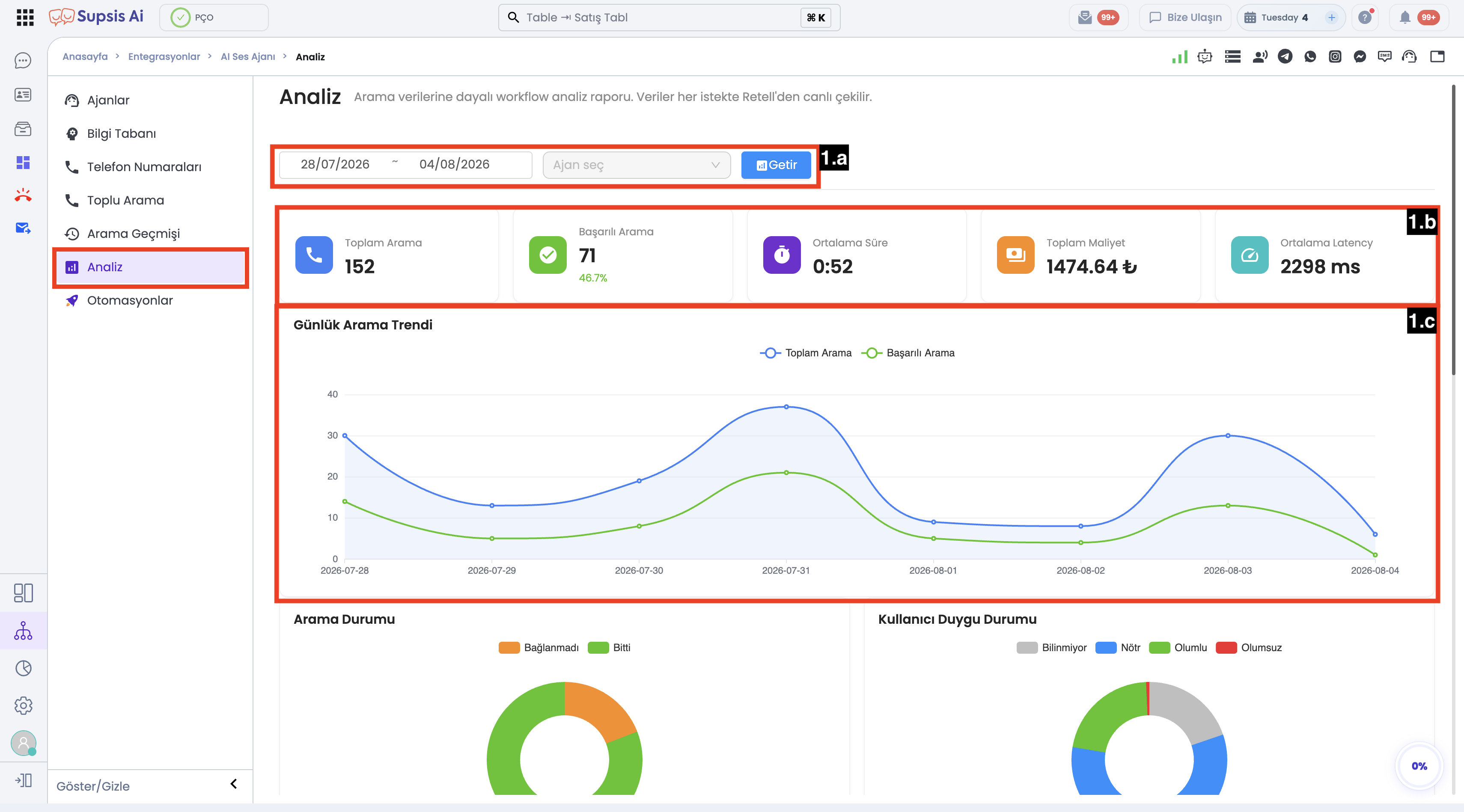
- 1. Summary Metric Cards & Filter Bar (1.a - 1.c):
- Filter Bar (1.a): Date range picker, Agent filter dropdown, and Fetch button. Selected via the Analytics tab in the left sidebar.
- Metric Cards (1.b): Total Calls, Successful Calls (+ Success Rate %), Average Duration, Total Cost (₺), and Average Latency (ms).
- Daily Call Trend (1.c): Time-series line chart comparing daily total calls vs. successful calls.
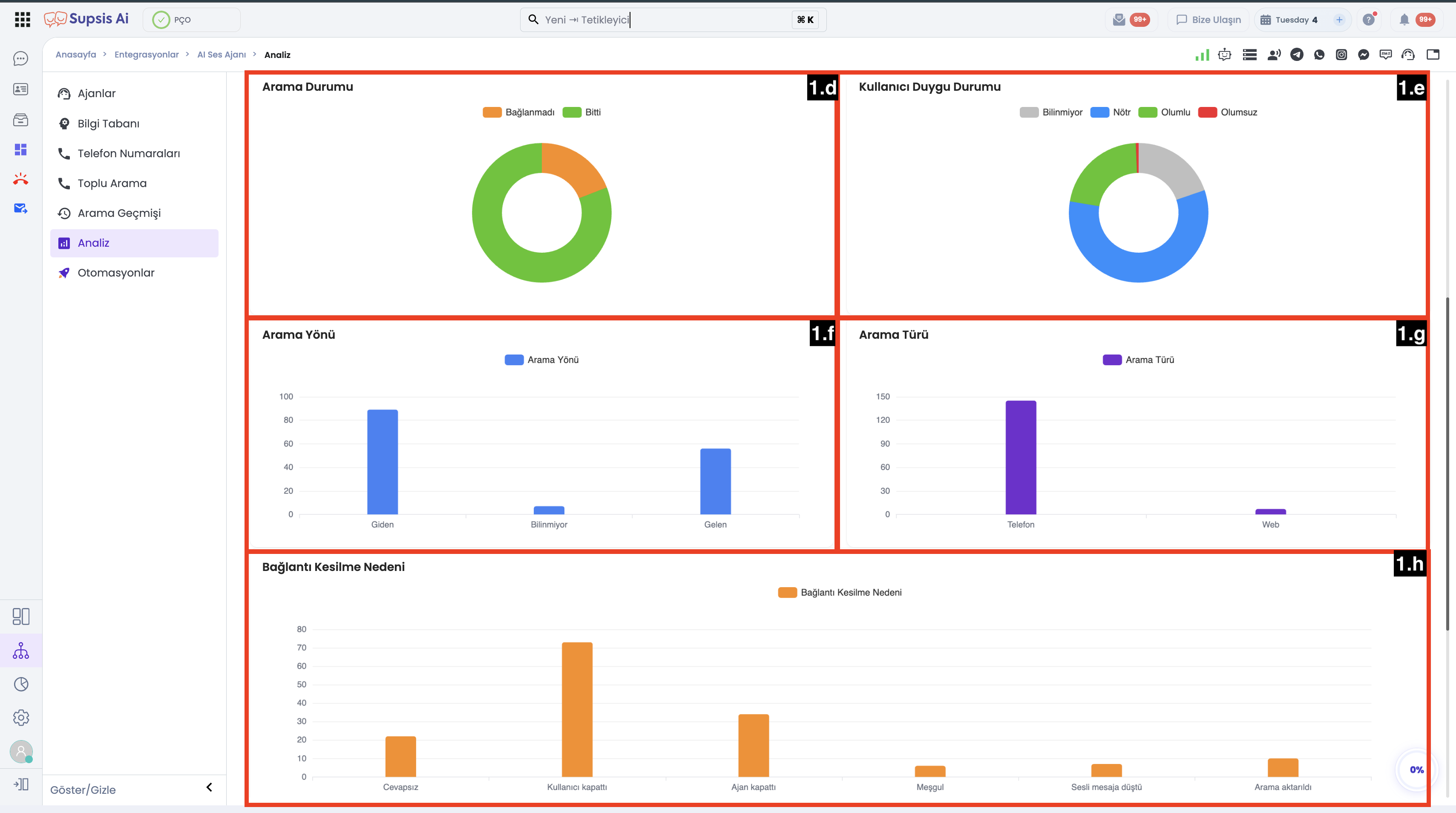
- 2. Call Breakdown Charts (1.d - 1.h):
- Call Status (1.d): Donut chart breakdown for Ended, Error, Not Connected, In Progress.
- User Sentiment (1.e): Donut chart for AI sentiment output: Positive, Negative, Neutral, Unknown.
- Call Direction (1.f): Bar chart for Inbound vs. Outbound.
- Call Type (1.g): Bar chart for Phone Call vs. Web Widget Call.
- Disconnection Reason (1.h): Bar chart for User Hangup, Busy, No Answer, Agent Hangup, Voicemail, etc.
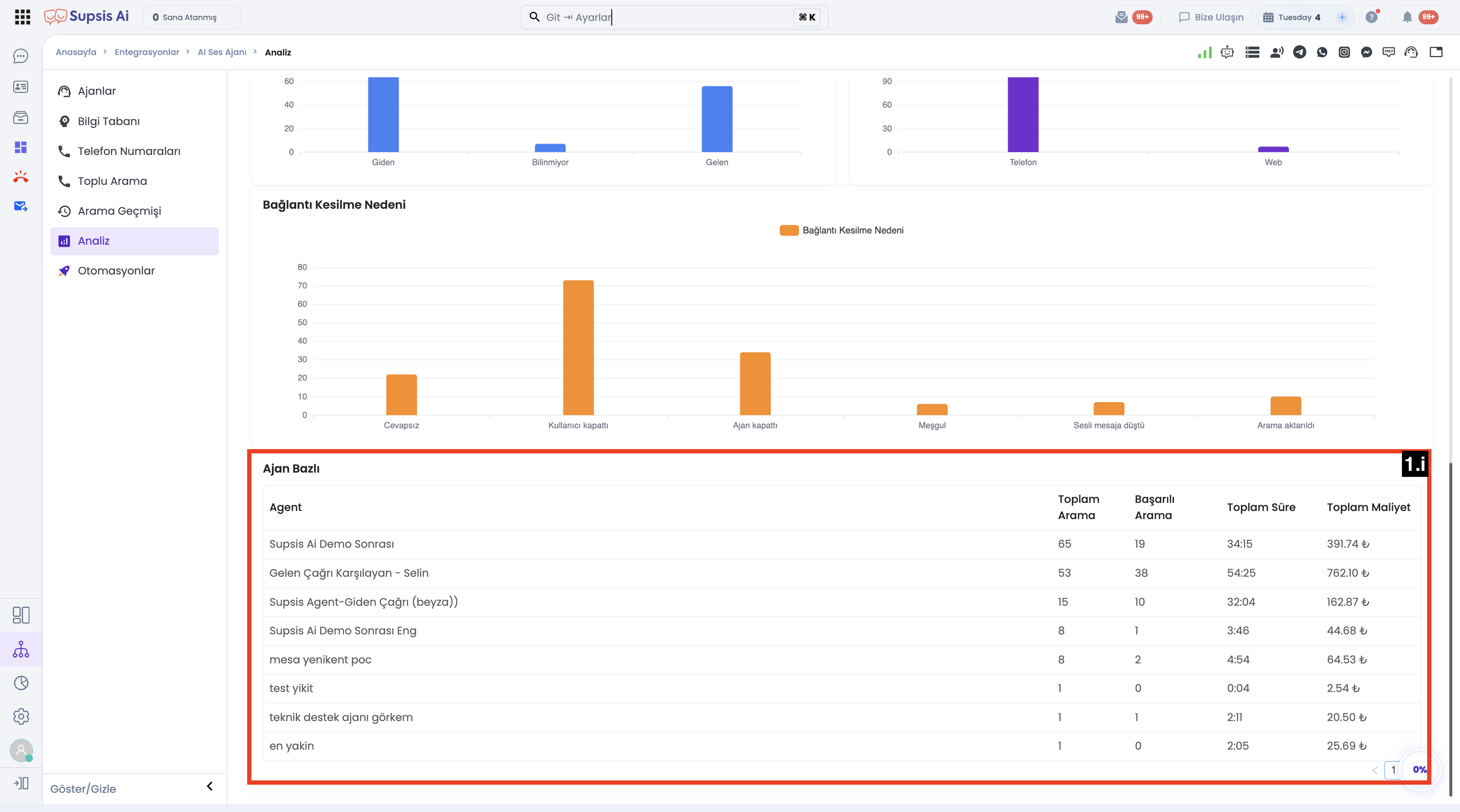
- 3. Agent Breakdown Table (1.i):
- Itemized table for each voice agent connected to the channel, displaying Call Count, Successful Calls, Total Duration, and Total Cost (₺).
Step-by-Step Usage Guide
- Navigate to
Integrations → Voice Agentin the Customer Panel. - Open the details of the channel you wish to analyze.
- Select the Analytics tab from the left channel sidebar.
- Select your desired Date Range from the top filter bar (defaults to last 7 days).
- (Optional) Filter by a specific voice agent if you want to inspect individual performance.
- Click Fetch to retrieve live metrics, charts, and the summary table.
Use Cases
- Call Volume & Success Rate Monitoring: Track total call volume and success rates (%) during marketing campaigns or routine operations.
- Voice Agent Latency Analysis: Evaluate conversation flow quality by monitoring average call duration and response latency (ms).
- Agent Performance & Cost Comparison: Compare call volume, conversation minutes, total spending, and success rates across multiple agents using the Agent Breakdown Table.
- Call Termination & Error Diagnostics: Identify why calls fail or where users hang up using the Disconnection Reason bar chart.
- Customer Sentiment Tracking: Measure overall customer satisfaction trends via positive, negative, and neutral sentiment ratios.
Customer Benefits
- Unified Dashboard: Access all analytics, performance, and spending data inside Supsis without opening external dashboards.
- 100% Real-Time Data: Operating without cache, reports refresh live with up-to-the-second data on every fetch request.
- Full Multi-Language Support: Fully localized in 8 languages (Turkish, English, German, Spanish, French, Italian, Russian, Arabic).
Control & Technical Notes
- Prerequisite: Channel must have a valid and active API key configured.
- Permission: User must possess access permissions for the Voice Agent module.
- Empty State: If no calls exist within the selected date range, an informative "No calls found in the selected date range" message is displayed.
- Security Limit (Truncated Data Warning): On high-volume accounts exceeding the 20,000 call safety limit, the system warns: "Not all calls could be fetched, please select a narrower date range".
- Data Sources: Call metrics are fetched from the service API; spending costs (₺) are queried from the Supsis
AiCallLogdatabase. - AI QA Note: AI QA metrics (hallucination, KB accuracy) are not present on this page; this dashboard focuses on call-level aggregated metrics.