
Meta Leads Integration
Meta Leads Integration allows you to instantly transfer potential customer forms (Lead Forms) collected through your Facebook and Instagram ads to the Supsis AI panel. In this way, requests coming from your advertisements are automatically converted into tickets, automation flows, or chatbot scenarios, minimizing response time even when your teams are online.
1-) Integration Process
The first stage of the integration is creating a channel in your Supsis AI panel.
1.a – Creating a Channel
-
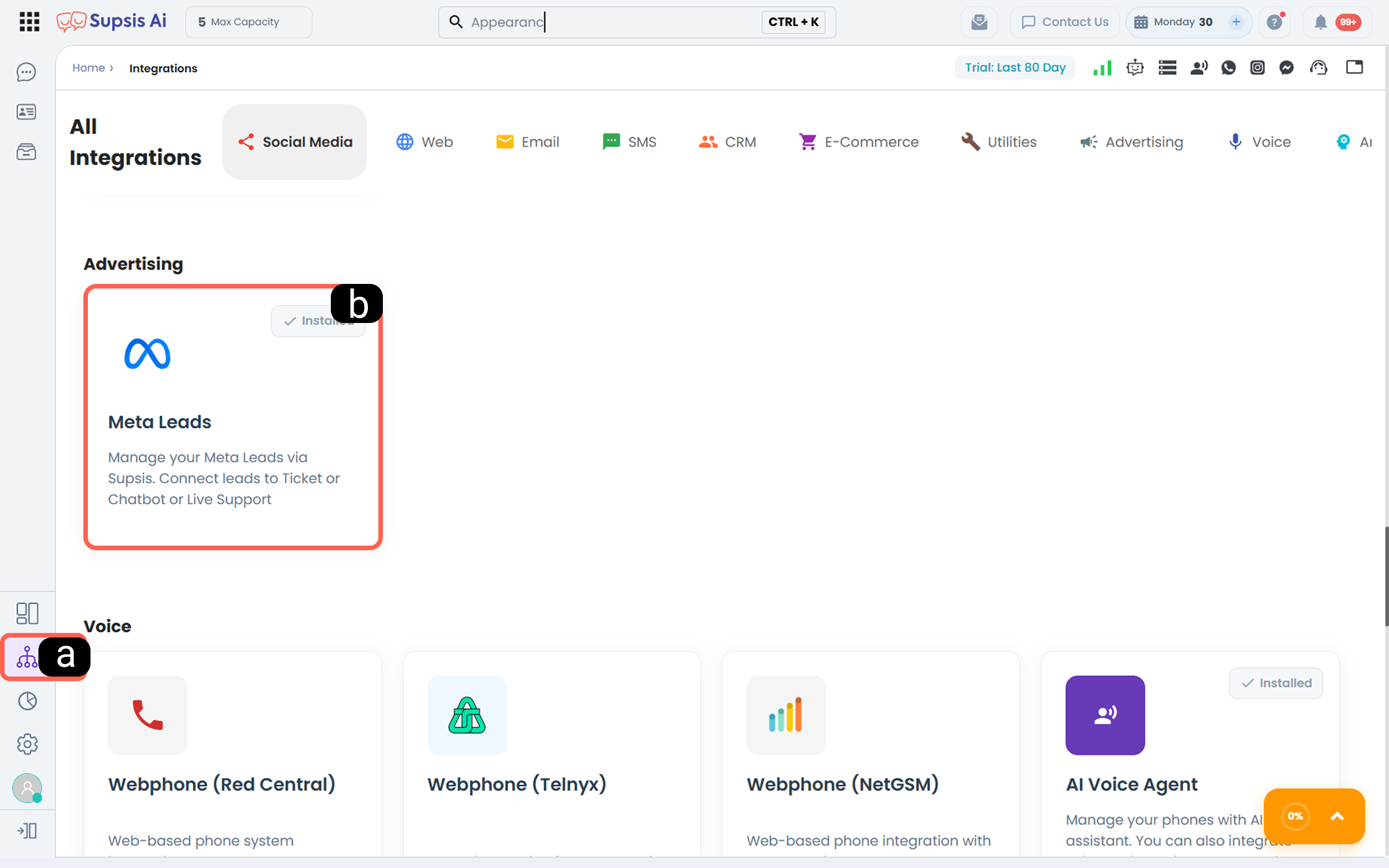
a – Access Integrations
Click the Integrations button located in the left menu of your Supsis AI panel. -
b – Channel Selection
Find the Meta Leads card under the "Advertising" category and click on it.
-
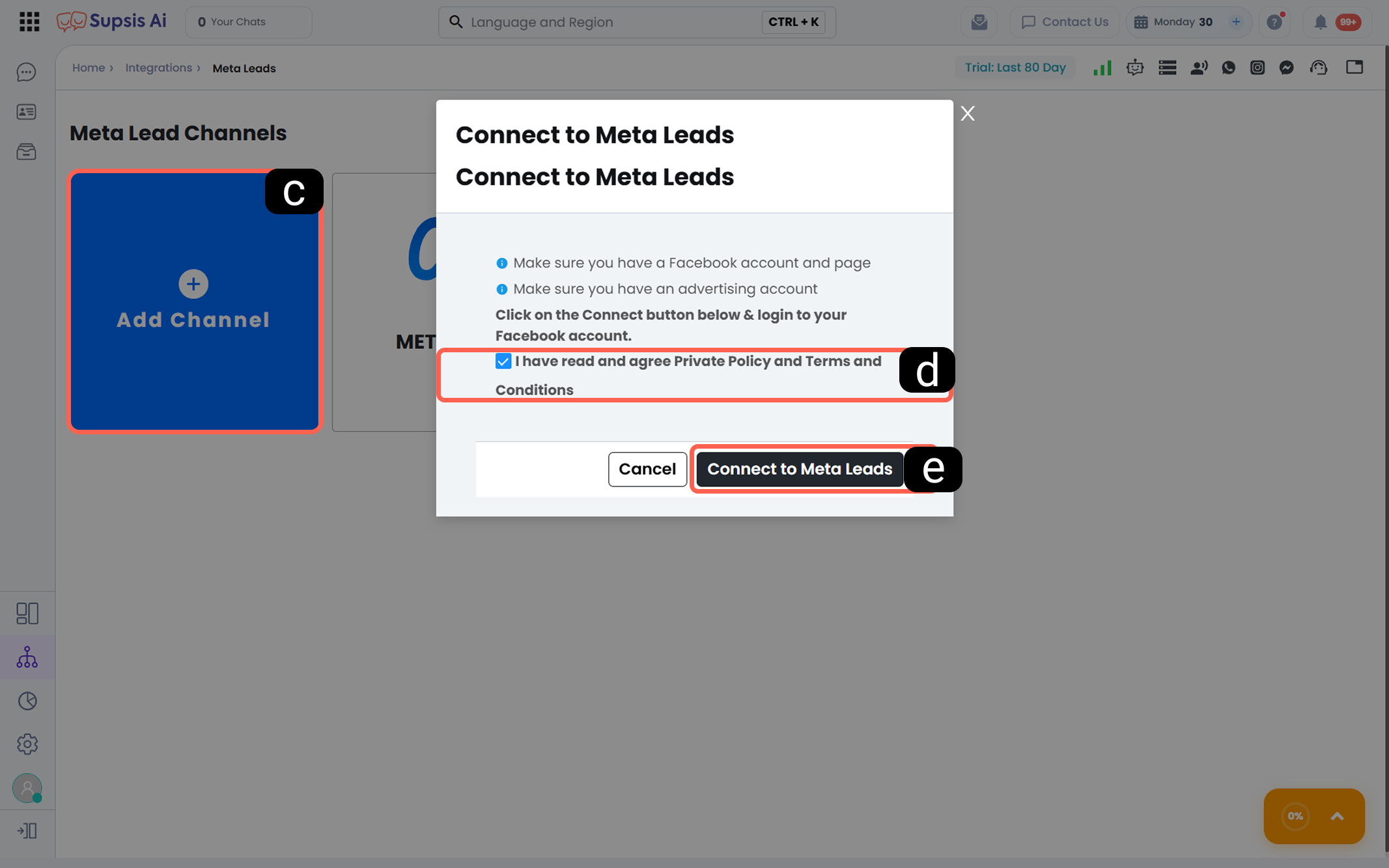
c – Add Channel
Click the blue "Add Channel" (+ icon) area on the opened screen. -
d – Terms and Conditions
Check the box labeled "I have read and accept" for connection security and data processing policies. -
e – Connect Meta Leads Account
Click the "Connect to Meta Leads Account" button to open the Facebook authorization window. From this window, log in with the Facebook user who has access to the business portfolio connected to your ads.
At this stage, the system will redirect you to the Facebook interface and request approval regarding which data will be shared.
-
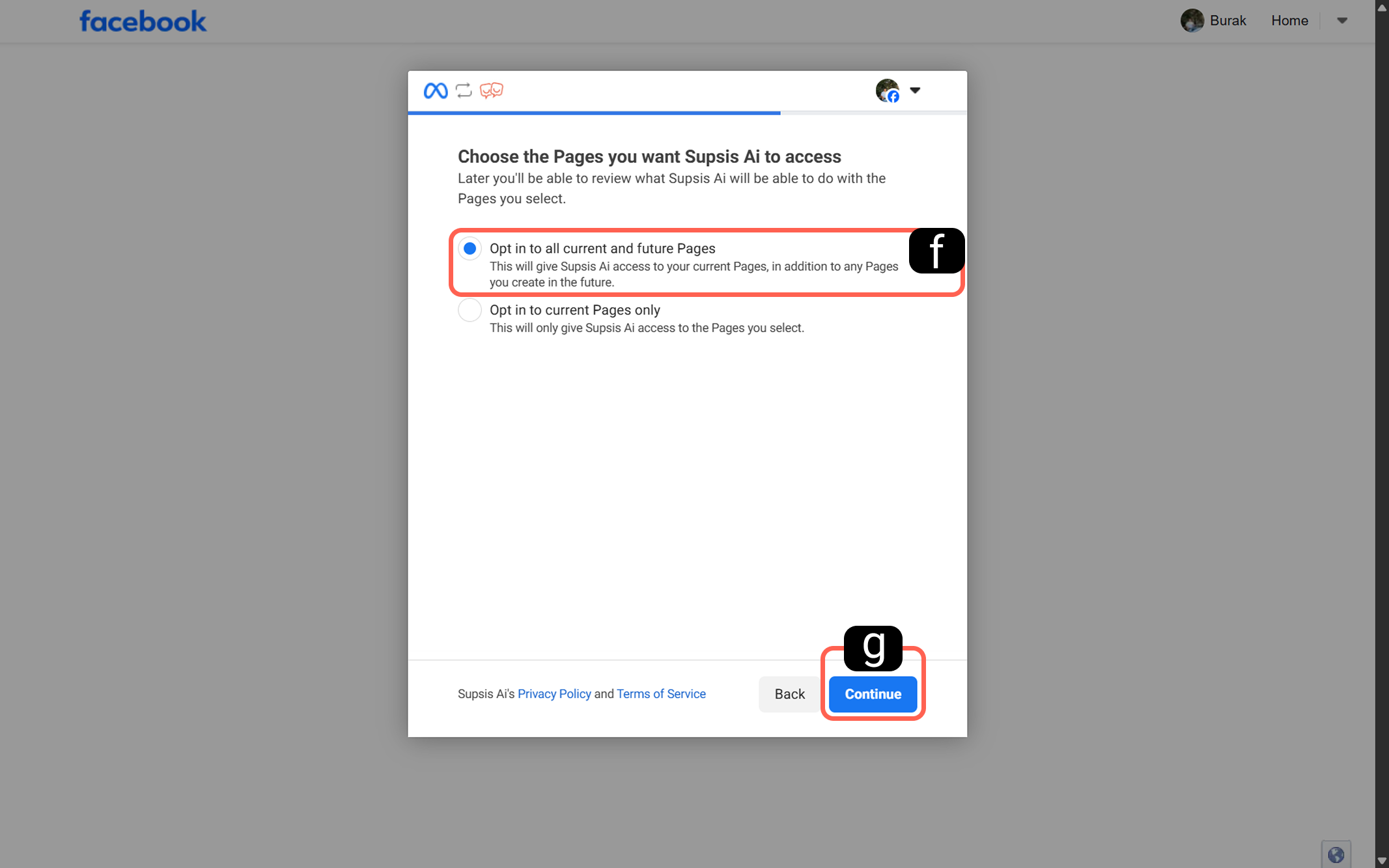
f – Permission Selection
Select the option to approve access to all current and future page assets. This option ensures that pages you add to your portfolio later will also be automatically included (Recommended). -
g – Continue
After making your selection, click the "Continue" button.
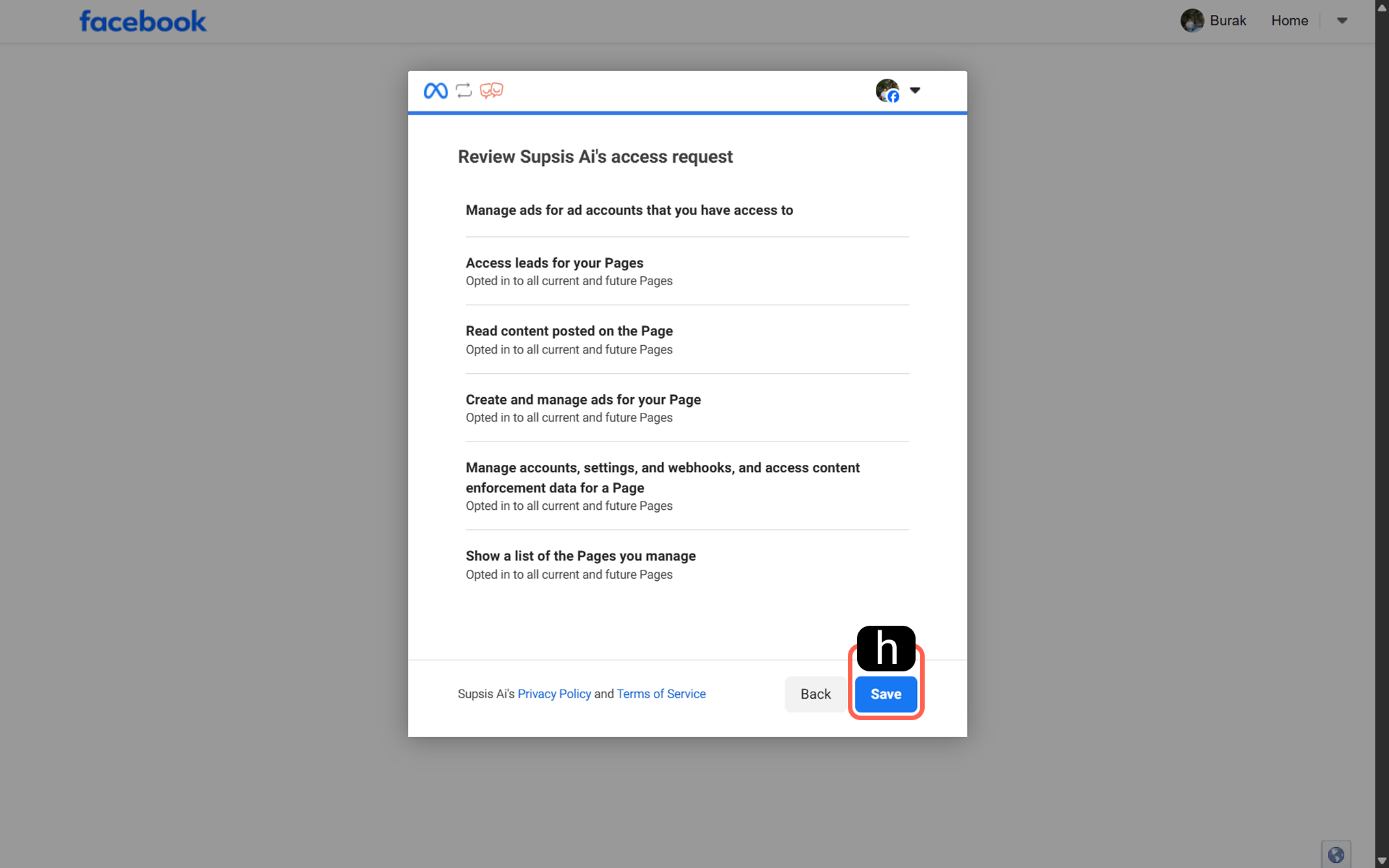
- h – Permission Confirmation
Meta will list the permissions requested by Supsis AI (such as managing ad accounts, accessing lead information, etc.).
Make sure all permissions are enabled.
Click the "Save" button to confirm the authorization process.
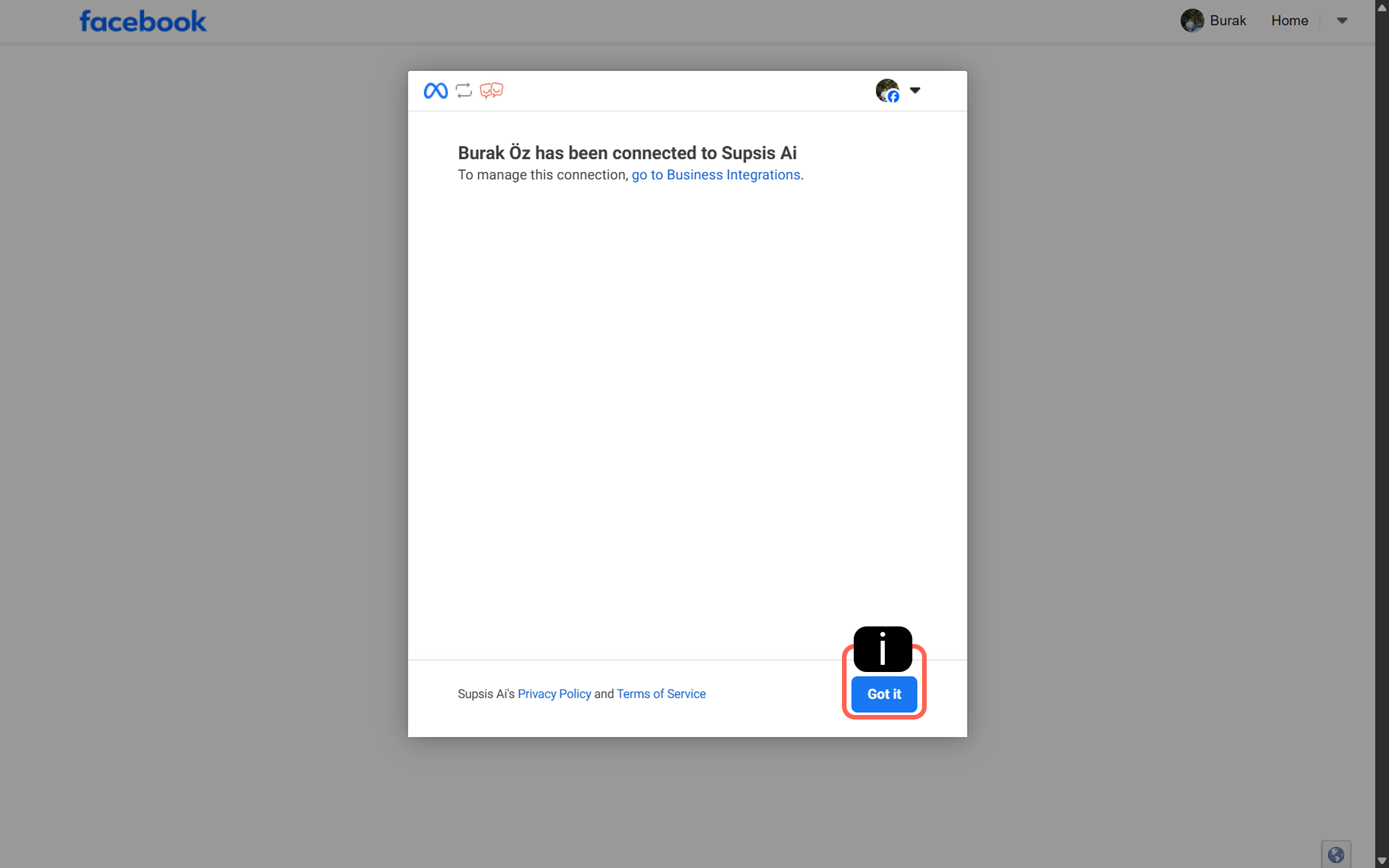
- i – Understood
When you see the message "Supsis AI connected to [Username]," the integration is activated. Click the "Understood" button to close the window and return to the Supsis AI panel.
2.) In-Channel Details

a - Leads
The Leads section is used to manage potential customer leads in the Meta Leads channel. This area allows users to view, filter, and analyze lead data. In this way, users can organize their leads and manage their sales processes more effectively.
b - Add Filter
You can perform filtering by clicking the "Add Filter" button or by adding conditions to existing filters, allowing you to easily find the Meta Lead you are looking for.

b.1 - Archived?
The "Archived?" filter allows you to filter leads based on whether they are archived or not, or even when this condition is irrelevant. This way, regardless of whether you have archived past leads, you can quickly access the data you need and manage your leads more effectively.
b.2 - Status
The "Status Filter" allows you to filter leads based on their current stage in the Meta Lead process. For example, you can filter by stages such as 'New Lead', 'First Contact', 'Needs Analysis', 'Quote Sent', 'Quote Review', 'Negotiation', 'Decision Stage', 'Closed', and 'Follow-up', making it easy to track and manage your progress at each stage.
b.3 - Campaign
The "Meta Lead Campaign Filter" allows users to segment their leads based on selected campaigns. This feature helps you analyze campaign performance in detail and optimize your strategies.
b.4 - Ad Set
The "Ad Set Filter" allows users to select from created ad sets and filter their leads accordingly. This helps evaluate and manage the performance of each ad set individually.
b.5 - Ad
The "Ad Filter" allows users to filter leads based on specific ads they have created. This feature makes it easier to analyze and manage the performance of each ad.
b.6 - Form
The "Form Filter" allows users to filter leads based on selected forms they have created. This helps analyze the effectiveness of each form and simplifies lead management.
b.7 - Platform
The "Platform Filter" allows you to filter your leads based on the platform. For example, by selecting platforms like Instagram or Facebook, you can quickly access leads from specific sources.
b.8 - Email
The "Email Filter" allows you to filter leads based on email addresses. It enables quick and easy access to leads with a specific email address.
3-) Meta Leads Channel Health & "Reconnect Required" Alert
If Facebook ad account permissions or lead form access tokens change (token-invalid), incoming ad leads may fail to ingest into Supsis Ai.
- Channel List Warning: Disconnected channels are highlighted with an orange border and a
Reconnect Requiredbadge in the Meta Leads channels list. - Re-authorization: Clicking the channel opens the modal to refresh Facebook OAuth permissions instantly via Reconnect.