
This section contains shortcuts that provide access to system usage details and features.
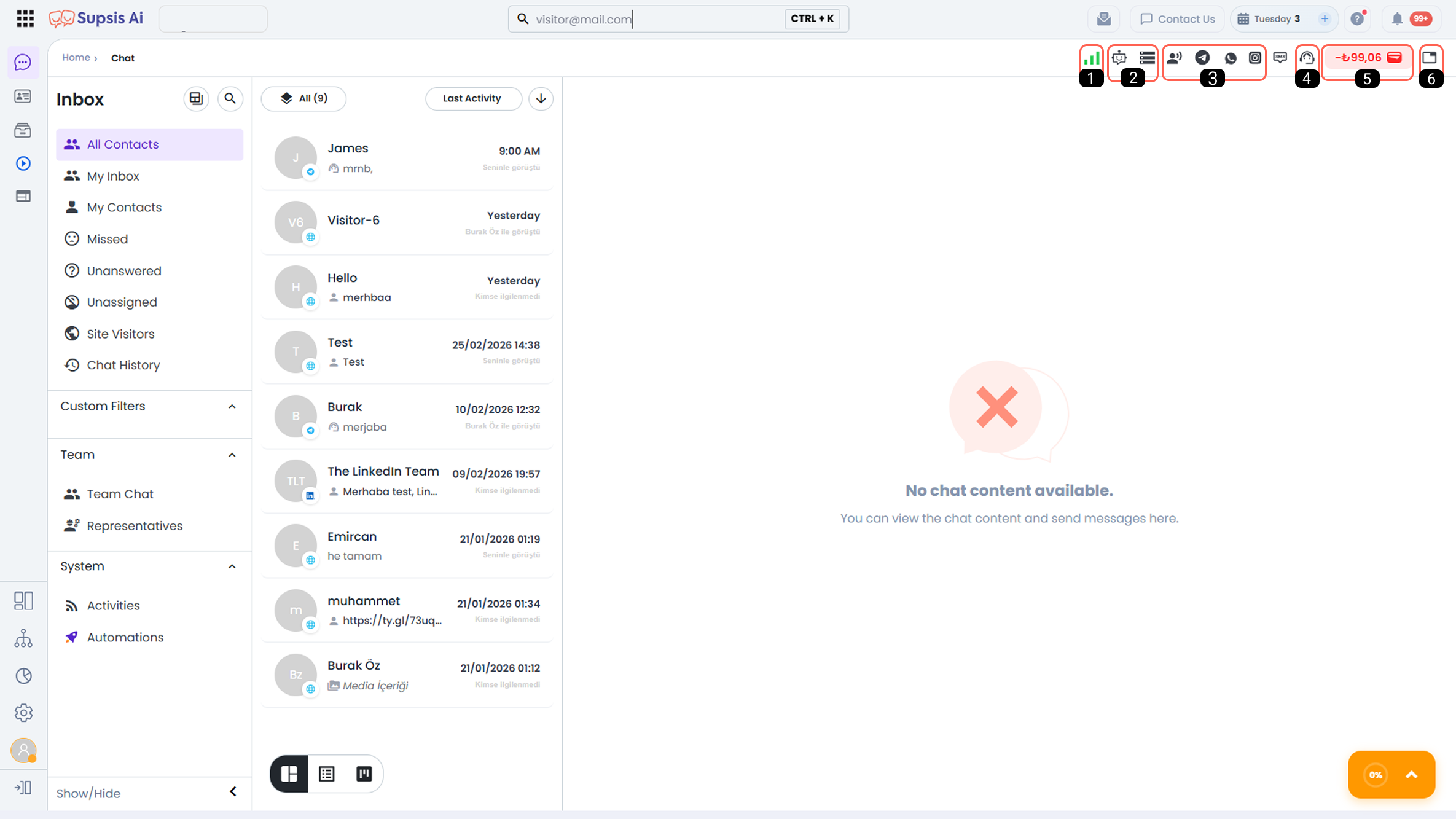
| No | Menu |
|---|---|
| 1 | Server Connection Status |
| 2 | Package Usage Details |
| 3 | Channel Shortcuts |
| 4 | Support Line Activity Status |
| 5 | Wallet Shortcut |
| 6 | Create Web Tab |
1-) Server Connection Status
You can monitor your device’s connection status to Supsis servers from this section. In case of connection issues such as internet problems, the connection logo in this section will turn red to notify you of the situation. If there is a server connection issue, the actions you perform in the panel will not be executed.
2-) Package Usage Details
This is the area where you can track the used, remaining, and total session counts of modules with specific usage limits such as chatbot, automation, and storage space.
3-) Channel Shortcuts
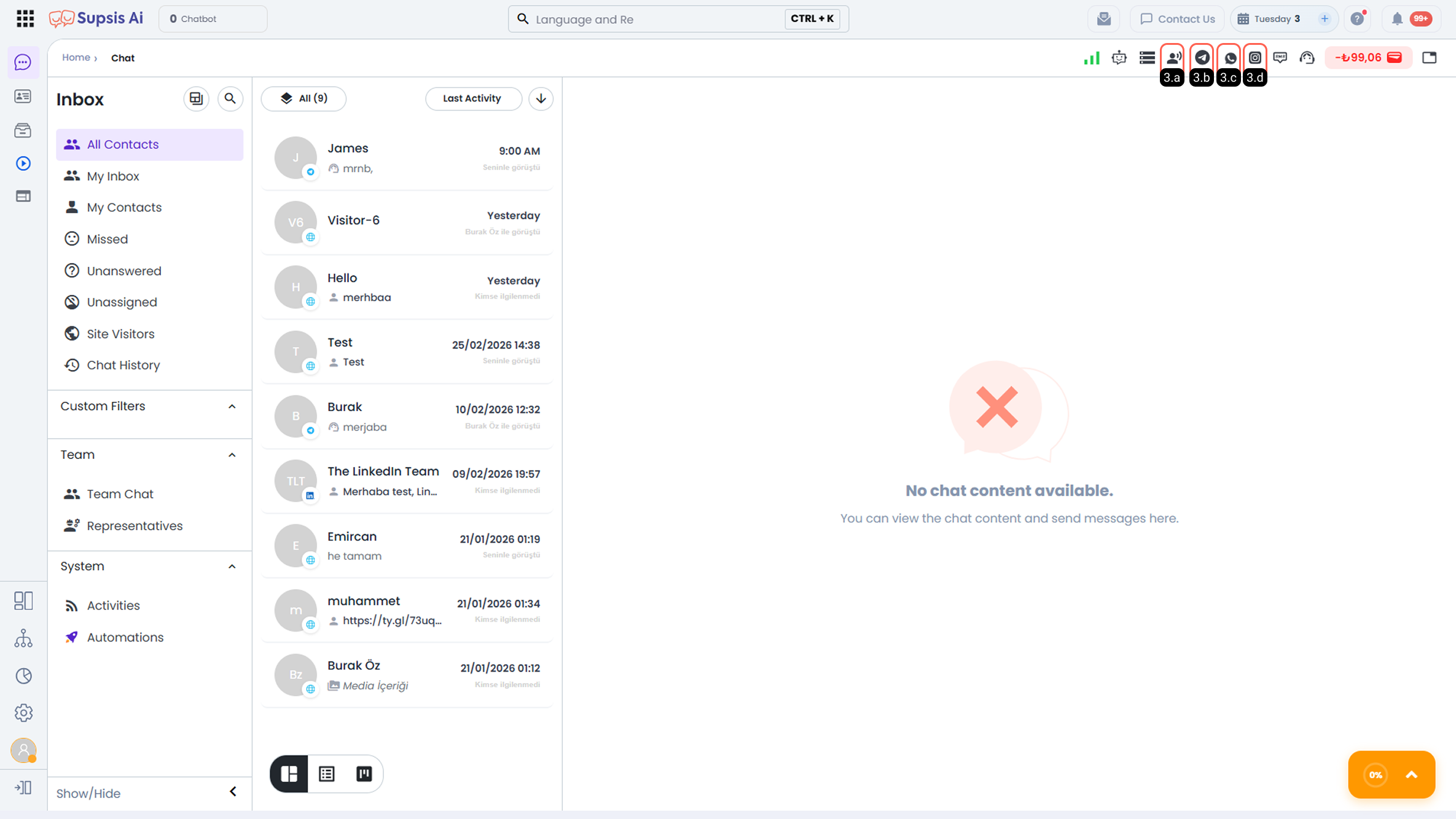
Channel shortcuts allow you to quickly access communication channels integrated into the Supsis panel and perform actions available through these channels with a single click. Through this area, you can view the status of related services and take action without switching between different channels.
-
3.a – Voice Agents:
You can access shortcut operations related to voice agents connected to the system through this button. From this area, you can view and edit voice agent settings and initiate calls using the selected voice agent. -
3.b – Telegram Bot Service:
The current status of the Telegram bot service is displayed in this area. You can check whether your Telegram bot is active or inactive and monitor the operational status of the bot service. -
3.c – WhatsApp Channels:
You can use this shortcut to quickly access WhatsApp channels and send bulk or individual messages via WhatsApp. Through this area, you can send bulk messages to predefined customer groups or send a direct message to a specific number. -
3.d – Instagram & Messenger:
Provides quick access to Instagram and Messenger communication channels. Through the shortcut indicated by the communication channel logo here, you can easily access the contacts you communicate with via the relevant channel and channel-based ticket records.
4-) Support Line Activity Status
From this area, you can view the activity status of the support line. The system automatically evaluates whether the support line is open to receiving new chats based on agent and system statuses.
If there is no online agent available to receive chats or if the support line has been manually set to offline, hovering over the marked button with the mouse will display the button in red and show that chat intake is closed.
If the support line is open to new chat assignments, the button appears in green and clearly indicates that the support line is online. This display allows you to easily monitor the current status of the support line in real time.
5-) Wallet Shortcut
Usage fees for third-party integrations such as WhatsApp, OpenAI, and similar services that are billed through Supsis are managed via the Supsis Wallet system.
From this area, you can: view your current wallet balance, quickly access wallet details, and check your spending and usage status.
If the wallet balance is insufficient, the relevant integrations may be temporarily suspended. Therefore, it is recommended to regularly monitor your balance.
For more detailed information on this topic, please review the Wallet documentation.
6-) Create Web Tab
This shortcut allows you to create new web tabs within the Supsis panel. Through the created web tabs, you can quickly access different web pages or custom links directly from the panel.
Web tabs help agents gather frequently used pages in one place, speed up workflows, and improve the in-panel user experience.
For more detailed information about web tabs, please review the Web Tab documentation.