
CoPilot Prompt Integration
1) Integration Process
This section covers the process of configuring and customizing CoPilot prompts through the Supsis AI panel. Users can select predefined prompt templates for the Chat Assistant and Email Assistant, update system instructions, add variables, and customize AI responses according to their business needs.
1.a - Setting Up the Integration
Follow the steps below to complete the integration through the Supsis AI panel:
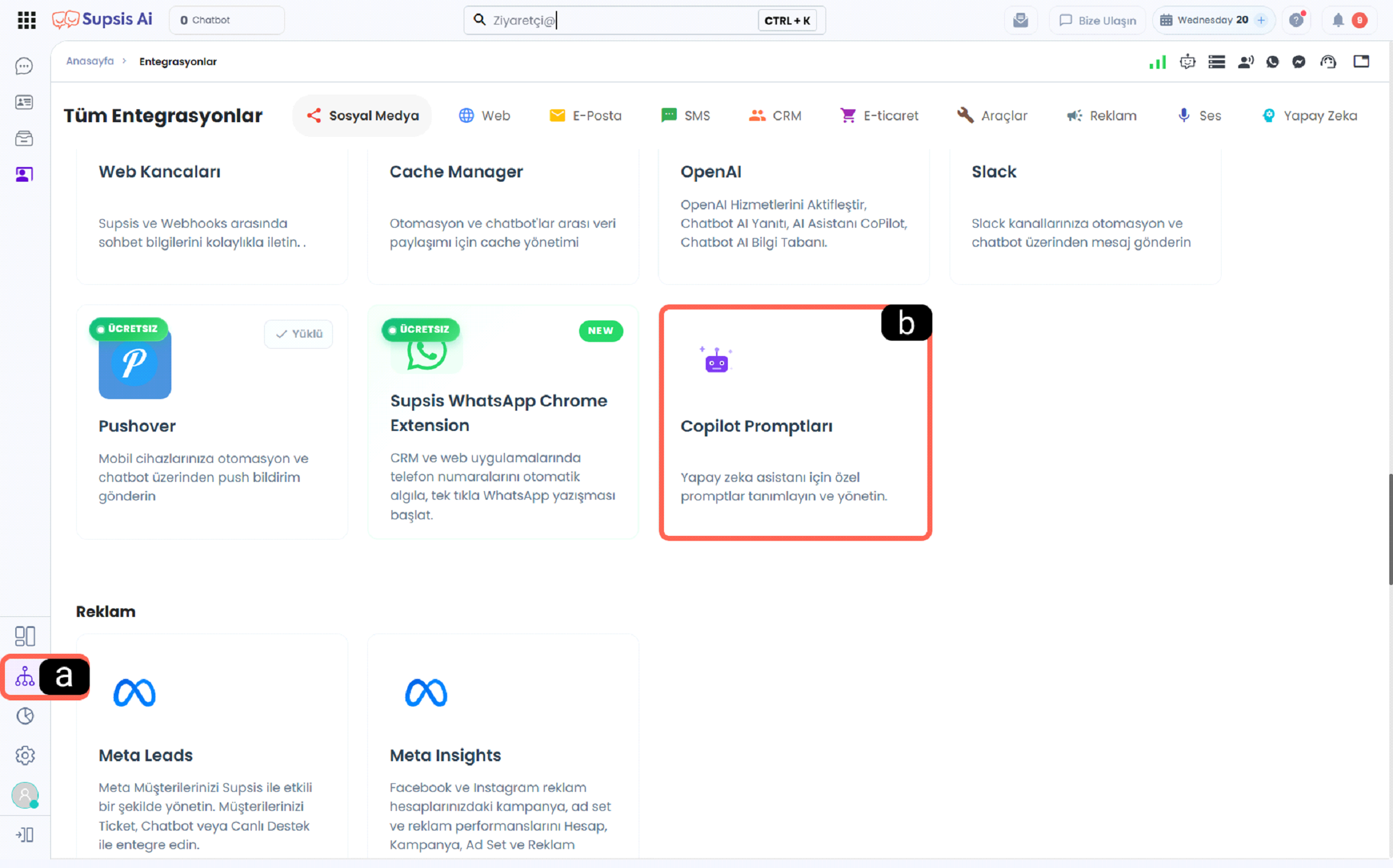
a - Integrations Click the Integrations icon from the left-hand menu of your Supsis AI panel to open the integrations page.
b - Channel Selection Locate the CoPilot Prompts card in the available integrations list and click it to open the integration details.
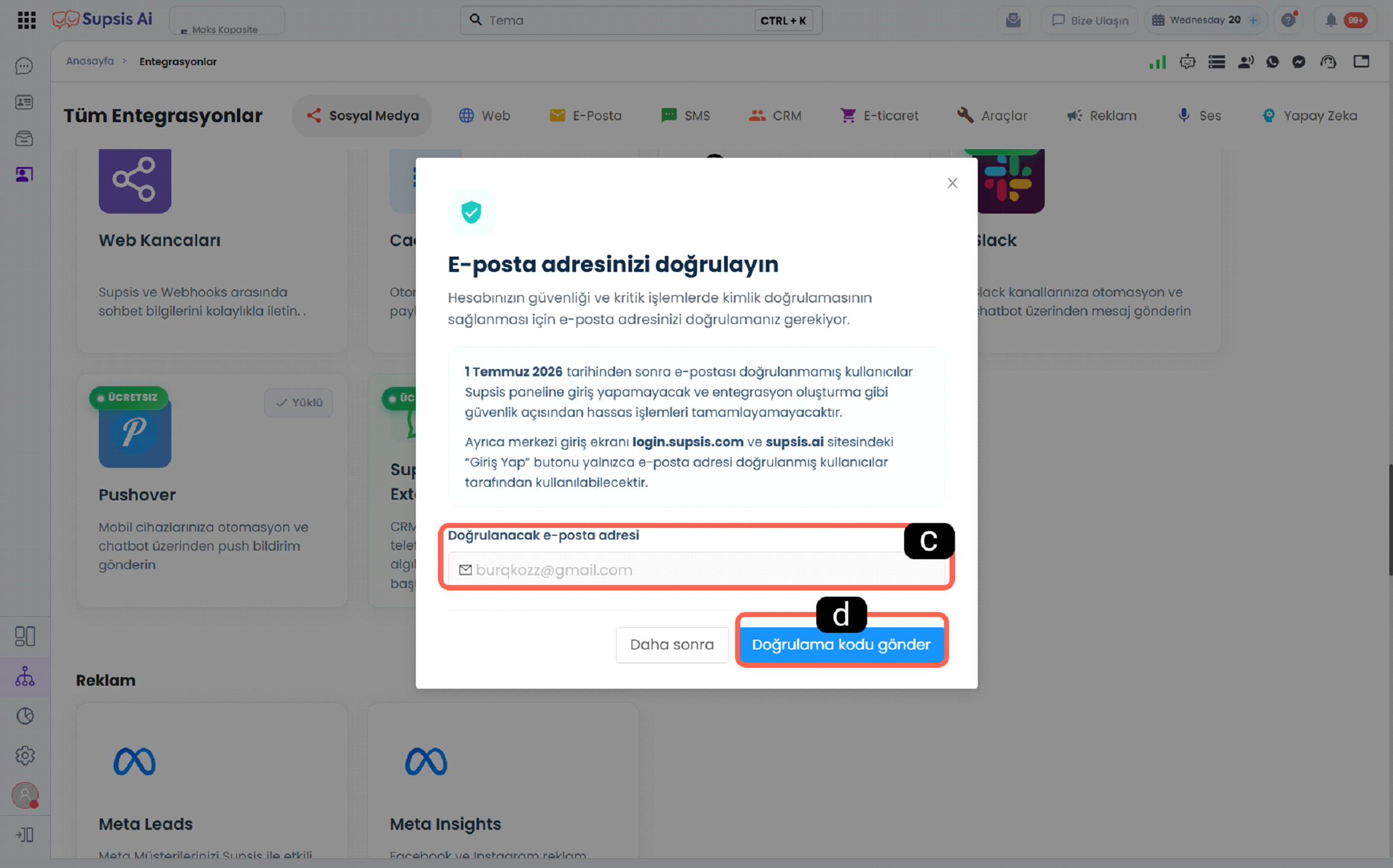
c - Verification Email Address Field Enter the email address that will be used to verify your account. A verification code will be sent to this email address.
d - Send Verification Code Button Sends a verification code to the entered email address. Click this button to start the email verification process.
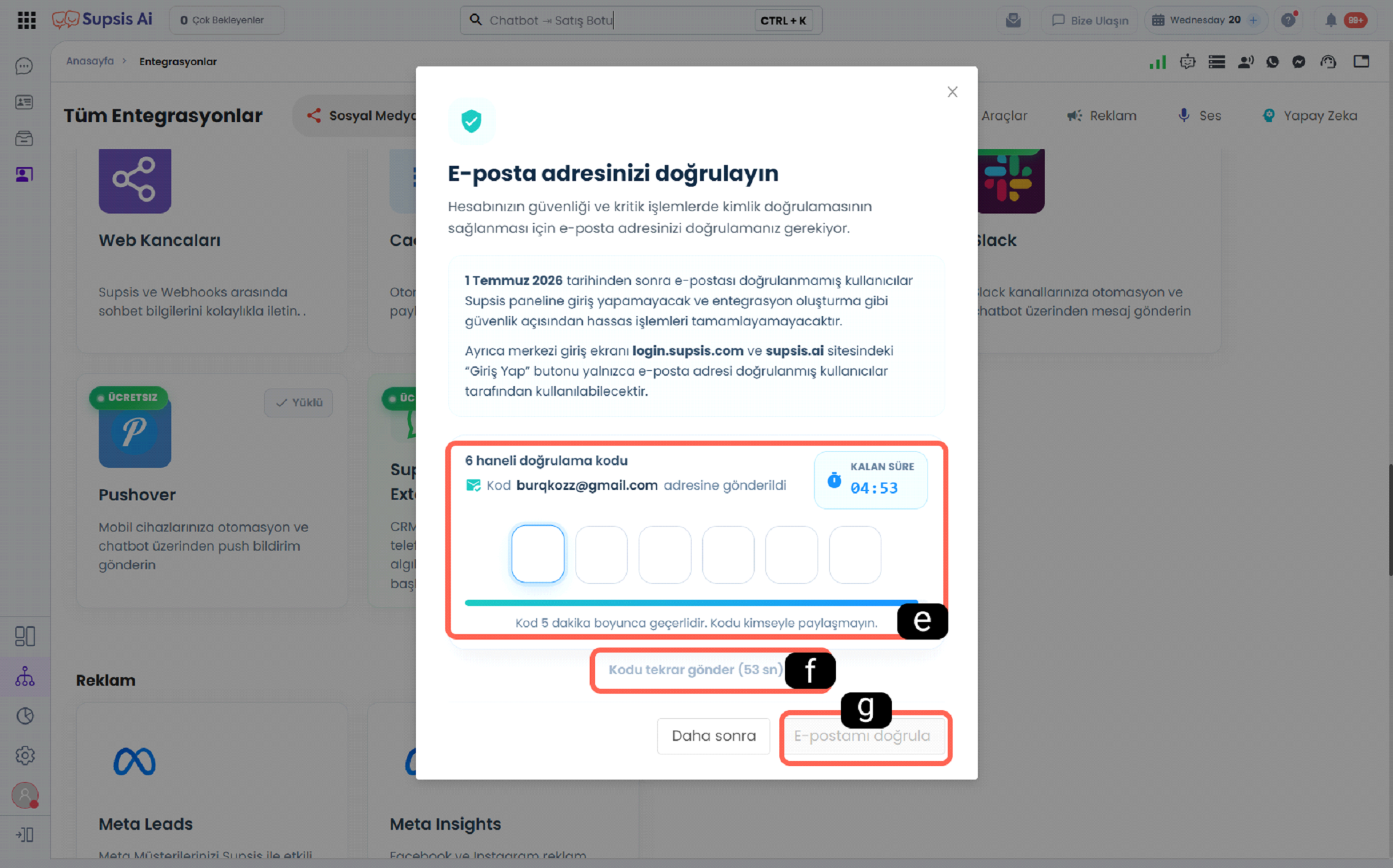
e - Verification Code Field Enter the 6-digit verification code received by email. The remaining validity time of the code is also displayed in this section.
f - Resend Code Button If you did not receive the verification code or it has expired, use this button to request a new verification code. The system will resend the code to the specified email address.
g - Verify My Email Button Validates the entered verification code and completes the email verification process. If the code is correct, the account is successfully verified.
1.b - CoPilot Prompt Content
You can view, edit, and customize the predefined prompt templates used by the AI assistant.
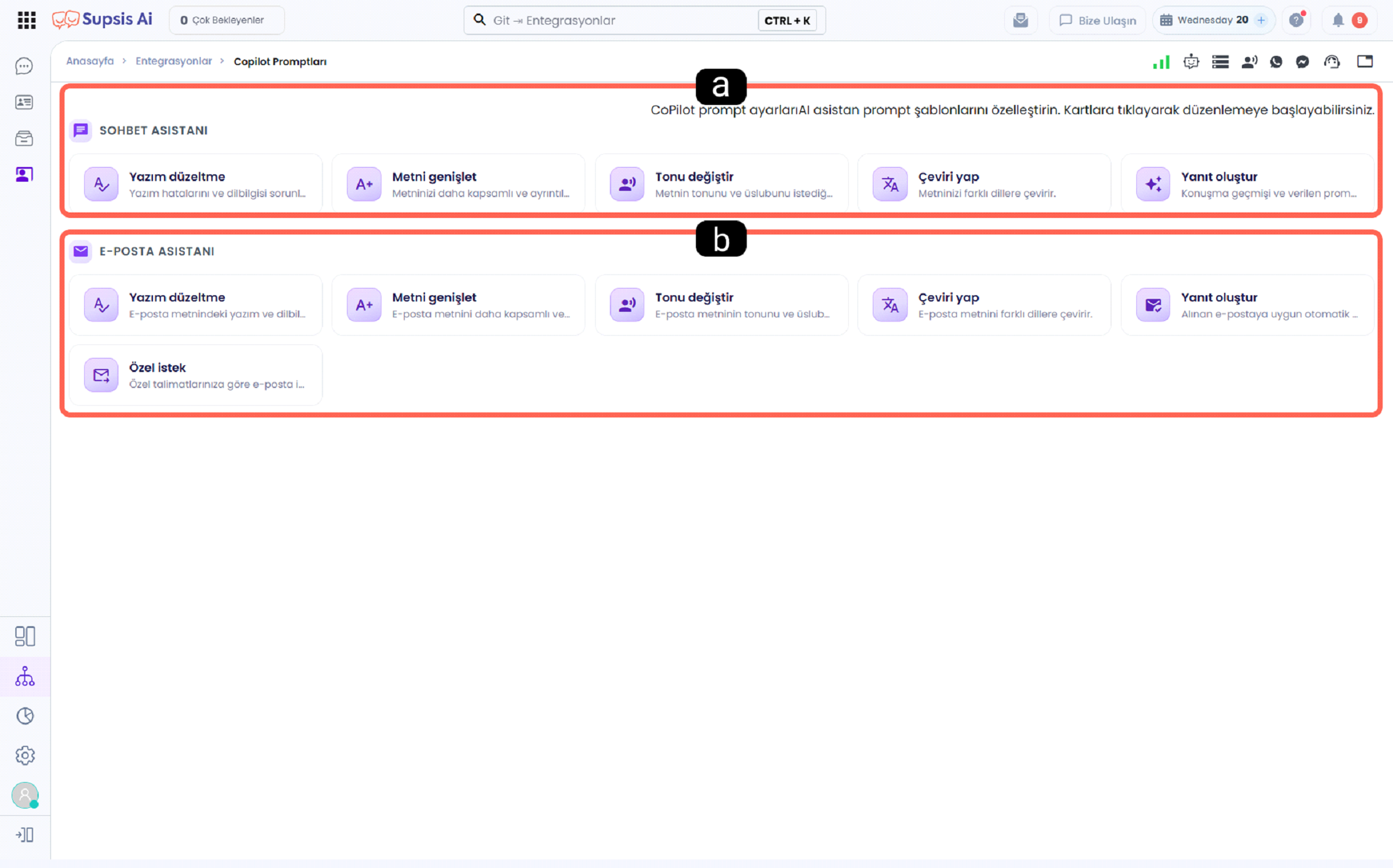
a - Chat Assistant Prompt Templates Contains predefined prompt templates used by the Chat Assistant. Users can customize prompts for grammar correction, text expansion, tone adjustment, translation, response generation, and similar tasks.
b - Email Assistant Prompt Templates Contains predefined prompt templates used by the Email Assistant. Users can customize prompts for grammar correction, content enhancement, tone adjustment, translation, automatic email replies, and custom content generation.
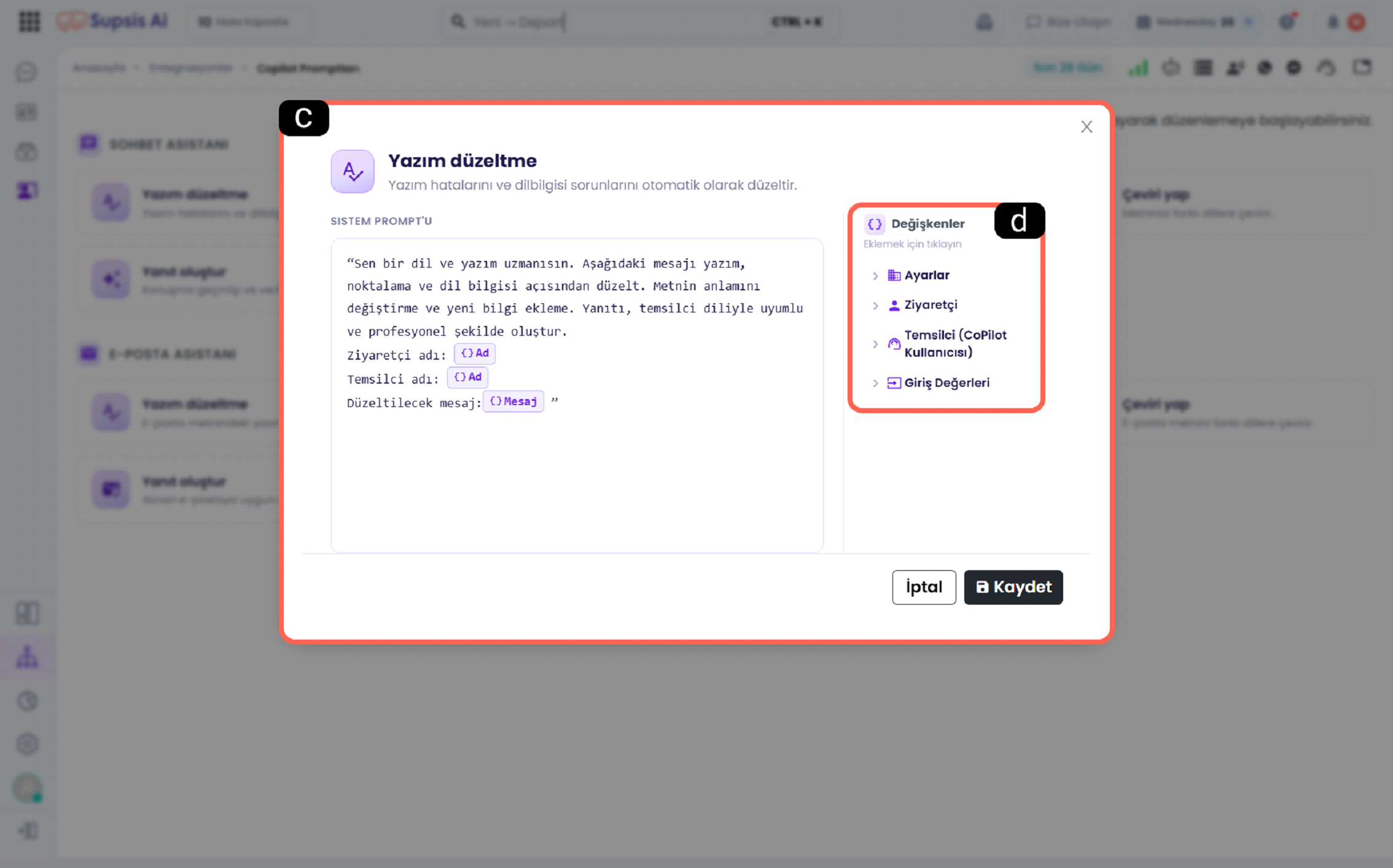
c - Prompt Editor The area where system instructions for each prompt are defined and AI behavior is configured. Users can edit prompt content to create response flows tailored to different use cases.
d - Variables Panel Contains predefined variable groups such as Settings, Visitor, Agent (CoPilot User), and Input Values. These variables can be inserted into prompts using drag-and-drop to create more dynamic and personalized AI responses.
1.c - Sample Prompt
A sample system prompt demonstrating how to define AI behavior using structured instructions. This example illustrates both variable usage and prompt structure.
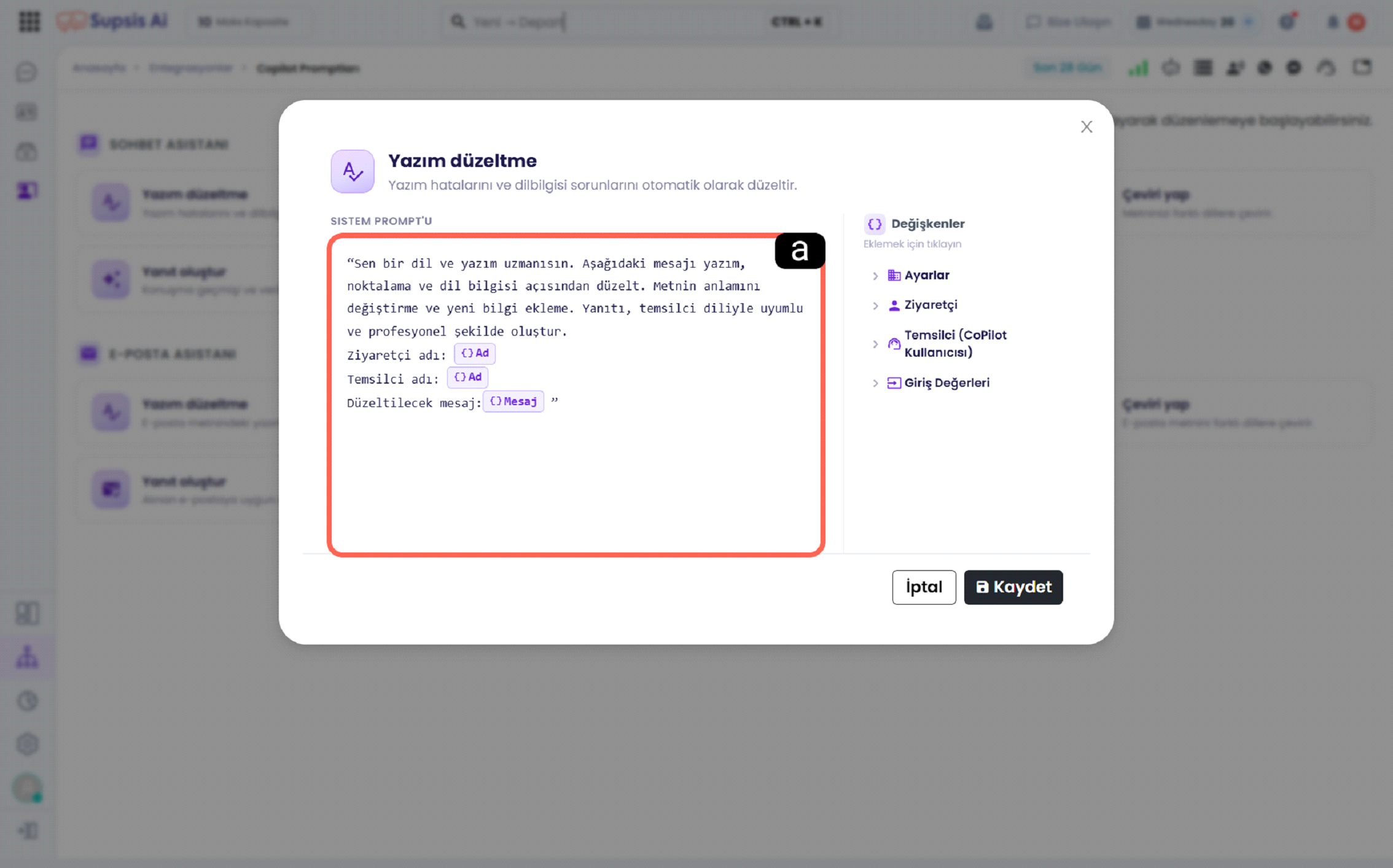
a - Example Displays a sample system prompt built using multiple variables. In this example, visitor information, agent information, and the user's message are used as variables to generate more personalized and controlled AI responses.
1.d – Data Security and Prompt Isolation
Copilot prompts encompass organization-specific communication standards, response generation rules, tone guidelines, and internal business instructions. Consequently, Supsis implements a robust, multi-tiered data isolation architecture to ensure the utmost privacy and security for your Copilot data.
| Data Scope | Content & Purpose | Access & Security Layer |
|---|---|---|
| Internal Copilot Prompts | Grammar correction, tone modification, expansion, translation, reply generation, and corporate email prompts. | Authenticated Panel Access Only: Accessible strictly to authorized administrators and agents logged into the Supsis Customer Panel. Never exposed via public or unauthenticated endpoints. |
| Visitor Widget Settings (Public) | Chat bubble colors, theme, language options, button layouts, and basic interface configurations. | Anonymous Visitor Access: Openly accessible for webchat widget functionality. However, internal business prompts, integration secrets, and sensitive attributes are strictly omitted (Strict Secret Isolation) from public responses. |
Security Principles and Protection Mechanisms
- Intellectual Property & Information Security: Your internal prompt instructions and operational rules cannot be inspected or retrieved by unauthorized third parties through the live website widget or external public requests.
- Strict Attribute Filtering & Cache Defense: In the public settings services consumed by the webchat widget, the system automatically omits all internal AI instructions from the secret fields list prior to payload synthesis and cache insertion.
- Role-Based Privilege Isolation: Configuration, testing, and modification of Copilot prompts are restricted exclusively to authorized roles within the Customer Panel.
Data Security and Isolation Guarantee
Supsis maintains a strict boundary between public-facing webchat widget services and internal Copilot AI features designed to assist your live agents. Your proprietary Copilot prompts, API keys, and account credentials remain strictly protected and isolated from public web traffic.
CoPilot Prompt Integration allows you to customize the behavior of your AI assistant according to your organization's requirements. With predefined prompt templates, reusable variables, and editable system instructions, you can create more consistent, controlled, and efficient AI responses for both chatbot and email workflows. This gives users greater control over AI-generated content and enables business processes to be tailored to their specific needs.