
3-) Activation of the Ticket Module
When you activate the Ticket menu, you can manage customer requests from all communication channels integrated into Supsis AI from a single center through the ticket structure. The Ticket module ensures that requests coming from different sources are recorded, tracked, and managed in an organized manner.
When the Ticket module is activated, requests received through the following channels are automatically converted into tickets:
-
Instagram and Messenger Comments
Comments received via Instagram and Messenger channels are created as tickets. All responses and interactions are managed through the ticket menu. -
Offline Web Requests
Requests left through the chat bubble while live support is closed on your website are automatically converted into tickets. -
Ticket Creation via Chatbot
Tickets can be created based on users interacting with the “Create Ticket” block in the chatbot scenario diagram or the “Run Javascript” block that includes a ticket creation function. -
Trendyol Q&A Management
Customer questions received in your Trendyol store are displayed, answered, and recorded in the ticket menu. -
Ticket Creation via Automations
Tickets can be created based on users interacting with the “Create Ticket” block in the automation scenario diagram or the “Run Javascript” block that includes a ticket creation function. -
Ticket Requests via Forms
Requests submitted through the Forms module are automatically converted into tickets and listed in the ticket menu.
To use the Ticket module, it must first be activated through the panel. You can follow the steps below for activation:
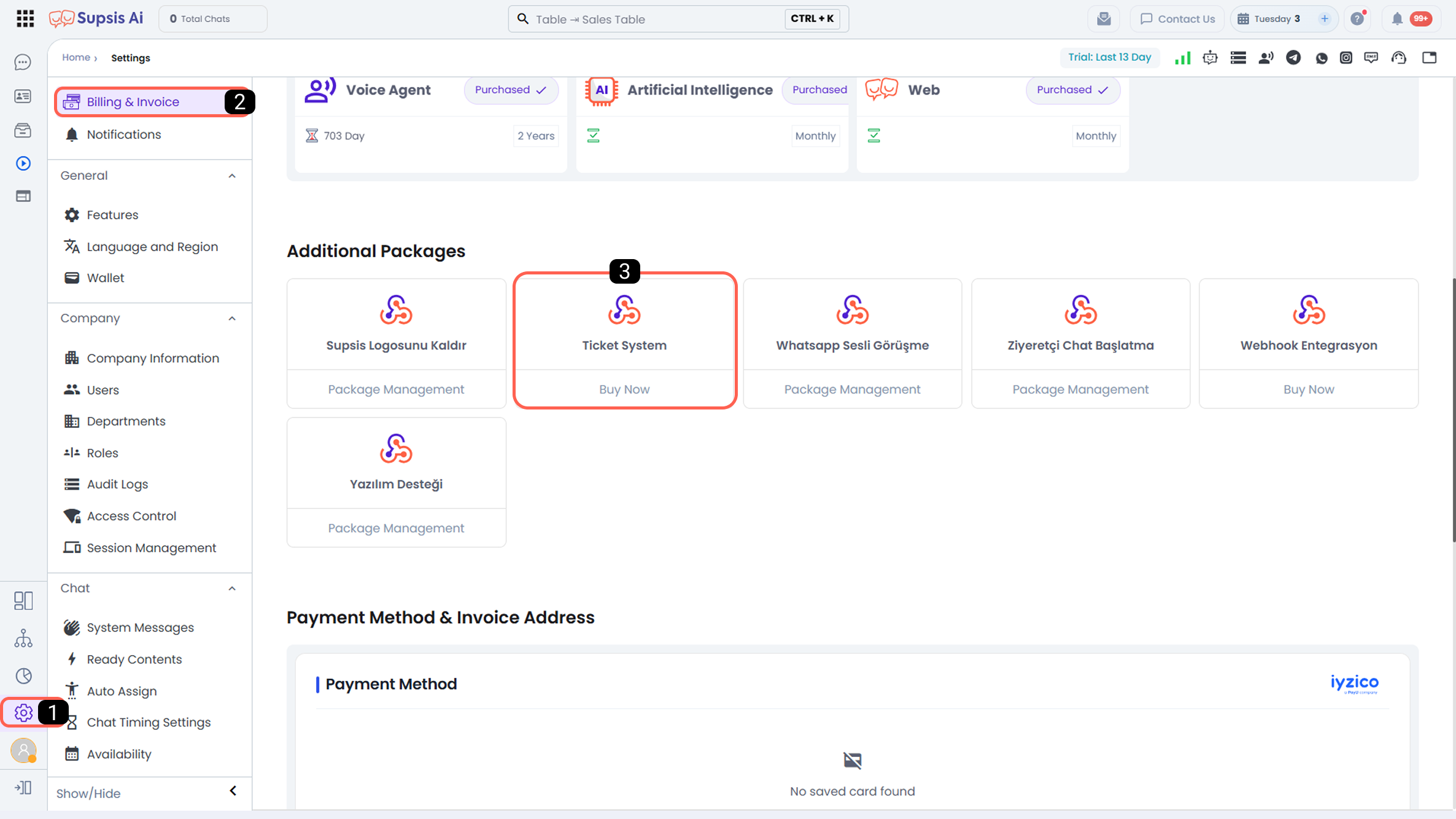
1-) Settings Menu
Enter the Settings menu in your panel.
2-) Billing & Payment Page
Navigate to the Billing & Payment page from the Settings menu.
3-) Ticket System
Under the Additional Packages section, activate the Ticket System option.
- For demo accounts:
-
During the demo period, the ticket system can be defined to your panel free of charge.
-
If the demo period has ended:
-
If the demo period has ended, in order to continue using the ticket system:
Payment Method & Billing Address information must be entered, and payment activation must be completed.
For detailed information and steps to define a payment method, please review the Payment Method & Billing Address documentation.