
The Pipedrive CRM Integration establishes an end-to-end, bi-directional, and real-time bridge between Supsis (where customer communication takes place) and Pipedrive (where sales pipelines and deals are tracked). With this integration, incoming contacts from WhatsApp, Instagram, Telegram, TikTok, and WebChat are automatically synchronized to Pipedrive as Persons, Leads, or Deals. Support and sales agents can view customer deal histories, leads, and activities right from the live chat sidebar and add notes directly to deals without leaving the chat. Furthermore, deal stage updates, wins, or losses in Pipedrive trigger Supsis automations to send instant notifications to customers.
Integration setup requires no complex OAuth approval flows; it connects directly via API Token in minutes.
1- Overview of Pipedrive CRM Integration
1.a – What is Pipedrive CRM and What Does the Integration Solve?
Pipedrive is a leading CRM software designed to manage sales pipelines visually, focusing on deals, activities, and customer lifecycles.
In traditional workflows, sales teams converse with prospects across messaging channels (e.g., WhatsApp, social media) and then manually copy data into the CRM. This causes lost time, inaccurate records, and neglected leads. The Supsis Pipedrive Integration bridges this gap seamlessly.
1.b – Bi-directional Architecture
The integration operates across two core axes:
| Direction | Workflow Logic | Example Use Case |
|---|---|---|
| Supsis → Pipedrive | New incoming contacts and chat interactions are pushed to Pipedrive. | When a new customer reaches out via WhatsApp, a Person and a Lead or Deal are created automatically in Pipedrive. Agents add notes to deals directly from the live chat screen. |
| Pipedrive → Supsis | Pipedrive events (webhooks) trigger Supsis automations in real time. | When a deal is marked as "Won" in Pipedrive, an automated WhatsApp onboarding and thank-you message is triggered in Supsis. |
1.c – Pipedrive CRM & Supsis Glossary
| Term | System / Section | Description |
|---|---|---|
| Person | Pipedrive / Contacts | An individual contact record in Pipedrive (Name, Phone, Email). Contacts from Supsis are initially saved here. |
| Organization | Pipedrive / Organizations | A company record in Pipedrive that persons can be linked to. |
| Lead | Pipedrive / Leads Inbox | An unqualified, pre-pipeline sales opportunity. Once qualified, it can be converted into a Deal. |
| Deal | Pipedrive / Deals | The core sales opportunity in Pipedrive. Belongs to a specific Pipeline and Stage, having a value, currency, and status (open, won, lost). |
| Pipeline | Pipedrive / Settings > Pipelines | A visual sequence of sales stages representing a sales process (e.g., "Enterprise Sales", "Inbound Sales"). |
| Stage | Pipedrive / Pipeline Columns | Individual steps within a pipeline (e.g., Contact Made → Demo Scheduled → Proposal Sent → Won). |
| Activity | Pipedrive / Activities | Scheduled tasks linked to persons or deals (Calls, Meetings, Tasks, Emails). |
| Note | Pipedrive & Supsis Panel | Free-form text notes on persons, leads, or deals. Can be added directly from the Supsis live chat panel. |
| Owner | Pipedrive / User | The Pipedrive user responsible for the record. |
| Company Domain | Pipedrive & Supsis | The prefix of your Pipedrive URL (https://yourcompany.pipedrive.com — where yourcompany is the domain prefix). |
| API Token | Pipedrive / Personal preferences | Your personal secret token used by Supsis to authenticate API requests. |
| E.164 Format | Standard Phone Format | The international standard format for phone numbers. Can be configured with or without the leading plus sign (+905xxxxxxxxx or 905xxxxxxxxx). |
| Dedup (Deduplication) | Supsis Integration Engine | Automated validation logic that prevents duplicate persons from being created in Pipedrive. |
2- Setup & API Token Connection
2.a – Prerequisites and Required Information
To connect Pipedrive to Supsis, you need two pieces of information:
- Company Domain: The subdomain prefix seen in your browser's address bar when logged into Pipedrive (
https://yourcompany.pipedrive.com). In Supsis, you enter onlyyourcompany; the.pipedrive.comsuffix is handled automatically. - Personal API Token: The private authentication key provided by Pipedrive.
Important Best Practice for API Token Continuity
Pipedrive API Tokens are tied to individual user accounts and inherit that user's permissions. If that employee leaves the company or their Pipedrive account is disabled, the integration stops working. We strongly recommend generating the API Token using a dedicated admin or service account.
2.b – Generating Your Pipedrive API Token
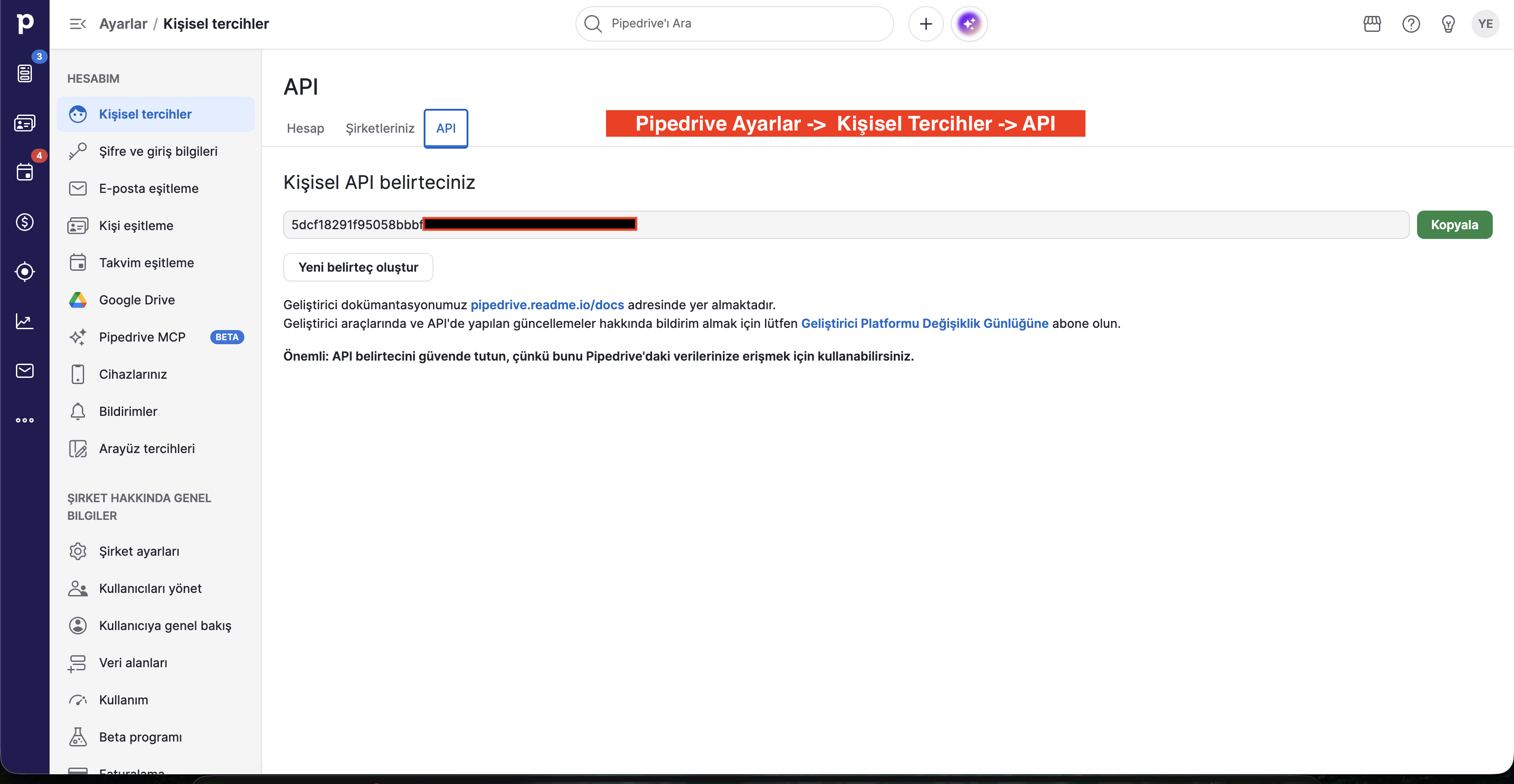
- Step 1: Log into your Pipedrive account (
app.pipedrive.com). - Step 2: Click your profile icon at the top right and select Personal preferences.
- Step 3: Navigate to the API tab on the left.
- Step 4: Copy your personal API token.
2.c – Creating the Pipedrive Channel in Supsis
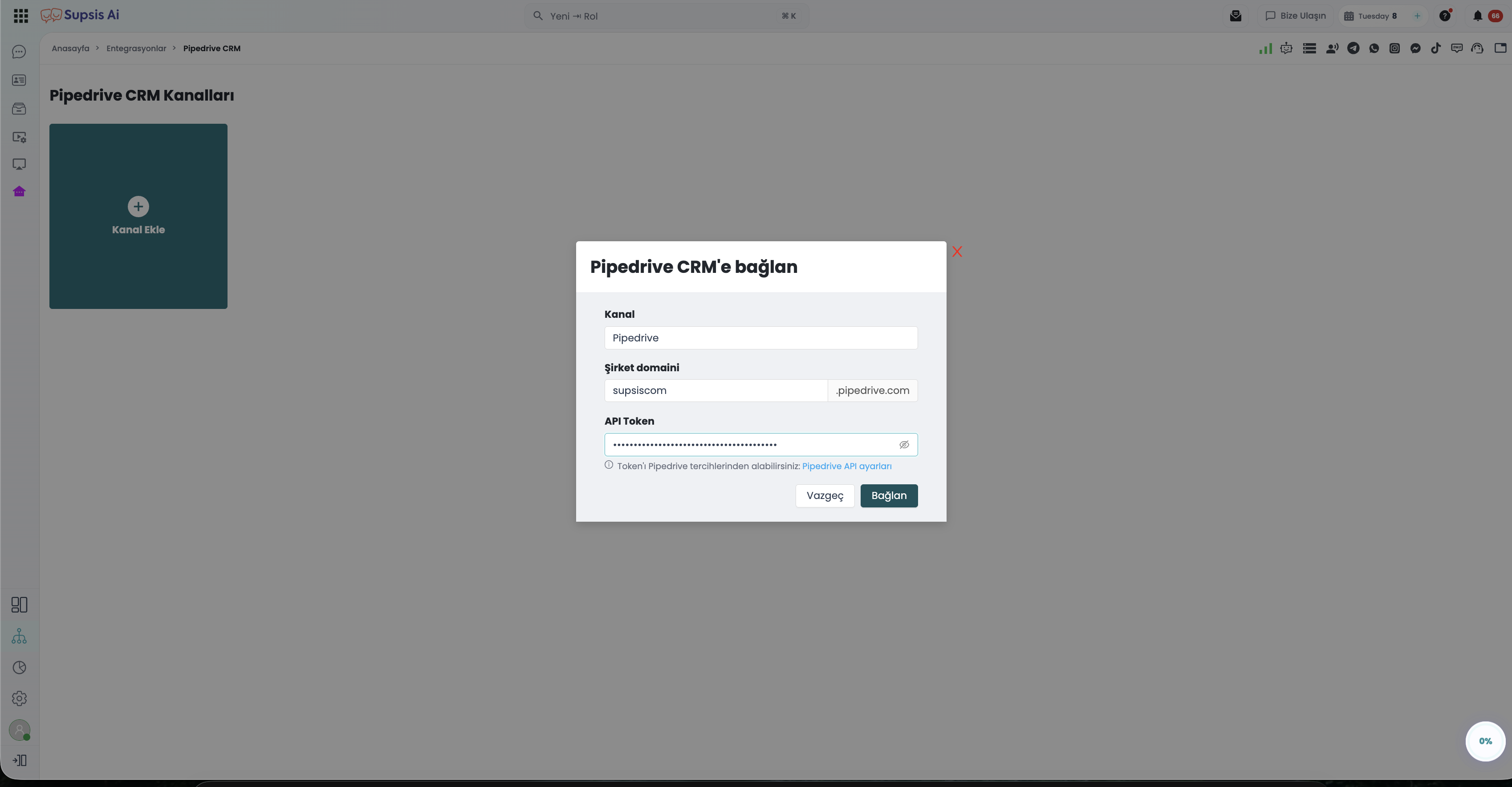
- a – Open Integrations: In the Supsis customer panel, click Integrations on the left menu.
- b – Select Pipedrive CRM: Locate the Pipedrive CRM card under the CRM category (marked with the ● FREE badge) and click it.
- c – Add Channel: Click the "Add Channel" button at the top right.
- d – Fill the Form:
- Channel Name: An identifier for your channel (e.g., Main Pipedrive CRM).
- Company Domain: Enter your company subdomain prefix (e.g.,
acmesales). - API Token: Paste your copied API token.
- e – Connect: Click "Connect".
2.d – Live Validation & Security
- Real-time Token Validation: Before saving, Supsis verifies the token against Pipedrive's servers. If invalid, the channel is rejected and an error message is displayed.
- Organization & User Stored: Upon successful validation, the authenticated Pipedrive user and company name are associated with the channel and displayed on the card.
- Masked Token Protection: For security, API tokens are always masked in the UI and never exposed in plain text.
- Channel Limits: Each Supsis site supports 1 global corporate Pipedrive channel. Additionally, user-level personal Pipedrive channels are supported and grouped separately in the channel list.
2.e – Pipedrive Channel Detail Tabs
Opening the channel exposes four configuration tabs:
- Details: Edit channel name, view company domain and connected user (read-only), or update the API token.
- Webhooks: Manage event listeners that trigger Supsis automations based on Pipedrive activity.
- User Mapping: A read-only table displaying automatic email-based mappings between Supsis agents and Pipedrive users.
- Visibility: Restrict access to this CRM channel by specific users or departments.
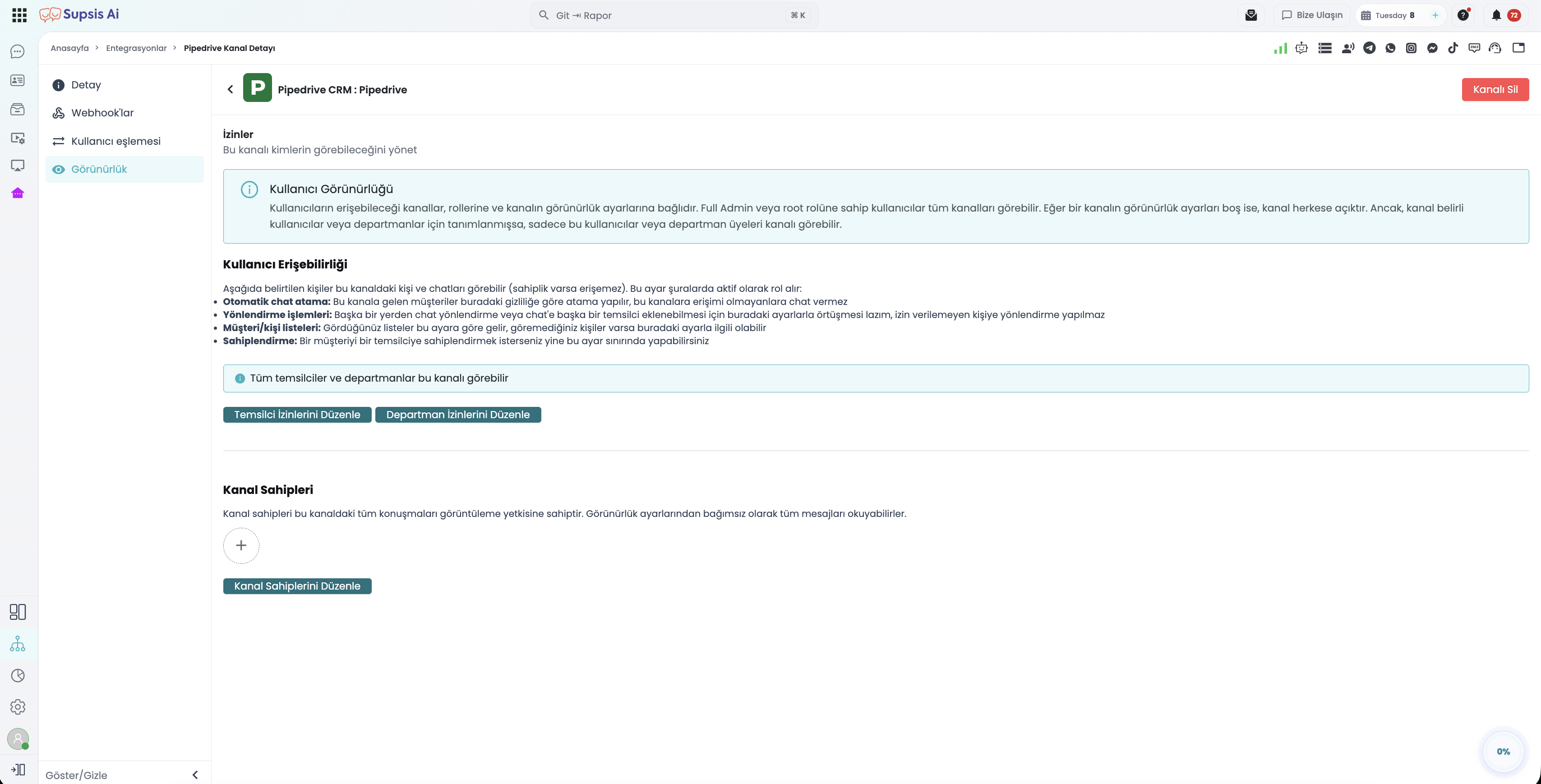
How User Mapping Operates
User mapping is completely email-based and automatic. When a Supsis agent's account email exactly matches a Pipedrive user's email, the mapping is established automatically. Non-matching accounts remain unassigned.
3- CRM Forwarding (Automated Person, Lead & Deal Forwarding)
3.a – Enabling Forwarding on Messaging Channels
Crucial Distinction: Location of Forwarding Settings
Forwarding settings are configured inside each individual messaging channel (WhatsApp, Instagram, etc.), NOT inside the Pipedrive channel itself. This gives you granular control (e.g., Forward WhatsApp contacts to Pipedrive, but do not forward WebChat visitors).
To configure forwarding:
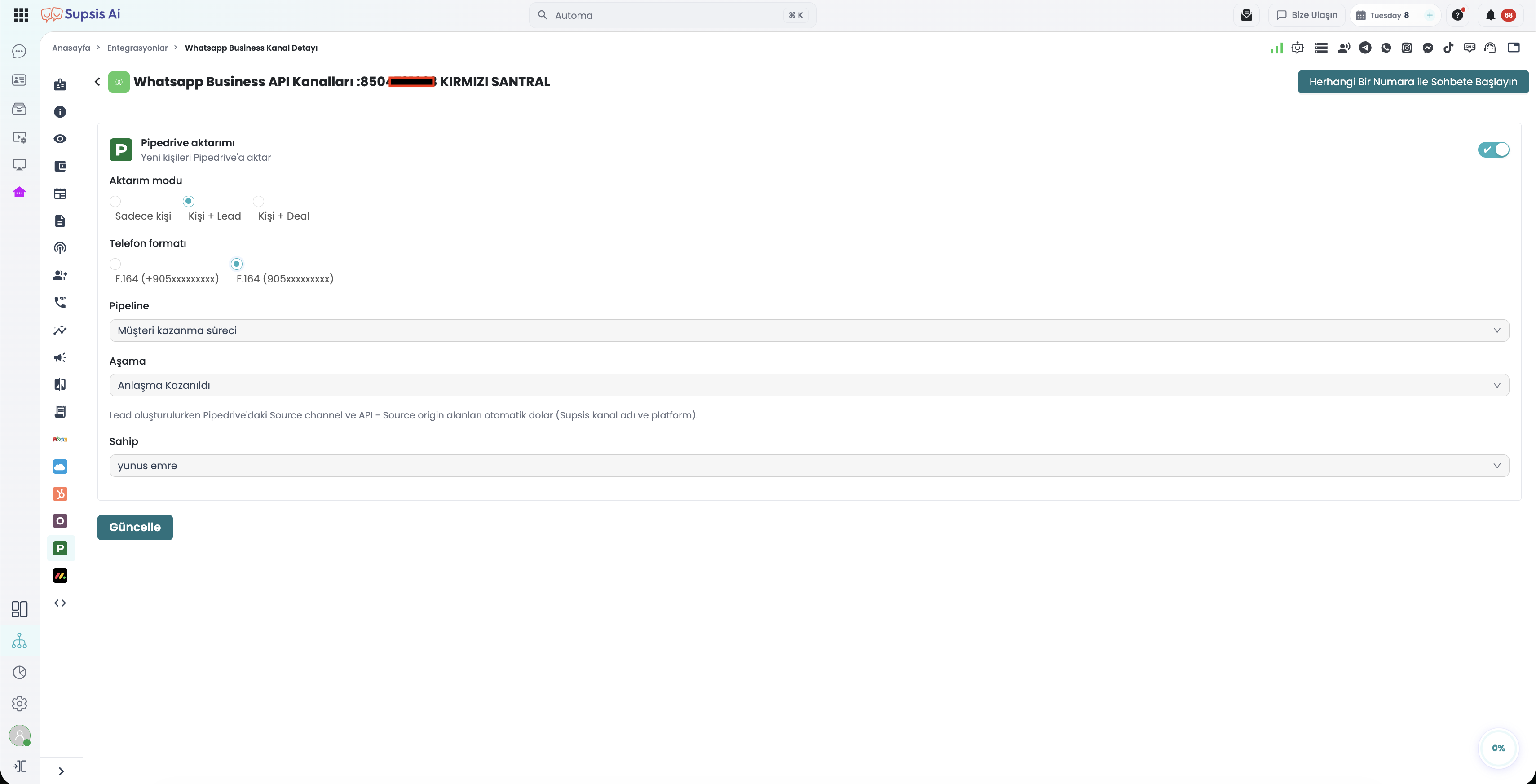
- Navigate to Integrations.
- Open the desired communication channel (e.g., WhatsApp Business API).
- From the left sidebar, click the Pipedrive tab.
- Toggle on "Forward new contacts to Pipedrive" (disabled by default).
3.b – Supported Messaging Channels & Forwarding Modes
Supported communication channels: * WhatsApp: WhatsApp Business API, WhatsApp Business (Gupshup), WhatsApp v3 * Social Media: Instagram, Messenger, Telegram, LinkedIn, TikTok * Web: Supsis WebChat
Three forwarding modes are available:
| Forwarding Mode | Description | Recommended For |
|---|---|---|
| Person Only | Creates only a Person record in Pipedrive; no lead or deal is created. | Teams wishing to maintain a clean contact directory without cluttering sales pipelines. |
| Person + Lead (Default) | Creates a Person record, followed immediately by a Lead in Leads Inbox. | Inbound sales teams that qualify prospects prior to placing them into active deal stages. |
| Person + Deal | Creates a Person, followed by a Deal in the specified Pipeline and Stage. | Businesses with immediate, direct sales pipelines where every message begins an active deal. |
3.c – Phone Formatting, Pipeline/Stage & Record Owner
- Phone Format:
E.164 (+905xxxxxxxxx)– International standard with plus prefix (Default).E.164 (905xxxxxxxxx)– Without plus prefix.- Rule: Match this format with your existing Pipedrive contact phone numbers to avoid duplicate contact creation.
- Pipeline & Stage Selection: Visible only when "Person + Deal" mode is active. Pulls real-time pipeline lists from your Pipedrive account.
- Record Owner: Specifies the Pipedrive user assigned to new records. If left blank, Pipedrive defaults apply.
3.d – Automated Source Attribution & Deduplication (Dedup)
When a new message arrives in Supsis, the customer's phone number is automatically converted into the format configured in the channel settings (E.164).
The system queries Pipedrive in the following sequential order:
- Match Found: No duplicate contact is created; the conversation connects to the existing Pipedrive Person.
- No Match: A new Person is created in Pipedrive with the contact's name, phone, and email.
Generated Pipedrive Person, Lead, and Deal IDs are stored on the Supsis contact profile for instant sidebar lookups in live chat.
- Deduplication Priority: Checks existing stored Pipedrive ID → phone lookup → email lookup. If a match is found, Supsis links to that contact rather than creating a duplicate.
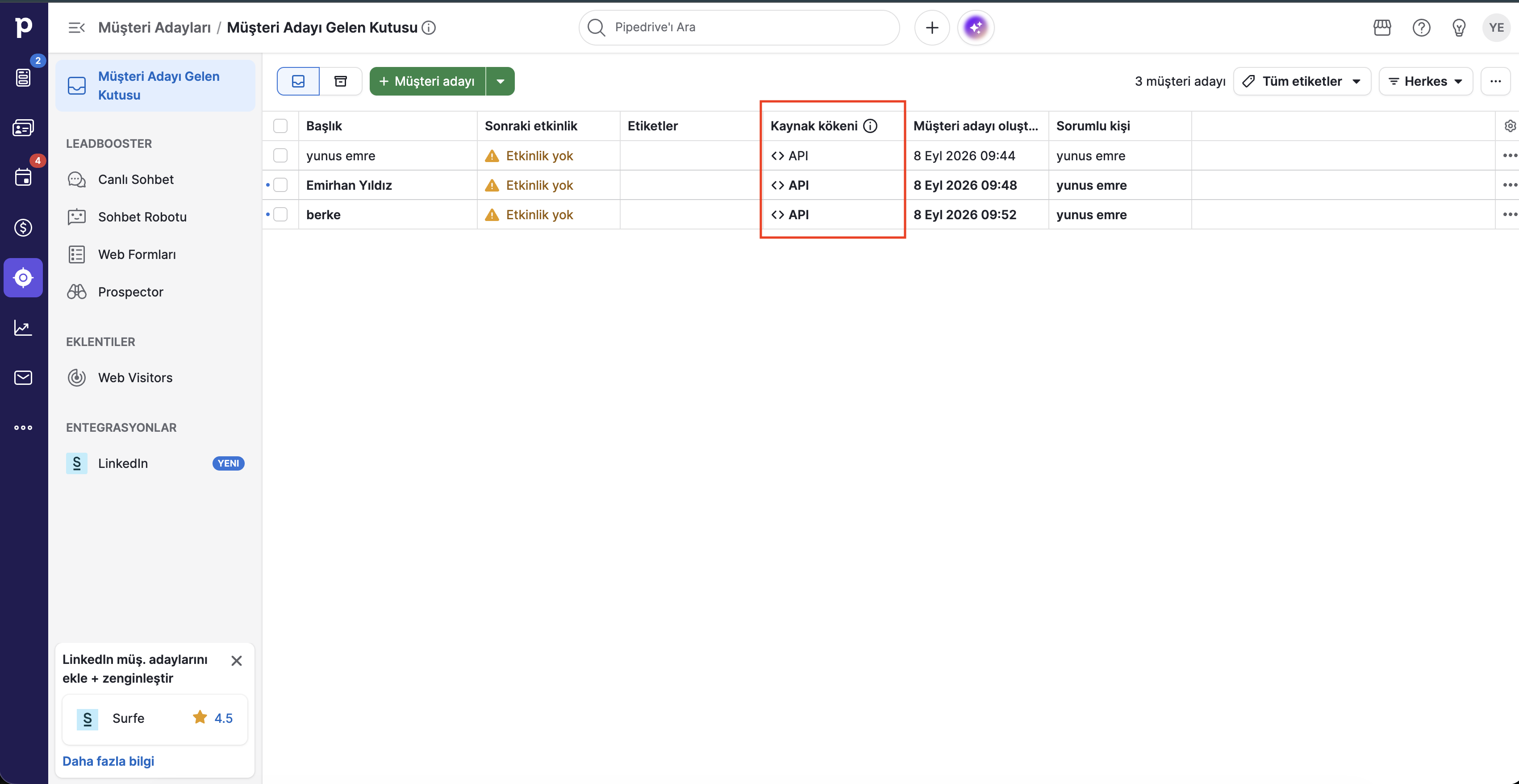
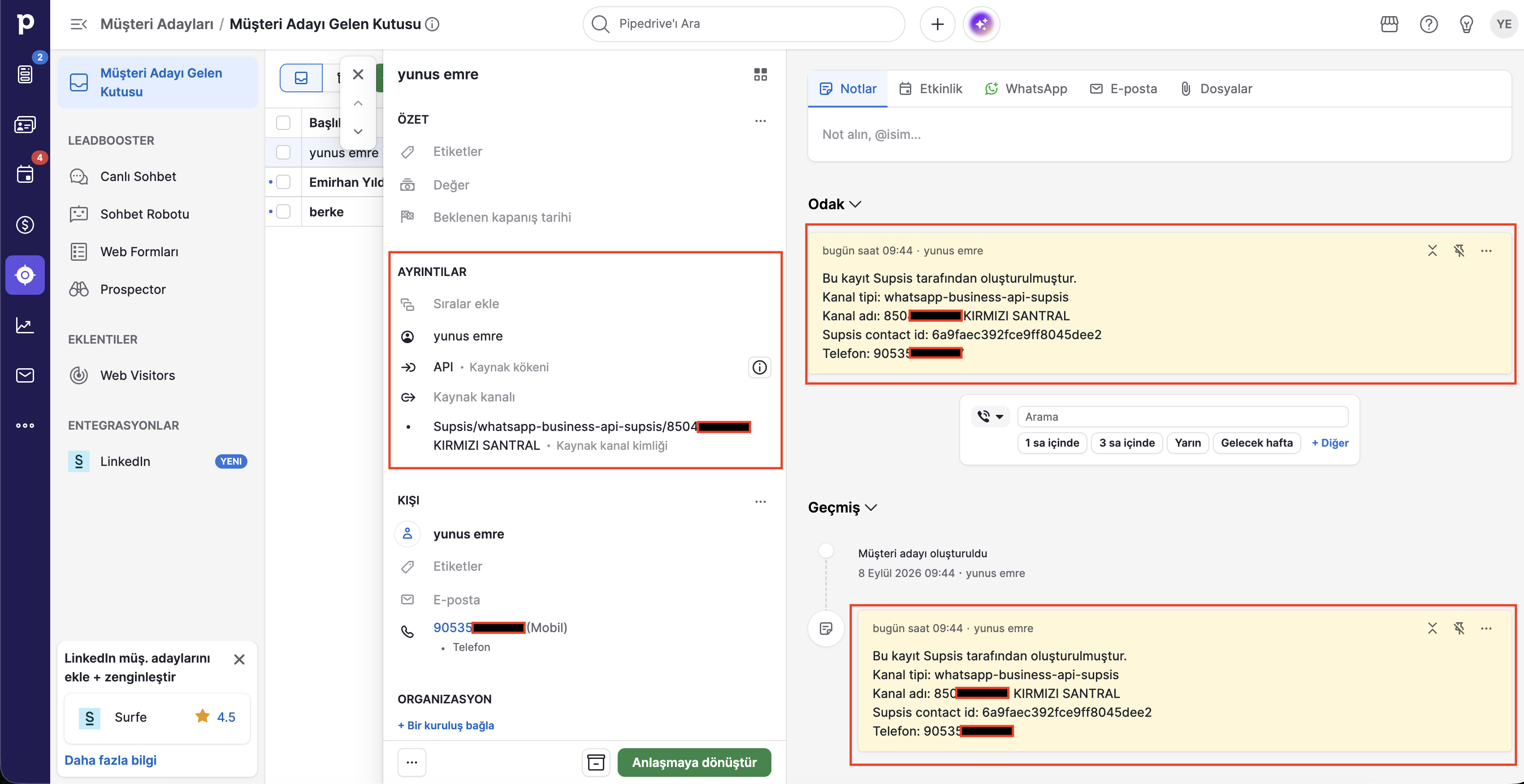
- Source Attribution: When creating Leads, Supsis automatically populates
Source channelandAPI - Source originwith the Supsis channel name and platform (e.g., WhatsApp Business API - Sales Line). - Pinned Source Note: Automatically pins a note to the new lead containing Supsis conversation and contact IDs, phone, and channel origin for quick context.
- Resilient Background Execution: CRM forwarding runs asynchronously in the background. Even during temporary Pipedrive API downtimes, live messaging is never disrupted, and Supsis retries sync on subsequent customer interactions.
4- Live Chat Pipedrive Customer Information Sidebar
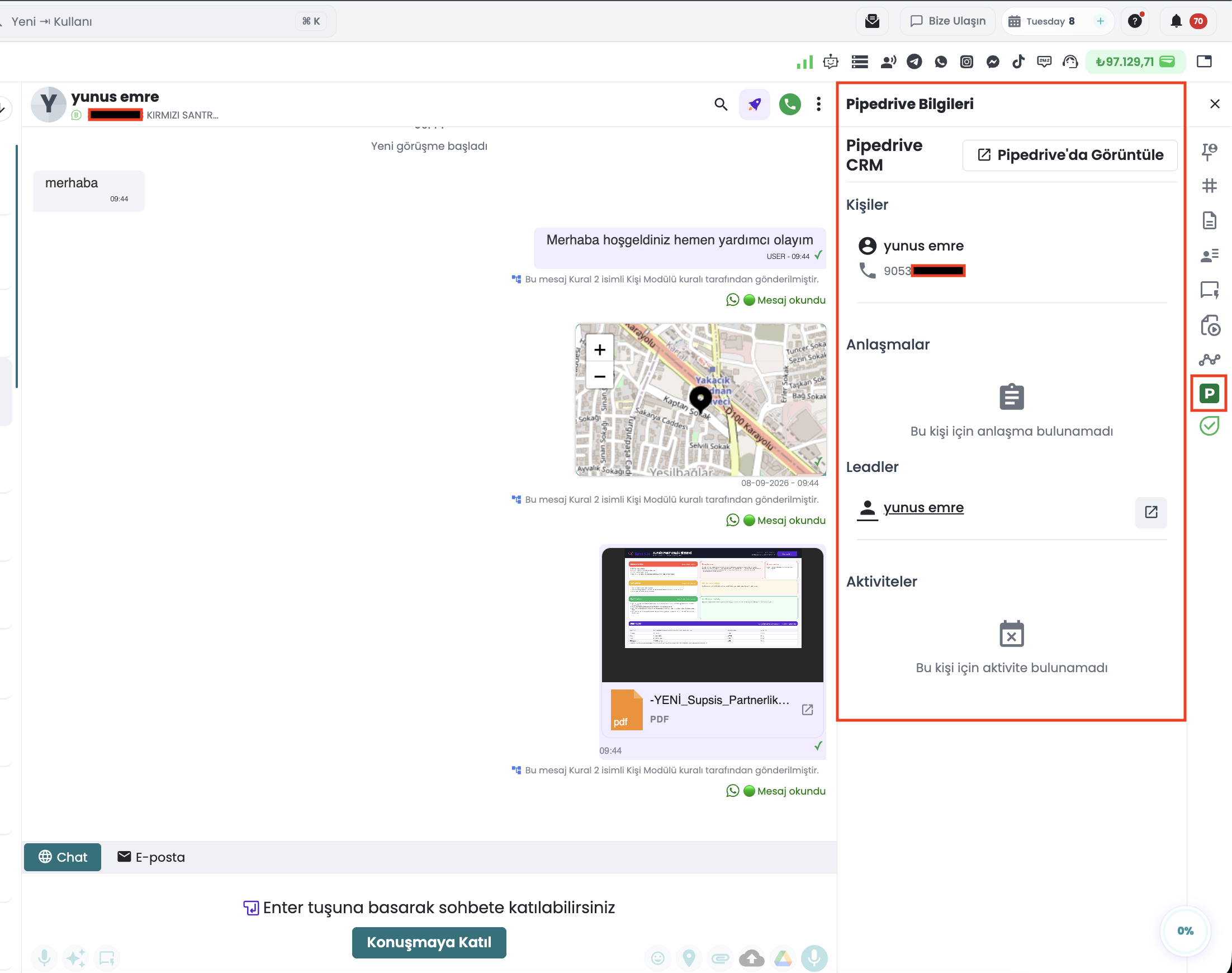
When a Pipedrive channel is active, live support agents can view real-time CRM data directly from the Pipedrive Information tab in the chat sidebar.
4.a – Sidebar Sections
- Persons: Contact details (Name, Phone, Email).
- Deals: Open, won, or lost deals associated with the customer.
- Leads: Active leads with direct deep-links into Pipedrive Leads Inbox.
- Activities: Past and scheduled activities (Calls, Meetings, Tasks).
4.b – Deal Modal & In-Chat Note Taking
Clicking a deal in the list opens a detail modal: * Displays deal title, stage, value, and status. * Lists all chronological notes attached to the deal. * Add Note: Agents can type a call/chat summary and submit it directly to Pipedrive without switching browser tabs.
4.c – "View in Pipedrive" Deep Link
The "View in Pipedrive" header button opens the record directly inside app.pipedrive.com. If no channel is connected, a "Connect Pipedrive" button guides the user to setup.
5- Supsis Automation Blocks for Pipedrive
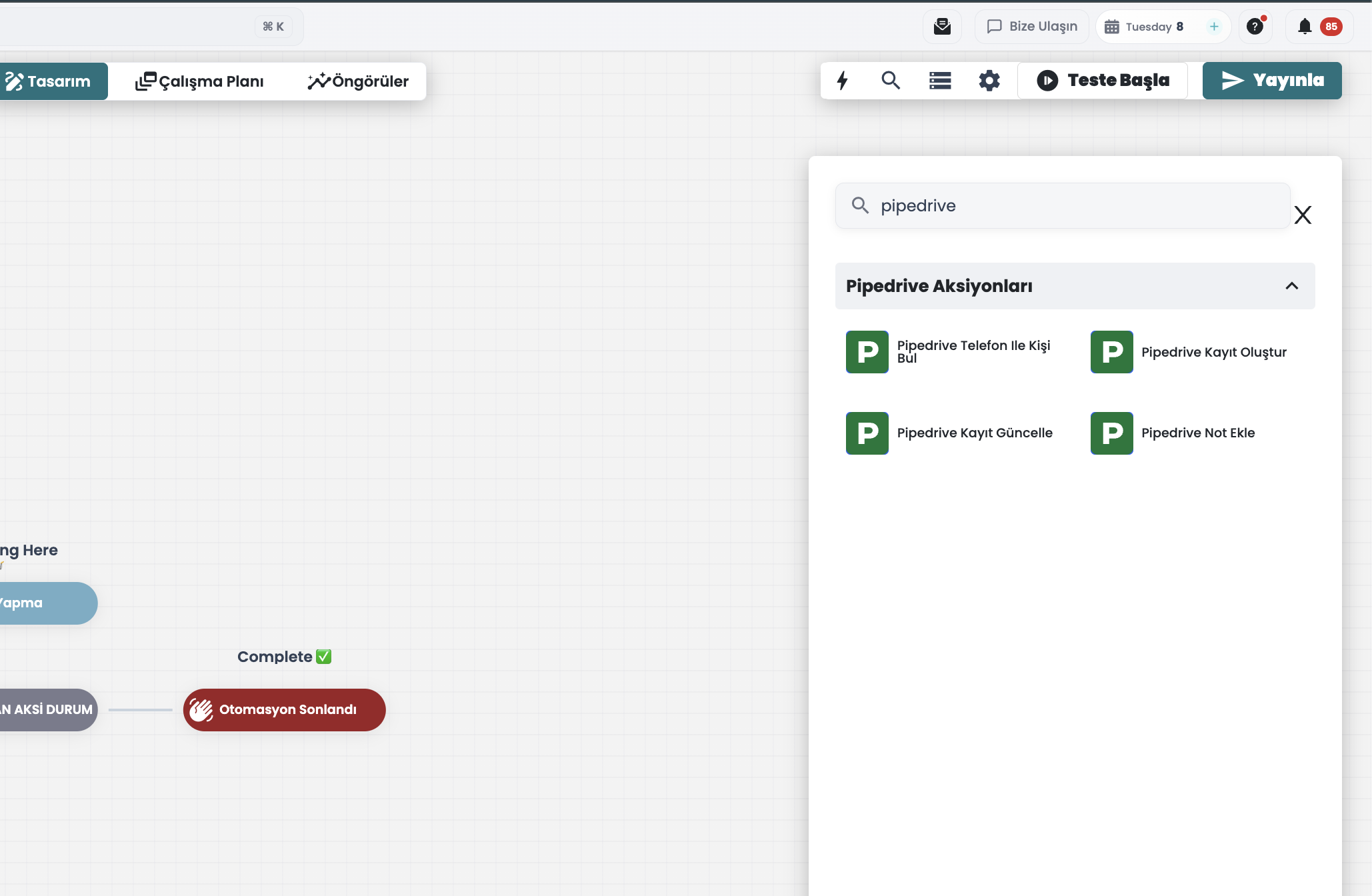
Supsis Automation Designer includes a dedicated Pipedrive Actions block palette.
5.a – Pipedrive Find Person by Phone
Looks up a contact in Pipedrive using their phone number: * Success Branch: Contact found; outputs Person ID, Name, and Email for downstream blocks. * Failure Branch: Contact not found or lookup failed. * Use Case: Conditional branching between existing VIP customers and first-time visitors.
5.b – Pipedrive Create Record
Creates a new Person, Deal, Lead, or Activity in Pipedrive.
* Fetches both standard fields and Custom Fields directly from your account.
* Accepts static values and Supsis dynamic variables ({{contact.name}}, {{chat.id}}, etc.).
5.c – Pipedrive Update Record
Updates existing Person or Deal records using their Pipedrive Record ID. Ideal for updating deal values, changing stages, or applying tags.
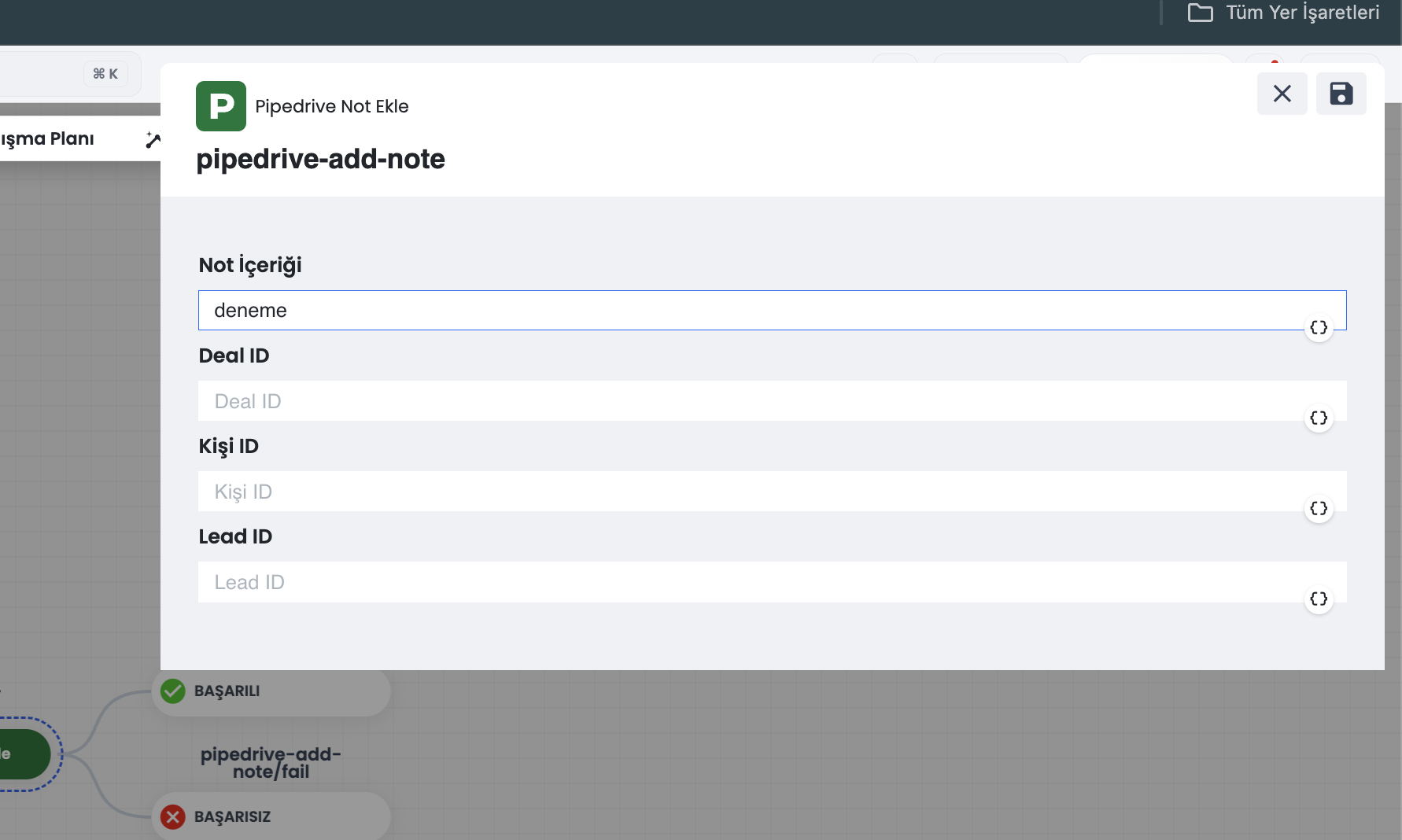
5.d – Pipedrive Add Note
Attaches rich text notes to deals, persons, or leads with dynamic conversation summaries.
5.e – Developer SDK & Chatbot Code Block Integration
For advanced flows, Supsis provides scriptable Pipedrive SDK functions inside automation code blocks and chatbot workflows to query contacts, create records, list pipelines, and verify new phone numbers.
6- Triggering Supsis Automations with Pipedrive Webhooks
Changes in Pipedrive can instantly fire Supsis automations via the Webhooks tab in the channel details.
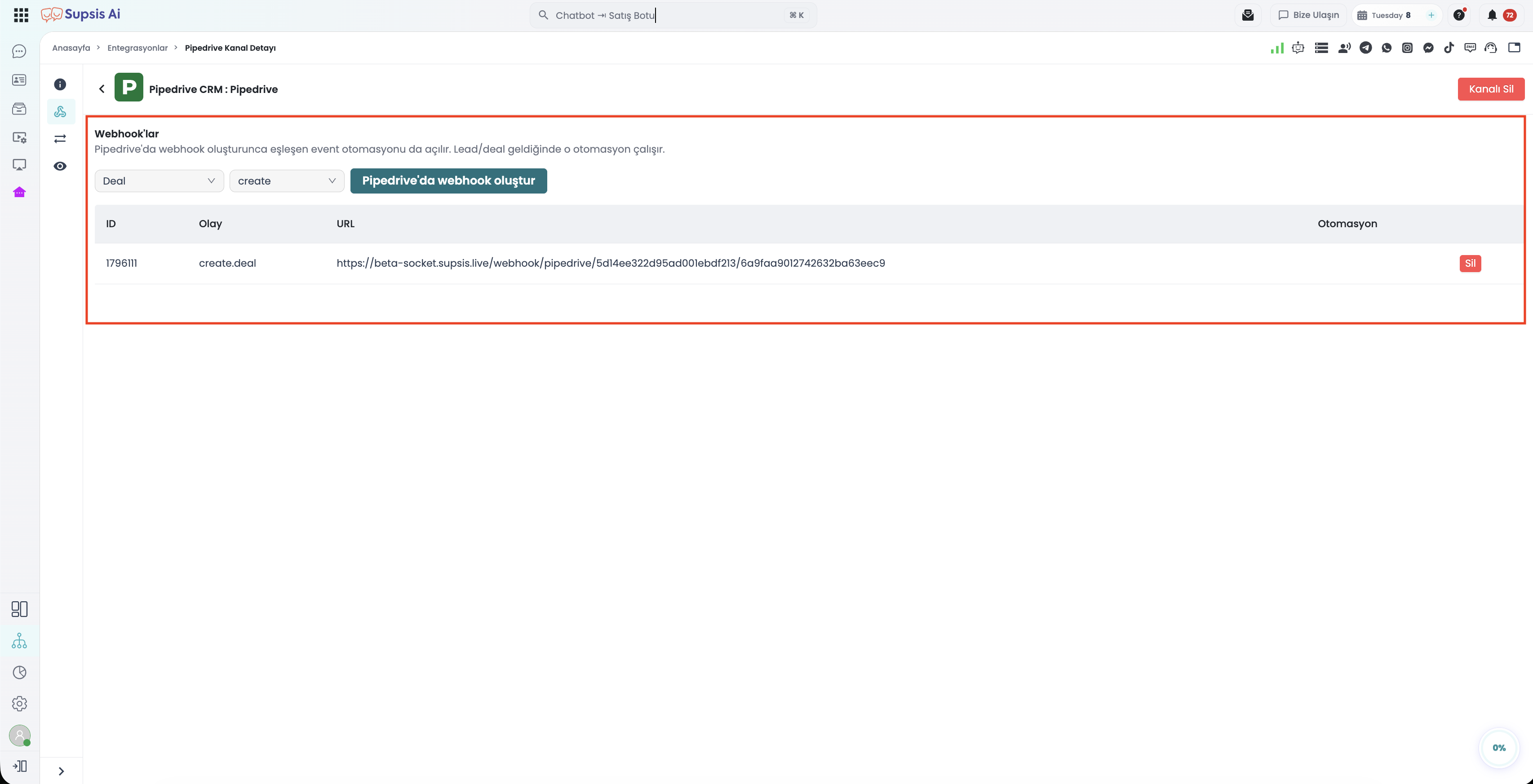
6.a – Webhook & Automation Creation Steps
- Go to the Pipedrive channel details and open the Webhooks tab.
- Choose the Entity (Deal, Person, Lead, Activity, Note, or All).
- Choose the Action (Create, Change, Delete, or All).
- Click "Create Webhook in Pipedrive".
Automatic End-to-End Configuration
Clicking this button automatically registers the secure Basic Auth webhook in Pipedrive AND generates a matching Supsis automation template. You do not need to copy and paste webhook endpoints manually.
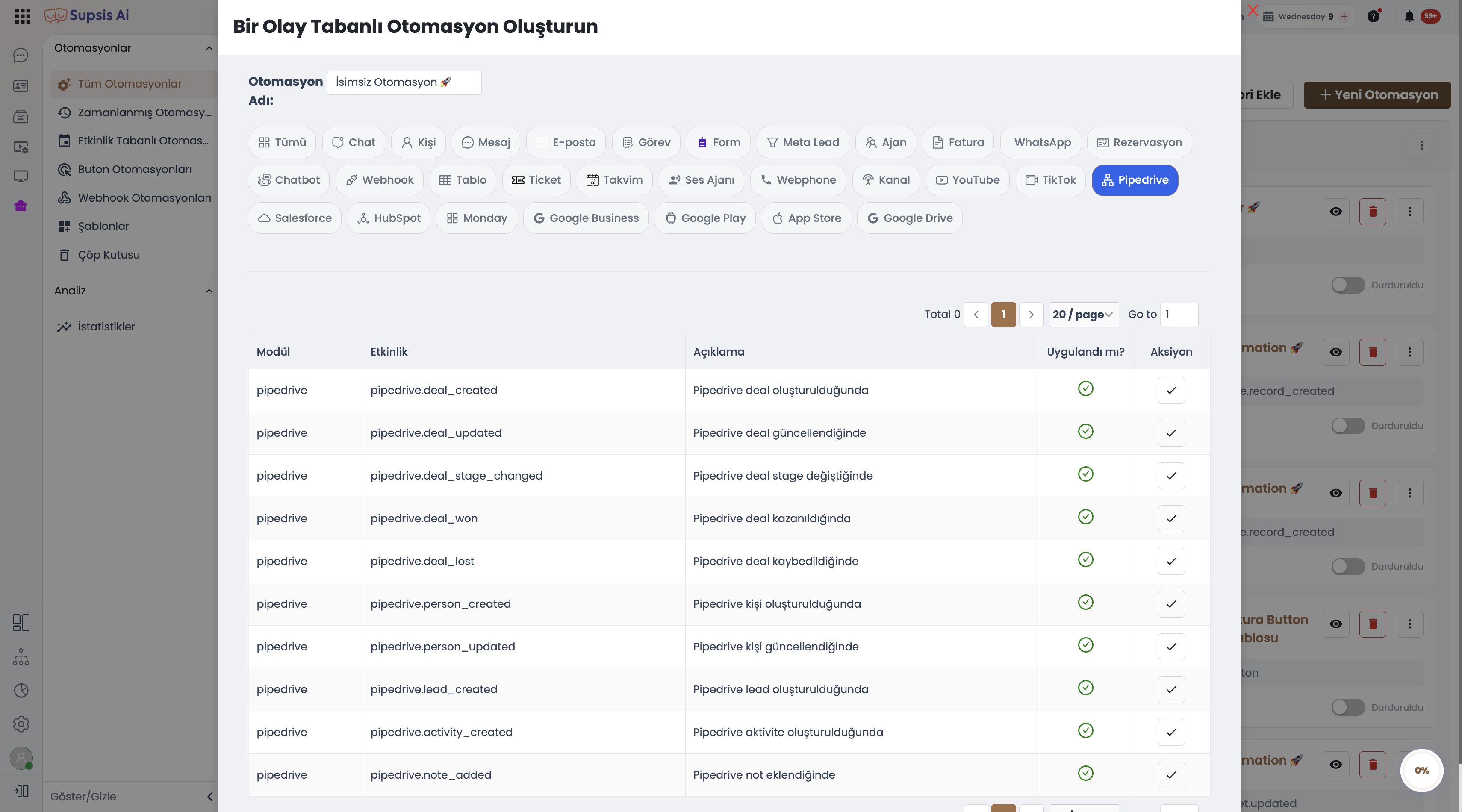
6.b – 10 Supported Webhook Events
| No | Webhook Event | Trigger Moment | Example Action |
|---|---|---|---|
| 1 | Deal Created | New deal created in Pipedrive | Send agent notification. |
| 2 | Deal Updated | Deal attributes modified | Sync values to Supsis profile fields. |
| 3 | Deal Stage Changed | Deal moved to another stage | Send WhatsApp status update to customer. |
| 4 | Deal Won | Deal marked as Won | Send thank-you note and survey link. |
| 5 | Deal Lost | Deal marked as Lost | Enroll customer in a win-back sequence. |
| 6 | Person Created | New person created in Pipedrive | Add to Supsis contact book. |
| 7 | Person Updated | Person details updated | Update Supsis contact details. |
| 8 | Lead Created | New lead enters Leads Inbox | Generate an internal ticket for sales agents. |
| 9 | Activity Created | Meeting or call scheduled | Send appointment reminder message. |
| 10 | Note Added | Note created on CRM record | Post an internal note in the chat stream. |
Intelligent Stage & Status Differentiation
Pipedrive reports stage changes, wins, and losses under a generic "change" event. Supsis automatically parses and distinguishes whether the event was a stage transition, a win, or a loss, firing the precise automation trigger.
7- Practical Scenarios, Audit Logs & Best Practices
7.a – Real-World Business Scenarios
- WhatsApp Sales Pipeline: Inbound WhatsApp inquiries become leads in Pipedrive instantaneously, preventing lost sales.
- Automated Post-Sale Onboarding: When a deal is won, Supsis sends a personalized WhatsApp welcome package and payment confirmation.
- Stage Reminders: Automatically send follow-ups 48 hours after a deal moves to "Proposal Sent".
- Single-Screen Agent Efficiency: Agents manage chats and CRM records simultaneously without toggling tabs.
- Multi-Channel Attribution: Accurately measure which social channels drive the highest revenue using Pipedrive's native reports.
7.b – Activity Audit Log
All configuration changes to Pipedrive integration settings are logged in the Supsis activity log:
"{username} updated Pipedrive integration settings on '{channel_name}' ({channel_type})."
7.c – Essential Verification Notes
- No Subscription Tier Restrictions: Included across all Supsis plans with the ● FREE label.
- Channel-Level Activation Required: You must enable forwarding on each messaging channel individually.
- Phone Format Alignment: Ensure your chosen E.164 format matches your Pipedrive directory format to avoid duplicate entries.
- Email Match for User Mapping: User mapping relies strictly on matching email addresses.
- Custom Field Population: Use automation blocks (Create/Update Record) to populate custom fields.
- Channel Deletion Safety: Removing a Pipedrive channel halts sync and webhooks, but all existing Pipedrive records remain intact.