
In the Supsis Live Chat experience, to eliminate the hassle of getting lost in long conversation histories, quickly recall past customer agreements, and verify customer inquiries, advanced Visitor-Based In-Chat Message Search and Global Message Search (⌘/Ctrl + K) capabilities have been introduced.
Powered by MongoDB Atlas Search, this engine instantly filters relevant keywords even across lengthy WhatsApp, Instagram, or Web Chat conversations containing thousands of messages, executes smart scrolling directly to the matching message bubble, and temporarily highlights the target message with an attention-grabbing focus border.
1- In-Chat Message Search Architecture
1.a – Feature Overview & Operational Logic
Within an active conversation, agents can search exclusively through that specific visitor's message history. The search interface operates via a modern blurred glassmorphic overlay, allowing the agent to find records without navigating away from the active conversation screen.
| Feature | Description |
|---|---|
| Search Engine | MongoDB Atlas Search (message_search_index) |
| Search Scope | Strictly limited to the active visitor's (visitorId) complete message history |
| Minimum Query | Live search triggers upon entering at least 2 characters |
| Smart Pagination | If the selected message isn't rendered in the current DOM, the system calculates its database sequence index, loads historical blocks automatically, and scrolls directly to it |
| Temporary Message Border | When the target message is brought into view, an accent focus border illuminates the message bubble for several seconds |
1.b – Access Methods
Agents can activate the in-chat search modal using three distinct methods:
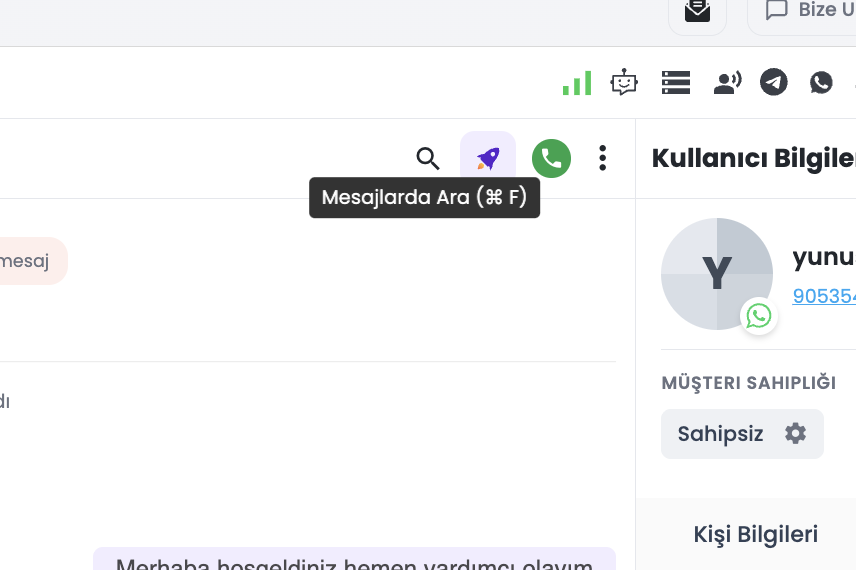
- Top Bar Search Icon: Click the magnifying glass icon located at the top right of the conversation header.
- Three-Dots Menu (⋮): Open the context menu on the chat header and choose "Search in Messages".
- Keyboard Shortcut:
- Mac:
⌘ + F - Windows / Linux:
Ctrl + F
- Mac:
Updated Keyboard Shortcuts
Assigning ⌘/Ctrl + F to in-chat search prompted crucial shortcut adjustments to prevent conflicts:
- Transfer to Agent: Updated to
Ctrl/⌘ + Shift + F(formerly Ctrl+F). - Close Chat: Reassigned to
Alt/⌥ + W(prevents unintended browser tab closure).
Deprecated Sidebar Tab
The legacy local "Message Search" tab inside the right-hand Visitor Info Widget (User Info Panel) has been fully retired. All in-chat searches now run seamlessly through the focused chat overlay modal.
2- Step-by-Step In-Chat Search Guide
2.a – Searching & Navigating to Results
- Step 1 – Open the Conversation: Select and open any customer conversation from your inbox.
- Step 2 – Trigger the Search Panel: Click the magnifying glass icon in the header or press
⌘ + F/Ctrl + F. - Step 3 – Enter Your Query: In the blurred overlay input, type your search term (e.g., pricing, order number, tracking code) with at least 2 characters.
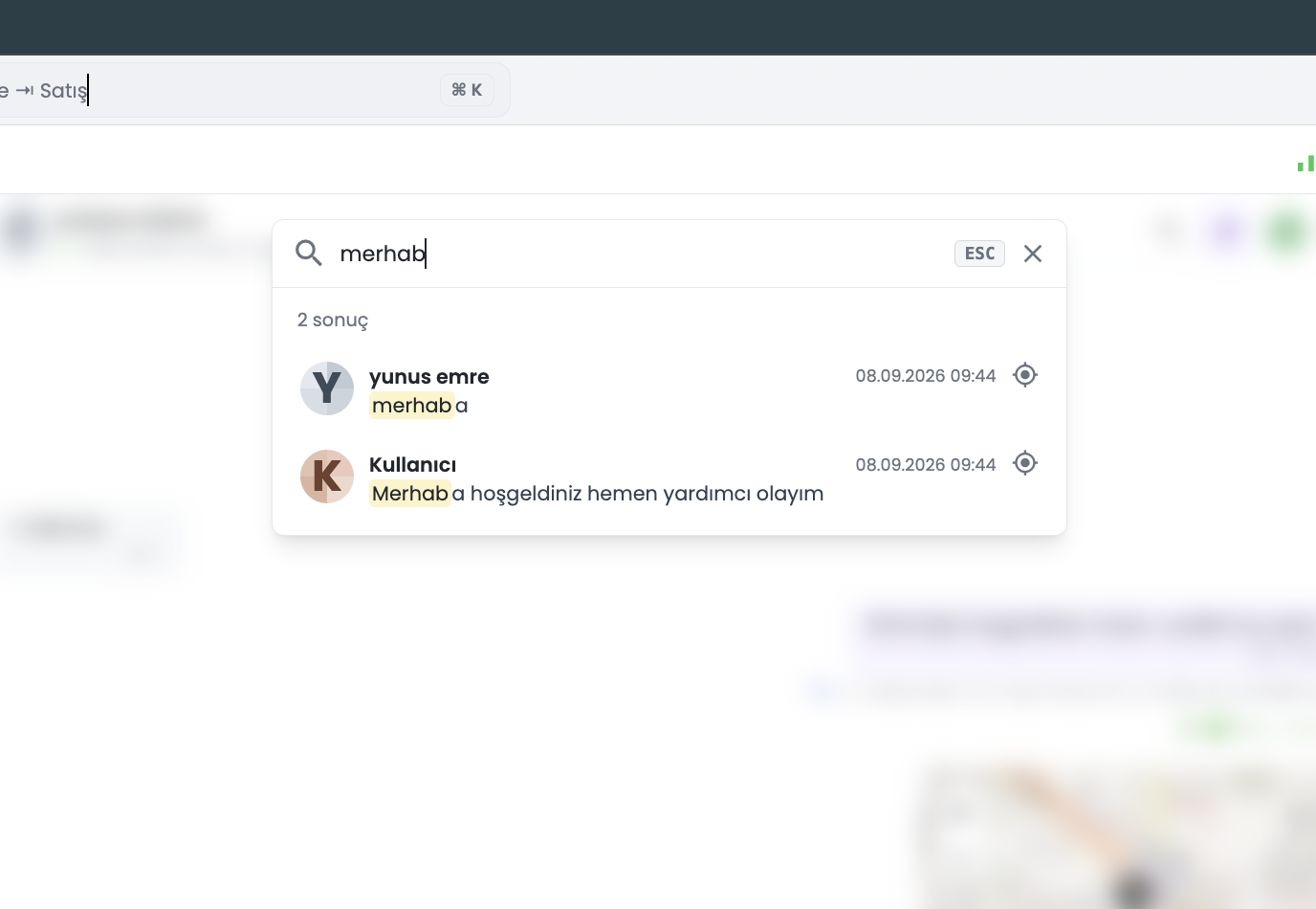
- Step 4 – Review Matches: Results retrieved by Atlas Search appear in chronological relevance, with matching terms prominently highlighted.
- Step 5 – Click to Navigate: Click any result entry. The engine operates instantly:
- If the message is already rendered in the current viewport, the chat viewport smoothly scrolls to it.
- If the message dates back weeks or months, previous historical batches are fetched automatically before scrolling.
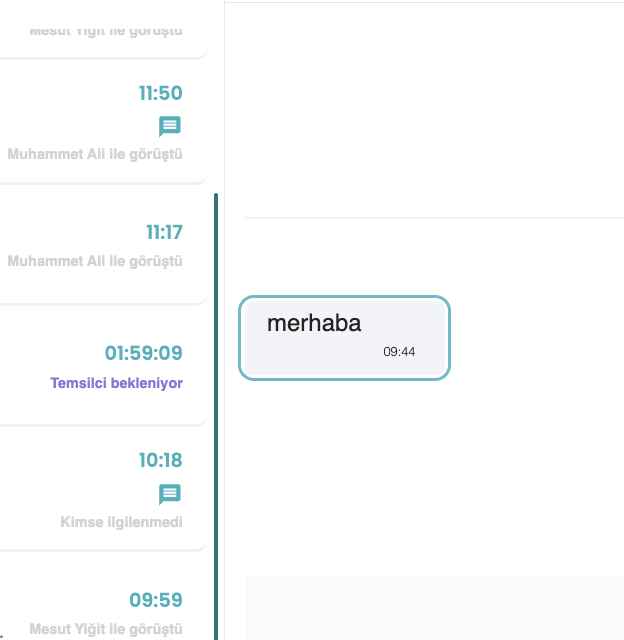
- Step 6 – Temporary Message Highlight: A pulsing glowing border wraps the target message bubble for several seconds, ensuring the agent instantly spots the context.
- Step 7 – Dismiss Panel: Press
ESCon your keyboard or click outside the overlay to close the search panel.
3- Global Message Search Across All Chats (⌘/Ctrl + K)
3.a – Prefix Tags for Targeted Search Filtering
The Global Search Engine, accessible from the panel's persistent top bar or via ⌘/Ctrl + K, searches across all modules and records in Supsis.
When opened empty, interactive Prefix Tags guide users to immediately restrict their search query:
| Prefix Tag | Scope | Shortcut / Usage |
|---|---|---|
| Go | Jump directly to menus, settings, and pages | Type go and press Tab / Click |
| New | Quick-create records, contacts, or tickets | Type new and press Tab / Click |
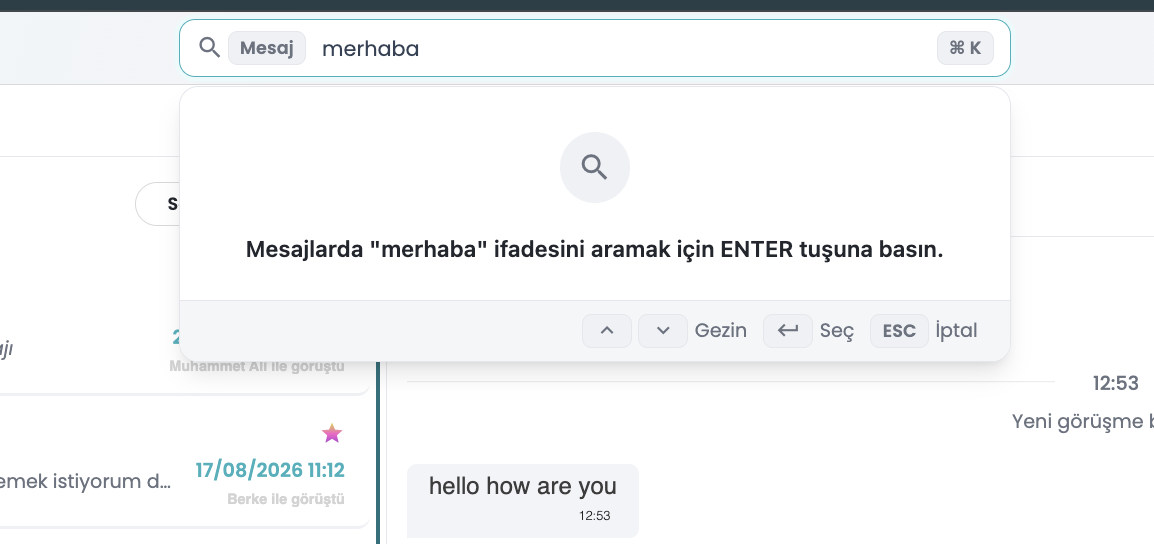
| Message | Search message text across ALL customer chats & channels | Type message and press Tab / Click |
| Chatbot | Filter chatbot flows and automation blocks | Type chatbot and press Tab / Click |
| Contacts | Lookup names, phone numbers, and emails in contacts | Type contacts and press Tab / Click |
| Settings | Configuration options and system preferences | Type settings and press Tab / Click |
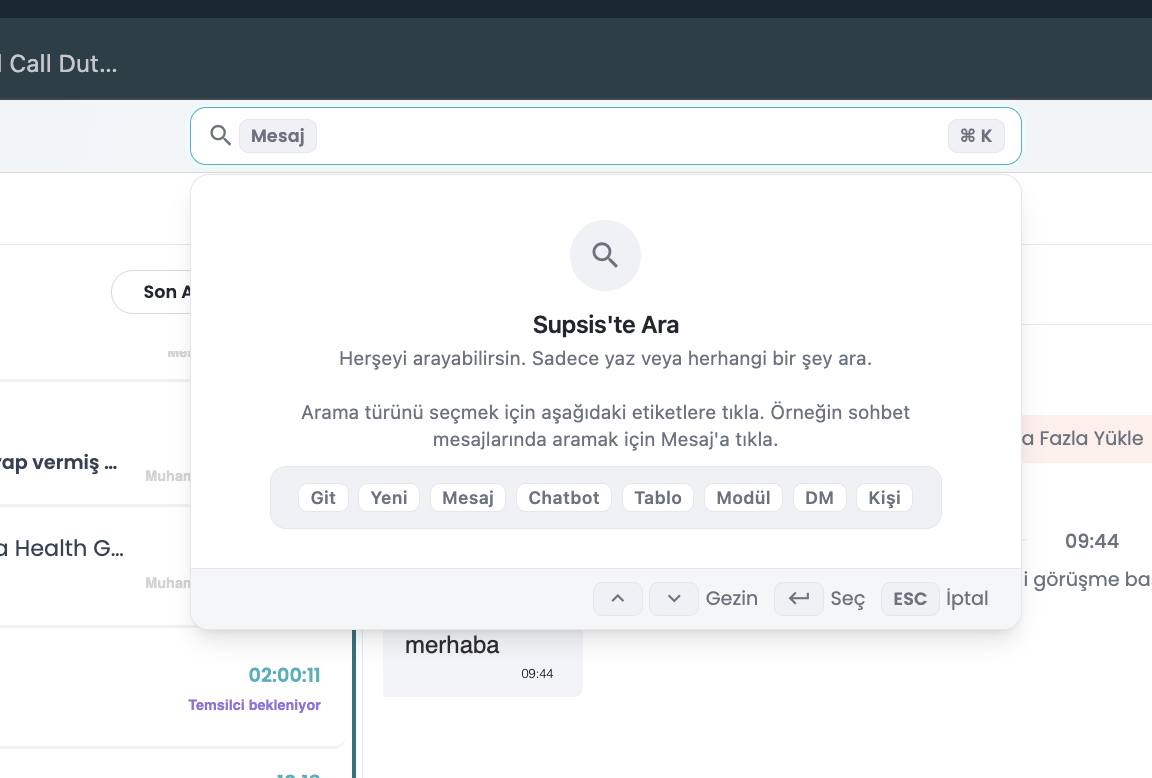
3.b – Global Message Search Modal
To locate conversations across the entire platform containing a specific keyword:
- Press
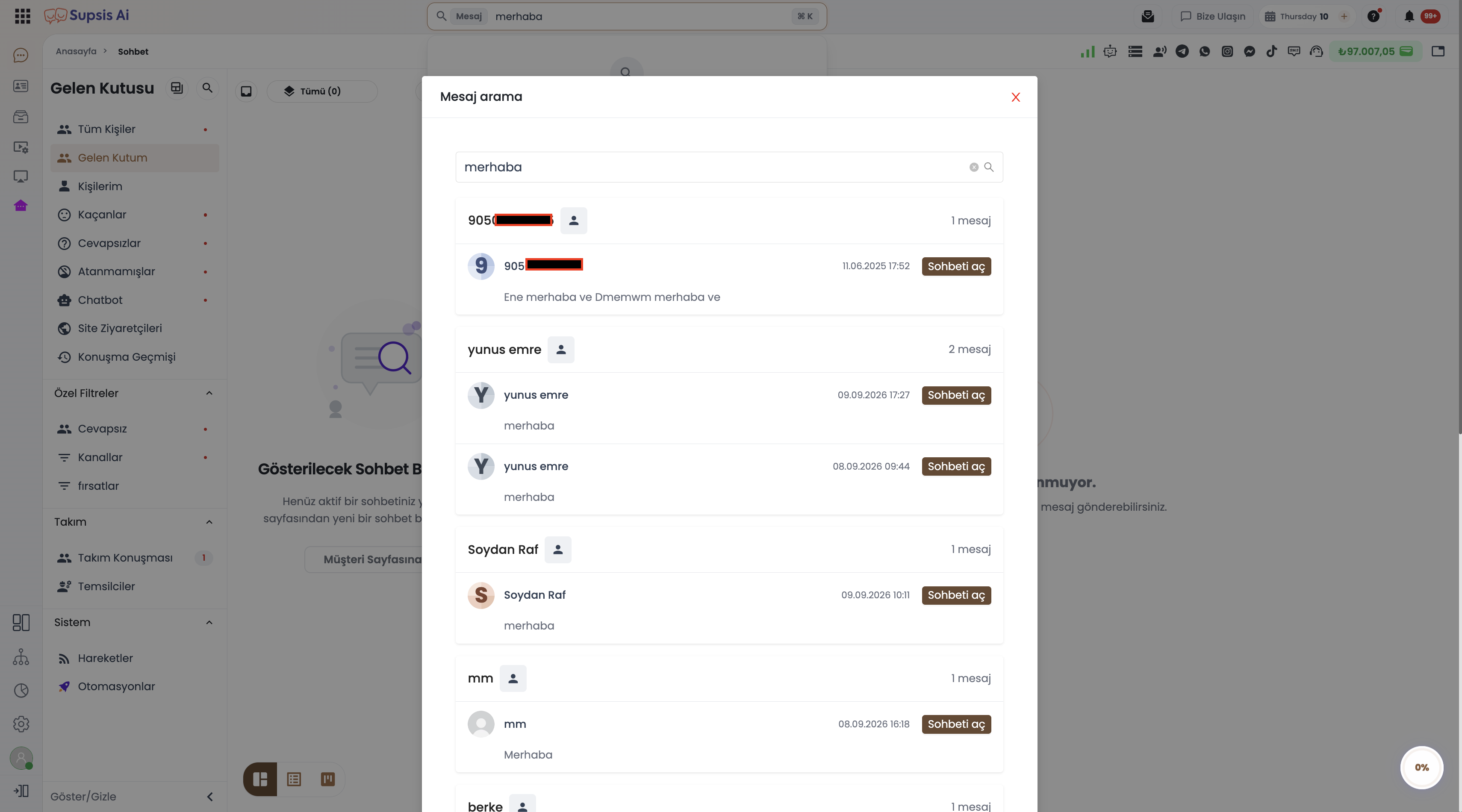
⌘ + K(Mac) orCtrl + K(Windows). - Click the "Message" prefix tag (or type
messageand hitTab/Enter). - Type the desired keyword and press Enter.
- The Global Message Search Modal displays matching snippets alongside customer identity, origin channel, and timestamp.
- Clicking any entry immediately opens the corresponding conversation.
4- Top Bar Chat Statistics & Debug Mode
4.a – Streamlined UI vs. Developer Telemetry
To optimize agent focus and keep the interface clean, the rotating real-time statistics chip (total conversations, queue count, first response metrics, etc.) in the top bar is hidden from regular production views.
- Standard View: Provides a clean, distraction-free header displaying only essential actions and status controls.
- Debug Mode: Appending
?debug=trueto the application URL reveals the live metrics chip. This is utilized by supervisors, QA engineers, and administrators during performance troubleshooting and telemetry audits.
5- Comparative Use Cases
| Business Need | Recommended Tool | Workflow |
|---|---|---|
| Recalling Past Details with Current Customer e.g., "What price or address did this customer send earlier?" |
In-Chat Message Search | In chat: ⌘/Ctrl + F ➔ type keyword ➔ click result ➔ jump straight to message. |
| Cross-Account Audit e.g., "Which customers mentioned 'defect' or 'refund' this week?" |
Global Message Search | ⌘/Ctrl + K ➔ click Message tag ➔ type keyword + Enter ➔ review matching conversations. |
| Rapid Keyboard Navigation | Refined Shortcuts | ⌘/Ctrl + F: SearchCtrl/⌘ + Shift + F: Transfer ConversationAlt/⌥ + W: Close Conversation |
6- Technical & Operational Notes
- Atlas Search Eventual Consistency: Due to distributed cluster indexing, messages sent mere seconds ago may reflect in search results after a minor sub-second replication window.
- Optimized Memory Consumption: Navigating to older messages does not bloat browser memory; historical segments are fetched incrementally.
- Visitor Privacy & Isolation: In-chat searches strictly filter by the active session's
visitorId. - Multilingual Localization: Search hints, placeholders, and error notifications are natively translated into 8 locales (TR, EN, DE, ES, FR, IT, AR, RU).