
TikTok Automatic Messages are native automated conversation tools that engage users before they type a message or when they initiate their first interaction within the TikTok chat interface, powered by the TikTok Business Messaging API.
Supsis AI centralizes the complete management of these capabilities directly within your TikTok channel detail panel via three dedicated tabs: Welcome Message, Suggested Questions, and Chat Prompts. Businesses do not need to switch back and forth to TikTok Business Suite; all content updates, toggles, and TikTok content audit statuses are tracked and managed in real time from Supsis.
ℹ️ Operational Principle Note: These three features operate directly within the TikTok mobile application's native chat UI, not on Supsis servers. When a user opens your profile chat in TikTok, they interact with these assets immediately in TikTok; no inbound message to Supsis is required for these options to appear.
1- What Are TikTok Automatic Messages?
1.a – Definition and Core Objective
When prospective customers contemplate messaging a business, common hesitation factors include not knowing what to ask or worrying that their query will sit unanswered outside business hours. TikTok Automatic Messages eliminate this friction by proactively managing the first second of the chat: * Inbound visitors see curated frequently asked question buttons upon opening the chat, * Tapping an option yields instant answers delivered natively by TikTok, * Sending an initial query triggers an immediate, professional welcome response.
1.b – Key Differences: Automatic Messages vs. Supsis Chatbot
Automatic Messages are not a replacement for the Supsis Chatbot; rather, they serve as a complimentary pre-chat engagement layer:
| Criteria | TikTok Automatic Messages | Supsis Chatbot Engine |
|---|---|---|
| Execution Environment | Directly inside the native TikTok mobile app chat screen. | On Supsis automation servers and inbound chat pipelines. |
| Trigger Point | Before the user types anything or upon initial contact. | After the user dispatches an actual message. |
| Response Source | Rendered client-side directly by TikTok servers. | Generated by Supsis AI and custom rule-based scenarios. |
| Content Moderation | Subject to TikTok's official policy review (Audit). | Authored and published immediately by the business. |
| Synergy | Chat Prompts allow one-tap question dispatch that triggers Supsis Chatbot workflows. | Chatbot handles complex, multi-turn resolution for users routed from TikTok prompts. |
1.c – Key Business Benefits
- Zero-Second Response Time: Customers receive answers instantaneously, maximizing satisfaction and engagement.
- Reduced Agent Workload: Routine questions regarding delivery times, working hours, and return addresses are resolved on TikTok without burdening live support.
- Higher Conversion Rates: Unsure prospects are guided effortlessly to product catalogs and promotions with single-tap buttons.
2- Glossary of Terms
The core terms utilized throughout integration management interfaces and documentation are outlined below:
| Term | System / UI | Definition |
|---|---|---|
| Automatic Messages | TikTok Business API | The umbrella term for TikTok's suite of business conversation starters: Welcome Message, Suggested Questions, and Chat Prompts. |
| Welcome Message | TikTok Chat | An automated greeting sent by TikTok when a user sends their very first message to the business profile (1 per account, max 250 chars). |
| Suggested Question | TikTok Chat Screen | Curated FAQ question-answer pairs shown at the top of the chat; tapping one displays the predefined answer natively from TikTok (Up to 3 pairs). |
| Chat Prompt | Above Text Input Bar | Horizontal topic buttons displayed right above the keyboard input box. Tapping one sends a formatted message on behalf of the user to Supsis (Up to 6 prompts). |
| Audit Status | Panel Badge | The content moderation state from TikTok: Reviewing (REVIEWING), Approved (APPROVED), or Rejected (REJECTED). |
| Operation Status | Toggle Switch | The global master switch enabling (Active) or disabling (Inactive) a given message feature type. |
| VBA (Verified Business Account) | TikTok Account Tier | A TikTok business account with verified identity badge. A mandatory prerequisite for Automatic Messages. |
| Advanced Access | TikTok Developer Tier | High-level developer permission tier enabling enterprise features. Supsis infrastructure is pre-approved for Advanced Access. |
| Bring to Front (Öne Al) | Table Action | The operation that elevates a specific suggested question or chat prompt to the very beginning of the list. |
| Character Counter | Input Fields | Real-time counters showing remaining character allowances to prevent exceeding TikTok limits (e.g., 45/250). |
3- Prerequisites and Eligibility Criteria
To utilize TikTok Automatic Messages, the following technical prerequisites must be satisfied:
3.a – Verified Business Account (VBA) Requirement
To maintain ecosystem security and curb spam, TikTok restricts Welcome Message, Suggested Questions, and Chat Prompts exclusively to Verified Business Accounts (VBA).
* Even if your account is a Business Account, if official enterprise verification (blue/gray checkmark) has not been completed, TikTok API calls will fail with permission errors.
* Verification is requested via TikTok Business Suite (business.tiktok.com) by submitting official company registration documents.
3.b – Developer Tier (Advanced Access)
The Automatic Messages API requires "Advanced Access" permissions on the TikTok platform. The official Supsis TikTok application is pre-authorized with this tier; individual users do not need to register developer accounts or request custom API access.
3.c – Bidirectional Sync with TikTok Business Suite
All configurations made within Supsis reflect immediately in the TikTok Business Suite inbox automation center. Conversely, modifications made on TikTok Business Suite synchronize back to Supsis in real time.
4- Welcome Message Configuration
4.a – What is Welcome Message and How Does It Work?
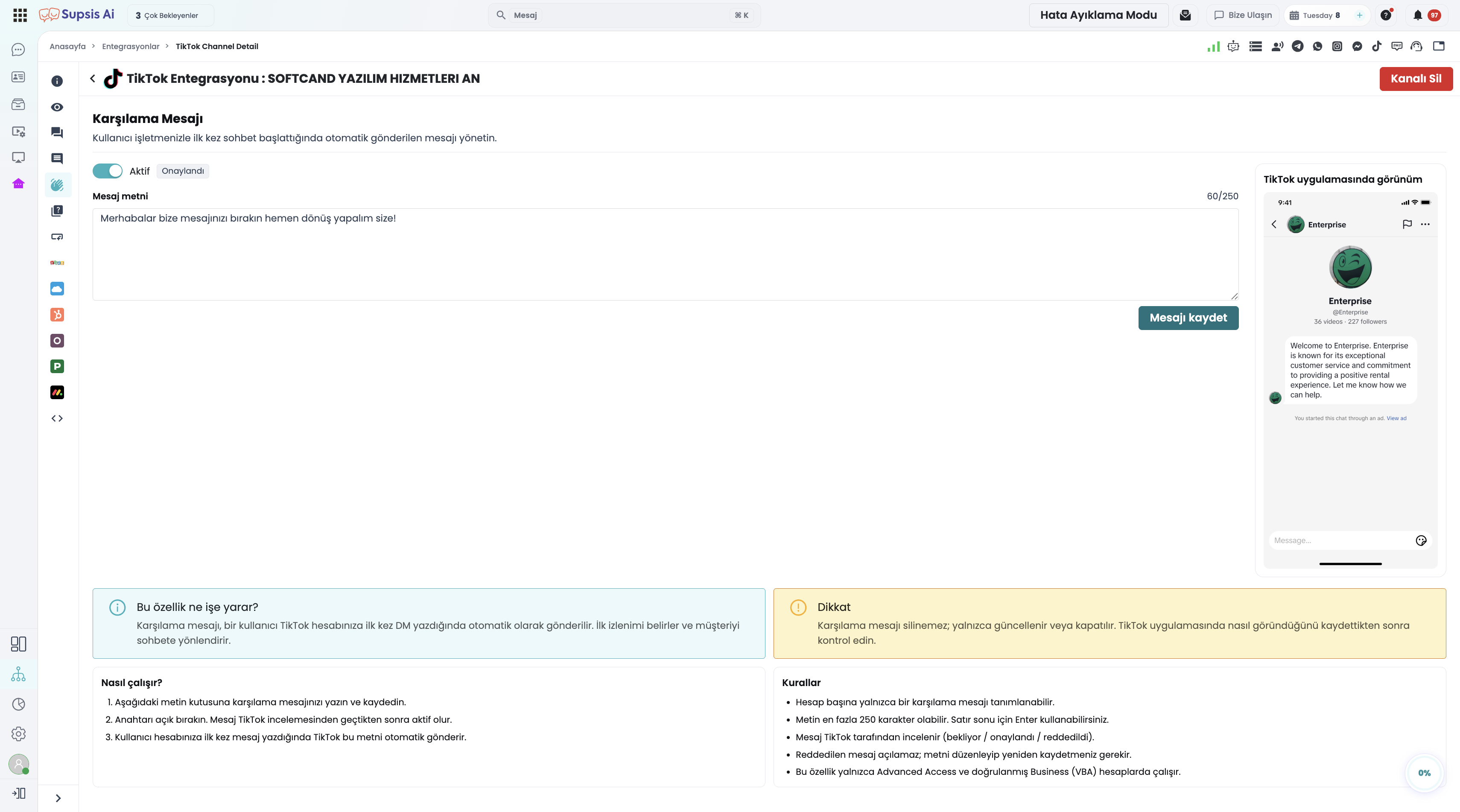
A Welcome Message is a single greeting dispatched automatically by TikTok when an end user sends their first message to your business account. * Engages the user before an agent picks up the conversation. * Manages expectations by stating working hours, average response times, or instructions to provide an order number.
4.b – Rules and Specifications
| Parameter | Specification | Details |
|---|---|---|
| Quantity Limit | 1 message | Only one active welcome message can exist per TikTok account. |
| Character Limit | Max 250 characters | Monitored by the live character counter under the text input field. |
| Line Breaks | Supported (Shift+Enter) | Multi-line formatted text with paragraphs is permitted. |
| Deletion Policy | Cannot be deleted | Per TikTok API guidelines, welcome messages cannot be deleted; they can only be edited or toggled to Inactive. |
| Moderation | TikTok Review Required | Newly saved messages enter review and will only display once Approved. |
4.c – Step-by-Step Setup
- In Supsis, navigate to Integrations → TikTok Integration and open your channel.
- Select the Welcome Message tab (hand-wave icon) on the left.
- Switch the master toggle in the top right to Active.
- Enter your message (e.g., "Hello! Thank you for reaching out to our support team. Please leave your inquiry and we will get back to you shortly during our business hours.").
- Click Save Message. The status badge will reflect
Reviewing.
5- Suggested Questions Configuration
5.a – What Are Suggested Questions and How Do They Work?
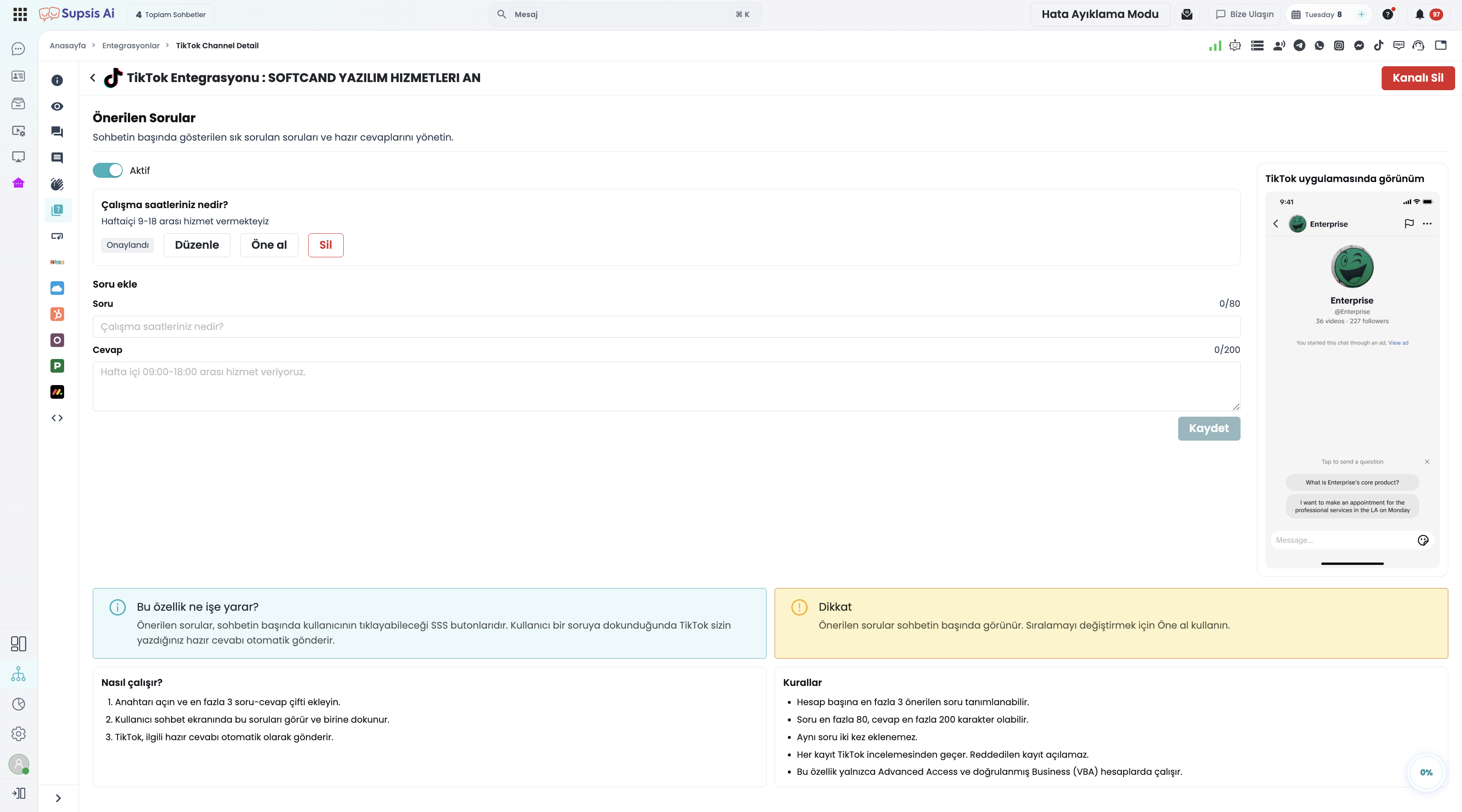
Suggested Questions are interactive FAQ cards displayed in the center of the screen when a customer opens a chat with your business. * When a user taps one of these questions, the predefined answer is delivered immediately by TikTok. * No live agent intervention or Supsis Chatbot trigger is required; the interaction resolves client-side in seconds.
5.b – Rules and Specifications
| Parameter | Limit | Details |
|---|---|---|
| Quantity Limit | Max 3 pairs | Up to 3 question-answer sets per account. |
| Question Length | Max 80 characters | Keep questions concise and straightforward. |
| Answer Length | Max 200 characters | Provide comprehensive yet clear self-service answers. |
| Duplicate Check | Disallowed | Duplicate question entries will be rejected by the TikTok API. |
| Moderation | Evaluated Individually | Each pair is reviewed by TikTok independently. |
5.c – 3-Question Limit Banner
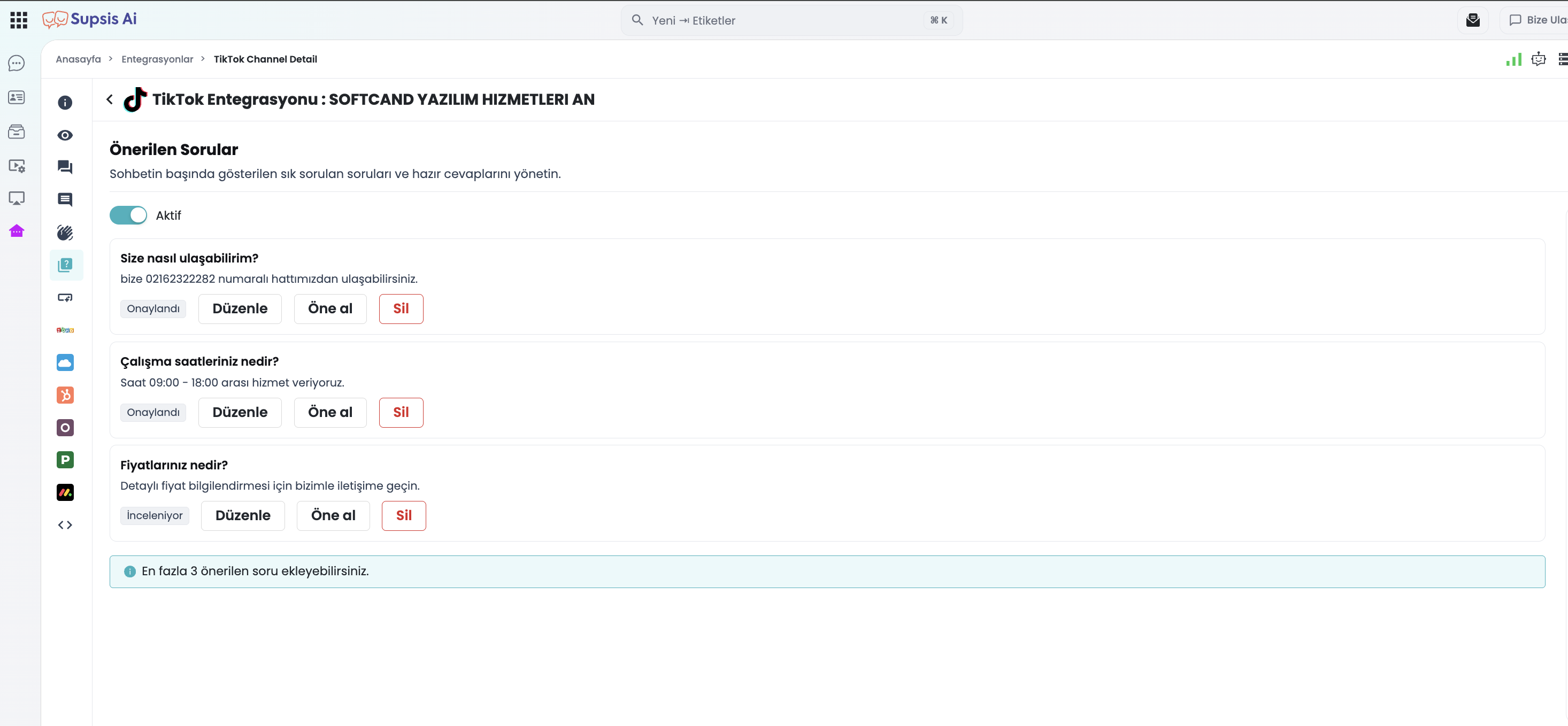
When 3 suggested question records exist in the list:
* The + Add Question button disables automatically.
* An informational banner displays: "You can add a maximum of 3 suggested questions".
* To introduce a new question, one of the existing 3 items must be deleted.
5.d – Reordering ("Bring to Front") and Deletion
- Bring to Front Action: TikTok API does not support arbitrary drag-and-drop sorting; instead, it provides a dedicated API call to move a specific item to the top. Clicking Bring to Front on any item moves it instantly to position #1.
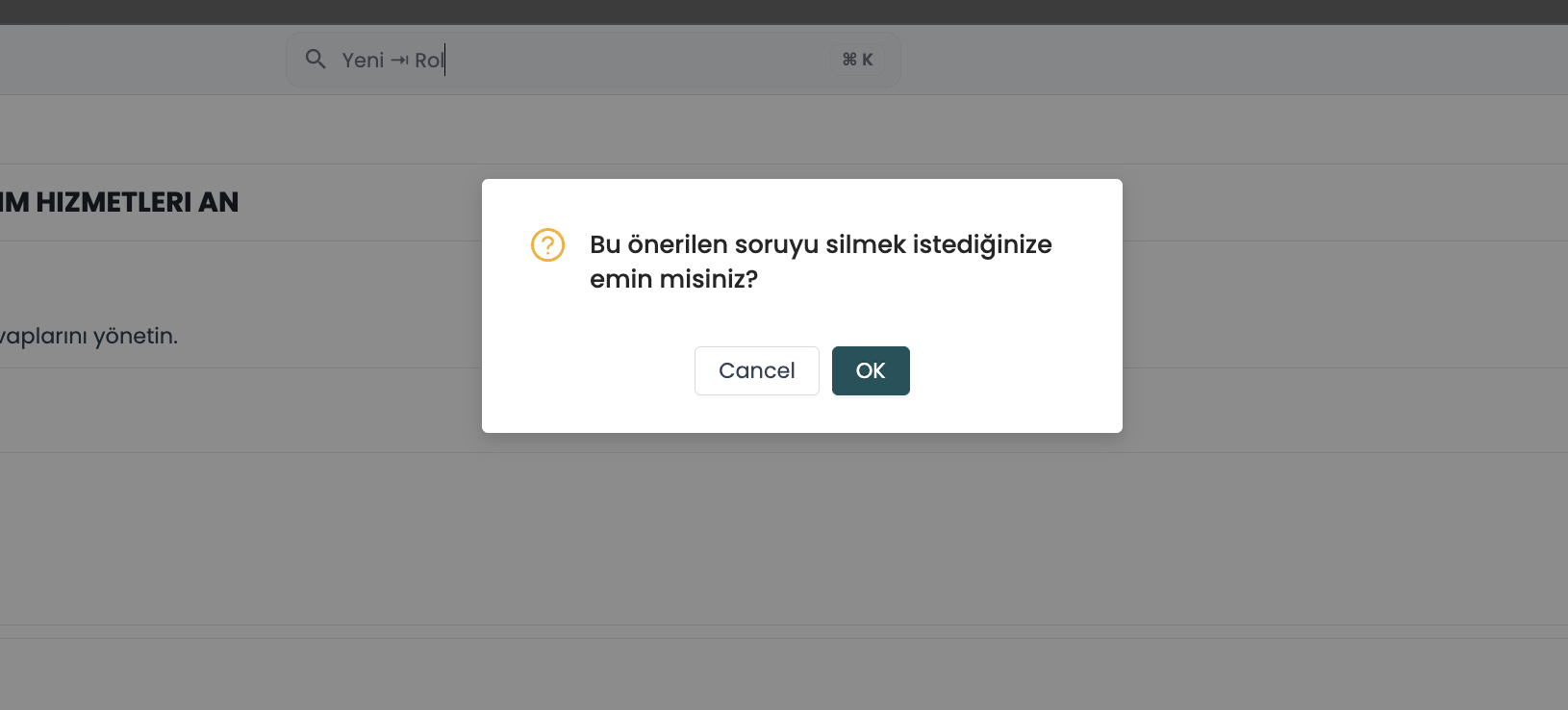
- Deletion: Clicking the trash icon opens a confirmation dialog. Confirming removes the item permanently.
6- Chat Prompts Configuration
6.a – What Are Chat Prompts and How Do They Work?
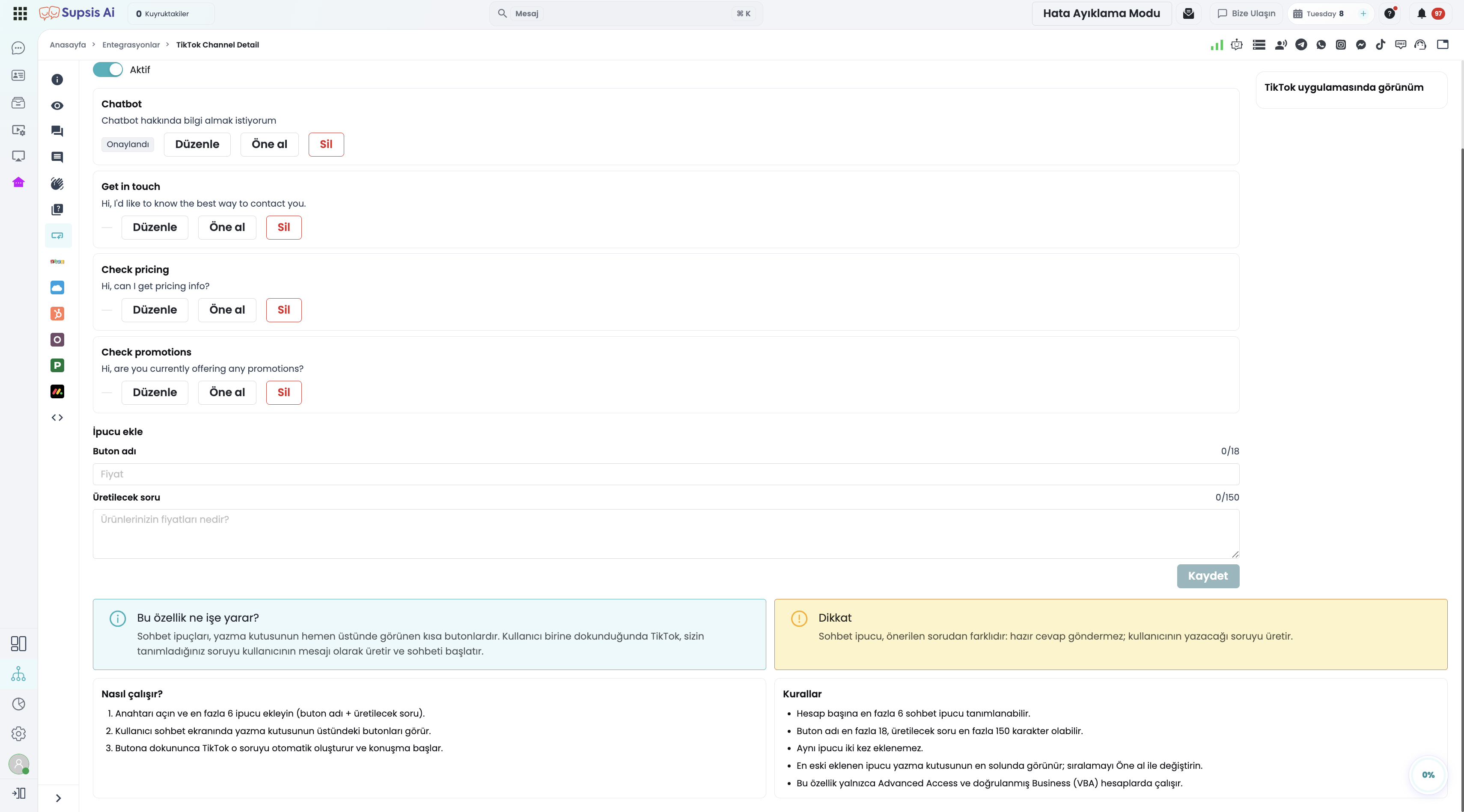
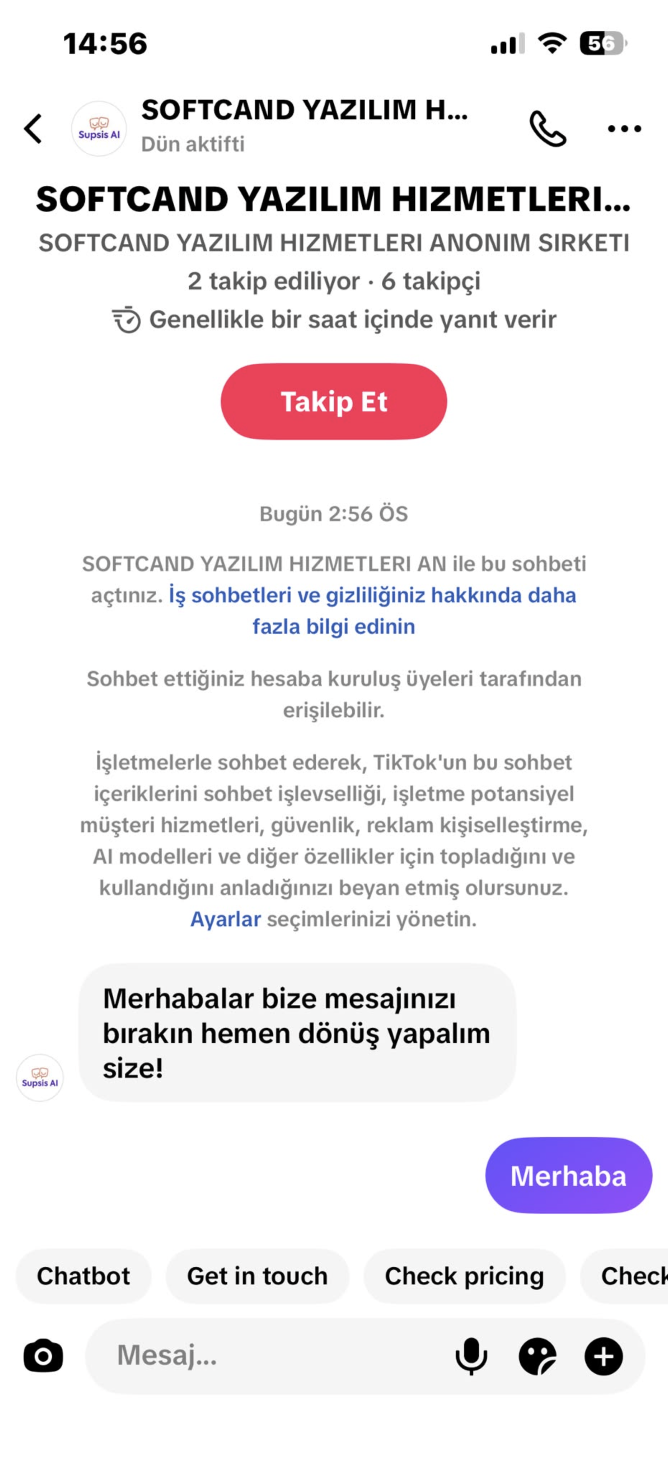
Chat Prompts are horizontal topic pill buttons positioned immediately above the text input bar (keyboard area). * When a user taps a prompt button (e.g., Pricing), TikTok generates and sends the associated question on the user's behalf (e.g., "What is the current pricing list for your products?"). * This message registers as a genuine inbound customer message in Supsis, triggering Chatbot scenarios or queueing for human agents.
6.b – Rules and Specifications
| Parameter | Limit | Details |
|---|---|---|
| Quantity Limit | Max 6 prompts | Up to 6 quick topic buttons per account. |
| Button Name | Max 18 characters | The label shown on the button (e.g., Track Order, Returns). |
| Generated Question | Max 150 characters | The full text dispatched as the user's message upon clicking. |
| Display Order | Left to Right | Oldest prompts display on the far left; use Bring to Front to reorder. |
6.c – Bridging Chat Prompts with Supsis Chatbot Workflows
Chat Prompts serve as the ultimate gateway to kick off automated Supsis Chatbot workflows:
1. Add a Chat Prompt: Button Label: Shipping, Generated Question: I want to check my order shipping status.
2. Configure a Supsis Chatbot rule: Trigger when message contains "shipping status" to initiate the automated order lookup flow.
3. The TikTok user taps Shipping without typing a single character, and the Supsis Chatbot responds immediately with interactive order tracking options.
7- Critical Comparison: Suggested Questions vs. Chat Prompts
| Comparison Metric | Suggested Questions | Chat Prompts |
|---|---|---|
| Visual Placement | Large question cards in the center of the chat screen. | Small horizontal pill buttons above the keyboard input box. |
| Who Answers? | Directly TikTok (predefined canned response). | Supsis (Live Support Agent or Chatbot). |
| Inbound to Supsis? | ❌ No (Resolved client-side on TikTok). | ✅ Yes (Dispatches as a genuine user message). |
| 48-Hour Window Impact | Does not open the 48-hour messaging window. | Opens the 48-hour messaging window automatically. |
| Maximum Quantity | Up to 3 questions. | Up to 6 buttons. |
| Best Used For | Static informational FAQs (office hours, store locations). | Dynamic workflows, Chatbot initiation, and sales inquiries. |
8- TikTok Content Moderation (Audit) Process and Badges
To protect platform safety, all text submitted via Supsis undergoes automated and manual review by TikTok.
8.a – Review Badges and Lifecycle
| Badge | Visual | Description |
|---|---|---|
| Reviewing (REVIEWING) | 🟡 Yellow Badge | Content has been submitted to TikTok moderation and is pending approval. Not yet visible to users. |
| Approved (APPROVED) | 🟢 Green Badge | Content passed policy review and is active. Visible to users if the master toggle is Active. |
| Rejected (REJECTED) | 🔴 Red Badge | Content violated TikTok policy and was rejected. Cannot be displayed to users. |
8.b – Best Practices to Prevent Rejections
- Avoid External URLs: Including links to external websites frequently triggers policy flags.
- Avoid Direct Contact Details: Do not include raw phone numbers or WhatsApp links in automated prompts.
- Avoid Aggressive Marketing: Refrain from terms like "Free", "Buy Now", or misleading discount claims.
- Respect Intellectual Property: Do not reference competing brands or trademarks.
💡 Tip: If an entry is rejected, click Edit, revise the wording according to guidelines, and save. The content will be resubmitted to TikTok for re-evaluation.
9- Master Toggle (Operation Status) Mechanics
Each of the three tabs features an Active / Inactive master toggle in the top right: * The toggle operates globally across that specific message category. * Setting the Suggested Questions toggle to Inactive hides all 3 approved questions from TikTok instantly without needing to delete them. * Re-enabling the toggle restores all previously approved items immediately.
10- Navigation and Menu Route
Access TikTok Automatic Messages in your Supsis workspace via:
- Menu Path:
Left Menu → Integrations → Social Media → TikTok Integration → Select Channel. - Channel Management Tabs:
DetailsVisibilityComment ManagementComment to Message- 👋
Welcome Message(/integrations/tiktok/{channelId}/detail/welcomemessage) - ❓
Suggested Questions(/integrations/tiktok/{channelId}/detail/suggestedquestions) - 💡
Chat Prompts(/integrations/tiktok/{channelId}/detail/chatprompts) (Connected CRM Integrations)
11- Recommended Use Cases and Strategies
| Scenario | Objective | Recommended Configuration |
|---|---|---|
| Off-Hours Expectation Setting | Retain prospective clients reaching out after hours. | Welcome Message: "Hello! We have received your message. Our team will review your inquiry and reply during business hours (Mon-Fri 09:00 - 18:00)." |
| Instant Retail FAQs | Resolve delivery and return inquiries instantly. | Suggested Questions: Q1: "When will my order arrive?" / Q2: "What is your return policy?" / Q3: "Do you offer cash on delivery?" |
| Flash Sale Navigation | Route campaign interest into dedicated sales flows. | Chat Prompts: Label: "Flash Sale", Prompt: "Could you share information about the ongoing seasonal flash sale?" ➔ Triggers Chatbot campaign flow. |
| Lead Qualification | Prompt users to provide crucial context in their first inquiry. | Welcome Message: "Welcome to our support! To assist you promptly, please mention your order number in your message." |
12- Frequently Asked Questions and Troubleshooting
12.a – "I saved my message, but it doesn't appear in the TikTok app"
- Check the status badge. If it indicates
Reviewing, TikTok moderation is still evaluating the text. - Ensure the master toggle is switched to Active.
- Confirm that your account is a Verified Business Account (VBA).
12.b – "The Add Question button is disabled"
- You have reached the maximum allowance of 3 suggested questions. Delete an existing question to add a new one.
12.c – "How do I delete the Welcome Message?"
- TikTok does not allow complete deletion of the Welcome Message. Simply switch the master toggle to Inactive to turn it off.
12.d – "Do edits in TikTok Business Suite sync to Supsis?"
- Yes, bidirectional sync guarantees that changes made in TikTok Business Suite reflect in Supsis and vice versa.