
Telegram (QR Code) Integration
1-) Integration Steps
This section of the document includes the steps required to start the process of adding your Telegram channel to the Supsis AI panel and defining the necessary authorizations through the platform.
1.a – Supsis AI Panel Operations
To complete the integration, follow the steps below in your Supsis AI panel:
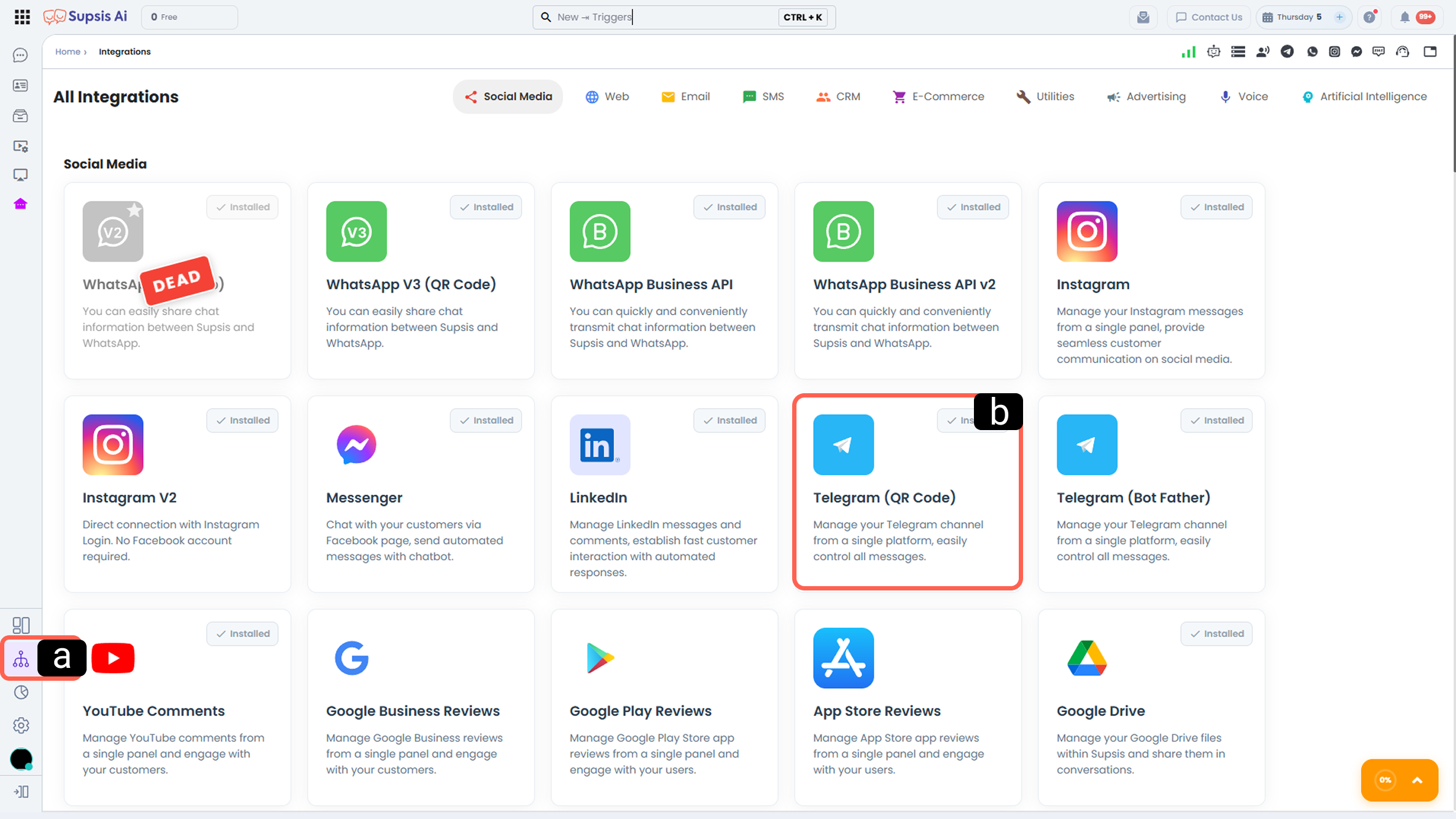
-
a – Integrations Menu
Click the Integrations icon located in the left menu of your Supsis AI panel. -
b – Channel Selection
Find the Telegram card in the social media channels list and click on it to view the channel details.
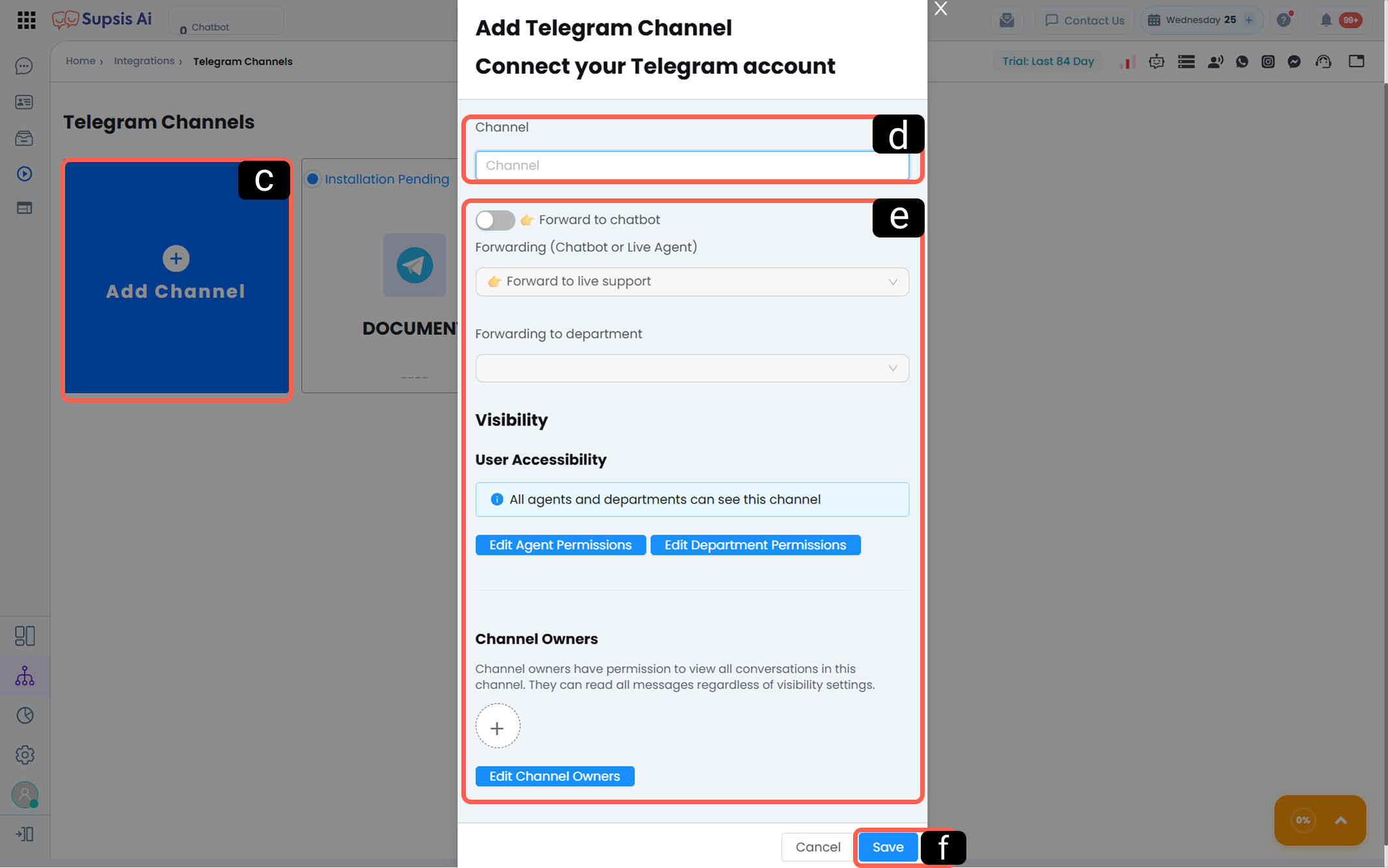
-
c – Add Channel
Click the Add Channel button (blue area with a plus icon) inside the Telegram QR integration section. This action will create a new Supsis AI channel where you can define your Telegram account. -
d – Channel Name
Channel Name allows you to define how the integrated Telegram account will appear in the Supsis AI panel. This name represents the account only within the Supsis AI panel. -
e – Channel Management
This section allows you to configure the working principles and management preferences of the Telegram account you integrate into the Supsis AI panel.
The data and settings defined during integration can later be updated in more detail and more easily via the Channel Details section. For more information about channel management, you can review the Telegram Channel Details documentation. -
f – Save Channel
After filling in the required fields, click this button to save the channel in your Supsis AI panel.
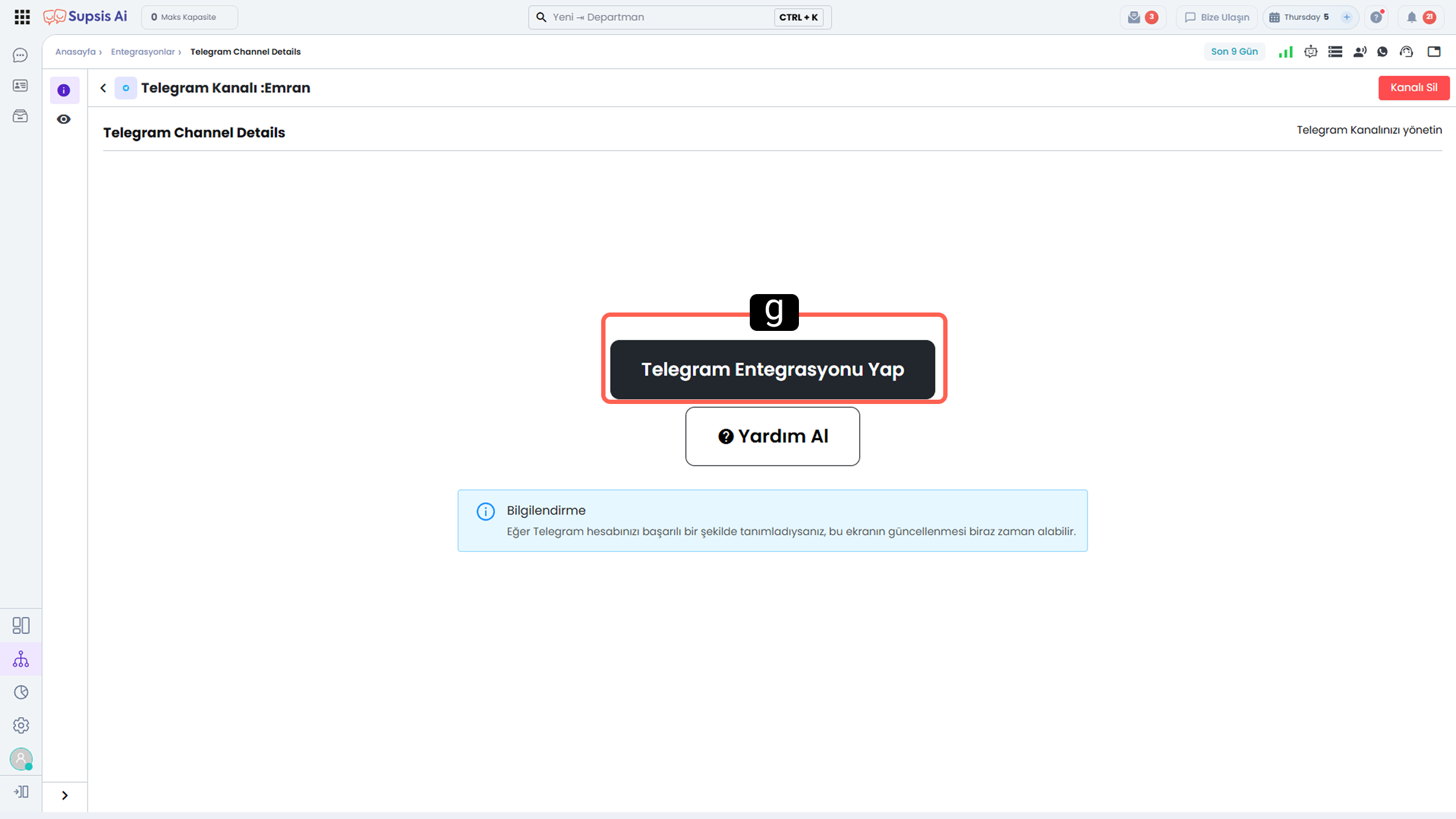
- g – Complete Integration
Click the Integrate button. This button will redirect you to the Telegram connection where you will complete the login and authorization process.
1.b – Telegram Login Process
While connecting your Telegram account to the Supsis AI panel, you may need to pass a verification step depending on your account’s security settings. This step is critical for protecting your data.
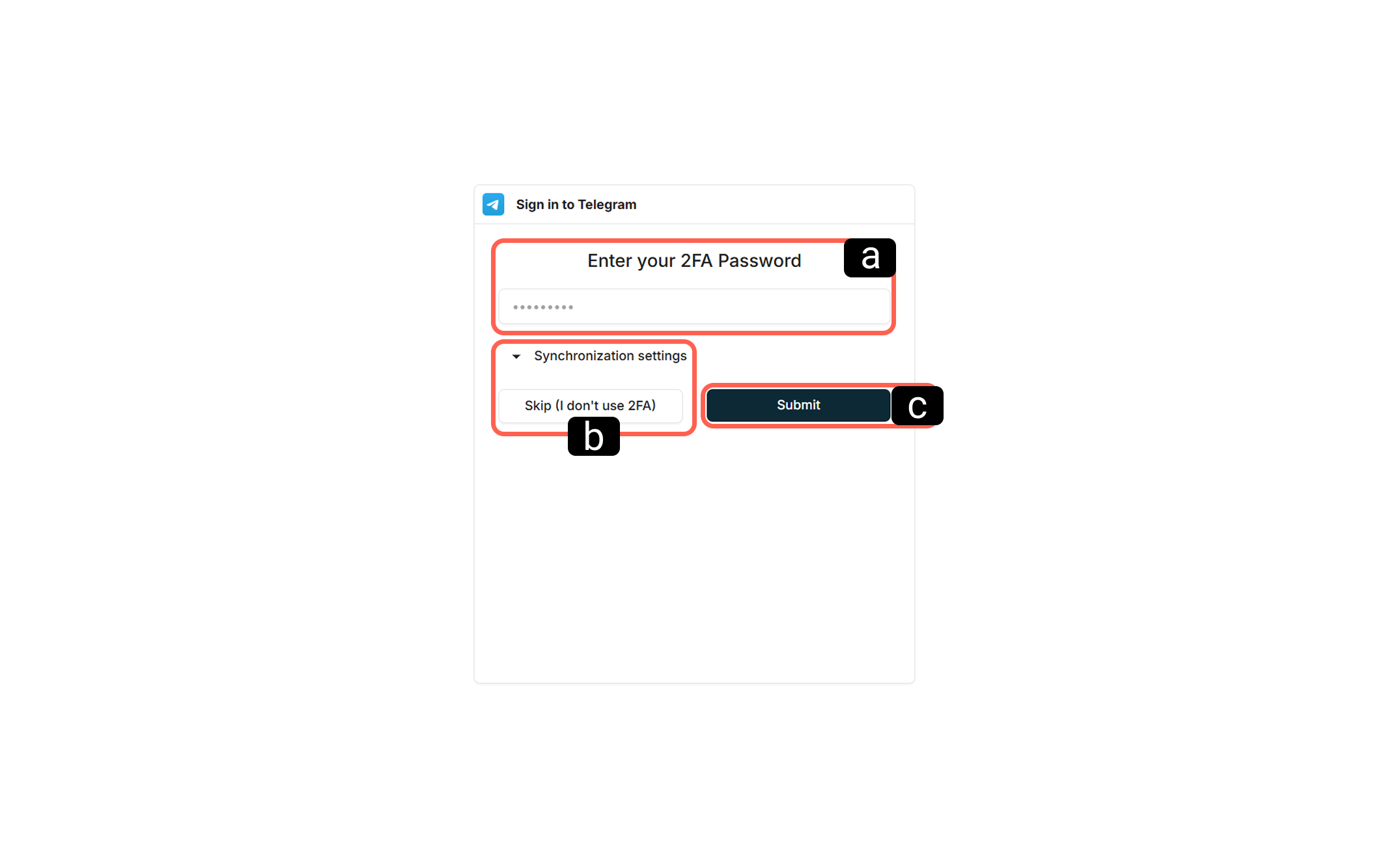
-
a – 2FA Password
If the “Two-Step Verification” feature is active on your Telegram account, you must enter your current 2FA password in the displayed field. -
b – If 2FA Is Not Enabled
If no additional security password is defined on your account, you can click the “Skip (I do not use two-factor authentication)” option to proceed. -
c – Submit
After entering your password or selecting the appropriate option, click the Submit button to move to the next step.
1.c – Telegram Mobile App Operations
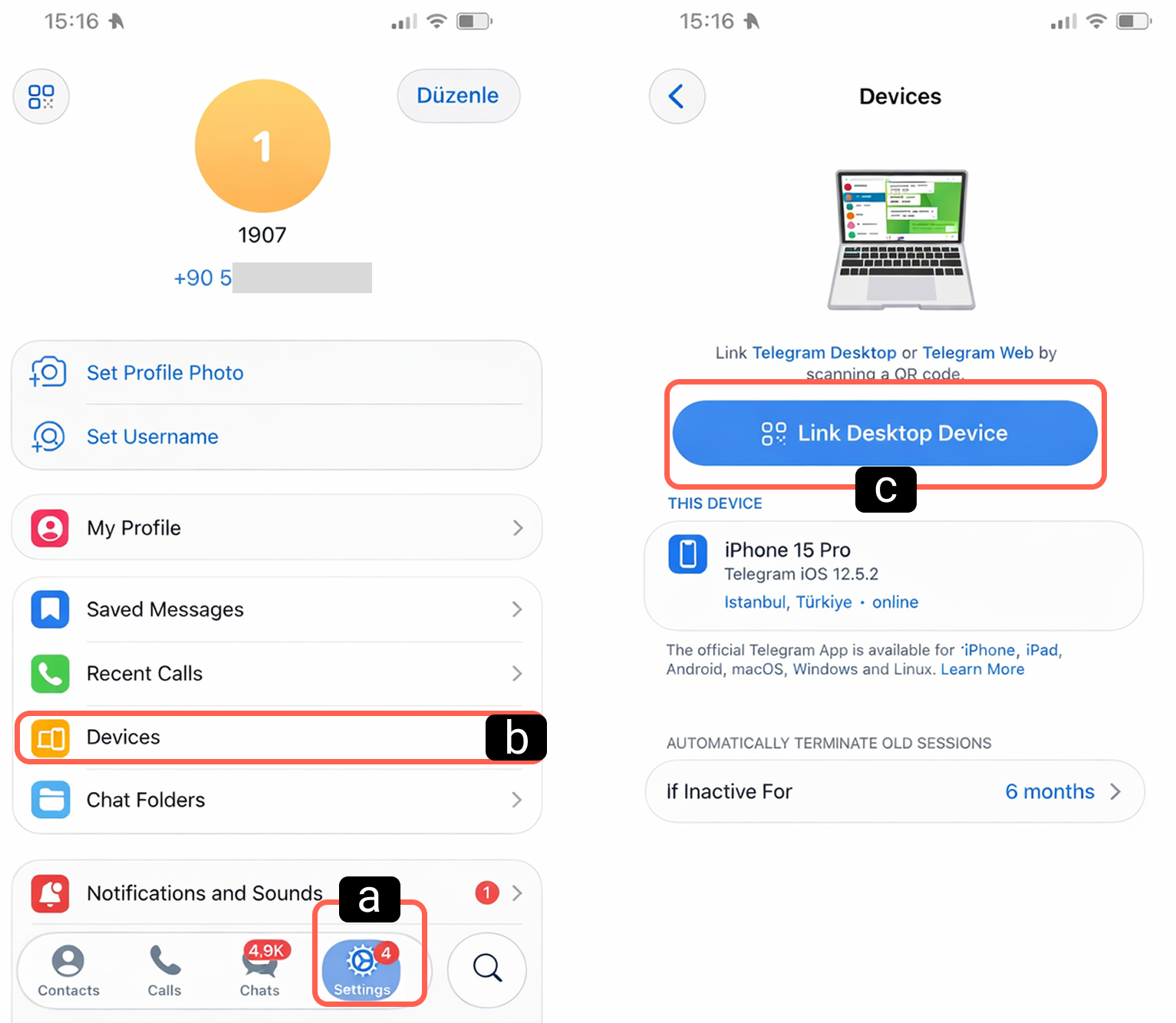
To register your account in the Supsis AI panel, you must complete a quick pairing process via the Telegram mobile application. Follow the steps below:
-
a – Settings
Open the Telegram mobile application and go to the Settings tab located in the bottom menu. -
b – Devices
Tap on the Devices section. On this screen, you can view and manage all active sessions and connected devices linked to your account. -
c – Link Desktop Device
To initiate a new connection, tap the “Link Desktop Device” button.
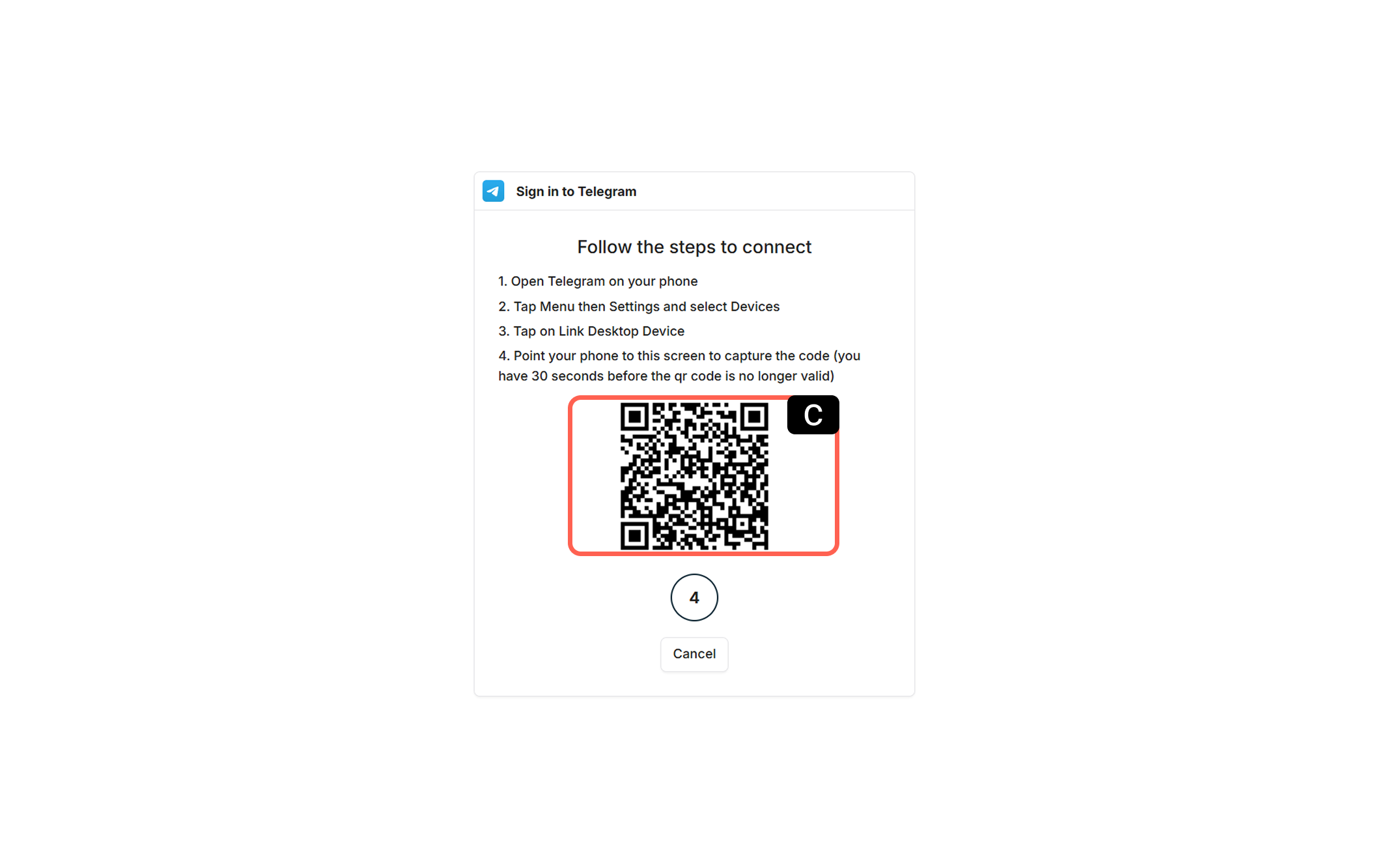
- d – QR Code
After successfully completing the above steps, your phone’s camera will switch to QR scanning mode. Scan the QR code generated in the Supsis AI panel using your phone’s camera.