
Dynamic Tables - Quick Setup with Templates
1-) Usage and Configuration Operations
This section covers the "Templates" feature in the Dynamic Tables module on the Supsis AI panel. Templates are not just a single table; they are a comprehensive workflow architecture containing interconnected tables, relationships, automations, and various system keys. By choosing a pre-built template suited to your needs, you can set up advanced process management systems (CRM, Bug Tracking, HR Management, etc.) in seconds.
1.a – Template Categories and Selection
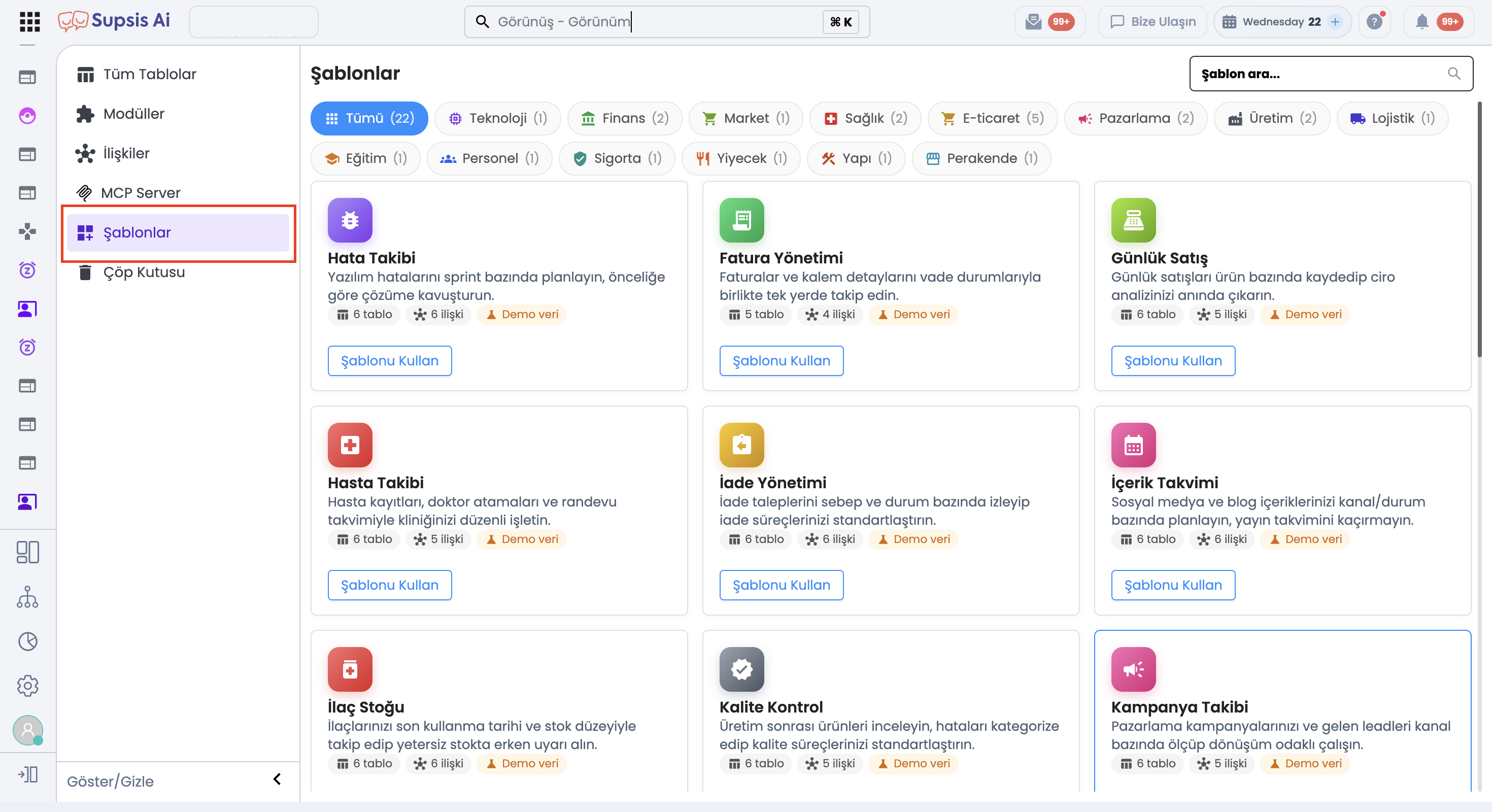
You can use the Templates menu to choose a ready-made workflow that suits your requirements:
- a – Category Filtering and Templates: Filter templates by industry categories such as Technology, Finance, E-commerce, Marketing, and select the workflow to start the installation.
1.b – Step 1: Tables and Field Customization
When you start using a template, the system provides pre-configured tables belonging to that workflow architecture. The first step is where you can customize these tables according to your business processes:
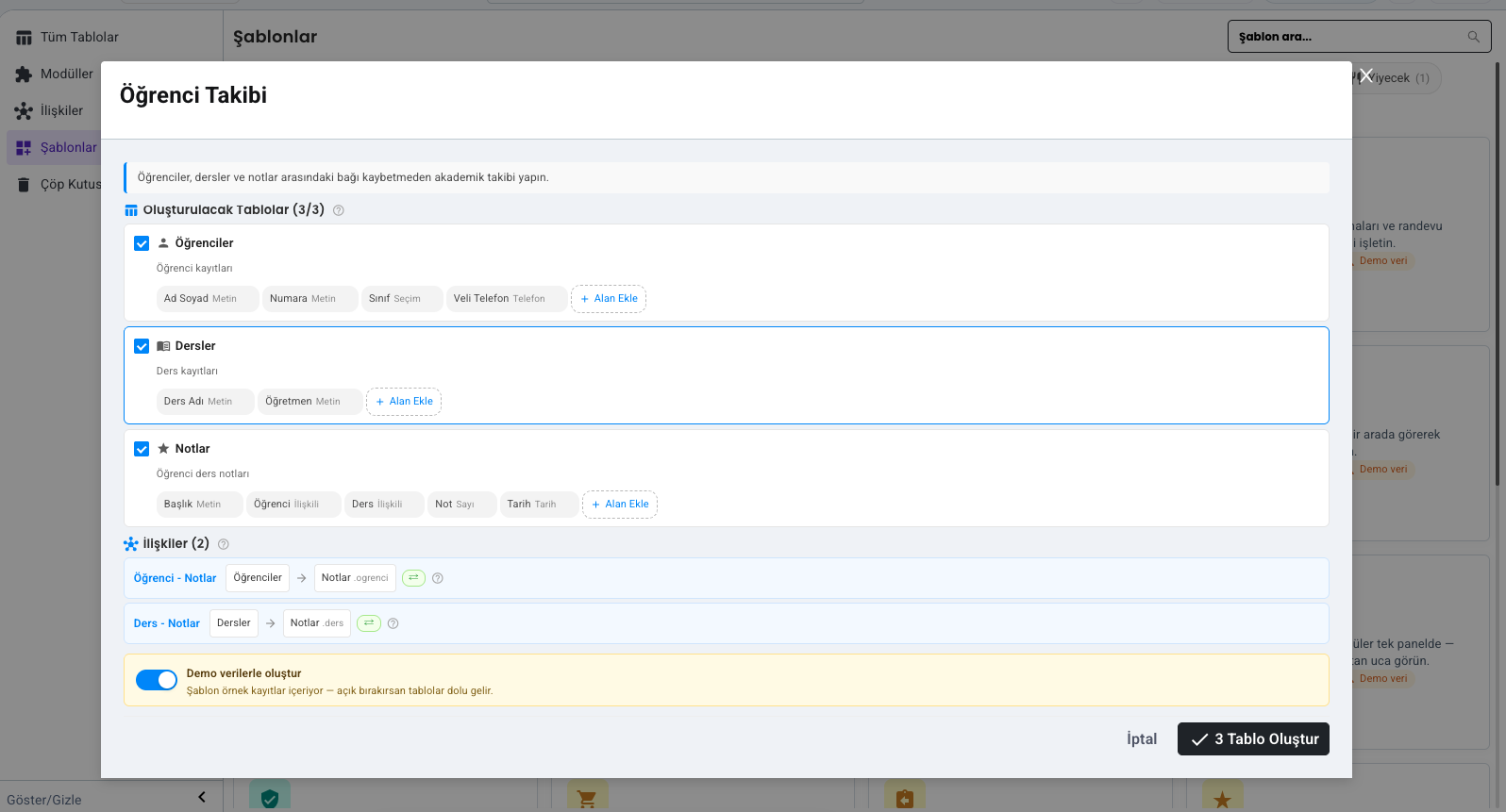
- b – Table Structure and Fields: View the tables in the template and customize column names and data types according to your needs.
1.c – Step 2: Relationships and Automation Configuration
In the second step of template setup, relationships between tables and automation rules are configured:
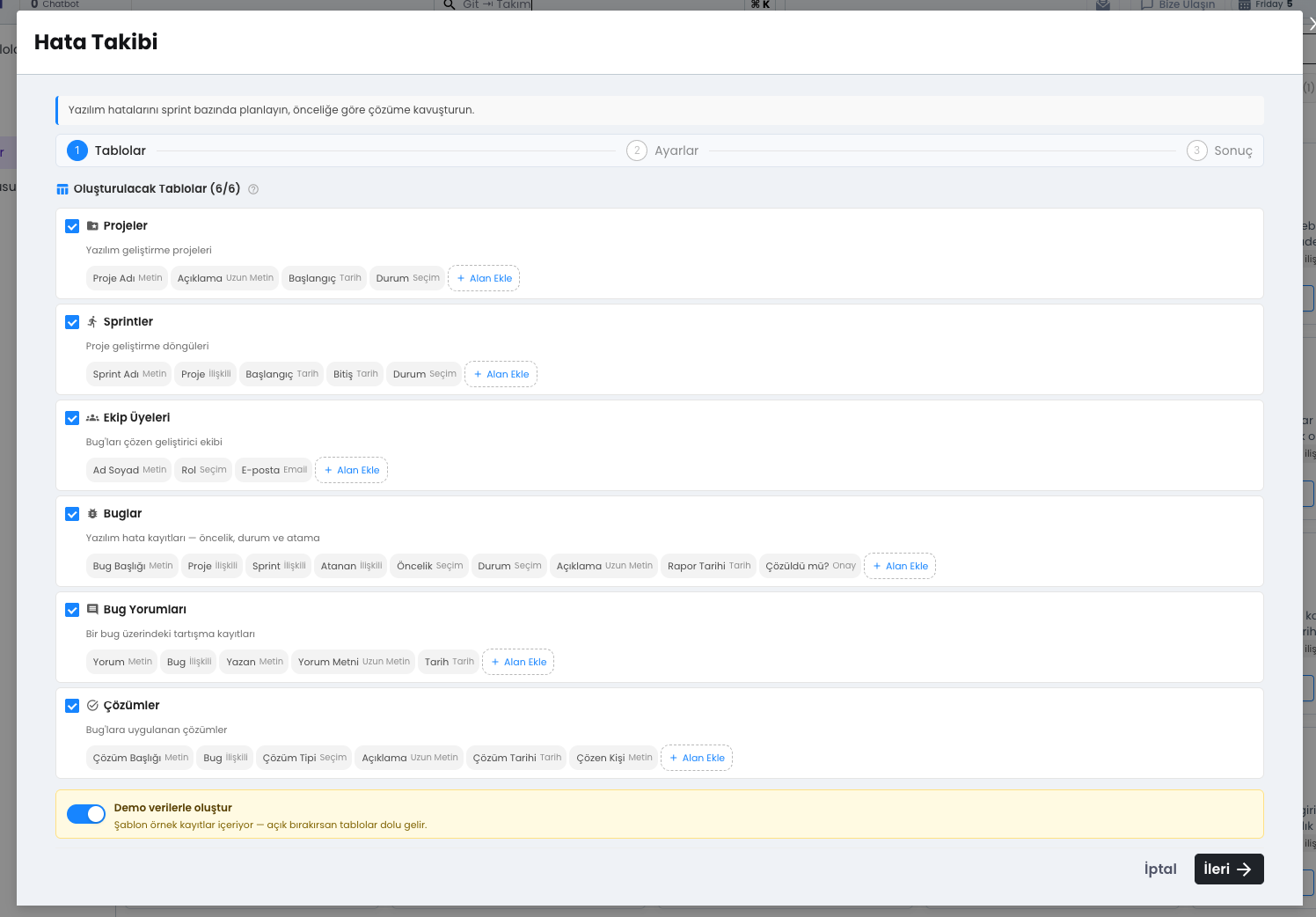
- c – Automatic Workflow Activation: Pre-built relationships and automation scenarios that come with the template are activated with a single click, making the process ready for immediate use.
Table Templates allow businesses to bring industry-standard workflows live with a single click instead of designing table architectures from scratch.