
1-) Filters and Search
Filtering and search tools are provided to help you manage archived conversations more easily. These tools allow you to narrow down the conversations you want to view and focus only on relevant data.
From this section, you can filter archived conversations based on specific criteria.
Filtering can be performed using a single criterion or by combining multiple filter parameters.
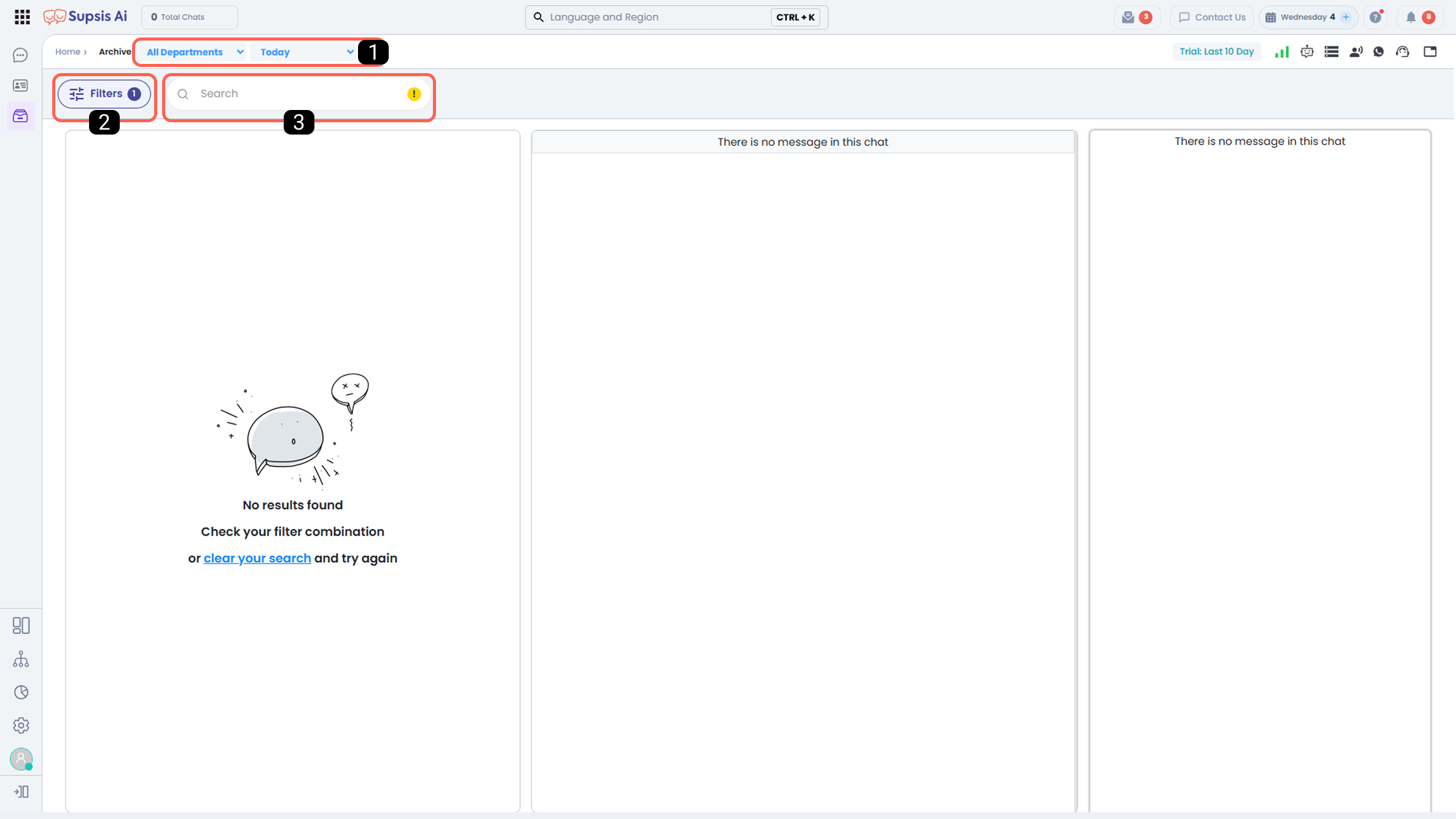
| No | Menu |
|---|---|
| 1 | Template Filters |
| 2 | Filters |
| 3 | Search Bar |
1-) Template Filters
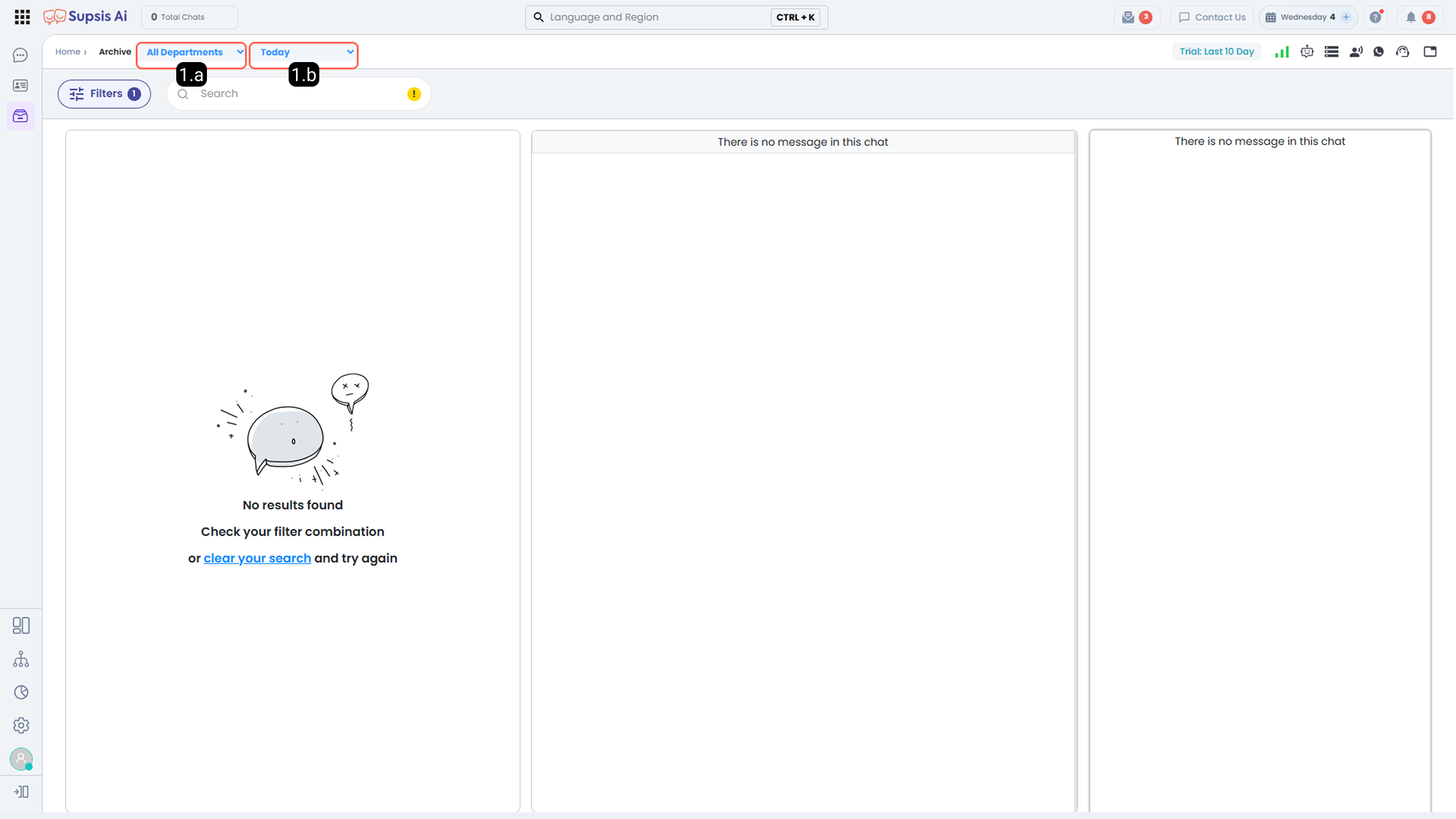
Template filters are predefined filters that allow one-click access to frequently used filtering scenarios.
-
1.a – Department Filter:
With this filter, you can quickly access conversations that were directed to or managed by a specific department.
-
1.b – Template Time Filter:
Allows you to list conversations that occurred within a specified date or time range.
This feature is useful for analyzing specific past periods and evaluating performance.
2-) Filters
Provides filtering tools that allow you to access the past conversations you request.
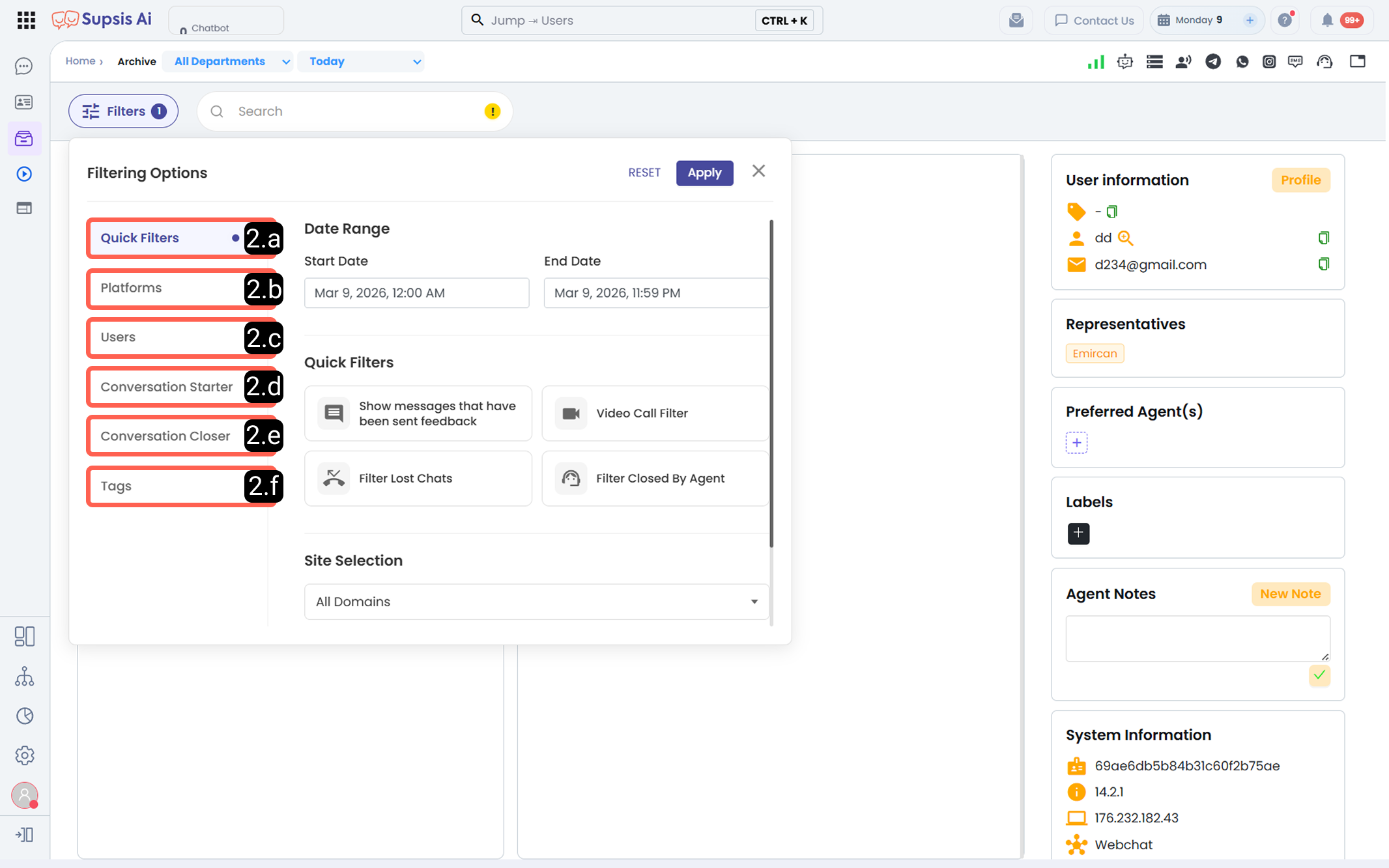
2.a – Quick Filters
The Quick Filters section includes practical filtering options designed to help you analyze conversation data quickly.
Filtering in this section can be performed based on date range, quick filters, site selection, and chat rating criteria.
-
Date Range:
The date range filter allows you to specify the start and end dates of the conversation data to be displayed.
Start Date: Determines from which date the data will begin to be listed.
End Date: Specifies the end date of the data display range. Used to review conversations within a specific period.
-
Quick Filters:
Quick filters provide ready-to-use options that allow you to filter specific conversation types with a single click.
- Show Messages with Feedback Sent: Filters conversations where feedback was received via the chat bubble.
- Show Video Calls: Lists conversations that include video calls conducted on the platform. This filter facilitates the review and management of video calls.
- Filter Lost Conversations: Displays conversations that were not completed due to connection interruptions or similar reasons. This allows tracking of lost conversations.
- Filter Conversations Closed by Agent: Lists conversations that were manually terminated by agents.
-
Site Selection:
The site selection filter allows you to determine which site’s conversation data will be displayed when the Supsis chat bubble is integrated into multiple websites.
This feature enables site-based analysis.
-
Chat Rating:
Chat rating refers to the conversation quality scores given by visitors via the chat bubble.
With this filter, you can view conversations within a specific rating range and conduct customer satisfaction analyses.
2.b – Platforms
The Platforms section allows you to filter conversations and interactions that took place across different communication channels via the Supsis system.
With this filter, you can display only conversations belonging to the selected platform and perform channel-based analysis and tracking more easily.
2.c – Users
The Users filter allows you to display only conversations that were handled, managed, or owned by the selected user(s) or chatbot.
This enables agent-based performance tracking and allows you to easily analyze conversations managed by a specific agent.
2.d – Conversation Starter
The Conversation Starter filter allows you to filter conversations and interactions in your panel based on the source or method by which they were initiated.
There are a total of 10 different options representing different initiation types. This allows you to analyze the origin of conversations and manage operational processes more effectively.
Available initiation types:
- User: Lists conversations manually initiated by agents.
- Visitor: Filters messages and conversations initiated by customers.
- API: Displays conversations automatically created via API integrations.
- Bulk Message: Lists conversations generated as a result of bulk messages sent via WhatsApp.
- Instagram Comments: Filters DM conversations initiated through comments on Instagram posts.
- Facebook Comments: Filters DM conversations initiated through comments on Facebook posts.
- Instagram Mention: Displays conversations initiated as a result of Instagram mentions (tagging).
- Trendyol: Filters conversations generated from question–answer interactions on the Trendyol platform.
- Automation: Lists conversations automatically initiated by the Automation module.
- Phone Call: Filters interactions based on calls made via the Call Center module.
2.e – Conversation Closer
The Conversation Closer filter allows you to filter archived conversations based on which party or system mechanism closed them.
This filter provides four different options that clearly distinguish the source of conversation closure.
Available closure types:
- Agent: Filters conversations manually closed by agents.
- Visitor: Displays conversations closed by visitors or customers.
- Chatbot: Filters conversations that ended when the visitor used the “Close Conversation” option while the chatbot or AI was managing the chat.
- System: Filters conversations automatically closed by the system due to session expiration, timeout, or similar reasons.
2.f – Tags
In this section, you can filter conversations by selecting tags assigned to them.
With tag filtering, you can quickly access conversations related to specific campaigns, customer segments, or operational processes, allowing you to review archive data in a more organized and targeted manner.
3-) Search Bar
The search bar allows you to quickly search among conversations listed based on your active filters.
It searches for matches within fields such as Name–Surname, email address, agent notes, phone number, and user information found in contact profile cards, and lists conversations that match the searched content.