
Meta Business Manager business account verification (Business Verification) is an important process that helps companies using WhatsApp Business API verify their business details with Meta.
Business verification is vital for managing business assets more securely, accessing specific Meta features, and enhancing the verifiability of business details within the WhatsApp Business ecosystem. However, Business Verification alone does not prevent an account from being flagged as spam, restricted, or disabled.
This guide is a technical reference covering Meta Business verification steps, document preparation, policy compliance in broadcast messaging, maintaining message quality, and managing potential restriction appeals.
1. What is Meta Business Manager?
Meta Business Manager (now known as Meta Business Portfolio) is an enterprise management platform enabling centralized administration of Facebook, Instagram, and WhatsApp Business API assets, ad accounts, pixels, and team access permissions.
Relationship with WhatsApp Business API
WhatsApp Business API is not managed purely through a mobile phone device like personal WhatsApp applications. The API infrastructure operates via a WhatsApp Business Account (WABA) linked to your Meta Business Portfolio.
The WhatsApp phone number, business assets, message templates, access permissions, and related Meta configurations connected to your Supsis AI dashboard are directly tied to your Meta Business infrastructure.
Difference Between Meta Business Manager and a Facebook Page
-
Facebook Page: The public social media profile visible to customers.
-
Meta Business Manager / Business Portfolio: The enterprise management portal where access, permissions, and administrative processes for company-owned Facebook, Instagram, WhatsApp, and other Meta assets are centrally governed.
2. What is Business Account Verification (Business Verification)?
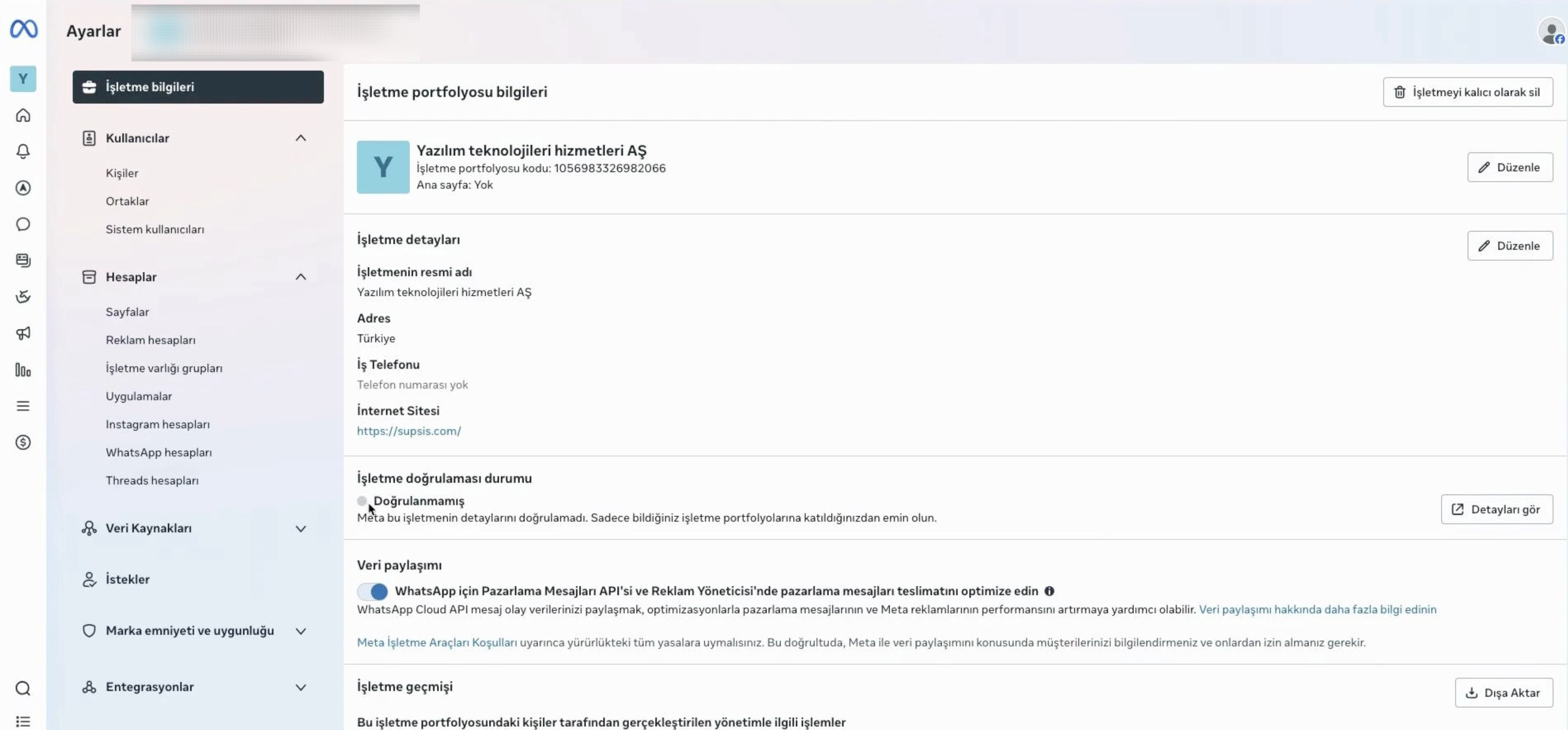
Business Account Verification (Business Verification) is an official review process conducted by Meta to verify a company's legal existence and official business details for designated business accounts.
During this review, Meta may request verification based on legal business name, address, phone number, and official corporate registration documents.
Why Does Meta Verify Businesses?
Meta's business verification procedures ensure that business assets on the platform belong to authentic and verifiable organizations.
Through the verification process:
-
Business Information is Verified: The legal entity name and official details are validated against required corporate documents.
-
Business Assets are Managed Reliably: Associating Meta assets with a verified enterprise structure supports operational stability.
-
Access to Specific Features is Granted: Depending on the Meta product in use and account status, certain capabilities or capacity tiers may require business verification.
📌 Important: Business verification is distinct from the WhatsApp Quality Rating. Message quality is influenced by user feedback, blocks, reports, and overall customer messaging experience.
3. How to Verify a Meta Business Account (Step-by-Step Guide)
Follow these steps sequentially to complete the Meta Business Verification process:
Step 1: Prepare Official Corporate Documents
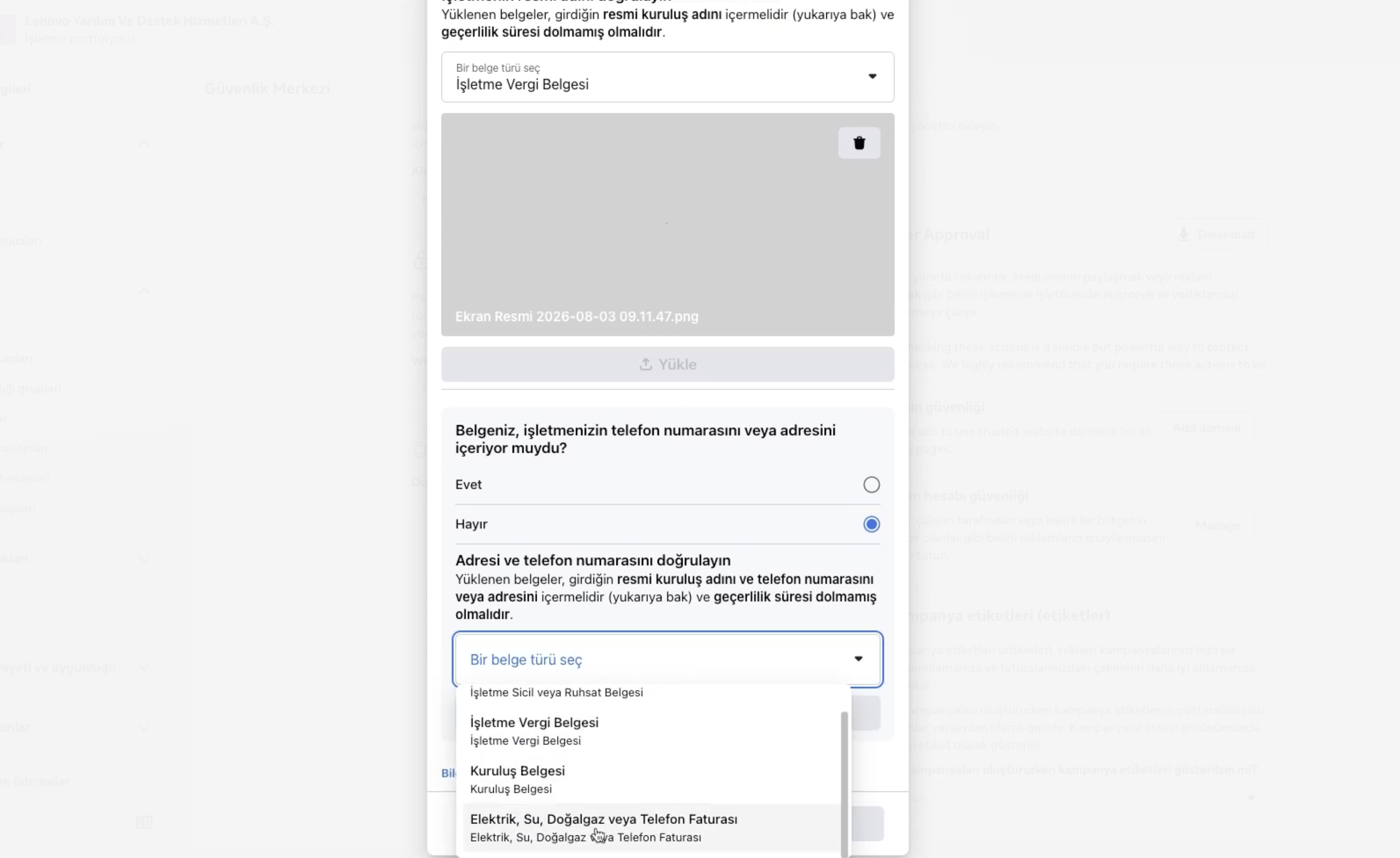
It is crucial that the Legal Business Name and official business details on the verification documents match the information entered in your Meta Business Portfolio.
Meta may require different documentation depending on your country of registration and legal entity type.
Examples of standard documents include:
-
Official Tax Certificate / Registration
-
Trade Registry Gazette or Chamber of Commerce Registration
-
Certificate of Activity / Good Standing
-
Official utility bill or bank statement registered under the business name (for address verification)
📌 Meta's required document types may vary based on application specifics and legal structure. Always refer to the exact documents requested inside the Meta Business Suite dashboard.
Step 2: Review Business Details
Before submitting your application, ensure the following information is accurate and consistent:
-
Legal business name
-
Official business address
-
Phone number
-
Website URL
-
Business category
Using a corporate email address hosted on your business domain name (contact@yourcompany.com) helps maintain corporate credibility and streamline communication.
Step 3: Complete Domain Verification (If Applicable)
Domain Verification is a distinct feature within Meta Business Suite.
If you need to associate your website with Meta assets or utilize specific Meta platform capabilities, verifying your domain via DNS TXT records is recommended.
📌 Domain verification is not mandatory for every Business Verification application. It is required based on specific Meta products and integration needs.
Step 4: Enable Two-Factor Authentication (2FA)
Navigate to Meta Business Suite → Security Center and review your portfolio's security posture.
Enforcing Two-Factor Authentication (2FA) for all administrators and employees with sensitive access is strongly recommended to protect business assets against unauthorized access.
Step 5: Submit Application & Review Process
-
Go to Settings → Security Center (or the designated verification section) in Meta Business Suite.
-
Open the Business Verification option.
-
Enter the requested legal company details.
-
Upload the required corporate documents in clear PDF format.
-
Complete phone or email OTP verification if prompted.
📌 Review Time: Meta's review duration varies depending on application volume, business type, and document verifiability. Monitor your application status and notifications inside Meta Business Suite.
4. Why is Business Account Verification Necessary?
Business verification is particularly crucial for enterprises managing Meta and WhatsApp assets at scale.
Key benefits include:
-
Validated Business Identity: Links your assets to a verified corporate entity in the Meta ecosystem.
-
Access to Advanced Features and Capacities: Unlocks higher messaging tiers and specialized features when required by Meta product policies.
-
Enterprise Asset Administration: Fosters centralized, secure, and audited governance across all business assets.
-
Verified Business Programs: Depending on account eligibility and regional Meta offerings, enables consideration for verified business badges and enterprise trust programs.
📌 Business verification does not grant immunity from WhatsApp messaging policy violations or account restrictions. Quality compliance remains mandatory.
5. Potential Limitations on Unverified Accounts
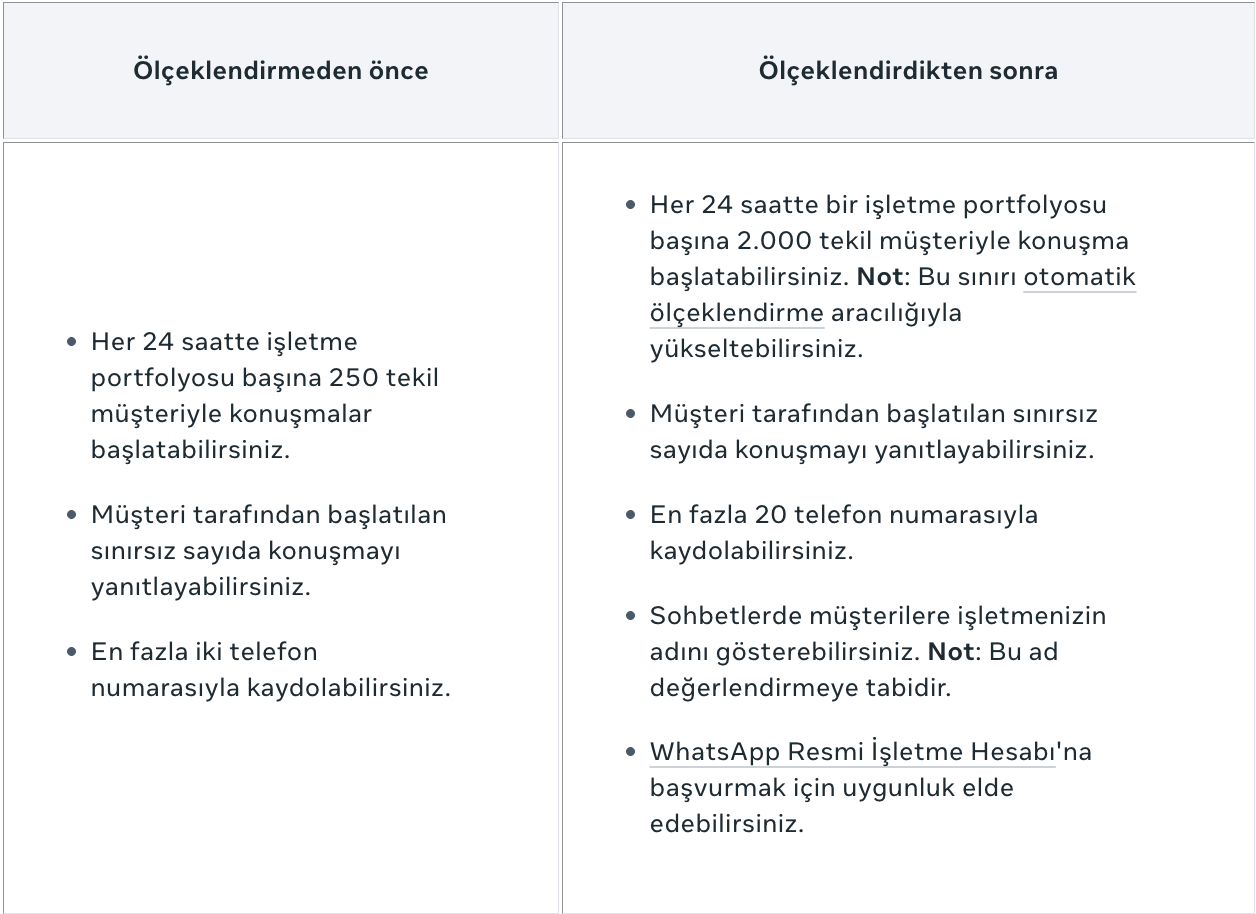
Accounts without business verification may operate under limited capacities and restricted access depending on current Meta policies.
Common limitations include:
-
🚨 Feature Access Restrictions: Certain advanced features may remain inaccessible until business verification is completed.
-
🚨 Messaging Capacity Caps: Daily outbound conversation capacity may be restricted to initial starter tiers.
-
🚨 Additional Verification Demands: Sudden changes or scaling triggers may prompt Meta to demand immediate verification.
-
🚨 Information Inconsistencies: Discrepancies between submitted records and official registries can delay or prevent resolution during reviews.
📌 Having a verified business does not prevent enforcement actions caused by spam reports, policy breaches, or high block rates.
6. Importance of Account and Message Quality in Broadcasts
Sustainable and successful outbound messaging via WhatsApp Business API relies heavily on:
-
Obtaining clear, verifiable opt-in permissions
-
Selecting appropriate message template categories
-
Sending timely, relevant, and expected messages
-
Monitoring negative user feedback closely
-
Adhering strictly to WhatsApp Business Messaging Policies
WhatsApp API Message Template Categories
-
Marketing: Promotions, product announcements, discount offers, and marketing campaigns.
-
Utility: Order status updates, payment confirmations, shipment tracking, and appointment reminders.
-
Authentication: One-time passwords (OTP) and login verification codes.
Quality Rating & Opt-in Importance
WhatsApp message quality is directly shaped by user sentiment and feedback.
You can monitor quality metrics in WhatsApp Manager:
-
Outbound messages sent without explicit user opt-in trigger higher block and report rates.
-
High volumes of blocks or spam reports degrade phone number quality ratings.
-
Persistent low quality ratings may result in messaging limit reductions or account restrictions by Meta.
7. Best Practices to Minimize Restriction Risks
Follow these essential operational rules to maintain high account health:
-
Send Exclusively to Opted-in Contacts: Ensure every recipient has explicitly consented to receive communications.
-
Never Use Purchased or Scraped Lists: Contacting unfamiliar recipients leads directly to spam reports.
-
Scale Message Volume Gradually: Increase broadcast volumes progressively while observing user feedback and quality ratings.
-
Craft Clear and Accurate Template Content: Avoid deceptive, all-caps, or clickbait phrasing.
-
Provide a Simple Opt-out Mechanism: Give recipients an easy way to unsubscribe (e.g., "Reply STOP to opt out").
-
Monitor Negative User Feedback: If block or complaint rates rise significantly, immediately pause campaigns and refine audience targeting.
-
Keep Business Information Updated: Ensure company details in Meta Business Portfolio and WhatsApp profiles remain accurate.
-
Verify Outbound Links: Ensure all links included in templates point to trusted, verified company domains.
-
Enforce Two-Factor Authentication: Safeguard administrator accounts against unauthorized access.
-
Maintain Complete Profile Details: Keep your logo, description, address, and support hours up to date.
-
Check Quality Ratings Regularly: Routinely inspect your phone number status and messaging limits inside WhatsApp Manager.
-
Comply with WhatsApp & Meta Policies: Avoid restricted goods, services, and unauthorized commercial practices.
-
Scale Campaigns Responsibly: Validate data hygiene and opt-in timestamps before launching major broadcasts.
-
Personalize Message Content: Utilize dynamic variables like
{{fullName}}and{{orderNumber}}to deliver relevant content. -
Use Supsis AI Smart Filters: Clean invalid or inactive phone numbers prior to broadcasting.
8. How to Increase Messaging Capacity
Messaging capacity on the WhatsApp Business Platform is dynamically managed by Meta based on account health and usage patterns.
Evaluation factors include:
-
Business and account compliance status
-
Phone number state and verification tier
-
Message quality rating
-
Adherence to WhatsApp policies
-
User feedback and block metrics
-
Meta's prevailing platform rules
Where to Check Messaging Capacity
To monitor your current messaging tier:
Meta Business Suite → WhatsApp Manager → Phone Numbers
Here, you can review:
-
Phone Number Status
-
Quality Rating
-
Messaging Limit Tier
📌 Important: Meta's messaging limits and scaling criteria evolve over time. Regularly check your live status in WhatsApp Manager rather than relying on static tier assumptions.
Guidelines for Healthy Capacity Growth
-
Send high-quality, expected messages.
-
Manage opt-in workflows rigorously.
-
Actively track user feedback and block ratios.
-
Ensure message templates remain relevant to audience needs.
-
Fully comply with WhatsApp Business Messaging Policies.
-
Periodically review capacity metrics in WhatsApp Manager.
9. What to Do If Your WhatsApp Account Is Restricted or Disabled
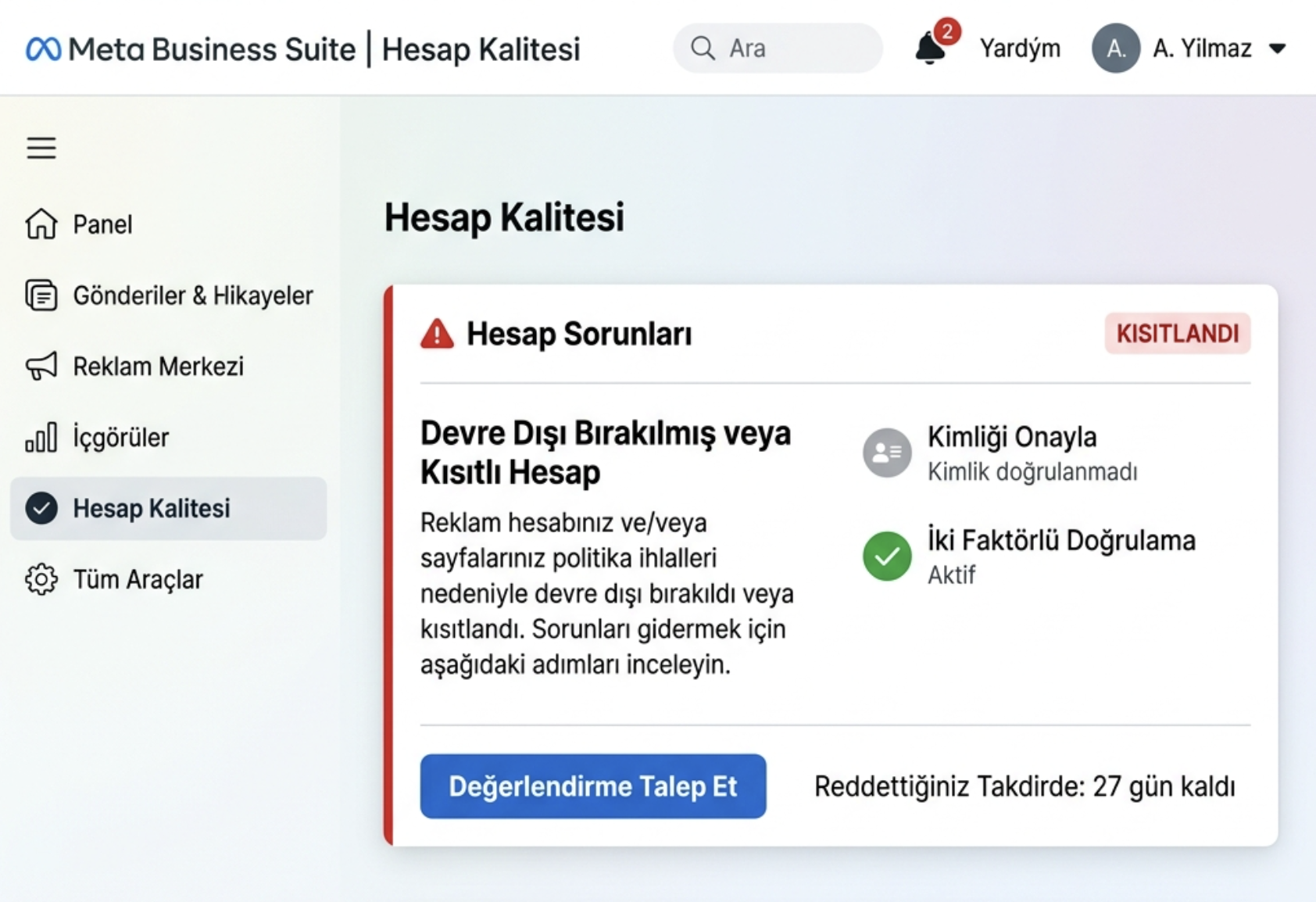
When an account experiences restrictions or suspension due to policy violations, sudden surges, or negative user feedback, resolution steps depend on the specific enforcement category.
Restriction Types
-
Messaging Tier Downgrade: Temporary reduction in outbound conversation capacity.
-
Quality-Driven Limitations: Throttling applied due to sustained low quality indicators.
-
Account Disabled: Suspension of WABA access due to policy infractions.
Resolution & Appeal Steps
-
Review Account Status: Inspect the restriction details in Meta Business Suite or Account Quality.
-
Complete Recommended Remediations: Fulfill required verification, security, or policy correction tasks.
-
Validate legal business details
-
Submit requested corporate documents
-
Configure security settings (2FA)
-
Resolve underlying messaging policy non-compliances
-
Request a Review (Appeal): If an appeal option is available, submit a formal review request via Meta Account Quality.
-
Audit Messaging Practices: Thoroughly examine:
-
Opt-in consent logs
-
Template contents
-
Audience lists
-
Automation workflows
-
User feedback trends
📌 Important: Account reinstatement is not guaranteed and remains subject to Meta's compliance evaluation.
10. Best Practices Compliance Checklist
| Checklist Item | Status | Description |
|---|---|---|
| Business Details | ✅ | Information in Meta Business Portfolio is accurate and consistent. |
| Business Verification | ✅ | Completed if requested for your account tier. |
| Domain Management | ✅ | Used URLs and links are connected to trusted, verified company domains. |
| Two-Factor Authentication (2FA) | ✅ | Active across all administrative accounts. |
| Opt-in Permissions | ✅ | Explicit, recorded consent exists for all recipients. |
| Opt-out Mechanism | ✅ | Easy unsubscribe instructions included in marketing messages. |
| Personalized Content | ✅ | Templates utilize dynamic variables for relevant customer context. |
| Quality Tracking | ✅ | Health and quality ratings monitored regularly in WhatsApp Manager. |
| Policy Compliance | ✅ | Full adherence to Meta and WhatsApp Business Messaging Policies. |
11. Frequently Asked Questions (FAQ)
1. Is Meta Business verification mandatory?
Verification requirements for WhatsApp Business API and specific advanced capabilities depend on account tier and Meta's current rules. If Meta requests business verification for your account, the process must be completed.
2. How long does Meta business verification take?
Review times vary based on business type, document clarity, and Meta review volume. Check live progress in Meta Business Suite.
3. Can I use WhatsApp Business API without verification?
Available features and daily capacity vary by account state and Meta requirements. If Business Verification is requested, completing the review is necessary.
For details, review our WhatsApp Business API Documentation.
4. Does business verification prevent bans completely?
No. Verification does not eliminate policy compliance requirements. Spam, terms violations, or elevated user reports can still result in penalties.
5. How do I obtain a verified business badge on WhatsApp?
Verified business badges and associated programs vary based on regional availability and account eligibility. Meta offers distinct verification pathways and subscription options.
6. How is messaging capacity scaled?
Capacity is influenced by account compliance, phone number state, quality rating, recipient feedback, and Meta's dynamic scaling logic. Review live capacity in WhatsApp Manager.
7. Can a disabled WhatsApp API account be restored?
Depending on the restriction type, an appeal or review option may be provided in Account Quality. Reinstatement depends entirely on Meta's review.
8. Can sole proprietorships complete verification?
Accepted documentation varies by jurisdiction and entity structure. Sole proprietorships must provide official documents recognized by Meta for their region.
9. Do I need to complete Domain Verification?
Domain verification is independent of business verification. It is recommended when associating company web properties with Meta business assets.
10. Why does Meta reject verification applications?
Rejections typically occur when official documents mismatch entered business records, documents are illegible, or information cannot be independently corroborated.
12. Conclusion & Recommendations
Meta Business Manager business account verification is a foundational step for organizations managing digital assets across the Meta and WhatsApp Business ecosystems.
However, a sustainable messaging operation requires continuous adherence to quality practices:
-
Securing verifiable user opt-ins,
-
Ensuring messages remain expected and valuable,
-
Routinely checking message quality metrics,
-
Fully complying with WhatsApp and Meta policies,
-
Keeping business profile details accurate and up to date.
Managing WhatsApp Business API with Supsis AI
Supsis AI enables seamless integration and management of your WhatsApp Business API channels, subscriber opt-ins, template authoring, and intelligent chatbot automations.
👉 Ready to explore WhatsApp Business API Integration?
Visit our WhatsApp Business API guide to connect your channel or get direct assistance from our onboarding team!