
Calendar View & Google Synchronization
The calendar management area is the primary workspace where all events, meetings, and customer appointments are managed in a modern card-based layout.
1-) Calendar View & Card Table Layout
The calendar page consists of two main columns providing high accessibility:
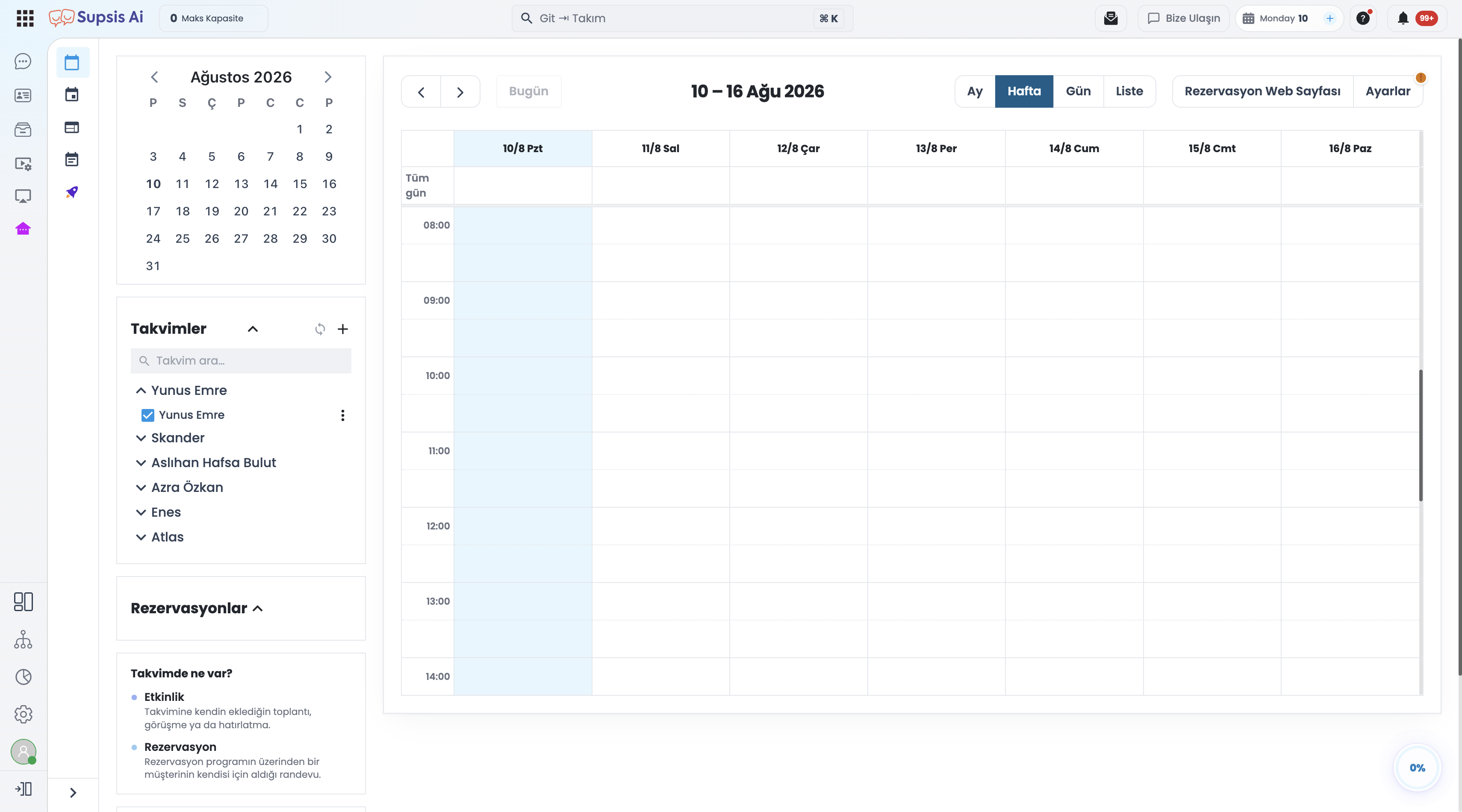
1.a – Left Column Card Structure:
The left column features the following navigation cards:
* Date Picker (Mini Calendar): Enables one-click navigation to any date.
* Calendars List: Displays connected calendars with checkboxes to toggle visibility.
* Booking Schedules: Lists active appointment and reservation programs.
* Color Legend: Shows color definitions assigned to event categories.
* Upcoming Bookings: Chronologically lists upcoming meetings and customer appointments.
1.b – Right Side Calendar Views & Language Support:
The right side contains the primary calendar grid:
* View Options: Switch seamlessly between Month, Week, Day, or List views.
* Automatic Language Synchronization: The calendar interface automatically adapts to the selected Supsis panel language (Turkish / English). Days, months, and time labels reflect the chosen language.
2-) Google Calendar Two-Way Synchronization
The Google Calendar integration uses a two-way sync architecture to eliminate data discrepancies between external calendar tools and the panel.
2.a – Automatic Two-Way Sync & Deletion:
When your Google Account is connected:
* Events created in the Supsis panel instantly sync to your Google Calendar.
* Events created or updated in Google Calendar immediately reflect on the Supsis panel.
* Event deletions on either platform are mirrored simultaneously.
2.b – Instant Data Fetching & Connection Alert:
* Every time the calendar page opens or dates change, fresh data is fetched from Google without waiting for page refreshes.
* If a Google account is not yet connected, an informational warning modal appears upon page load.
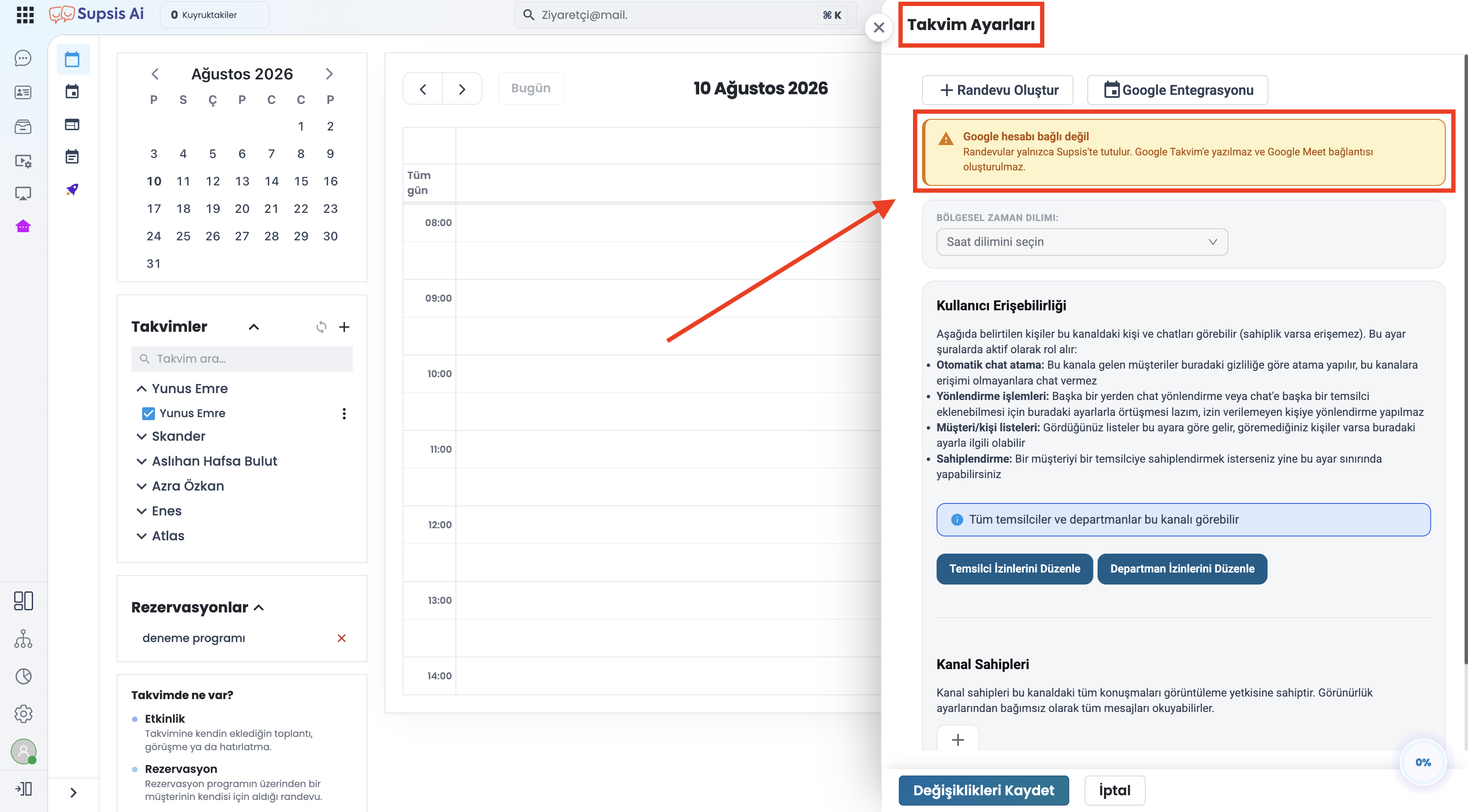
📌 Note: Click the "Connect Now" button on the warning banner to link your account under
Settings → Integrations.
3-) Calendar Management & Context Menu
Covers creating, cleaning, and configuring calendar entries.
3.a – Creating a New Calendar:
Click the + button on the Calendars card header in the left column to open the modal.
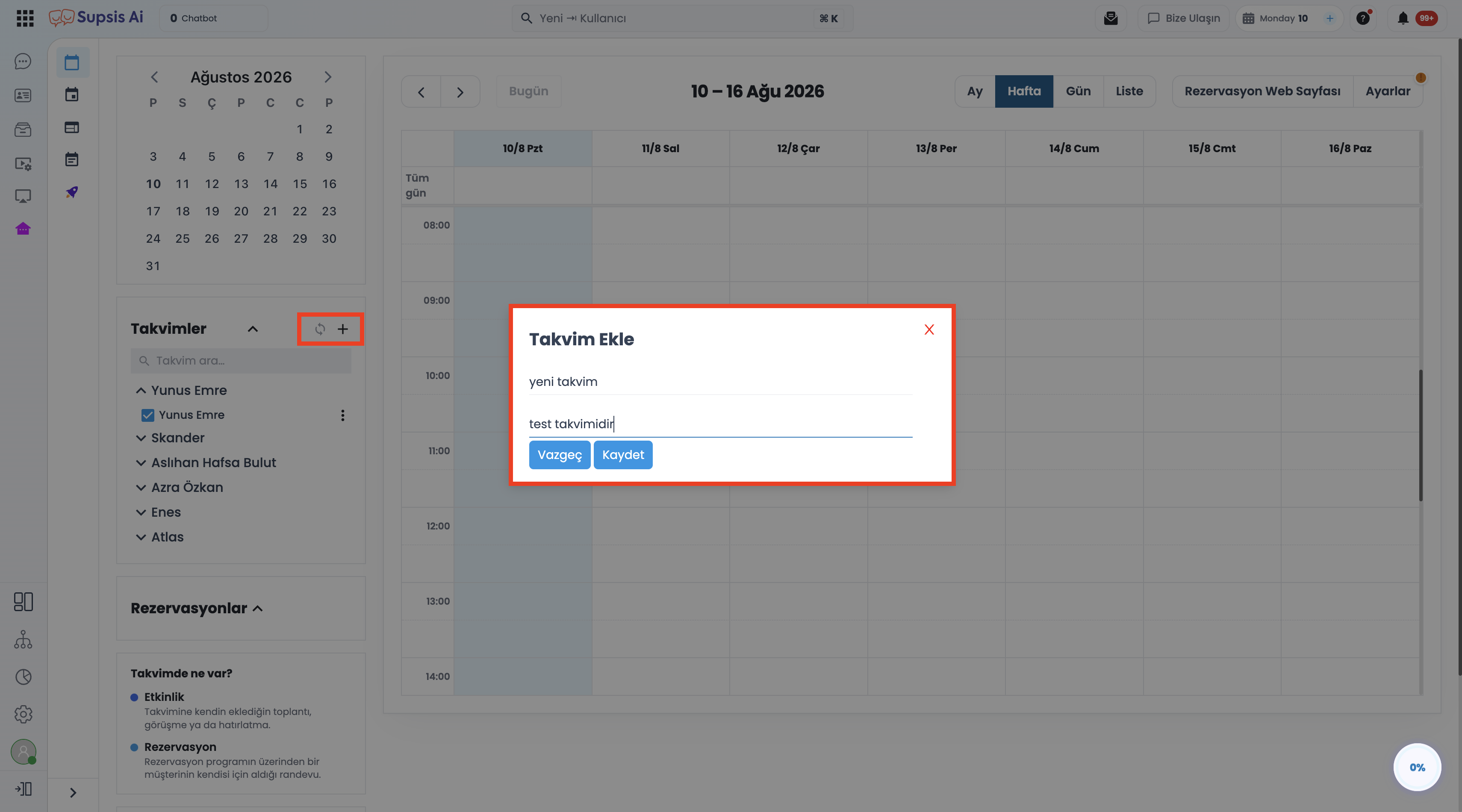
- Calendar Name & Description: Enter the title and detailed description.
- Automatic Google Creation: If a Google account is connected, the new calendar is automatically created in Google Calendar and checked in the panel list.
3.b – Cleaned Calendar List:
To prevent clutter, invalid records are automatically filtered out:
* Empty names, deleted user calendars, and duplicate entries are hidden.
* As the number of calendars grows, the list becomes scrollable without expanding page height.
3.c – Calendar Menu (Three Dots Actions):
Click the three-dot (...) icon next to any calendar row to perform actions:
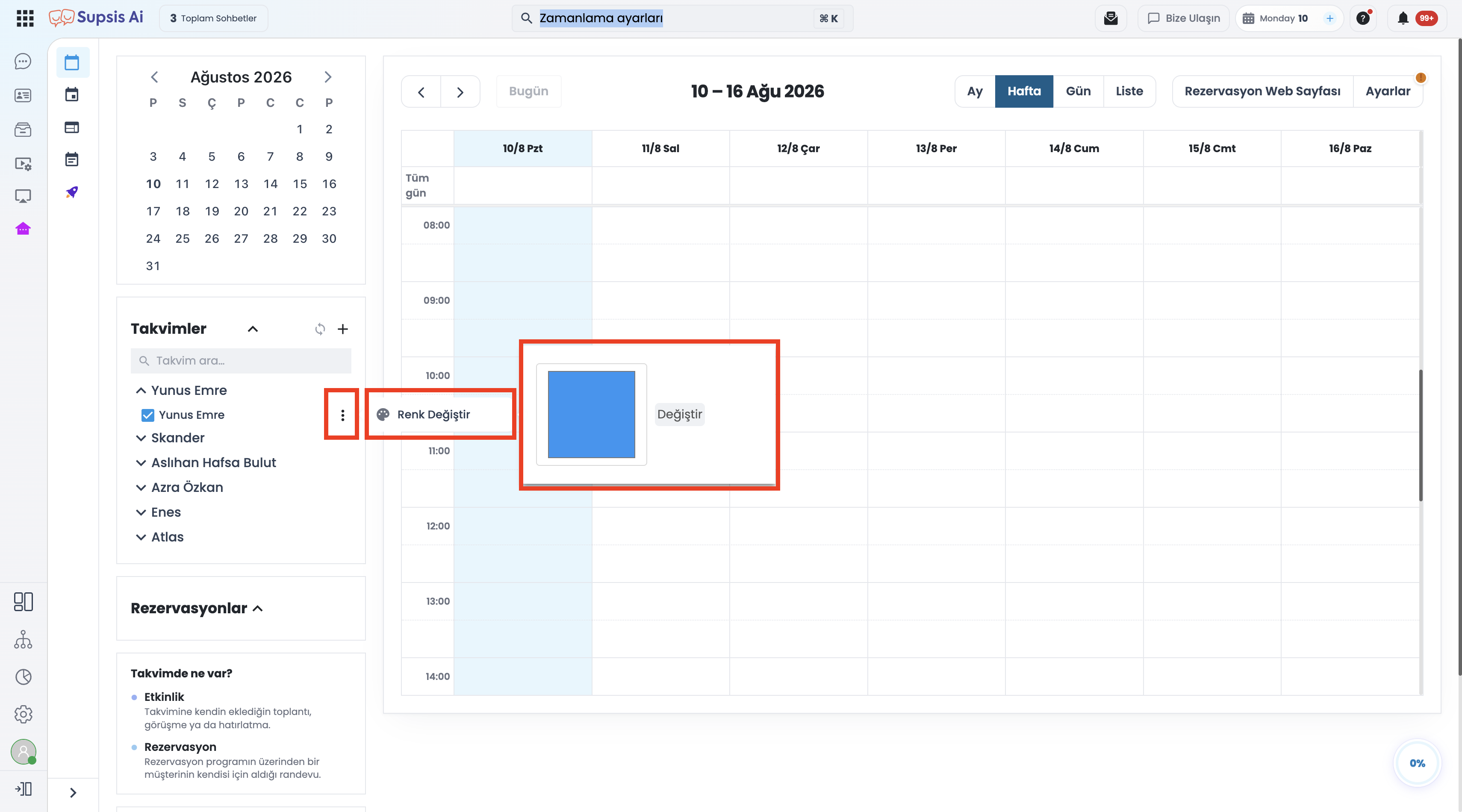
| Action | Description |
|---|---|
| Change Color | Assigns a custom color to visually distinguish events on the grid. |
| Delete Calendar | Removes the selected calendar from the panel and connected Google account. |
4-) Event Creation & Detail Management
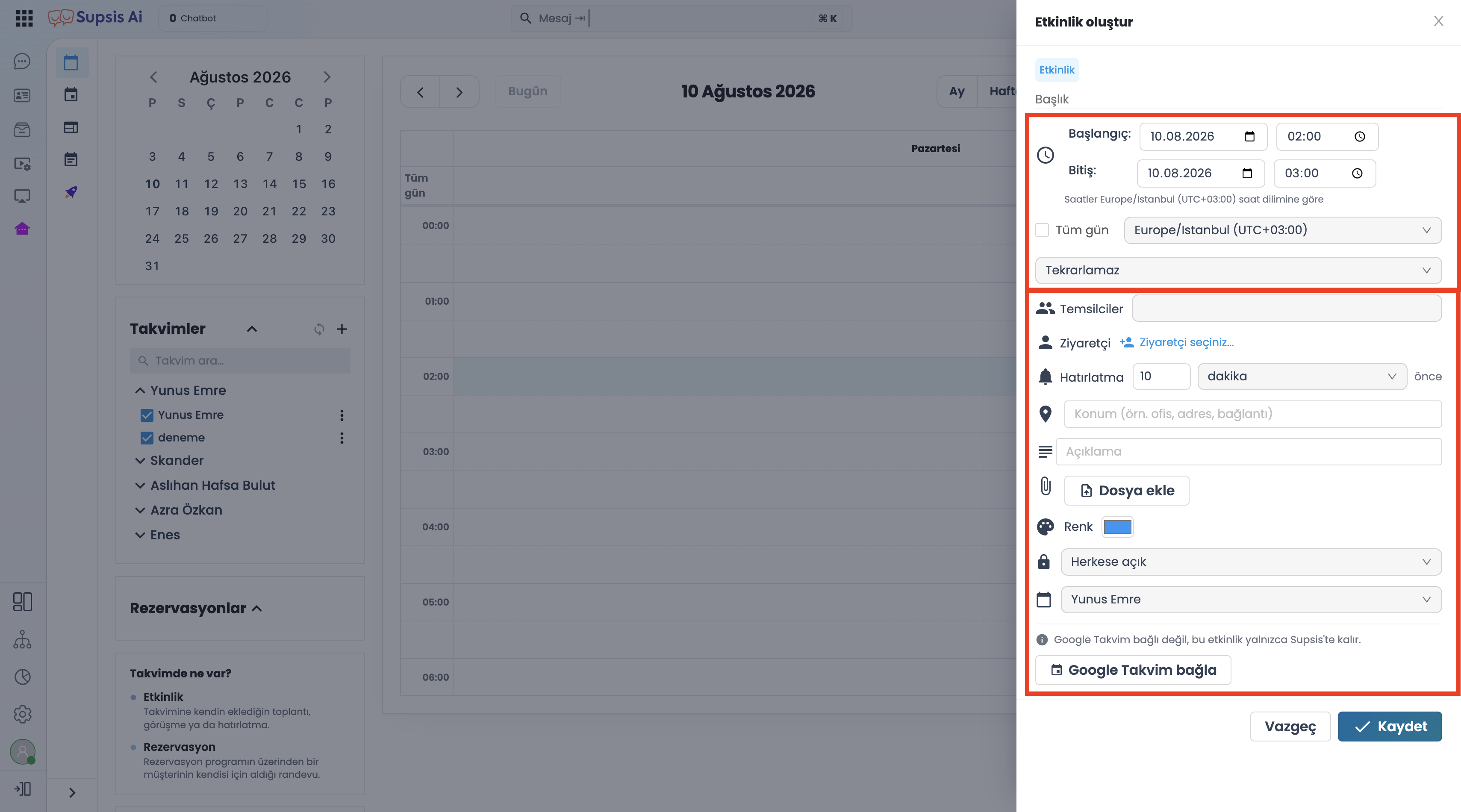
Click on any empty time slot on the calendar grid to open the event creation drawer.
4.a – Event Parameter Fields:
Configure enriched parameters inside the event modal:
* Title & Date/Time: Event name and start/end time intervals.
* Description & Location: Event details and physical or online location info.
* Color Selection: Highlight color on the calendar grid.
* Reminder Time: Pre-event notification timing (e.g., 15 minutes before, 1 hour before).
* Visibility Setting: Event privacy level (Default, Public, Private).
💡 Tip: Reminder and visibility settings are passed directly to Google Calendar during two-way sync.
4.b – Google Meet Integration:
Check the "Add Google Meet Link"* checkbox to automatically generate a unique Google Meet joining link.
* The link can later be copied from event details and sent to attendees.
5-) Upcoming Bookings Card
The Upcoming Bookings card in the left column summarizes upcoming team appointments:
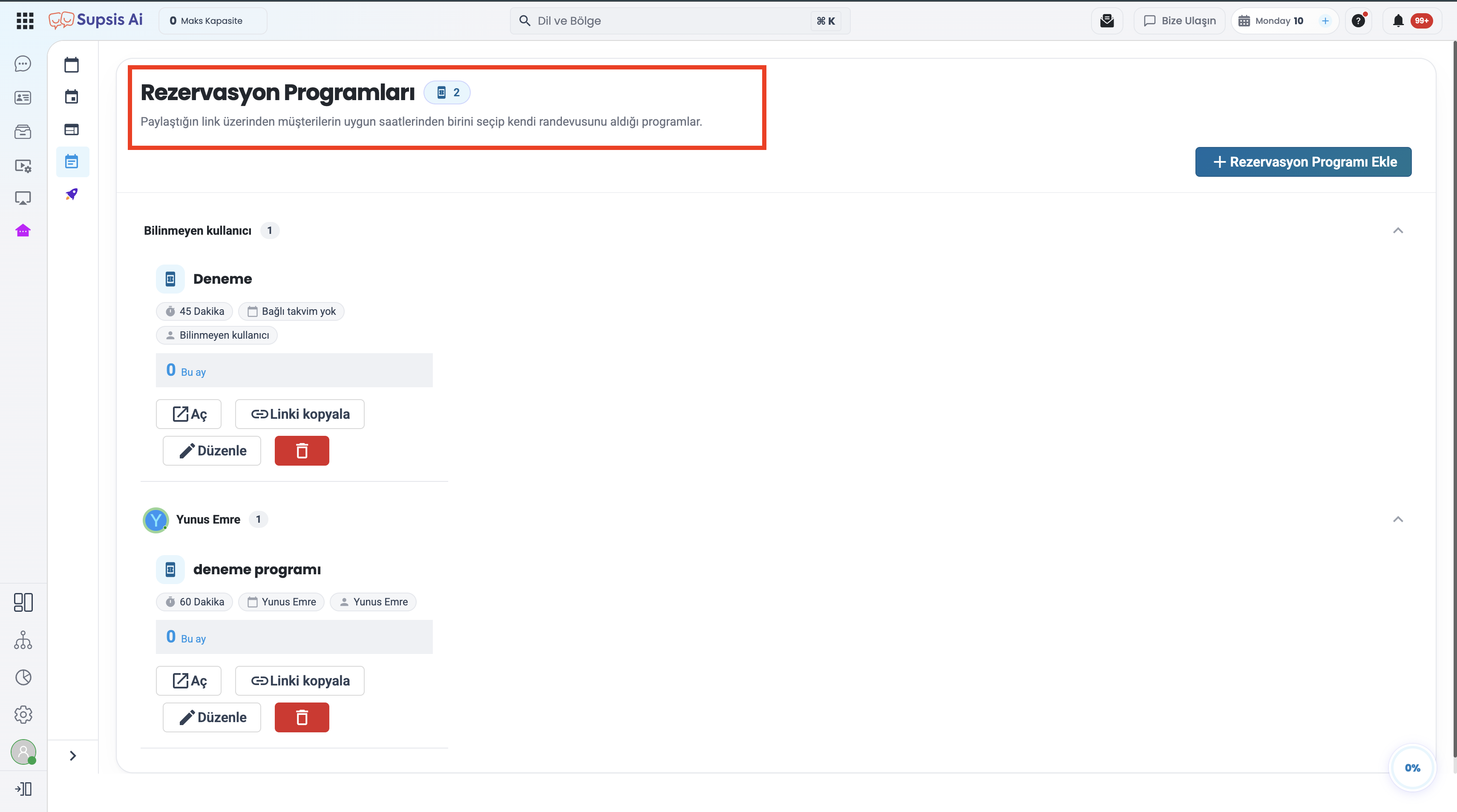
- Fixed Height & Scroll: The card maintains a fixed height with internal scrolling regardless of record count.
- Quick Access: Clicking a booking entry focuses directly on the reservation details and time slot.