
1-) AI Voice Agent Activation
To use the AI Voice Agent module, the feature must first be activated from the panel and at least one Web Phone channel must be added to the panel.
For demo accounts:
During the demo period, the AI Voice Agent module can be enabled in the panel free of charge within the defined usage limits. All core features can be experienced during this period.
If the demo period has ended:
After the demo period is completed, in order to continue using the AI Voice Agent module, the following information must be entered in the panel and payment activation must be completed:
- Payment Method
- Billing Address
Once this information is completed, the module can be actively used.
Voice Agent Activation Steps
After adding a Web Phone number, follow the steps below to activate the Voice Agent feature:
1-) Settings Menu
Go to the Settings menu located in the panel.
2-) Billing & Payment Page
From the Settings menu, navigate to the Billing & Payment page.
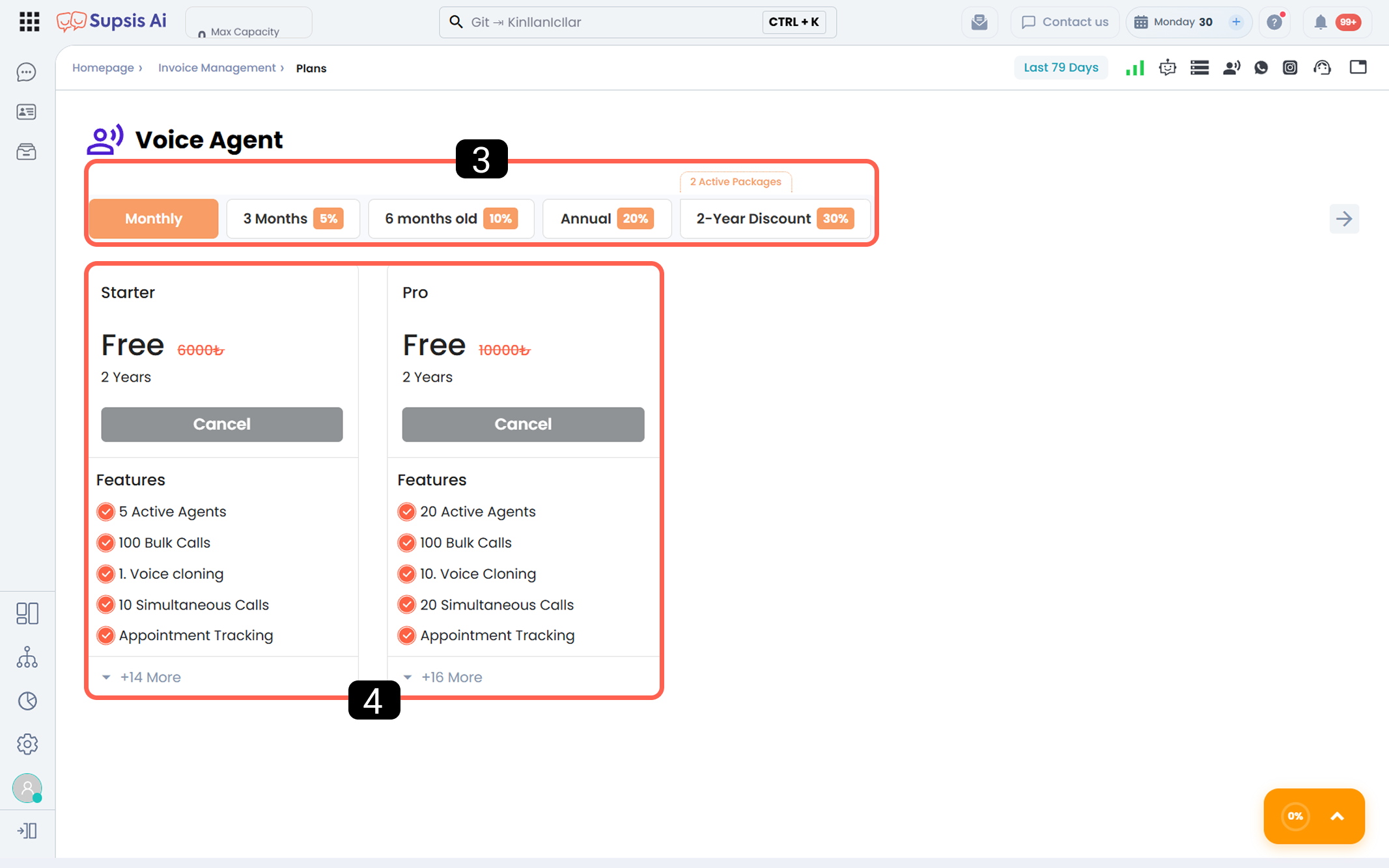
3-) Package Duration and Discount Rate
From this section, you can determine the usage duration of the selected package. The discount rates applied based on the package duration are as follows:
 3 Months: 5% discount
 6 Months: 10% discount
 12 Months (Annual): 20% discount
 24 Months: 30% discount
Discount Calculation Logic:
The discount amount is calculated by multiplying the package price by the selected package duration (monthly value) and then applying the relevant discount rate to the total amount.
4-) Package
Select the package that best fits your needs from this section.
The features included in each package are listed in detail under the Features section within the package.
Higher-tier packages include all features of the lower-tier packages and additionally offer extra capabilities.
2-) Voice Agent Auto Wallet Rebalance & Management Settings
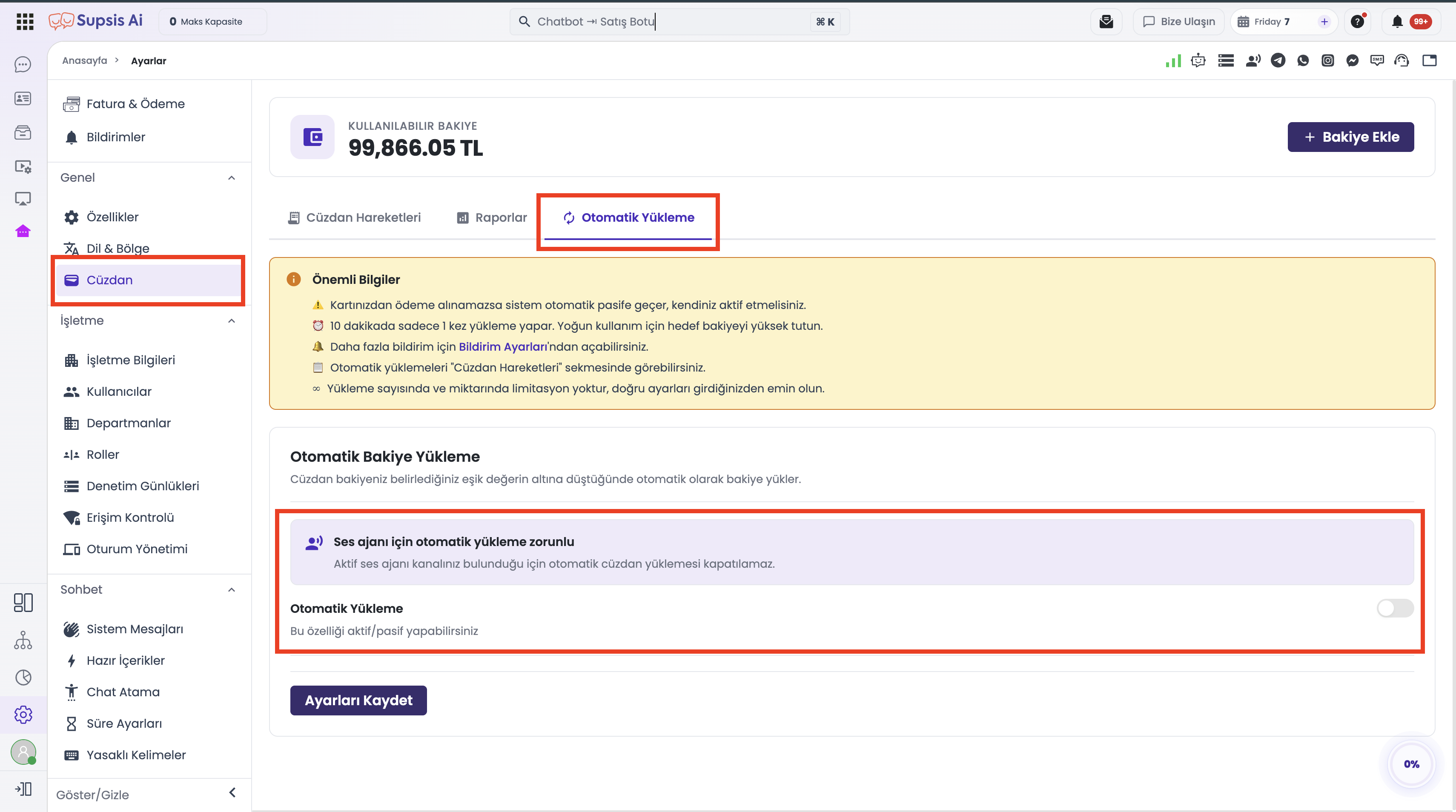
When creating an AI Voice Agent channel and during active operation, Automatic Wallet Rebalancing is strictly required to ensure uninterrupted voice calls.
Auto top-up configuration is automatically applied during voice agent channel creation and can also be managed in detail under Settings → Wallet → Auto Reload.
a – Channel Creation Steps & Payment Card Requirement
- Navigating to Channel Creation: Go to
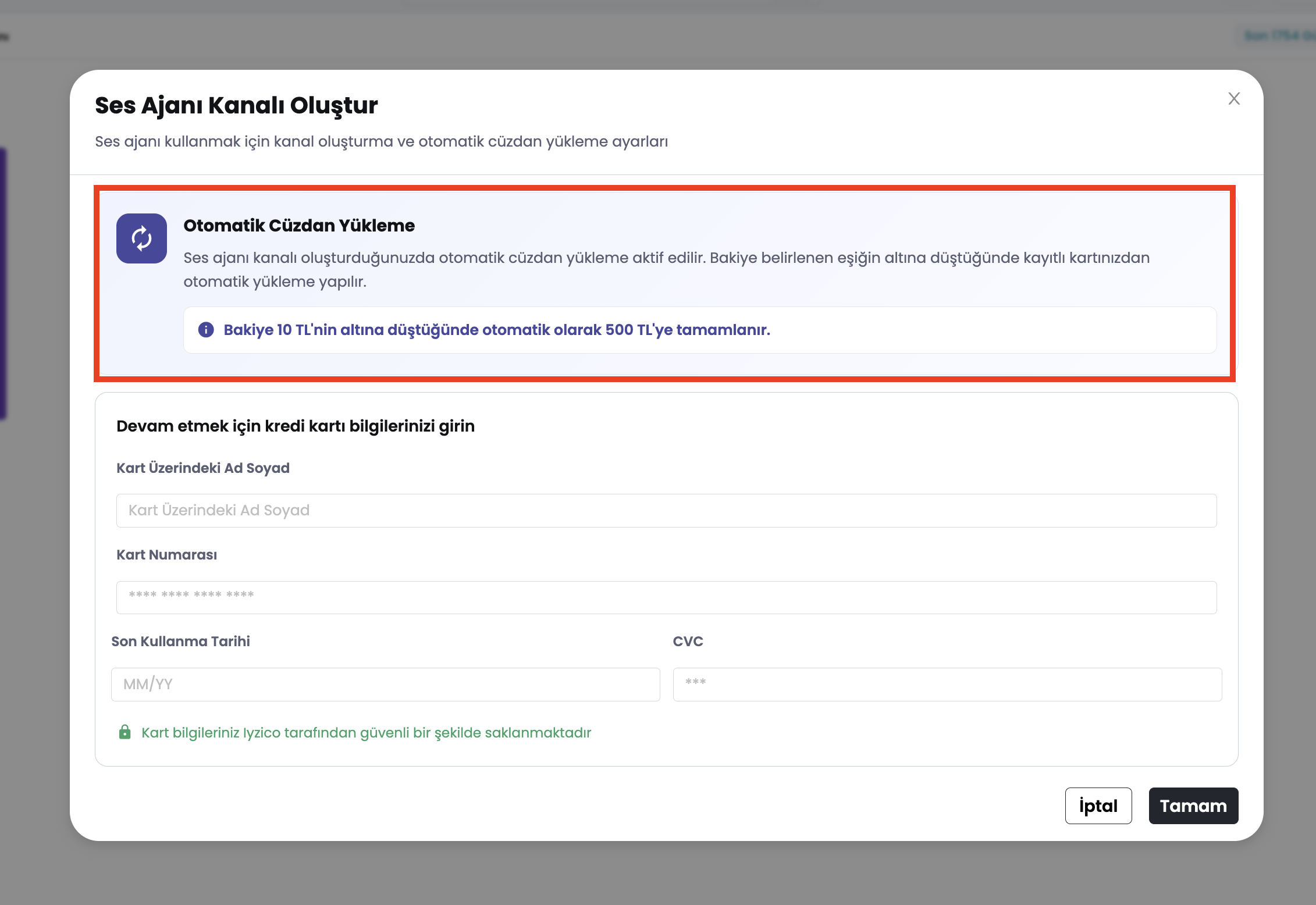
Integrations → AI Voice Agentand click the Add Channel button. - Auto Rebalance Information Notice: In the channel creation modal, an informational banner is displayed explaining that automatic wallet rebalancing will be enabled ("When balance falls below 10 TL, it will automatically top up to 500 TL").
- Credit Card Verification:
- No Saved Card: If no payment card is saved, the customer must enter valid credit card details. Channel creation cannot proceed without a valid card.
- Saved Card Exists: If a card is already saved, the masked card information (e.g.,
**** **** **** 4242) is displayed in the modal for one-click confirmation. - Channel Activation: Clicking Confirm creates the voice agent channel and automatically enables auto wallet rebalancing in the background (
threshold: 10 TL, upTo: 500 TL, mode: fixedBalance).
b – Auto Reload Management via Settings / Wallet
The following parameters can be configured and monitored under Settings → Wallet → Auto Reload:
- Mandatory Reload Notice: If an active voice agent channel exists, a warning banner appears: "Automatic reload is mandatory for voice agent / Cannot be disabled while an active voice agent channel exists".
- Threshold Value (TL): Triggers auto top-up when balance drops below this specified amount (e.g., 10 TL).
- Reload Mode:
- Add Fixed Amount: Adds a fixed amount when balance drops below threshold.
- Fixed Balance: Top-ups the balance directly up to the target amount (e.g., 500 TL).
- Target Balance (TL): The target balance amount to restore up to.
- Panel & Email Notifications: Select recipients for successful, failed, or disabled reload alerts.
- Last Trigger: Displays when auto reload was last executed.
💡 Important Notes for Auto Reload
- ⚠️ Payment Failure: If payment fails from your card, the system automatically turns inactive; you must re-activate it manually.
- ⏰ Reload Interval Limit: Auto reload executes at most once every 10 minutes. Set a higher target balance for heavy call usage.
- 🔔 Notifications: You can enable additional alerts from Notification Settings.
- 📋 Transaction History: View all auto reload transactions under the "Wallet History" tab.
- ∞ No Limit: There is no limitation on reload count or total amount; make sure your settings are correct.
Use Cases & Business Rules
- First-Time Voice Agent Setup: When a new customer creates their first voice agent channel, they enter card details and confirm, enabling auto top-up instantly.
- Existing Customer with Saved Card: Customers with saved cards can confirm directly without re-entering card details.
- Disable Restriction in Wallet Settings: If a user attempts to disable auto rebalance from
Settings → Wallet → Auto Reloadwhile a voice agent is active, the action is blocked with an alert stating "Automatic reload cannot be disabled while an active Voice Agent channel exists". - Automated Balance Replenishment: As balance drops below 10 TL during active calling, the system instantly restores the balance to 500 TL, preventing dropped calls.