
YouTube Comments Integration
1-) Integration Process
This section of the document includes the steps required to complete the necessary Google authorizations to enable YouTube Comments integration in Supsis AI. During the process, the system will redirect you to the Google authorization panel to complete the required permissions.
To complete the integration, follow the steps below via the Supsis AI panel:
-
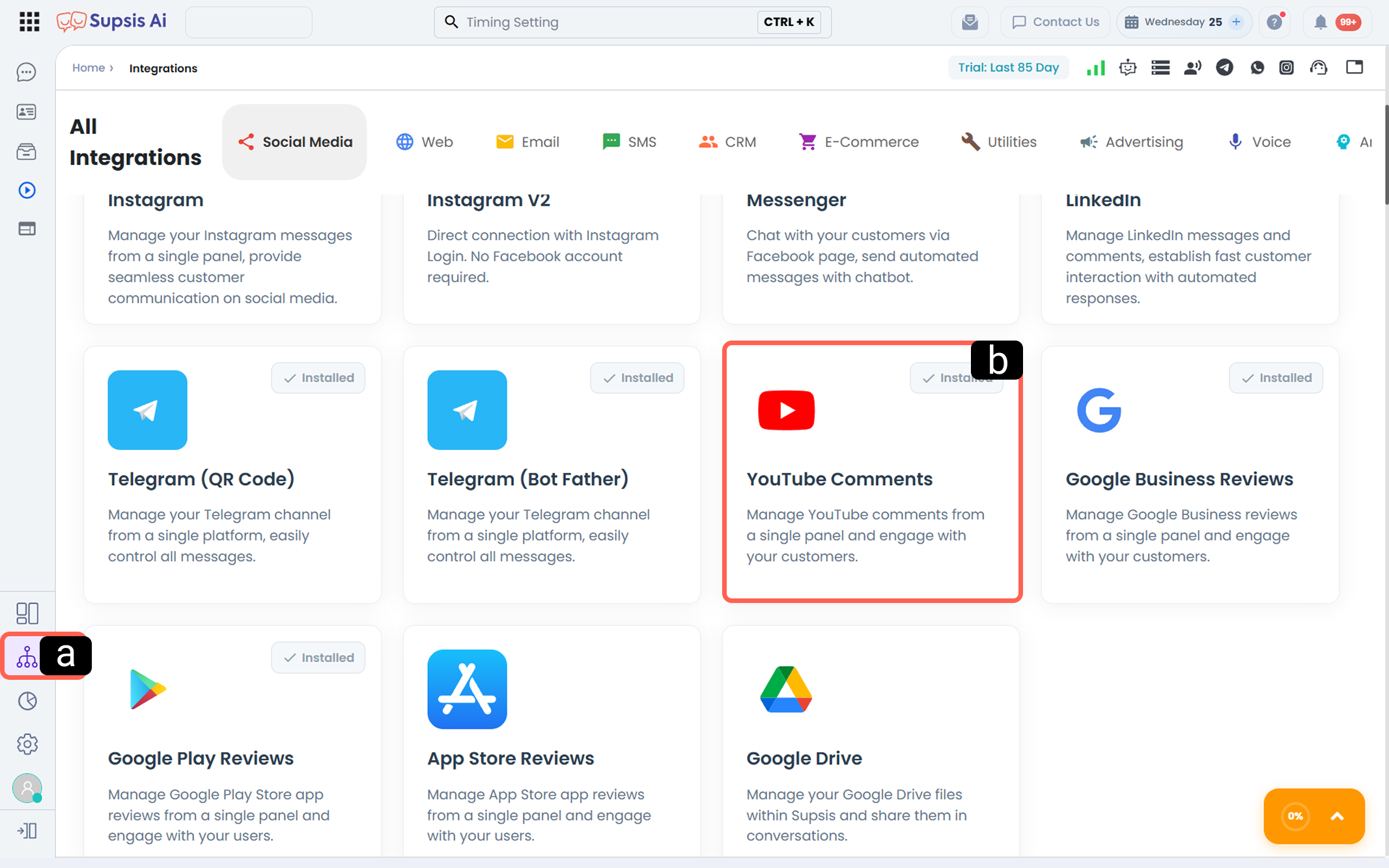
a – Integrations
Click on the Integrations icon located in the left menu of your Supsis AI panel to enter the integrations menu. -
b – Channel Selection
Find the YouTube Comments card in the social media channels list and click on it to view the channel details.
-
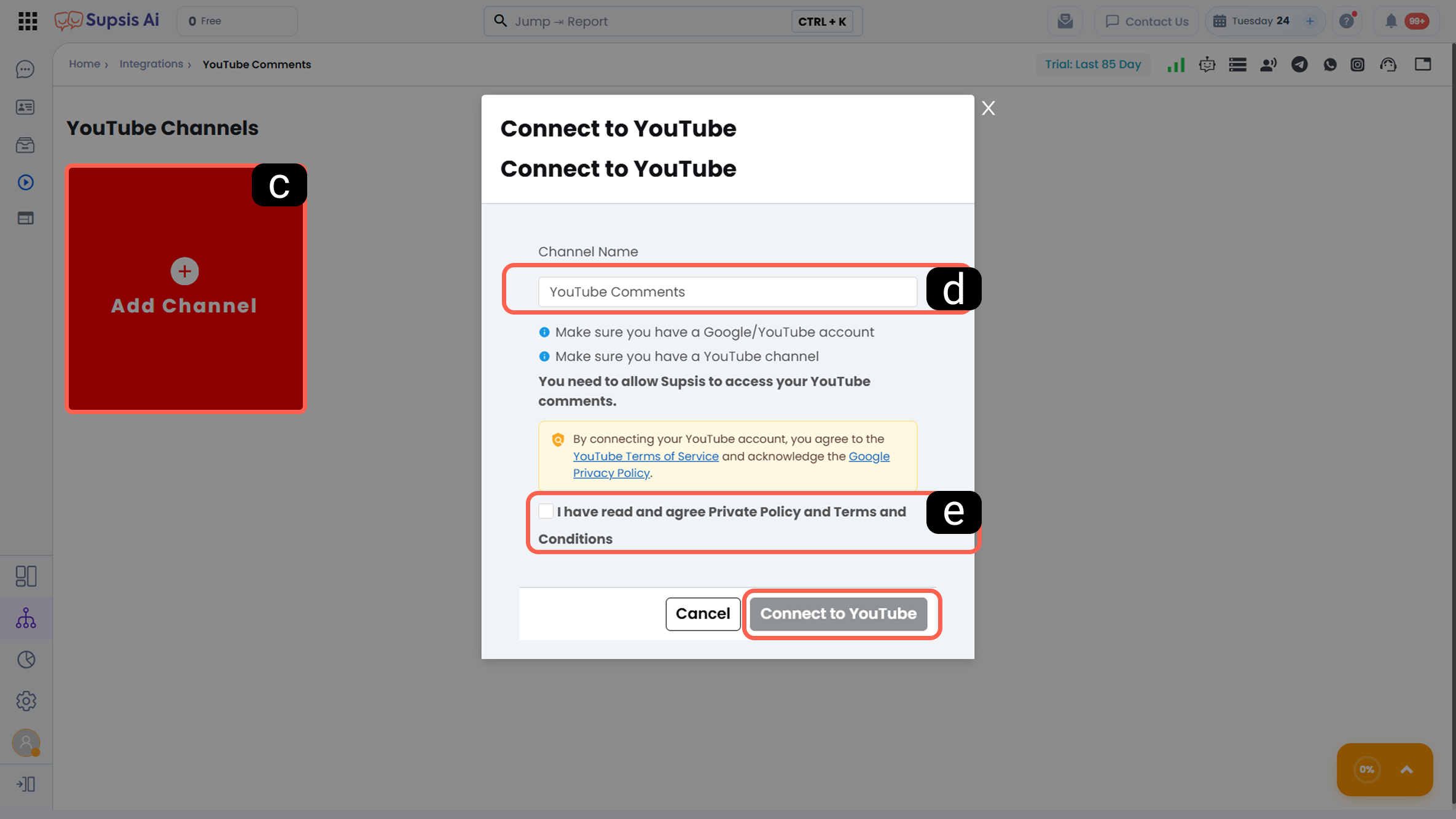
c – Add Channel
Click the Add Channel button (red area with a plus icon) within the YouTube integration channel. This action will redirect you to the Google authorization window to connect your YouTube account to Supsis AI. -
d – Channel Name
Channel Name allows you to define how your YouTube account will appear in the Supsis AI panel. This name represents how your YouTube account will be displayed within the Supsis AI panel. -
e – Terms and Conditions
In the pop-up window, check the box stating "I have read and accept the Privacy Policy and Terms and Conditions." This confirmation represents the legal permission required for the system to access and manage your messages. After completing the required steps, click the Connect to YouTube button.
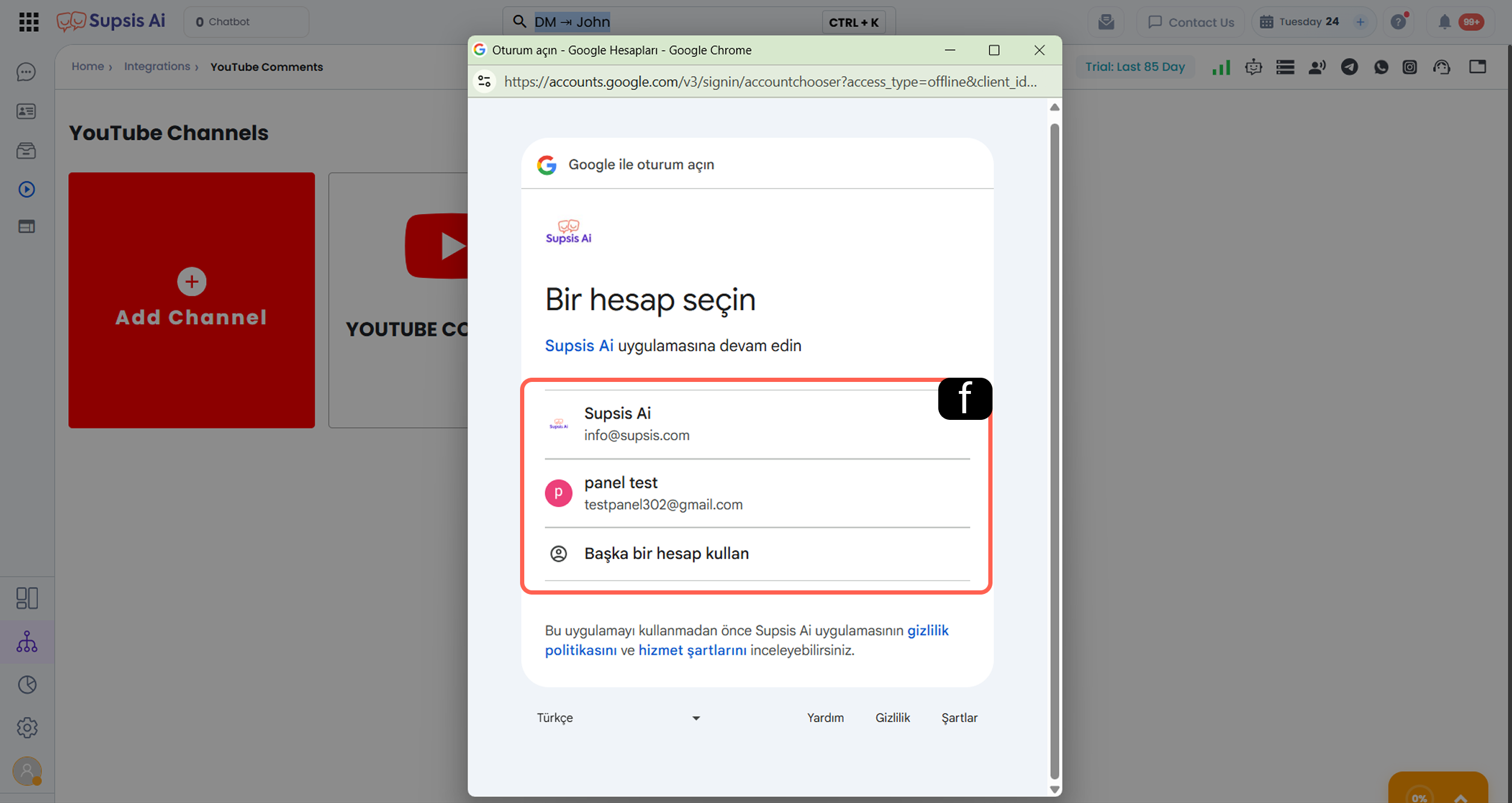
- f – Account Selection
Click the Connect to YouTube button to open the Google login window. From there, select the Google account that owns the YouTube channel you wish to integrate.
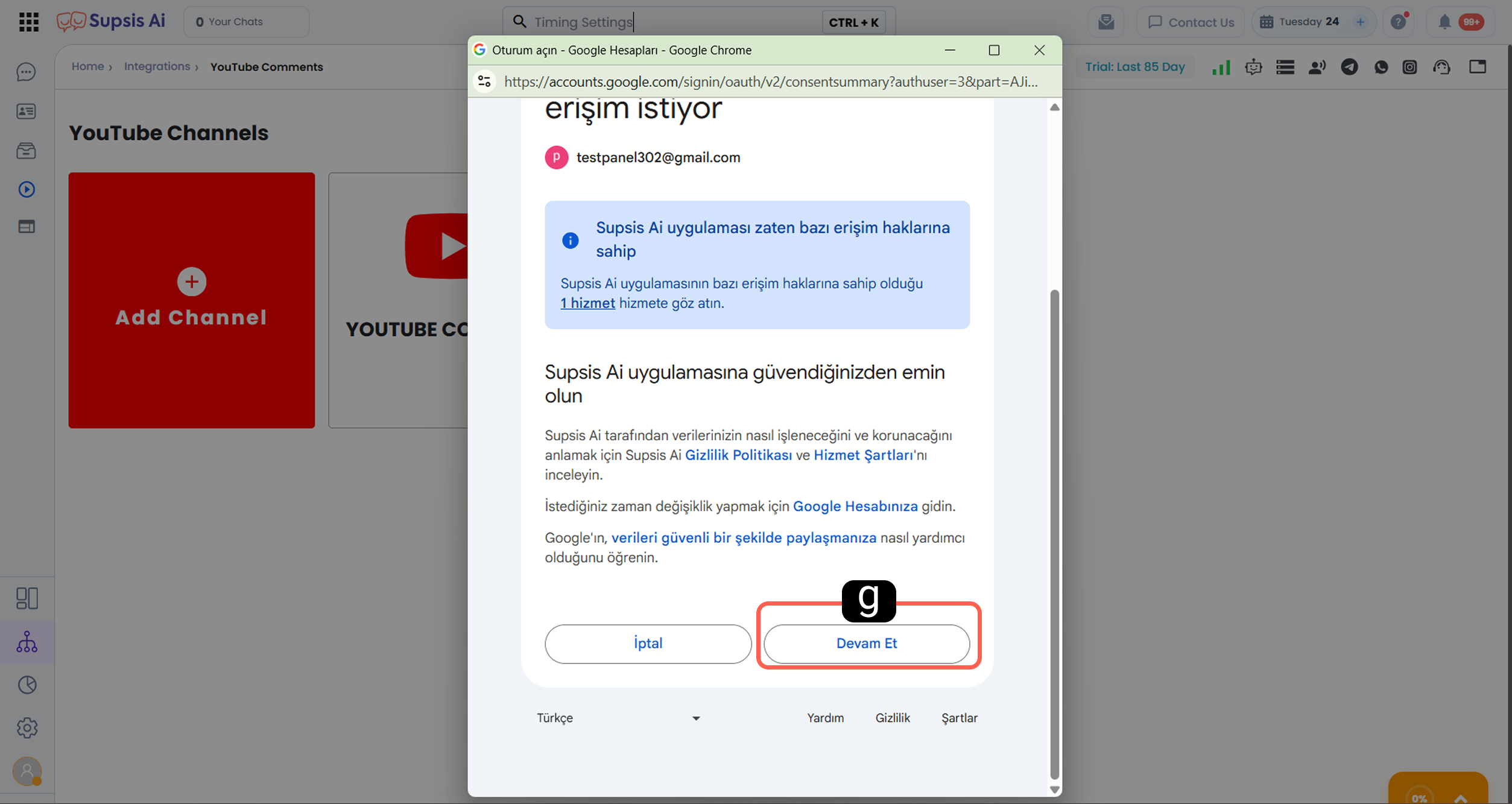
- g – Complete the Process
Review the permissions requested by Supsis AI and approve them by clicking the Continue button.
After approval, you will be redirected back to Supsis AI and the connection will be completed. Once the integration is successful, comments belonging to the relevant YouTube account can be managed through the Supsis AI panel.