
8-) Catalog
The Catalog menu is used to display different types of content in an organized and easily accessible structure for users. Through this area, content is categorized under titles and subtitles to improve the user experience.
The Catalog menu can be accessed by clicking the three-dot icon located in the top-right corner of the chat widget and selecting the catalog title defined in the "Change Visitor Title" field.
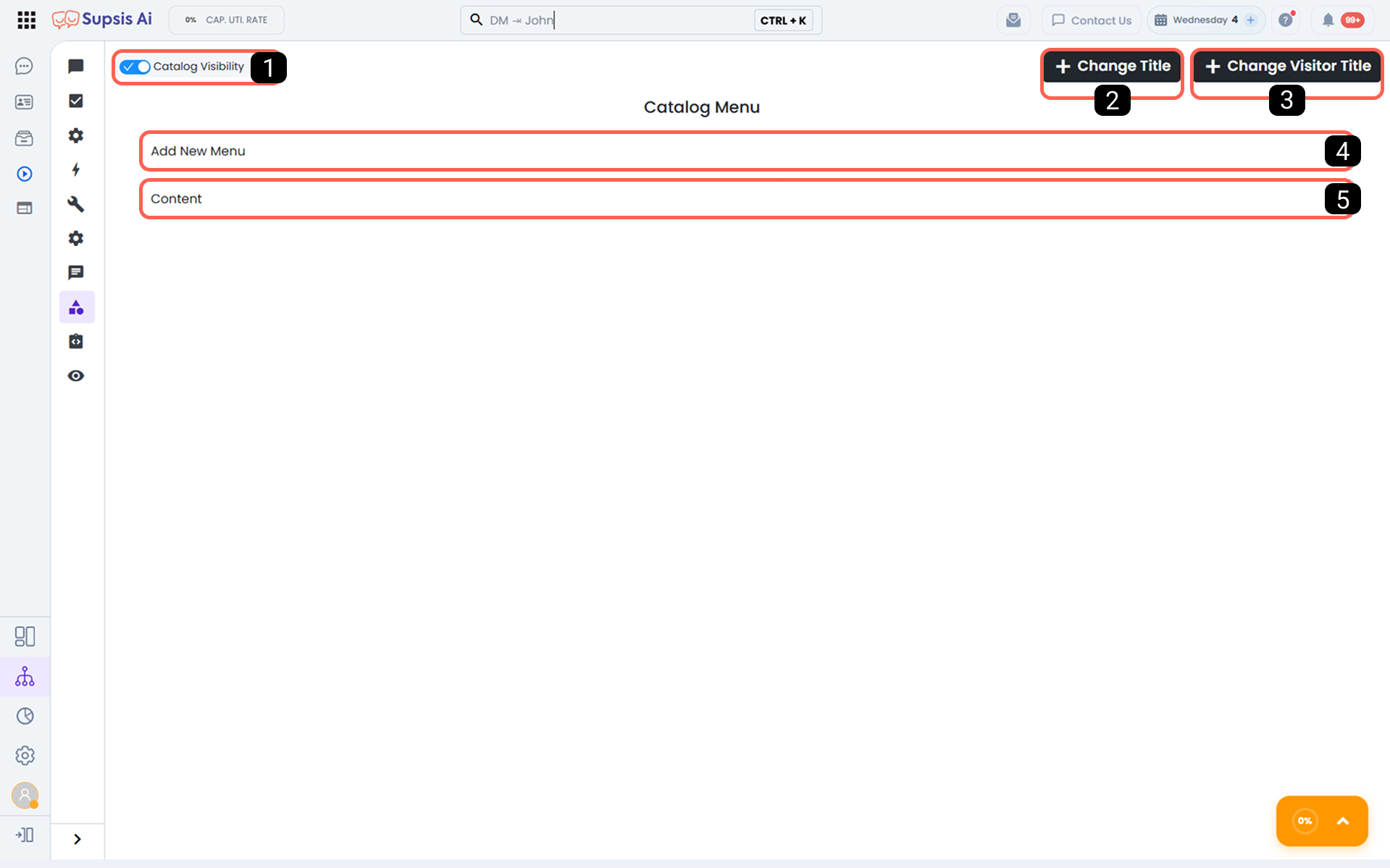
1 - Enable Catalog
With this option, the catalog feature can be activated or deactivated.
- When Active, users can view the catalog content.
- When Inactive, the catalog menu is not displayed to the user.
2 - Change Title
This is the area where the title displayed to the user for the catalog can be edited. Changes made here determine the visible name of the catalog menu on the user side.
3 - Change Visitor Title
This field determines under which title users will see the catalog menu. The defined title is presented to the user via the three-dot menu in the chat widget.
4 - Add New Menu
Allows you to create a new main catalog category. A multi-level structure can be created to present content in a more organized way:
- Main menu
- Intermediate menu
- Submenu
5 - Add Content
Allows you to add new content under the created categories or menus. Website visitors can easily access the content under the selected category.
Example Menu - Content Structure:
-
Textile Products
-
T-Shirts
- Black T-Shirts
-
Trousers
- Black Trousers
-
With this structure, content can be categorized in a more detailed and understandable way.