
Zoho Integration
The Zoho integration allows you to synchronize your company’s customer data, support processes, and workflows from the Zoho CRM infrastructure with your Supsis AI system. With this integration, you can use Zoho actions in the chat menu and Zoho blocks within your automation and chatbot scenarios.
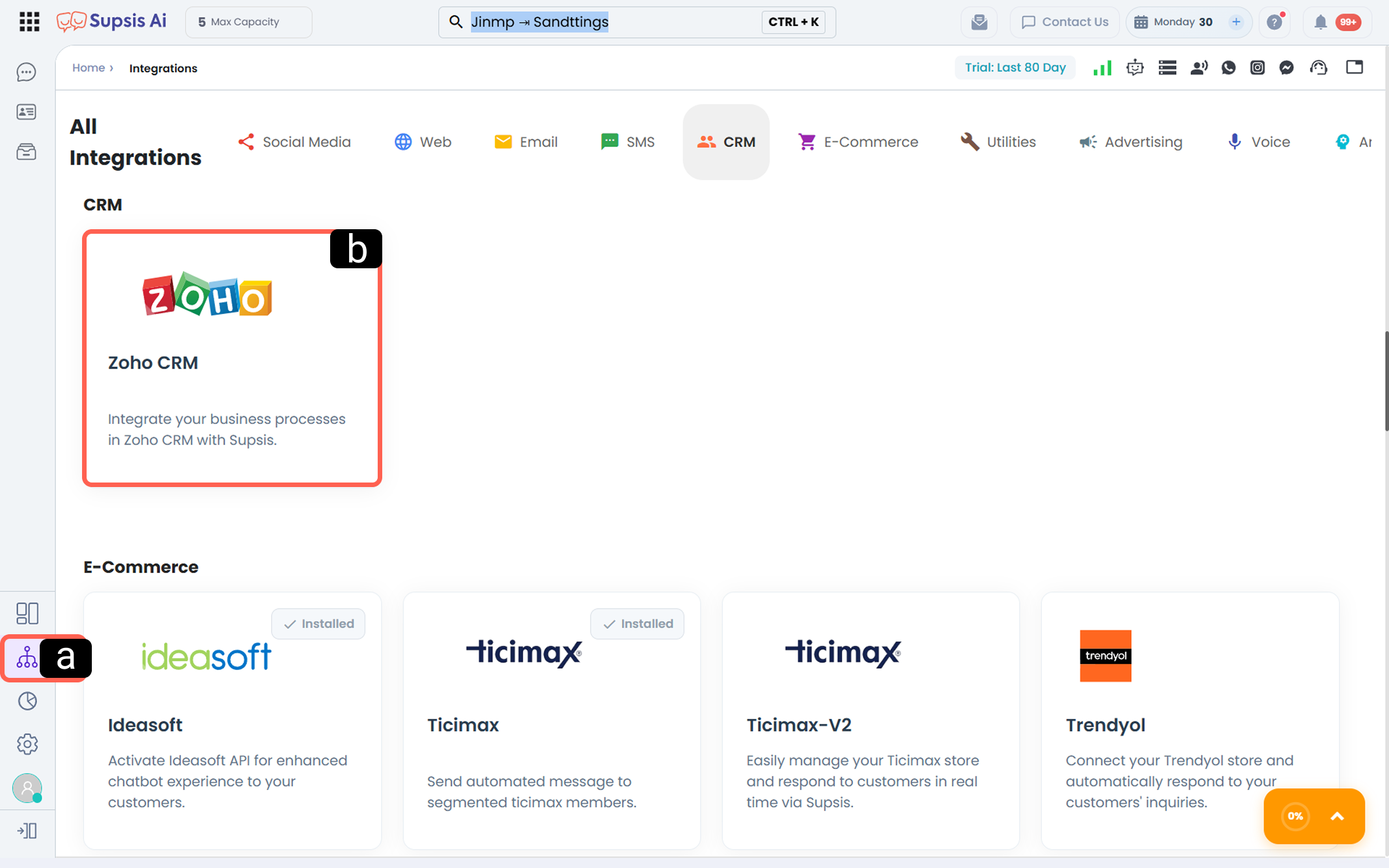
a. Integrations
Go to the main Integrations tab located in the left menu of your Supsis AI panel.
b. Zoho
From the listed applications (under the CRM category), find the Zoho module and click on it to access the integration settings.
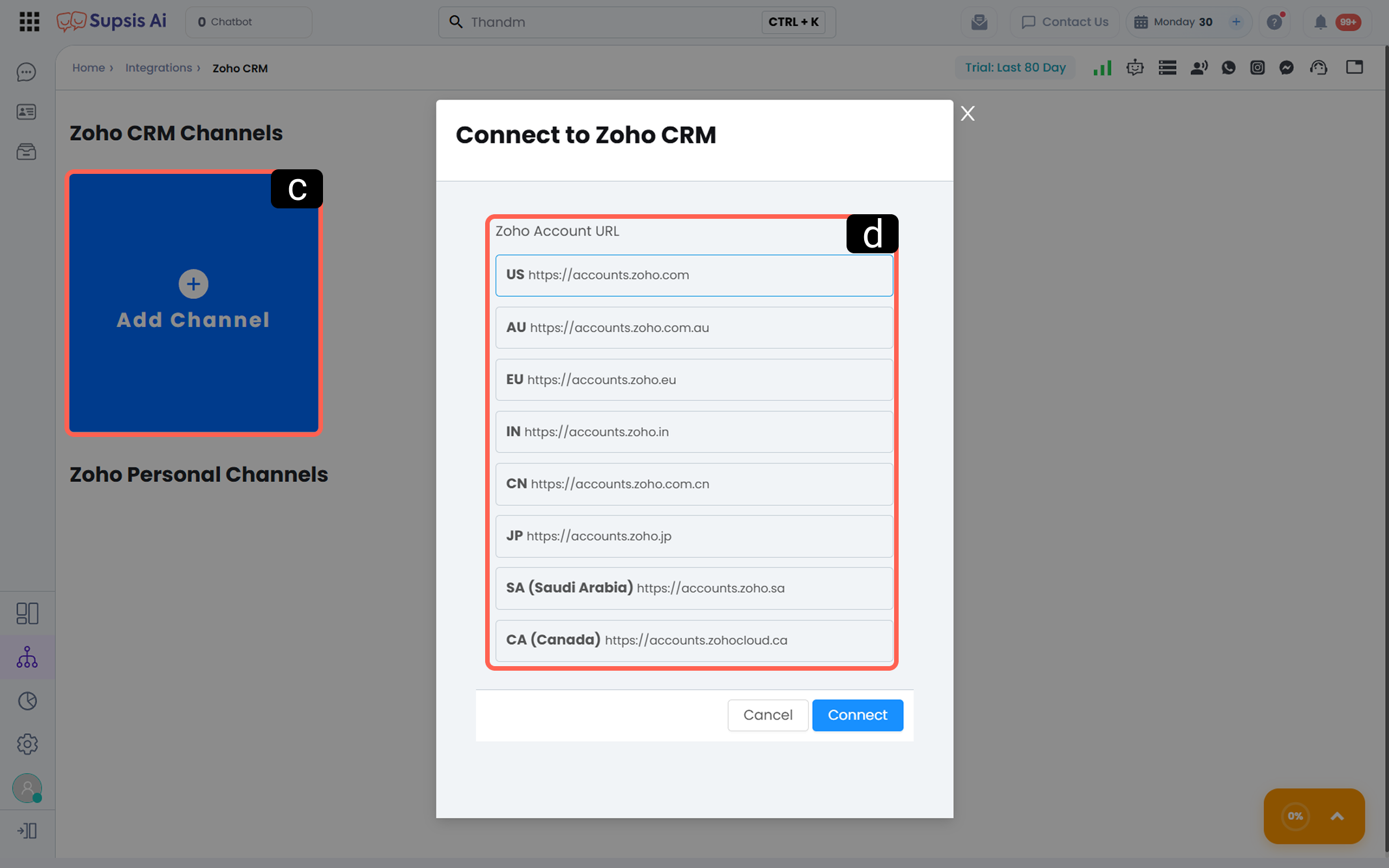
c. Add Channel
On the opened screen, click the Add Channel (plus icon) button to define a new Zoho connection (channel) within the Supsis system.
d. Account Region
In the connection window that appears, select the correct accounts.zoho... URL that corresponds to the server region where your Zoho account is registered (e.g., US, EU, IN, TR, etc.), then click the Connect button.
(If you are unsure about your region, you can check the address bar in your browser when logging into Zoho CRM.)

e. Sign In
After clicking the Connect button, the system will redirect you to Zoho’s official login screen. On this screen, enter the email address and password of the Zoho account you want to integrate and sign in.
(You can also use quick login options such as Google, Apple, or Microsoft.)