
1-) Notifications
The Notifications screen (Settings → Notifications) allows you to configure through which channels (Web Panel, Mobile Application, E-Mail) you would like to receive notifications for specific events and unread messages occurring within Supsis AI. With these settings, you can prevent unnecessary email notifications and monitor critical events in real time through your preferred channels.
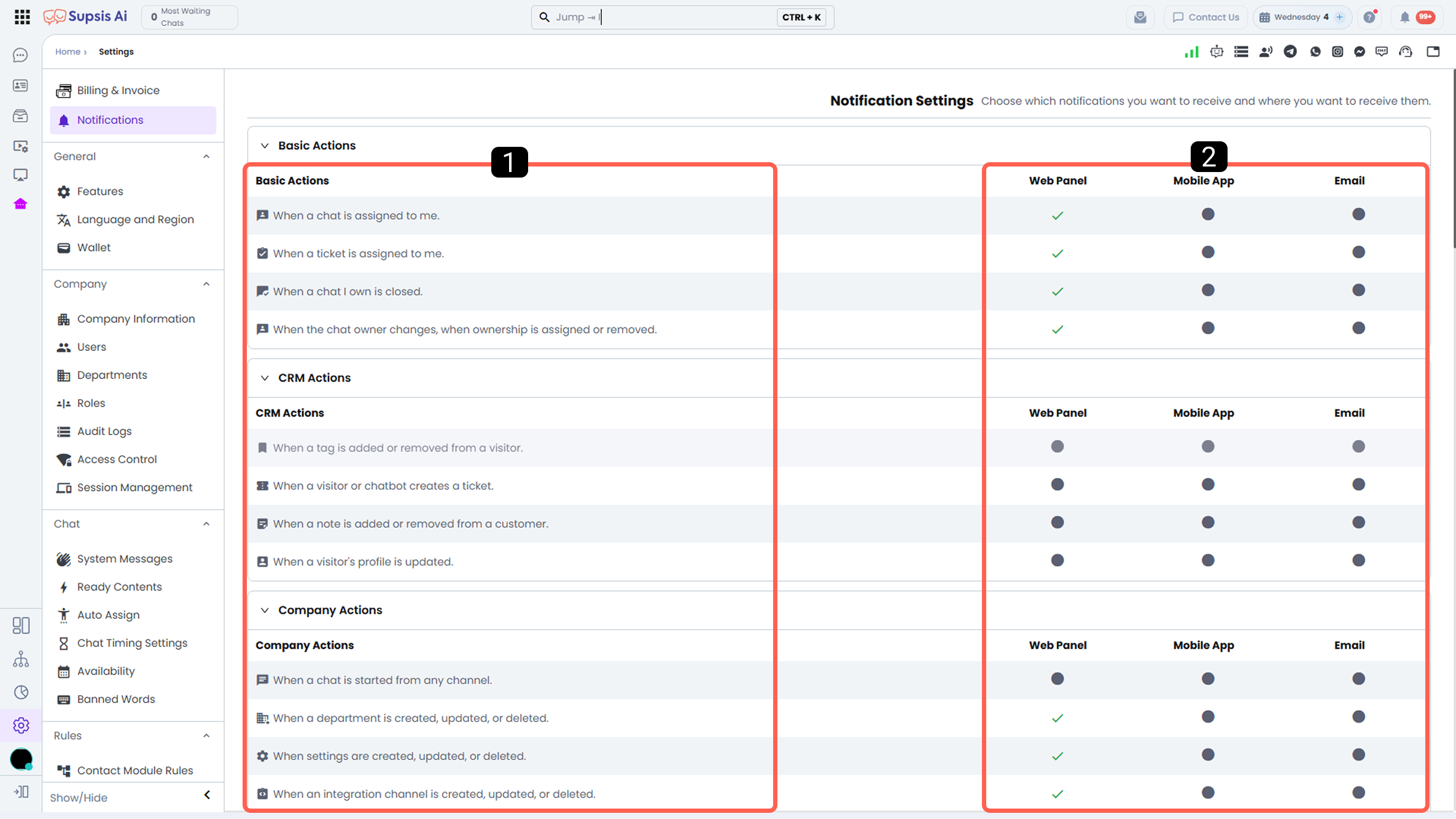
1-) Actions & Notification Categories
The Actions section refers to the system events that trigger notifications. Notifications are organized into distinct functional categories:
- Basic Actions: Operational events such as chat assignment, ticket assignment, chat closure, or chat ownership changes.
- CRM Actions: Adding/removing tags on visitors, chatbot or visitor ticket creation, adding/removing customer notes, or visitor profile updates.
- Company Actions: System-wide announcements and administrative notices.
- Task Management Module: Task assignments, workflow updates, and due-date reminders.
- Automation Operations: System notifications triggered by automation workflows.
2-) Notification Channel Configuration
In the Notification Channels section, selection checkboxes for each action row (Web Panel, Mobile App, E-Mail) allow you to activate or deactivate individual delivery channels.
2.a – Web Notifications:
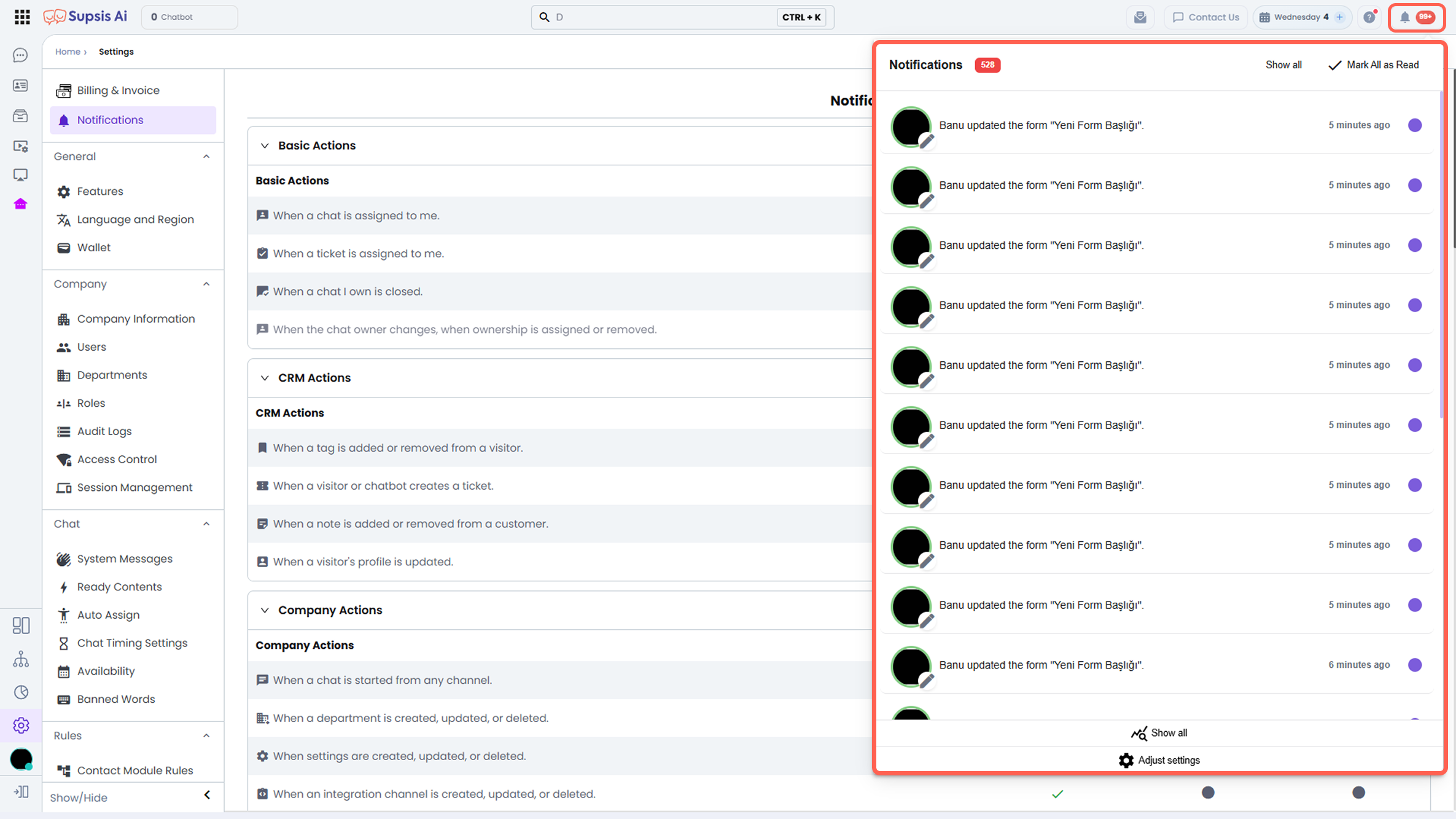
When you activate the relevant checkbox in the Web panel column, you will receive a web notification when the specified action occurs in your Supsis AI panel. Notifications can be viewed via the bell icon located in the top right corner of the panel.
Additionally, when a notification is triggered, a short-term notification card appears in the bottom right corner of the panel, and a notification sound is played simultaneously. This structure ensures that you are instantly informed about the occurring actions and can quickly perform the necessary operations.
Important Note (Notification Behavior for Assigned/Owned Chats): When a new message or interaction arrives in a chat session assigned to a specific representative (Owned Chat), the assigned chat notification card and notification sound are delivered only to the assigned representative (owner). For other representatives who do not own the chat, assigned notification sounds and cards are suppressed to prevent noise.
2.b – Mobile Application Notifications:
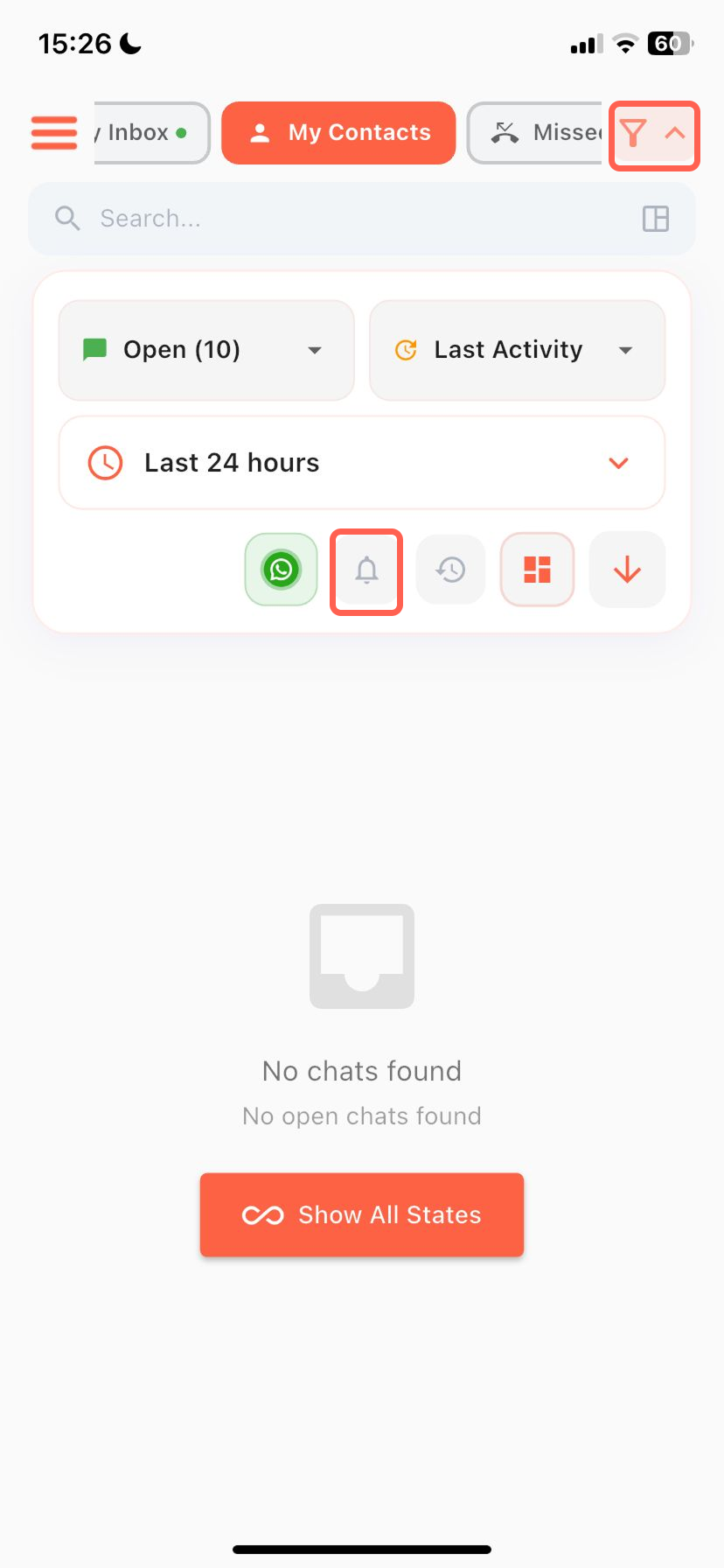
When you activate the relevant checkbox in the Mobile Application column, you will begin receiving notifications via the Supsis AI mobile application. Notifications can be viewed through the bell icon located inside the filter icon in the upper right section of the Messages menu within the mobile application.
Mobile application notifications can be configured in more detail through the application interface. For more detailed information about mobile notification settings, please review the Mobile Notification Settings documentation.
2.c – E-Mail Notifications & Unread Message Email Management:
When you activate the e-mail notifications option, an informational email will be sent to the email address associated with your user account whenever the specified actions occur.
- Direct Navigation Link in Emails: Unread message and notification emails include a direct link at the bottom that navigates users straight to
Settings → Notifications. - Toggling E-Mail Notifications On/Off: Users can easily disable unwanted email alerts (such as unread message or ticket notifications) by unchecking the corresponding box under the E-Mail column in the
Settings → Notificationspanel.
3-) Integration & Channel Connection Alerts (Instagram & Messenger)
When a channel's access token expires or permissions are revoked due to password or role changes (token-invalid), the system generates an immediate status/security activity.
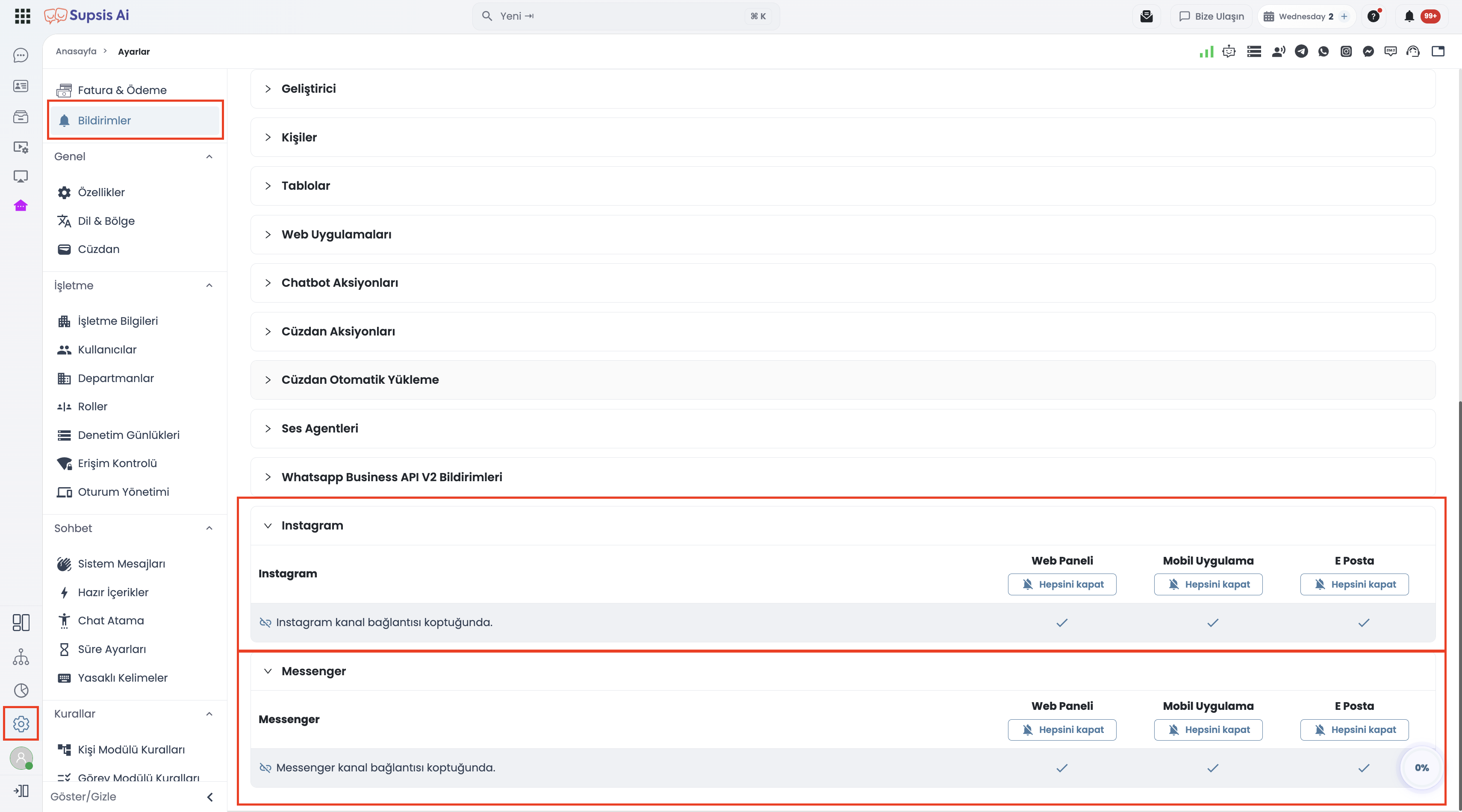
3.a – Managing Notification Preferences
Under Settings → Notifications, dedicated sections for Instagram and Messenger allow configuring channel disconnect notifications per platform:
| Integration Type | Trigger Event (Action) | Web Panel | Mobile App | |
|---|---|---|---|---|
| When Instagram channel disconnects | Enabled / Disabled | Enabled / Disabled | Enabled / Disabled | |
| Messenger | When Messenger channel disconnects | Enabled / Disabled | Enabled / Disabled | Enabled / Disabled |
3.b – Automated Alerts & Operational Continuity
- Uninterrupted Operations: As soon as a connection drops, alerts are delivered to key personnel via chosen channels (e.g. mobile push or email), preventing incoming customer messages from going unanswered.
- Customizable Delivery: Web bell notifications, mobile alerts, and email notifications can be toggled independently.
4-) Temporarily Muting Notifications (Do Not Disturb)
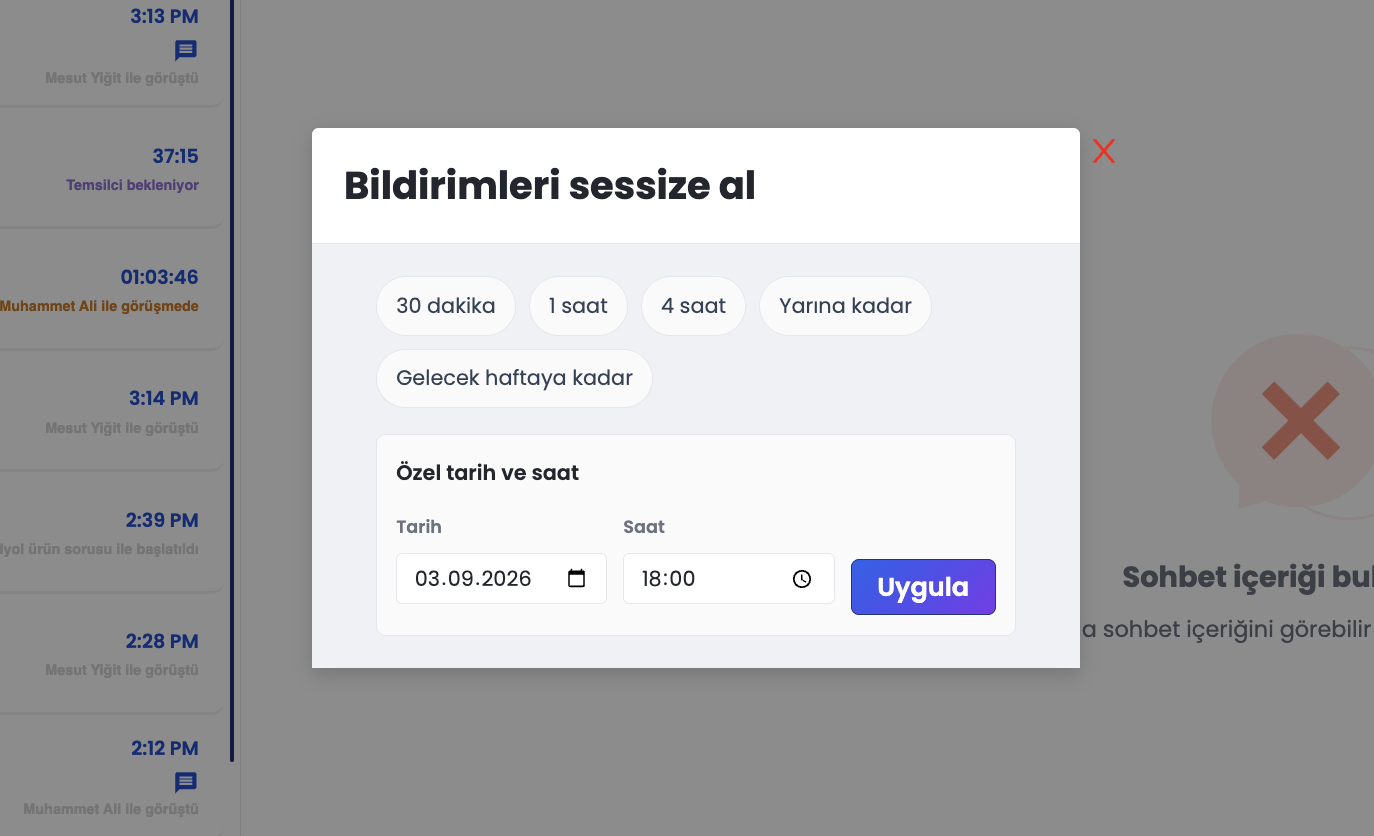
While the rules configured on this screen establish permanent system-wide notification defaults, agents can temporarily silence all interruptions during breaks, meetings, deep-work periods, or after-hours without altering their baseline settings.
4.a – Permanent Settings vs. Temporary Mute
| Characteristic | Permanent Rules (Settings → Notifications) |
Temporary Mute (Do Not Disturb) |
|---|---|---|
| Scope | Dictates which actions trigger Web, Mobile, or E-Mail notifications. | Suppresses all live notifications completely for a designated period. |
| Persistence | Remains active until manually updated by the administrator/user. | Automatically expires when the scheduled timer (e.g., 1 hour, tomorrow) concludes. |
| Impact Level | Affects the standard organizational or profile routing rules. | Strictly personal to the respective agent; does not impact teammates. |
4.b – Fast Access Points
Agents can activate temporary mute instantly from any dashboard view: * 1.a – Top Bar Notification Bell: Click the bell icon in the top header and select the mute button (bell with slash) in the dropdown footer. * 1.b – Bottom-Left User Avatar: Click your profile avatar in the navigation sidebar and choose Mute notifications. * 1.c – Profile Settings: Navigate to the Notifications tab under Profile to select preset chips or schedule a custom calendar deadline.
In-Depth Guide & Step-by-Step Instructions
For detailed walkthroughs on Passkey login, sound preferences, and session management, consult the Agent Profile & Notification Guide.