
3. Bulk Email
This module allows you to prepare comprehensive email marketing campaigns for your customer groups and initiate the sending processes. Through this area, you can filter and list your previously launched active campaigns or archived past deliveries based on their current status. You can instantly monitor the overall summary information, statistics, and current progress of your campaigns through the main delivery table. When you want to create a new campaign, you can professionally complete your bulk email processes by configuring the sending settings, template, target audience, and delivery plan step by step.
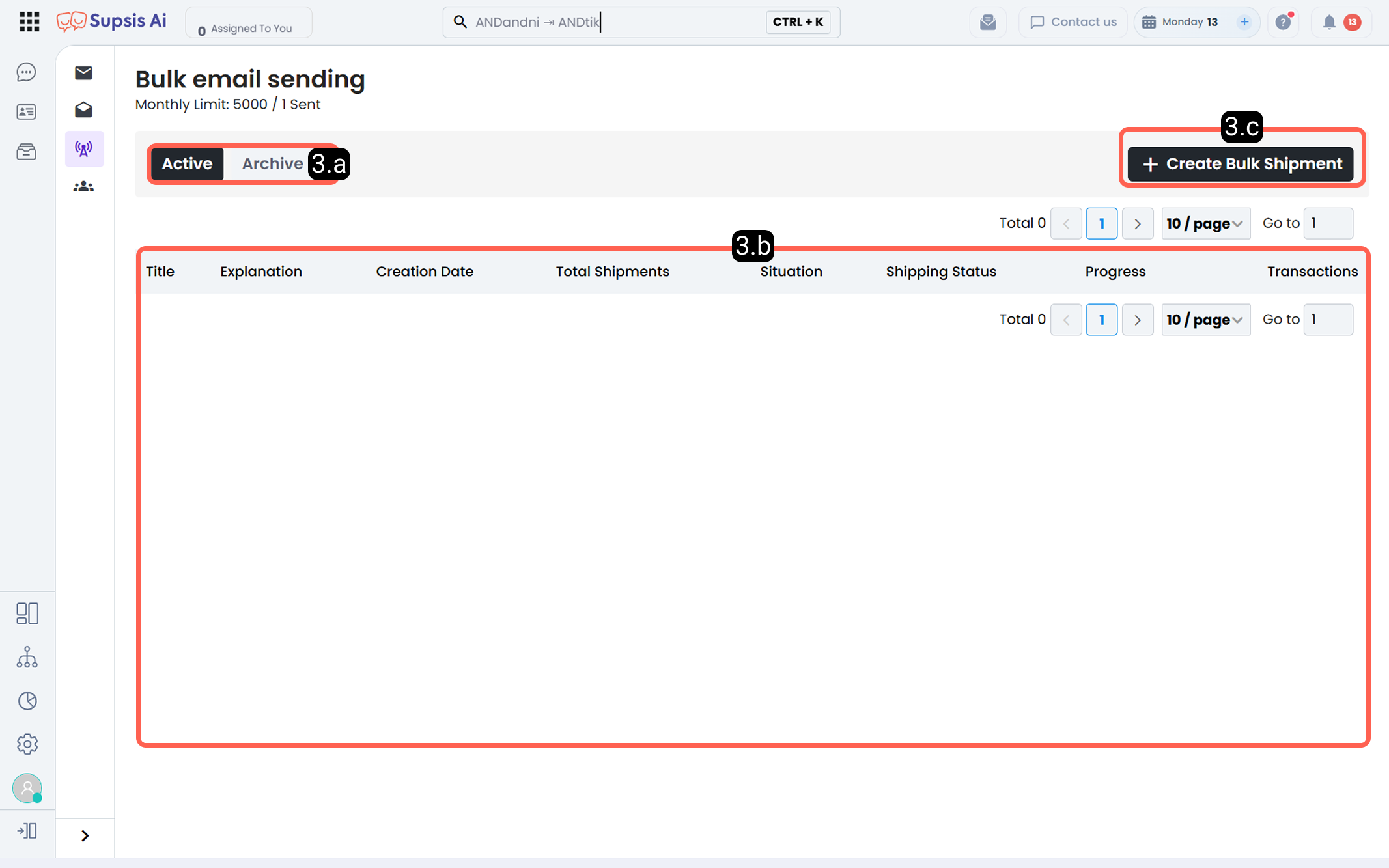
3.a – Deliveries by Status
This section allows you to filter and view your bulk email campaigns based on their current status. Records of your completed or archived email campaigns are stored in this menu.
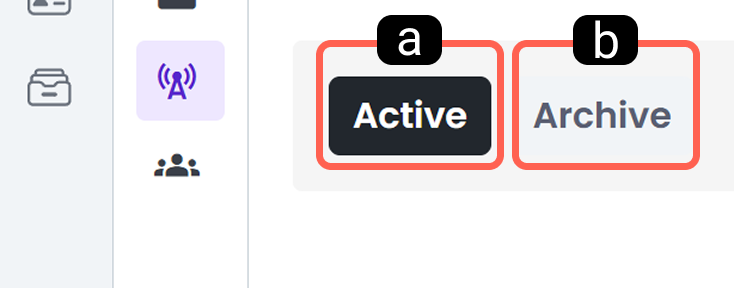
a. Active
Use this button to list your bulk email campaigns that are currently live and not yet archived.
b. Archive
This section contains records of your completed campaigns that have been moved to the archive.
3.b – Delivery Table
The main data table where you can track the overall summary information of all bulk email campaigns created in Supsis AI. From this table, you can monitor the current progress and statistics of your deliveries.
3.c – Create New Delivery
This is the configuration screen used to prepare a new bulk email campaign for your customer groups and start the sending process. The campaign setup is completed step by step through this section.
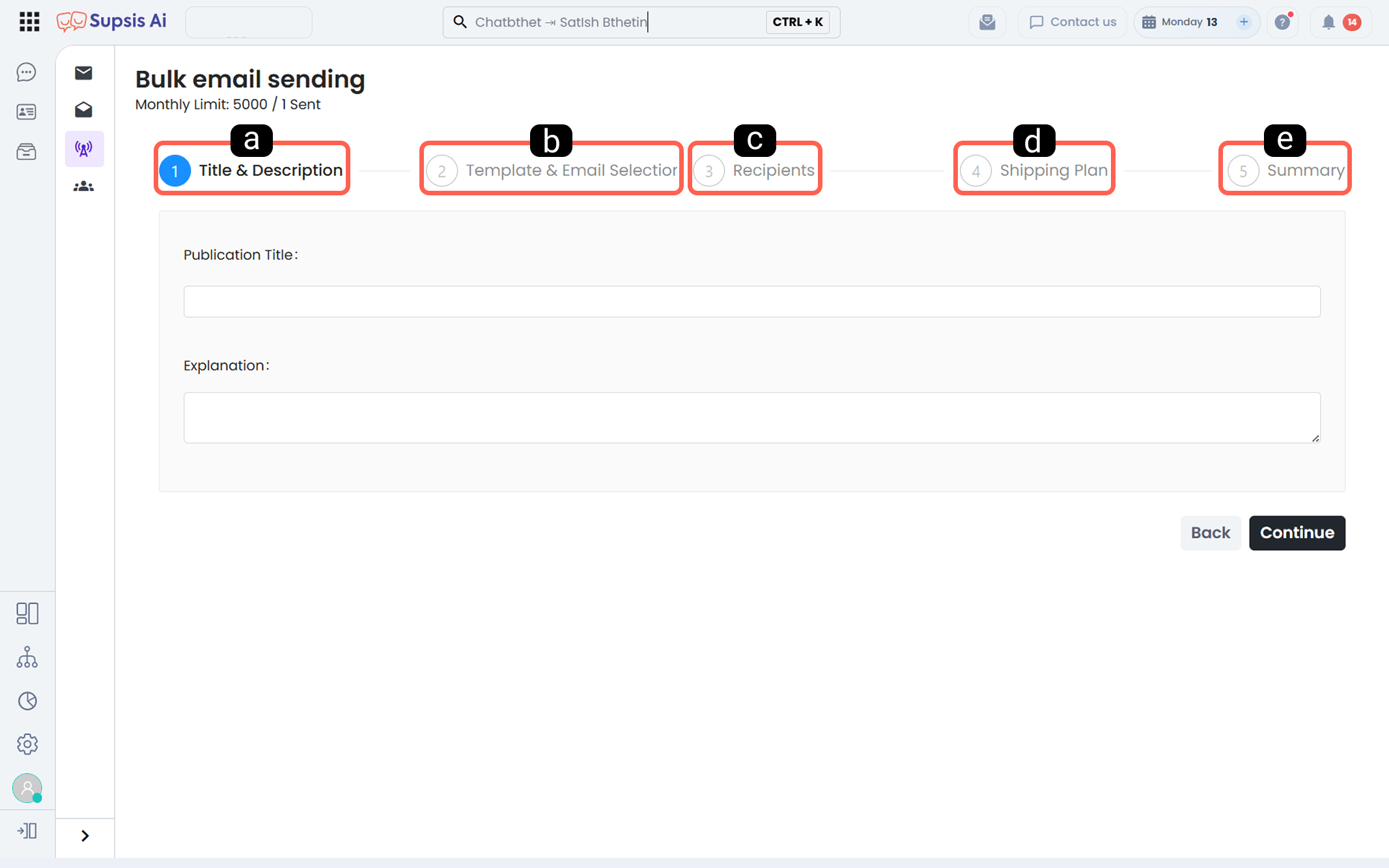
a. Title & Description
The first step where the basic identification of your campaign is defined. Here, you can enter a Title to distinguish your campaign within the system and add additional notes in the Description field.
b. Template & Sender Selection
The stage where you define the visual content to be sent and the sender address. You can select the design of the email content from the Template section and specify which email address the campaign will be sent from via the Sender Email field.
All email addresses integrated into Supsis AI can be selected from the Sender Email field.
c. Recipients
The targeting step where you choose which audience or pre-segmented customer groups will receive your email campaign.
d. Delivery Schedule
The section where you define when the campaign will be delivered to customers. You can choose Send Now to start immediately after approval or select Schedule to automatically send it at a specific future date and time.
e. Summary
A final review and confirmation screen where you verify the target audience, template, timing, and sender information before starting the campaign.