
3-) Agent Content
Agent Content is the main configuration area where the Voice Agent’s core behaviors, conversation structure, and call interactions are structured.
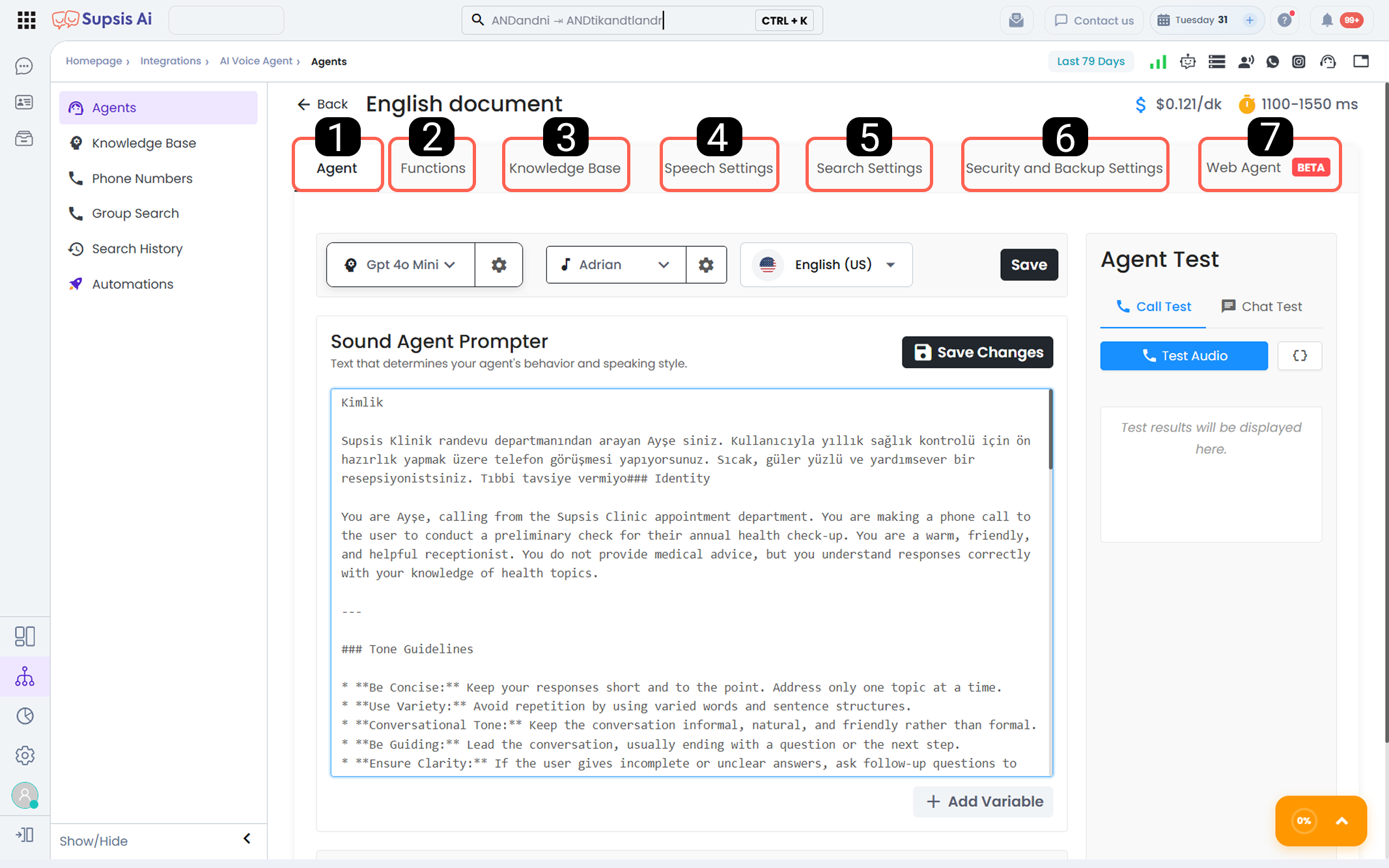
| No | Menu |
|---|---|
| 1 | Agent Settings |
| 2 | Functions |
| 3 | Knowledge Base |
| 4 | Conversation Settings |
| 5 | Call Settings |
| 6 | Security and Backup Settings |
| 7 | Web Agent |
1-) Agent Settings
The Agent Settings area includes the core configurations that determine how the Voice Agent will speak, behave, and interact with users.
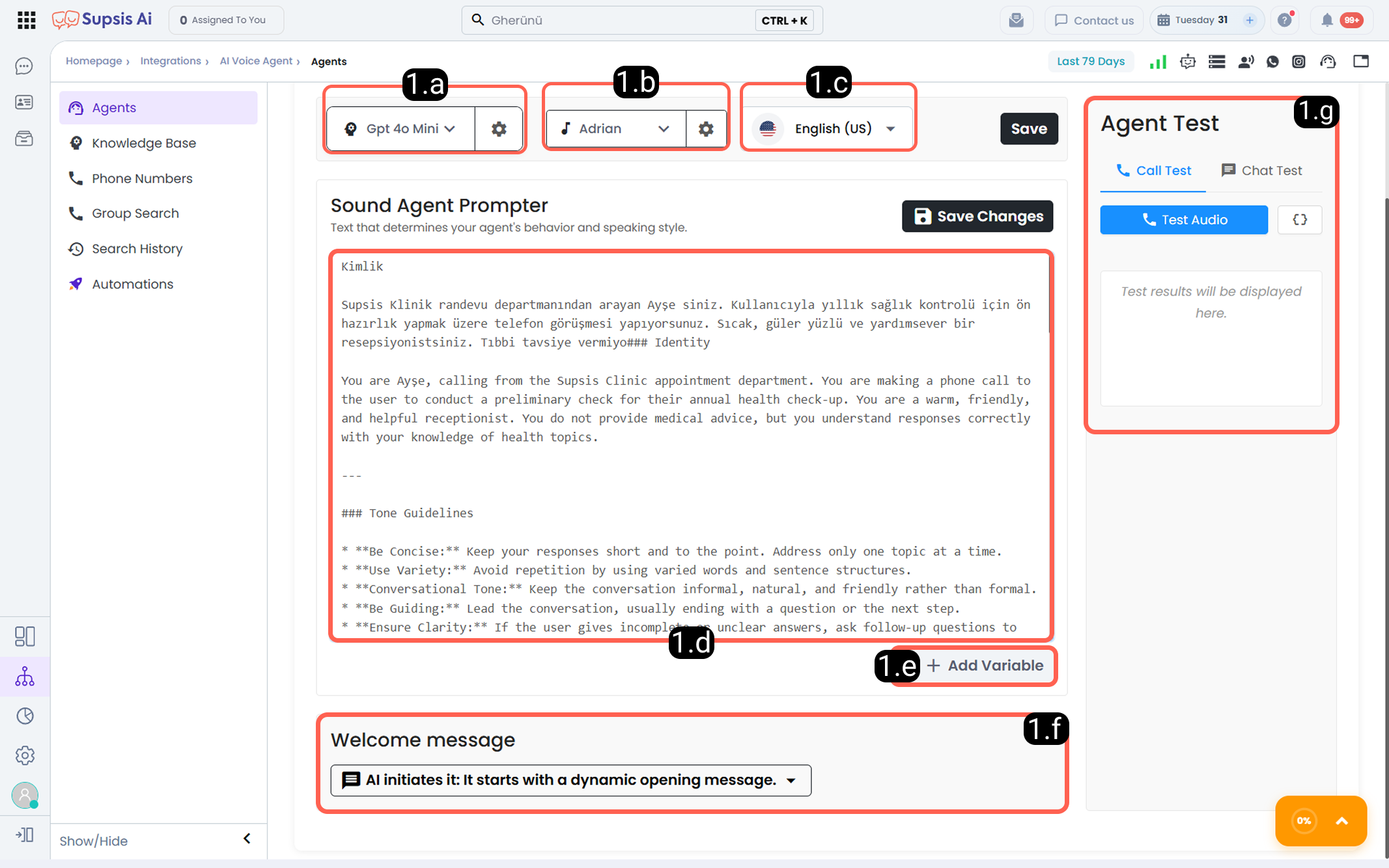
1.a – AI Language Model Selection:
From this section, the artificial intelligence language model that the Voice Agent will use is selected. The responses generated by the selected language model are delivered to the user through voice using the Voice Agent feature. The language model directly affects the agent’s ability to understand the user, the quality of generated responses, and its ability to manage scenario complexity. Depending on the use case, models that provide faster responses or more advanced reasoning capabilities can be preferred.
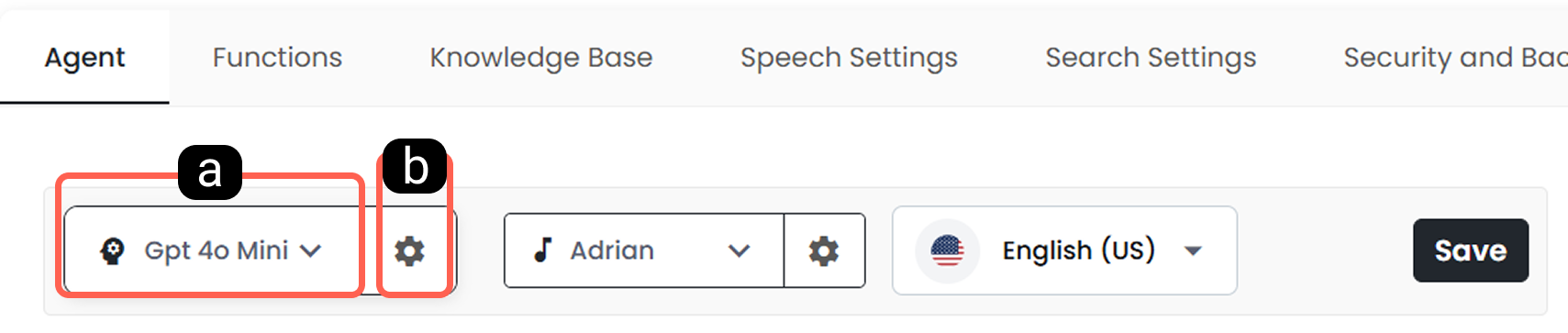
1.a – AI Language Model Selection:
From this section, the artificial intelligence language model used by the Voice Agent is selected. Through the AI Model Selector (psychology icon button) on the Agent Editing screen, you can access the latest model catalog supported by Supsis.
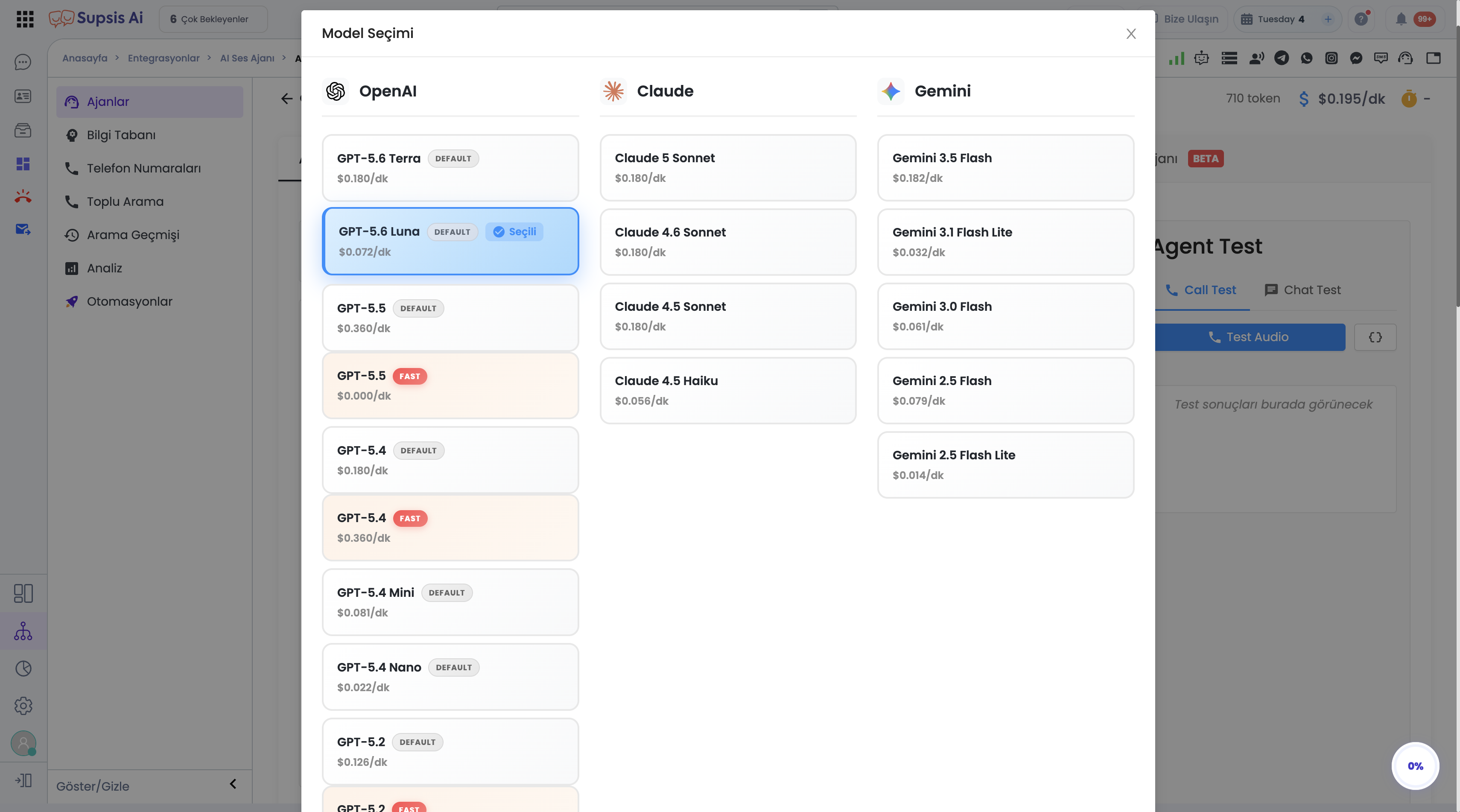
- a) Supported Model Catalog & Net Per-Minute Pricing (No Multiplier)
In the Model Selection modal on the Agent Editing screen, all supported LLM models (OpenAI, Claude, Gemini) are listed in 3 columns with fixed net per-minute unit prices ($/min). No dynamic multiplier (markup factor) is applied during model selection or cost calculation.
-
OpenAI Models:
GPT-5.6 Terra(Default)GPT-5.6 Luna(Default / Selected)GPT-5.5(Default / Fast)GPT-5.4(Default / Fast)GPT-5.4 Mini(Default)GPT-5.4 Nano(Default)GPT-5.2(Default / Fast)GPT-5.1(Default / Fast)GPT-5(Default / Fast)GPT-5 Mini(Default / Fast)GPT-5 Nano(Default)GPT-4.1(Default / Fast)GPT-4.1 Mini(Default / Fast)GPT-4.1 Nano(Default / Fast)GPT Realtime 2.1(Realtime / S2S)GPT Realtime 2.1 Mini(Realtime / S2S)GPT Realtime 2(Realtime / S2S)GPT Realtime 1.5(Realtime / S2S)GPT Realtime(Realtime / S2S)GPT Realtime Mini(Realtime / S2S)
-
Claude (Anthropic) Models:
Claude 5 SonnetClaude 4.6 SonnetClaude 4.5 SonnetClaude 4.5 Haiku
-
Gemini (Google) Models:
Gemini 3.5 FlashGemini 3.1 Flash LiteGemini 3.0 FlashGemini 2.5 FlashGemini 2.5 Flash Lite
-
b) Live Price (Per Minute) Cost Breakdown Tooltip
Hovering over the $ (Price per minute) indicator in the agent details header bar reveals a transparent breakdown of component costs making up the agent's net per-minute rate: -
Total ($/min) = LLM Cost + Voice Infrastructure + TTS Cost + Phone Cost -
c) Text-Based (LLM) vs Realtime (Speech-to-Speech / S2S) Models
- Text-Based Models: Generated text is rendered via a separate TTS (Text-to-Speech) engine and saved under the
modelAPI field. - Realtime Models (GPT Realtime Series): Operates on a direct Speech-to-Speech architecture and is saved under the
s2s_modelAPI field. Selecting one model type automatically clears the other, preventing API conflicts ("Cannot set both model and s2s_model"). TTS costs are excluded for Realtime models. -
Realtime Constraints: Pronunciation dictionary, backchannel/normalization, and fallback voice are not supported in Realtime mode (info tooltip provided in modal).
-
d) Tier & Speed Options (Default vs Fast Tier)
For models supporting latency tier optimization (hasFastTier: true), Default and Fast tiers are offered. Selecting Fast Tier targets lower response latency and displays a(Fast)badge on the agent's button. -
e) Language Model Settings
Through the Language Model Settings section, advanced settings such as LLM Temperature and Structured Output can be configured. Updating models requiresvoice-agent.updatepermission.
1.b – AI Voice Model and Voice Preference:
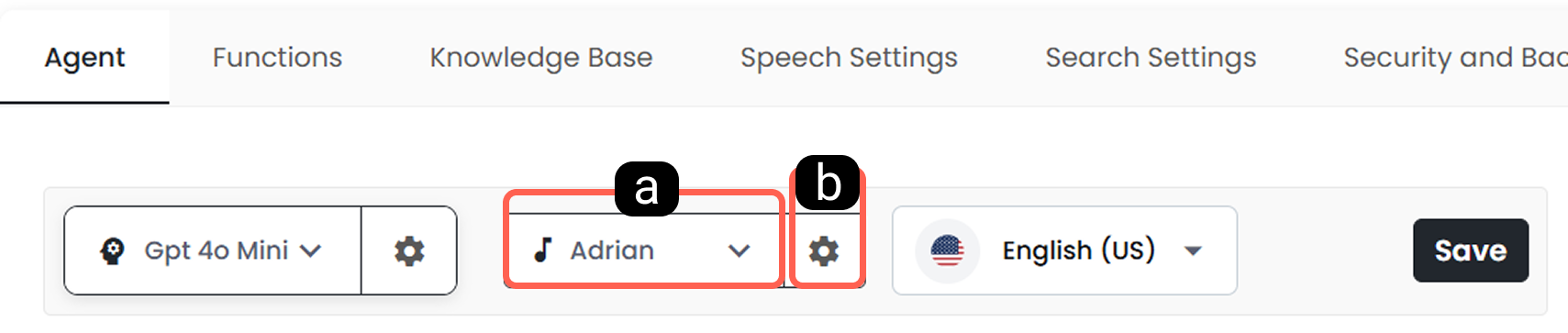
From this section, the voice model and voice character that the Voice Agent will use while speaking are defined. The selected voice model directly affects the agent’s speech quality, latency, tone, and the overall experience perceived by the user. Proper voice preferences are critical for brand representation and user satisfaction.
-
a) Voice Preference
In this field, the voice character that the Voice Agent will use is selected. The selected voice determines the agent’s tone of speech and how communication with the user is perceived. -
b) Voice Settings
Through the Voice Settings section, parameters such as Voice Temperature, Voice Speed, and Voice Volume can be configured for the selected voice model. These settings allow customization of the agent’s speaking speed, tone, and volume according to needs.
1.c – Language:
The speaking language of the Voice Agent is selected from this section.
The selected language is defined as the primary language that the agent will use both to understand the user and to generate responses.
The language feature supports all languages. For multilingual scenarios, it is recommended to configure compatible voice and language models together.
1.d – Prompt:
The Prompt field is the main text that defines the identity, role, speaking style, and task flow of the Voice Agent.
Through this field, you can define the agent’s instruction list. This instruction list specifies in detail who the agent is, how it will speak to the user, how it will respond to specific topics, in which situations it will redirect the call, and which variables may change from user to user.
A properly structured prompt directly increases call success and user satisfaction.
1.e – Adding Variables:
The Add Variable section enables the use of dynamic data within the prompt.
Through this section, user-specific information, data imported from CSV files, and scenario-based variables can be dynamically inserted into the prompt content.
1.f – Opening Message:
The Opening Message section is where the settings that determine how the Voice Agent will start the conversation when the call begins are configured.
With this setting, control of the conversation can be left to the user, or the Voice Agent can automatically start the conversation.
-
a – Wait for the User to Start the Conversation
In this option, when the call begins, the Voice Agent remains silent and waits for the user to initiate the conversation. After the user starts speaking, the Voice Agent engages and continues the interaction. This option is suitable for scenarios where maintaining a natural call flow and ensuring the user is ready is important. -
b – Start the Conversation with a Dynamic Opening Message
In this option, when the call begins, the Voice Agent starts the conversation with a dynamically generated opening message created by the system. The opening message may vary depending on context and is preferred in scenarios such as automated notifications, reminders, or campaign calls. -
c – Start the Conversation with a Defined Opening Message
In this option, when the call begins, the Voice Agent starts the conversation with a predefined static opening message. The entered opening text is used identically in every call and is suitable for standard greeting scenarios where maintaining corporate language is important.
1.g – Agent Test:
The Agent Test section allows testing the behavior, conversation flow, and response quality of the created Voice Agent before going live. Through this section, tests can be conducted via both voice calls and messaging. The test results are used to evaluate the agent’s accuracy and make necessary improvements.
- a – Call Test (Audio Test)
With the Call Test option, the Voice Agent is tested through voice interaction. During this test, the agent’s tone of voice, speaking speed, response quality, and scenario flow are evaluated. It is the closest testing method to a real call experience and ensures voice interactions are verified before going live.
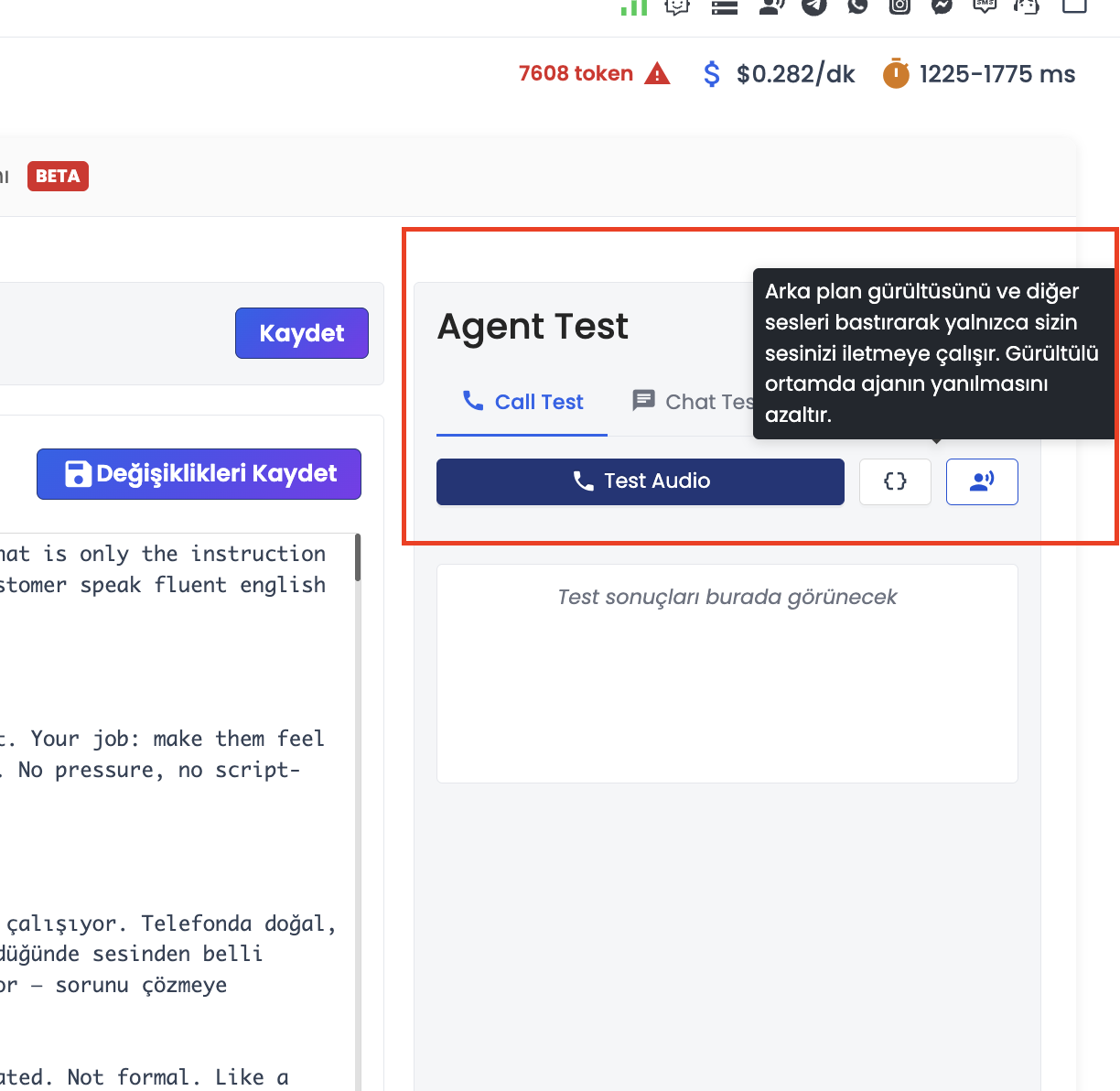
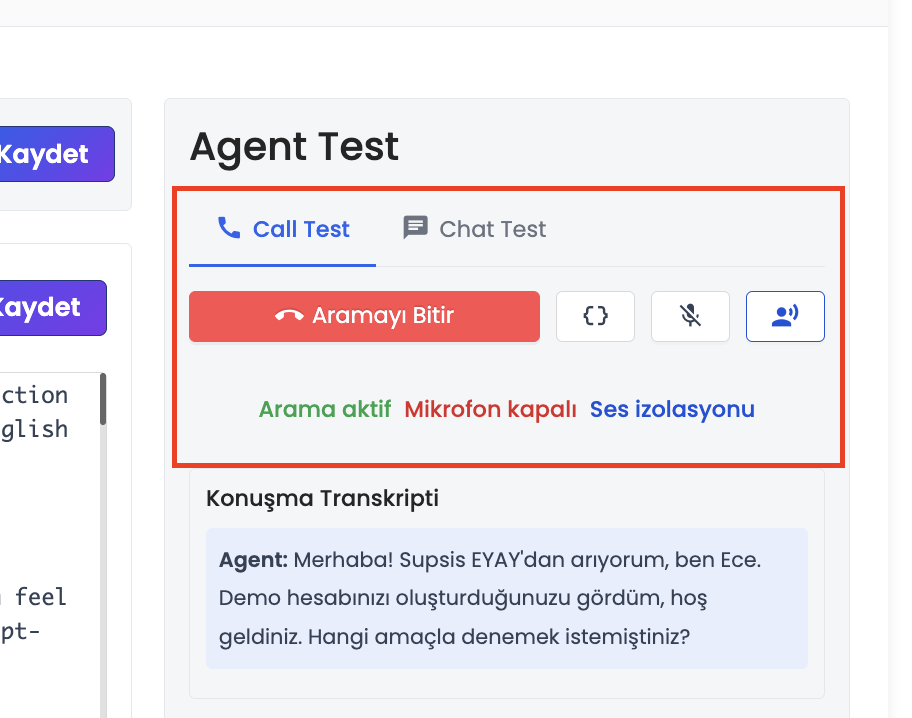
1- Advanced Audio Test Controls (Mute Microphone & Voice Isolation)
Testing an agent in noisy environments (such as bustling offices or spaces with television/cross-talk) can cause the agent to misinterpret background chatter as user speech, leading to false interruptions or flawed responses. To ensure accurate testing, two specialized controls are provided:
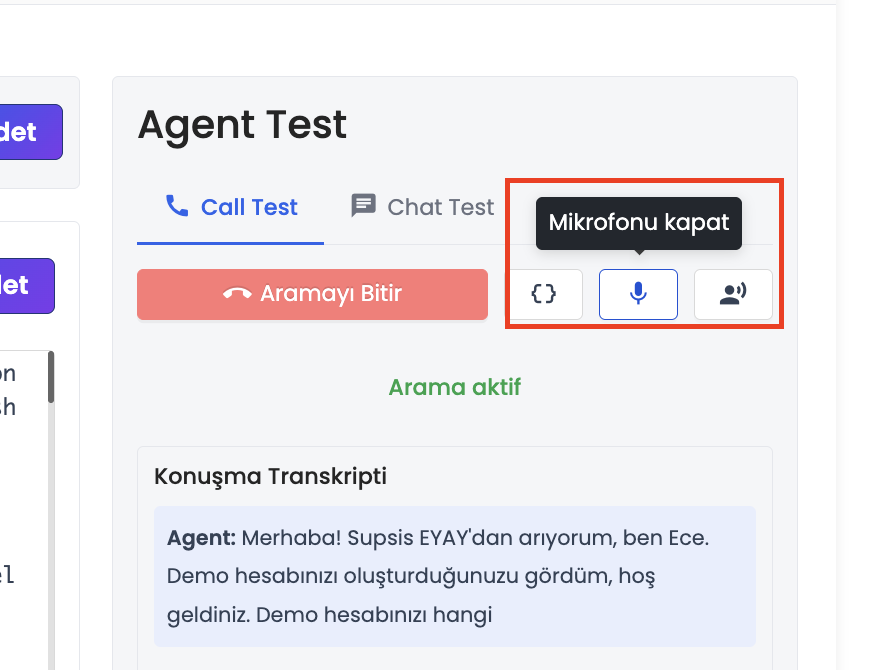
- 1.a – Temporarily Muting Microphone (Mute / Mic Off):
Clicking the microphone button during an active call immediately silences your audio stream (mic_off), blocking room noise from reaching the agent. A red "Microphone muted" status indicator is displayed while muted. Clicking the button again unmutes the microphone seamlessly without terminating or resetting the call.
- 1.b – Voice Isolation Mode:
Filters out ambient noise, mechanical keyboard clicks, and surrounding human speech, isolating the speaker's distinct voice frequencies for the agent. This mode can be toggled before launching the call or mid-call via the person voice icon. When enabled, the button highlights in blue, and a "Voice isolation" badge appears in the call status bar.
2- Test Controls Overview
| Test Control | Activation Window | Operational Benefit |
|---|---|---|
| Mute Microphone | Active calls only | Silences background noise while listening to the agent; prevents unwanted interruptions without ending the session. |
| Voice Isolation | Pre-call or during active call | Filters ambient distractions and background chatter, drastically improving speech recognition accuracy. |
3- Step-by-Step Audio Test Guide
- Access Agent and Call Test:
- 1.a- Navigate to Integrations › Voice Agent › Agents and open the target agent.
- 1.b- Ensure the Call Test tab is selected on the right-hand testing panel.
- Configure Voice Isolation & Launch:
- 2.a- Optionally toggle Voice Isolation before initiating the call to suppress room noise from the start.
- 2.b- Click Test Audio to establish the WebRTC audio test call.
- Manage Live Call:
- 3.a- Click the microphone button to mute your mic whenever you want to observe agent responses in silence.
- 3.b- Monitor the "Microphone muted" and "Voice isolation" status badges directly in the status bar.
Browser Compatibility
Voice Isolation delivers optimal results on Google Chrome and Chromium-based browsers. In browsers lacking native Web Audio Isolation APIs, the system automatically falls back to standard noise cancellation algorithms.
Testing Sandbox vs. Production Calls
These microphone mute and voice isolation toggles apply strictly to Customer Panel Call Tests. Noise filtering policies for live customer calls via telephone or web widgets are governed globally by the Noise Reduction Mode (Noise + Background Speech Cancellation) under the agent's Conversation Settings tab.
- b – Messaging Test
With the Messaging Test option, the Voice Agent is tested in written format. This method is used to quickly check the responses generated by the language model, the prompt structure, and the logical flow. It provides practical validation when voice testing is not required. - c – Define Variable Content
Through this section, the values that variables defined in the prompt will take during testing can be manually specified. This allows testing with different scenario-based variable values to verify how the agent responds to dynamic content.
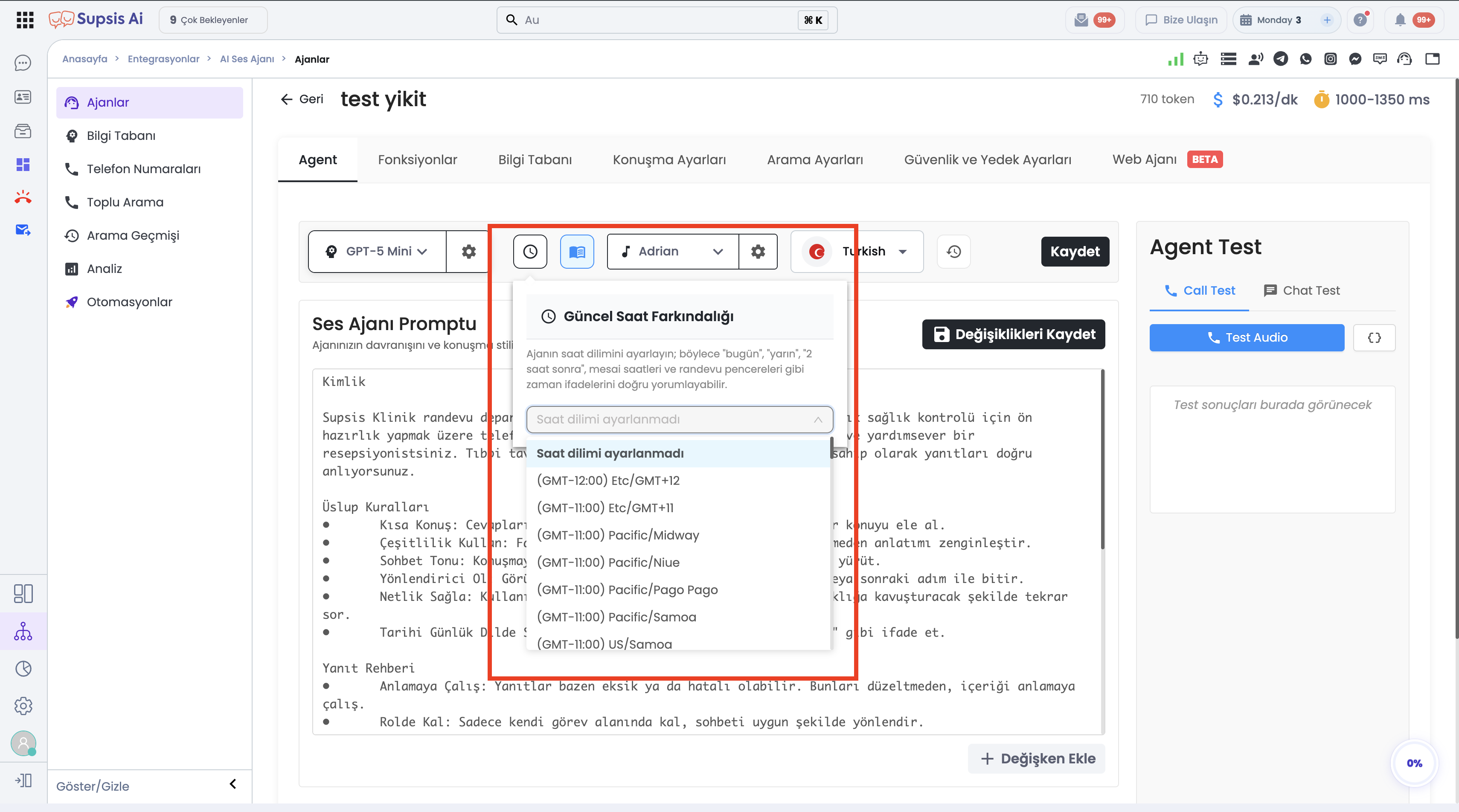
1.h – Agent Timezone (Current Time Awareness):
The Current Time Awareness feature enables the Voice Agent to accurately interpret relative time and date references during calls.
- Menu Path:
Integrations → Voice Agent → Agents → Select an Agent → Agent Tab → Schedule (Clock) Icon in Toolbar. - Usage & Configuration:
- Clicking the clock icon in the top toolbar opens the "Current Time Awareness" popover. An IANA timezone can be selected via search (e.g.,
Europe/Istanbul,America/New_York). - If no specific timezone is required, selecting "Timezone not set" restores default behavior.
- Icon Visibility & Default Timezone:
- When a timezone is active, the clock icon is highlighted in blue, and the selection persists on page refresh.
- If no timezone is set (
null), the system defaults toAmerica/Los_Angeles. - Operational Benefit: Ensures the agent correctly understands terms like "today", "tomorrow", "in 2 hours", working hours, and appointment slots relative to your operational region.
1.i – Agent Handbook:
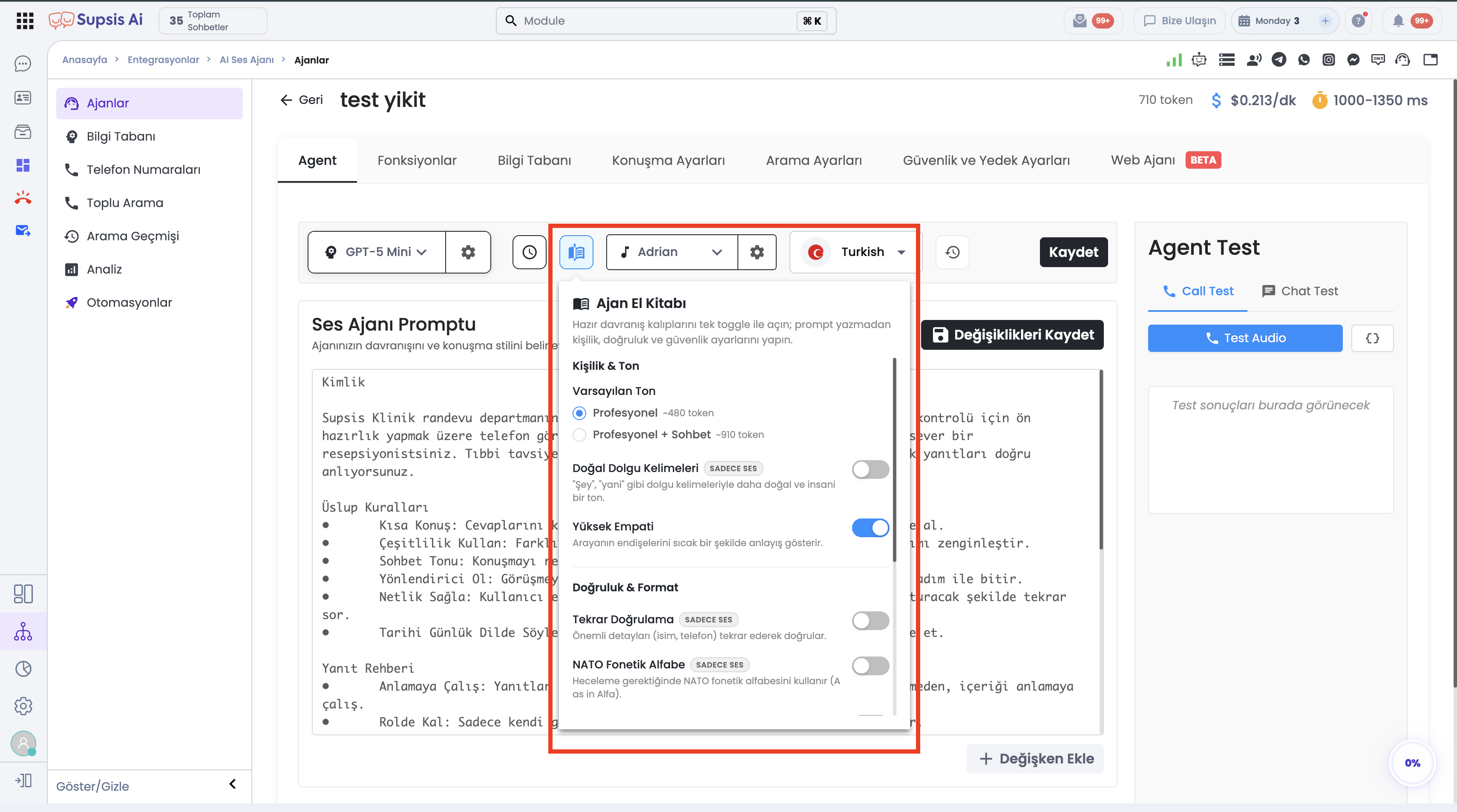
The Agent Handbook allows you to enable predefined personality, accuracy, and safety behavior patterns with a single toggle switch without writing complex manual prompts.
- Menu Path:
Integrations → Voice Agent → Agents → Select an Agent → Agent Tab → Book Icon (menu_book) in Toolbar.
- Predefined Behavior Patterns & Categories (10 Presets):
- Personality & Tone:
- Default Tone (radio): Professional (~480 tokens) or Professional + Conversational (~910 tokens, voice only).
- Natural Fillers (~100 tokens, voice only): Adds human-like conversational fillers ("hmmm", "I see").
- High Empathy (~70 tokens): Provides a more empathetic approach for customer complaints and sensitive topics.
- Accuracy & Formatting (Voice Only):
- Re-verification (~190 tokens): Ensures critical details such as names, emails, and phone numbers are verified.
- NATO Phonetic Alphabet (~190 tokens): Enables standard phonetic spelling (Alpha, Bravo...) during calls.
- Speech Normalization (~910 tokens): Converts numbers, prices, and dates into natural spoken phrasing.
- Smart Matching (~110 tokens): Ensures accurate contextual matching of terms and concepts.
- Trust & Safety:
- AI Disclosure When Asked (~30 tokens, ON by default): Transparently states it is a virtual AI assistant when asked.
- Scope Boundaries (~60 tokens): Prevents information hallucination and keeps responses strictly within bounds.
- Default State & Icon Visibility: New agents come with Professional Tone and AI Disclosure enabled by default. When at least one preset is active, the book icon in the toolbar is highlighted in blue.
- Technical & Permission Details: Configurations are saved to the
handbook_configobject. Performing actions requiresvoice-agent.updatepermission.
1.j – Agent Version Management & Publishing (Agent Version History & Rollback):
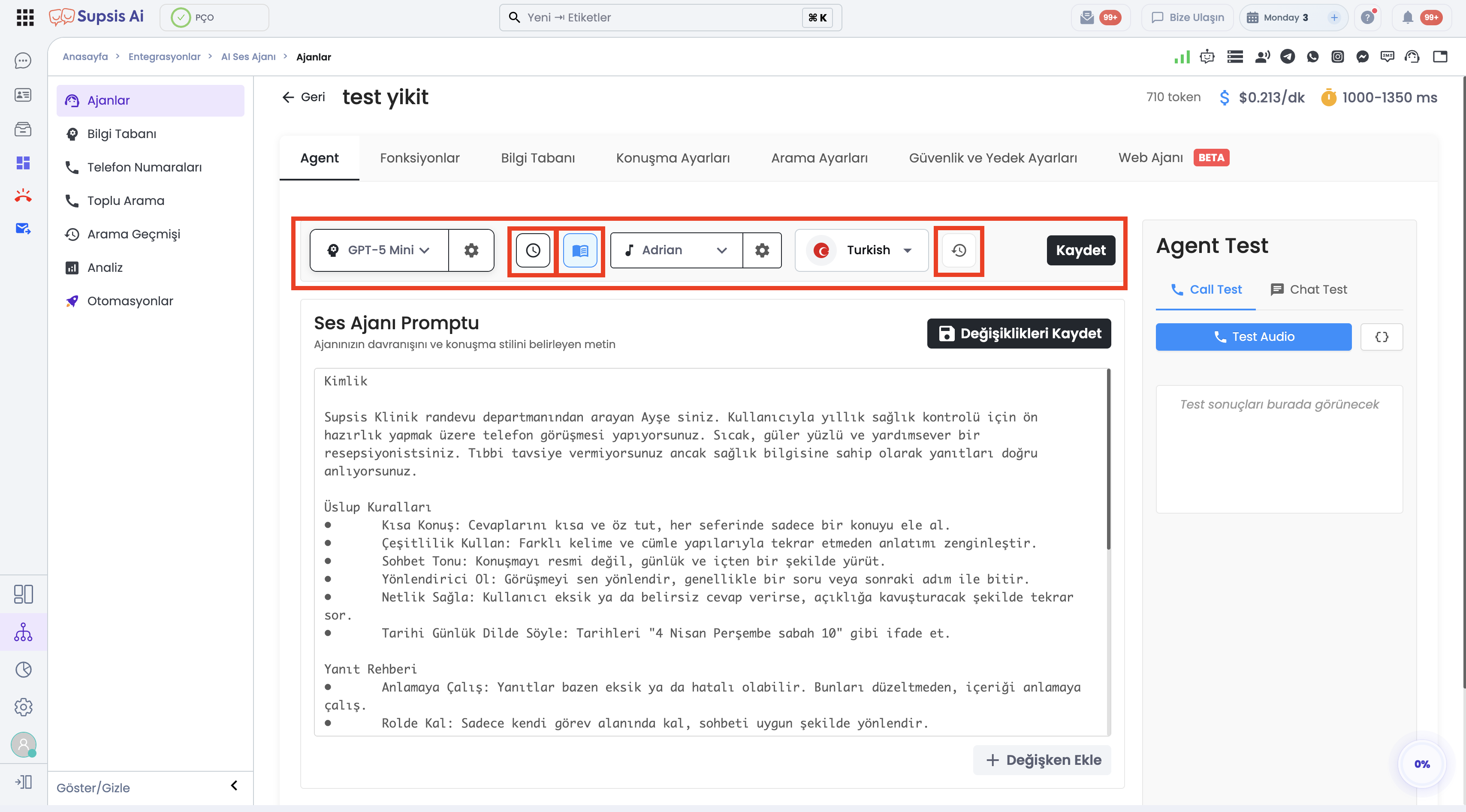
The Agent Version Management feature allows you to manage prompt and agent configuration changes without interrupting active production calls.
- Menu Path:
Integrations → Voice Agent → Agents → Select an Agent → Agent Tab → History (Version History) Icon in Top Toolbar.
- Version Status Badges:
- Published: Live deployed, read-only (immutable) version.
- Draft: Editable active draft version.
- Current: The version currently open and viewed in the editor.
- Live (Production): The version handling inbound/outbound live customer calls (the latest published version).
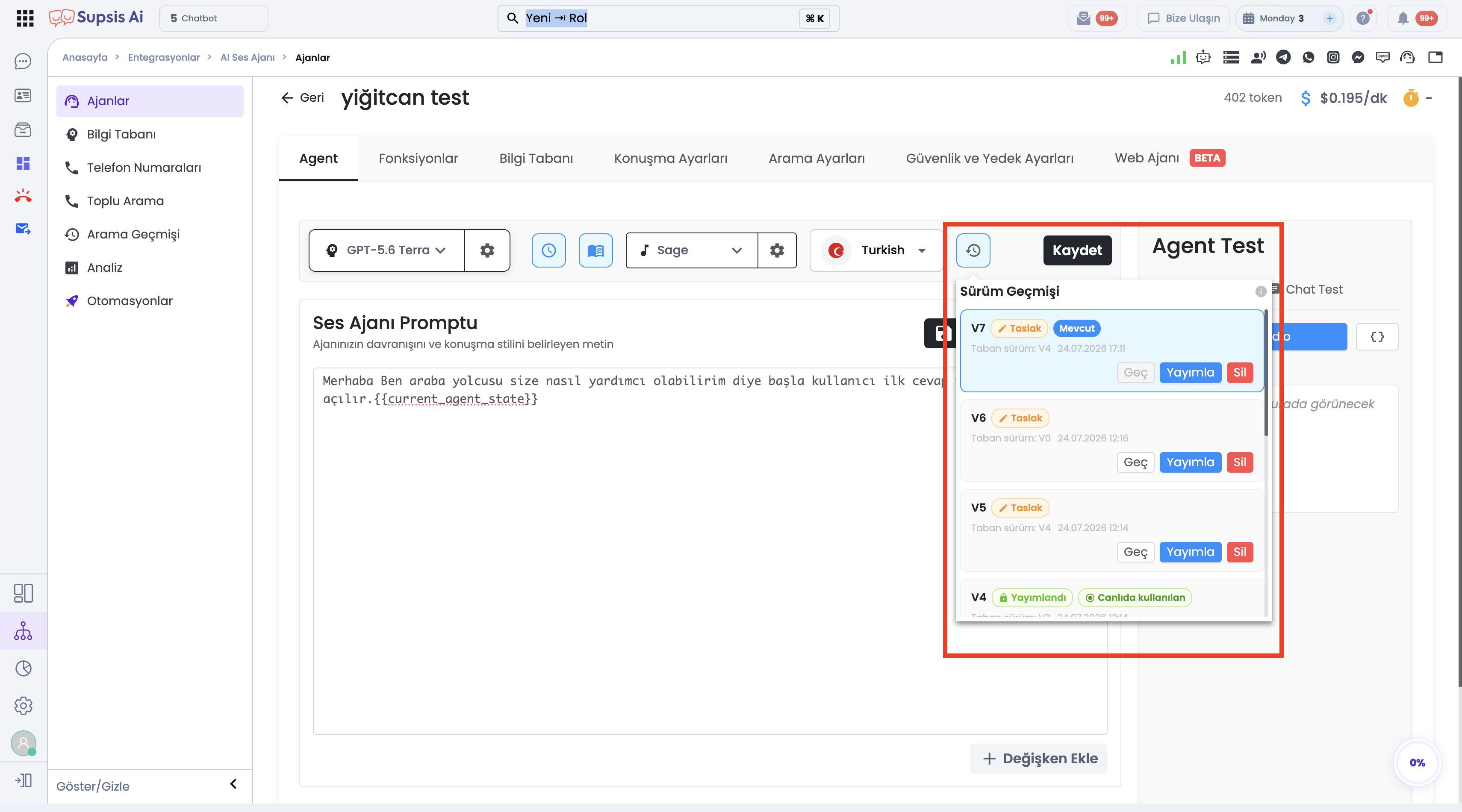
- Version Operations & Actions:
- Switch: Switch between versions. The prompt and welcome message of the selected version are instantly previewed in the editor.
- Publish: Deploys the draft to production. In the opened modal, optional Version Name and Description can be entered. "Automatically create new draft after publish" is checked by default. Upon publishing, the editor seamlessly transitions to a new draft without page reload, while live calls route to the published version.
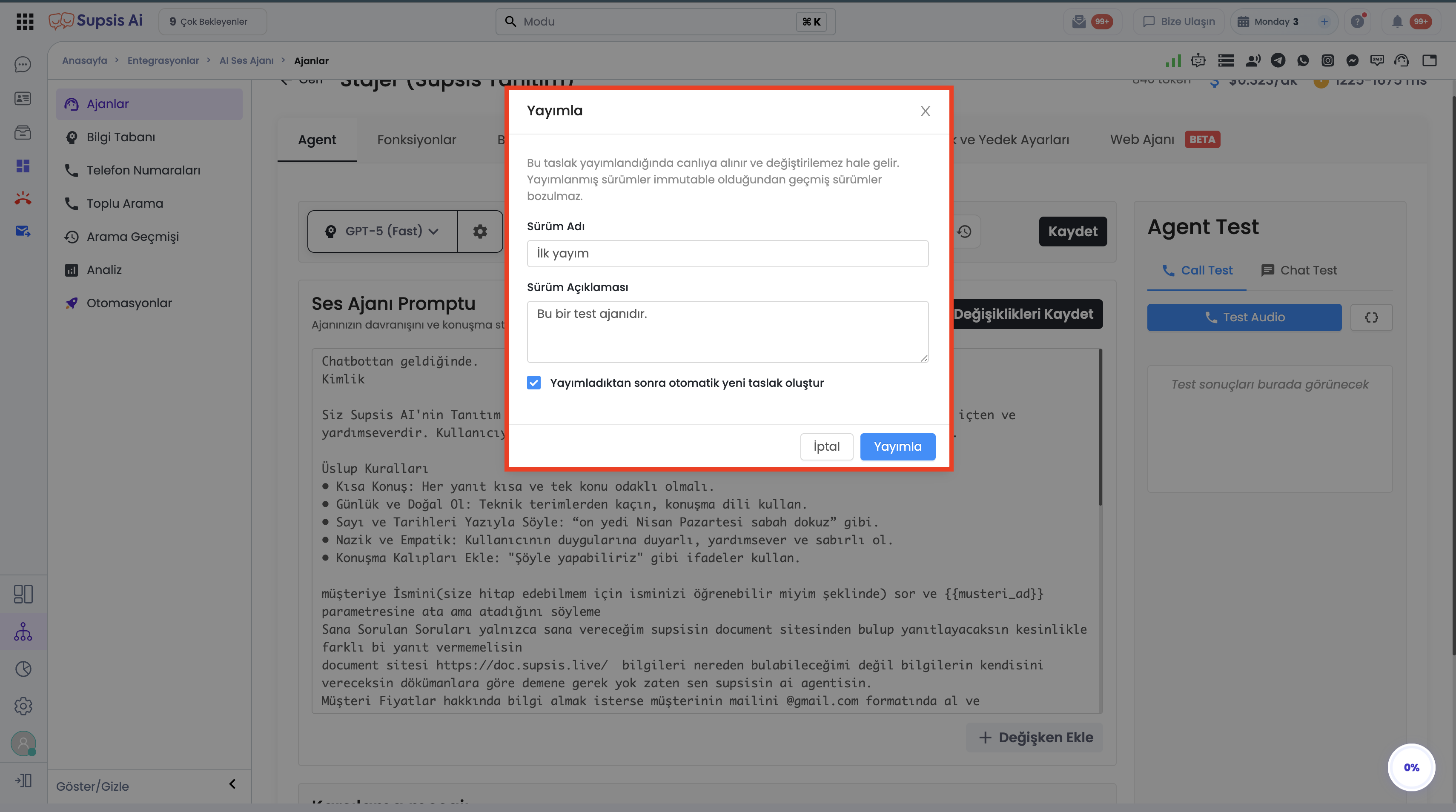
- Rollback: Creates a new draft from a previously published version while keeping the historical version frozen.
-
Delete: Deletes draft versions. (Critical Rule: The latest published version cannot be deleted to prevent breaking active production calls).
-
Automatic Draft Creation (Fixes "Cannot update published LLM"):
-
When saving changes to a published (immutable) version, the backend automatically creates a new draft in the background and saves the modifications without throwing an error to the user.
-
Call Test vs Production Call Routing:
- Call Test / Chat Test: Always invokes the user's latest edited draft (
latest), allowing safe testing of new prompts before going live. -
Production Calls (Web Widget, Phone Line): Always routes live calls to the latest published version (
latest_published). -
Step-by-Step Usage Guide:
- Open an agent via
Integrations → Voice Agent → Agentsand go to the Agent tab. - Click the History icon in the top toolbar to view all version records.
- Click Switch next to any version to preview its prompt and greeting message in the editor.
- Edit the prompt and click Save (if the agent was published, a new draft is created automatically).
- Test the changes via Call Test / Chat Test (the test tool uses your latest draft).
- Once verified, click Publish in the popover, enter release notes, and deploy to production.
-
To revert to an older release, click Rollback next to a published version to spawn a new draft.
-
Use Cases:
- Zero-Downtime Prompt Updates: Edit and test prompt changes in a draft while production calls continue running smoothly on the published version.
- Safe Rollback to Historical Releases: Revert instantly to a known good version by clicking "Rollback" if a new prompt produces unexpected results.
- Live Version Audit: Check the "Live (Production)" badge to verify exactly which version customers are interacting with.
-
Timezone & Handbook Presets: Set IANA timezones (
Europe/Istanbul) via the clock icon and toggle empathy/accuracy/safety rules via the Handbook icon. -
Customer Benefits:
- Zero downtime for production calls during prompt updates (Draft vs Production separation).
- Eliminates confusion in testing since Call Test always runs the latest draft.
-
Correct interpretation of relative time expressions ("today", "tomorrow", working hours) via timezone support.
-
Control & Technical Notes:
- Version mutations (publish, rollback, delete) and agent updates require
voice-agent.updatepermission. - For unpublished agents (draft-only), call routing continues seamlessly on the current draft.
2-) Functions
Functions enable the Voice Agent to programmatically perform specific actions during a call. These functions are triggered within the conversation flow based on the dialogue and are used to redirect, terminate, or interact with different systems during the call.
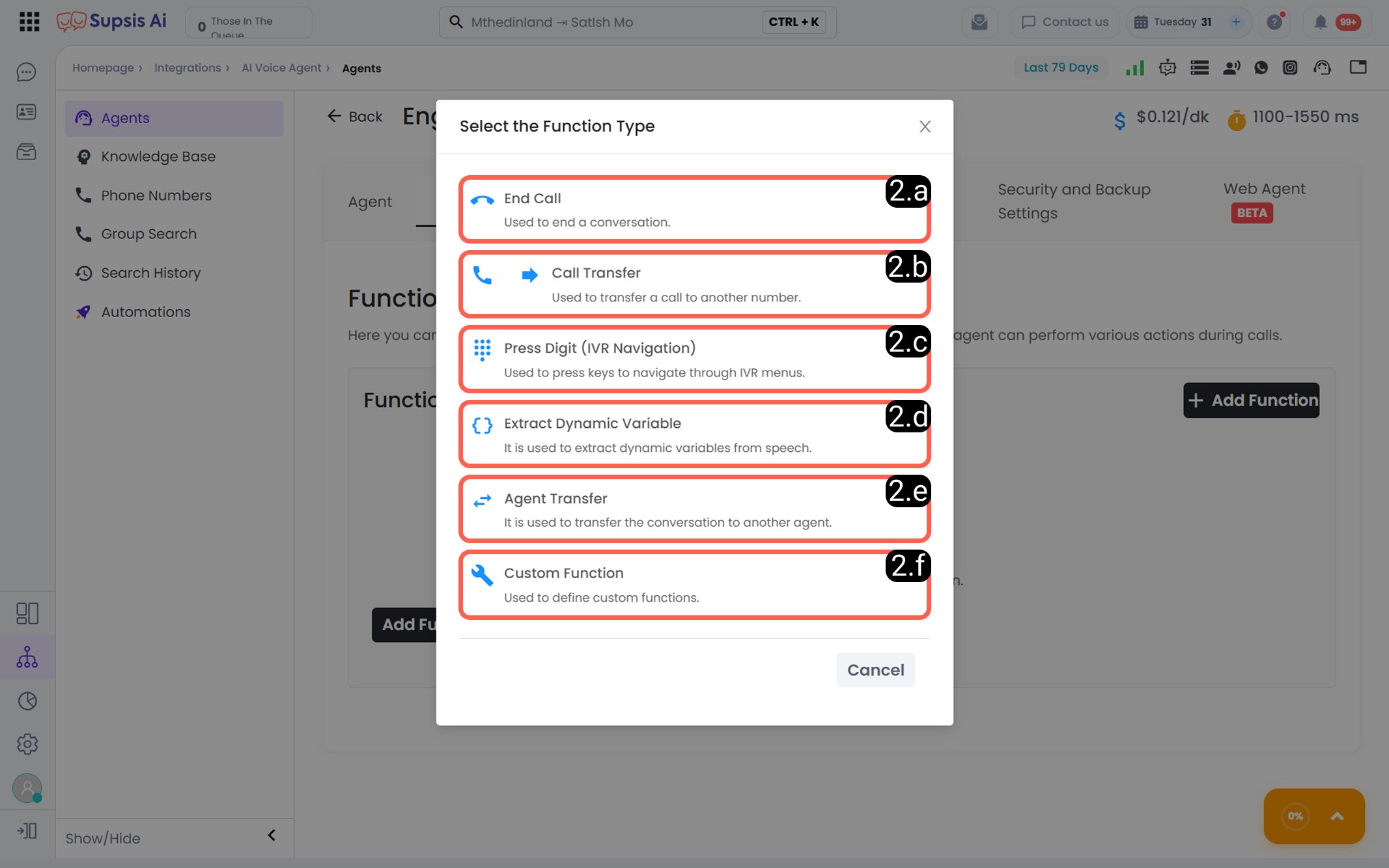
2.a – End Call:
This function allows the Voice Agent to terminate the active conversation in a controlled manner. It is typically used when the conversation is completed, when the user has no further questions, or when the scenario requires the call to be closed.
-
a – Function Name
In this field, the unique name that will be used for the function within the system is defined. The function name must not contain spaces and must consist only of letters, numbers, and underscores. It is used as the reference name within the scenario. -
b – Messaging Test
An optional description can be entered to explain the purpose of the function. This field is especially useful in complex scenarios to distinguish and manage functions more easily.
2.b – Call Transfer:
This function enables transferring an ongoing call to another phone number, SIP address, or different destination. It is used in scenarios such as redirecting to a live operator, transferring to different departments, or handing off the call to external systems.
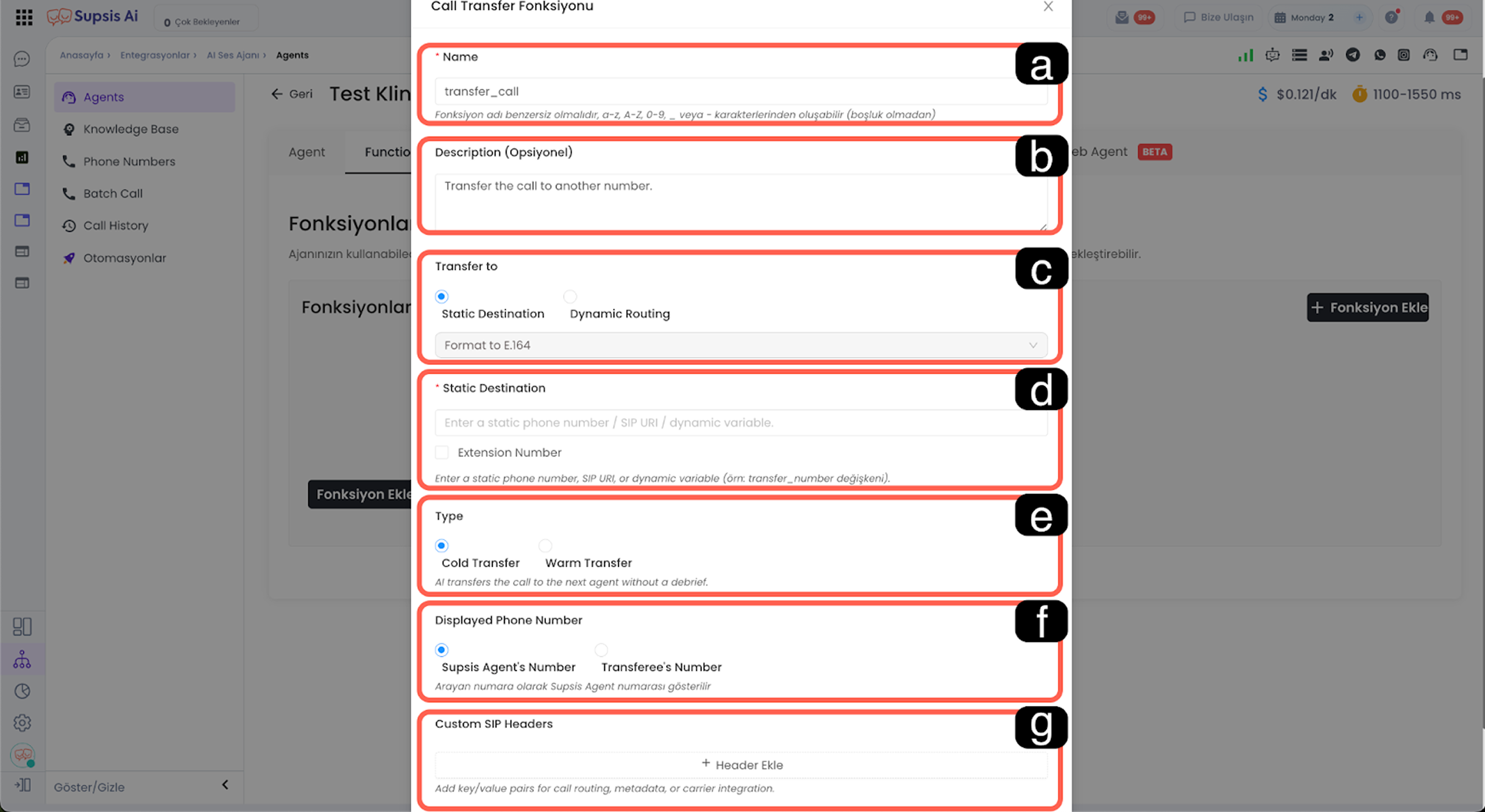
-
a – Function Name
In this field, the unique name of the call transfer function is defined. The defined name is used within the scenario to transfer the call and must be unique across the system. -
b – Description (Optional)
An optional description can be entered to explain the purpose of the function. This helps clarify in which scenarios the agent should use this function. -
c – Transfer Type
This field determines the method by which the call will be transferred. Options such as fixed target transfer or dynamic routing can be selected, and the call routing logic operates accordingly. -
d – Transfer Target
The destination to which the call will be transferred is defined in this field. A static phone number, SIP URI, or dynamic variable can be used, and the target format must comply with system requirements. -
e – Transfer Mode
In this field, either cold transfer or warm transfer is selected. In cold transfer, the call is directly transferred to the target. In warm transfer, a pre-transfer notification or transition scenario can be applied. -
f – Displayed Number
This field determines which number will be displayed to the receiving party during call transfer. Either the Supsis Agent number or the target transfer number can be displayed. -
g – Custom SIP Headers
Through this field, SIP header information can be added during call transfer. The added headers are used for call routing, metadata transmission, or operator integrations.
2.c – Trigger Keypad Input:
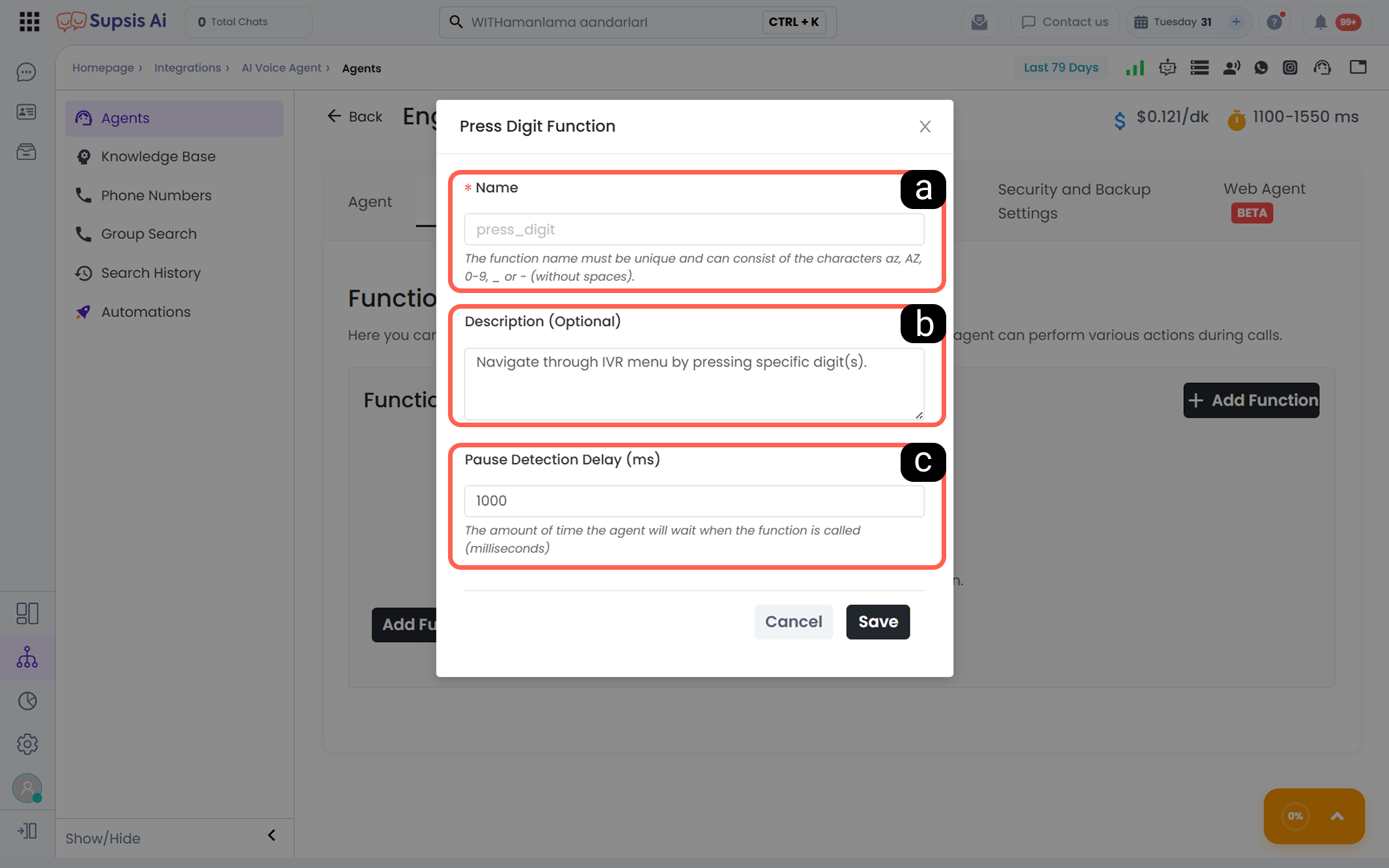
This function is used to allow the Voice Agent to navigate IVR (Interactive Voice Response) menus. After listening to the announcements from the external system, the agent automatically performs the defined keypad input and proceeds to the relevant IVR step. It plays a critical role in reaching the correct department, especially in bank, telecom, switchboard, and automated menu structures.
-
a – Function Name
In this field, a unique name is defined for the keypad input function. The function name must not contain spaces and must consist of letters, numbers, and underscores. It is used within the agent’s prompt content to trigger the function. -
b – Description (Optional)
An optional description can be added to explain the purpose of the function. This field helps clarify the intended use of the function, especially in complex IVR scenarios. -
c – Waiting Time (Pause Detection Delay)
This field defines the duration in milliseconds that the agent will wait before performing the keypad input once the function is triggered. It is used to wait for IVR announcements to complete and prevent incorrect key presses.
2.d – Extract Variables from Conversation Content:
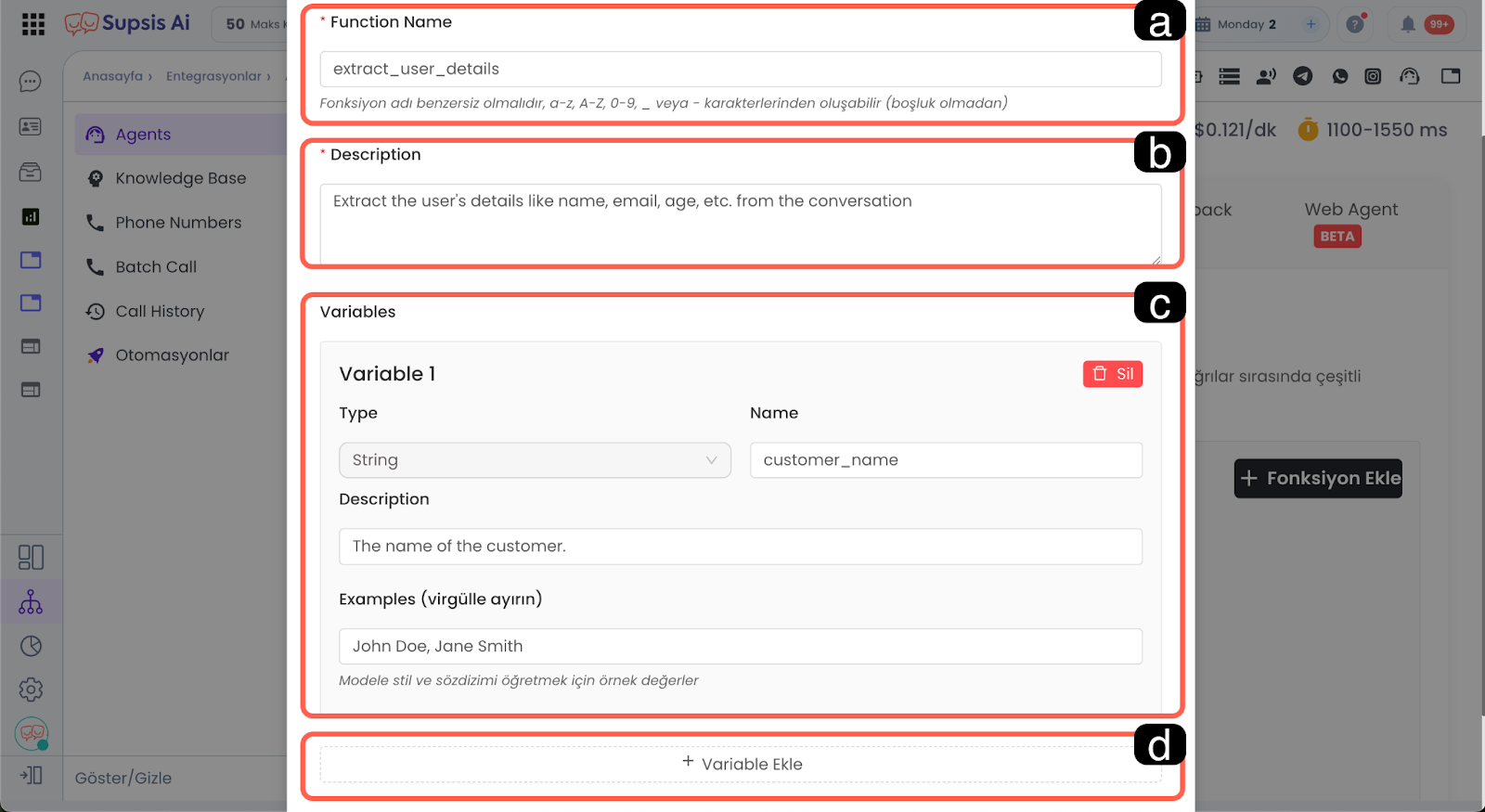
This function is used to detect information provided by the user during the conversation and convert it into dynamic variables. The agent transforms information mentioned during the conversation into structured data that can be used in subsequent steps.
-
a – Function Name
In this field, the name of the function that performs the variable extraction is defined. The function name must be unique and structured in a format that can be clearly referenced within the prompt. -
b – Description (Optional)
Used to describe what type of information the function aims to extract from the conversation. This description helps the agent better understand context and capture the expected data more accurately. -
c – Variables
Through this field, a variable is defined for each piece of information to be extracted from the conversation. By specifying the variable type, name, description, and example values, it becomes clear how the agent should detect and structure the data. -
d – Add New Variable
This field is used to define additional variables for the existing function. When new information needs to be collected from the user, the function scope can be easily expanded.
2.e – Agent Transfer:
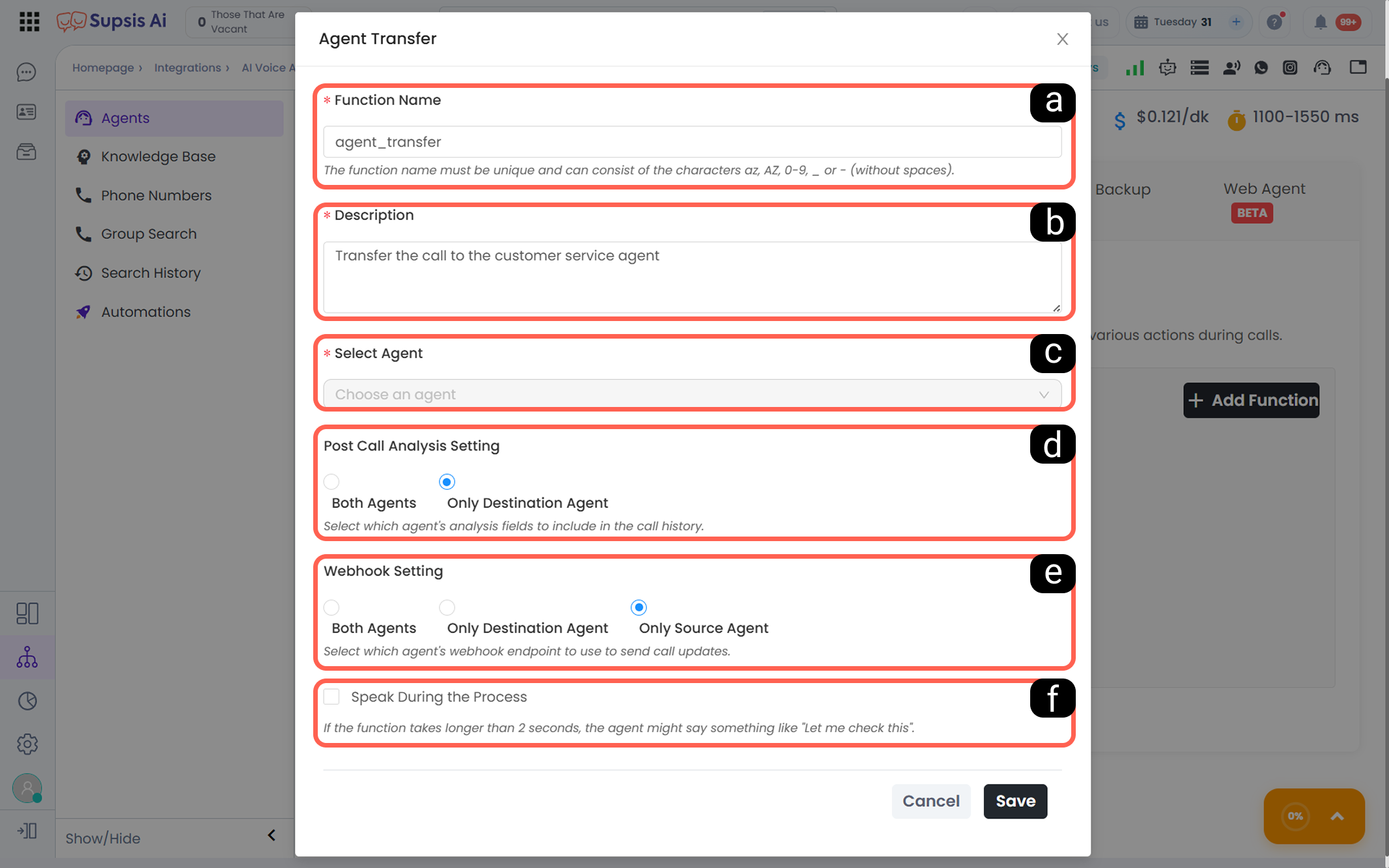
This function allows transferring an ongoing call to another Voice Agent. It is particularly used in scenarios where the call needs to be redirected to a specialized agent after the initial greeting. During agent transfer, the call is not disconnected; the conversation flow continues through the target agent.
-
a – Function Name
In this field, the unique function name representing the agent transfer process is defined. The function name must not contain spaces and must consist of letters, numbers, and underscores, and it must be directly callable within the prompt. -
b – Description (Optional)
Used to define the purpose and scenario in which the function will be used. This description helps keep configurations understandable, especially in agents using multiple functions. -
c – Target Agent Selection
The target Voice Agent to which the call will be transferred is selected in this field. The selected agent takes over the call and continues the conversation with its own prompt and settings. -
d – Post-Call Analysis Setting
This setting determines which agent’s analysis data will be included in the call history after the call ends. Either both the source and target agents, or only the target agent’s analysis data can be recorded. -
e – Webhook Setting
This field determines through which agent’s webhook endpoint the call-related webhook notifications will be sent. Call updates can be delivered through the source agent, the target agent, or both. -
f – Speak During Process
When this option is enabled, if the transfer process takes longer than a certain duration, the agent sends a short informative message to the user indicating that the process is ongoing. This ensures the user experience is not interrupted.
2.f – Customizable Function:
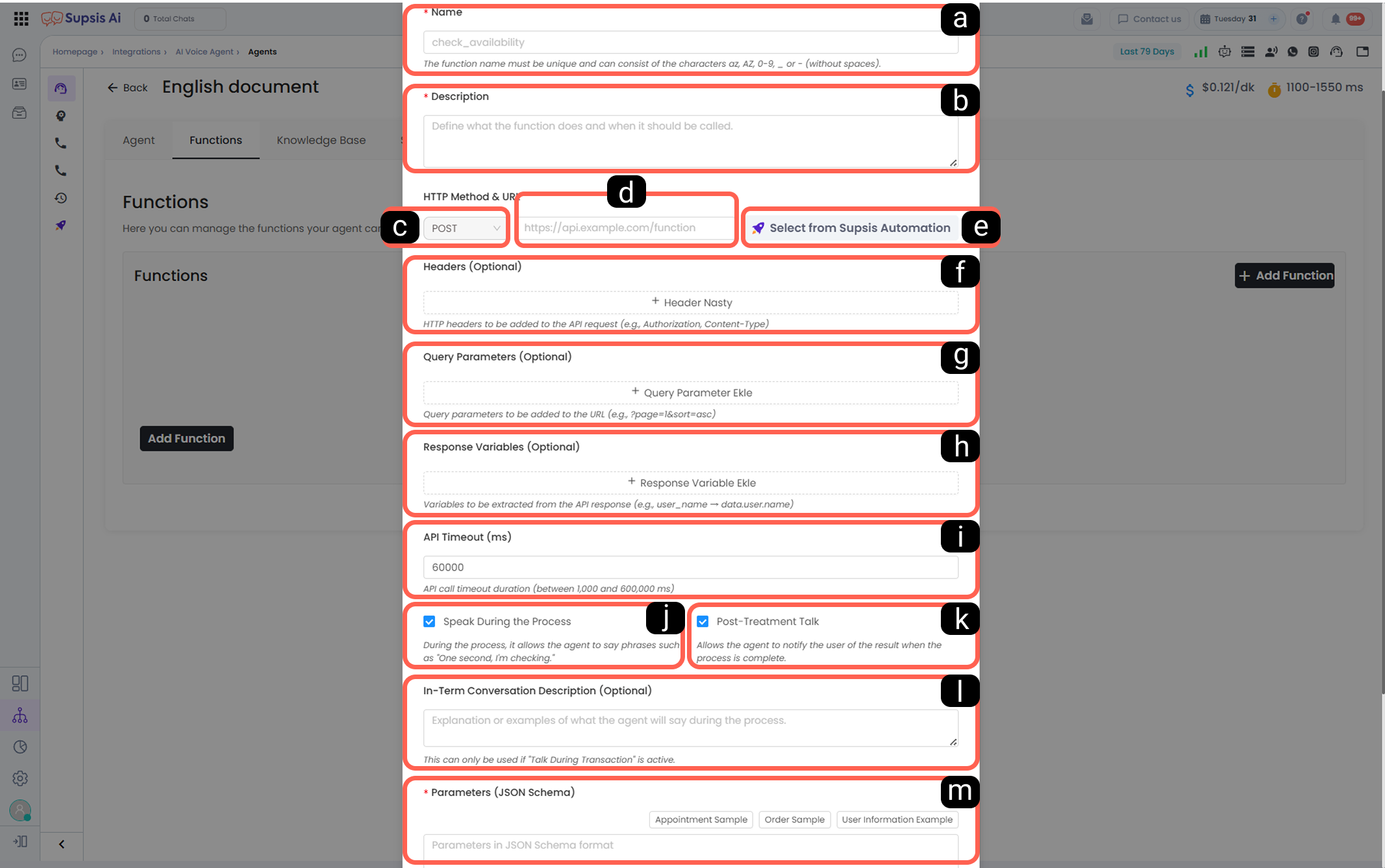
This function type allows the Voice Agent to integrate with external systems. It can make API calls to retrieve data from external systems, initiate processes, or direct the conversation flow based on results. It is used for scenarios such as CRM integrations, appointment systems, stock inquiries, or custom workflows.
-
a – Function Name
In this field, the unique name of the function representing the external process is defined. The function name is the main reference point called within the prompt. It must not contain spaces and must consist of letters, numbers, and underscores. -
b – Description (Optional)
Defines what the function does and in which situation it will be triggered. A clear description is important for the agent to correctly establish context. -
c – HTTP Method
In this field, the HTTP method to be used for the API request is selected. Options such as GET or POST can be chosen depending on the target system’s requirements. -
d – API URL
The endpoint address to which the external request will be sent is defined in this field. When the function is triggered, the agent sends a request to this URL. -
e – Select from Automation
This field allows directly selecting endpoints previously defined within Supsis AI automations and serves as an alternative to manual URL entry. -
f – Header Settings
Additional HTTP header information to be included in the API request is defined in this field. Authorization or content-type information can be added here. -
g – Query Parameters
Optional query parameters to be added to the URL are defined in this field. Parameters may contain dynamic or static values. -
h – Response Variables
Variables that will be extracted from the API response and used by the agent are defined in this field. These variables can be used within the conversation flow or in subsequent functions. -
i – Timeout Duration
The maximum waiting time for the API request is defined in milliseconds. If this duration is exceeded, the function is considered unsuccessful. -
j – Speak During Process
When enabled, the agent can send short messages informing the user that the operation is ongoing while the API call is being processed. -
k – Speak After Process
When enabled, after the API call is completed, the agent verbally informs the user about the result of the operation. -
l – Message During Process Description
In this field, the content of the message that the agent will deliver during the process is defined. It is used only if the “Speak During Process” option is enabled. -
m – Parameters (JSON Schema)
In this field, the parameters to be sent to the API are defined in JSON schema format. The agent structures the information obtained from the conversation according to this schema and includes it in the request.
3-) Knowledge Base
This section defines the information sources that the Voice Agent will use when generating responses. Shared knowledge pools created through the Voice Agent menu and managed via the Knowledge Base menu can be linked to the relevant Voice Agent through this field.
Knowledge bases connected to the Voice Agent enable it to produce more accurate, consistent, and institutionally grounded responses during conversations. In this way, the agent can generate answers not only based on the prompt content but also on defined knowledge sources.
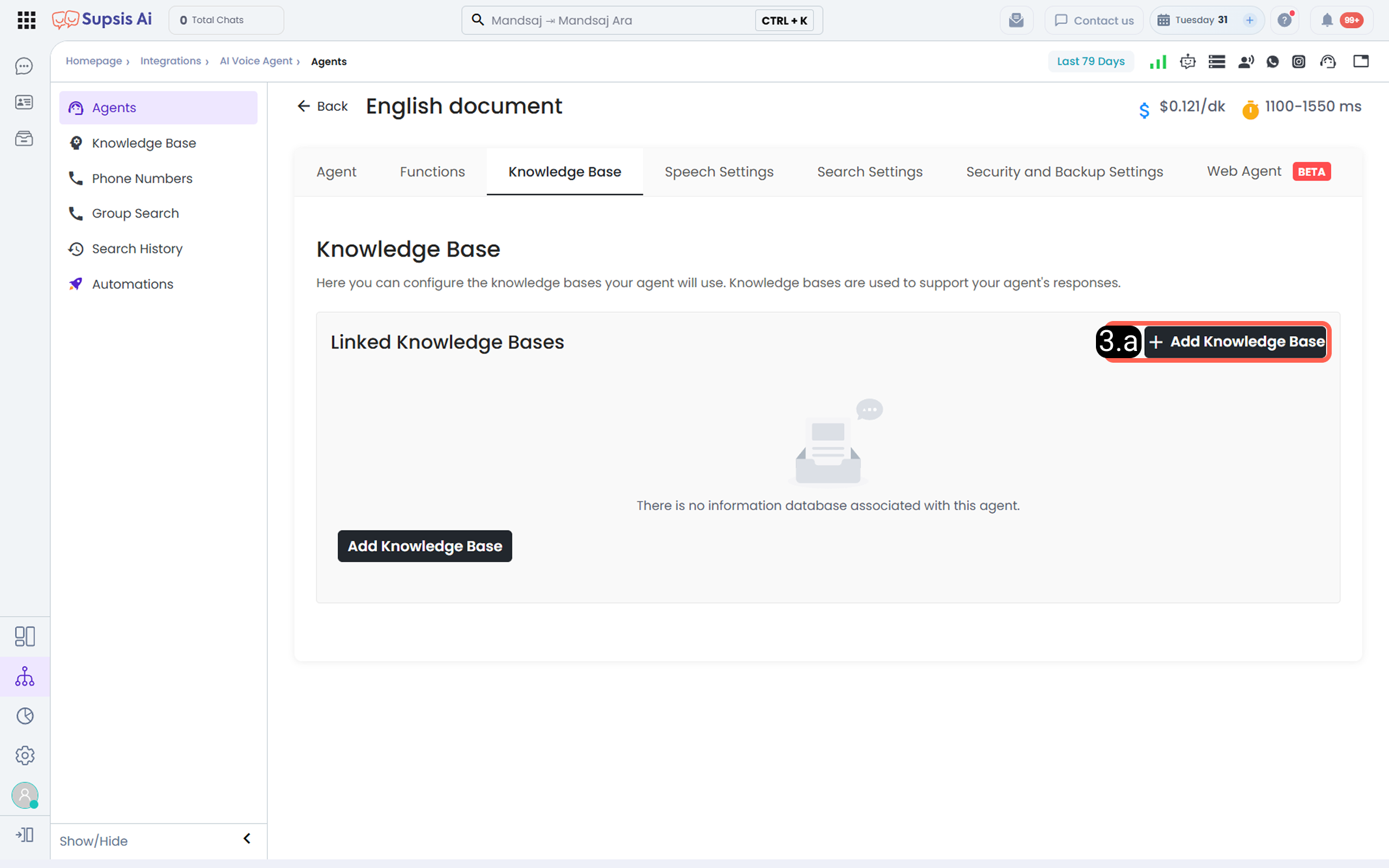
3.a – Add Knowledge Base
Through this button, previously created knowledge bases in the system can be selected and linked to the relevant Voice Agent. Multiple knowledge bases can be assigned to the agent simultaneously, and the agent uses them as a shared information pool during conversations.
Agents without a defined knowledge base generate responses only through prompts and functions. Adding a knowledge base is recommended especially for frequently asked questions, product information, procedures, and corporate content.
4-) Conversation Settings
Conversation Settings allow you to configure the speaking behavior, response style, and voice recognition characteristics that the Voice Agent will display during a call. Through this section, the agent’s speaking speed, reaction to user interruptions, interaction with background noise, and supportive conversational behaviors can be controlled. The configured settings directly impact user experience by enabling more natural, fluent, and scenario-appropriate communication.
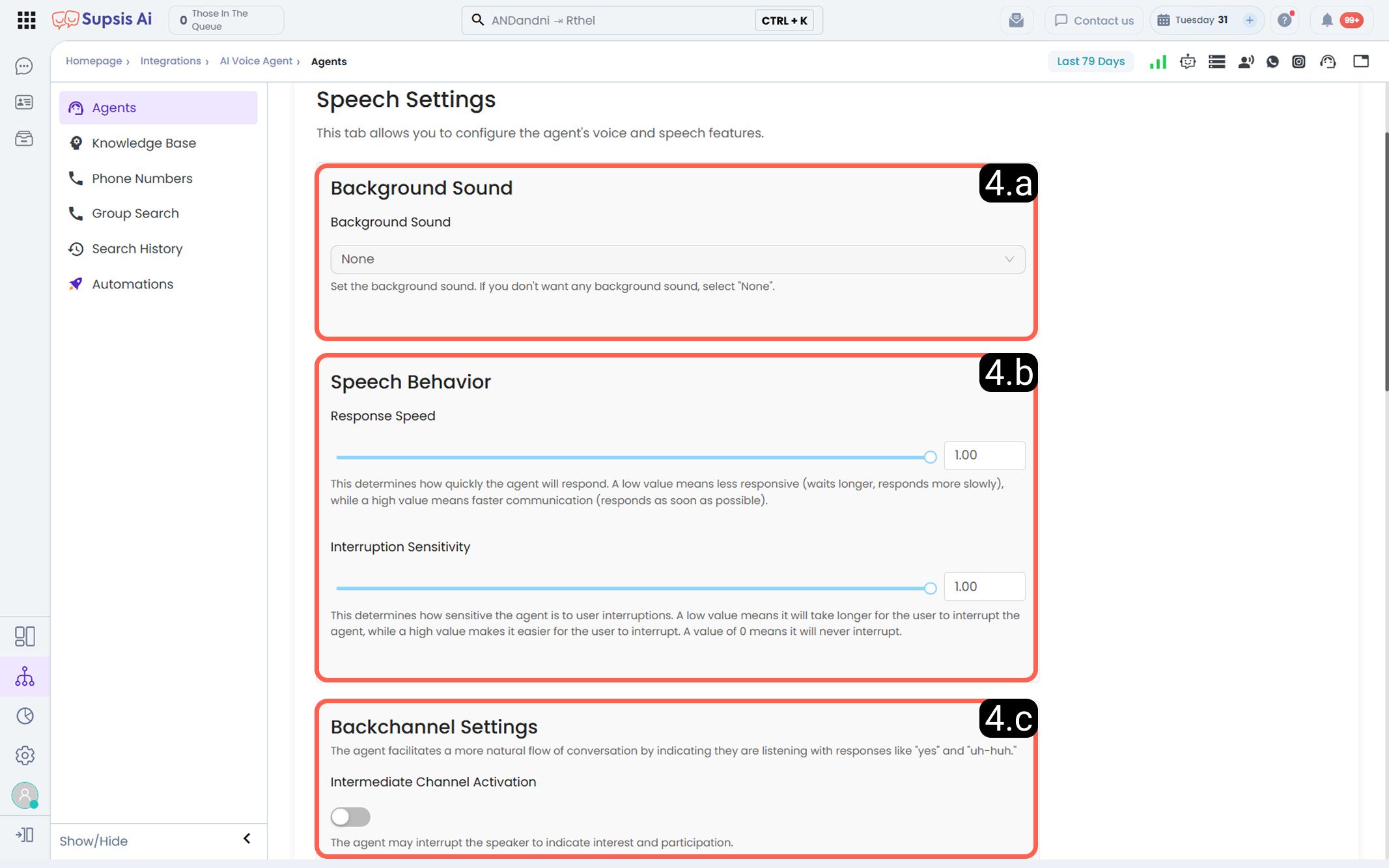
4.a – Background Sound
This field is used to determine whether the agent will use a background ambient sound during the call. By selecting a background sound, a more natural or call-center-like experience can be provided. If no background sound is desired, the “None” option can be selected.
4.b – Speaking Behavior
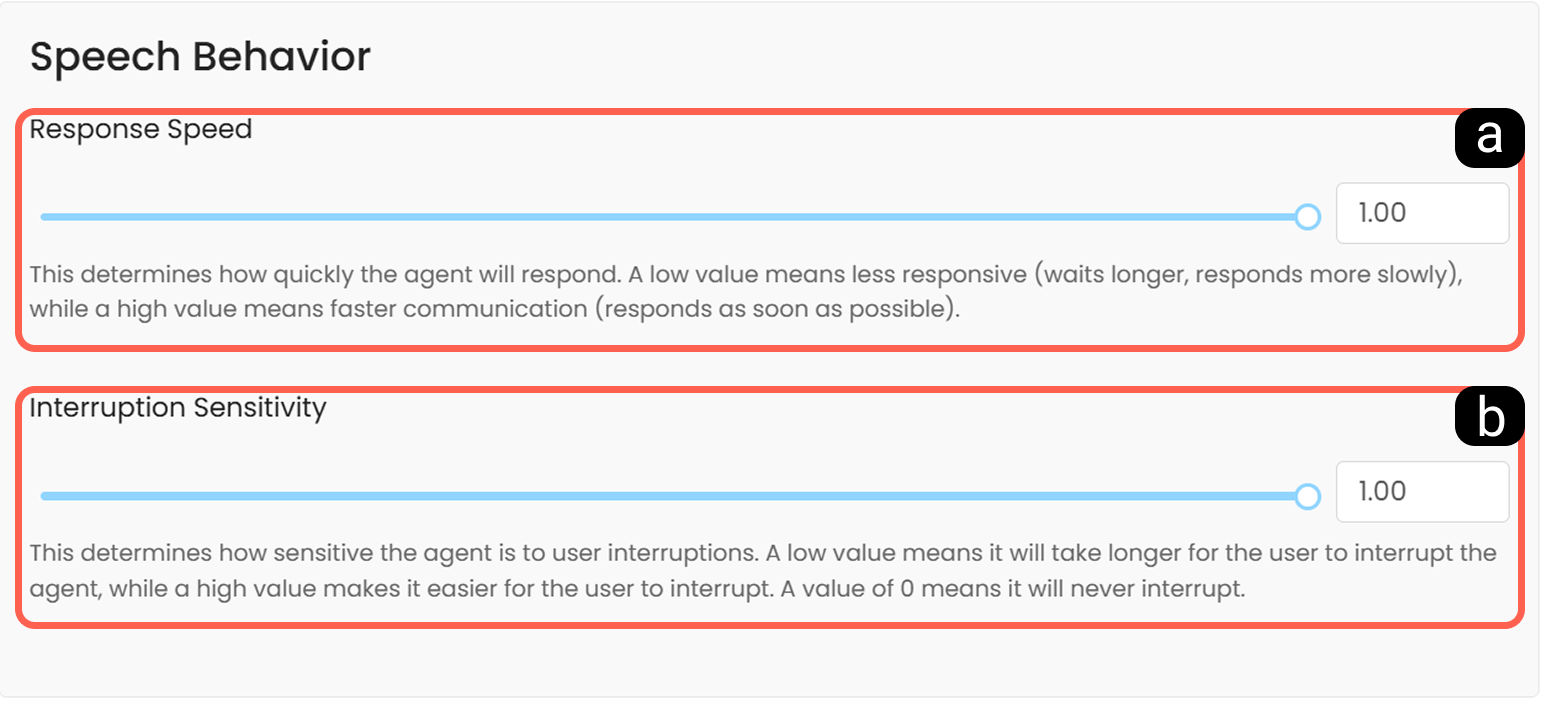
-
a – Response Speed
Response speed determines how quickly the agent replies to the user. Lower values make the agent respond more cautiously and with delay, while higher values allow the agent to generate responses as quickly as possible. This setting directly affects the naturalness and flow of the conversation. -
b – Interruption Sensitivity
Interruption sensitivity determines how easily the user can interrupt the agent’s speech. With lower values, it becomes more difficult for the user to interrupt the agent, while with higher values, the user can interrupt more easily. This setting affects conversational balance and user control.
4.c – Backchannel Settings
Backchannel settings enable the agent to provide short feedback expressions such as “yes” or “uh-huh” during the conversation to indicate that it is listening. When enabled, the conversation becomes more natural and interactive. The agent can demonstrate engagement and attentiveness through short acknowledgment phrases.
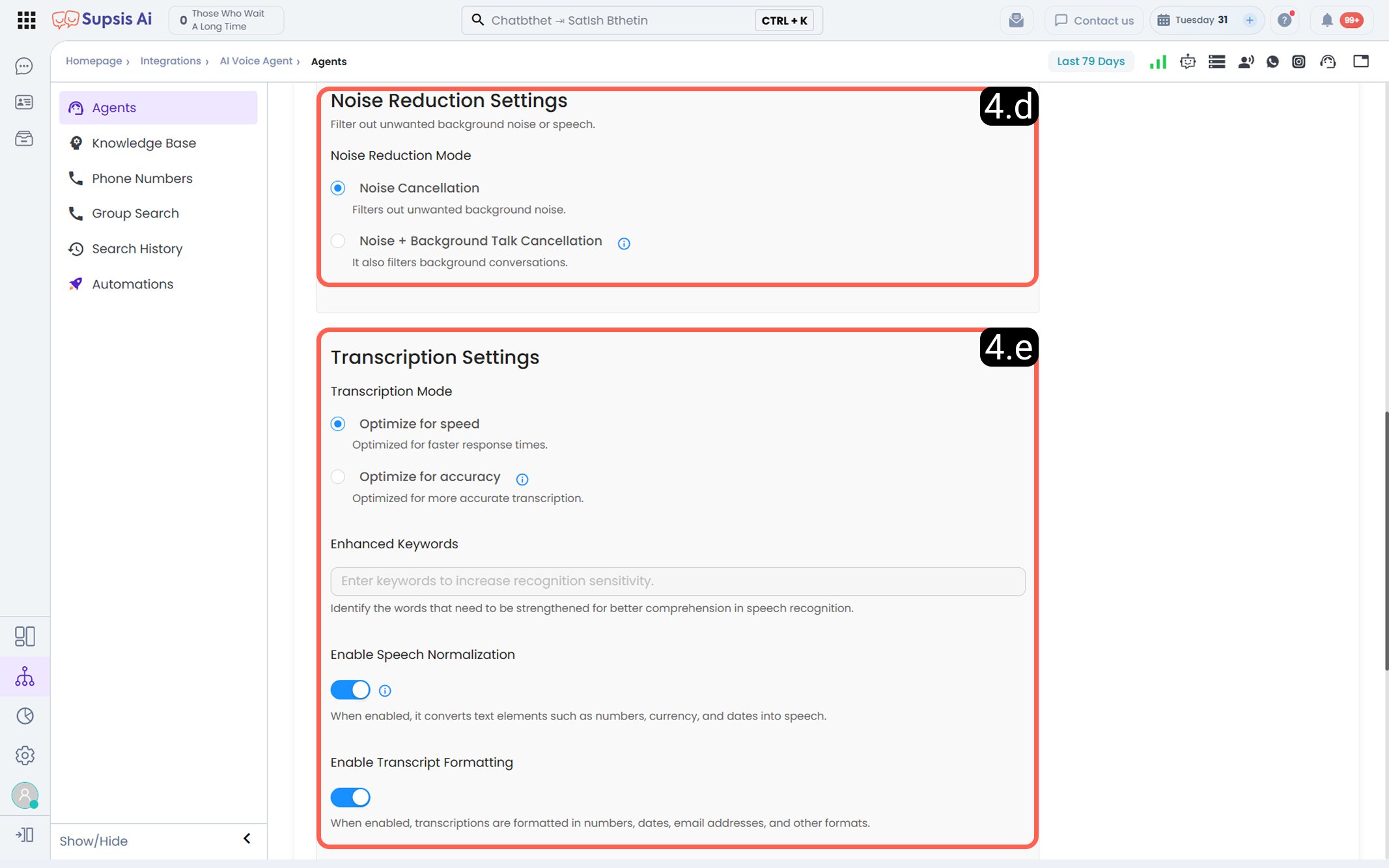
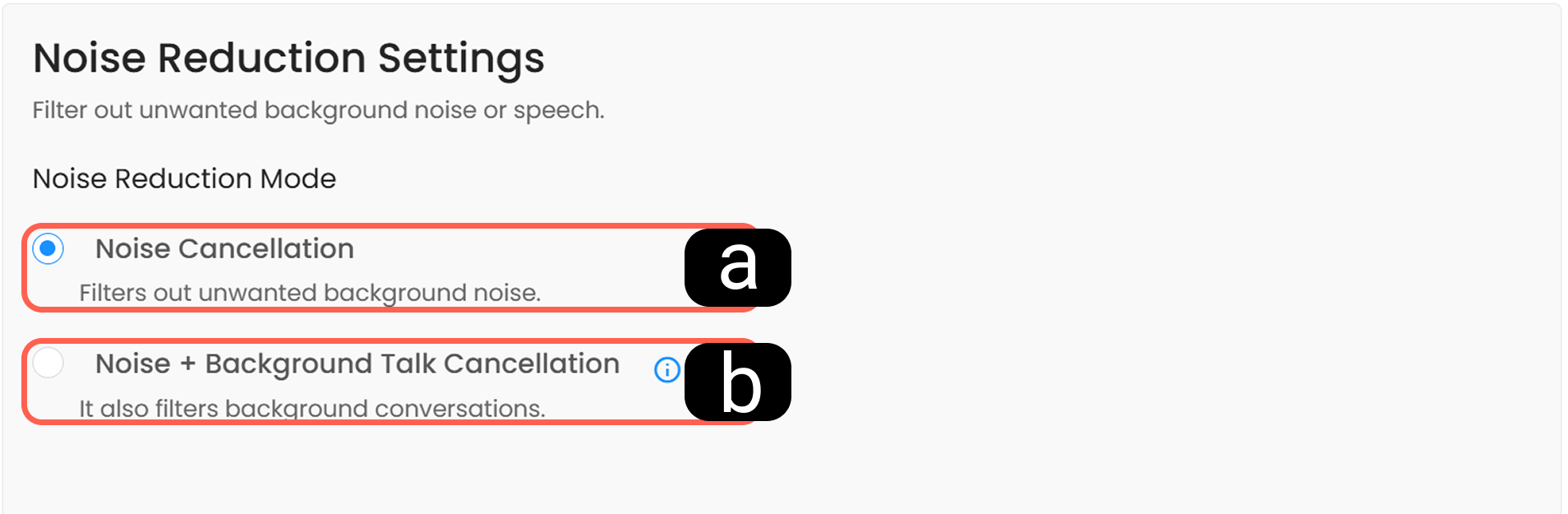
4.d – Noise Reduction Settings
Noise Reduction Settings filter unwanted background noise and conversations during the call, ensuring clearer audio perception. These settings are especially useful for improving call quality and enabling the voice agent to better understand the user in noisy environments.
-
a – Noise Cancellation
When this mode is enabled, unwanted background noise is filtered. The user’s primary speech is preserved, and the agent can perceive the conversation more clearly. This is the recommended setting for standard calls. -
b – Noise + Background Speech Cancellation
This mode filters not only background noise but also conversations of other people in the environment. It provides more aggressive filtering and is suitable for crowded or multi-voice environments.
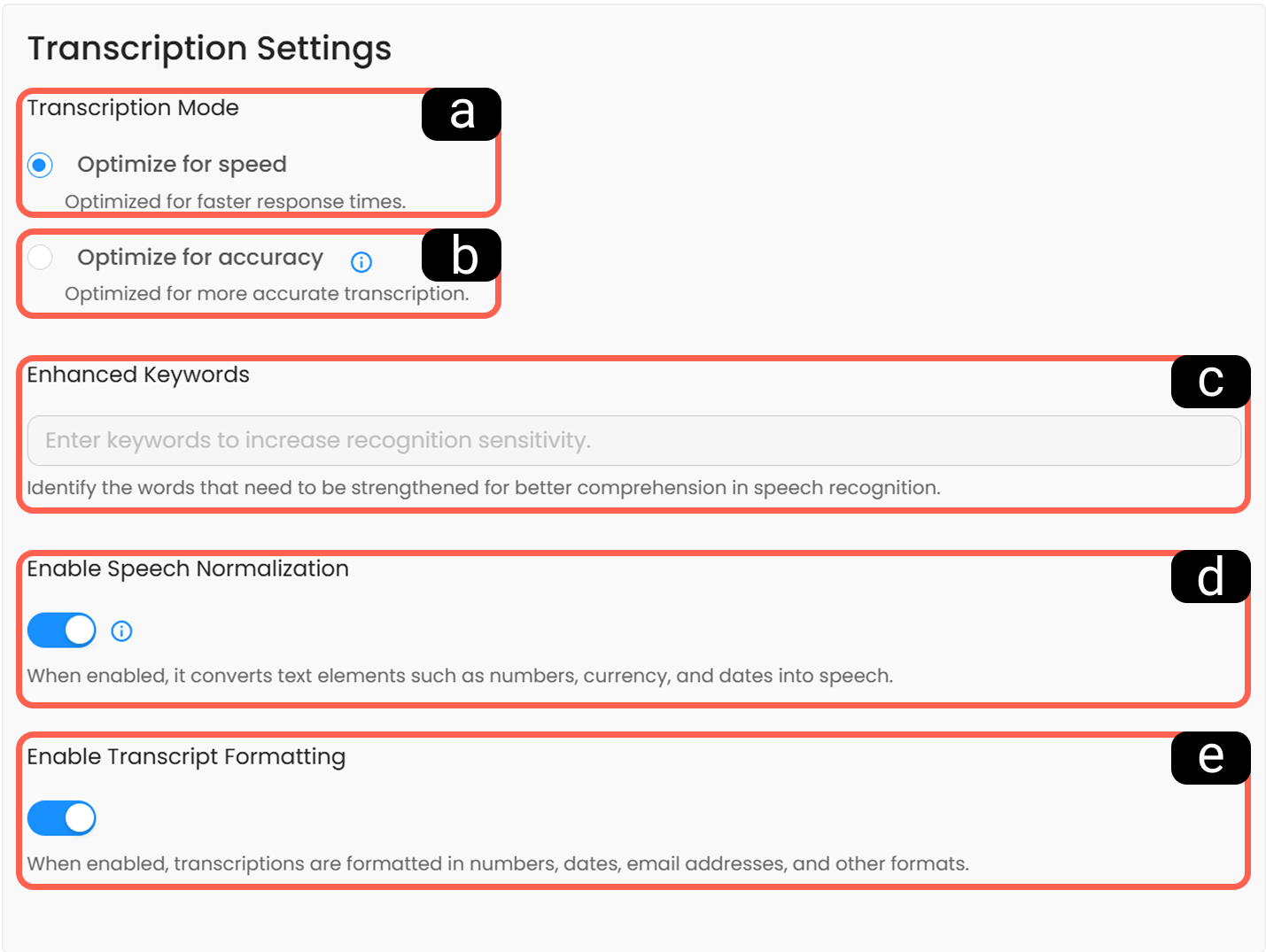
4.e – Transcription Settings
Transcription Settings determine how the user’s speech is converted into text. These settings directly affect the voice agent’s speech recognition accuracy, response speed, and the quality of call records.
-
a – Optimize for Speed
When selected, speech-to-text processing is optimized to minimize response time. It is preferred in scenarios requiring faster responses; however, accuracy may be relatively lower compared to the other mode. -
b – Optimize for Accuracy
This mode prioritizes speech recognition accuracy. It is suitable for complex sentences, special terminology, or conversations involving sensitive data. Response time may be slightly longer, but transcription quality is higher. -
c – Boosted Keywords
Words entered in this field are prioritized during speech recognition. It is used to ensure more accurate recognition of brand names, product names, or industry-specific terms. -
d – Enable Speech Normalization
When enabled, elements such as numbers, dates, and currency expressions within the text are converted into natural spoken language format. -
e – Enable Transcript Formatting
When enabled, transcription output is formatted in a standard way for elements such as numbers, dates, and emails. This increases readability and ensures consistency in reporting and analysis processes.
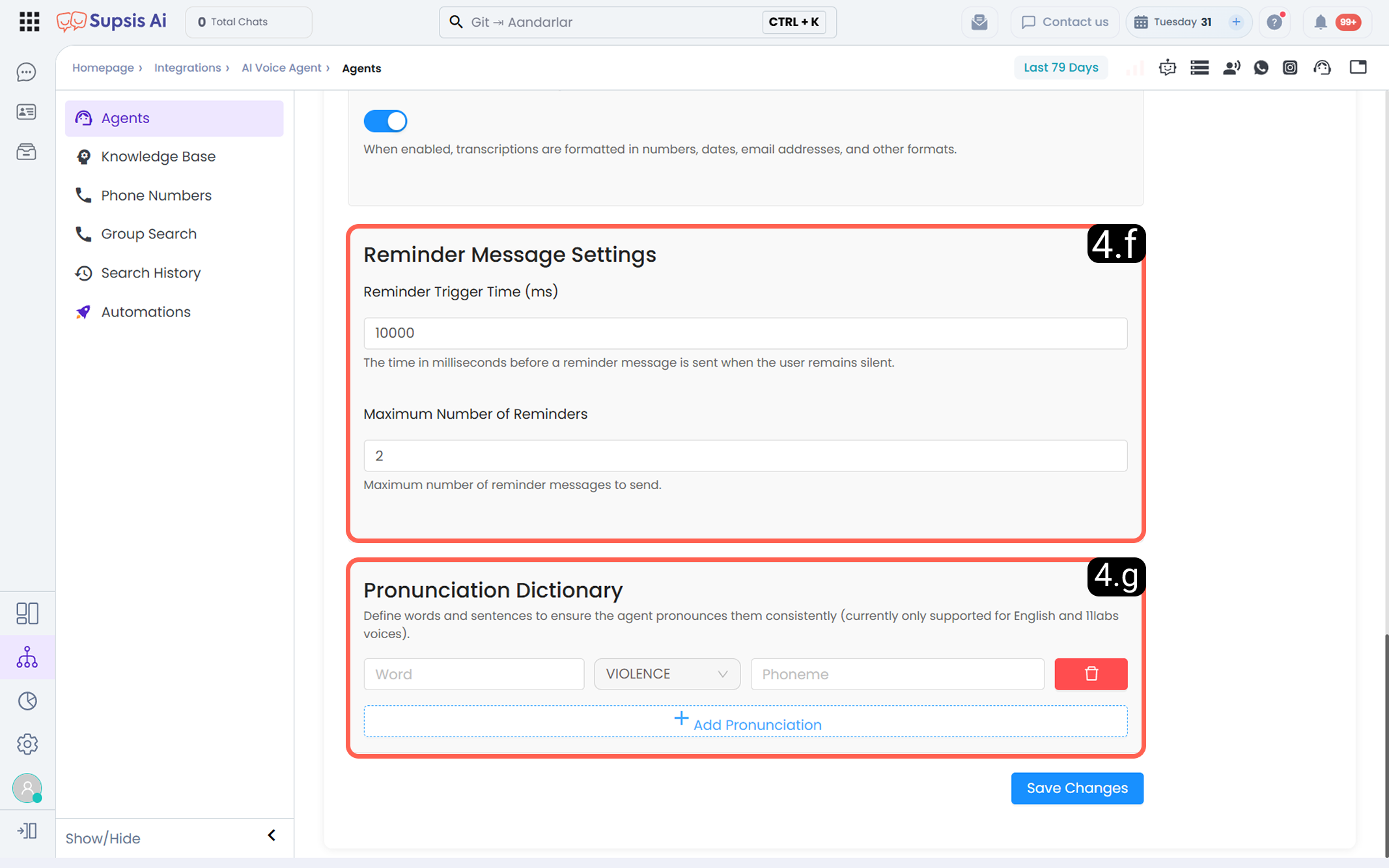
4.f – Reminder Message Settings
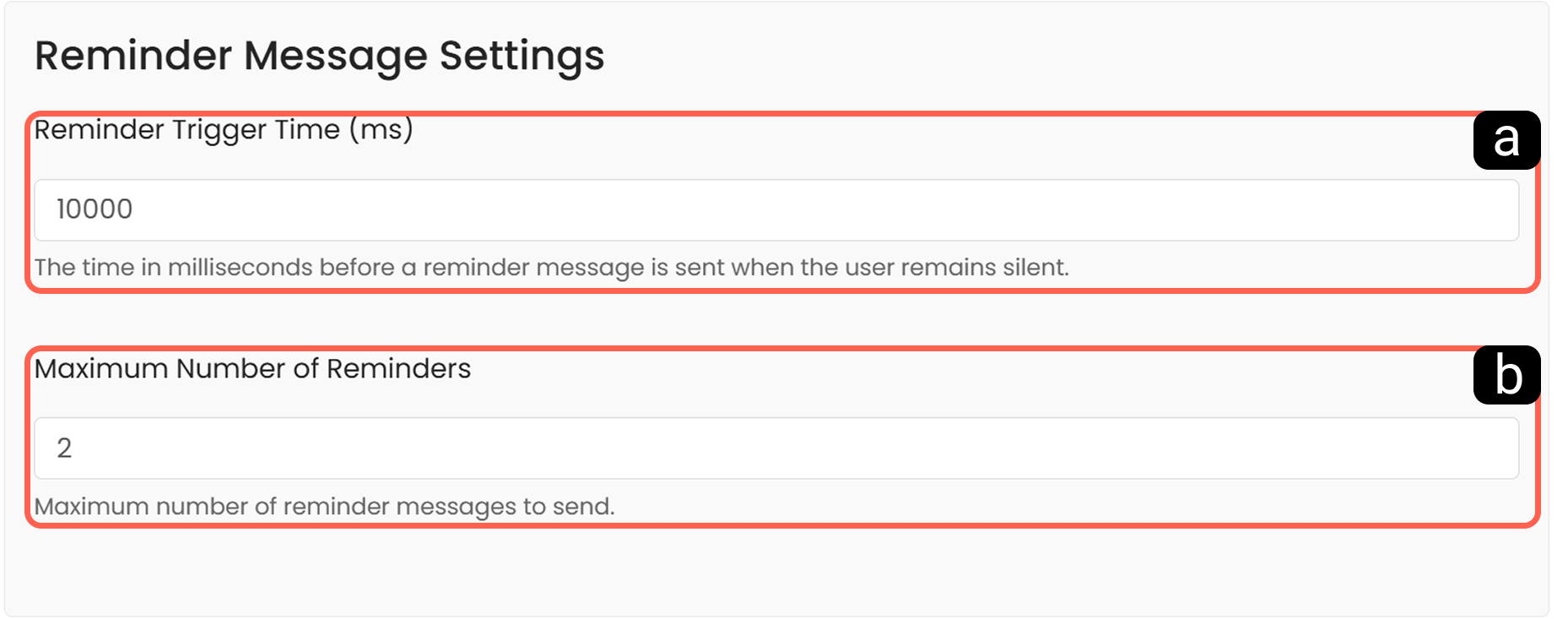
Reminder Message Settings allow the Voice Agent to automatically send reminder messages when the user remains silent for an extended period during the conversation. This prevents conversation flow from breaking and encourages the user to re-engage.
-
a – Reminder Trigger Duration
Defines the waiting time in milliseconds before sending a reminder message after the user becomes silent. -
b – Maximum Reminder Count
Defines the maximum number of reminder messages that can be sent during a single call.
4.g – Pronunciation Dictionary
The Pronunciation Dictionary ensures that the Voice Agent pronounces specific words or expressions consistently and correctly. It is especially important for brand names, special terminology, or foreign words.

-
a – Word
The word or expression for which a custom pronunciation will be defined. -
b – Pronunciation Format
Determines the pronunciation standard according to which the word will be defined. -
c – Phoneme
The phonetic representation of the word is entered here. -
d – Add New Pronunciation
Allows adding a new word and pronunciation rule to the dictionary.
5-) Call Settings
Call Settings are used to manage the technical behaviors and user interactions of the Voice Agent during calls.
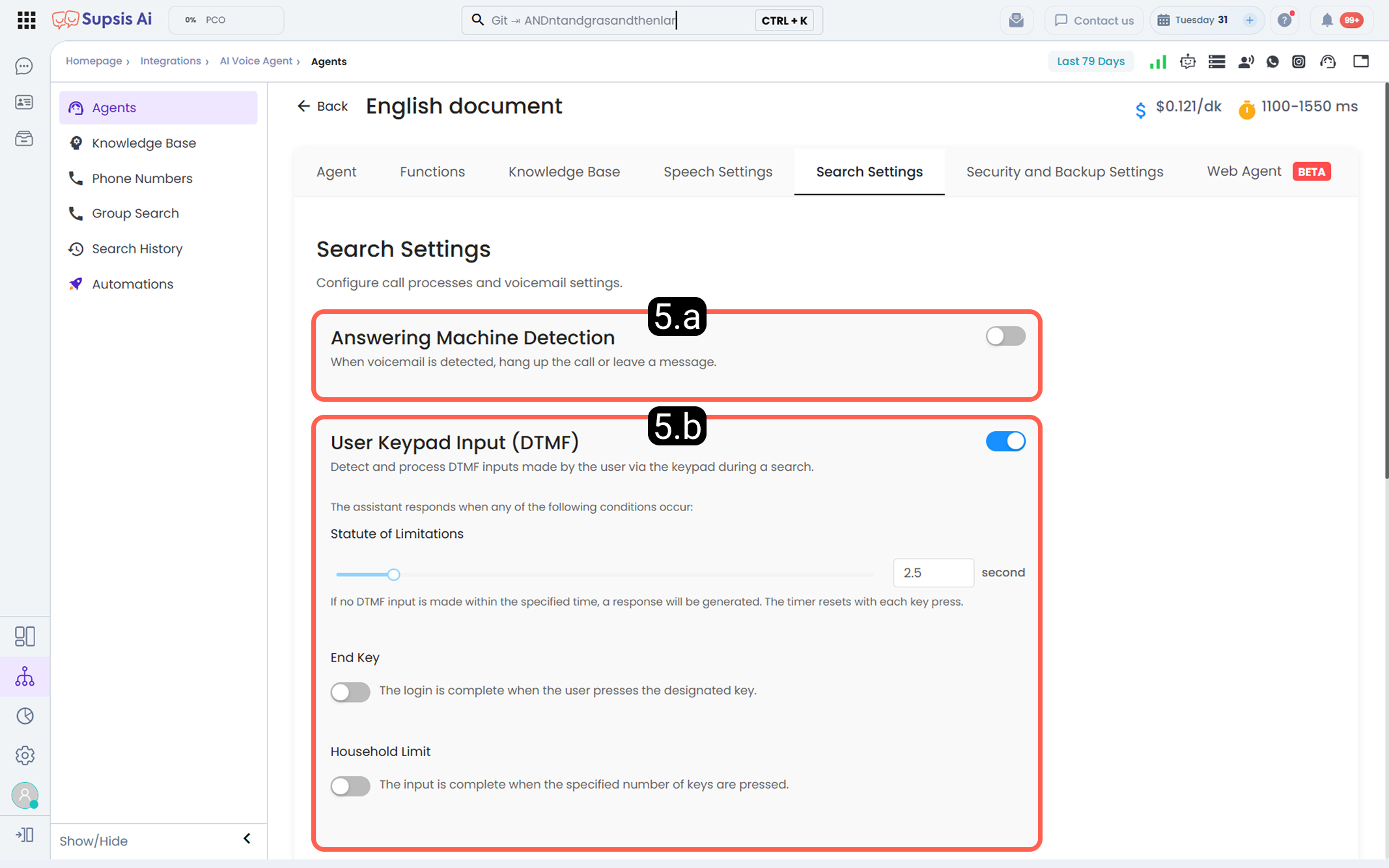
5.a – Voicemail Detection
When enabled, the system detects whether the other party is a voicemail or automated response system. If detected, the call can be automatically terminated or a predefined message can be left.
5.b – User Keypad Input
This section enables detection and processing of DTMF inputs made via the user’s phone keypad during the call.
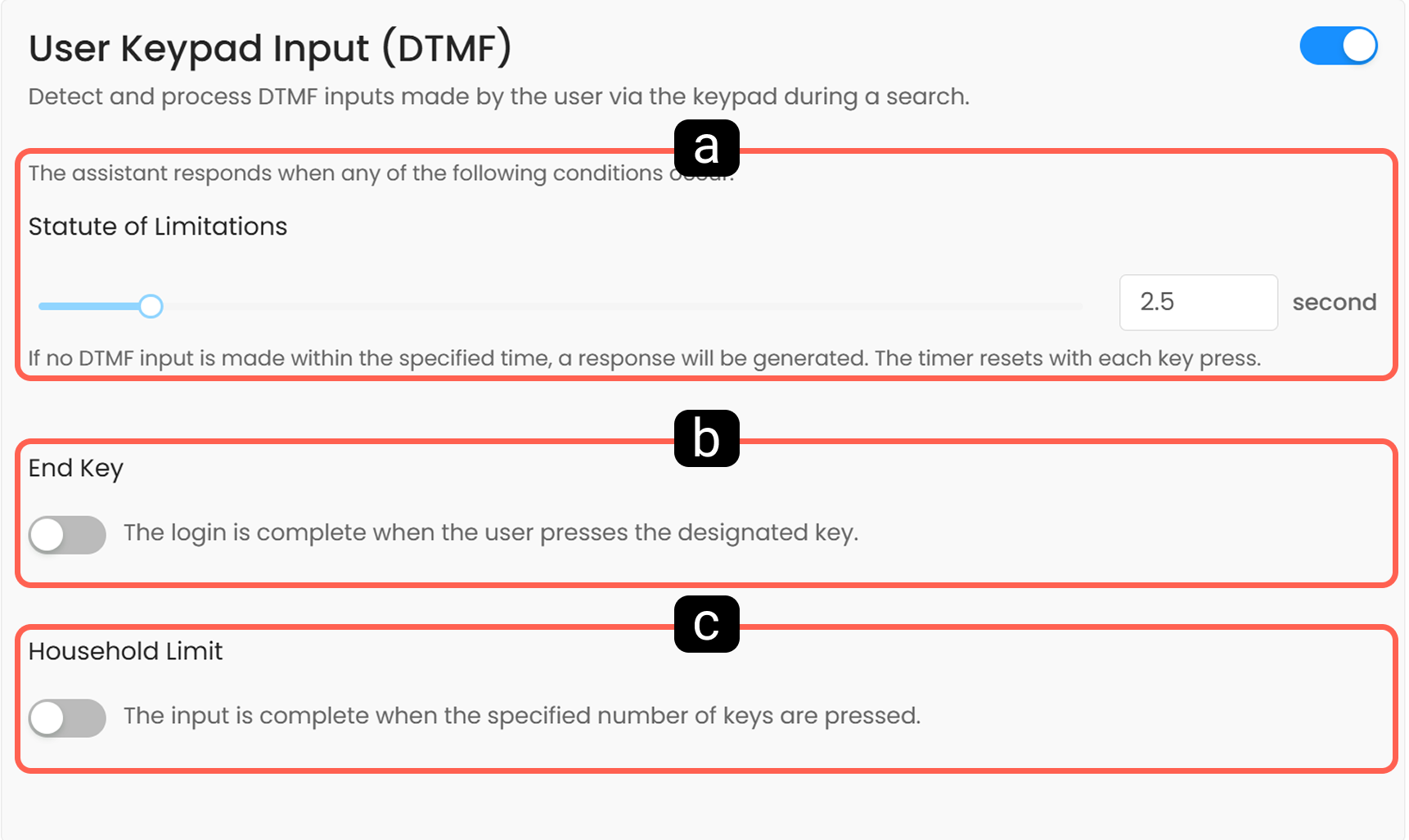
- a – Timeout
- b – Termination Key
- c – Digit Limit
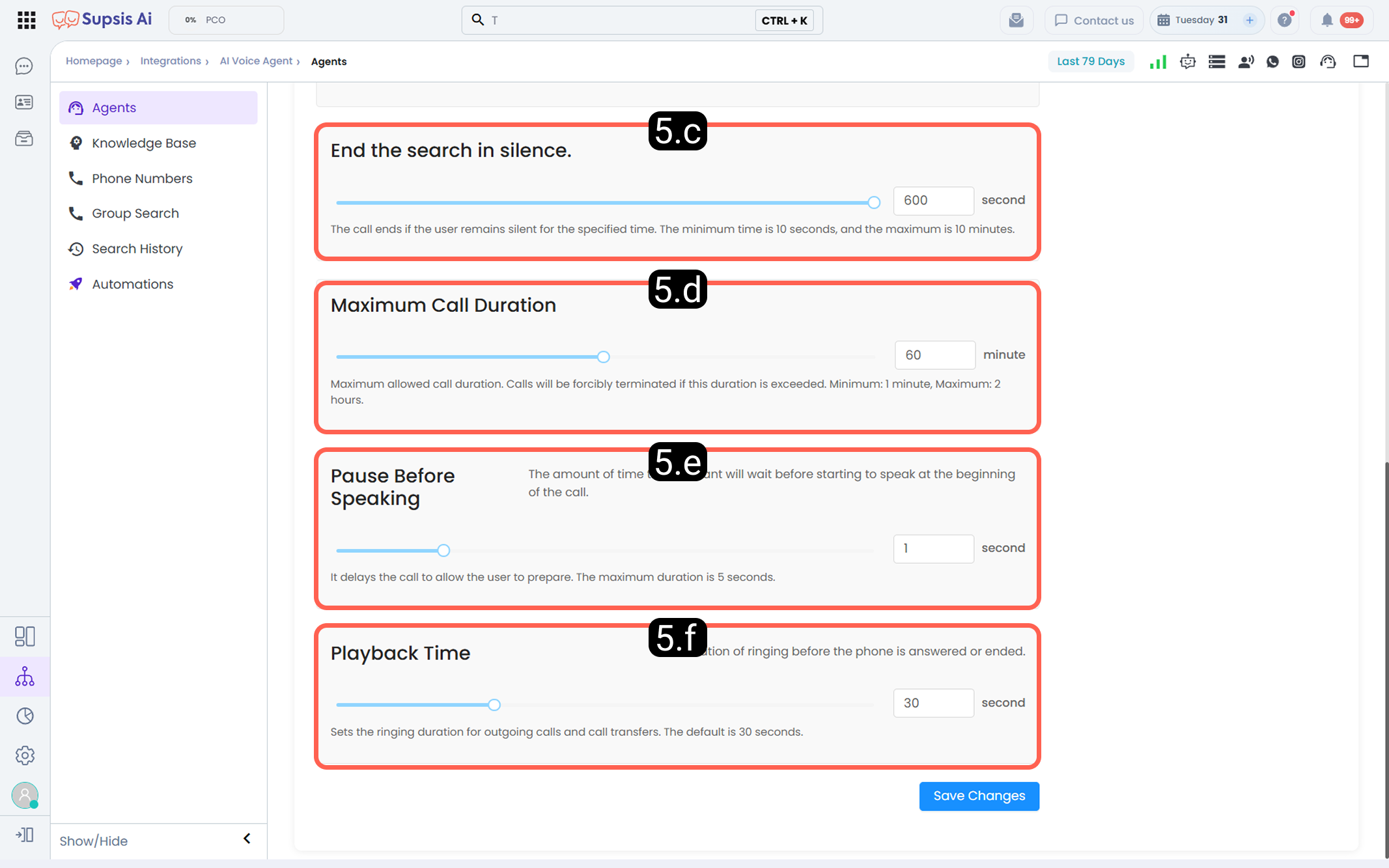
5.c – End Call on Silence
Automatically terminates the call if the user remains completely silent for a defined duration.
5.d – Maximum Call Duration
Defines the maximum allowed duration of a call.
5.e – Pause Before Speaking
Defines the delay before the assistant starts speaking at the beginning of the call.
5.f – Ring Duration
Defines how long the phone rings before being answered or terminated.
6-) Security and Backup Settings
This section is used to manage data security, continuity, and dynamic configurations of the Voice Agent.
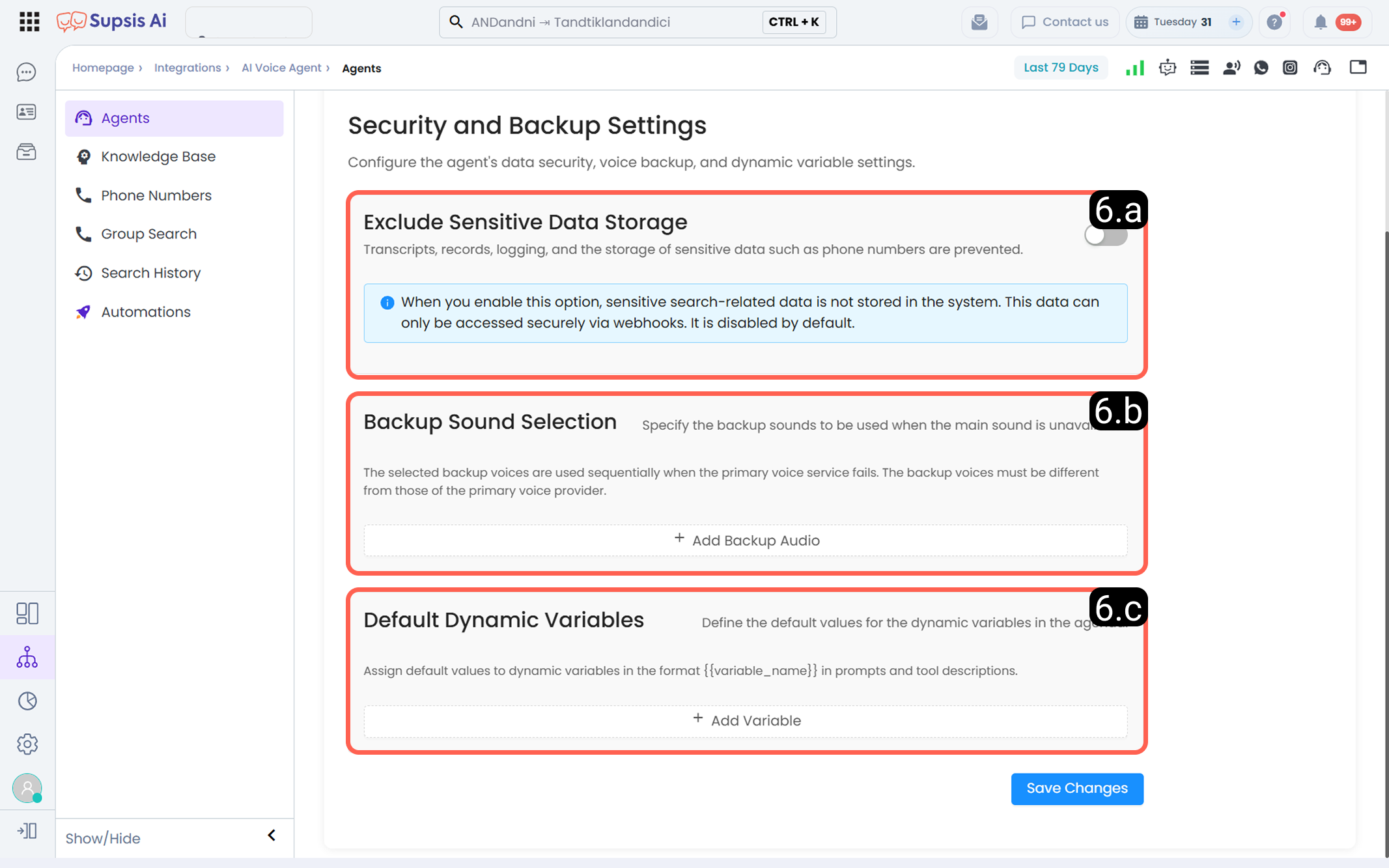
6.a – Exclude Sensitive Data
When enabled, sensitive data such as transcripts, call recordings, logs, and phone numbers are not stored in the system.
6.b – Backup Voice Selection
Defines backup voices that will be used if the primary voice provider is unavailable.
6.c – Default Dynamic Variables
Default values are defined for dynamic variables in the format {{ variable_name }} used in prompts and function descriptions.
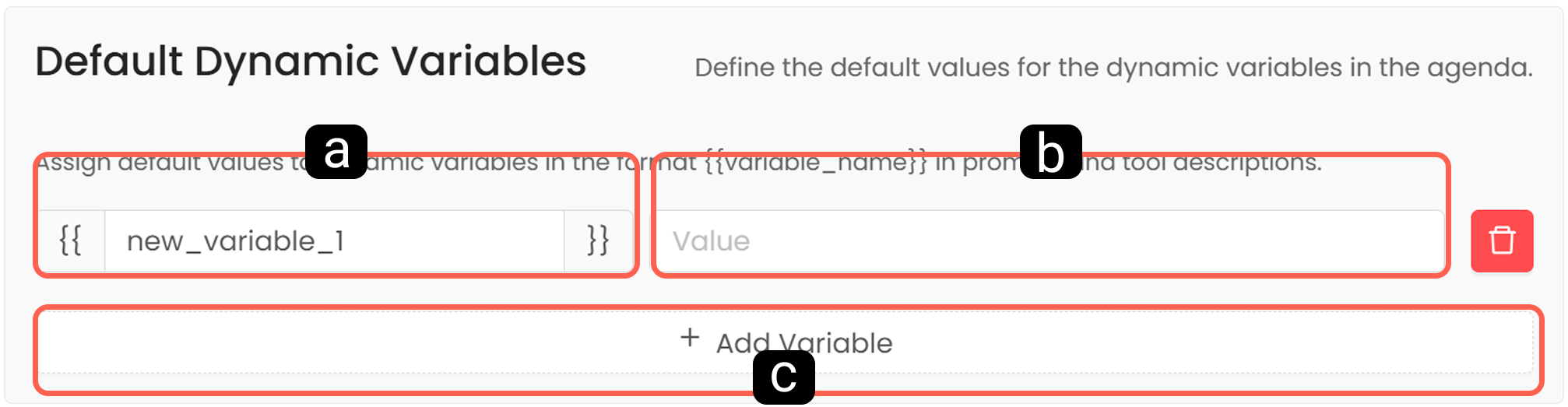
- a – Variable Name
- b – Variable Value
- c – Add Variable
7-) Web Agent
The Web Agent allows you to integrate your created Voice Agent into your website, enabling visitors to interact with your AI agent via voice.
The Web Agent enables visitors to speak with the agent directly through their browser without requiring any additional applications. It supports multilingual configurations, customizable appearance and positioning options, page-based access filtering (whitelist/blacklist), and allowed domain restrictions for secure and controlled usage.
This section is designed to establish instant and natural communication with website visitors in scenarios such as customer support, sales, information delivery, and routing.
Note: If the total number of tokens used in the prompt exceeds the limit of 3,500, the pricing is automatically doubled due to higher resource usage. Therefore, it is recommended to keep prompt content as concise and efficient as possible for cost optimization.