
Pushover integration allows you to receive instant notifications (push notifications) directly to your mobile phone, tablet, or computer for important events occurring in your Supsis AI system (e.g., a new support request, order completion, or automation alerts). To set up this integration, you need to complete the steps first in the Pushover panel, then in the Supsis AI panel.
Pushover Steps
Follow the steps below on the Pushover website (pushover.net) to set up the notification infrastructure and generate the necessary security keys.
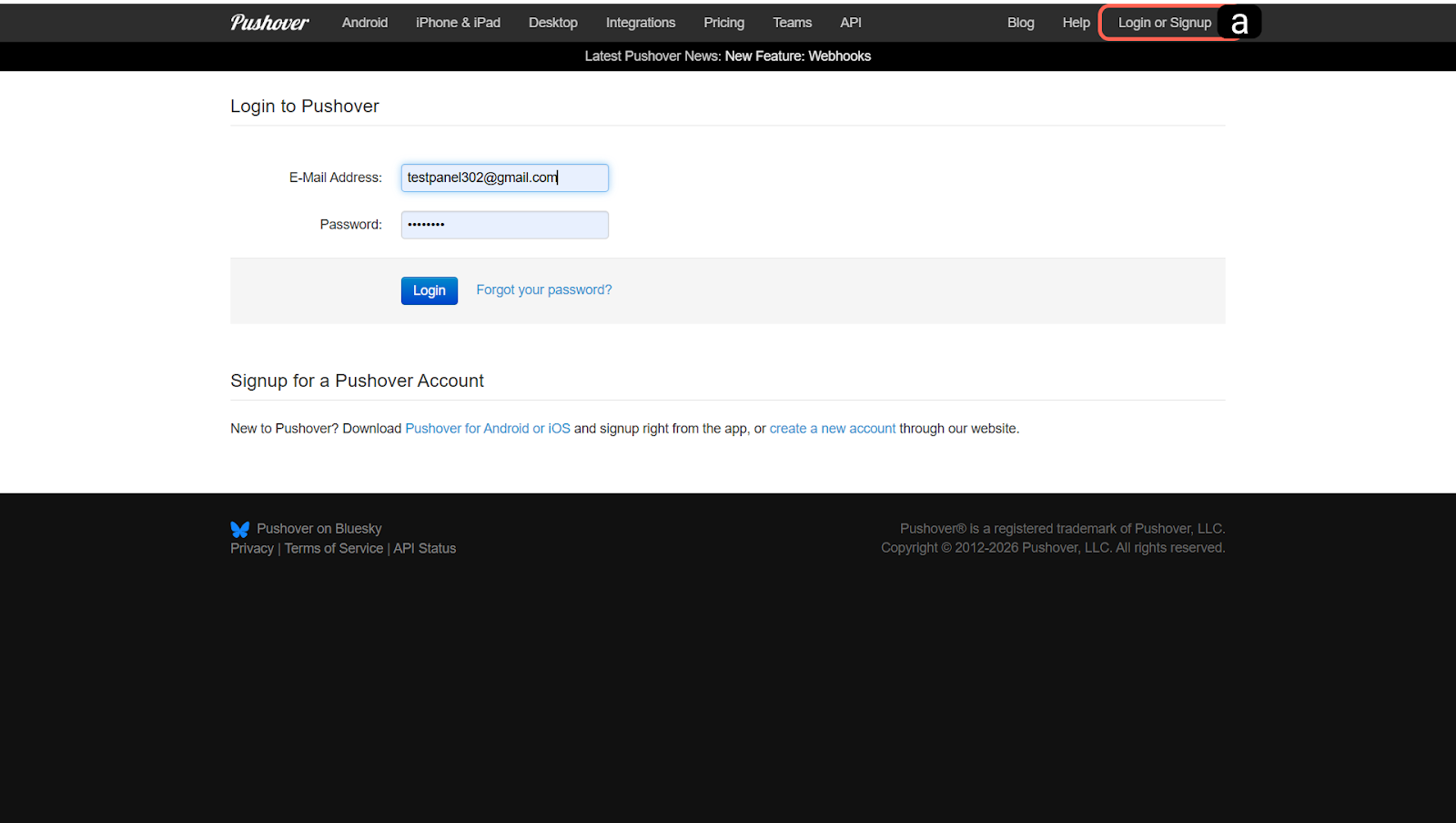
a. Login
Log in to your Pushover account via your browser (If you don't have an account, create a new one).
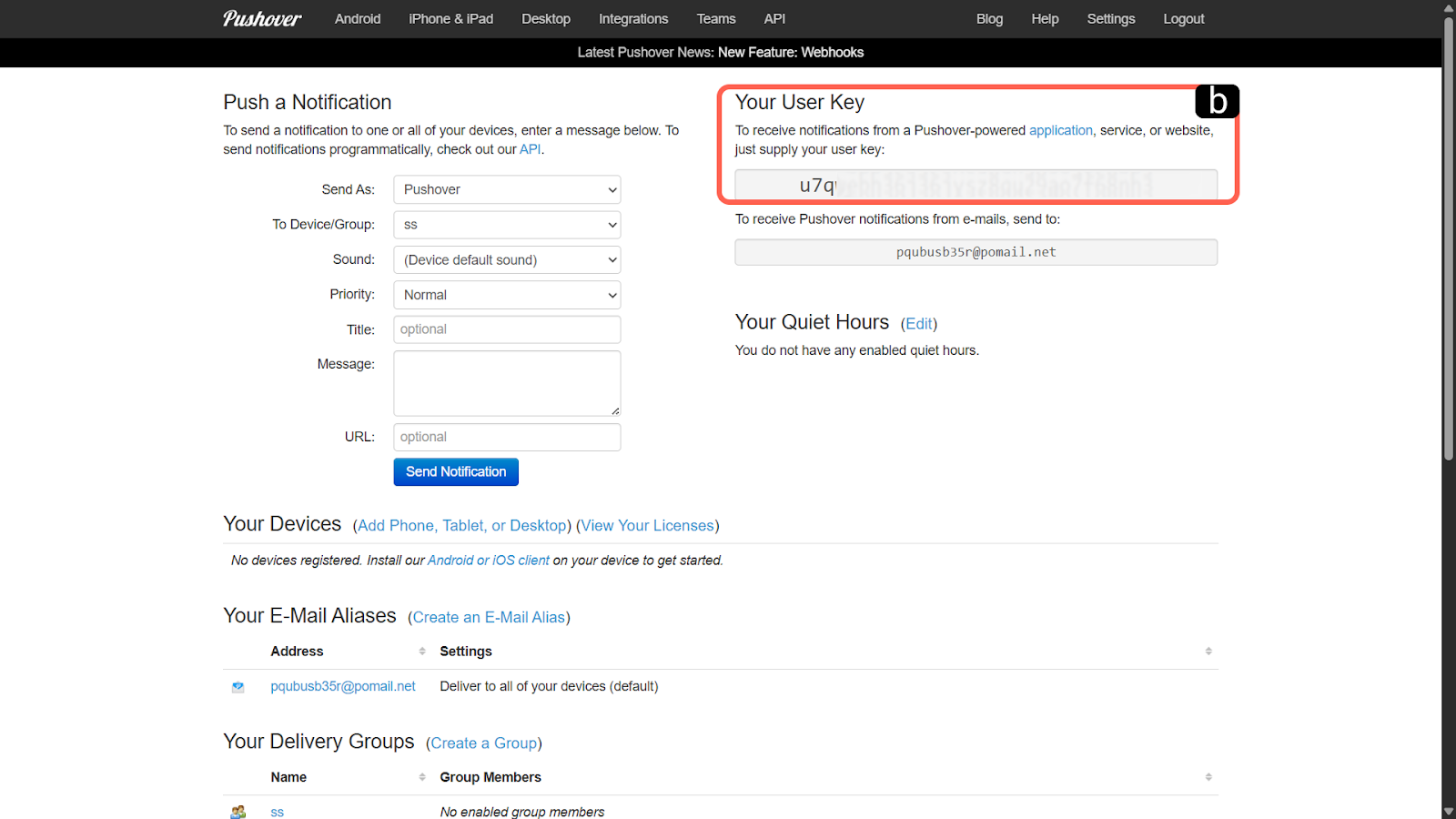
b. User Key
Copy your unique "User Key" that appears on the main dashboard when you log into your account. This key will allow notifications to be routed directly to your Supsis AI panel.
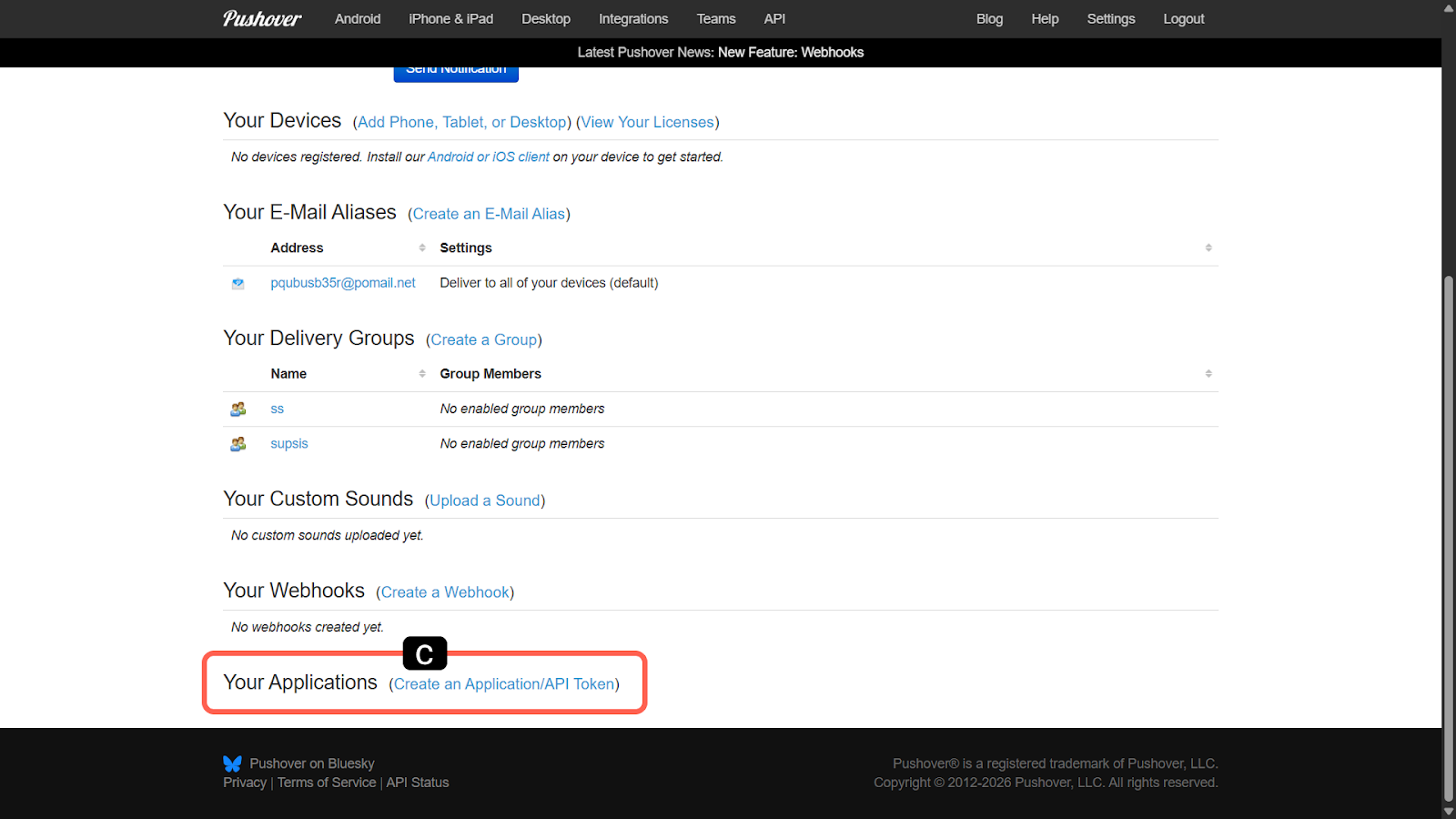
c. Create an Application
To enable Supsis AI to send you notifications, you need to create a virtual application in the Pushover system. Click on the "Create an Application/API Token" option on the page.
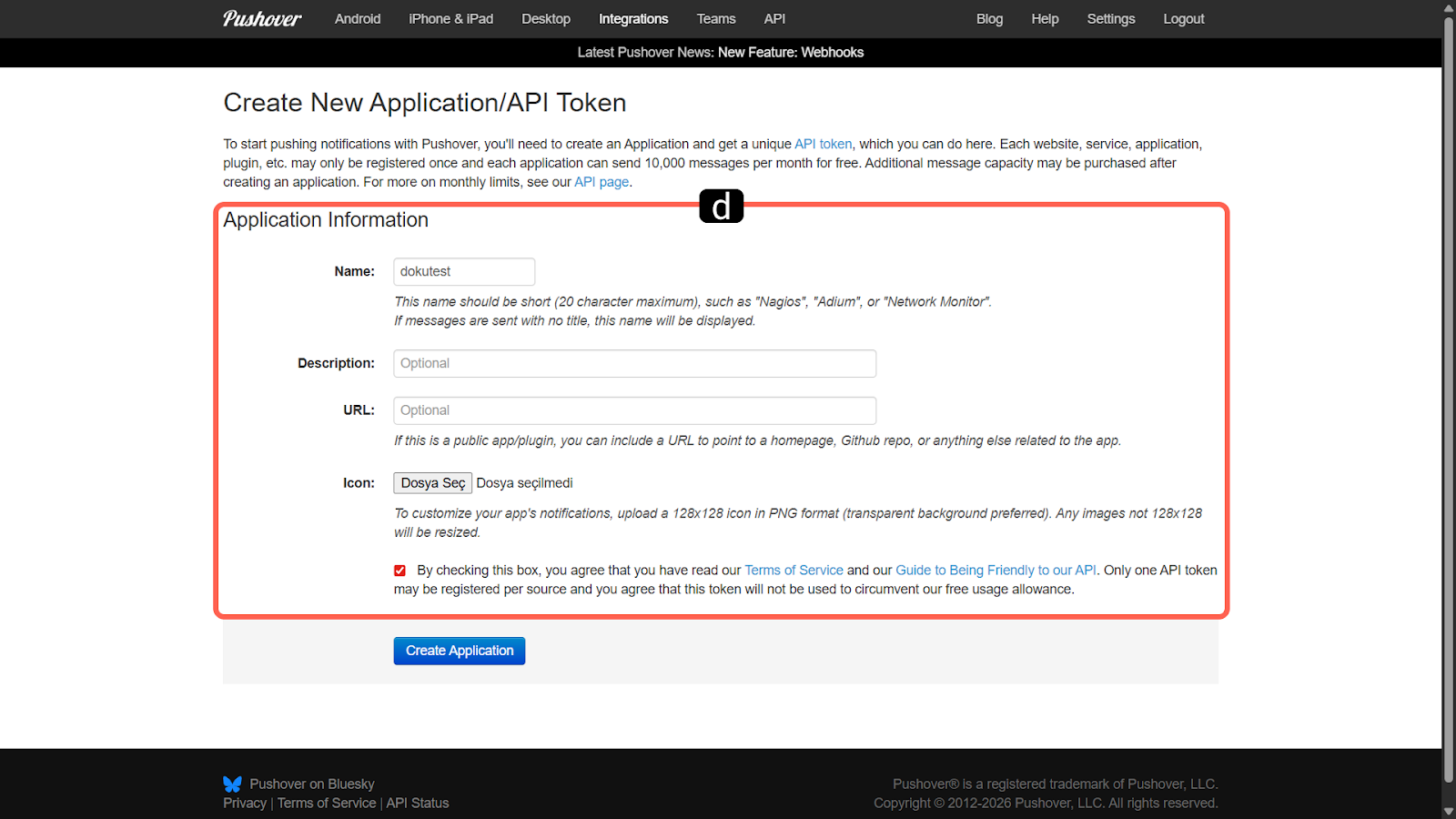
d. Application Information
Enter a descriptive name for your application (e.g., "Supsis Notifications") in the form that appears and fill in the fields that specify the purpose of the application. After completing these steps, create the application using the "Create Application" button below.
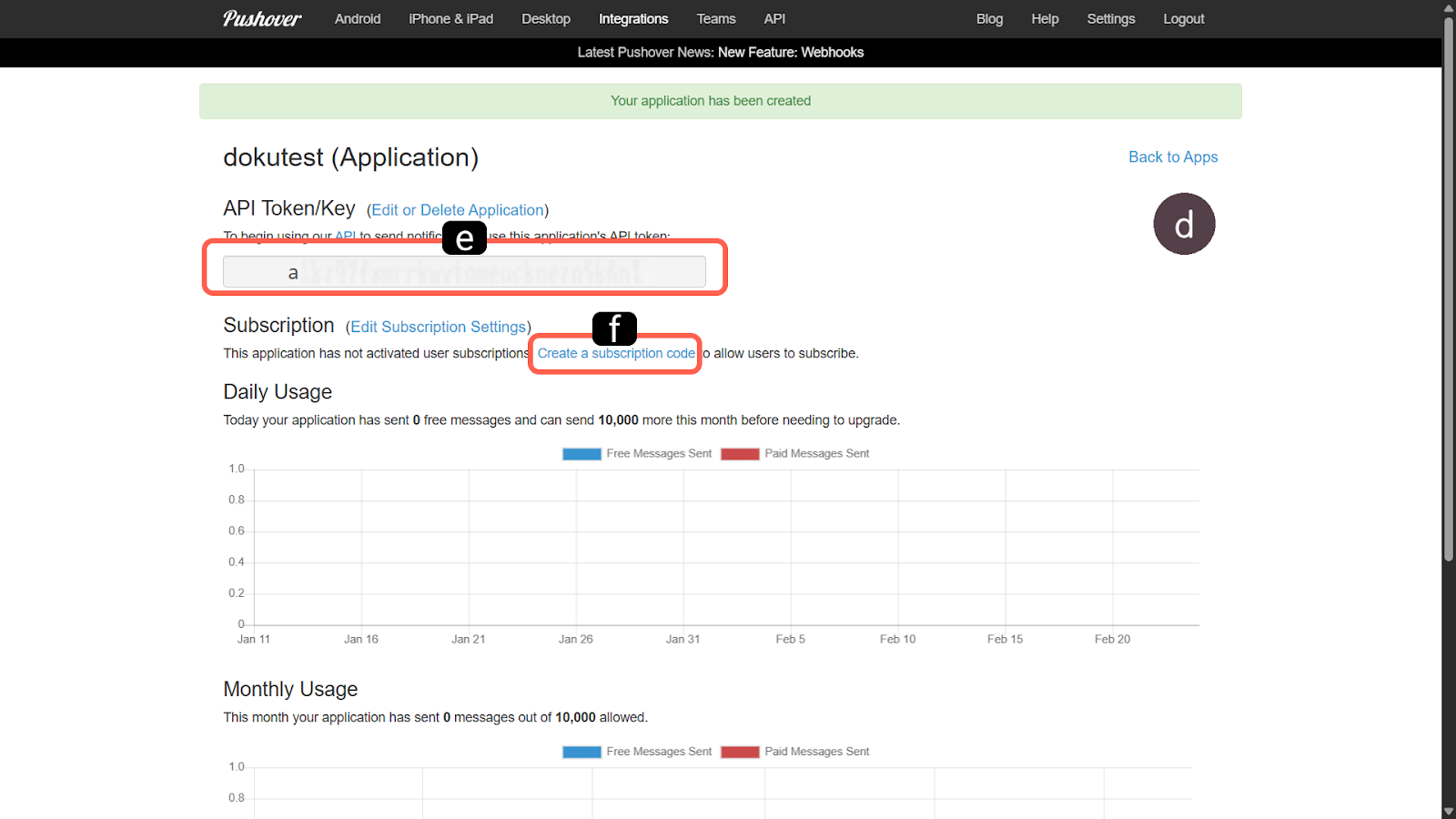
e. API Token
After successfully creating the application, copy the unique "API Token/Key" that the system will provide you. This token must be entered into the relevant field in the Supsis Ai panel to enable integration.
f. Create a New Subscription Code
If you want Supsis Ai to subscribe to the notification system, you must create a new subscription link.
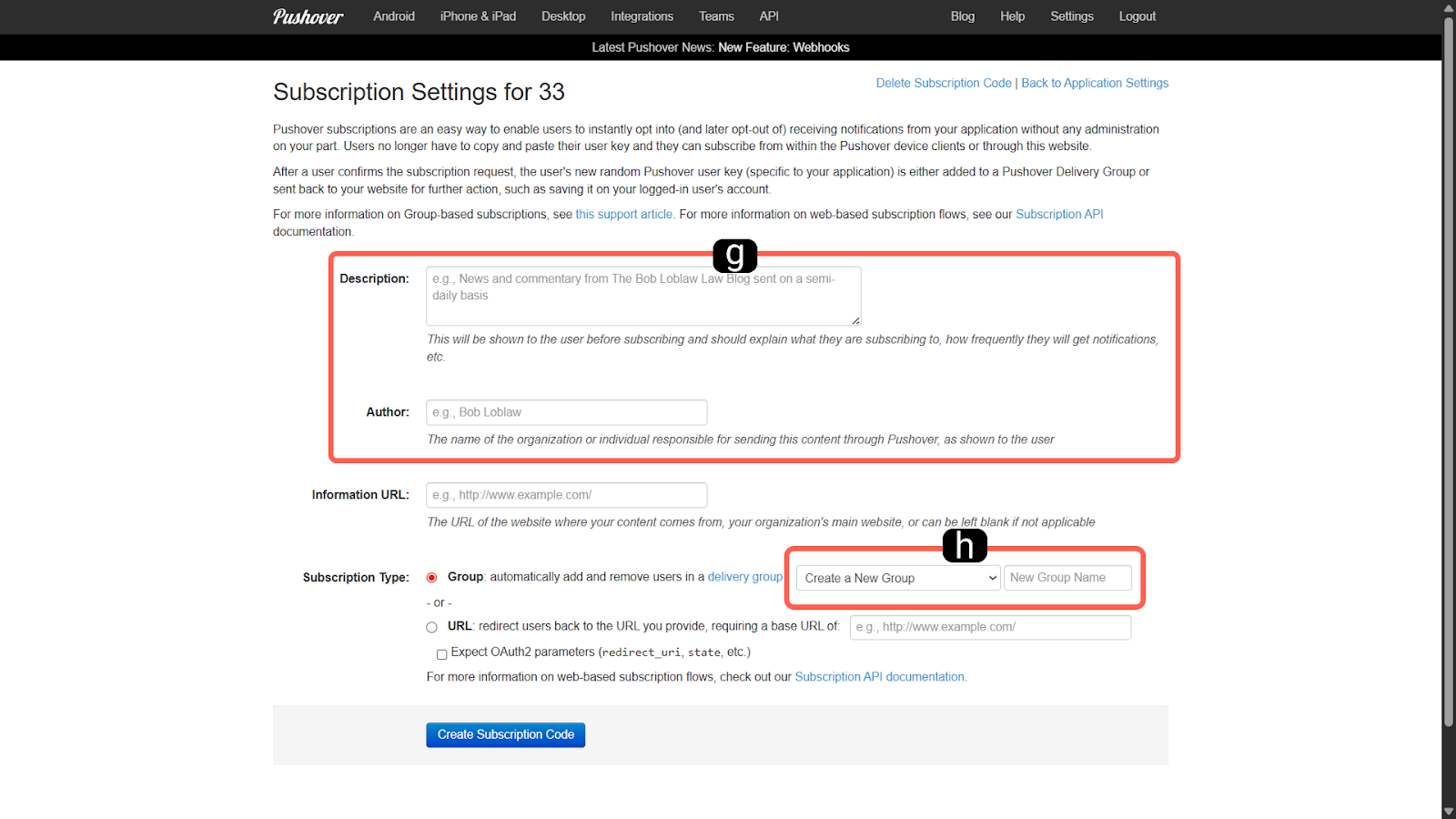
g. Required Fields
Fill in all the necessary permission and information fields requested by the system for the subscription process.
h. Create a New Group
To ensure that notifications are sent to the Pushover group simultaneously, you must create a new group using the "Create a New Group" option in the relevant field.
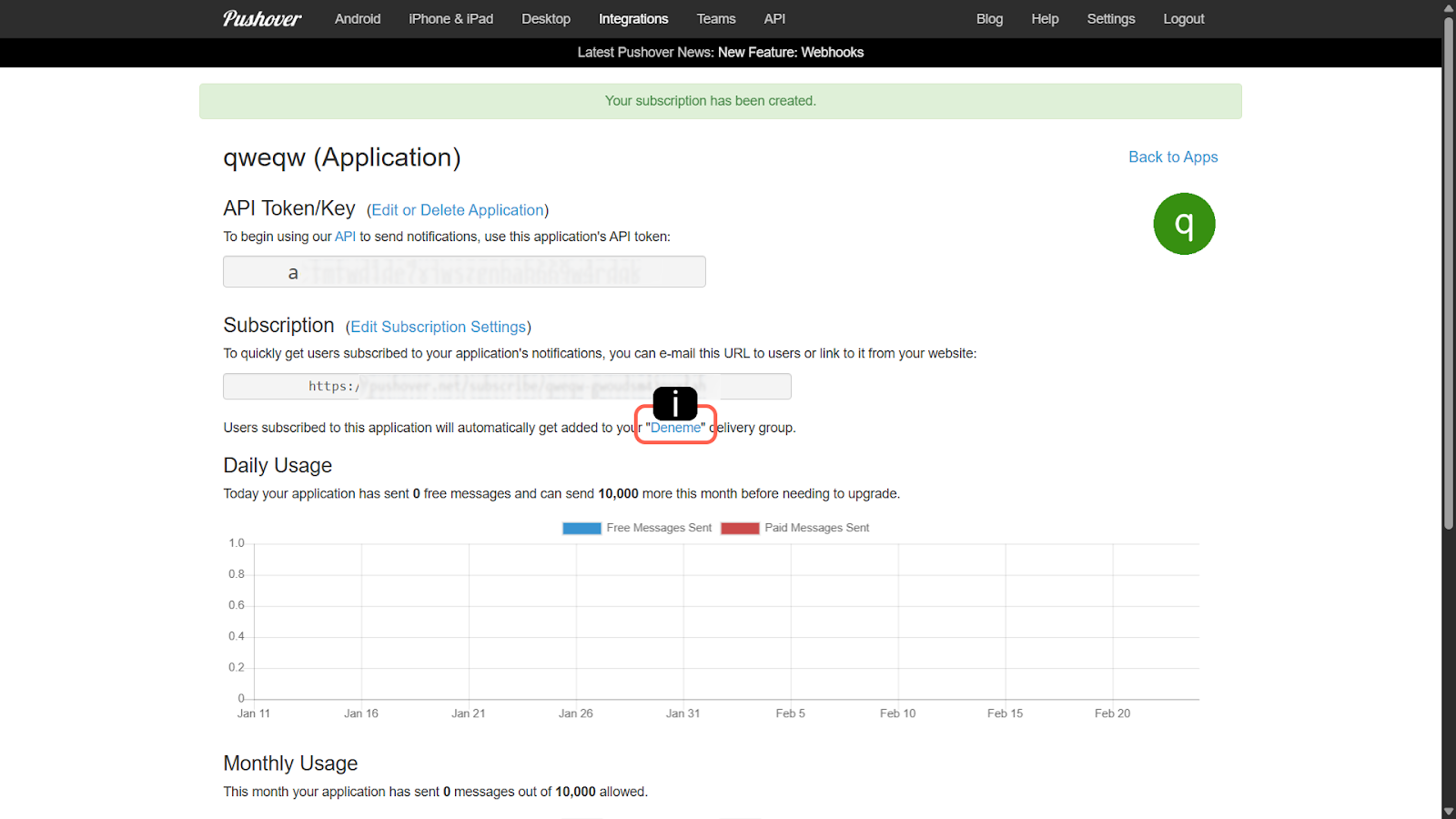
i. Group Configuration
Access the configuration settings of the group you created and add yourself as a new member to this group.
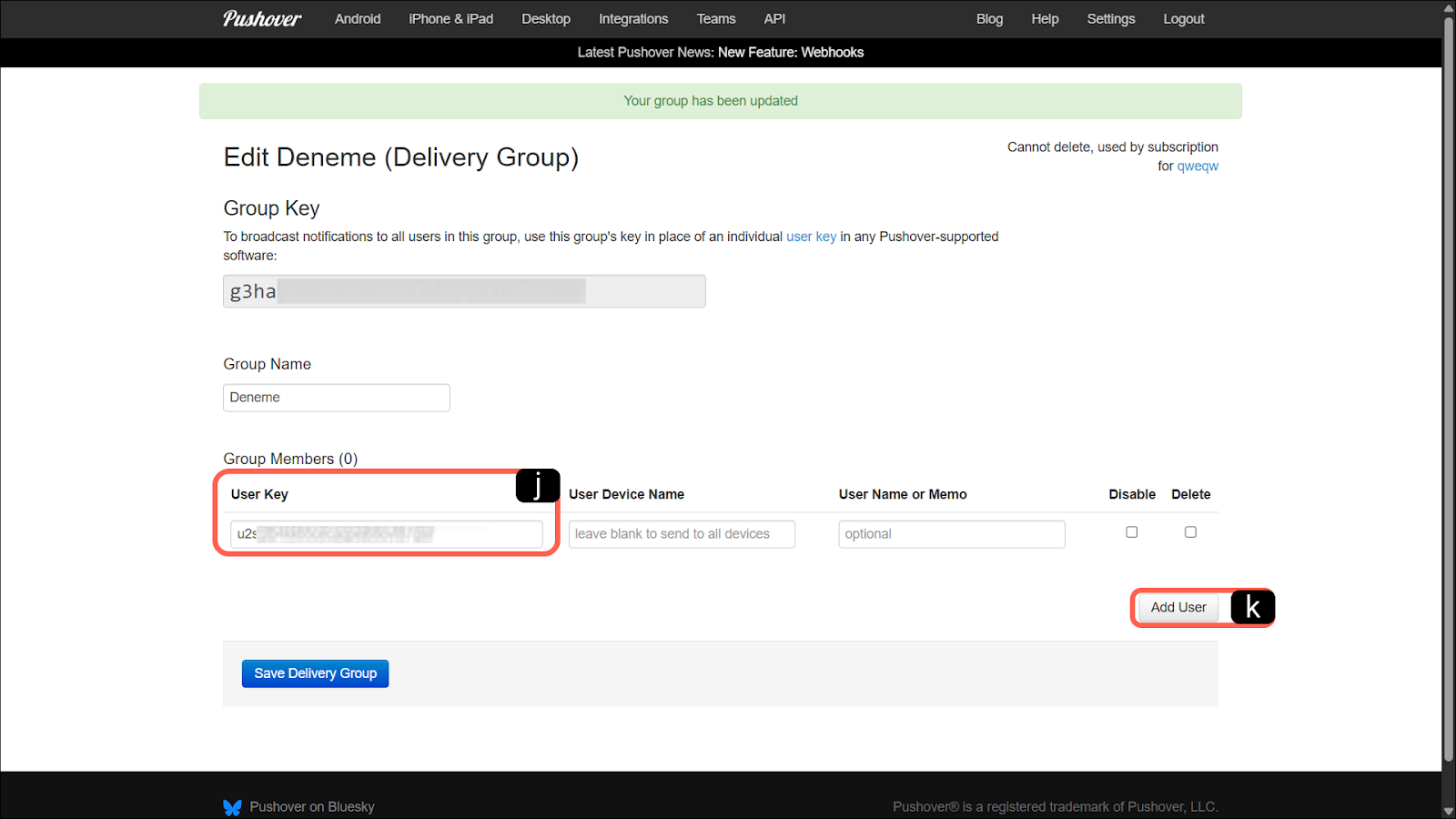
j. User Key Entry
Enter the "User Key" information from your Pushover account and the team members you want to include in the group in this field.
Note: You can copy the User Key from the area in the upper right corner by logging into Pushover.net.
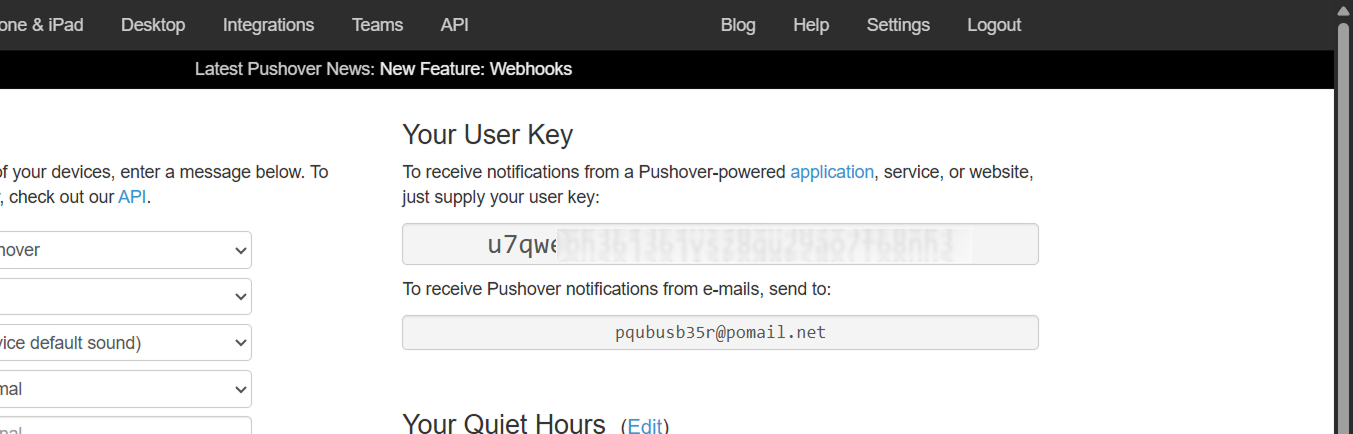
Add User
Save the team members' keys and include the users in the notification group. (For team notifications, you can also enter the Group Key of this group you created instead of your personal User Key in the Supsis panel.)
Supsis AI Operations
After copying the necessary "User Key" and "API Token" information from the Pushover panel, return to your Supsis AI panel and follow these steps to complete the connection.
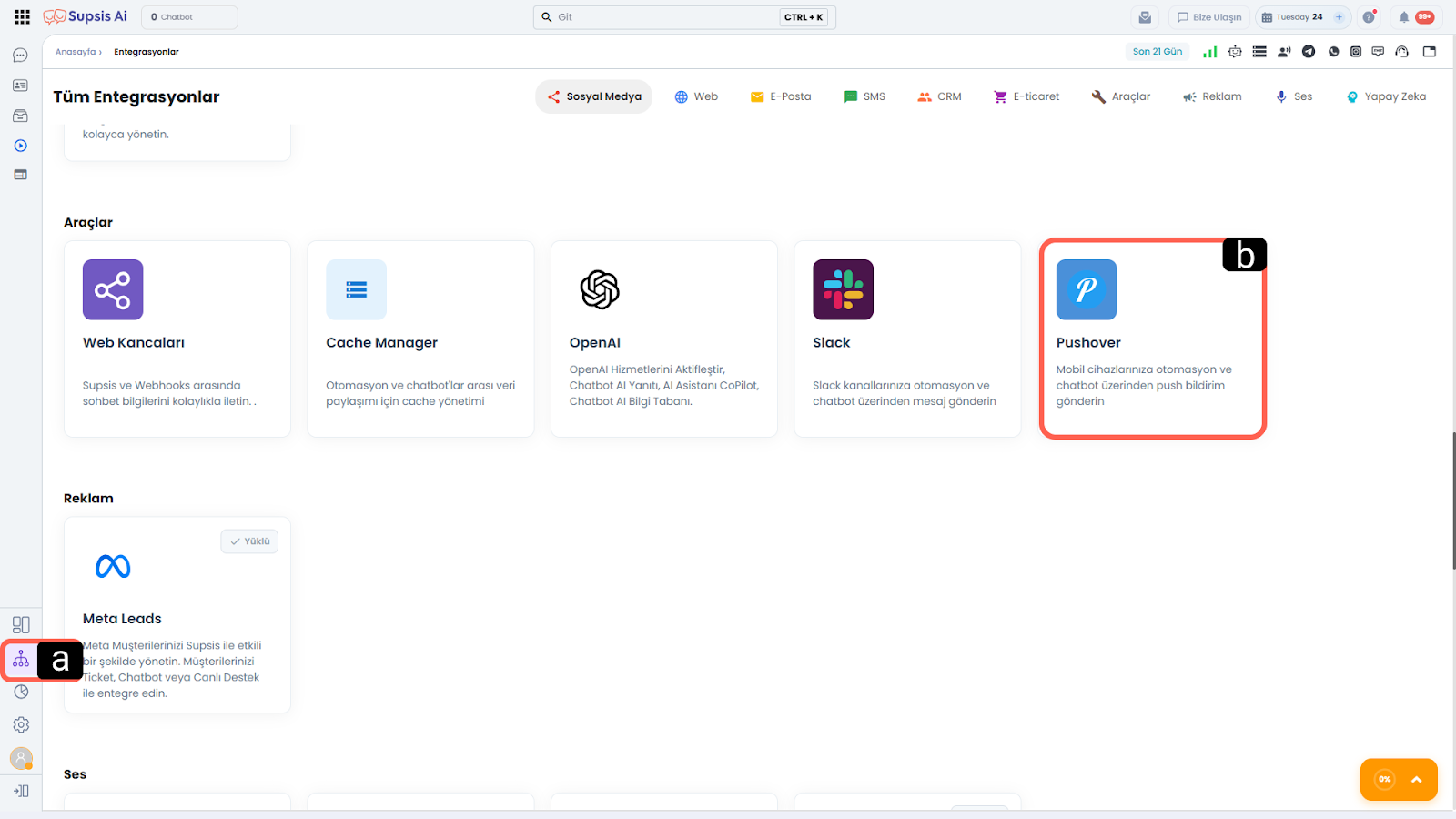
a. Integrations
Go to the general "Integrations" tab located in the left menu of your Supsis AI panel.
b. Pushover
Find the "Pushover" module among the listed applications, open the integration settings, and proceed to the step of adding a new channel.
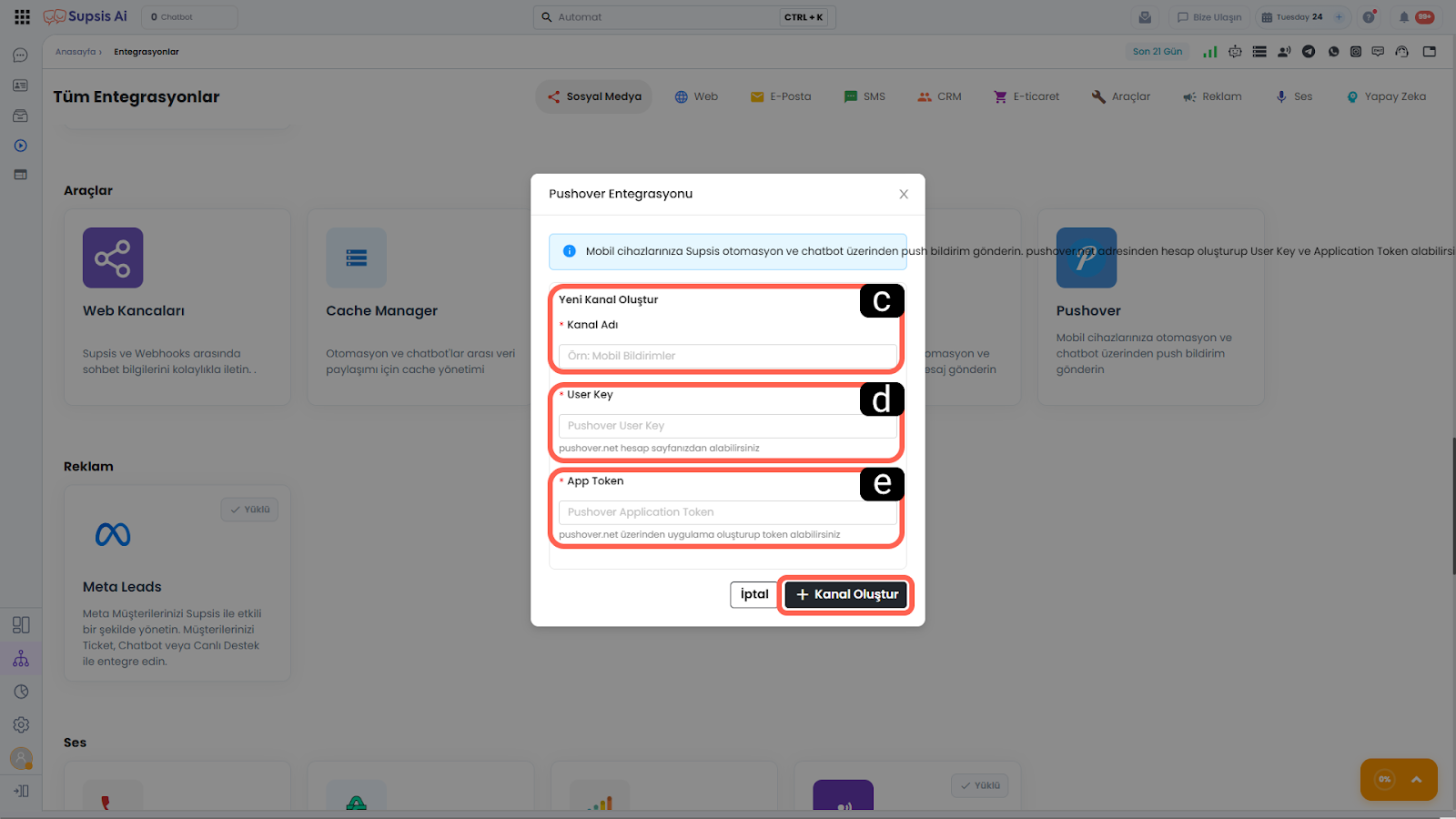
c. Channel Name
This is the identifying name you will give to this integration within the Supsis AI system. (e.g., "Mobile Notifications")
d. User Key
Paste your unique personal "User Key" (or Group Key if you created a group) that you copied from the main screen of your Pushover panel into this field.
e. App Token
Paste the "API Token" code you obtained after creating your application on Pushover into this field.