
Tags provide a powerful structure that enables users to be classified and managed according to specific criteria. Tags can be assigned manually by representatives during a conversation, assigned in bulk to contacts resulting from a filter applied in the table view of the Conversations menu, or automatically assigned by the chatbot based on behavioral analysis.
Users with specific tags can be filtered within operational processes through chatbots and automations, allowing targeted marketing, sales, and support strategies to be implemented across these segments. Additionally, in segmentations performed through archive, contacts, and conversation filters, tag-based filtering can be applied according to defined parameters, enabling quick access to relevant user groups.
Thanks to this structure, customer segmentation becomes more flexible, process management becomes more controlled, and customer relationships can be managed in a more strategic manner.
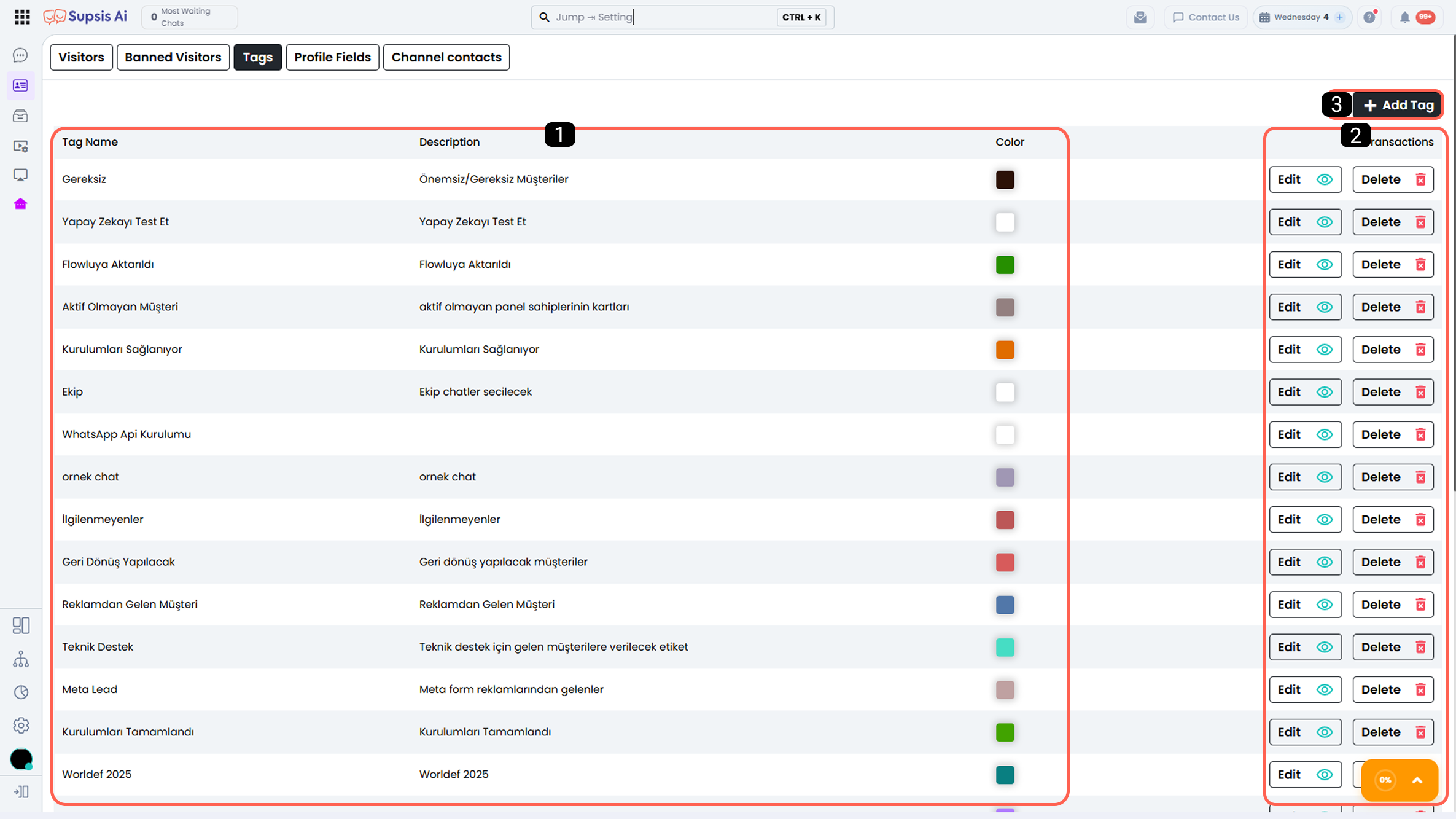
- Existing Tags
- Tag Operations
- Add Tag
1-) Existing Tags
In this table, you can view all tags created in the system.
For each tag, the following information is listed:
- Tag name
- Tag description
- Tag color
Through this area, you can review existing tags and make adjustments according to your needs.
2-) Tag Operations
Through this section, you can perform edit or delete operations for your existing tags.
When a tag is edited or deleted, the information in all contact profiles where the relevant tag has been assigned is automatically and instantly updated. This ensures data consistency and eliminates the need for manual intervention.
3-) Add Tag
This area allows you to create new tags within Supsis to classify users more effectively and manage your processes more easily. Created tags can be actively used in user profiles, filtering operations, and within chatbot and automation filtering processes.
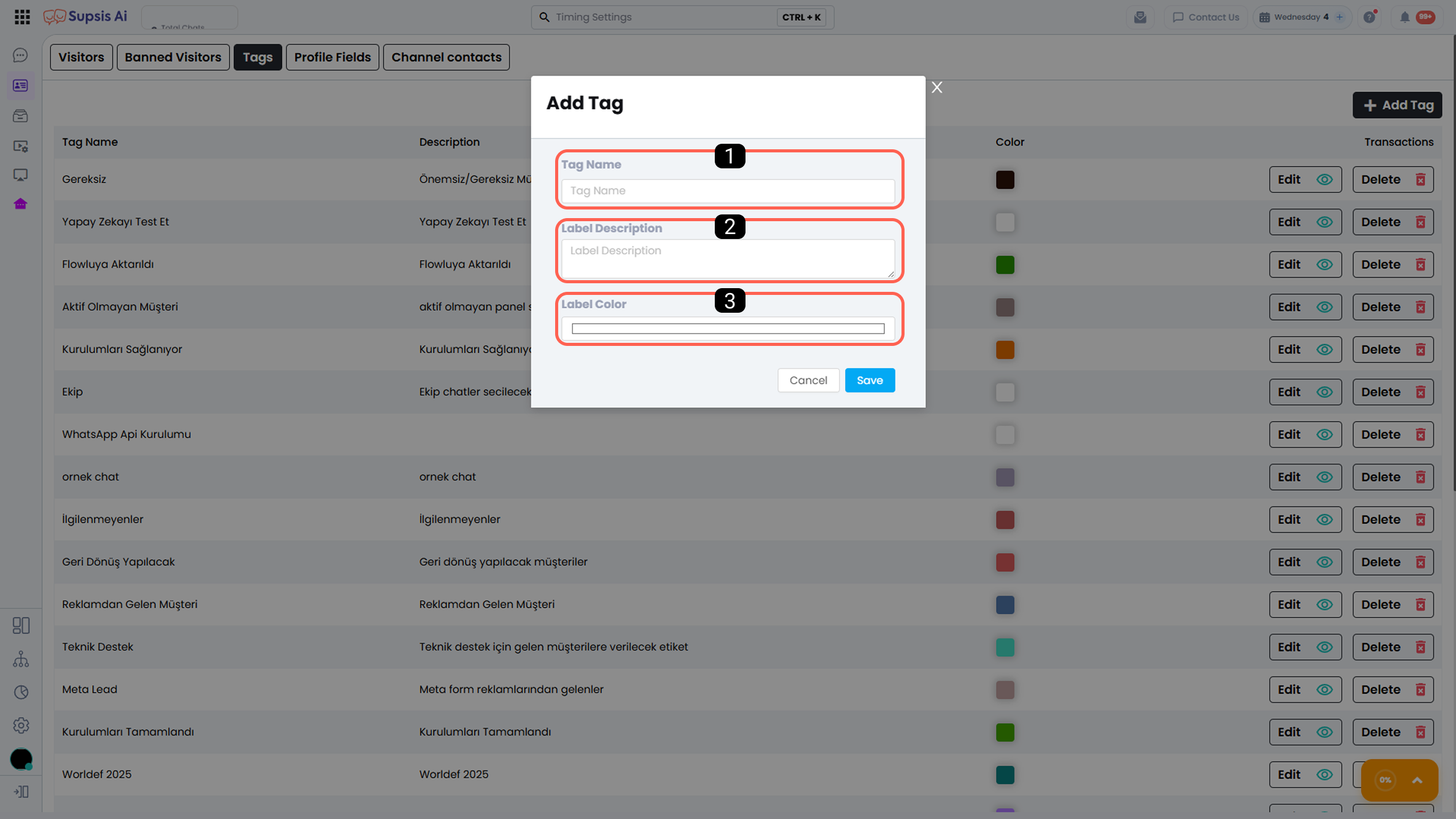
1-) Tag Name
Allows you to define the name of the tag you will create. This name will be displayed in the Conversations menu, contact cards, and in relevant fields within automation & chatbot scenarios.
2-) Tag Description
Allows you to enter a definition explaining the purpose of the tag. The description field helps ensure tags are used more accurately and consistently within the team.
3-) Tag Color
Allows you to select a color so that tags can be easily distinguished in lists and user profiles. The selected color contributes to quicker visual recognition of the tag.