
The Test Profiles and Automated Test Case Infrastructure feature in the Chatbot module allows you to validate chatbot flow scenarios under realistic conversation conditions, record interaction sequences, and execute one-click automated regression tests.
By defining custom visitor profiles and session attributes, bot behaviors can be simulated; conversation flows can be recorded and replayed, or live/archived customer chats can be converted into automated test cases.
📑 Module Overview
| Feature / Parameter | Description |
|---|---|
| Product & Screen | Customer Panel ➔ Chatbot Dashboard (Story Diagram View) |
| Main Menu Path | Chatbot ➔ Stories ➔ (Select a Story) ➔ Diagram Top Bar |
| Additional Access Paths | Live Chat window three-dot menu & Archives chat detail toolbar |
| Data Isolation | Test profiles, test cases, and test chats are isolated per siteId. |
| Test Flag | All test conversations and transmitted messages are stored with isTest = true. |
🛠️ 1. Where to Find and Access Paths
Access the chatbot testing infrastructure from 3 different entry points across the platform:
- 1.a – Chatbot Diagram Top Toolbar:
Access via the Test Bot (widget icon) and Test Profiles (groups icon) buttons located at the top right of the chatbot story editor screen. - 1.b – Live Chat Menu:
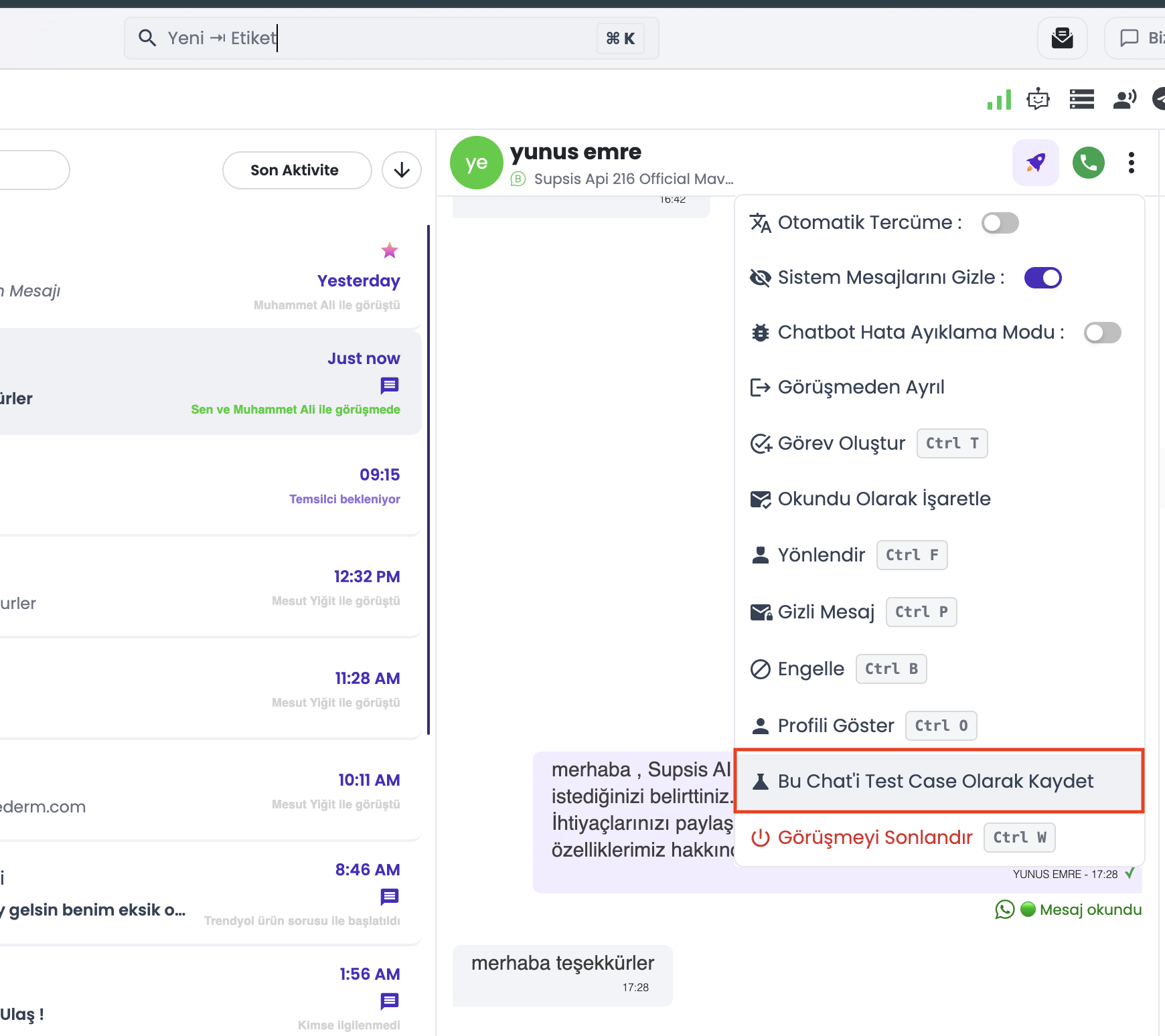
During an active live chat session, select "Save This Chat as Test Case" from the three-dot (...) menu at the top right of the conversation window. - 1.c – Archives Screen Chat Detail:
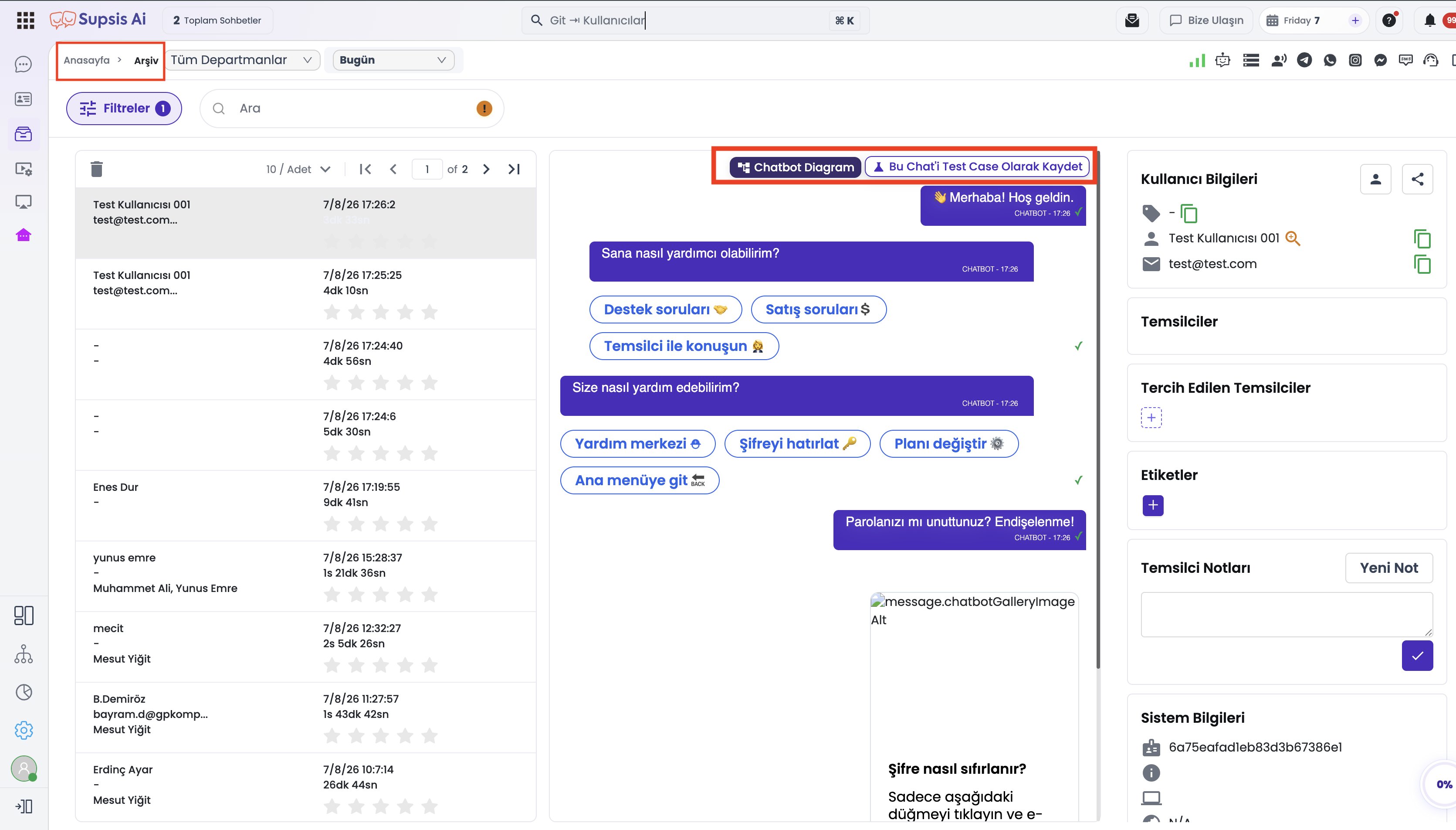
Trigger the "Save This Chat as Test Case" action from the detail toolbar of any archived customer conversation.
🛠️ 2. Step-by-Step Usage & Mode Management
Follow the steps below to test, record, and execute your chatbot scenarios:
1- Test Widget & Mode Selection
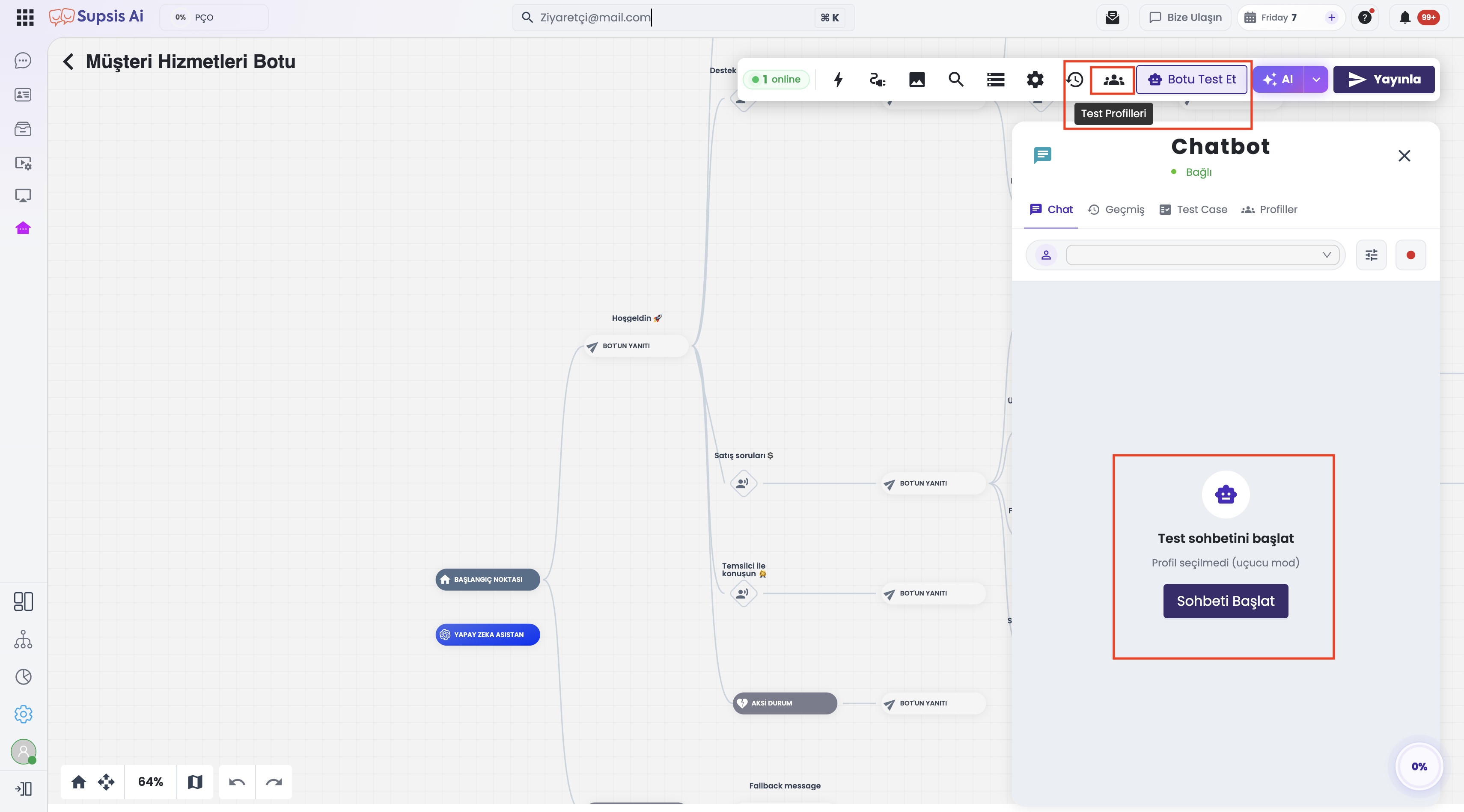
Click the Test Bot button at the top right of the chatbot diagram screen. The test widget opens on the right, allowing you to toggle between 3 modes:
- 1.a – Chat Mode: The active live testing screen for manual interaction.
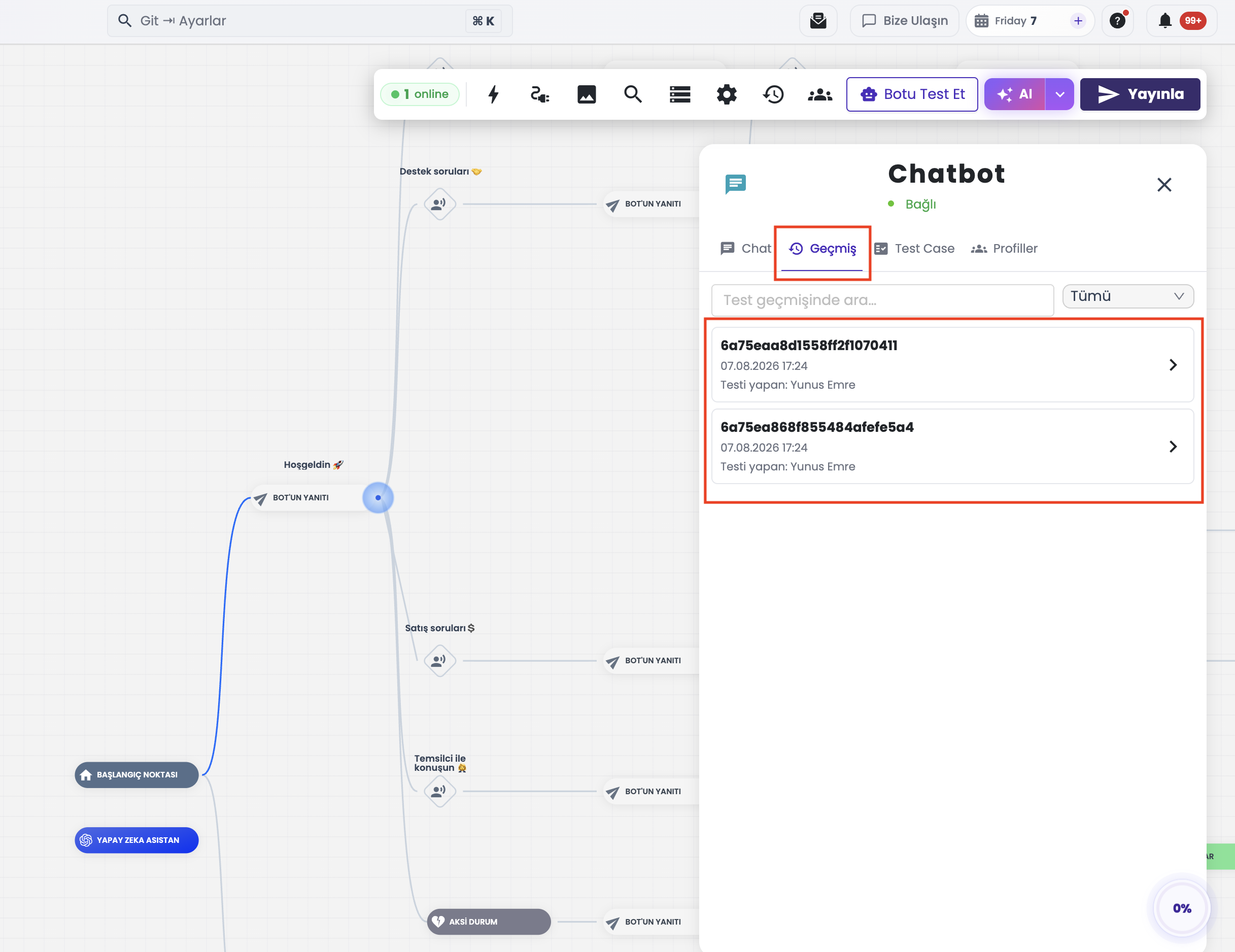
- 1.b – History Mode: Displays a list of all previously executed test conversations along with message transcripts.
- 1.c – Test Case Mode: Manages recorded, repeatable automated test scenarios.
2- Test Profile & Session Configuration
- 2.a – Selecting a Test Profile:
In Chat Mode, select a defined visitor profile from the Select Test Profile dropdown in the top bar, or continue without a profile (ephemeral mode). Profiles inject name, email, phone, language, and custom attributes into the bot session. - 2.b – Session Settings (Overrides):
Click the Session Settings (tune icon) next to the dropdown to define session-specific attribute overrides (e.g., vip_user = true, cart_total = 1500).
📌 Note: Selected test profiles and session overrides cannot be changed once the chat session starts.
3- Scenario Recording (Record Mode)
- 3.a – Starting Recording:
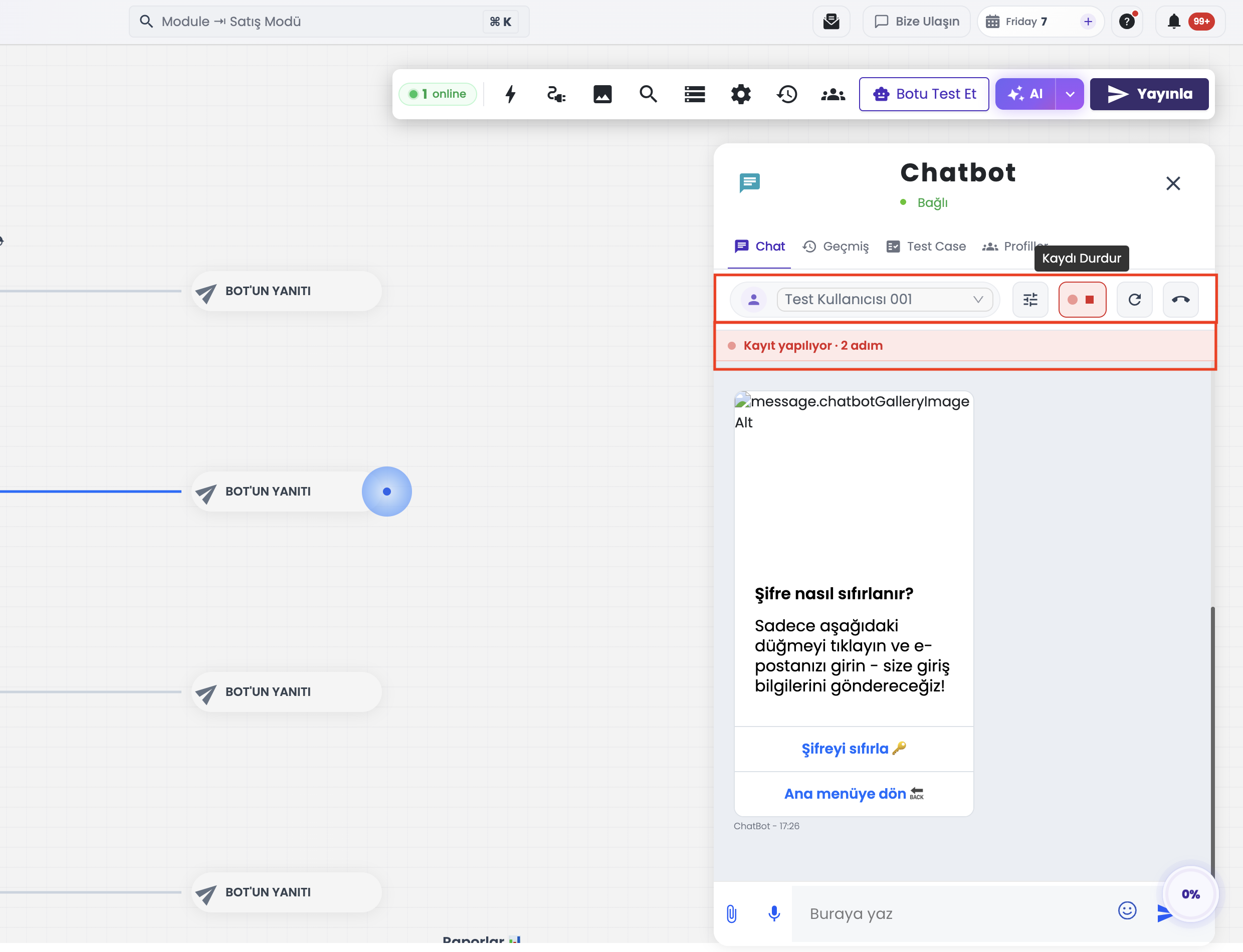
Click the Start Recording (red record icon) button before or during a test conversation. An informational banner and a blinking record badge will appear at the top. - 3.b – Performing Interactions:
Click Start Chat and interact with the bot. Text inputs, button clicks, quick replies, media uploads, and location shares are recorded step-by-step. - 3.c – Saving as a Test Case:
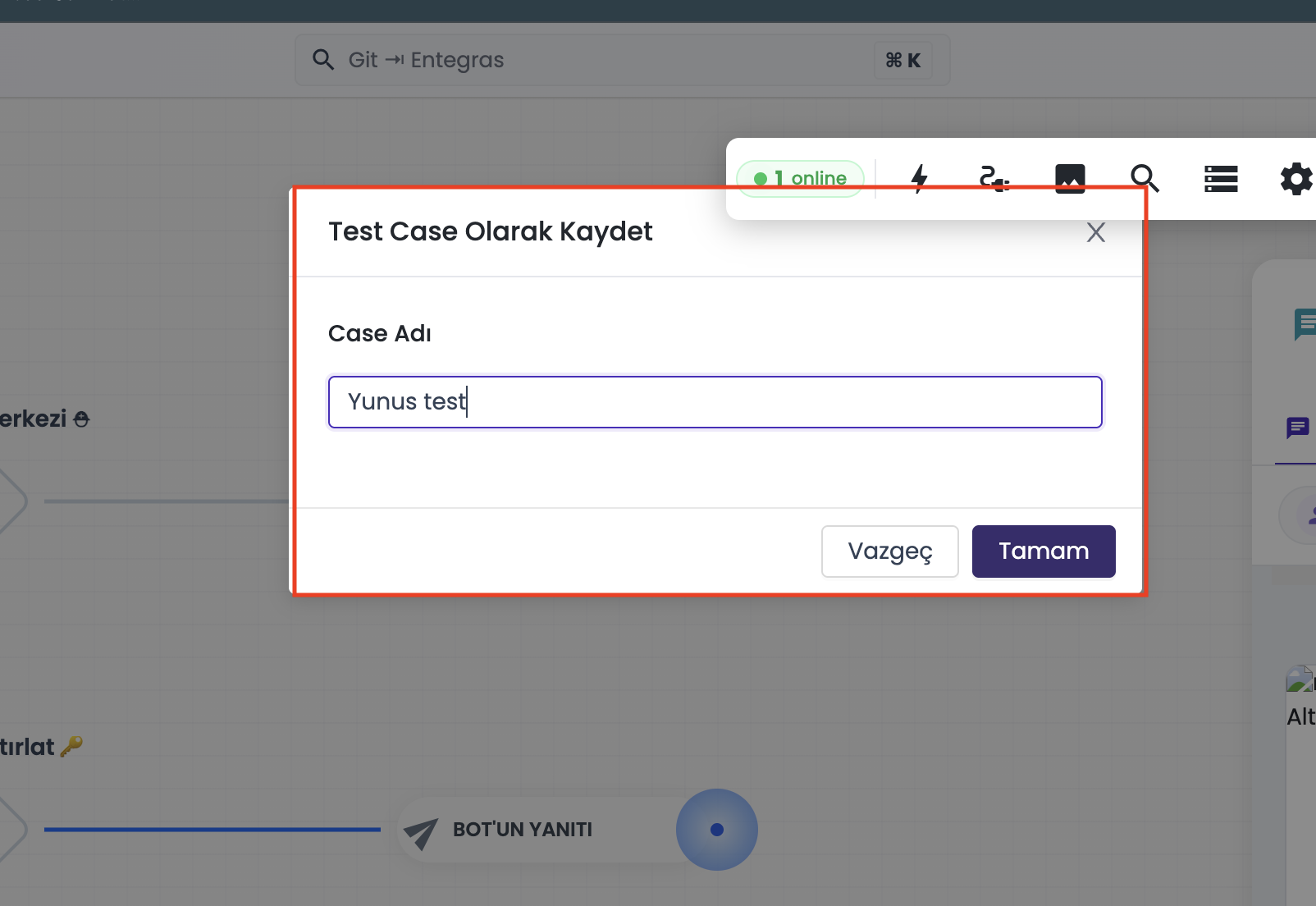
Click the record button again to stop recording. In the modal popup, provide a descriptive Test Case Name and click save.
4- Test Case Replay (Automated Execution)
- 4.a – Listing Recorded Cases:
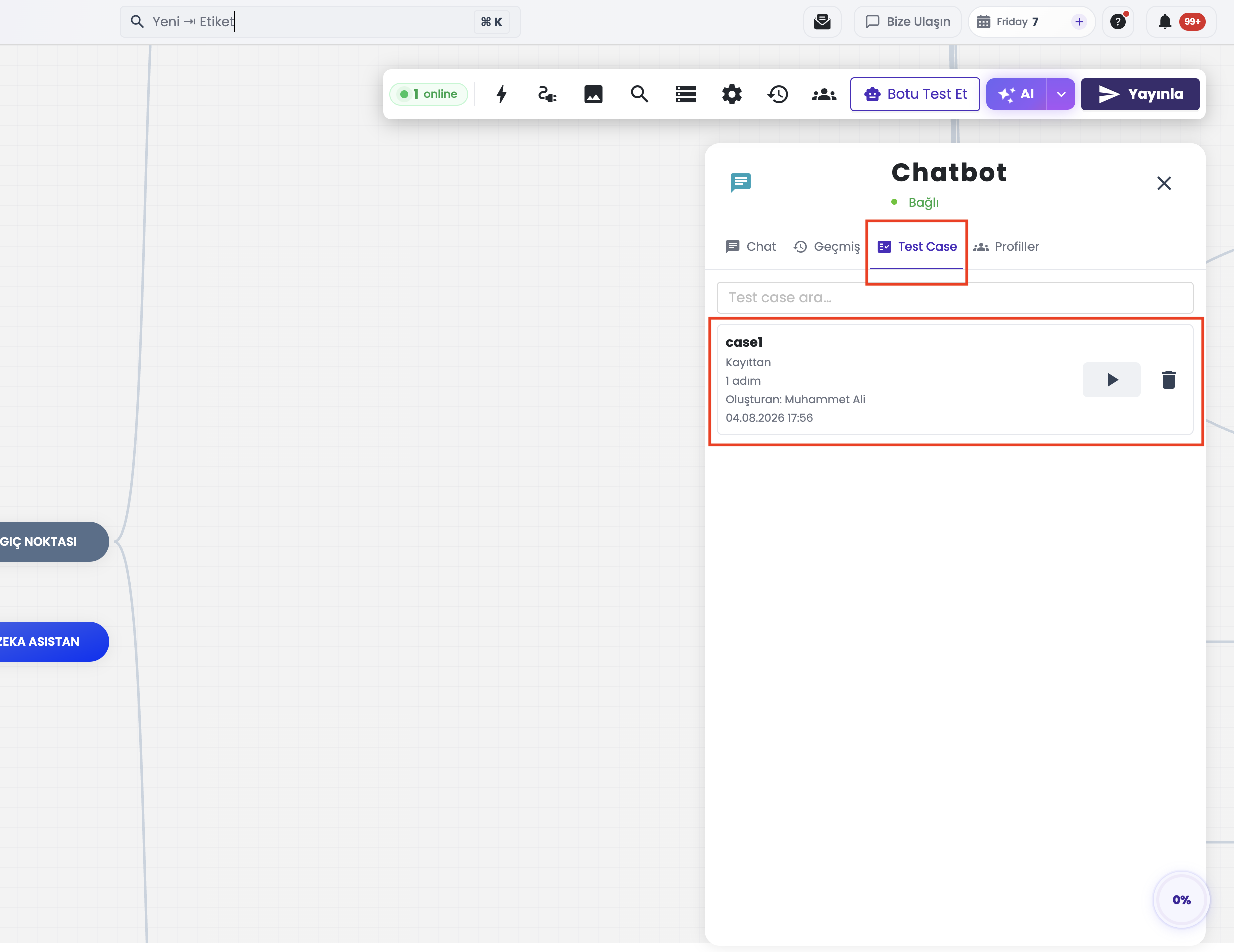
Switch to the Test Case tab in the test widget to list all automated test scenarios saved in the system. - 4.b – One-Click Replay (Run):
Click the Run (Play) button next to a scenario card. The system sequentially simulates all recorded user actions and validates bot responses automatically.
5- Test Profile Creation & Management
- 5.a – Profiles Panel:
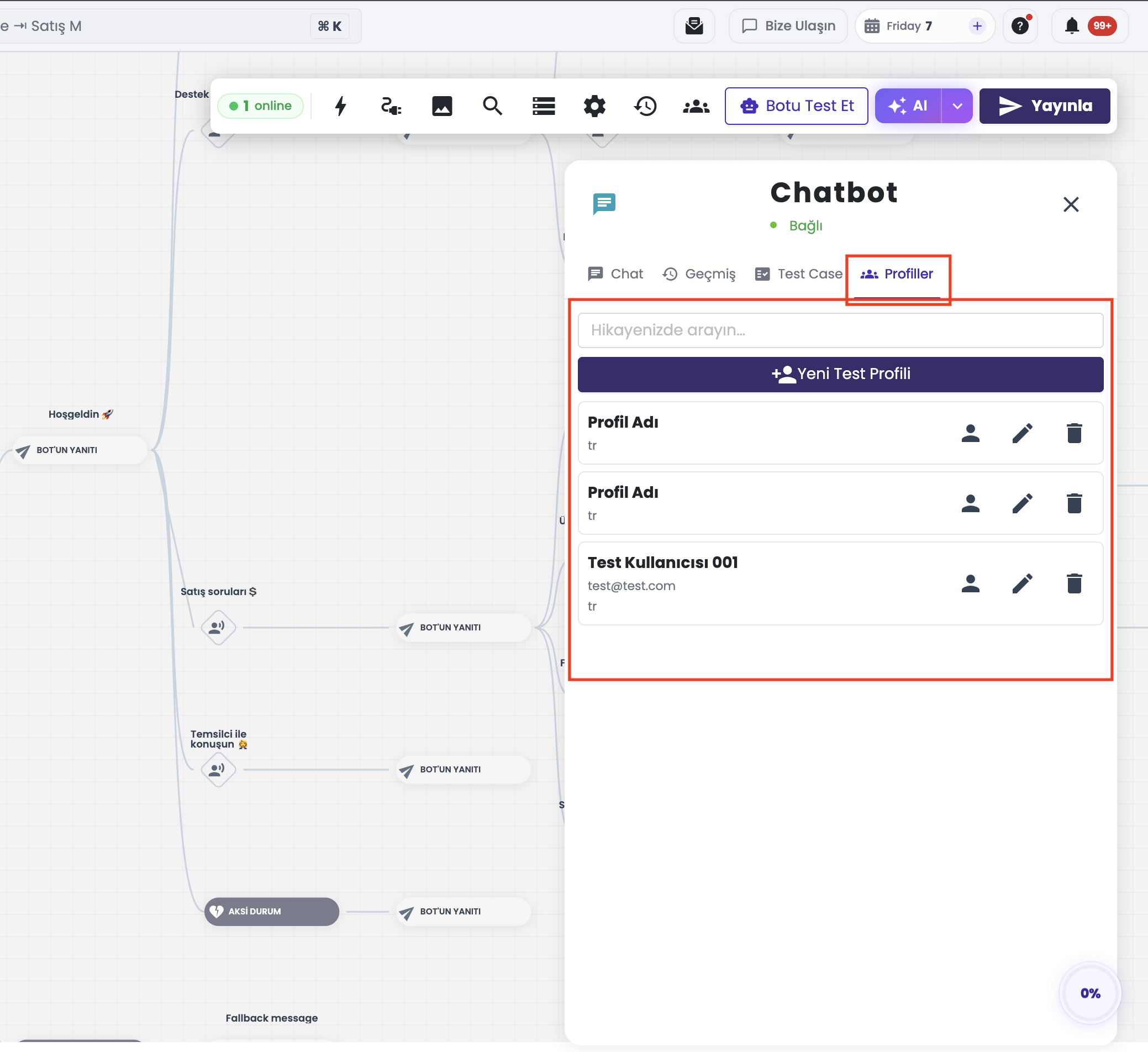
Click Test Profiles (groups icon) on the diagram top toolbar to open the profile management drawer. - 5.b – Adding a New Profile:
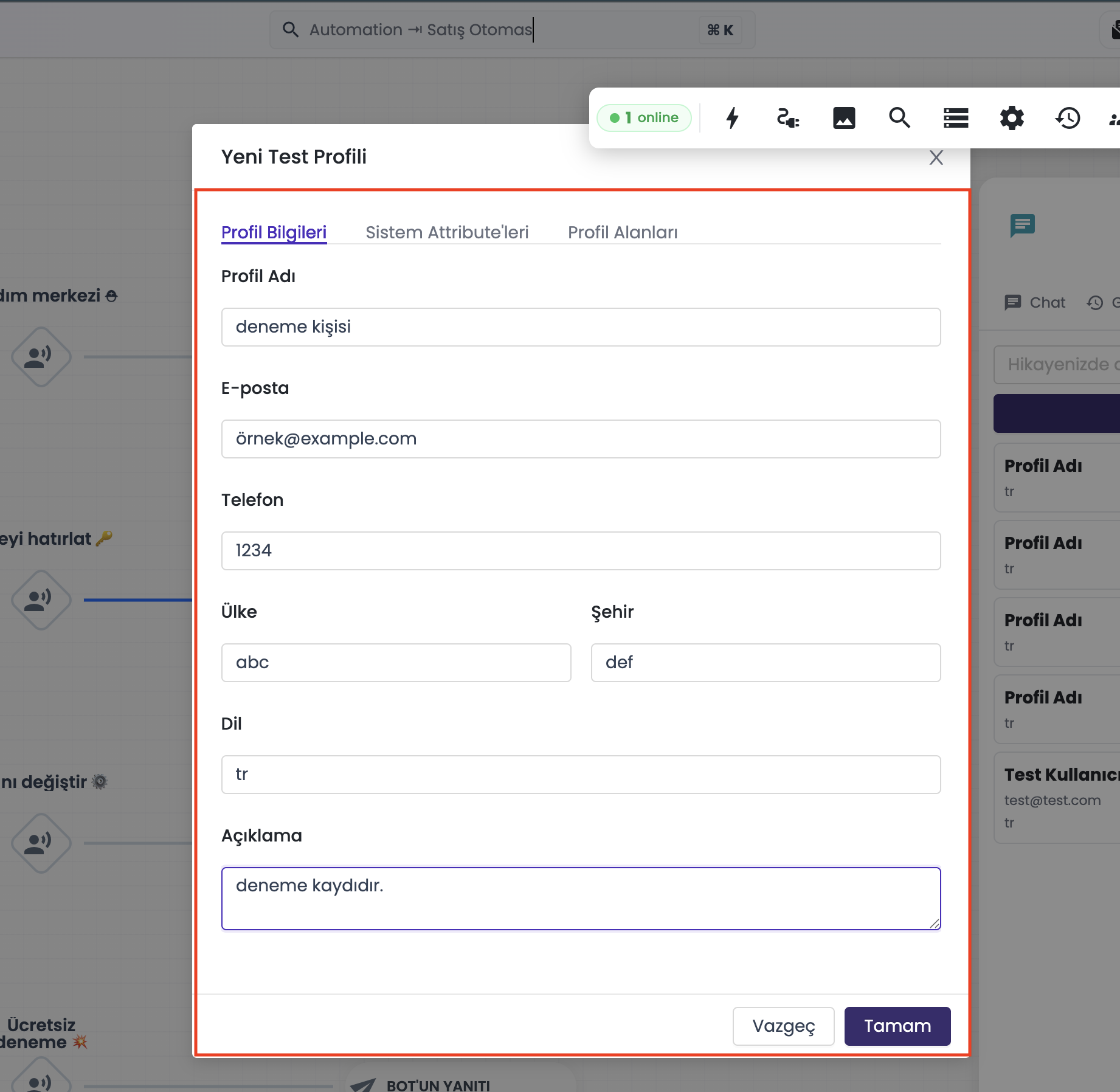
Click+ New Profile, enter Profile Name, Customer Information (Name, Email, Phone, Language), and System Attributes, then save.
6- Generating Test Cases from Real Customer Chats
- 6.a – Live Chat or Archives Conversion:
Select "Save This Chat as Test Case" fromLive Chatcontext menu orArchivesdetail view. - 6.b – Template Conversion:
Enter a case name and confirm. All customer messages and button interactions from the live conversation are automatically converted into an automated test case.
📌 Note: Test cases cannot be generated from chats that lack chatbot conversation history or state data.
🖼️ 3. Screenshots & UI Components
| Visual No | Screen / Interface Component | Description |
|---|---|---|
| 1 | Test Bot & Start Chat Screen | Test widget, profile selector, and chat initialization area. |
| 2 | Test Profiles Management Panel | List of defined visitor profiles and their statuses. |
| 3 | History Test Chats Tab | Transcript list and review screen for past test conversations. |
| 4 | Saved Test Cases List | Scenario names, step counts, source info, and Run button. |
| 5 | Save Test Case Modal | Name entry modal shown when stopping step recording. |
| 6 | Live Test Recording Banner | Green/red info banner visible during active step recording. |
| 7 | New Profile Creation Modal | Profile details, language dropdown, and custom attribute fields. |
| 8 | Live Chat Context Menu Action | "Save This Chat as Test Case" option in live chat. |
| 9 | Archived Chat Detail Action | Test case creation button in archived conversation details. |
Interface Visuals:
Visual 1 – Test Bot & Start Chat Screen
Visual 2 – Test Profiles Management Panel
Visual 3 – History Test Chats Tab
Visual 4 – Saved Test Cases List
Visual 5 – Save Test Case Modal
Visual 6 – Live Test Recording Banner
Visual 7 – New Profile Creation Modal
Visual 8 – Live Chat Save as Test Case Action
Visual 9 – Archived Chat Save as Test Case Action
🎯 4. Use Cases & Customer Benefits
- Regression Testing: Replay saved test cases with one click after every release to ensure existing flows remain unbroken.
- Profile-Based Validation: Test bot responses for VIP customers, multi-lingual visitors, or specific cart totals.
- Fast Production Issue Reproduction: Convert problematic live customer chats into test cases to reproduce and fix issues immediately in staging.
- Time Efficiency: Reduces manual re-testing overhead and speeds up chatbot maintenance and deployment workflows.
🔒 5. Technical Controls & System Rules
- Package & Access Rights: Available to all users with active Chatbot module and story editing/testing permissions.
- Data Isolation: All test profiles and test cases are isolated per
siteId. - Test Transmit Tag: All test messages and sessions carry
isTest = trueand are excluded from production analytics.