
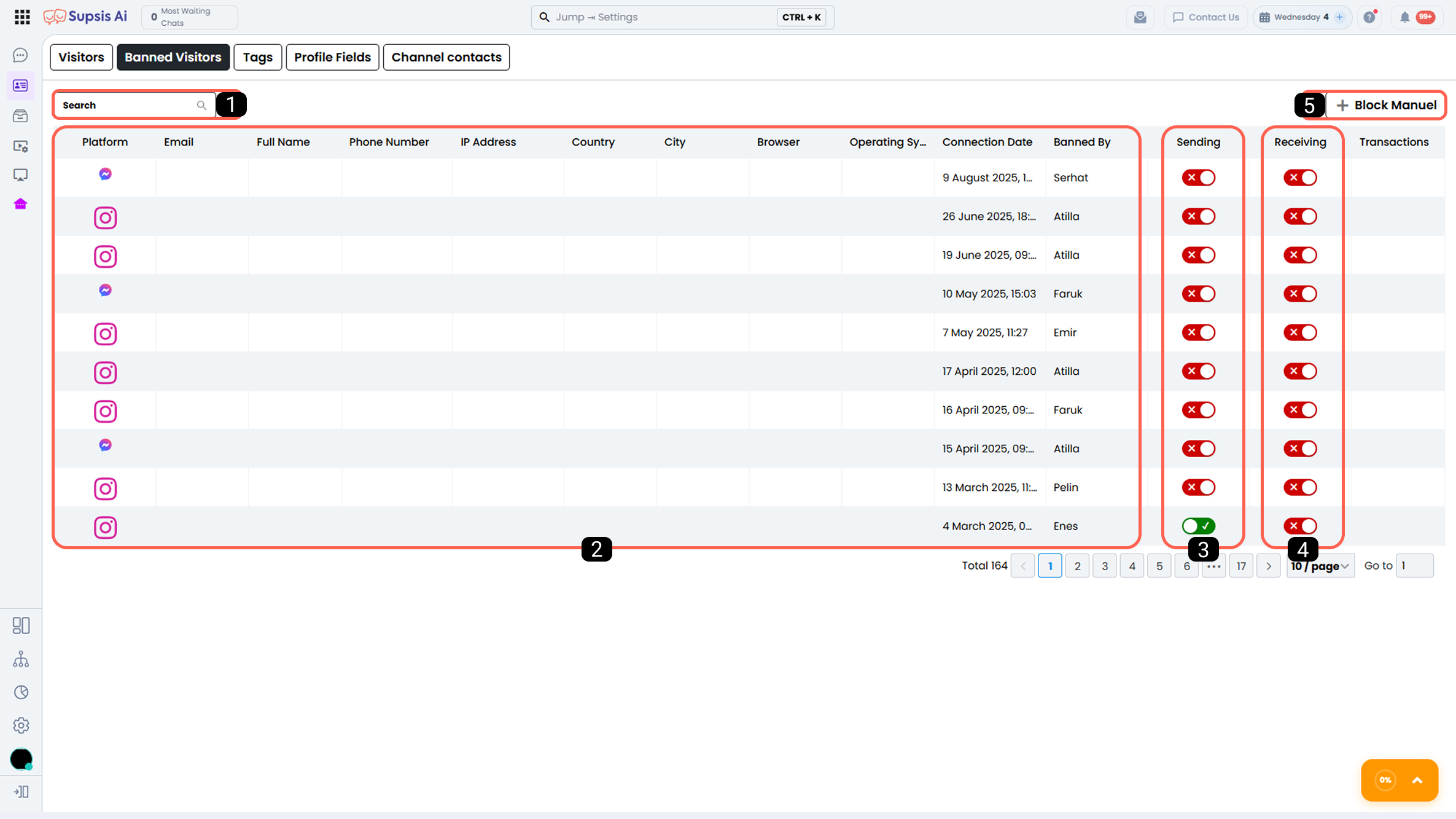
The Blocked Visitors area is the management section where you can view visitors you have blocked either through the Conversations menu or via this Blocked Visitors menu, review their current restriction statuses, and make necessary adjustments. Through this section, you can control visitors’ sending and/or receiving permissions, and update or remove restrictions when required.
| No | Menu |
|---|---|
| 1 | Search Bar |
| 2 | Blocked Visitors Table |
| 3 | Edit Sending Restriction |
| 4 | Edit Receiving Restriction |
| 5 | Manual Block |
1-) Search Bar
Using the search bar, you can quickly find the user whose restriction status you want to review or modify.
Through this field, you can easily locate blocked users by searching with basic information such as phone number, full name, IP address, or email address.
2-) Blocked Visitors Table
This table displays basic information about blocked visitors along with their sending and receiving restriction statuses. This allows you to monitor from a single screen which user is restricted on which platform and under what type of restriction.
3-) Edit Sending Restriction
Through this section, you can manage the sending restriction applied to a user by toggling the relevant switch on or off.
You cannot send messages via the restricted platform to users who have a sending restriction applied through Supsis.
If only a sending restriction is applied:
- The user can send messages to you
- You cannot send messages to the user
4-) Edit Receiving Restriction
Through this section, you can manage the receiving restriction applied to a user by toggling the switch on or off.
If a receiving restriction is applied, you cannot receive messages from the user through the restricted platform. For example:
- If the phone number is blocked, you cannot receive messages via WhatsApp,
- If the email is blocked, you cannot receive messages via email,
- If the Visitor ID is blocked, you cannot receive messages via Webchat.
If only a receiving restriction is applied:
- The user cannot send messages to you
- You can send messages to the user
5-) Manual Block
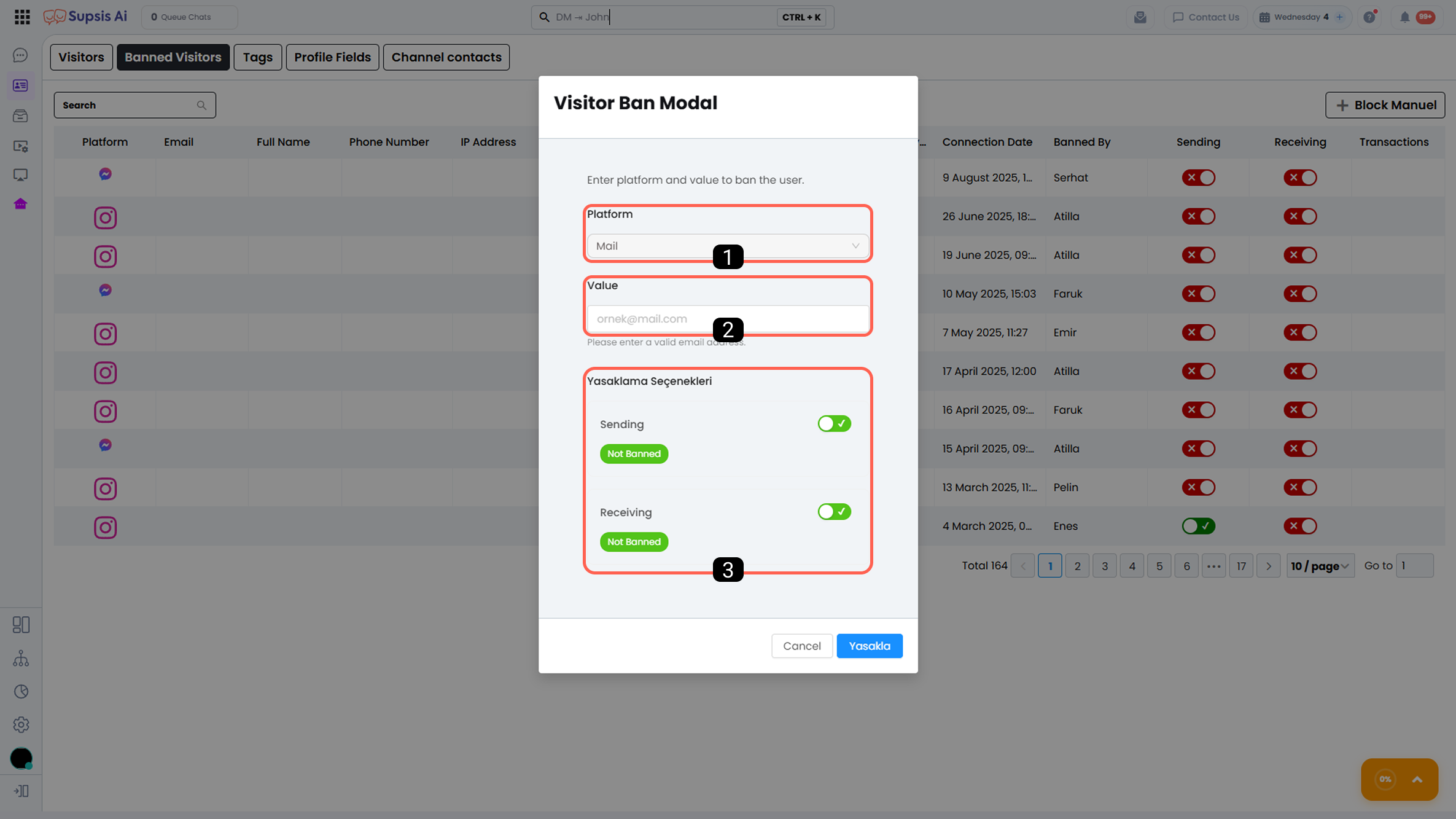
Through this section, you can manually block users even without any prior chat history. The restriction is applied based on the selected platform and the entered value.
1-) Platform Selection
You can select the platform on which you want to block the user.
Supported platforms:
- Web Visitor
- IP Address
2-) Value
You must enter the value corresponding to the selected platform in this field. The entered value must comply with the relevant platform format.
3-) Restriction Type
You can determine the scope of the restriction:
- Sending Restriction
- Receiving Restriction
- Sending & Receiving Restriction