
5-) Rules
From the Rules section, you can define the actions that will be automatically executed when the operations you specify in the People module and Task Management module occur.
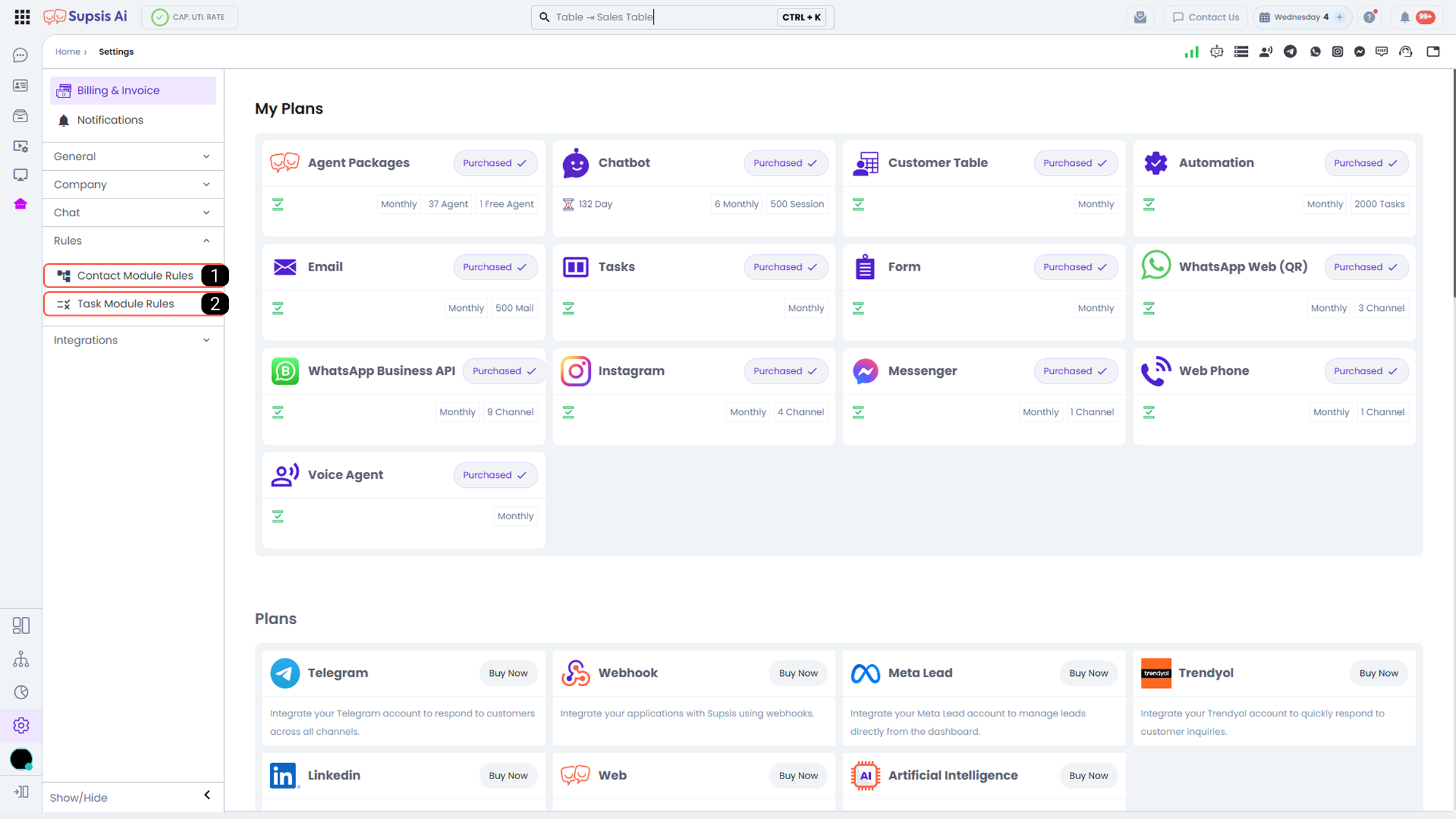
| No | Menu |
|---|---|
| 1 | People Module Rules |
| 2 | Task Module Rules |
1-) People Module Rules
This is the automation area where you can define the actions that will be automatically executed when an operation related to a Person occurs in your panel.
These automations run when the condition that triggers the automation occurs, the conditions are checked, and the action is executed.
Examples:
Condition Met: The specified trigger condition occurs ⇒ Conditions are checked ⇒ If Conditions Are Met ⇒ The actions defined in the Actions field are executed.
Condition Not Met: The specified trigger condition occurs ⇒ Conditions are checked ⇒ If Conditions Are Not Met ⇒ No action is taken ⇒ Redirected to the “No Rule Matches (Else)” rule.
| No | Menu |
|---|---|
| 1 | People Module Rules Menu |
| 2 | When? |
| 3 | Conditions |
| 4 | Actions |
People Module Rules and Advanced Actions
This is the automation area where you can define the actions that will be automatically executed when an operation related to a Person occurs in your panel.
These automations run when the condition that triggers the automation occurs, the conditions are checked, and the action is executed.
Examples:
Condition Met: The specified trigger condition occurs ⇒ Conditions are checked ⇒ If Conditions Are Met ⇒ The actions defined in the Actions field are executed.
Condition Not Met: The specified trigger condition occurs ⇒ Conditions are checked ⇒ If Conditions Are Not Met ⇒ No action is taken ⇒ Redirected to the “No Rule Matches (Else)” rule.
The newly added features are: The People Module Rules screen has been expanded. Rules can now run more actions, action results can be tracked within the chat with colorful timeline messages, rule information is displayed in automatically sent messages, and contact data can be used as dynamic variables in action payload fields. These enhancements minimize the need for manual operations in customer interactions, making it easy to configure processes such as automated messaging, table management, webhook calls, and chatbot routing.
1-) People Module Rules Menu and Rule List
This is the menu where you can create new conditions, view and edit the content of your existing conditions, and see rule summaries. (You can follow the Settings > Contact Module Rules steps).
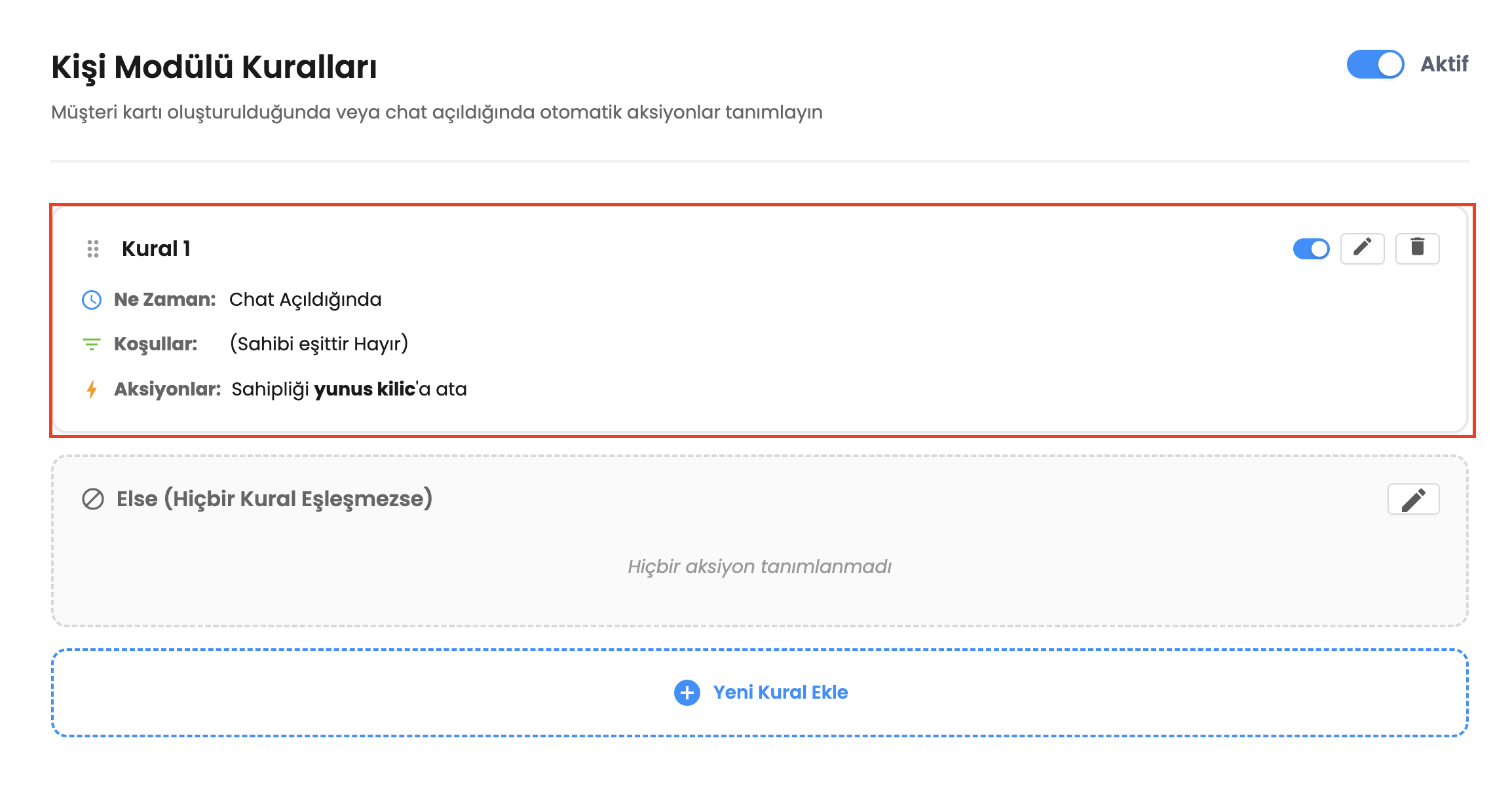
- Rule List and Summary Cards: This is the area where existing rules are listed. On each rule card, a summary of when the rule will run (When), which conditions it depends on (Conditions), and which actions it will trigger (Actions) is displayed.
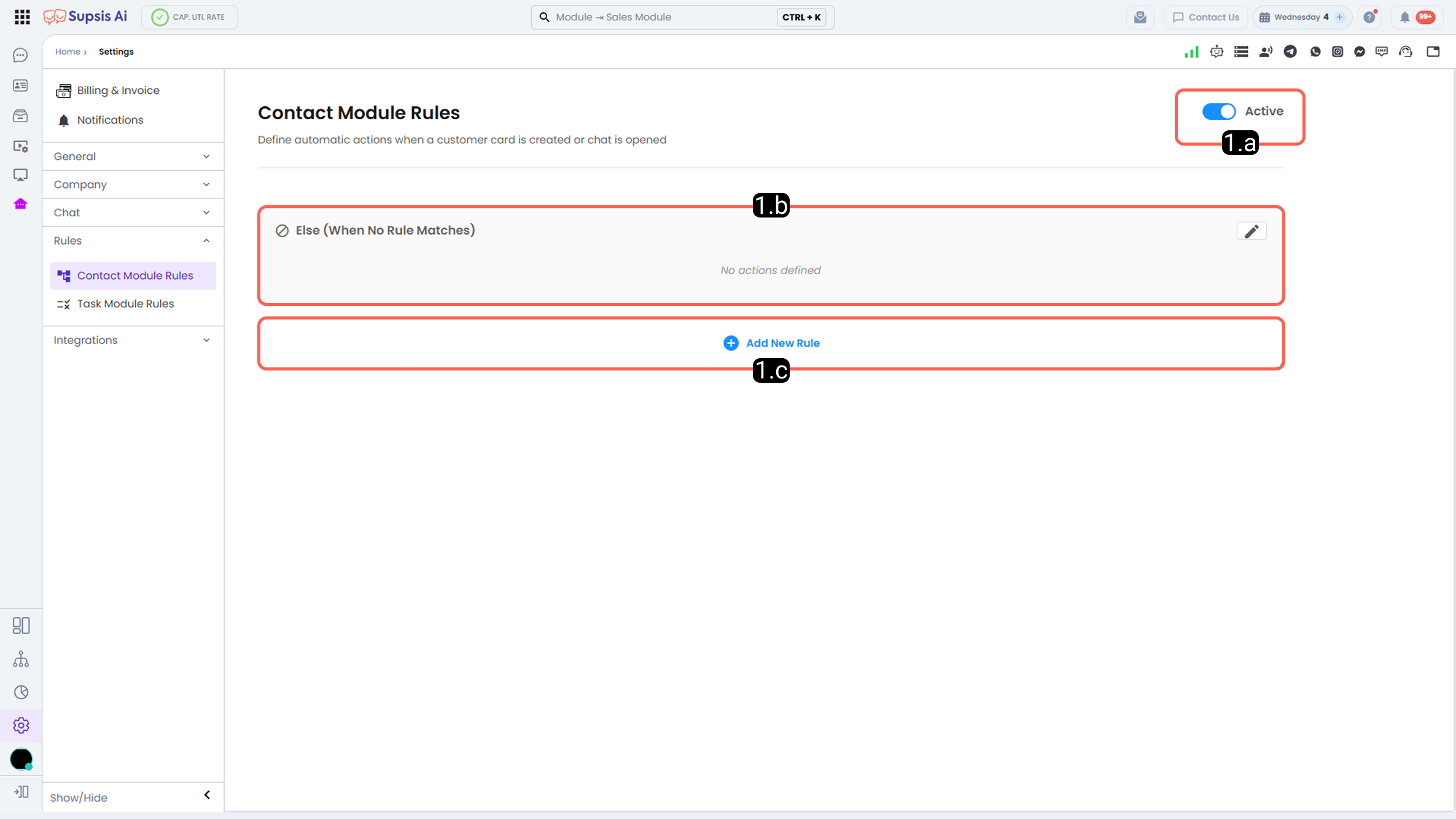
- 1.a – Rule Activation: By toggling this switch on or off, you can activate/deactivate the People module rules.
- 1.b – If No Rule Matches (Else): If the resulting action does not match any of your defined rules, the action you add to this automation will run. Only action definitions can be made in this automation.
- 1.c – Add New Rule: You can create a new rule setup through this button.
2-) When (Triggers)
You can define the condition under which the People Module Rule automation will run in this field.
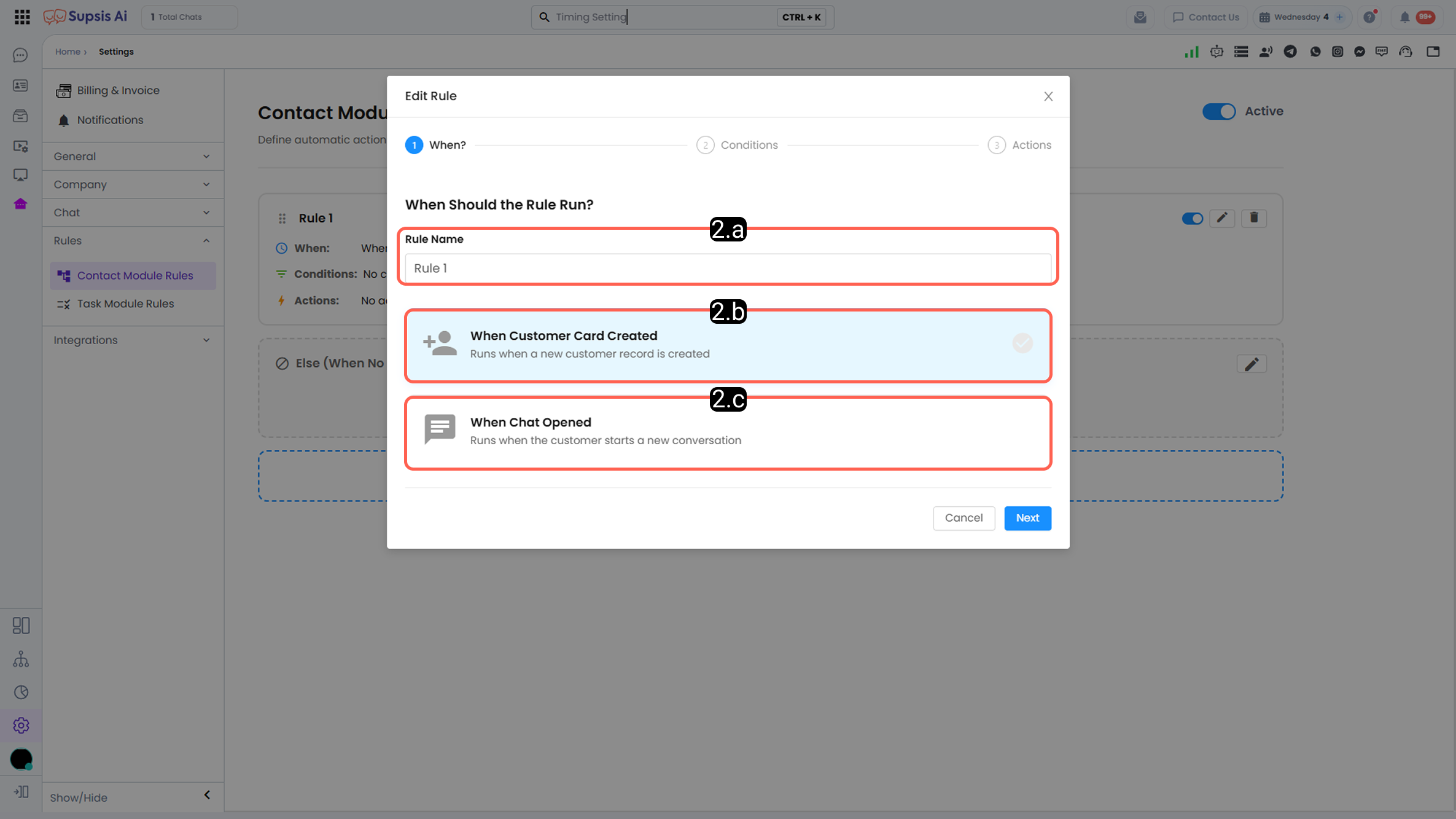
- 2.a – Rule Name: You can assign a name to the rule automation you create in this section.
- 2.b – When Customer Card Is Created: The People module rule runs when a new customer card is created.
- 2.c – When Chat Is Opened: The automation runs when a new chat session is started.
3-) Conditions
You can define the conditions to be checked when the situation specified in the "When" section occurs. (New conditions such as the first message of the last conversation, channel, and initiating user status can also be used).
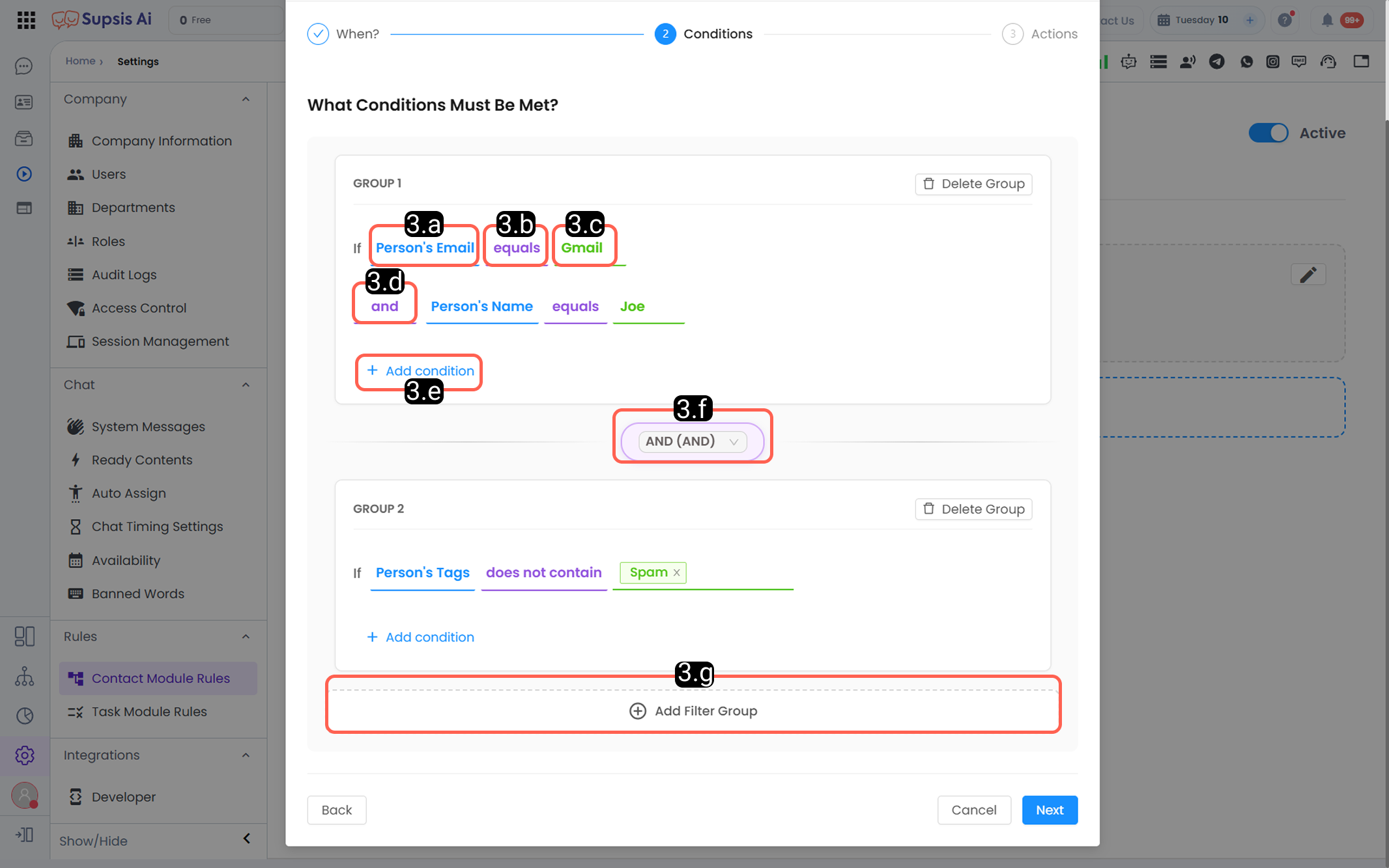
- 3.a - Person Data: The data value in the person card that will be checked when the specified condition in the When section occurs.
- 3.b - Control Operator: The operator that will query the entered data value from the person data.
- Contains: If the selected data contains the entered data value, the record is listed. (Example: If the Name field contains Ahmet)
- Does Not Contain: If the selected data does not contain the entered data value.
- Equals: The value in the selected field must exactly match the entered value.
- Not Equal: The value in the selected field must be different from the entered value.
- Exists: Checks the existence of the relevant value.
- Does Not Exist: Checks whether the relevant value exists or not.
- 3.c - Entered Data Value: The value that the person data will be queried against by the operator.
- 3.d - Condition Operator: The operator that will check the entered data value with the condition data.
- And: Ensures the process runs only if all multiple conditions are true at the same time. If even one condition is false, the result is considered false.
- Or: Ensures the process runs if at least one of multiple selected conditions is true. Only if all conditions are false will the result be false.
- 3.e - Add Condition to Group Content: Adds a new condition to the existing rule group. Multiple conditions can be added into a single group to create more complex queries.
- 3.f - Group Operator: The operator that defines the relationship between groups in rules where multiple groups exist (And / Or).
- 3.g - Create Filter Group: Conditions allow running multiple filter groups together to create more complex queries. You can create groups through this field to build more advanced queries.
4-) Actions and Dynamic Variables
If the person event that triggers the condition meets the defined conditions, the action or actions you specify in this field will run sequentially.
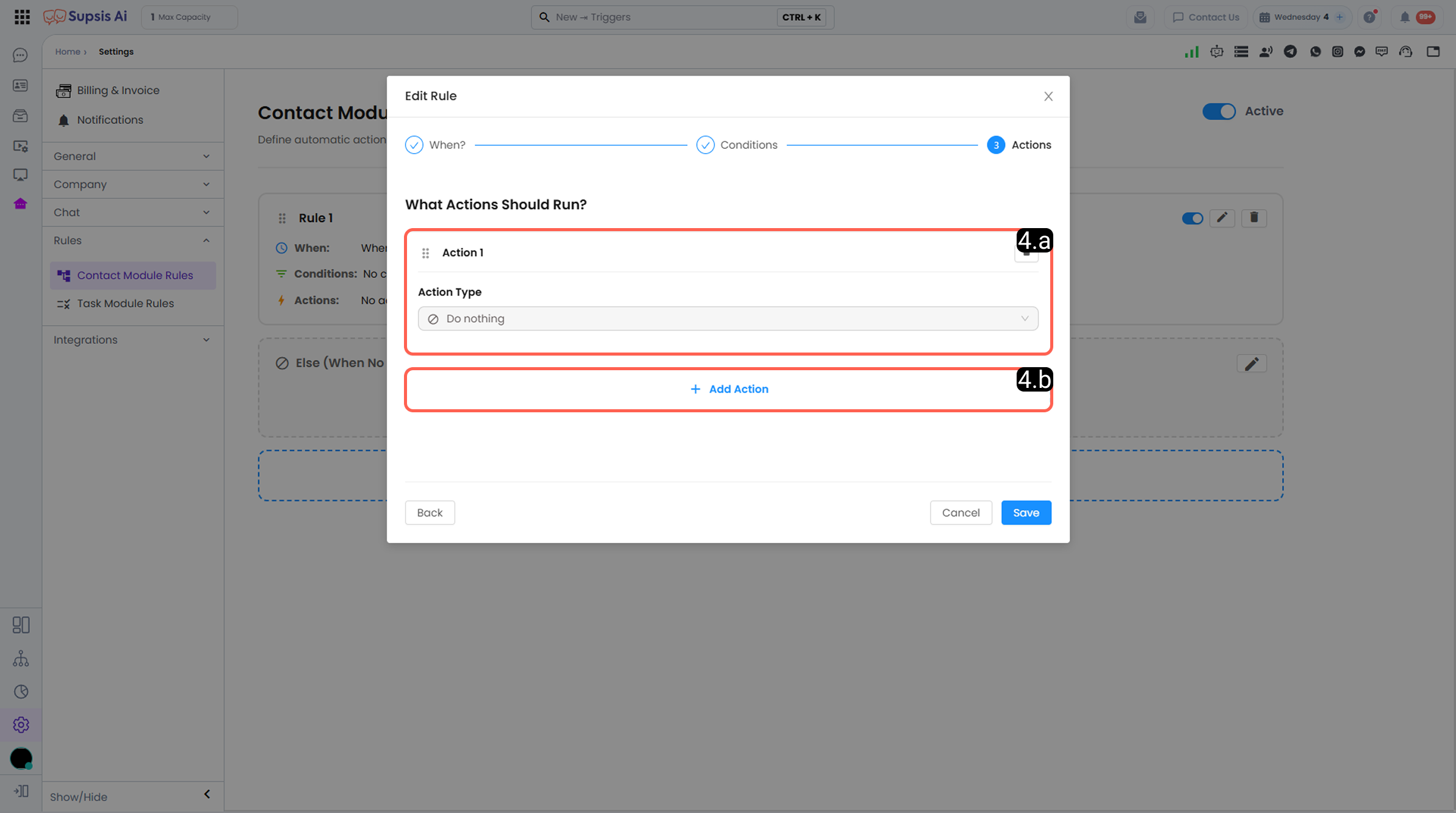
- 4.a – Action Type: You can select the action type that determines the function the action will perform in this field.
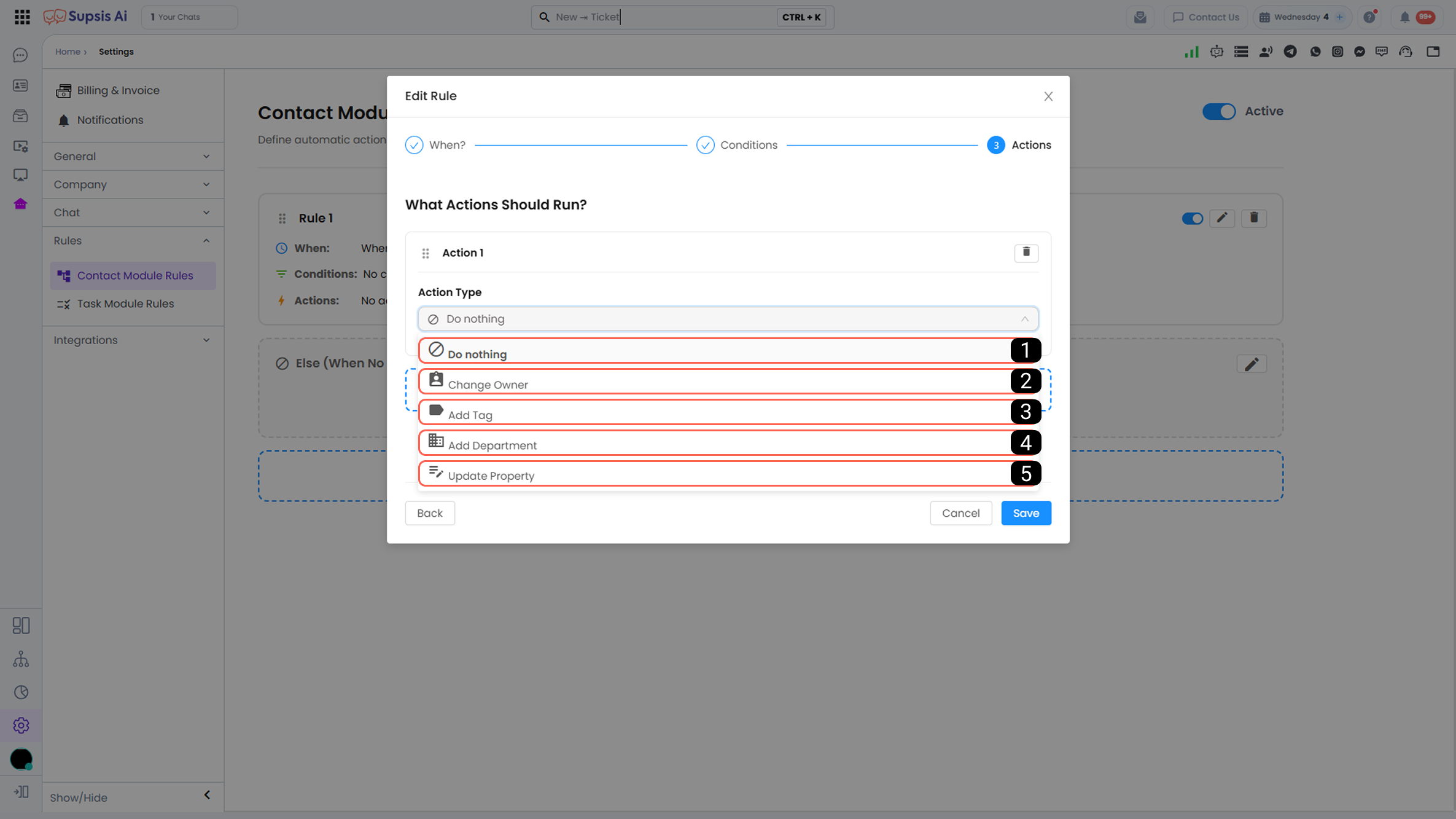
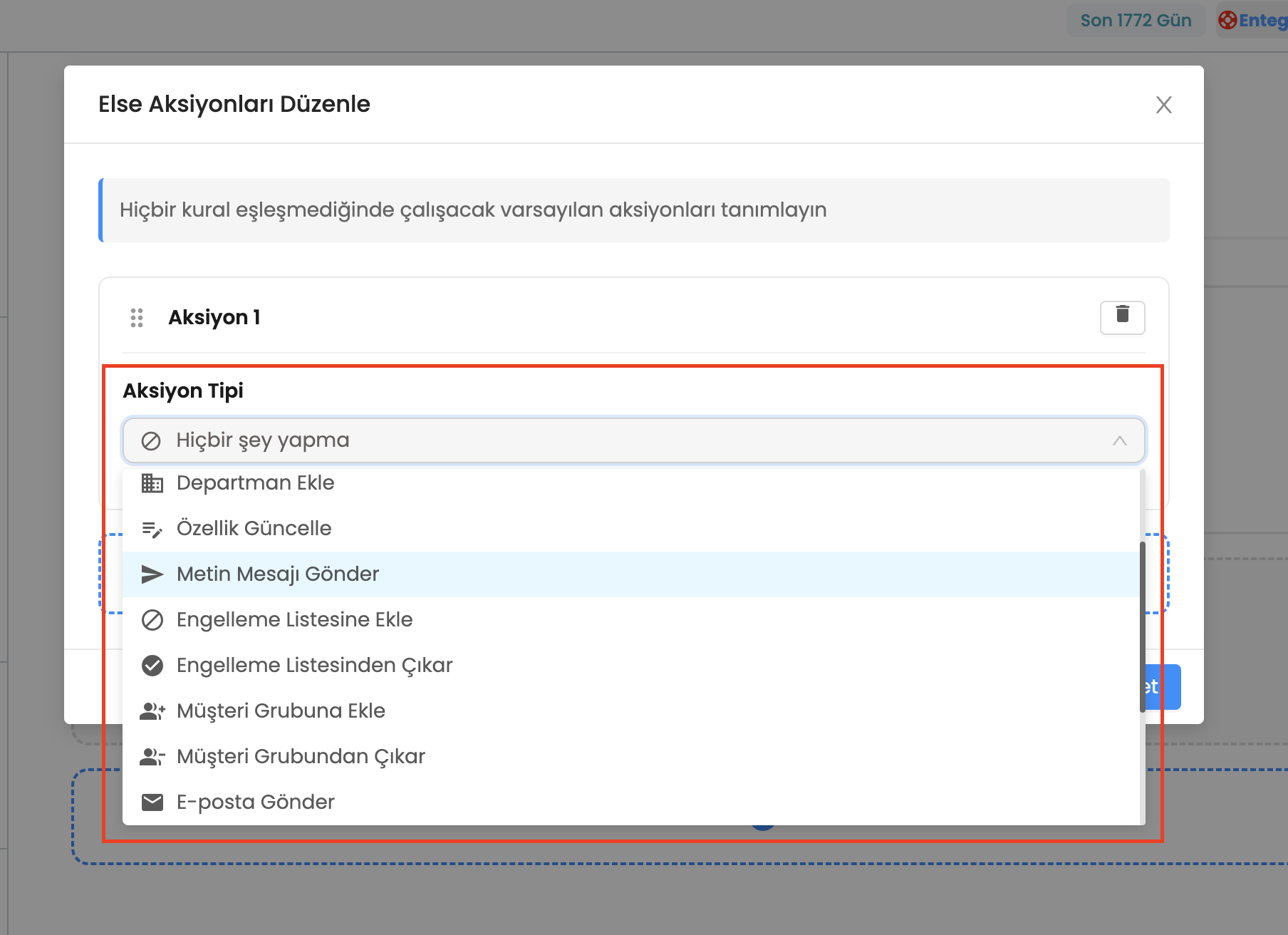
(You can select basic and newly added advanced action types from these menus).
Basic Actions:
- 1 – Do Nothing: If there is no action matching the rules, nothing will be done when this action is selected.
- 2 – Change Ownership: When any action that does not match any of the People module rules occurs, it changes the ownership of the visitor in the person card according to the algorithm you define.
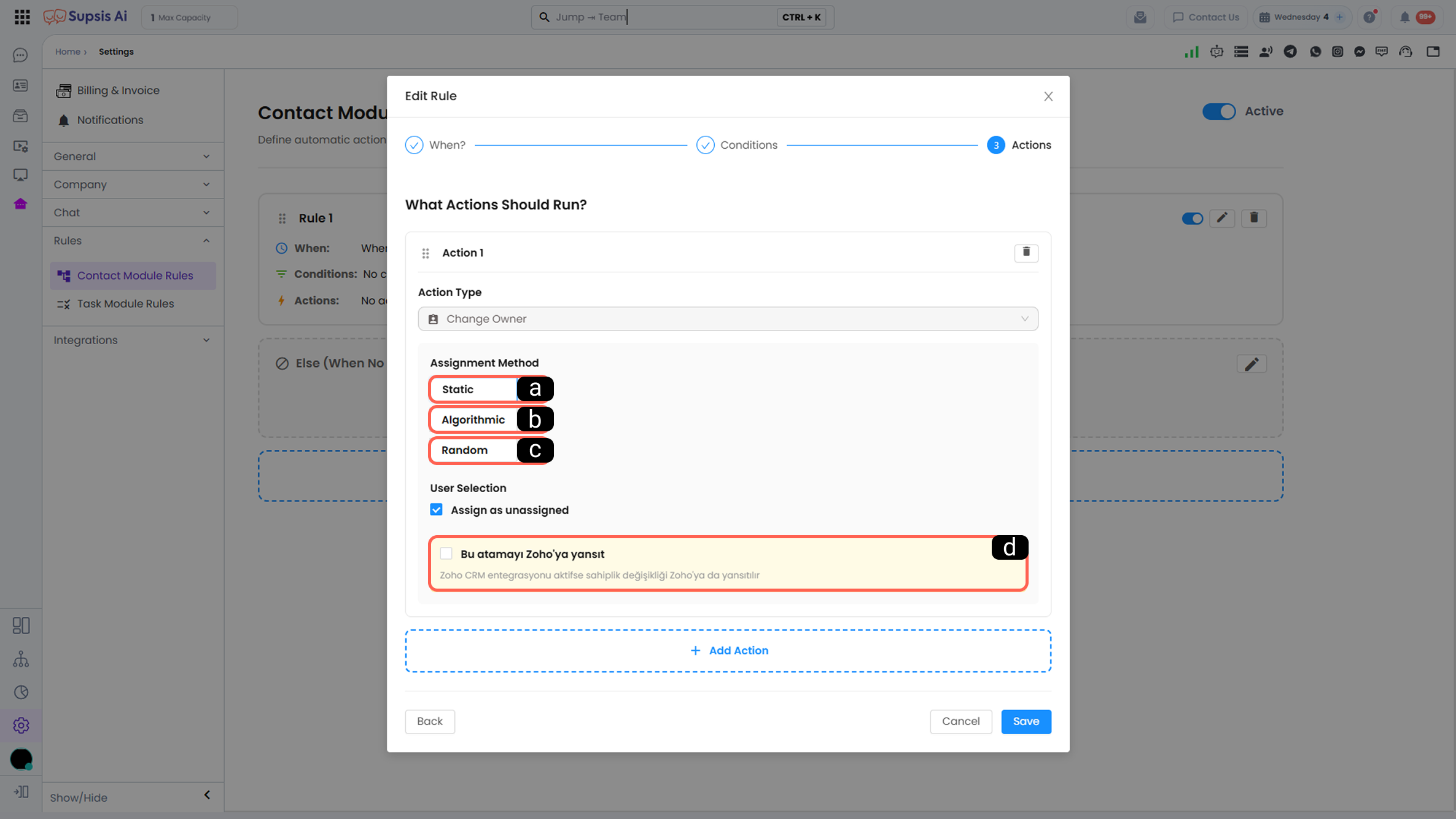
- a - Fixed: This is a fixed assignment method; it only performs the fixed action you define.
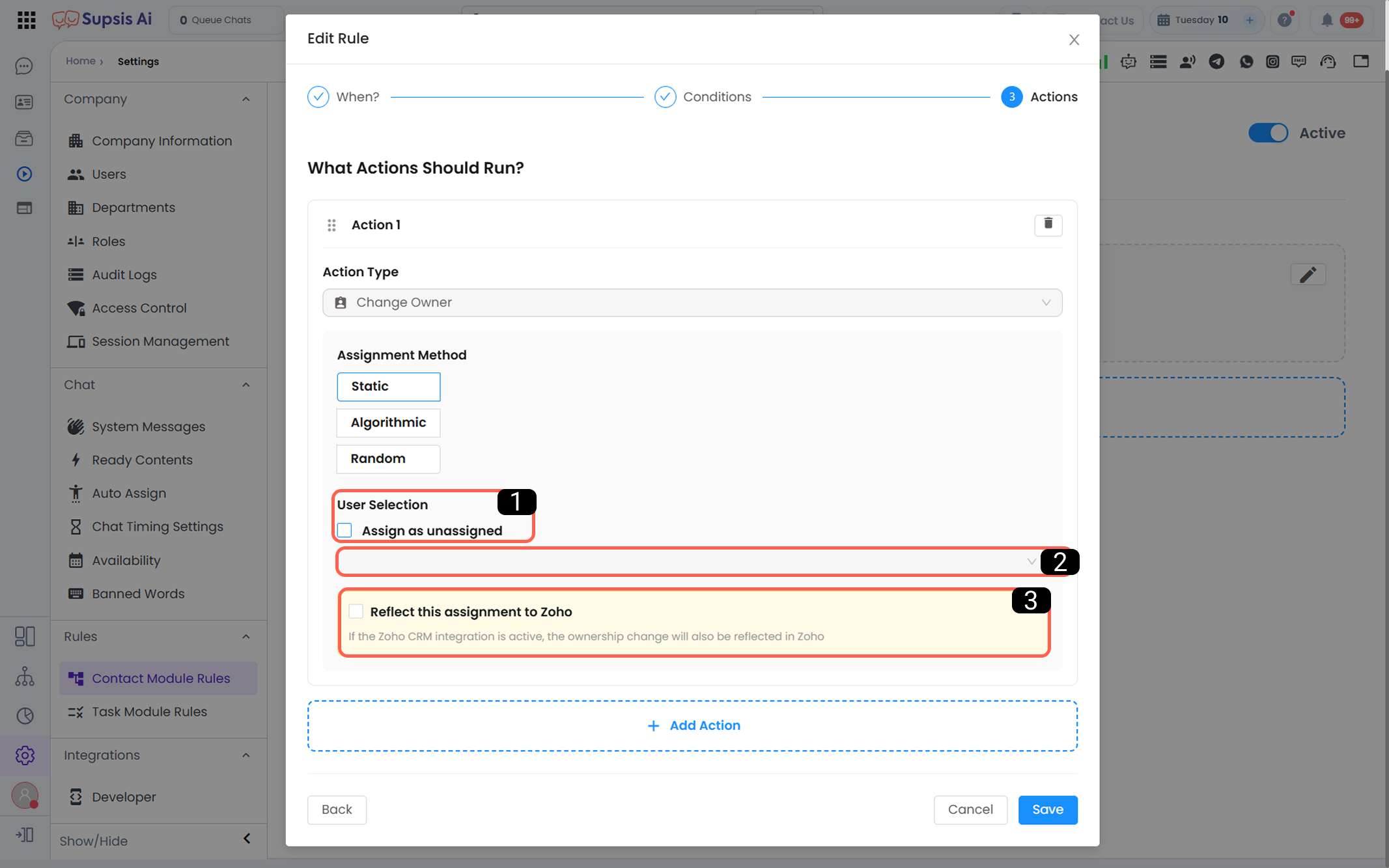 (Assign as Unassigned, Set Owner, Reflect This Assignment to Zoho).
 - b - Algorithmic: Performs the ownership change according to the ownership assignment algorithm you define.
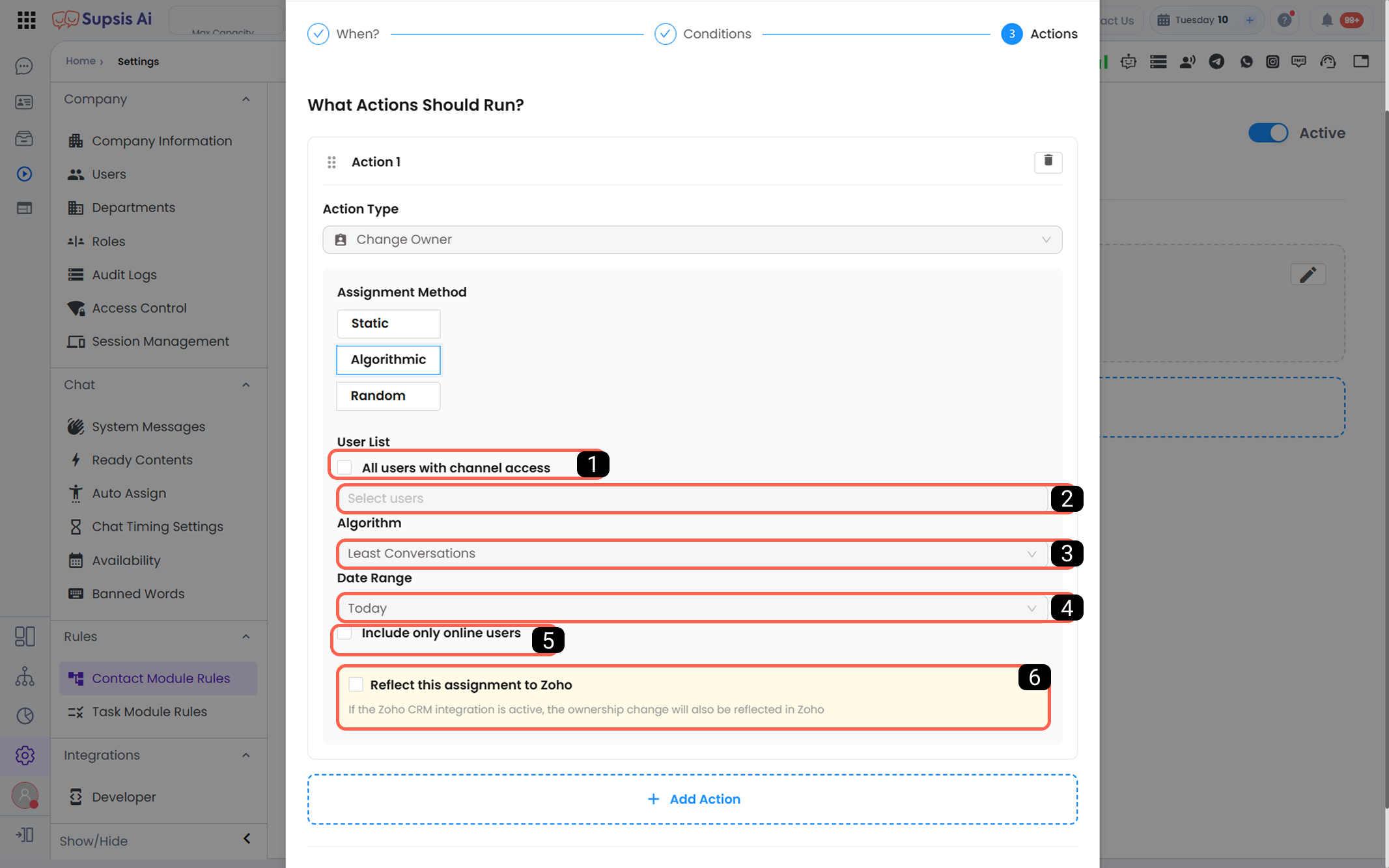 (All Users with Channel Access, User Selection, Algorithm Preference - Assign to the User with the Least Conversations/Sequential Distribution, Date Range, Include Only Online Users).
 -
c - Random:
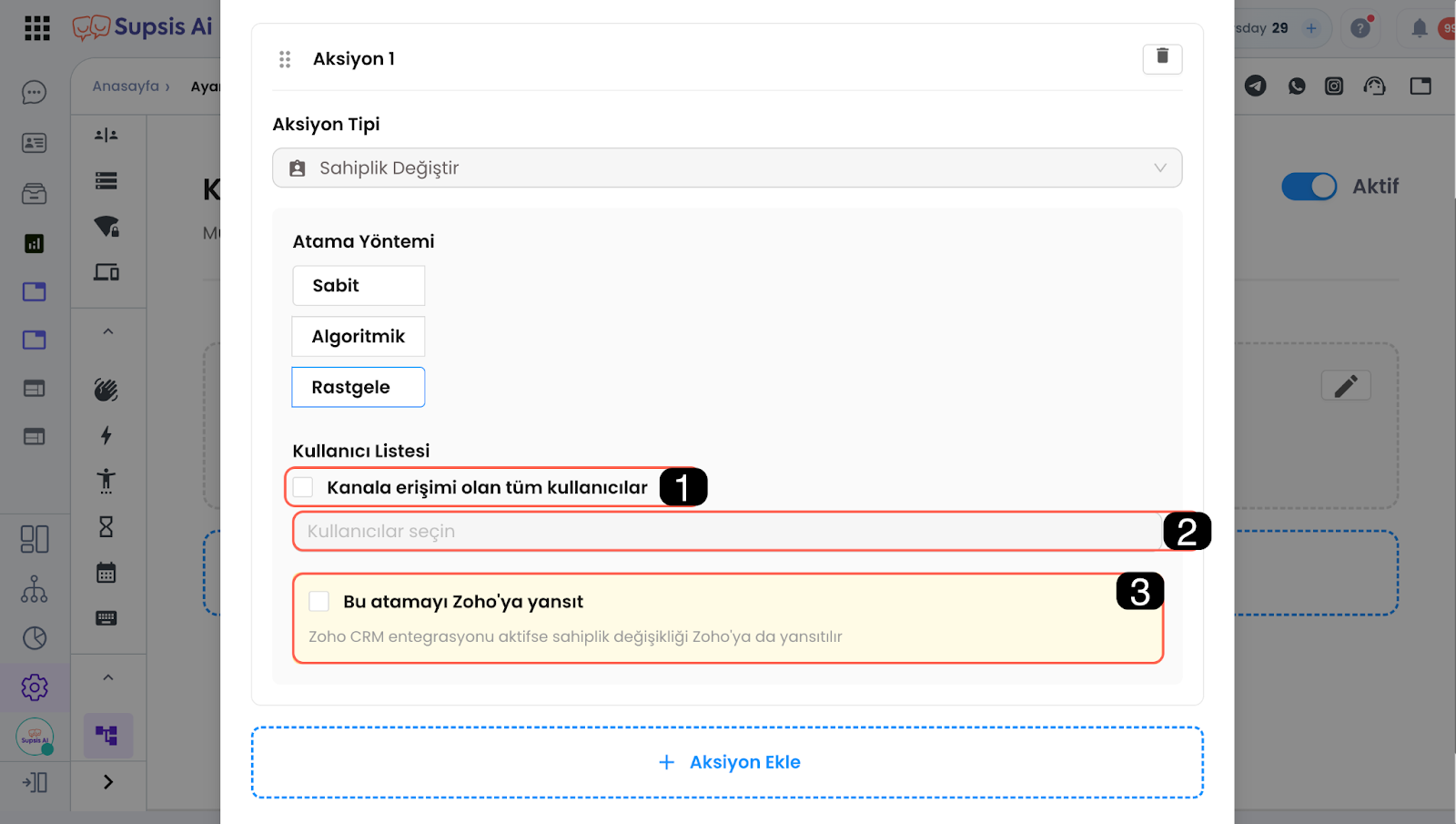 (If this toggle is activated, the assignment is randomly made among all users with channel access).
 -
3 – Add Tag: Adds the specified tags to the person card that does not match any of the existing rules.
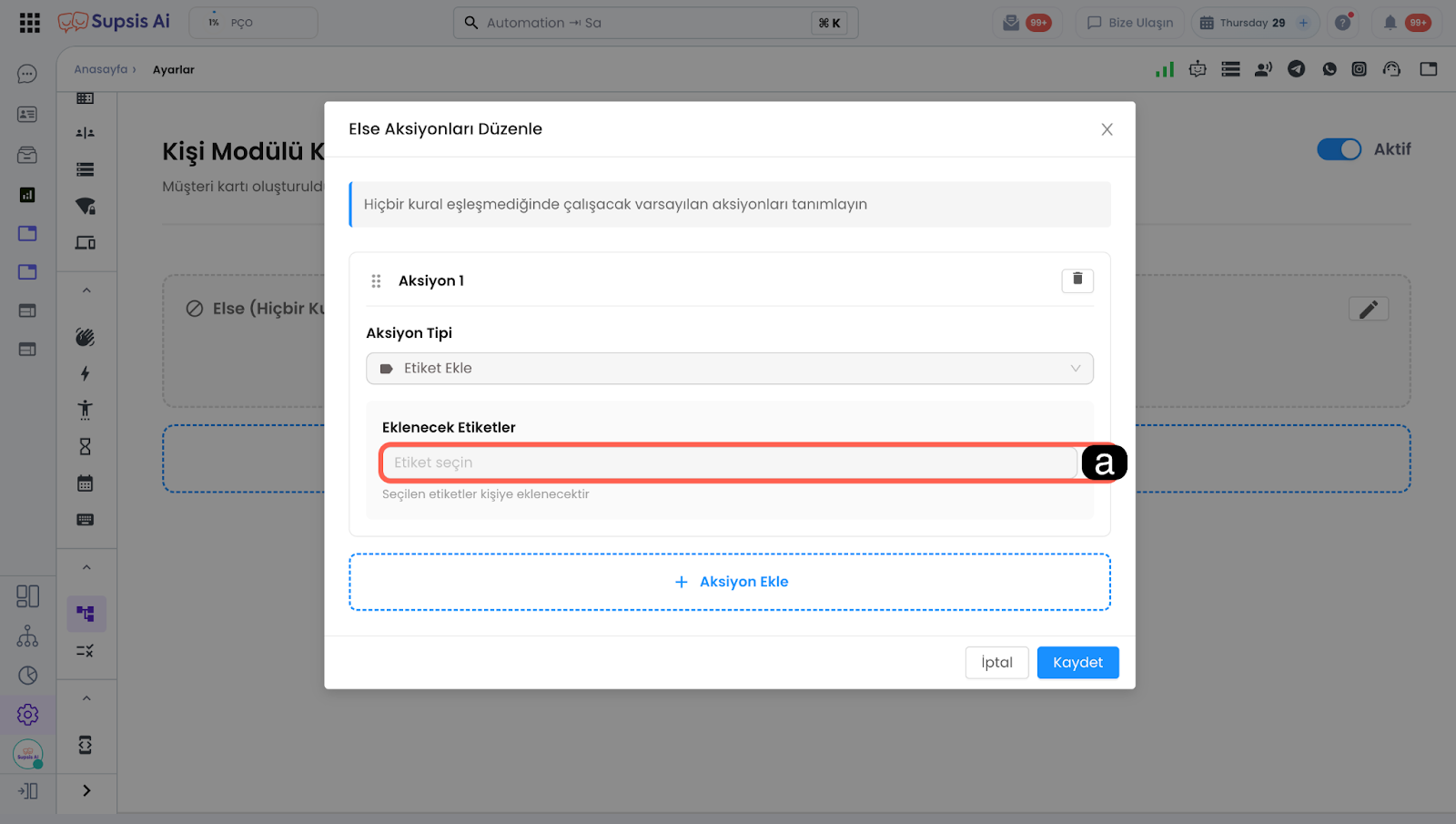
-
4 – Add Department: Assigns the person in the person card that does not match any of the existing rules to the specified department.
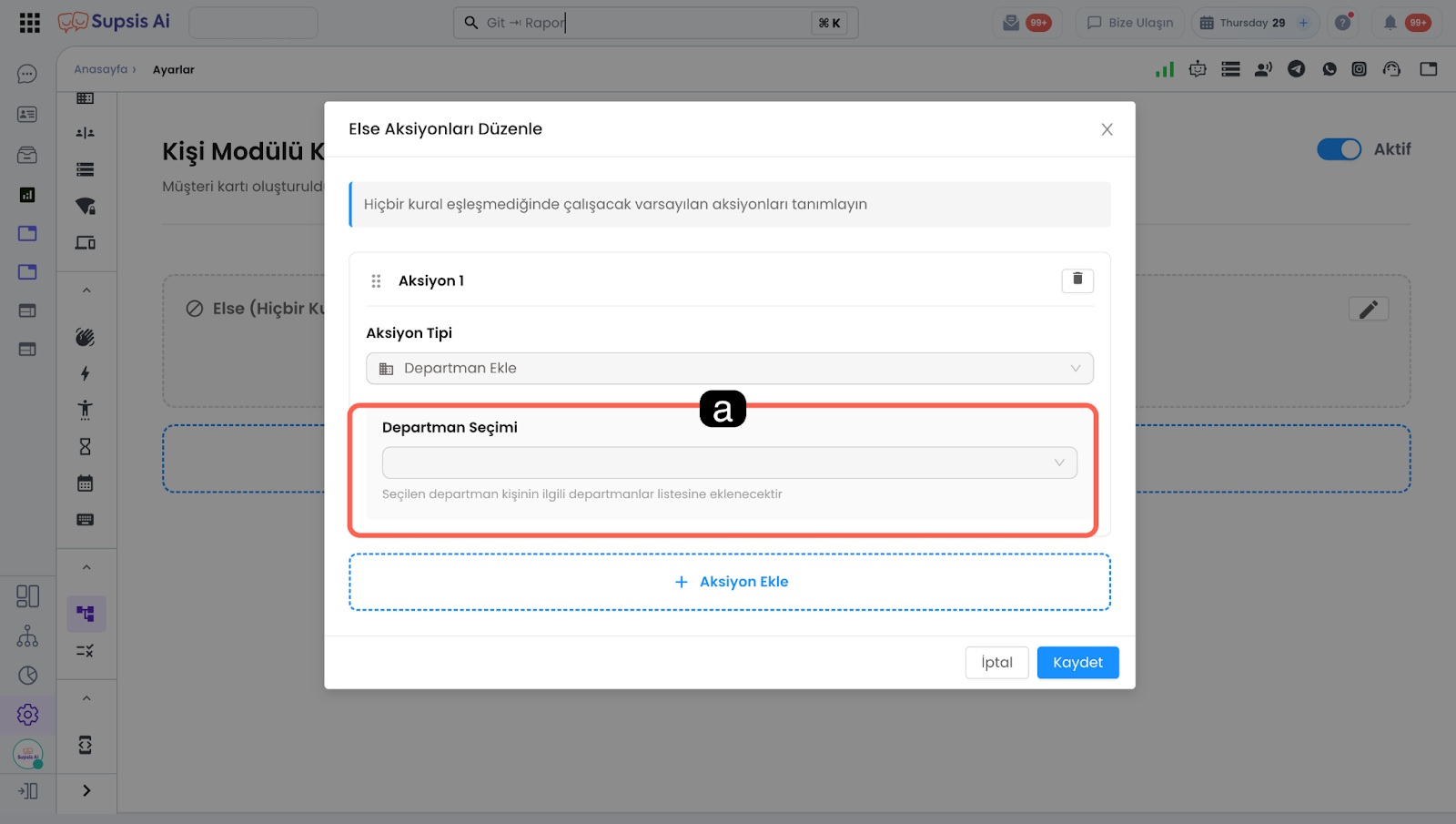
-
5 – Update Property: Fills the specified profile field (property) in the person card of the user who does not match the Else rule with the specified value.
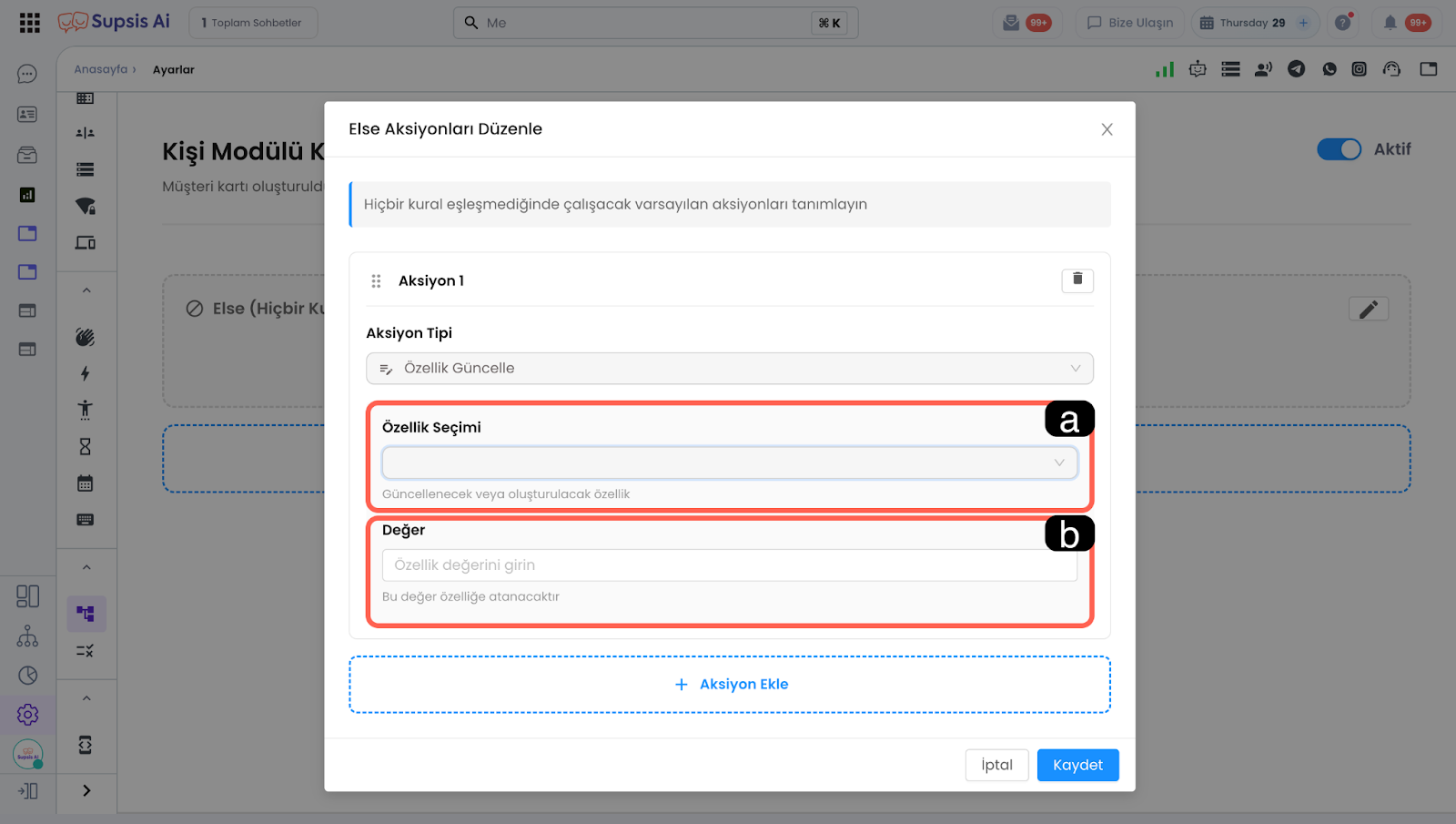
-
5.b – Add Action: When a single rule is triggered, multiple actions can be executed simultaneously. You can add new actions through this field.
New and Advanced Actions:
New actions such as sending a text message, sending an e-mail, adding to/removing from a suppression list/customer group, calling a webhook, marking as answered, and routing to a chatbot are selected from here.
Dynamic Contact Variables Editor (Chip View):
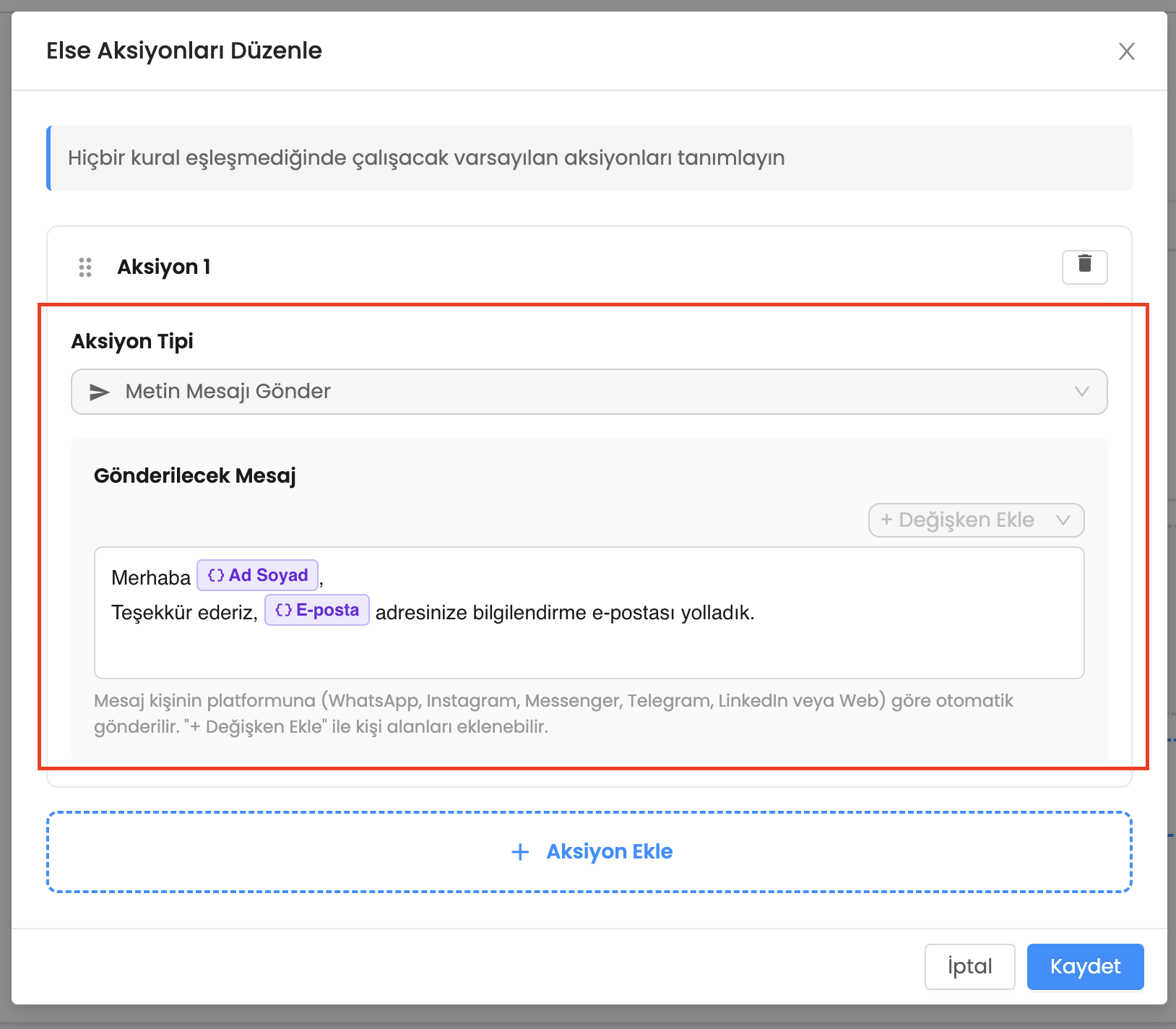 Allows you to dynamically use customer data in text messages, emails, or webhook payload areas. Variables such as
 {{contact.fullname}}, {{contact.email}}, {{contact._id}} are displayed in a chip format like in the CoPilot prompt editor or can be copied and pasted into the value area to be used.
5-) Table Operations and Data Management
You can automatically manage records on Dynamic Tables when a chat is opened or a customer card is created.
Add Table Record:
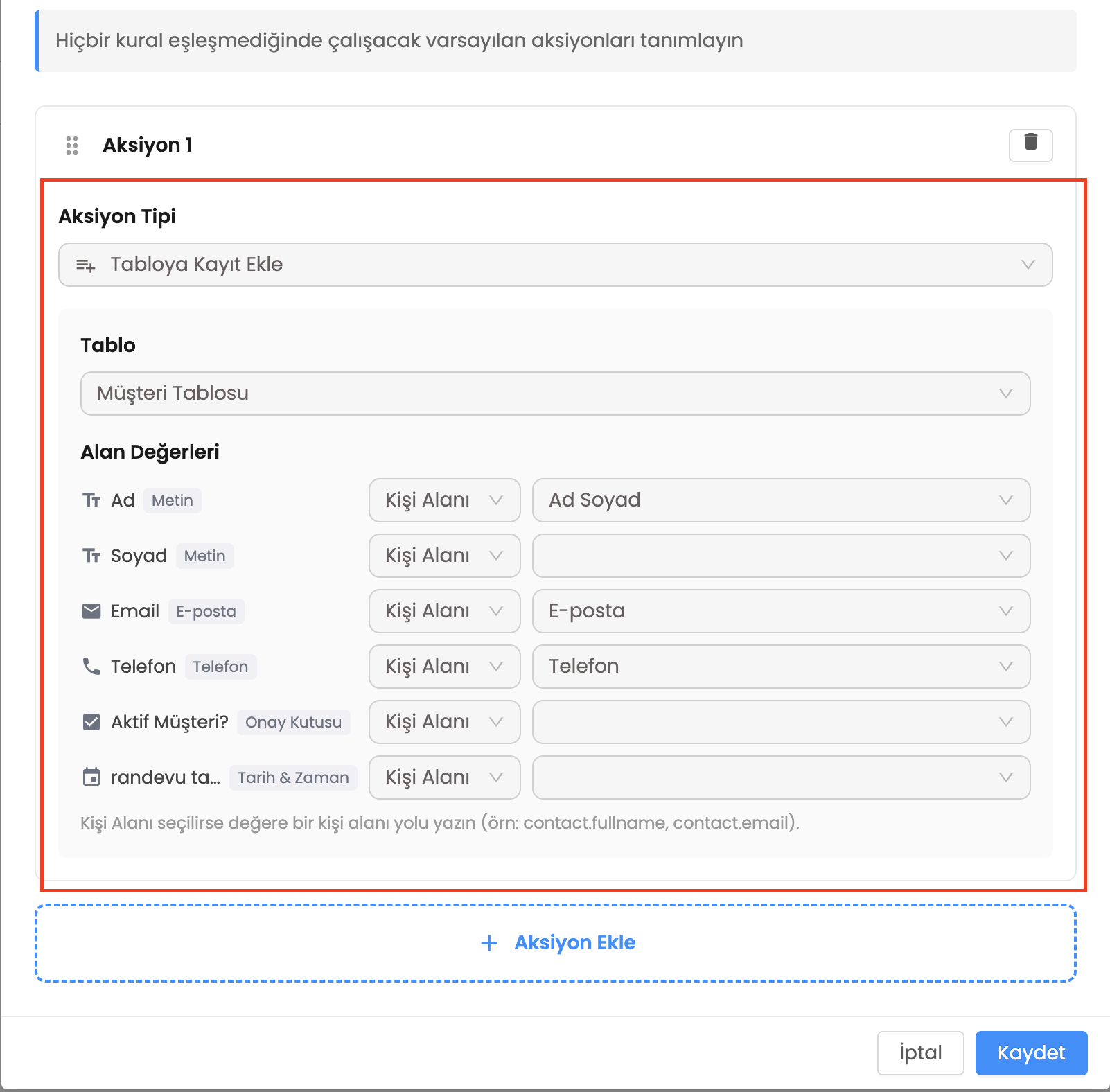 This is the section where relevant fields are listed after selecting the table to be processed. In the add record action, a static value can be entered for each column, or data coming from dynamic contact variables (e.g., customer name, email) can be mapped.
Update/Delete Table Record:
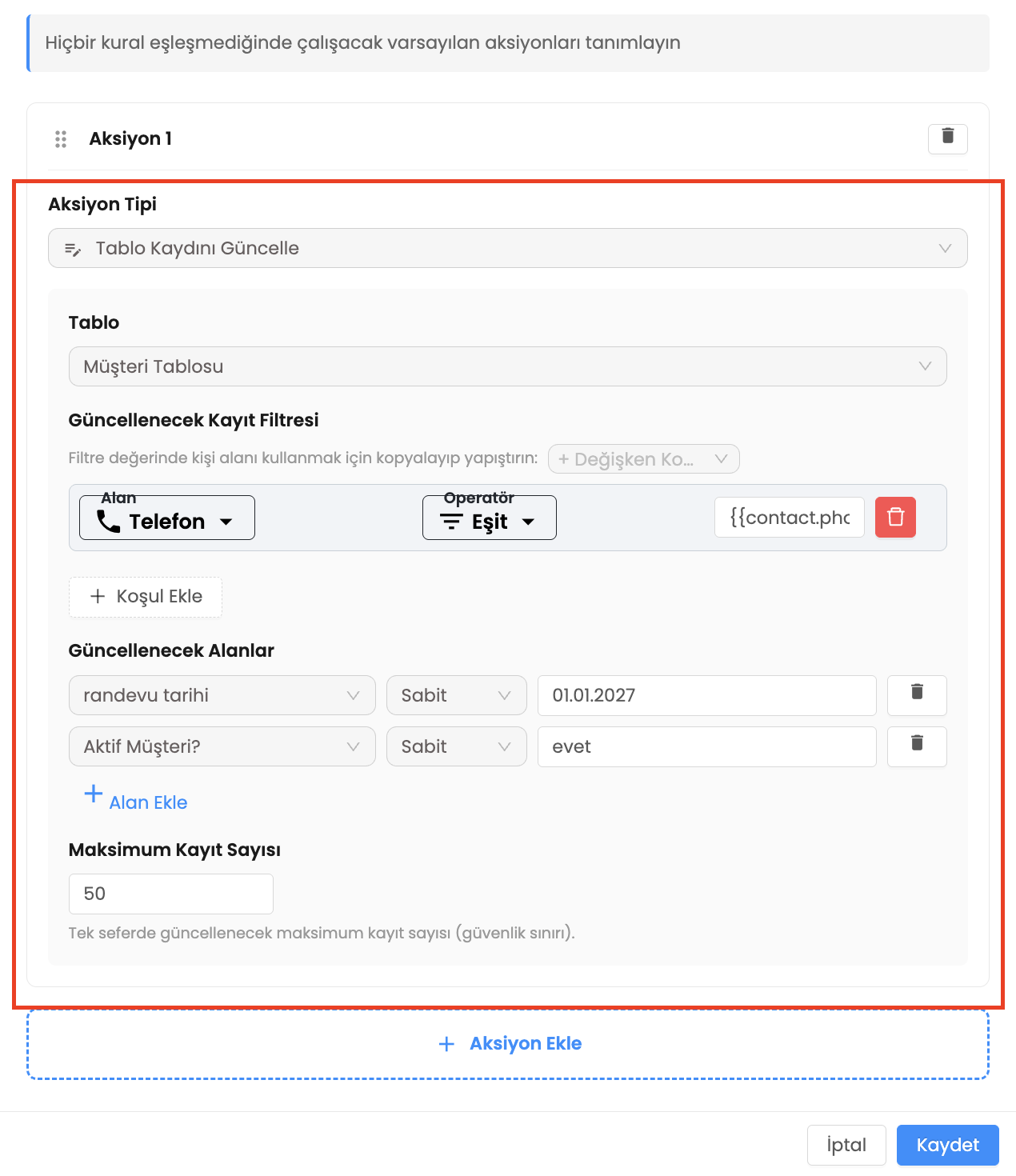 To update or delete an existing record, a record filter is first determined (for example, using
 {{contact._id}}). Records matching the filter are automatically updated or deleted according to the maximum number of records, which is the system's security limit.
6-) In-Chat Tracking and Rule Notifications (Timeline)
You can track whether the rules have run successfully, the errors received, and the actions performed by the rule instantly on the customer chat screen (Timeline).
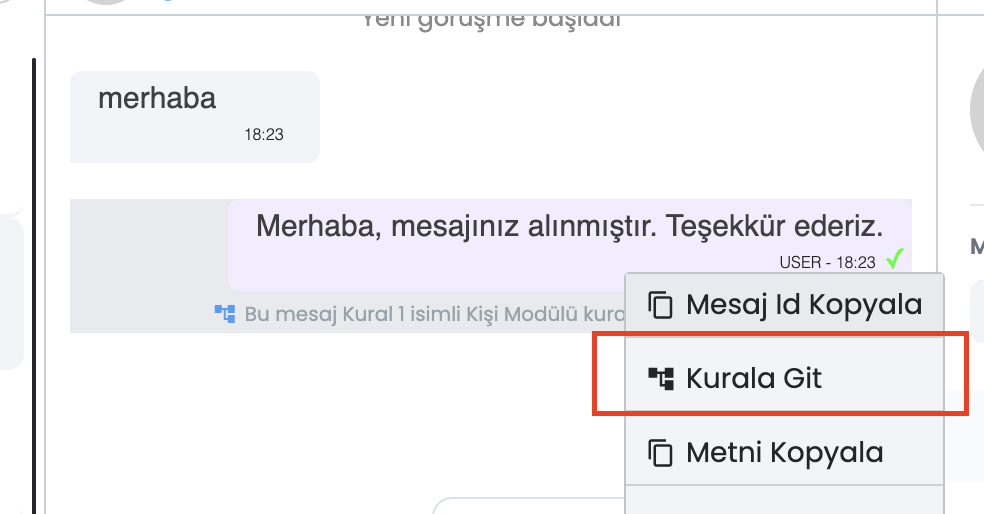
Automatic Rule Message and Go to Rule Option:
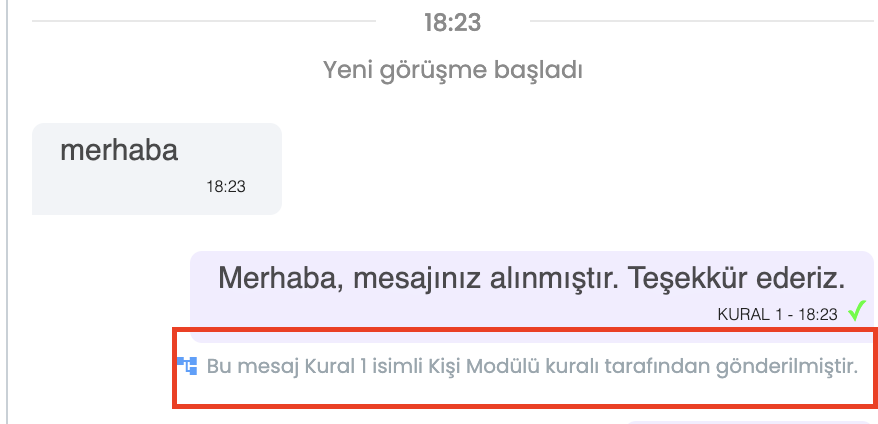 Under the text messages sent automatically by a rule, there is a notification saying "This message was sent by the Contact Module rule named [rule name]." When this message is right-clicked, selecting the "Go to Rule" action from the opened menu provides a quick redirect to the settings of the relevant rule.
Colored Timeline Information Messages:
 These are status notifications that fall into the chat every time a rule runs. If the operation is successful, it is shown with a green dot; if it is an information message, a blue dot; if an error occurred (e.g., a webhook call error or a table record failure), it is shown with a red dot along with the reason for the error. (Note: If the customer has no chat at all, the system automatically creates a "ghost chat" to show the timeline messages.)
7-) Sample Use Cases
Here are some sample automation scenarios that will speed up your business processes with Contact Module Rules:
- Greeting and Routing: When a new WhatsApp customer arrives, you can automatically send a greeting message and then route the chat to the chatbot.
- Group and List Management: You can automatically add customers who meet certain conditions to a customer group, or you can automatically add unwanted contacts to a suppression list.
- CRM and Table Automation: When a chat is opened, you can automatically add customer information to Dynamic Tables as a record; you can find, update, or delete existing records based on dynamic fields like contact ID.
- External System Integration: You can make automatic webhook calls to your external systems when certain customer actions occur.
- Status Update: When a new chat is opened, you can automatically mark the relevant contact as "answered".
2-) Task Module Rules
This is the automation area where you can define the actions that will be automatically executed when an operation related to a Task occurs in your panel.
These automations run when the task condition that triggers the automation occurs, the conditions are checked, and if the conditions are met, the action runs.
Examples:
Condition Met: The specified trigger condition occurs ⇒ Conditions are checked ⇒ If Conditions Are Met ⇒ The actions defined in the Actions field are executed.
Condition Not Met: The specified trigger condition occurs ⇒ Conditions are checked ⇒ If Conditions Are Not Met ⇒ No action is taken ⇒ Redirected to the “No Rule Matches (Else)” rule.
| No | Menu |
|---|---|
| 1 | Task Module Rules Menu |
| 2 | When? |
| 3 | Conditions |
| 4 | Actions |
This is the menu where you can create new conditions and view and edit the content of your existing conditions.

1.a – Workflow Selection:
You can select the workflows where you will add new rules and view past rules from this field. The rule slots of each workflow are kept separately. You must select a workflow to view past rule contents and create new rules for each workflow.
1.b – Rule Activation:
By toggling this switch on or off, you can activate/deactivate the Task module rules.
1.c – If No Rule Matches:
If the resulting action does not match any of your defined rules, the action you add to this automation will run. Only action definitions can be made in this automation.
1.d – Add New Rule:
You can create a new rule setup through this button.
You can define the condition under which the Task Module Rule automation will run in this field.
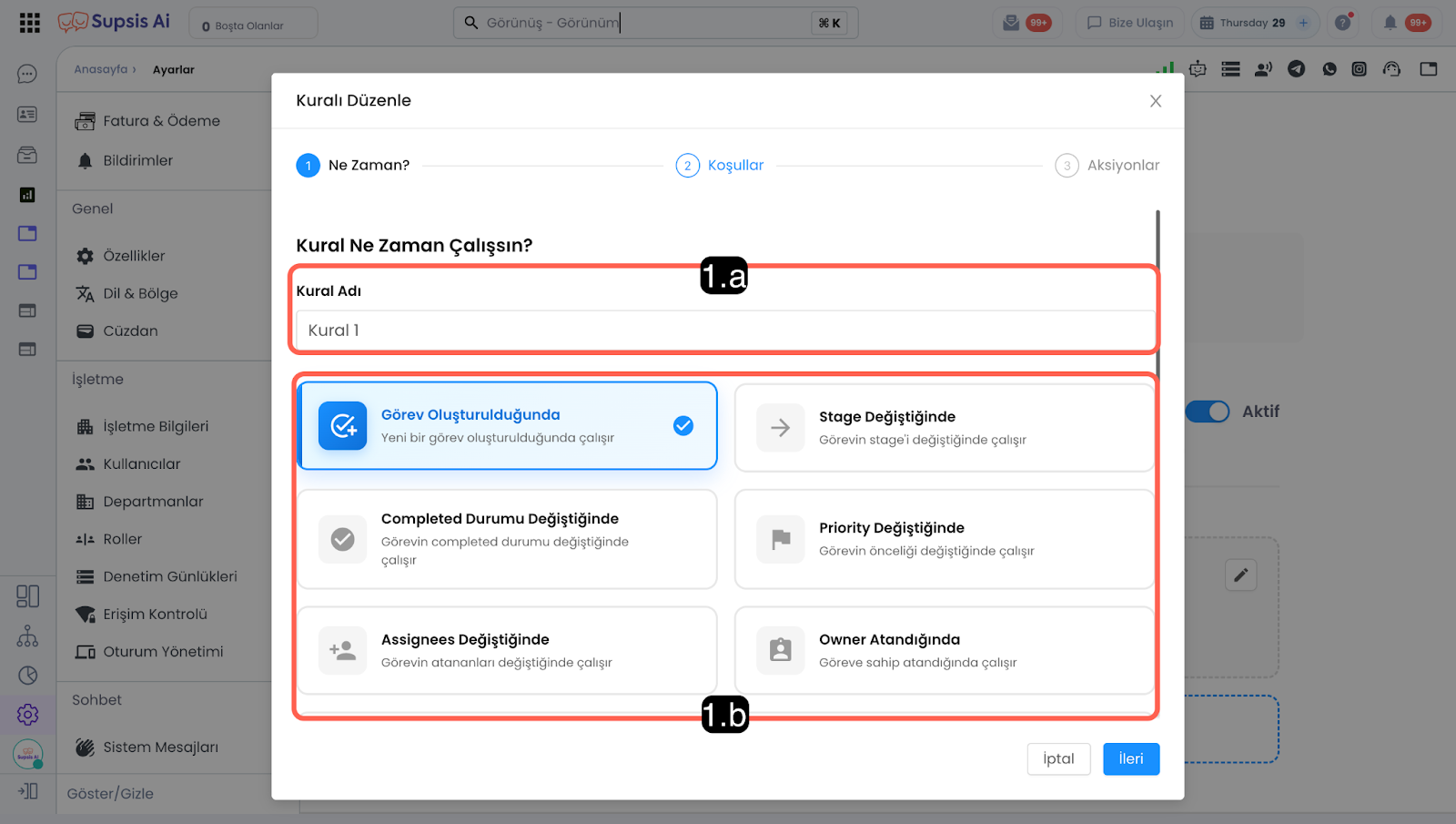
2.a – Rule Name:
You can assign a name to the rule automation you create in this section.
2.b – Trigger:
You can select the trigger action that occurs in the Task module from this section. The trigger and its description are presented in detail in the marked area.
You can define the conditions to be checked when the situation specified in the When section occurs.
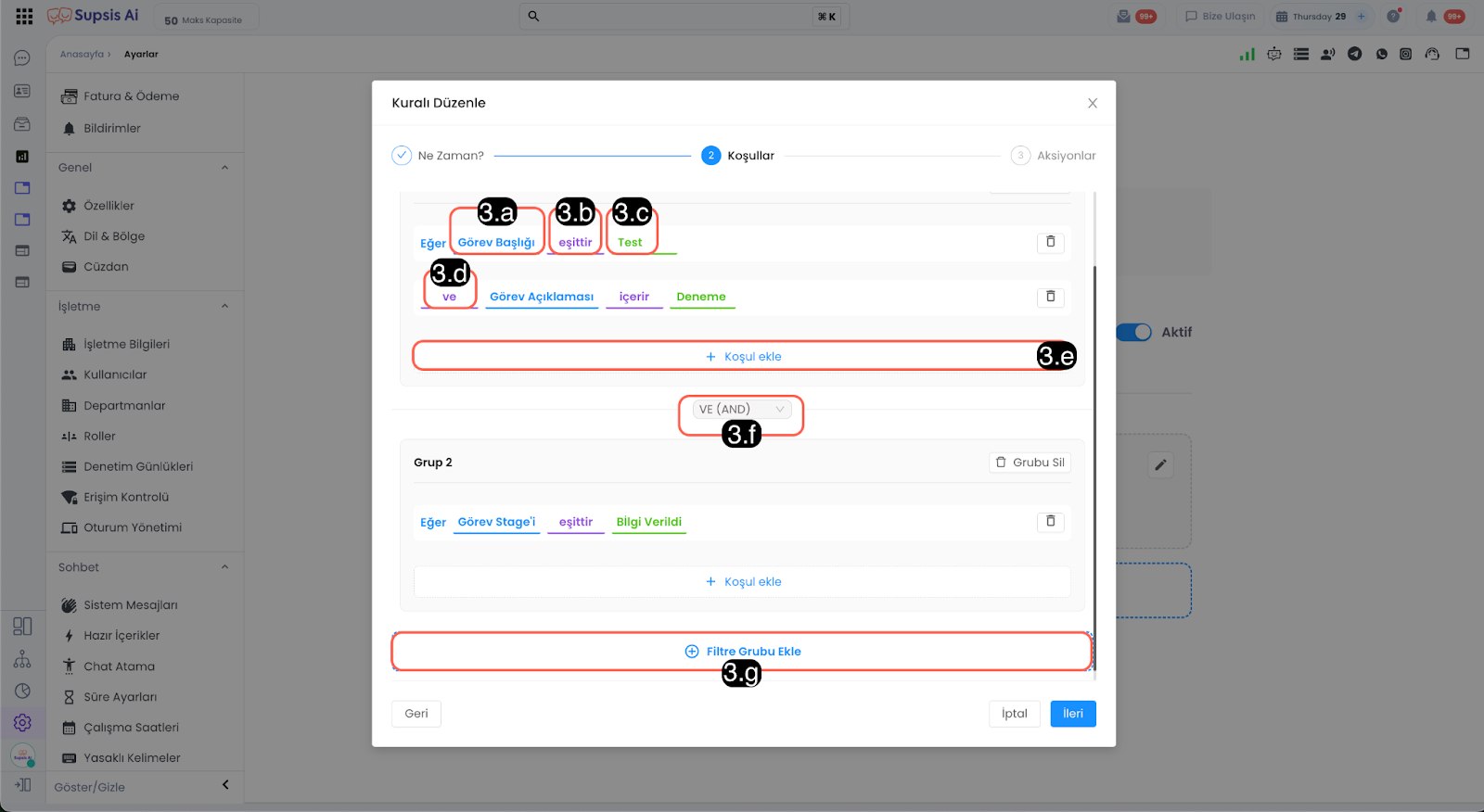
3.a - Person Data:
The data value in the person card that will be checked when the specified condition in the When section occurs.
3.b - Control Operator:
The operator that will query the entered data value from the person data.
Available operators are:
a - Contains: If the selected data contains the entered data value, the record is listed.
Example: If the Name field contains Ahmet.
b - Does Not Contain: If the selected data does not contain the entered data value.
Example: If the Name field does not contain Ahmet.
c - Equals: The value in the selected field must exactly match the entered value.
Example: If the Last Name value equals Çelik.
d - Not Equal: The value in the selected field must be different from the entered value.
Example: If the e-mail address is not equal to example@mail.com.
e - Exists: Checks the existence of the relevant value.
Example: If there is data in the person’s e-mail address field.
f - Does Not Exist: Checks whether the relevant value exists or not.
Example: If the person does not have a phone number.
3.c - Entered Data Value:
The value that the person data will be queried against by the operator.
3.d - Condition Operator:
The operator that will check the entered data value with the condition data.
And: Ensures the process runs only if all multiple conditions are true at the same time. If even one condition is false, the result is considered false.
Or: Ensures the process runs if at least one of multiple selected conditions is true. Only if all conditions are false will the result be false.
3.e - Add Condition to Group Content:
Adds a new condition to the existing rule group. Multiple conditions can be added into a single group to create more complex queries.
3.f - Group Operator:
The operator that defines the relationship between groups in rules where multiple groups exist.
a - And: All groups must be true.
b - Or: At least one group must be true.
3.g - Create Filter Group:
Conditions allow running multiple filter groups together to create more complex queries. You can create groups through this field to build more advanced queries.
If the task event that triggers the condition meets the defined conditions, the action or actions you specify in this field will run.
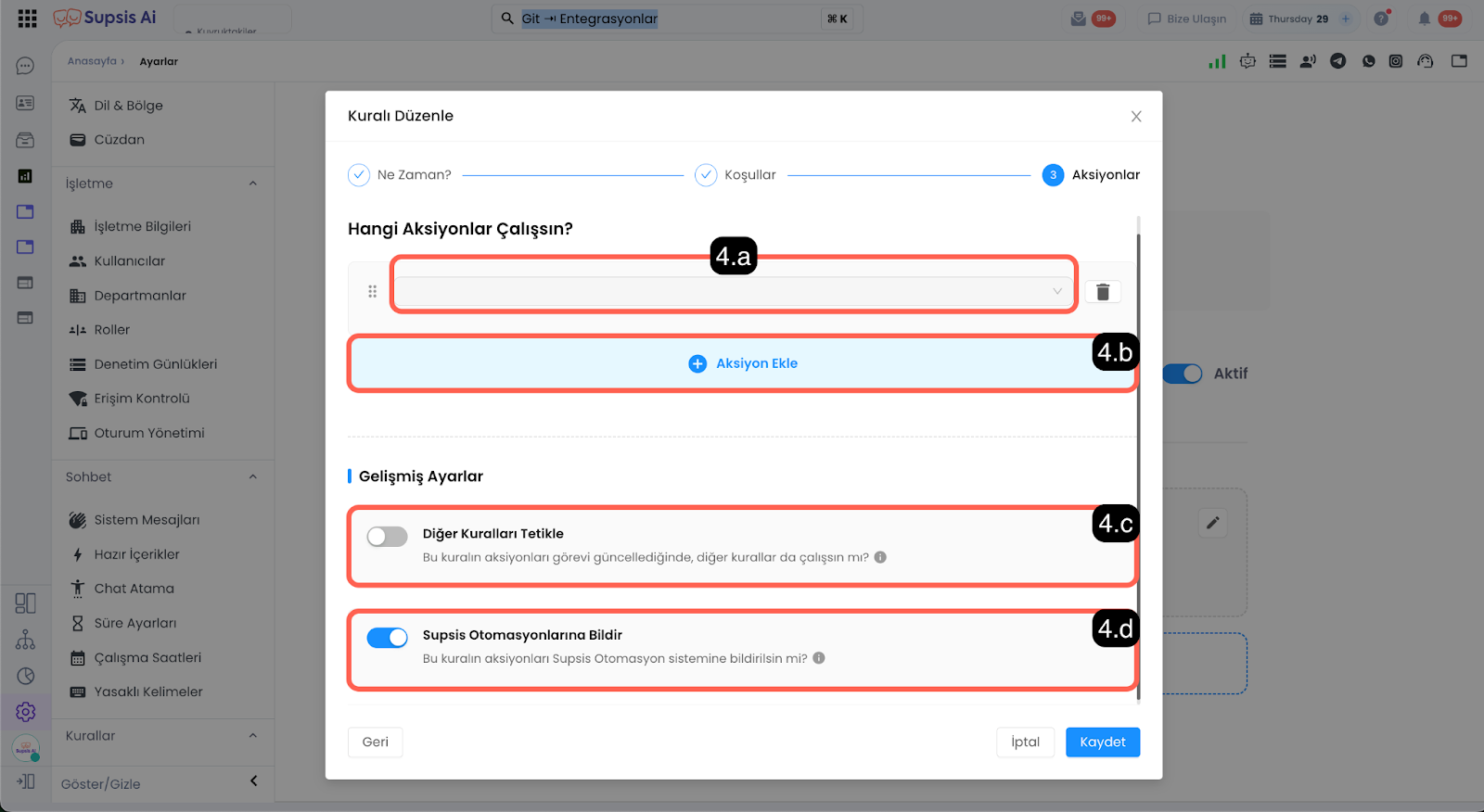
4.a – Action Type:
You can select the action type that determines the function the action will perform in this field.
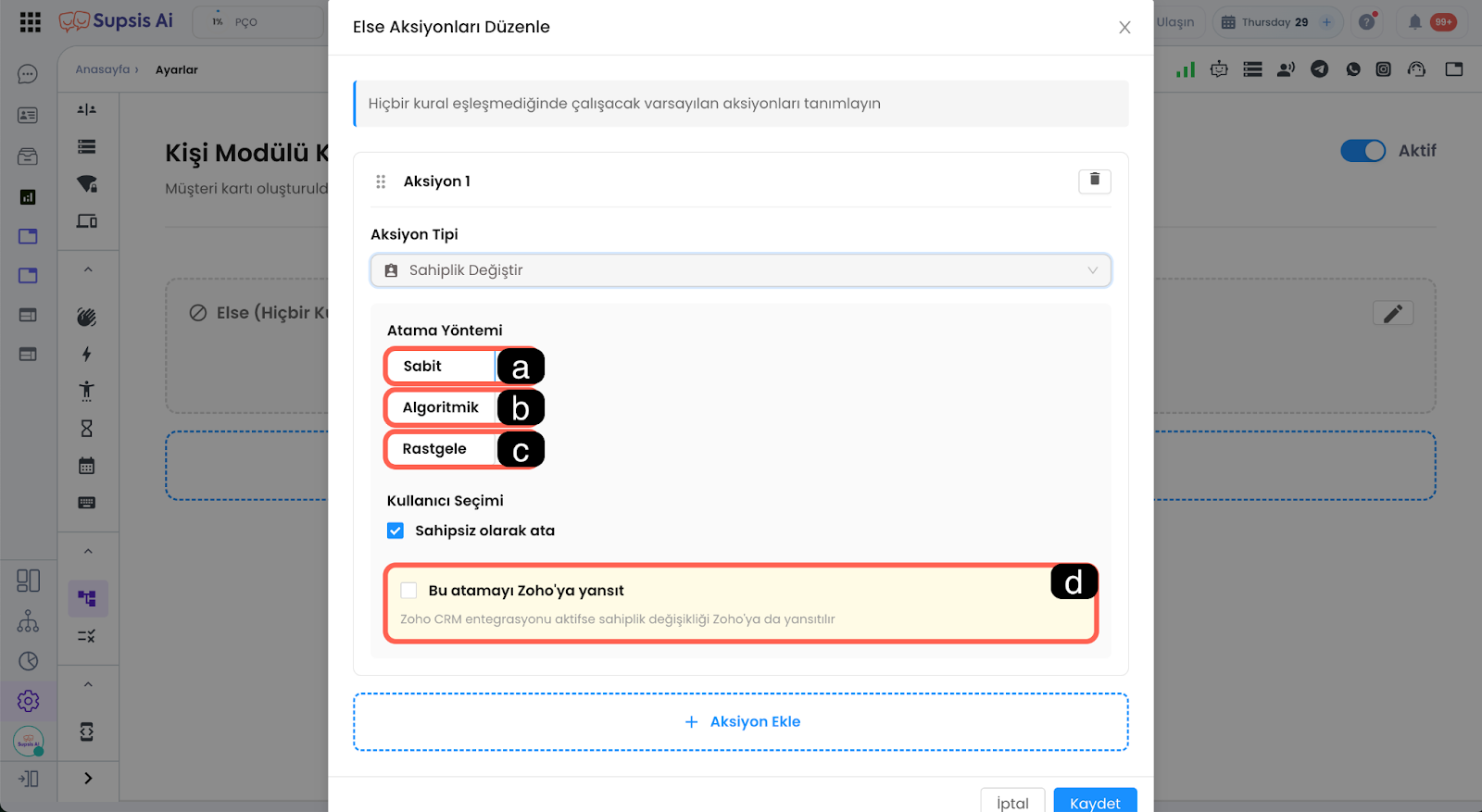
- a - Fixed:
This is a fixed assignment method; it only performs the fixed action you define.
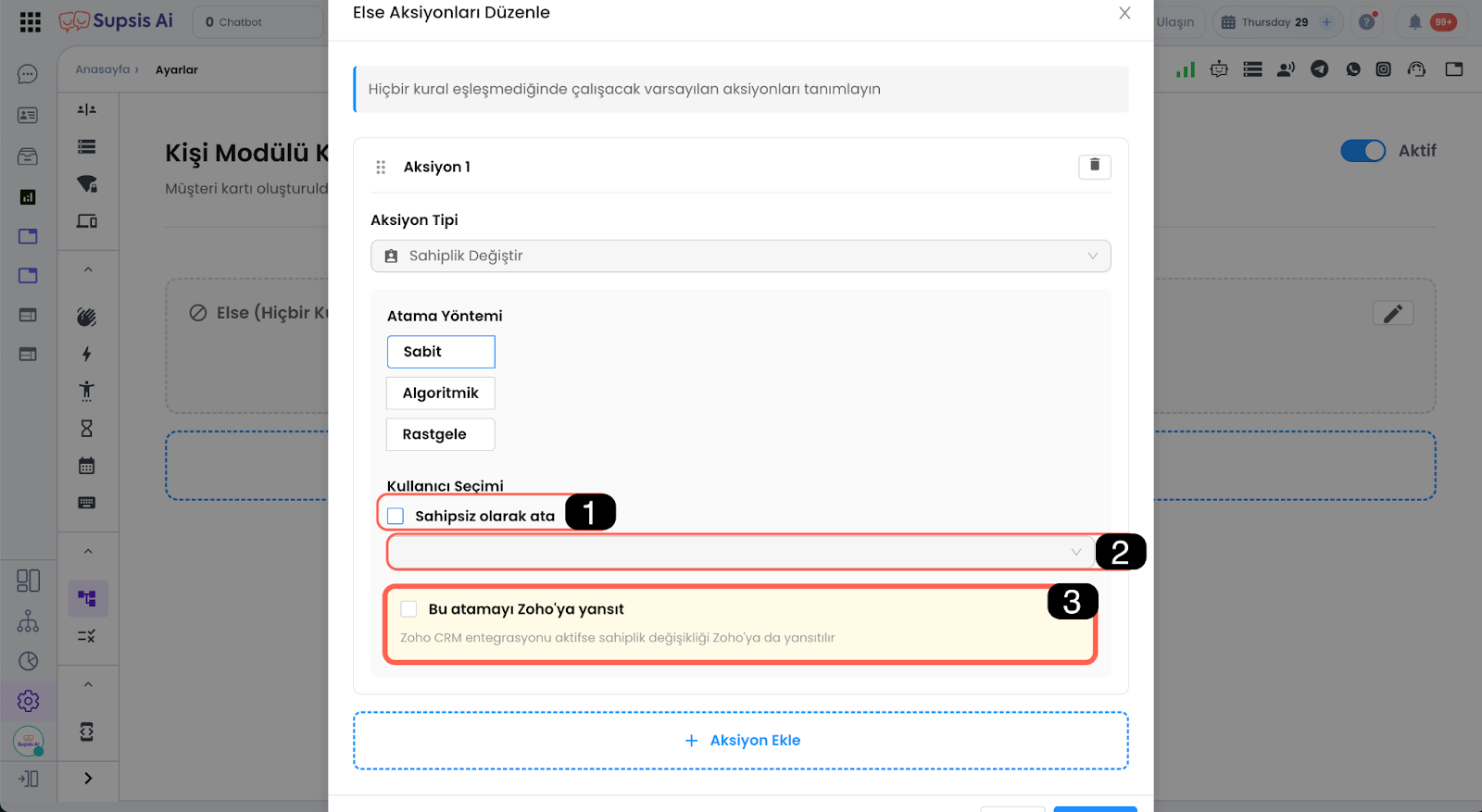
-
Assign as Unassigned:
When this toggle is active, the ownership of the relevant person is set as unassigned. If the toggle is disabled, a user must be selected from this field, and ownership will be assigned to the selected user as a fixed assignment. -
Set Owner:
If no rule-matching action has been provided, the visitor is assigned to the user defined as the owner in this field. -
Reflect This Assignment to Zoho:
If Zoho CRM integration is enabled, the ownership change made will also be reflected in Zoho. -
b - Algorithmic
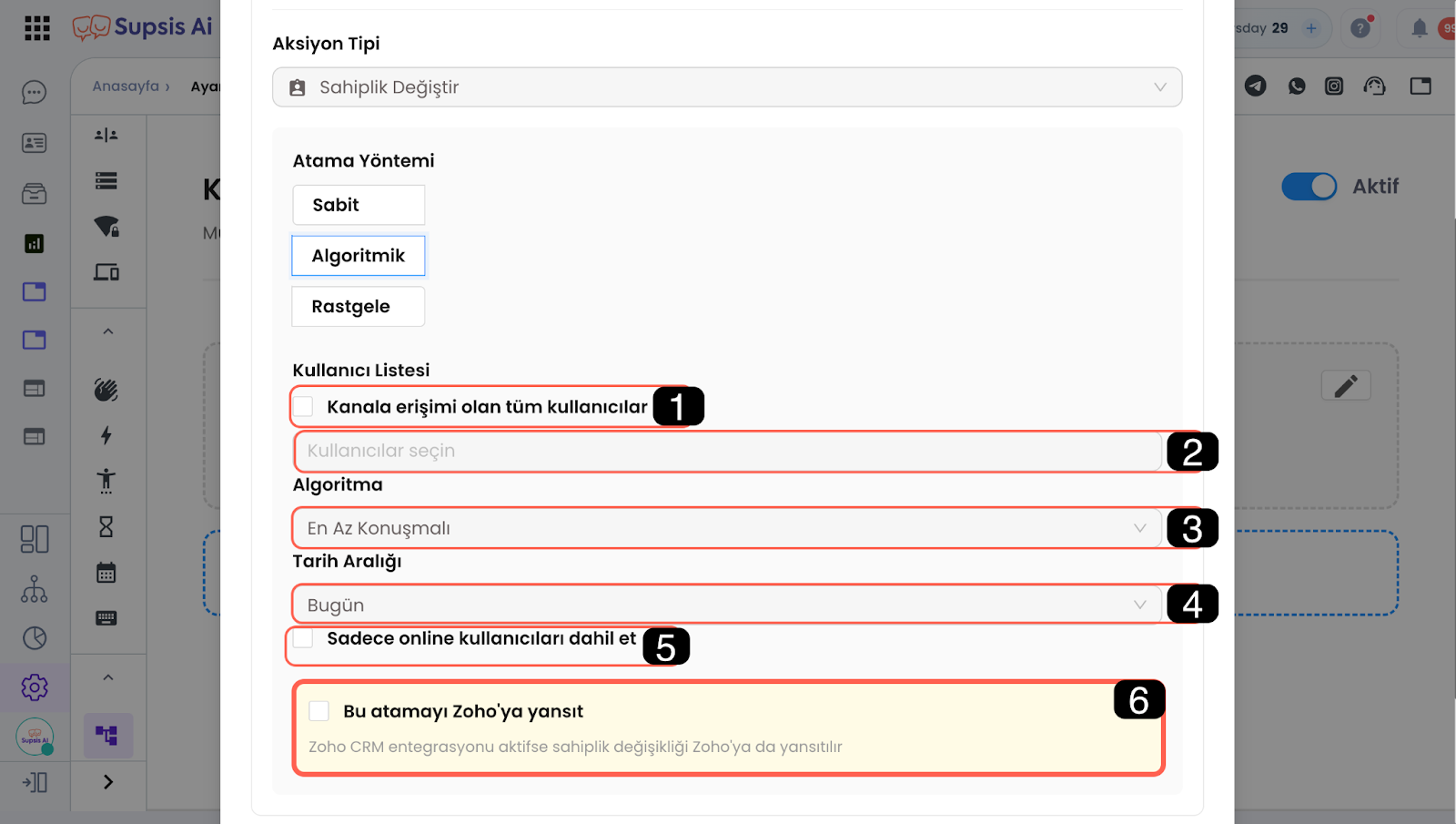
-
All Users with Channel Access:
If this toggle is activated, the assignment is made to all users with channel access according to the selected assignment algorithm. If this toggle is not activated, only the selected users are evaluated within the algorithm. -
User Selection:
User selection can only be made when the “All Users with Channel Access” toggle is disabled. You can define which users will be included in the algorithm from this field. -
Algorithm Preference:
Assign to the User with the Least Conversations:
Sequential Distribution: -
Date Range:
Based on the algorithm preference, you can define the date range the algorithm will consider in this field. -
Include Only Online Users:
Includes only users who are online in the algorithm. -
Reflect This Assignment to Zoho:
If Zoho CRM integration is enabled, the ownership change made will also be reflected in Zoho. -
c - Random
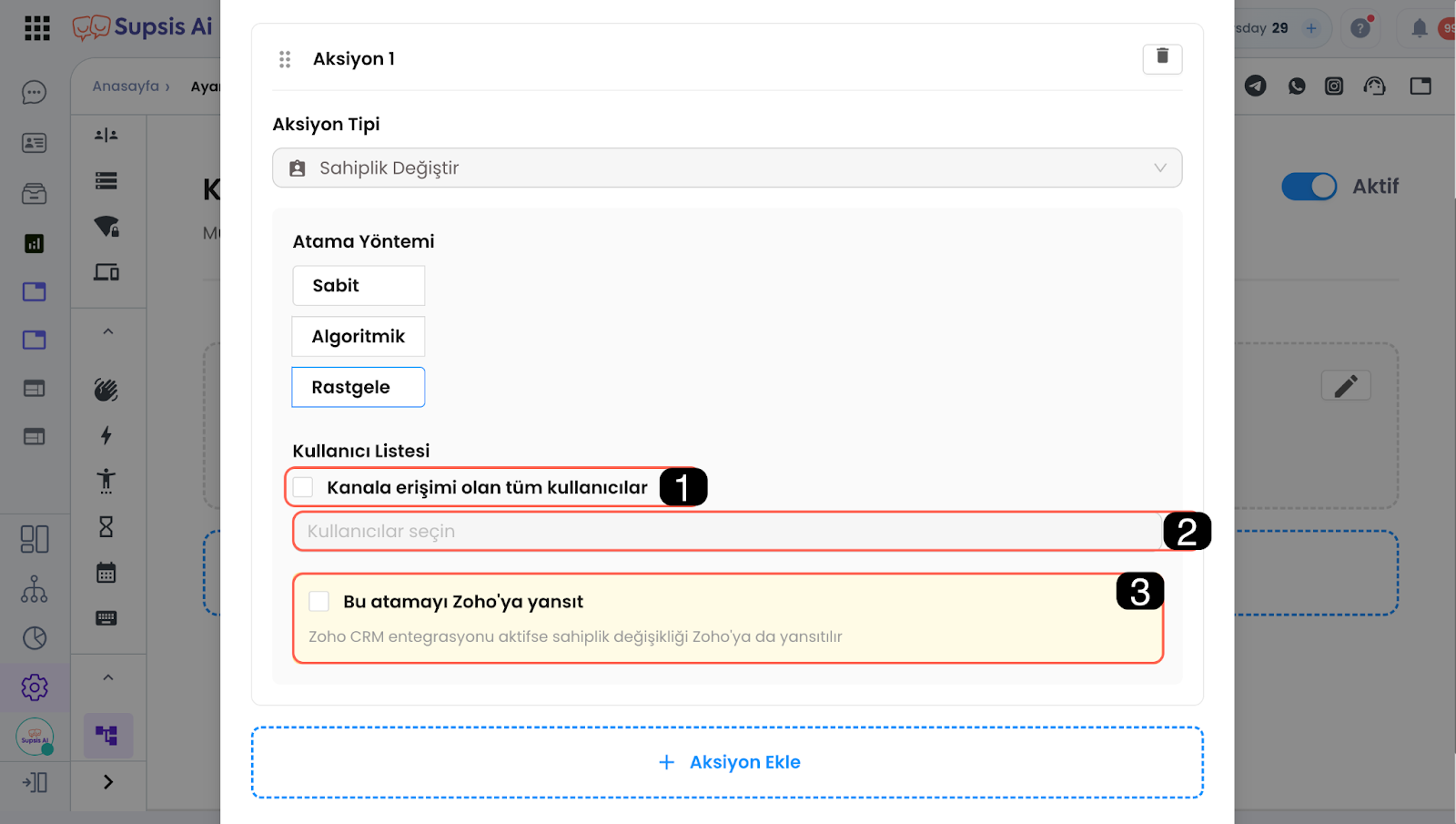
-
All Users with Channel Access:
If this toggle is activated, the assignment is randomly made among all users with channel access. If the toggle is not activated, only the selected users are evaluated within the algorithm. -
User Selection:
User selection can only be made when the “All Users with Channel Access” toggle is disabled. You can define which users will be included in the algorithm from this field. -
Reflect This Assignment to Zoho:
If Zoho CRM integration is enabled, the ownership change made will also be reflected in Zoho.
3 – Add Tag:
Adds the specified tags to the person card that does not match any of the existing rules.
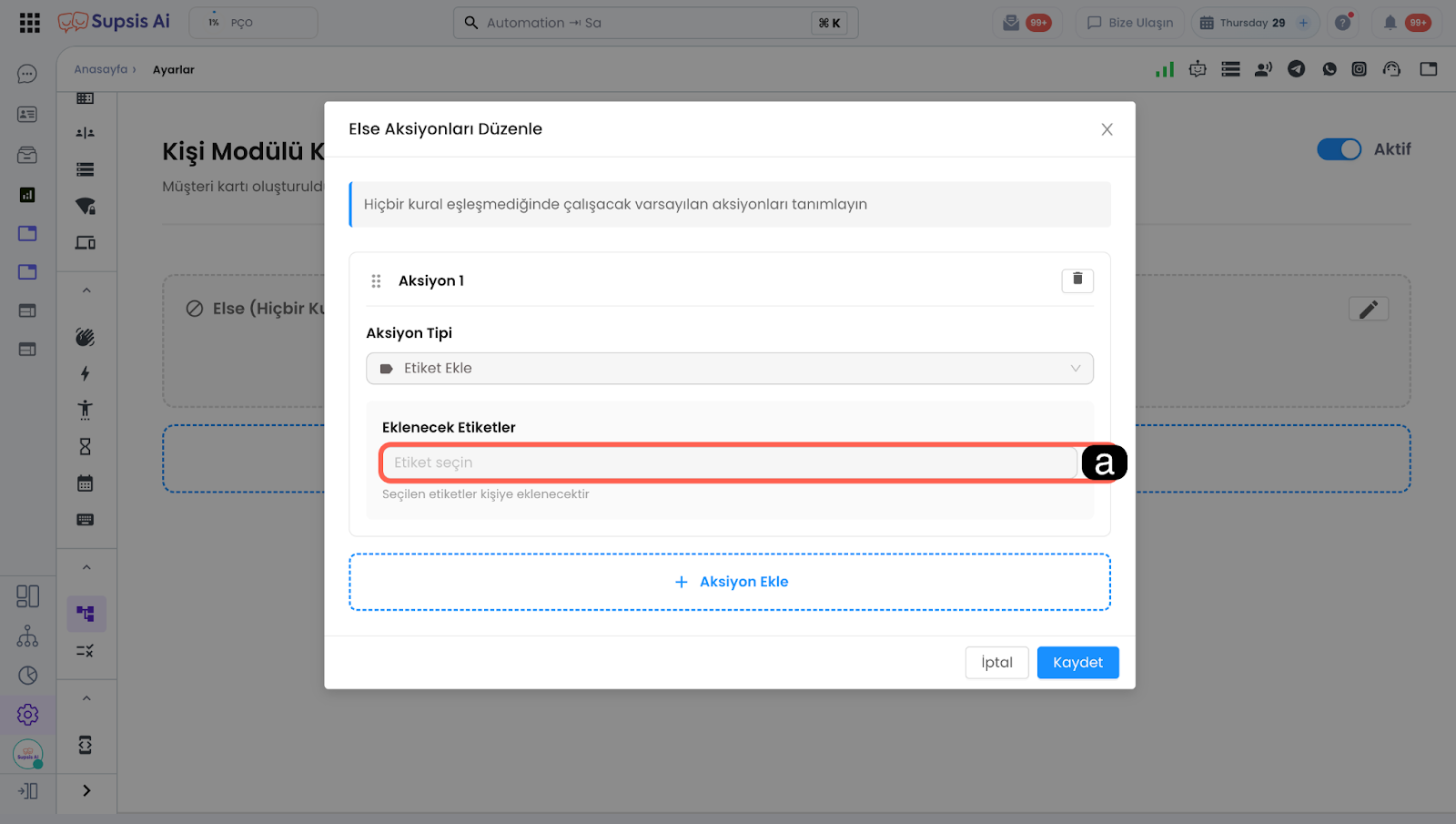
- a - Tags to Be Added:
The tags defined in this field are added to the relevant person card.
4 – Add Department:
Assigns the person in the person card that does not match any of the existing rules to the specified department. When this person contacts again, the visitor’s conversation ownership is directed to the specified department.
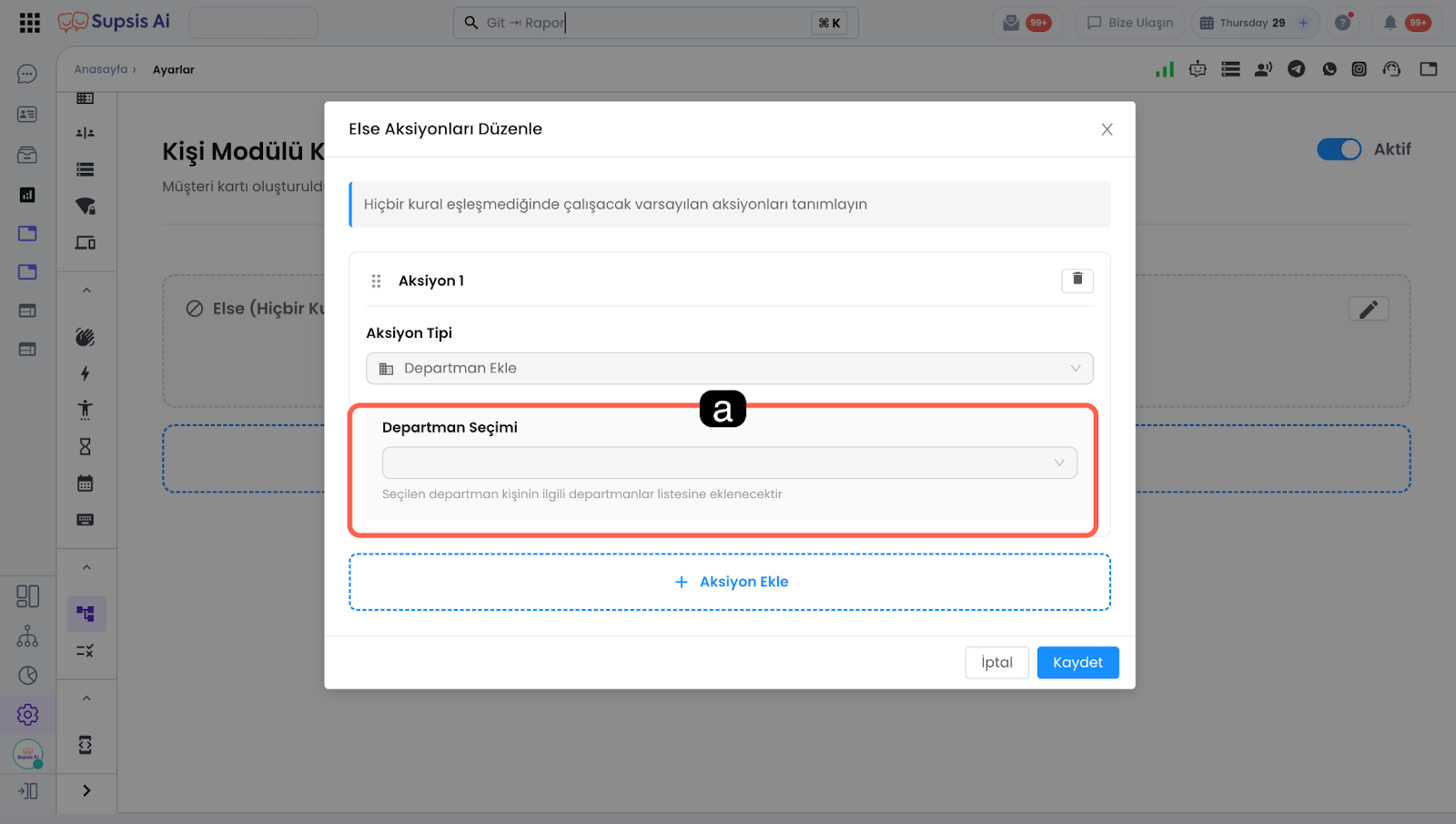
- a - Department Selection:
The visitor who does not match the Else rule is directed to the department specified in this field.
5 – Update Property:
Fills the specified profile field (property) in the person card of the user who does not match the Else rule with the specified value.
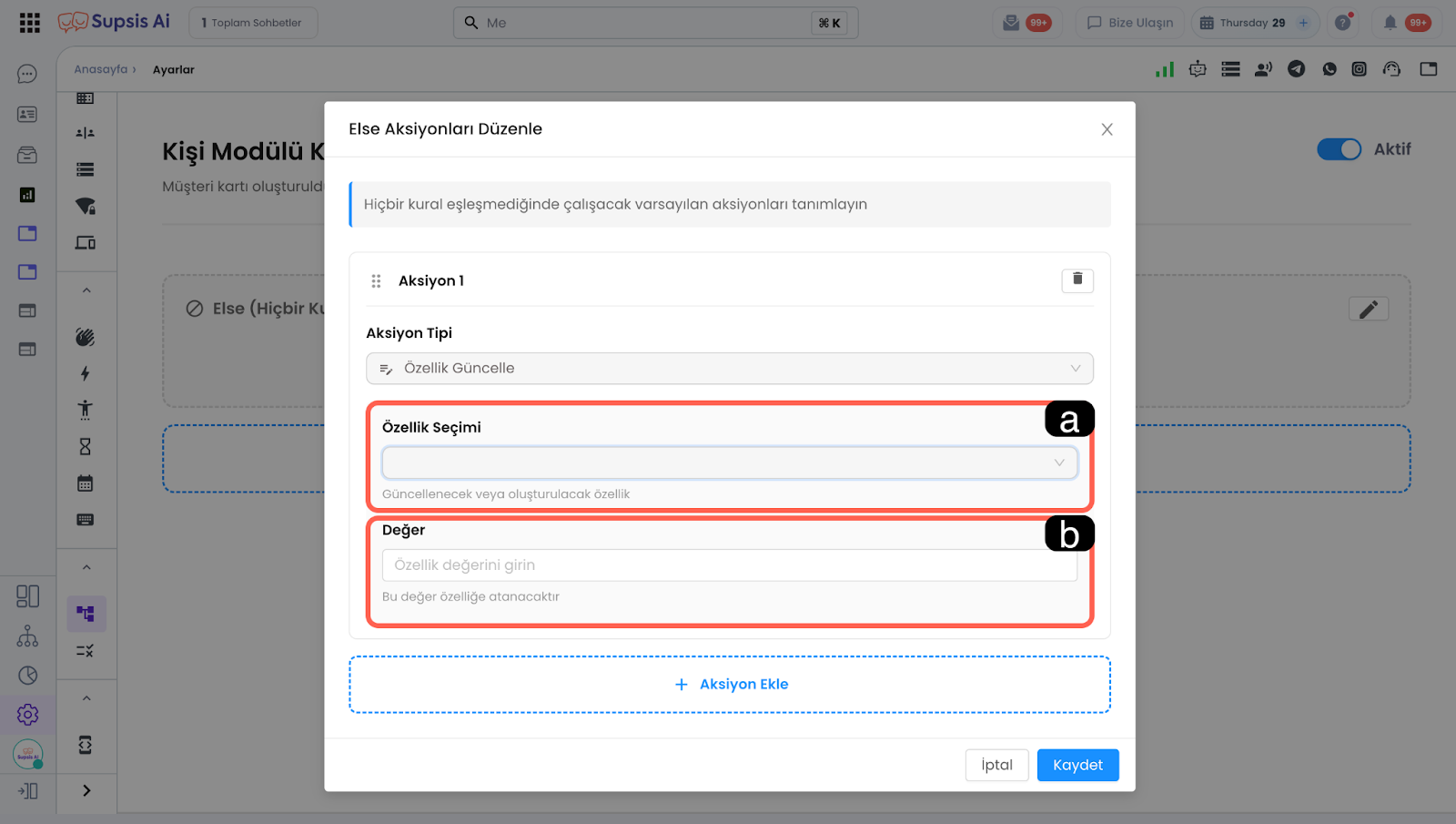
-
a - Property Selection:
You can define the property to be updated for the visitor who does not match the Else rule from this field. -
b - Property Value:
Updates the value of the property selected in the property selection field for the visitor who does not match the rules.
4.b – Trigger Other Rules:
When the Task module rule is triggered and updates the task content, you can determine from this field whether the triggering action will also run other defined rules through the same trigger.
For Example: If this rule changes the stage through the Task module rule automation, should the other rules triggered by the stage change also run?
4.c – Notify Supsis Automation:
If activated, the changes made by this rule (assignee change, stage change, etc.) trigger the related action-based automations in the Supsis Automation system.
4.d – Add Action:
When a single rule is triggered, multiple actions can be executed simultaneously. You can add multiple actions through this field.