
Task Management Module Activation
To use the Task Management Module, the feature must first be activated via the panel.
For demo accounts:
During the demo period, the Task Management Module can be added to the panel free of charge within the defined usage limits. All core features can be experienced during this period.
If the demo period has ended:
After the demo period ends, in order to continue using the Task Management Module with its full features, the following information must be entered via the panel and the payment activation must be completed:
- Payment Method
- Billing Address
Once this information is completed, the module can be activated for the panel.
Task Management Module Activation Steps
Follow the steps below to configure the Task Management Module features:
1-) Settings Menu
Go to the Settings menu in the panel.
2-) Billing & Payment Page
From the Settings menu, navigate to the Billing & Payment page.
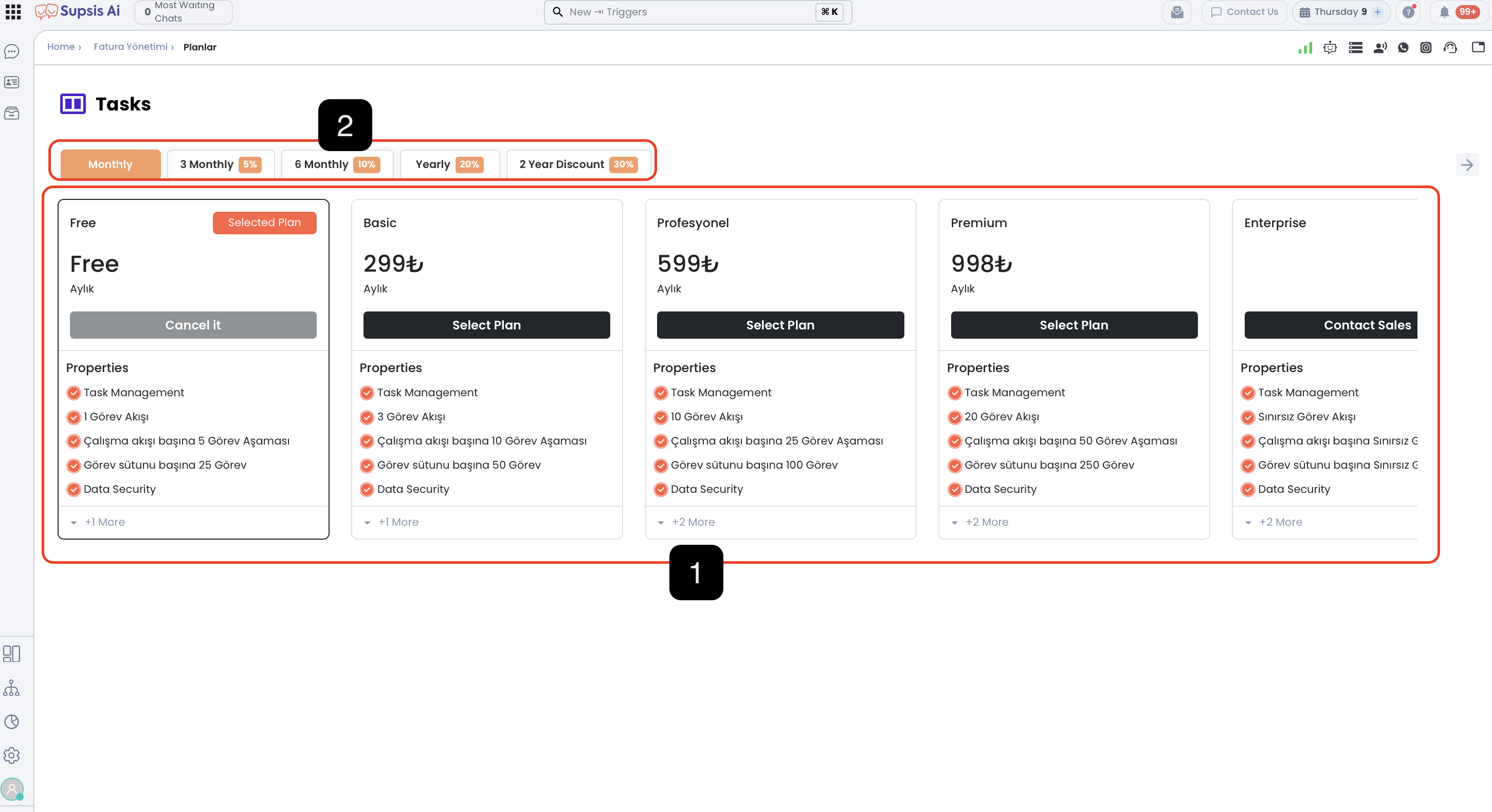
- Packages
- Package Duration and Discount Rate
1-) Packages
In this section, you can choose the package that best fits your needs. The features included in each package are listed in detail under the Features section of the respective package.
Higher-tier packages include all the features of lower-tier packages, along with additional features unique to them.
2-) Package Duration and Discount Rate
From this section, you can select the duration of the package you choose. The discount rates applied based on the selected duration are as follows:
- 3 Months: 5% discount
- 6 Months: 10% discount
- 12 Months (Annual): 20% discount
-
24 Months: 30% discount
-
Discount Calculation Logic: The discount amount is calculated by multiplying the package fee by the selected package duration (monthly value), and then applying the relevant discount rate to the total amount.