
5-) Chat Widget Features
Chat Widget Features is the configuration area designed to allow visitors to quickly and easily access different communication channels. With these settings, customer experience can be improved, support processes can be accelerated, and communication options can be presented in a user-friendly way.
The chat widget makes it easier for visitors to receive direct support, access the information they need instantly, and initiate interaction with a single click. This structure enhances customer satisfaction while strengthening your brand’s accessibility and professional presence.
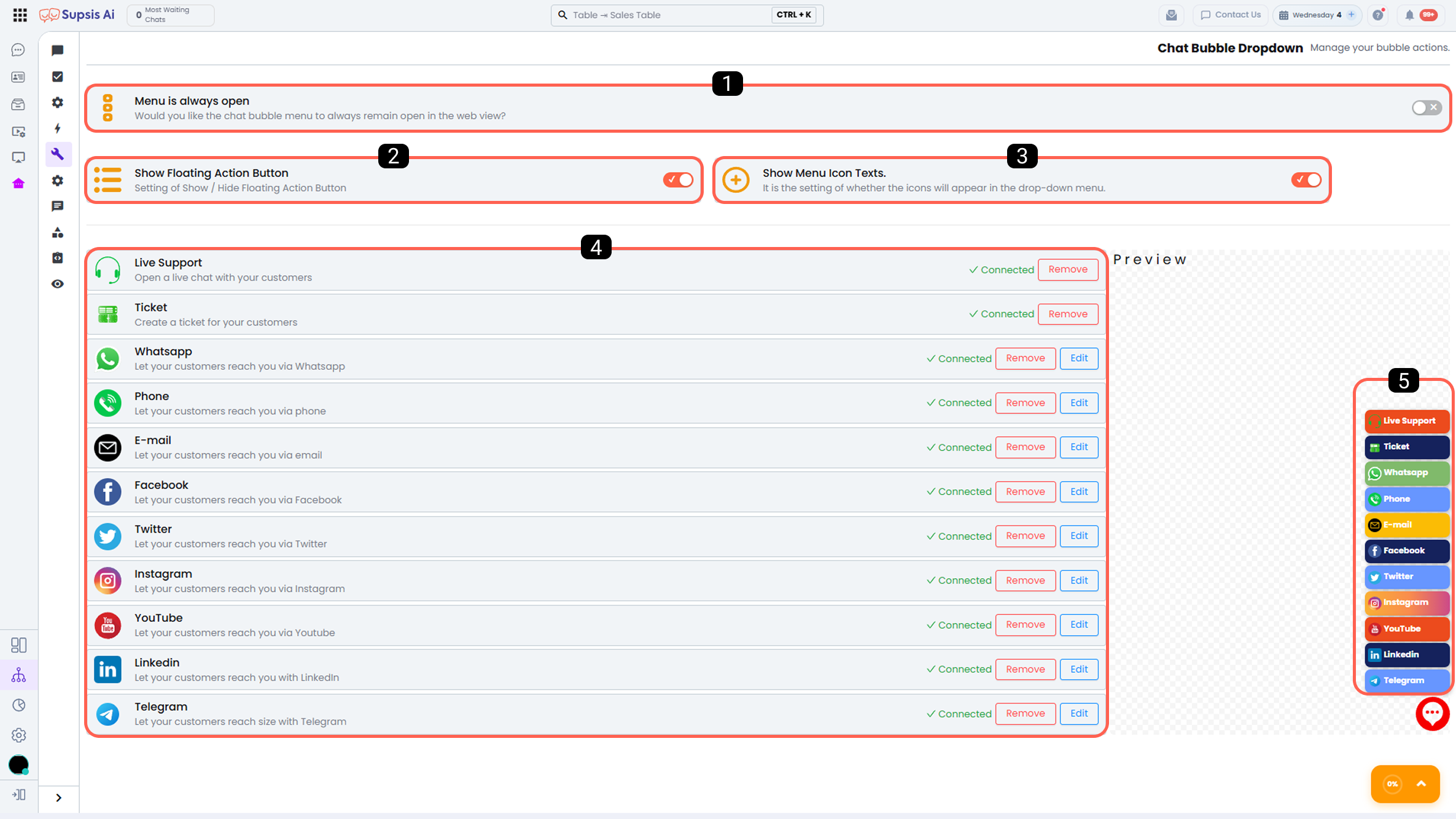
1 - Always Open Menu
When this option is enabled, the dropdown menu in the chat widget remains continuously visible. Visitors can directly access all communication options without an additional click.
This feature is ideal for scenarios requiring quick access and allows users to reach the support they need more quickly.
2 - Show Dropdown Menus
When this option is enabled, the dropdown menus within the chat widget become visible. Visitors can view all communication channels offered through the menu and connect via their preferred channel.
By offering multiple communication alternatives, it increases interaction and provides a more flexible support experience.
3 - Show Menu Icon Labels
When this setting is enabled, descriptive texts are displayed next to the communication channel icons. Visitors can see not only the icons but also the name of the communication channel they represent.
This structure improves clarity, especially for first-time visitors, and makes it easier to select the correct communication channel.
4 - Communication Options
This section allows you to determine which communication channels will appear when the cursor hovers over the chat widget.
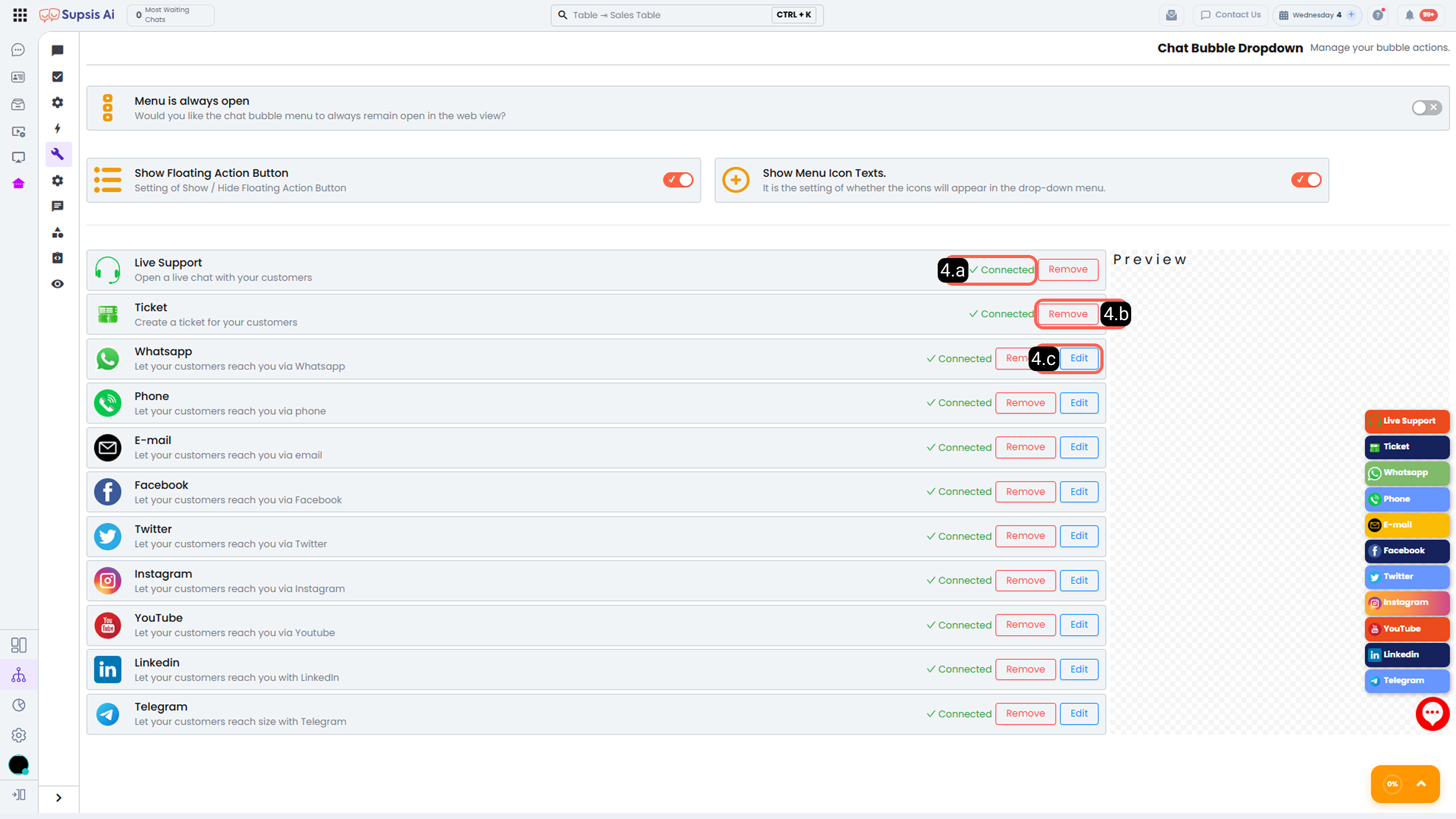
4.a – Connect
Adds the selected communication channel to the chat widget. For example, Live Support, WhatsApp, Phone, or social media channels can be activated from this section.
4.b – Edit
Allows you to customize the added communication channels. Fields such as channel name, icon, and description can be edited to provide a clearer and more user-friendly experience.
4.c – Remove
Removes the relevant communication channel from the chat widget. This allows you to display only actively used channels and create a cleaner and more organized menu.
Supported Communication Channels
- Live Support: Directs the visitor instantly to the live support line.
- Ticket (Request): Directs the visitor to the support ticket creation area.
- WhatsApp: Directs the visitor to your WhatsApp line.
- Phone: Directs the visitor to the defined phone number.
- Email: Directs the visitor to the defined email address.
- Facebook: Redirects to your Facebook account.
- Twitter (X): Redirects to your Twitter account.
- Instagram: Redirects to your Instagram account.
- YouTube: Redirects to your YouTube channel.
- LinkedIn: Redirects to your LinkedIn account.
- Telegram: Redirects to your Telegram channel.
5 - Preview
The Preview area displays in real time how all configured settings will appear to visitors in the chat widget.
Through this section, the design, layout, and communication options can be evaluated from the end-user perspective, and necessary adjustments can be made quickly before publishing.