
1. Inbox
The Inbox is your main workspace where you can manage your email communication processes quickly and efficiently from a single center using AI-powered tools. You can track all correspondence from the email accounts integrated into your system through this screen and continue your operations seamlessly.
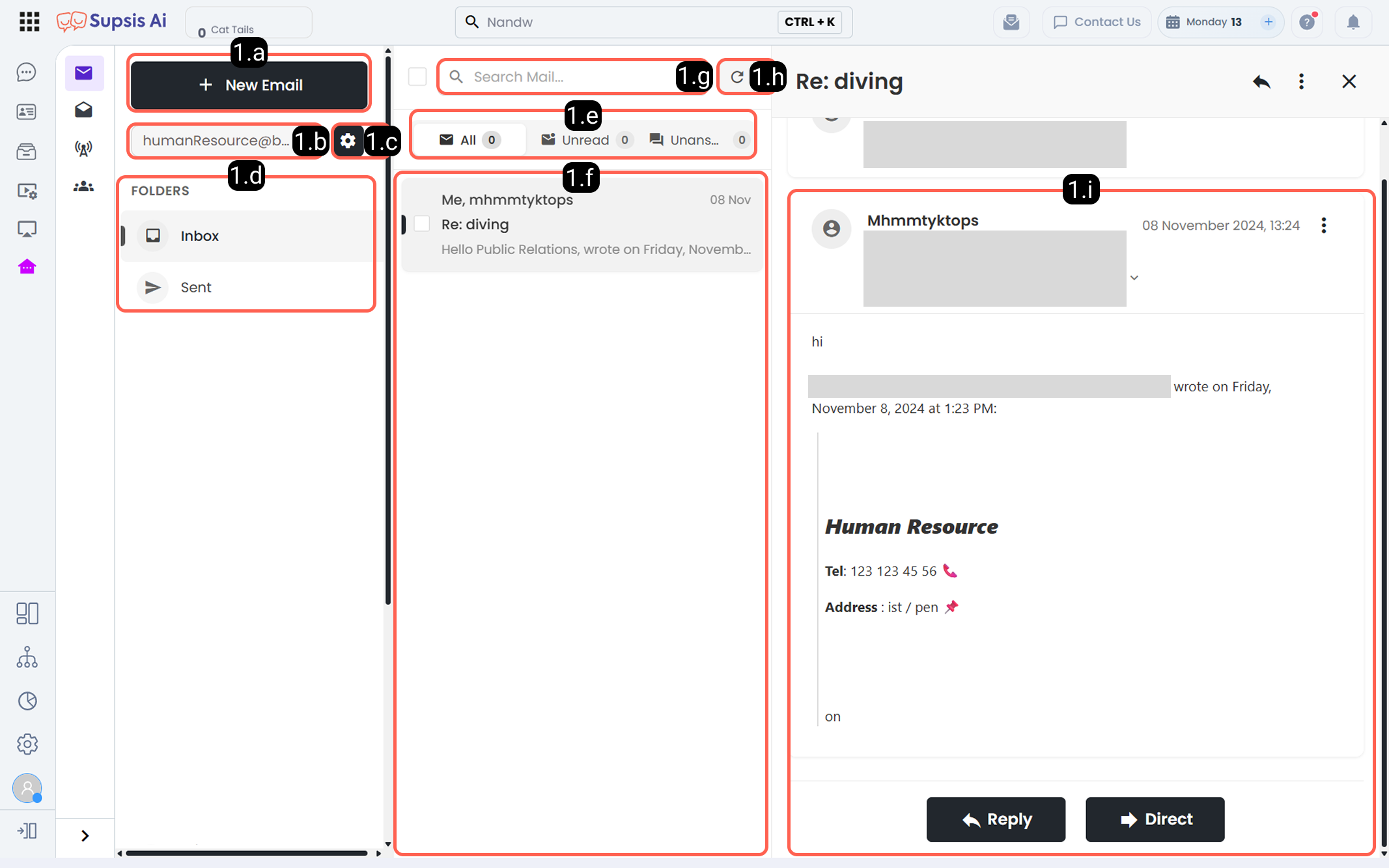
1.a – Create New Email
This is the main button that allows you to compose and send a brand new email to your customers or business contacts directly from the system. Using this area, you can initiate communication through the panel without needing external platforms.
1.b – Switch Between Emails
A navigation tool that allows you to quickly browse and view other messages by moving forward or backward between pages of emails accumulated in your inbox.
1.c – Switch Between Views
A menu that allows you to customize the layout of your inbox according to your working style.
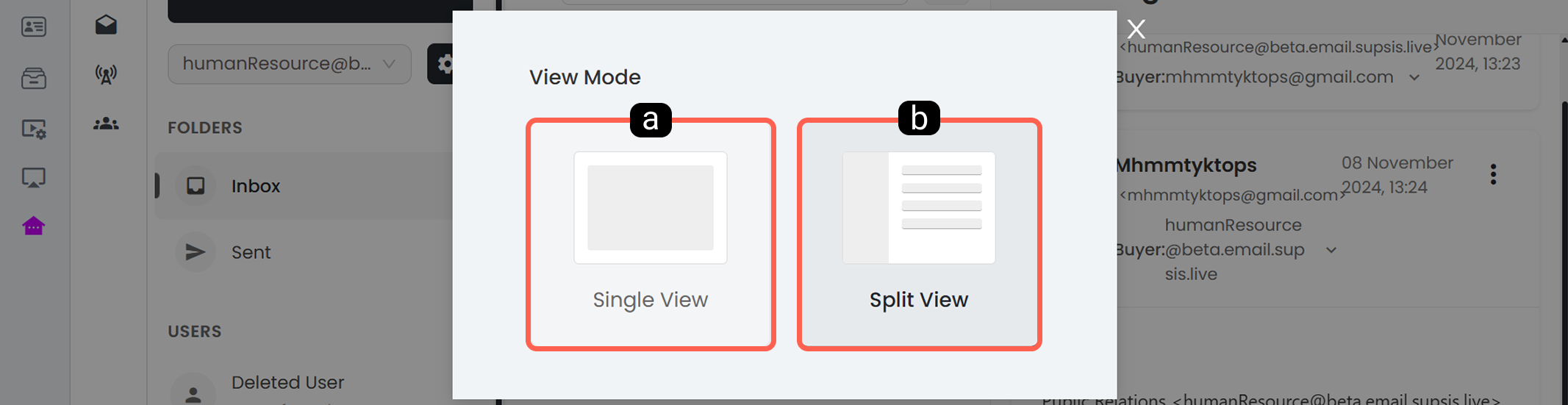
a. Single View
With this option, you can view emails in a full-width list format.
b. Split View
You can view the email list on one side of the screen while simultaneously reviewing the content of the selected email on the other side.
1.d – Folders
This is the main filing area where your emails are organized and stored.
a. Inbox
You can view all incoming emails in one place.
b. Sent
The Sent folder contains records of emails sent either automatically by the system or previously by you.
1.e – Categories
A tool that allows you to quickly filter your incoming messages based on their operational status. Depending on your needs, you can view all emails on a single screen, or prioritize your workload by selecting unread messages or emails that have been seen but not yet responded to.
1.f – Email List
The main display area where incoming emails are listed chronologically along with sender information, subject line, date, and a summary of the message.
1.g – Search Mail
A search engine that enables you to find a specific email within seconds by searching through hundreds of messages in your inbox using keywords, sender names, or subject lines.
1.h – Refresh
A refresh button that triggers your email server instantly and ensures that newly received emails are reflected on your inbox screen without delay.
1.i – AI-Powered Pre-Filtering and Message Analysis
AI-powered Sentiment Analysis and AI Summary Generation tools step in for incoming email messages. Through these analyses, emails are filtered according to Pre-Filter rules configured via Field Selection (Sender, Subject, Body), Operator (Contains, Equals, etc.), and Entered Value steps. As a result of filtering, matching emails are automatically routed directly to the appropriate automation flow or representative team.
1.i – Mail Actions
A control center that contains all basic and advanced actions you can apply to a selected email.
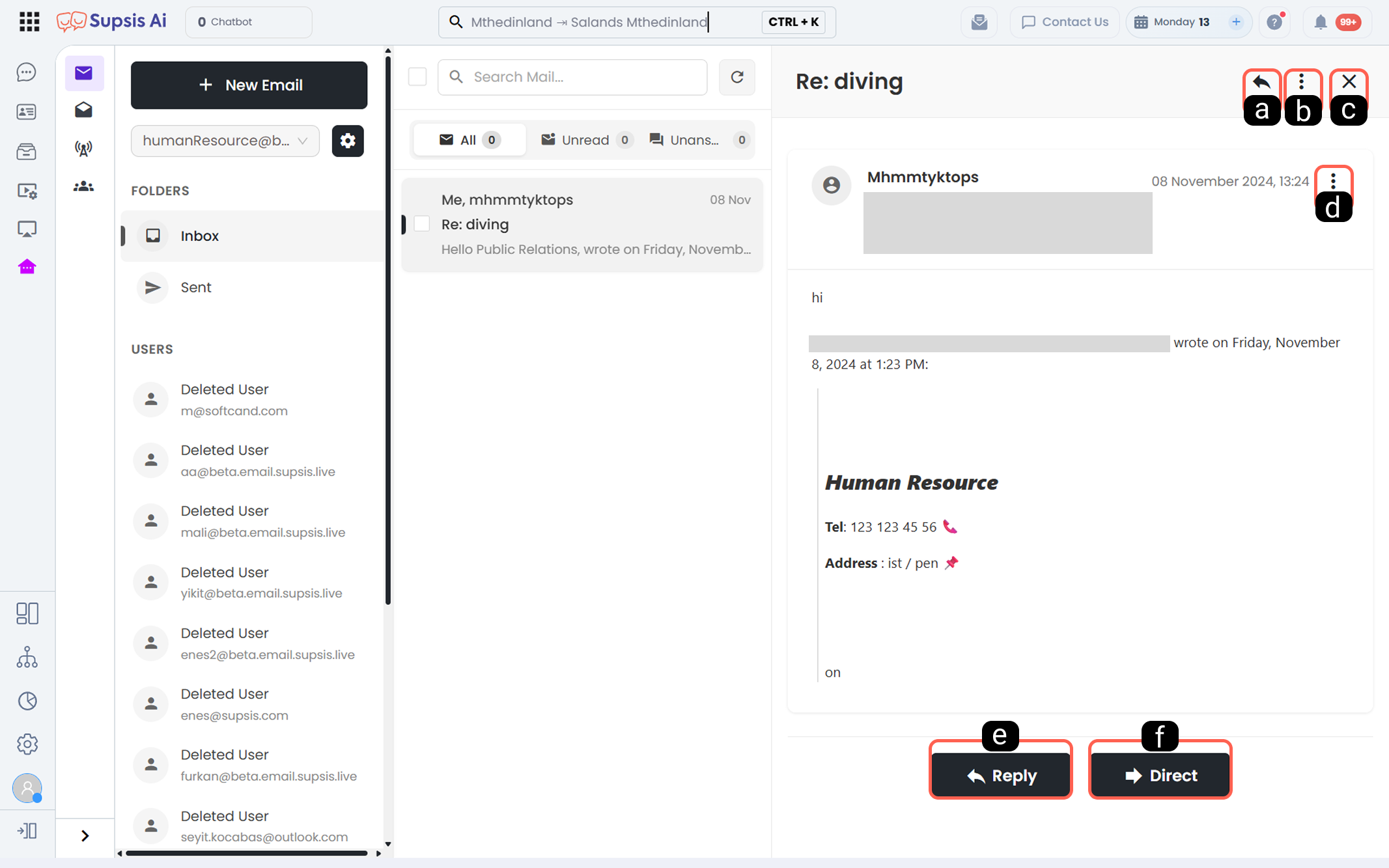
a. Reply
With this button, you can directly respond to the relevant email.
b. Mail CC Actions
Through this area, you can perform actions related to all emails involving other authorized recipients included in the CC field.
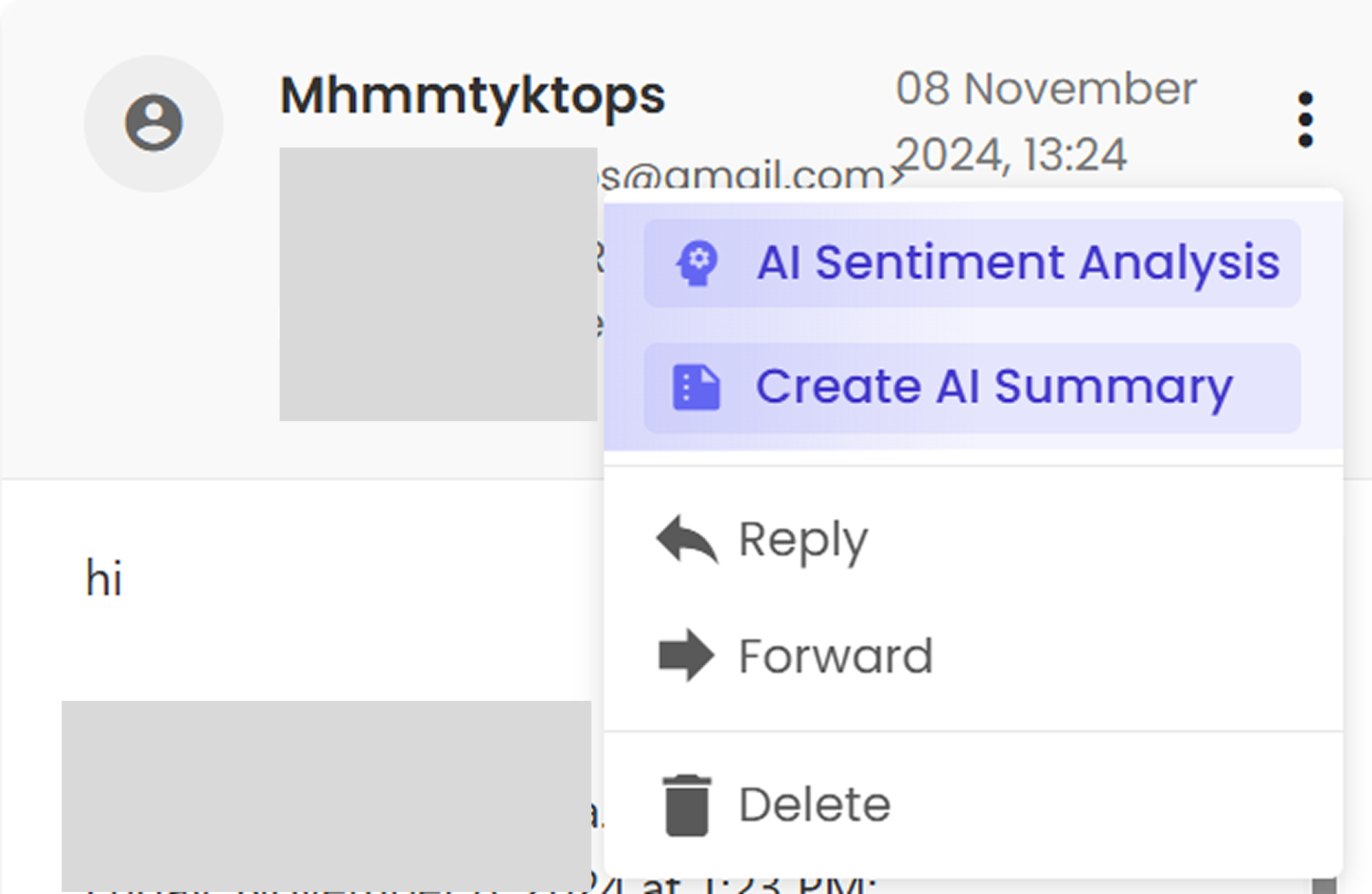
At this stage, the system offers various tools to speed up your workflow; you can create a new task directly from the email, perform AI sentiment analysis to measure the overall tone of the customer's message, or use the AI summary feature to extract the main idea within seconds instead of reading long threads. When necessary, you can forward the email to another address or delete it completely from the system.
c. Close
This option allows you to close the email content you are currently viewing.
d. Mail Actions
Through this area, you can perform actions specific only to the selected email.
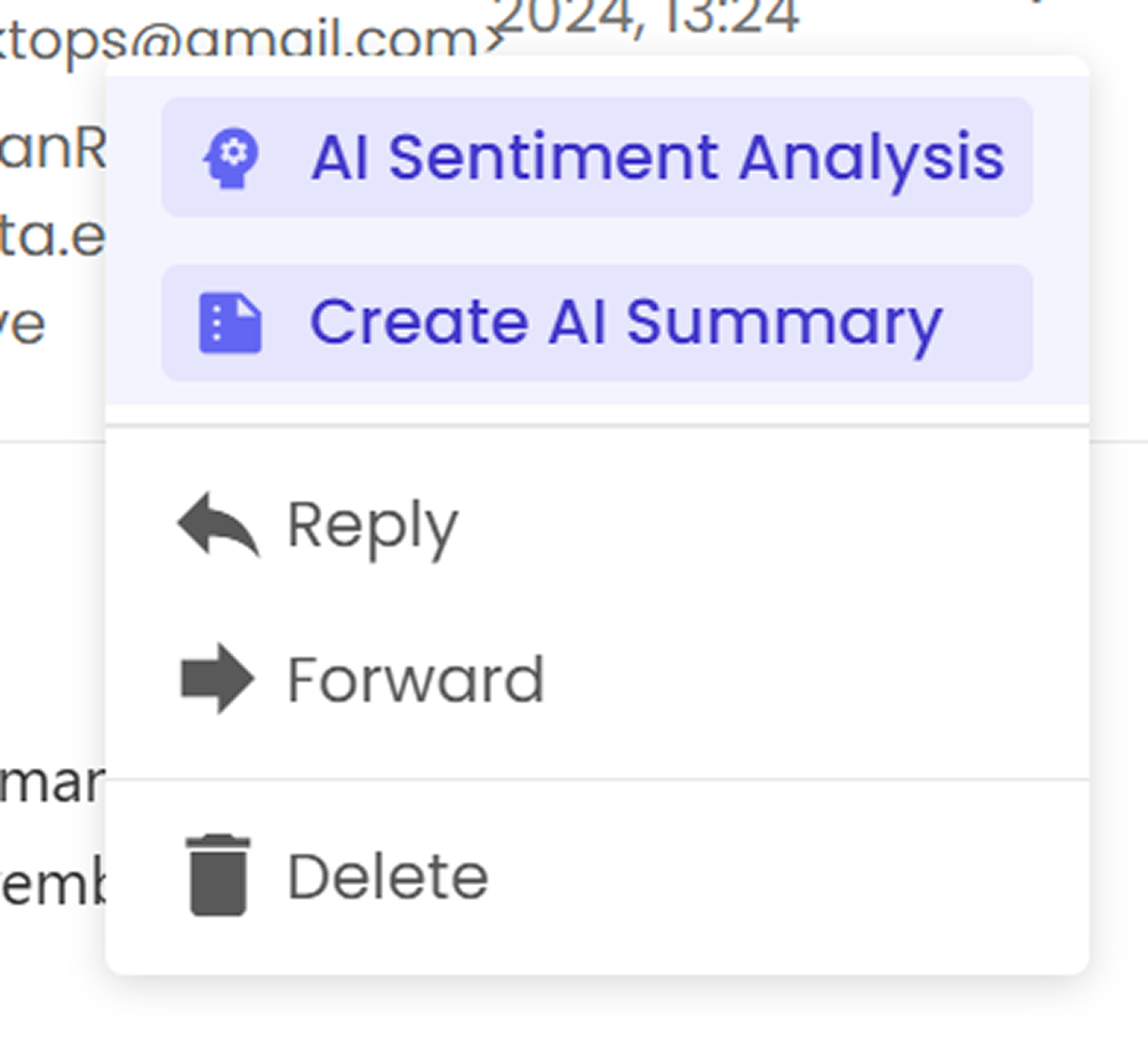
To speed up your workflow, the following tools are provided; AI sentiment analysis to measure the overall tone of the customer's message, or AI summary to extract the main idea of the email within seconds instead of reading long conversations. When necessary, you can reply to the email, forward it to another email address, or delete it completely from the system.
e. Reply
With this button, you can directly respond to the relevant email.
f. Forward
With this button, you can forward the relevant email to another email address.