The Profile Fields menu allows you to manage the profile information displayed on the contact cards of individuals who communicate with you. Profile fields defined in this section enable user data to be stored in a centralized structure and used effectively within operational processes.
Profile fields can:
-
Be matched with information collected from visitor entry forms filled out through the Supsis chat widget,
-
Be manually filled in by representatives based on information obtained during conversations,
-
Be automatically filled by the chatbot in defined scenarios based on information obtained during conversations between the customer and the chatbot,
-
Be automatically populated by chat automations that scan chat content and extract relevant information from conversation history,
-
Be associated with data uploaded during manual contact creation or bulk data import processes.
Thanks to this structure, visitor information is kept consistent, up-to-date, and accessible; and can be effectively used in processes such as filtering, automation, marketing, chatbot flows, and reporting.
- Show Visitors
- Hide / Show
- Profile Field Operations
- Create Profile Field
1-) Show Visitors
This option allows you to list contacts who have a value in the relevant profile field.
A more advanced version of the same operation can also be performed via the Visitors menu or through the Custom Filters section in the Conversations menu by using additional filter criteria and operators.
2-) Hide / Show
With this option, you can control the visibility of the relevant field displayed on the visitor’s profile card.
When the field is hidden, the data is not deleted and the field does not become non-editable; it is simply hidden from representatives’ view. It can be made visible again whenever needed.
3-) Profile Field Operations
Through this section, you can perform edit or delete operations for existing profile fields.
- When a profile field is edited, the information in all contact profiles associated with this field is automatically updated.
- When a profile field is deleted, this field and all associated data are instantly removed from contact profiles.
This structure maintains data consistency and ensures system-wide synchronization without requiring manual intervention.
3.a – Automatic Profile Synchronization Across WhatsApp Channels (Contact Sync)
When multiple WhatsApp channels (e.g., Sales Line, Support Line) have contact profiles registered under the same phone number:
* Enabling "WhatsApp Profile Synchronization" under Settings → Features ensures that whenever any field (Full Name, tags, custom profile fields, etc.) is updated on a customer card, only the modified attributes are automatically propagated to that customer's profiles across all other WhatsApp channels.
* This feature is disabled (OFF) by default. When enabled, it eliminates manual cross-channel updates and guarantees data consistency.
3.b – Profile Modal: Tab Memory & Prev / Next Navigation
Two productivity features streamline bulk review inside the contact profile modal:
- Tab Memory: The last active tab (Notes, Emails, Tasks, etc.) is remembered across the session. Opening a new contact automatically displays that same tab.
- Prev / Next Contact Navigation: Move to the previous/next contact in the origin list without closing the modal using top-left navigation buttons or keyboard shortcuts (macOS: Cmd + Left/Right Arrow, Windows/Linux: Ctrl + Left/Right Arrow). Navigation buttons grey out at list limits.
3.c – Preferred Language (preferredLanguage) Selection Modal & ISO Standard Support
The preferredLanguage attribute stored in contact profiles serves as the core benchmark for automated multi-language bot responses, routing, and localization across Supsis tools.
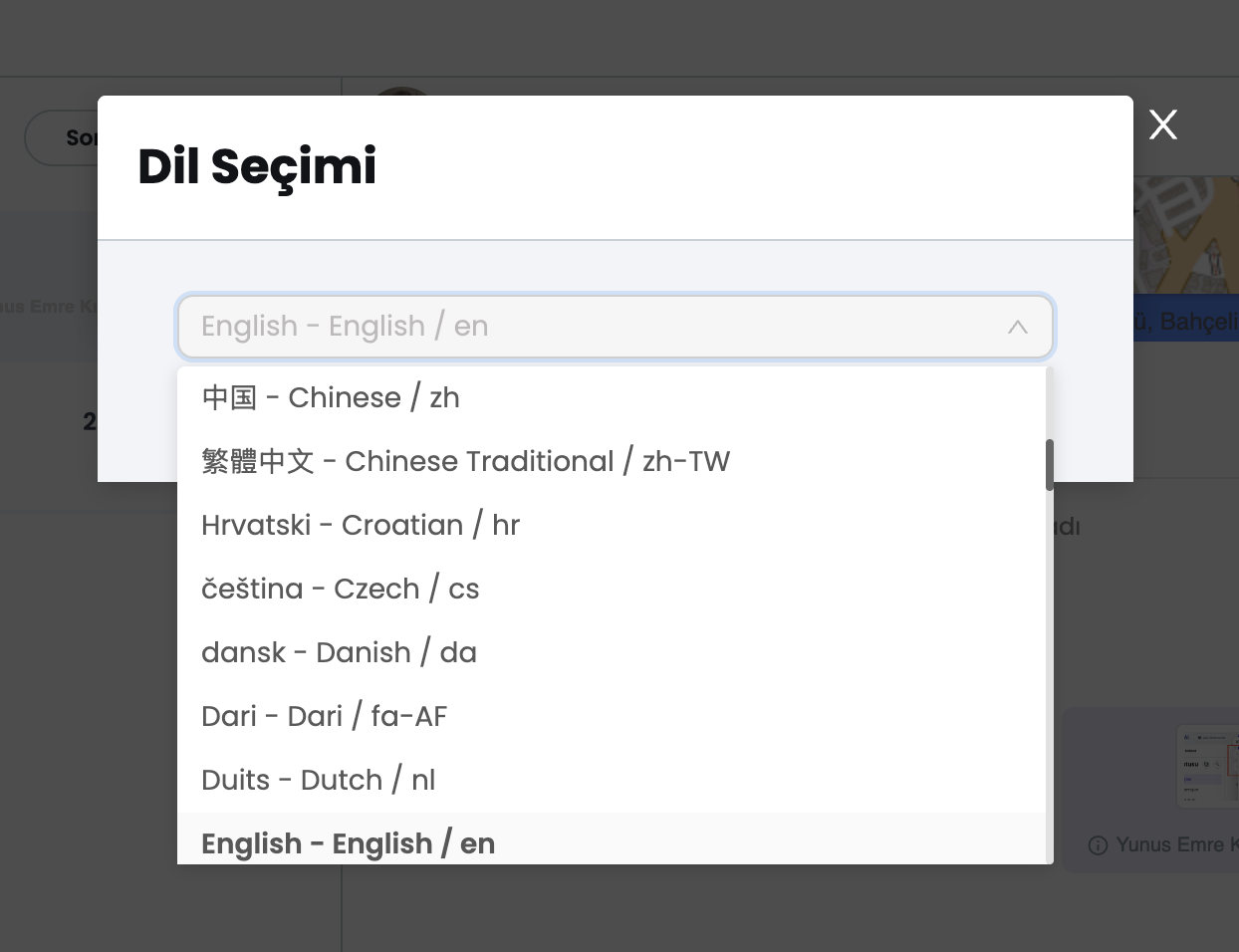
- Interactive Language Selection Modal: Manual entry of ISO language codes has been replaced by a searchable Language Selection modal interface.
- Native Name, English Title, and ISO 3166-1 / 639-1 Mapping: Languages are formatted for instant recognition:
[Native Name] - [English Title] / [ISO Code]. - Example Options:
English - English / enTürkçe - Turkish / tr中国 - Chinese / zh繁體中文 - Chinese Traditional / zh-TWHrvatski - Croatian / hrčeština - Czech / csdansk - Danish / daDuits - Dutch / nlDari - Dari / fa-AF
- Automated Code Assignment: When an agent selects a language from the dropdown, the system automatically assigns the corresponding ISO 3166-1 Alpha-2 / ISO 639-1 code (
en,tr,zh-TW, etc.) to thepreferredLanguagefield, eliminating format errors and manual code lookup.
4-) Create Profile Field
This area allows you to create new profile fields to be used in user profiles.
Created profile fields can be actively used in:
- Contact cards,
- Filtering operations,
- Chatbot and automation scenarios.
This enables you to systematically collect additional user information and effectively utilize this data in operational and automation processes.
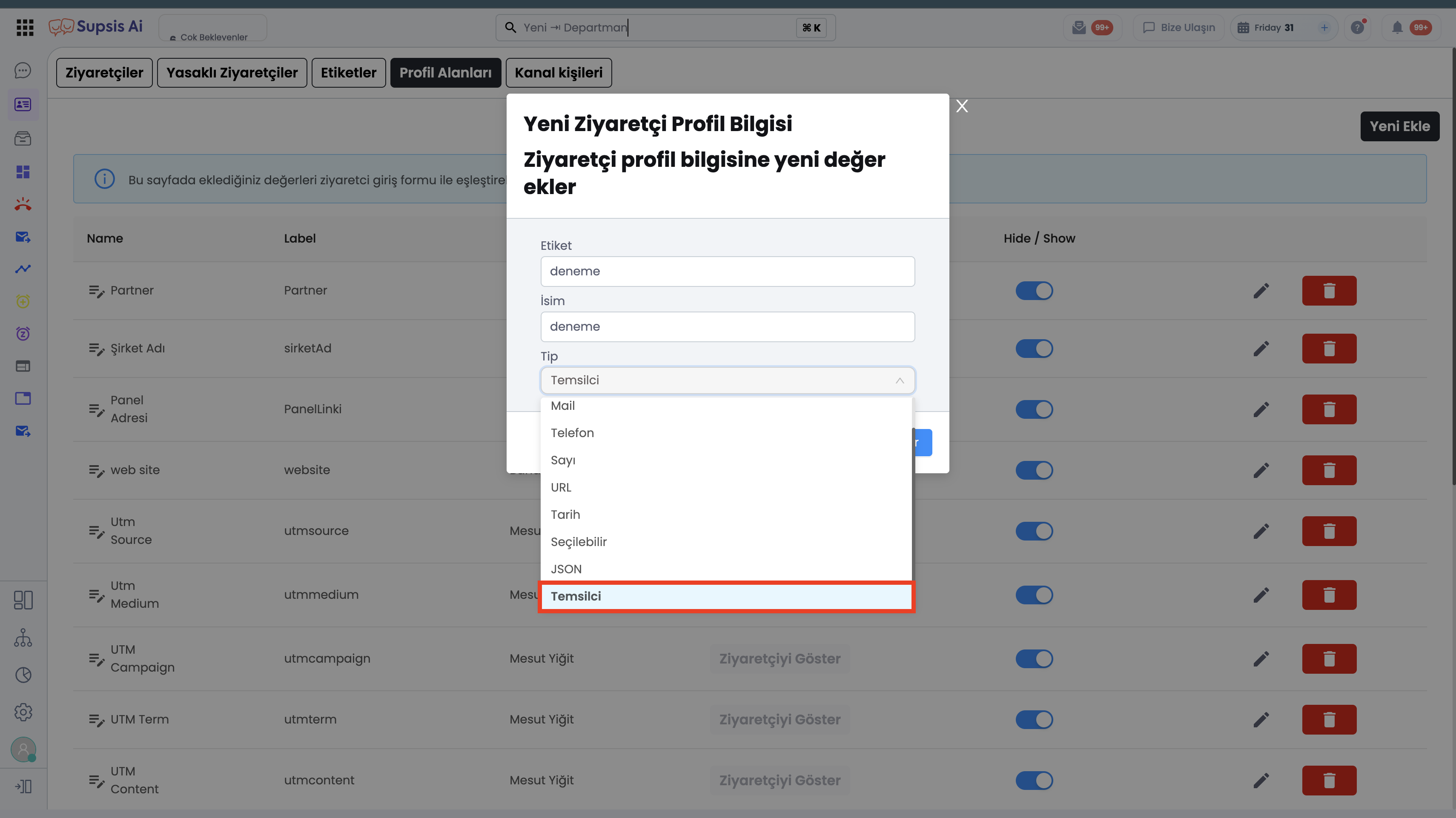
1-) Field Name
Allows you to define the display name of the profile field in the user interface.
This name is shown in the Conversations menu, contact cards, and filtering areas.
- There is no character limitation for the content entered in this field.
- It is recommended to use a meaningful and easily understandable name.
2-) Field Key
This field represents the technical name of the profile field used in automation and chatbot scenarios.
- The entered value is used as a reference in system operations.
- Therefore, spaces, Turkish characters (ü, ı, ö, ç, ğ, ş), and certain special characters cannot be used.
- It is recommended to use only lowercase letters, English characters, and underscores (_).
Example: company_name, lead_score, user_type
3-) Field Type
In this section, you must determine which data type will be stored in the profile field you create. Supported field types are as follows:
- Text:
-
A plain text field. All characters and data types can be stored.
-
Email:
-
A field type that only accepts email addresses in the format example@example.com.
-
Phone:
-
A field type that only accepts phone number formats.
-
Number:
-
A profile field type that only allows numeric values.
-
URL:
-
A field type that only accepts web addresses (https://...).
-
Date:
-
A field type that stores data in date format.
-
Selectable:
- Allows selection from predefined options.
-
Preferred when the user must choose only one of the specified options.
-
JSON:
- A field type that stores structured data in JSON format.
-
Suitable for advanced integrations and technical data storage scenarios.
-
Agent (Temsilci):
- A field type used to select or assign a support agent defined in the system.
- When editing or creating contacts, an Agent Picker dropdown opens to allow selection from system agents.