
WhatsApp Business API Integration
WhatsApp Business API is the official integration model provided by WhatsApp for corporate and scalable customer communication. This structure enables bulk messaging in compliance with GDPR and other relevant legal regulations and is designed for high-volume customer communication needs.
Within the scope of WhatsApp Business API integration:
- Advanced chatbot and artificial intelligence scenarios are supported through interactive button messages.
- Users are presented with a corporate profile displaying the business name, and when the necessary conditions are met, a green tick (official business verification) can be obtained.
- All messaging operations are recorded within the Supsis panel and can be reported and analyzed in detail.
- Thanks to Supsis’ advanced marketing and process automations, the conversion rate of potential customers coming through the WhatsApp channel can be increased.
WhatsApp Business API is the safest and most sustainable WhatsApp communication model for businesses that require legal compliance, automation capability, and a corporate appearance.
- WhatsApp Business API Module Activation
- Portfolio Creation & Portfolio Access
- Supsis AI Panel Operations
- Phone Number Connection Steps
- Business Information Verification
1-) WhatsApp Business API Module Activation
To activate the WhatsApp Business API feature in your panel, follow the steps below:
Note: If you are not in the demo process, in order to create a channel, you must define your billing and payment information under the Billing & Payment page, specifically in the Payment Method & Billing Address section.
You can find more detailed information about this process in our Billing & Payment Method documentation.
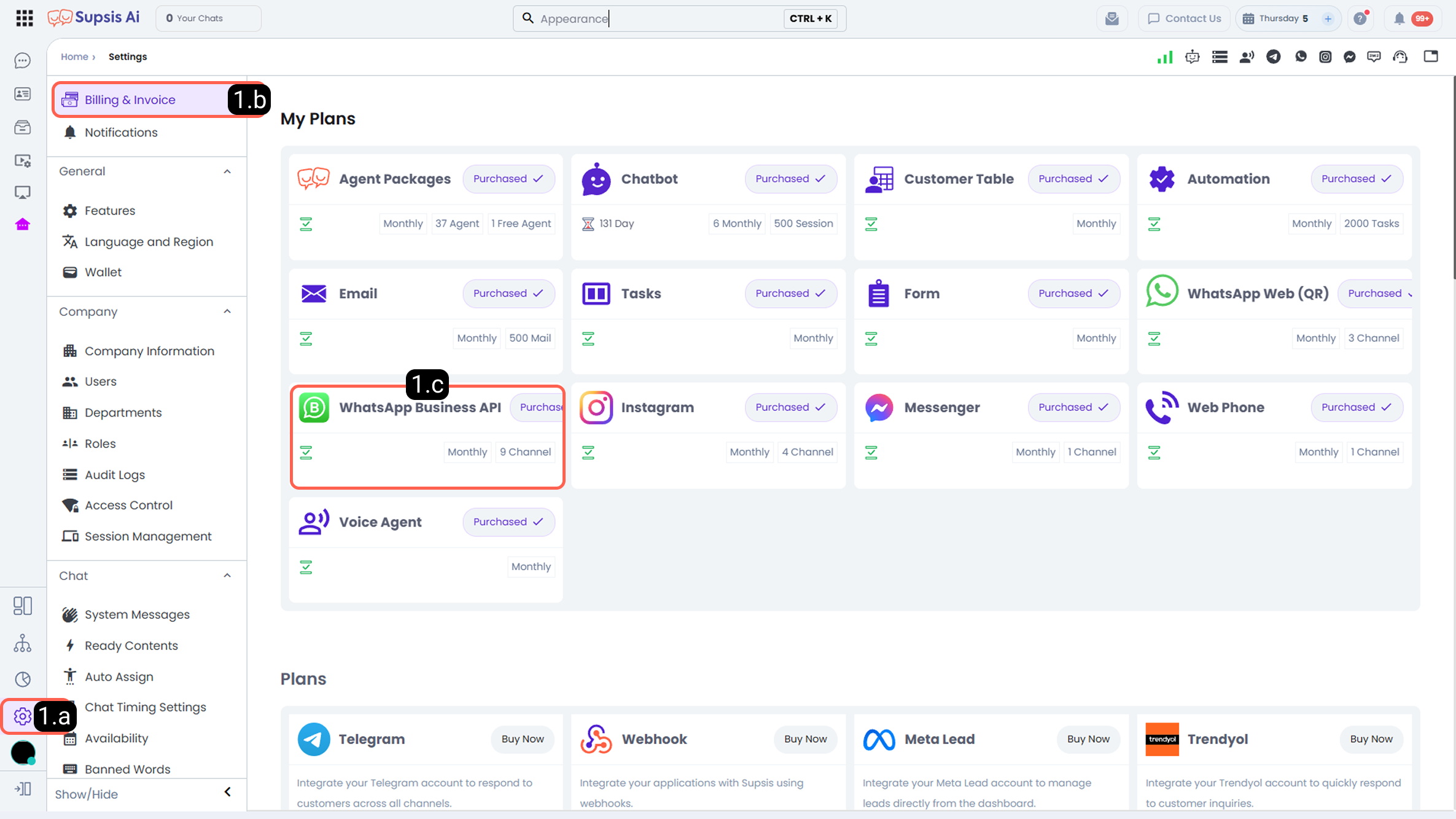
1.a – Settings Menu
Enter the Settings section located in the left menu of your panel.
1.b – Billing & Payment Page
From the Settings menu, navigate to the Billing & Payment page.
1.c – WhatsApp Business API
Enter the WhatsApp Business API card from the Billing & Payment section.
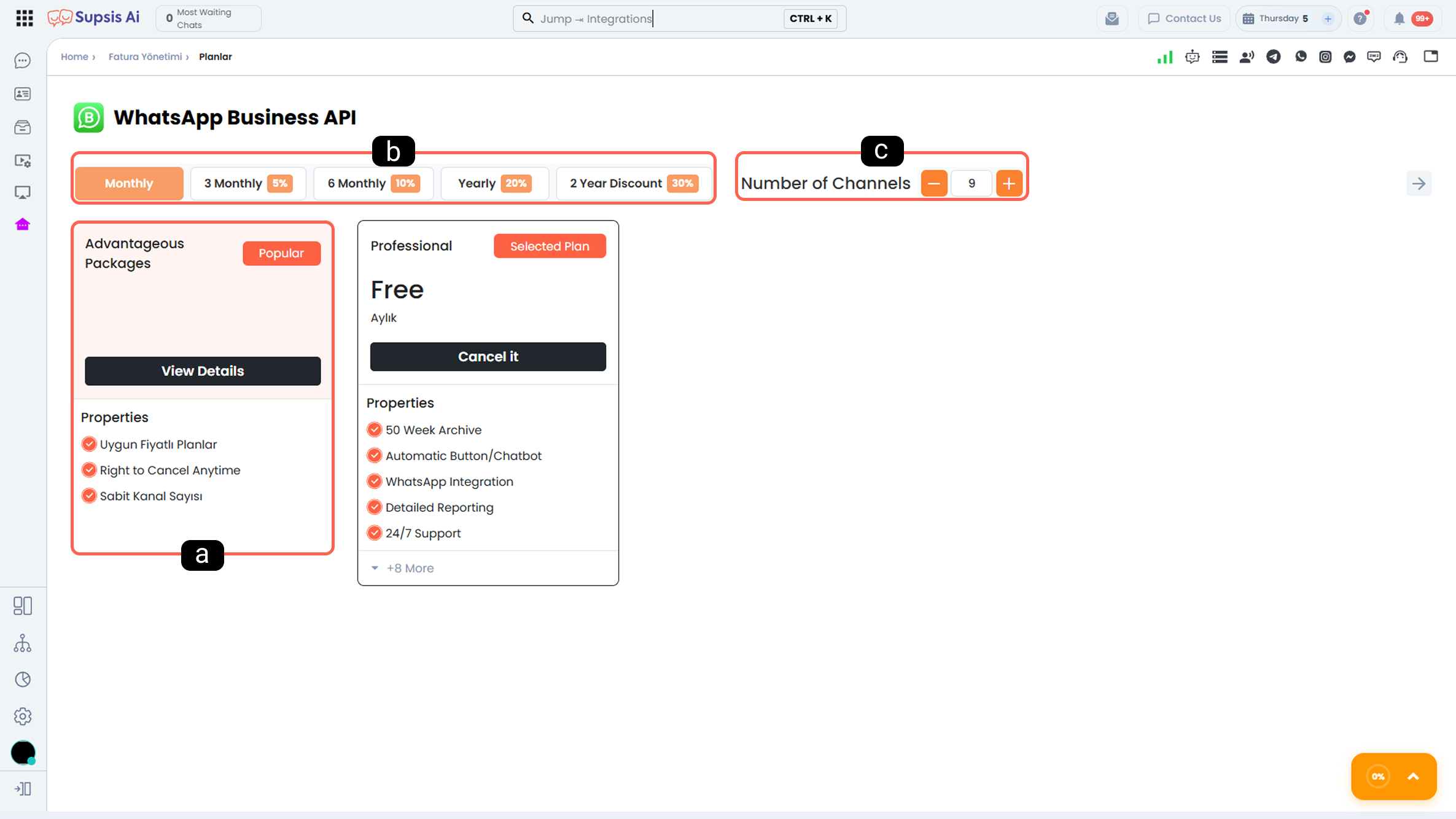
- a – Advantageous Packages
The Advantageous Packages section offers more affordable package options tailored to the needs of users planning to purchase multiple channels.
This section includes packages with 5, 10, 25, 50, and 100 channels. Each package has special discount rates defined specifically for the number of channels.
In advantageous packages, duration-based discounts continue to be applied. Thus, you can benefit from both multi-channel purchase advantages and long-term usage discounts at the same time.
- b – Package Duration and Discount Rate
In this section, you can determine the usage duration of the selected package. The discount rates applied according to the selected package duration are as follows:- 3 Months: 5% discount - 6 Months: 10% discount - 12 Months (Annual): 20% discount - 24 Months: 30% discount
Discount Calculation Logic:
The discount amount is calculated by multiplying the channel fees determined according to the selected number of channels by the monthly equivalent of the selected package duration, and then subtracting the relevant discount rate from the total amount.
- c – Channel Count
In this section, you can determine the number of channels (WhatsApp numbers) you want to connect to the Supsis panel via WhatsApp Business API integration.
The selected channel count directly affects the total package price calculation. Each channel is defined as a separate WhatsApp Business API channel within the Supsis panel, and once the integration process is completed, interactions on these accounts can be managed through Supsis.
2-) Portfolio Creation & Portfolio Access
To complete the WhatsApp Business API & Supsis AI integration, you must first create or access a Business Portfolio via Meta Business Suite, which is Facebook’s management tool.
The portfolio enables centralized management of all assets belonging to your business (Pages, Accounts, Applications).
To access your portfolios: www.business.facebook.com
Before starting to integrate your Meta social media channels with Supsis AI, make sure that you are working within the correct Business Portfolio in your Meta panel where the relevant assets are connected. The Business Portfolio is the central area where your pages, accounts, and permissions are managed.
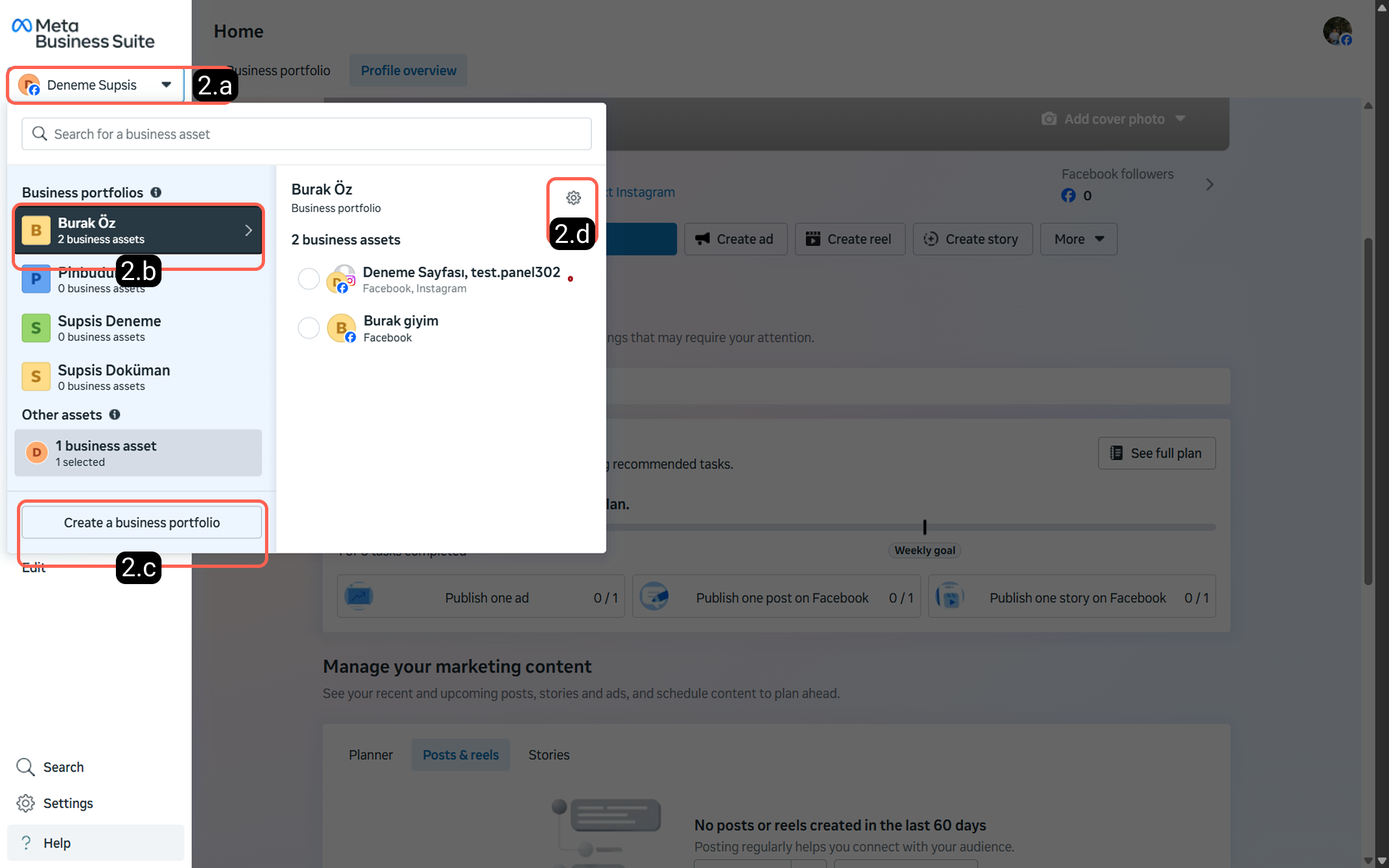
2.a – Access Portfolios
Log in to Business Suite via the specified address, then click on your current business name/domain in the top-left corner to open the portfolio list.
2.b – Portfolio Selection
From the opened list, select the Business Portfolio where you will carry out the integration process and where the relevant pages are connected. If you do not yet have a portfolio, you can use the button marked as 2.c to create a new one.
- Note: You must have full administrative access (Admin Access) on the selected portfolio for the integration process to proceed smoothly.
2.c – Create Portfolio
If you do not have an existing portfolio that you can use for the integration, you can create a new one by following these steps:
- Click the "Create Business Portfolio" button in the dropdown menu.
- Complete the steps guided by Meta (business name, email, etc.) to finalize the setup.
2.d – Portfolio Settings
The technical management of the integration is carried out via the "Settings" tab. By clicking this button, you can perform all administrative operations related to the portfolio, such as adding pages, connecting professional accounts, and managing access permissions.
For WhatsApp Business API application and usage, business information must be defined completely and accurately. These details are used by Meta during verification processes. After entering the business settings explained above, you can follow the steps below to update the information:
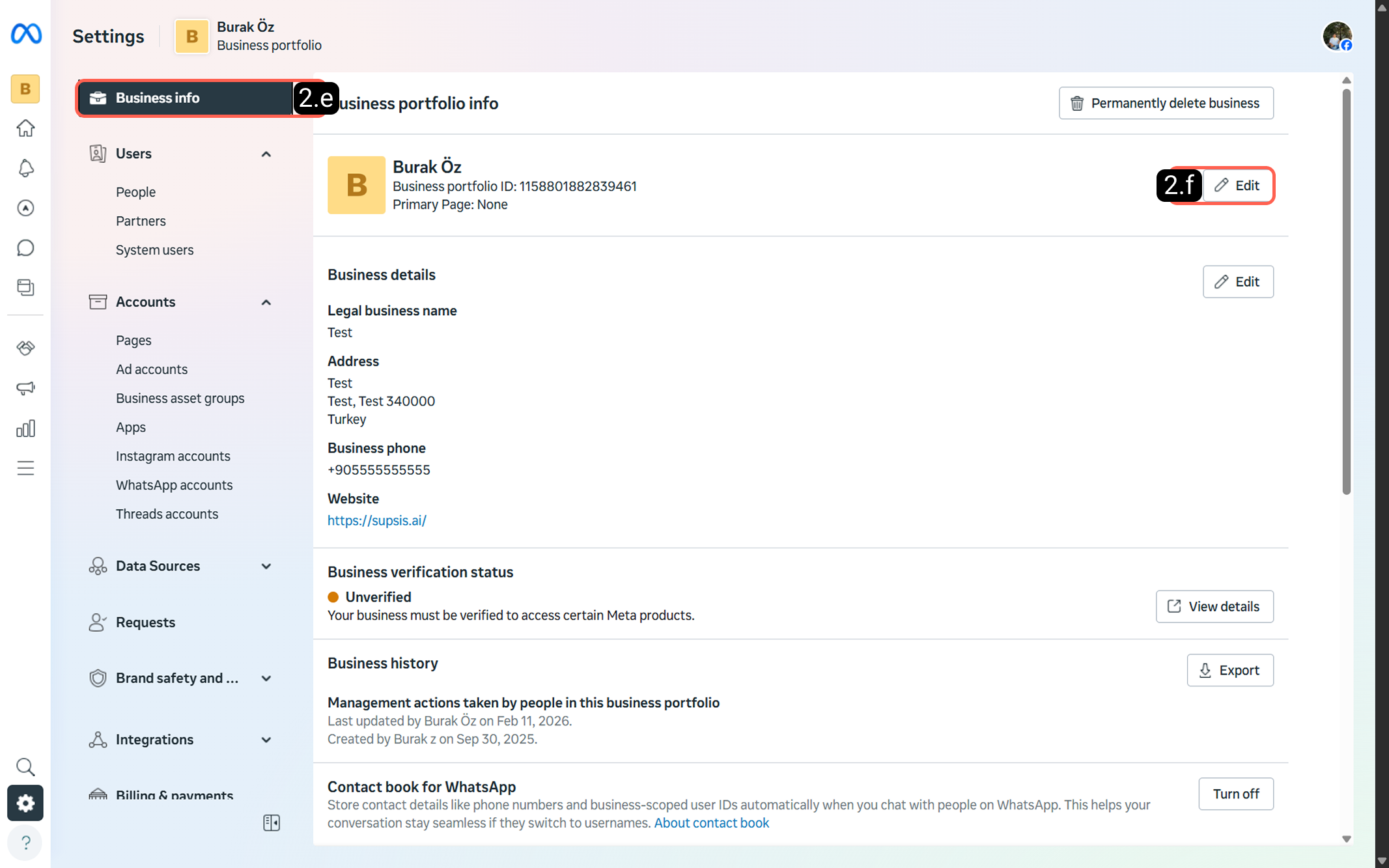
2.e – Access Business Information
Access the core business details from the Business Information section under portfolio settings.
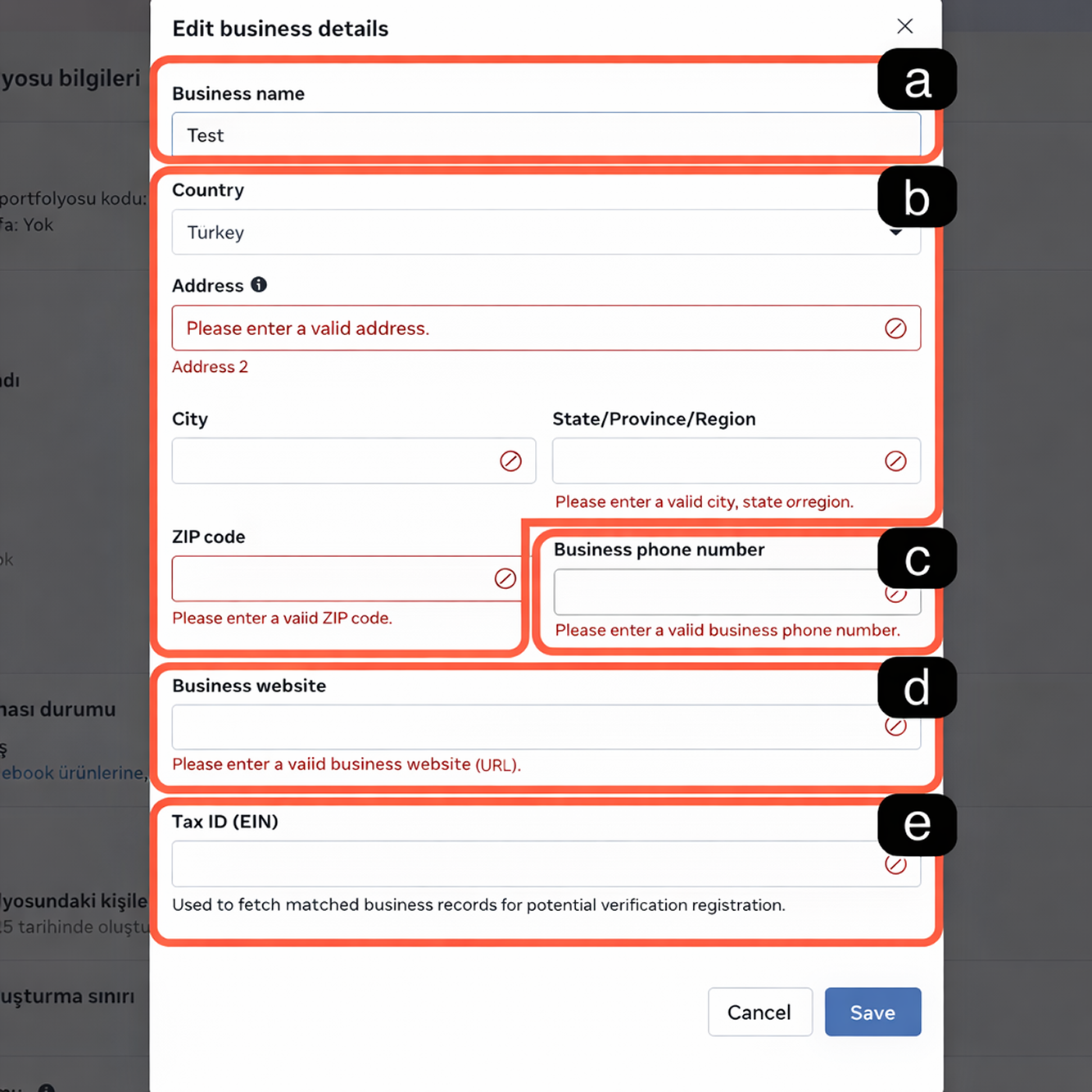
2.f – Edit Business Information
Official business details are updated in this section.
-
a - Official Business Name
Enter the legal and official name of the business exactly as it appears on the tax certificate. -
b - Address
Define the registered physical address of the business exactly as stated on the tax certificate. -
c - Business Phone Number
Add the official business contact phone number. This number must also be listed in the contact section of the website specified in the Business Website field. -
d - Business Website
Enter the official website address of the business. -
e - Tax Number
Define the business tax identification number.
3-) Supsis AI Panel Operations
To complete the integration, a channel must be created via the Supsis AI panel. Before proceeding, module activation must be completed. For more information, refer to the WhatsApp Business API Module Activation section of this documentation.
If activation has been completed, log into your panel and follow the steps below:
3.a - Channel Creation
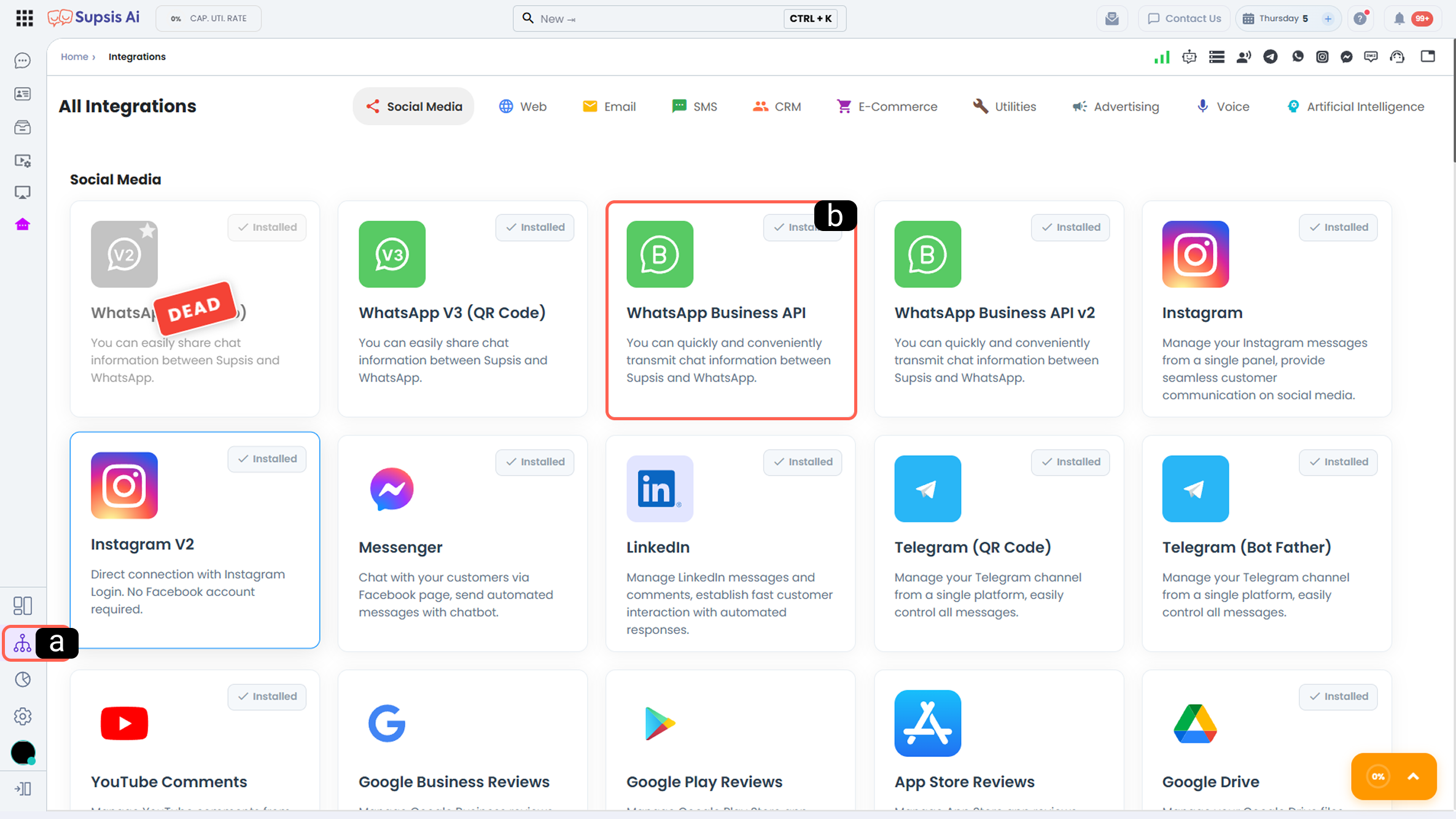
To start using WhatsApp Business API, you must first define a communication channel within the panel. This process begins from the integration menu and is completed by connecting the channel through the Meta panel.
-
a - Integrations Menu
Click the Integrations button in the left main menu of the Supsis AI panel to access the main screen where all supported connection modules are listed. -
b - WhatsApp Business API
On the All Integrations page, find the WhatsApp Business API card under the Social Media category and click on it to access the configuration page.
-
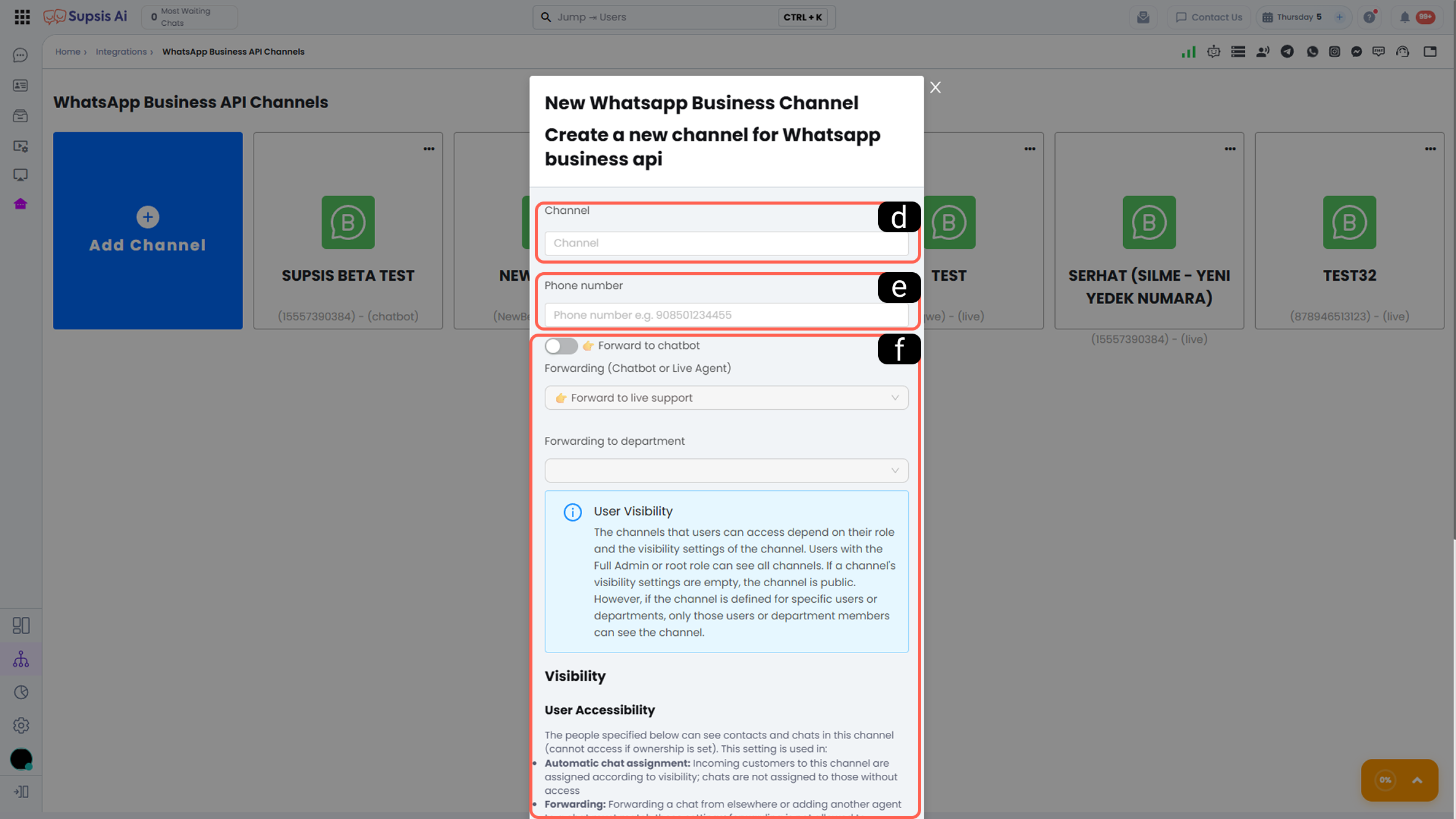
c - Add Channel
On the WhatsApp Business API Channels page, click the blue "Add Channel" button located on the left side to start defining a new line. This will redirect you to the channel details form. -
d - Channel Name
In the opened form, define a name that will help you distinguish this line from others within the panel (e.g., "Sales Line", "Support Number"). This name is only visible to panel users and cannot be seen by customers. -
e - Phone Number
Enter the phone number you want to integrate. The number must be entered in international E164 format without errors, which is critical for the verification process. (Example E164 Format: 905555555555) -
f - Channel Details
This section allows you to configure the operating principles and management preferences of the WhatsApp Business API account integrated into the Supsis AI panel.
The data and settings defined during integration can later be updated in more detail and more easily via the Channel Internal Details section. For more information, refer to the WhatsApp Business API Channel Internal Details documentation.
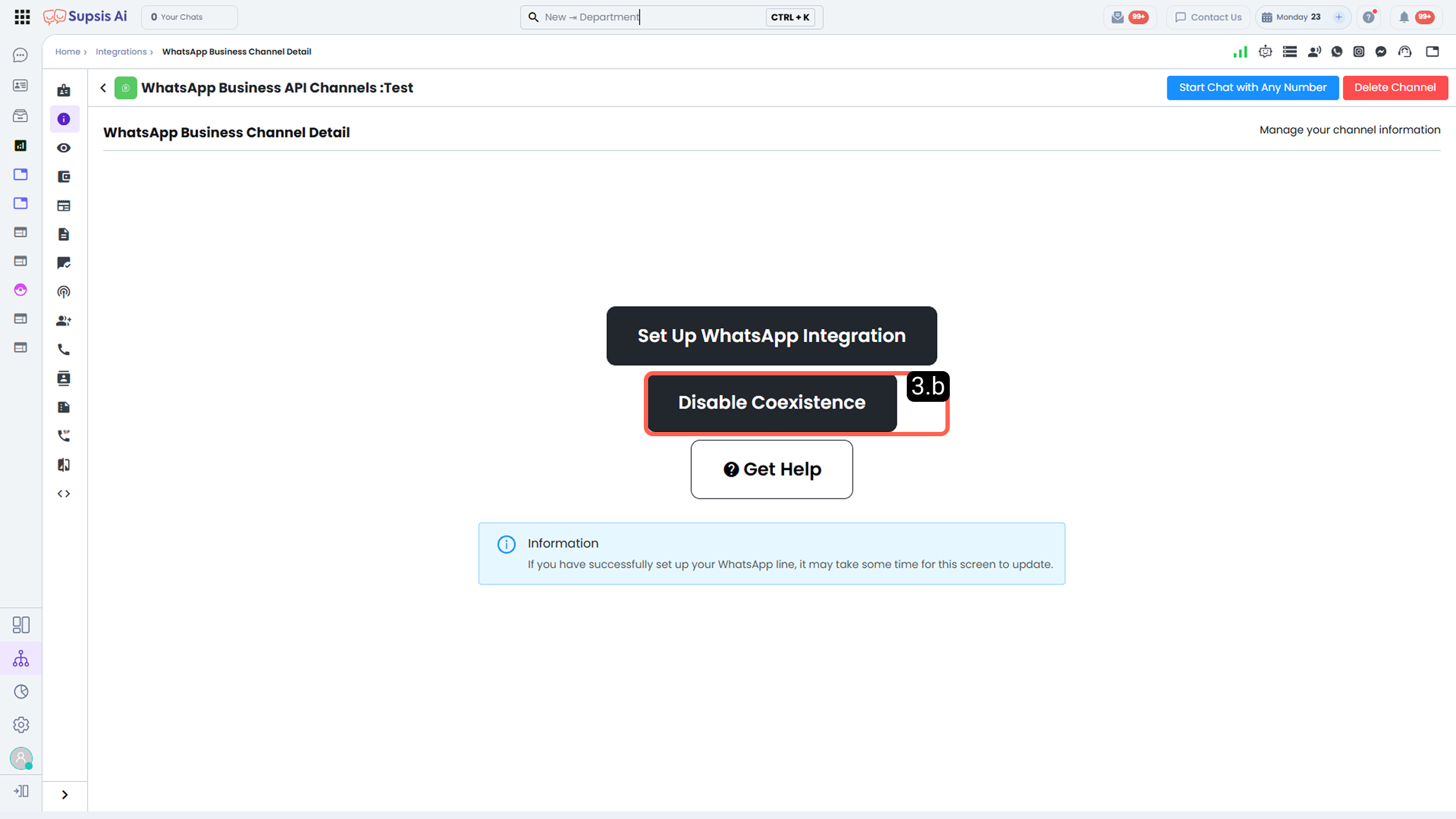
3.b - Coexistence
Through this button, you can activate or deactivate the integration in Coexistence (Simultaneous Use) mode. Coexistence is a hybrid working model that allows a WhatsApp number to be actively used both in the WhatsApp mobile application and in the WhatsApp Business API (Supsis AI panel) at the same time.
In traditional (Standard) WABA structure, the number is connected only to the API and becomes unusable in the WhatsApp application. With Coexistence, this limitation is removed; manual usage and Supsis AI capabilities operate on the same number simultaneously.
-
a – After Coexistence Activation
- The same number can continue to be used seamlessly in the WhatsApp application (mobile or web).
- Messages sent manually from the application are instantly synchronized with the API and the Supsis AI panel.
- Messages sent from the panel (API) are also visible in your WhatsApp mobile application.
- The number can be added to a limited number of WhatsApp groups, and group messages can be received and read in the Supsis AI panel.
- Operational teams can work manually while systems (chatbot, automation, etc.) operate automatically at the same time.
-
b – Before Coexistence (Standard WABA)
- The number is managed only by API servers.
- Login via WhatsApp mobile or desktop applications is not possible; the number is removed from the application.
- Manual messaging from the phone is not possible.
- Group messaging and group features are not supported.
-
c – Value Provided by Coexistence
This feature provides operational flexibility by combining manual and automated workflows. It allows managers to operate via mobile devices while agents work through the panel. Additionally, the ability to monitor group messages offers a more natural and user-friendly WhatsApp experience. -
d – Unchanged Policies
Even if Coexistence is active, Meta’s general messaging policies remain in effect. Template message rules, pricing policies, and the 24-hour customer service window rules still apply. Additionally, active group message sending via API remains limited (due to spam prevention), and Newsletter/Channel support is not available.
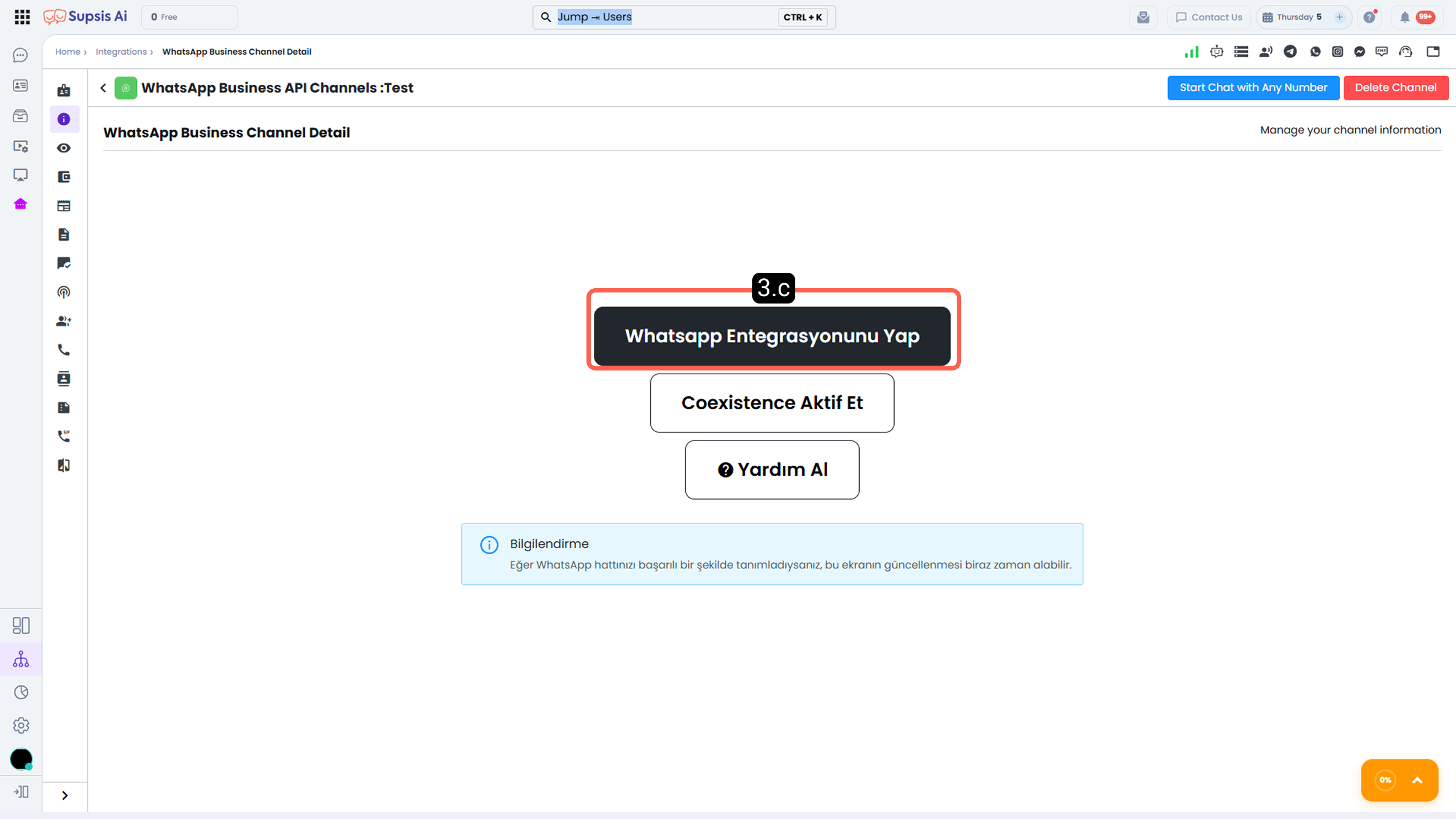
3.c – Complete WhatsApp Integration
After defining the channel settings and selecting your Coexistence preference, click this black button to establish the connection with Meta (Facebook). This action will redirect you to the Facebook login screen and allow your line to be matched with your Business Manager account. Once the setup is complete, the line will become "Active". After clicking this button, you can proceed to the Phone Number Connection steps in this documentation.
4-) Phone Number Connection Steps
After completing the channel creation process in the Supsis AI panel, you will be redirected to the Facebook login screen to connect your phone number to Meta infrastructure and initiate the approval processes. At this stage, make sure that the Facebook Business Manager account belonging to the business you want to connect is open in your browser.
Critical Warning:
Your number must be "Available". The phone number you are integrating must not currently be active on WhatsApp, WhatsApp Business, or any other API account.
Are you currently using your number?
If your number is registered on WhatsApp on your phone, before starting the process you must completely disconnect it by going to WhatsApp settings and selecting "Delete My Account".
If your number is registered on WhatsApp Business, before starting the process you must completely disconnect the number from the business portfolio to which it is connected.
Otherwise, the integration will fail.
4.a – Access Facebook Connection
The first step of the setup wizard is to establish a secure connection bridge between Supsis AI infrastructure and your Meta account.
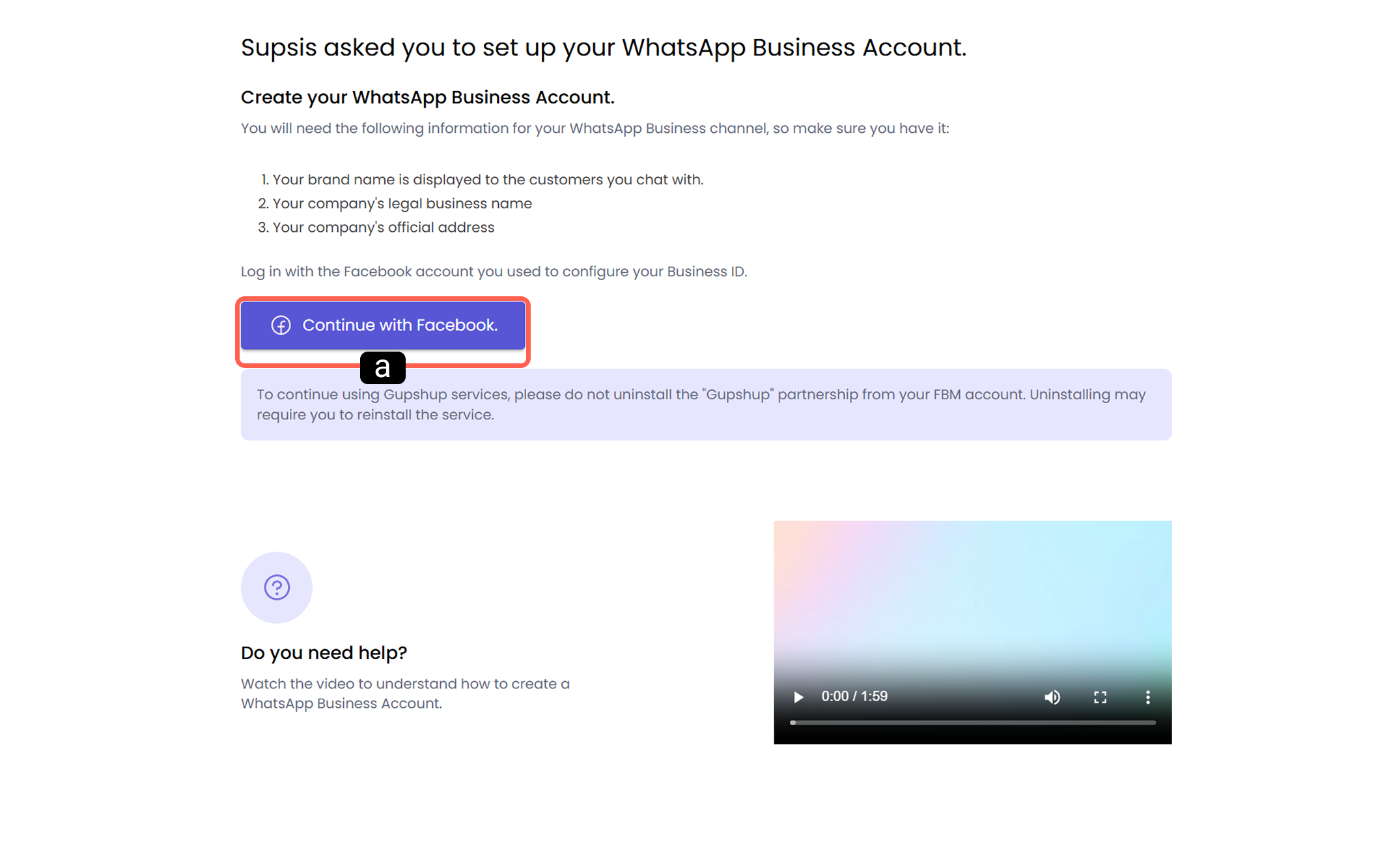
- a – Continue with Facebook
Click the blue button displayed on the screen to start the process. This action opens a new browser pop-up directing you to the Facebook login screen. If you are already logged in, you will proceed directly to the permission screen; otherwise, you will be asked to log in.
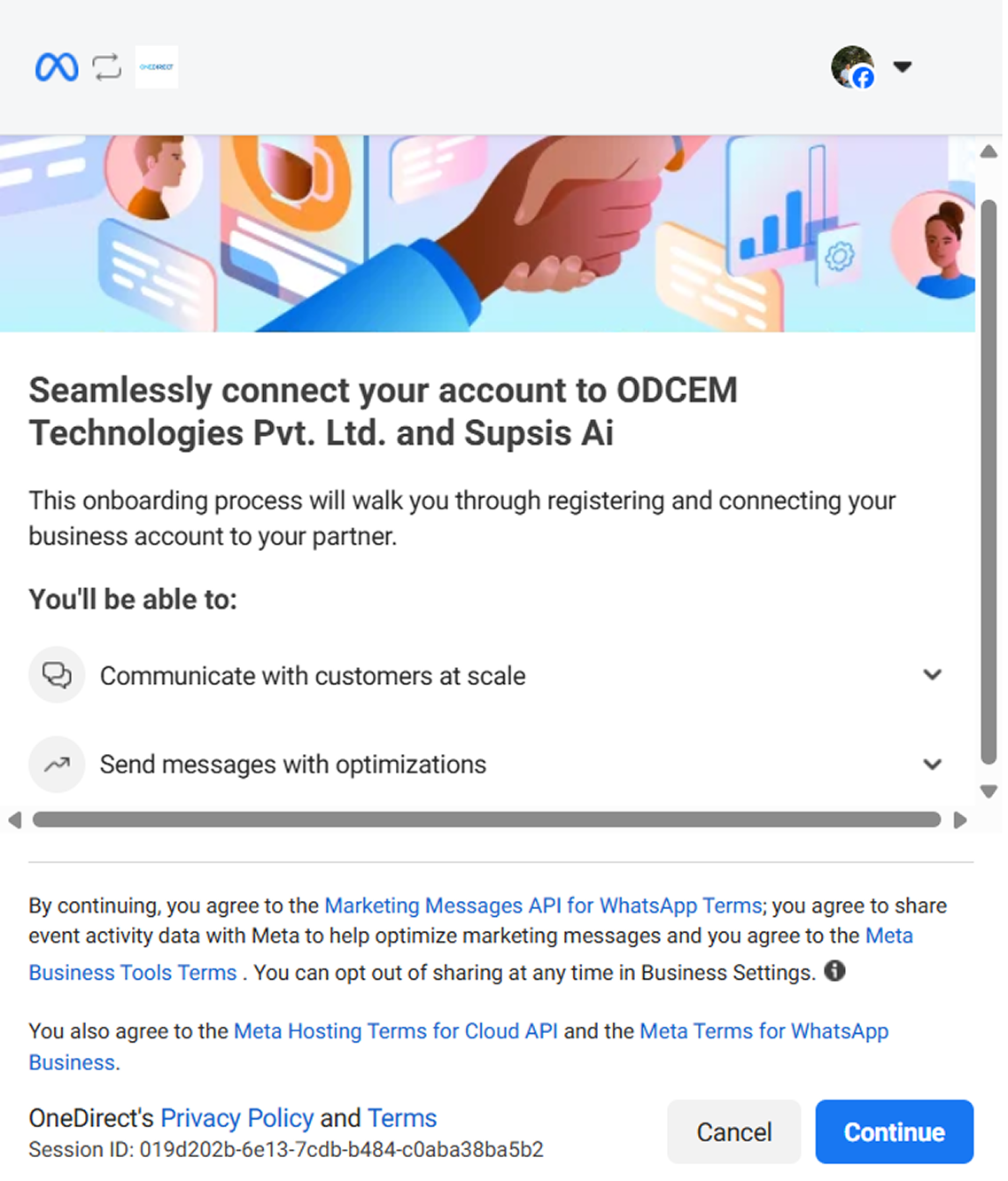
4.b – Start Integration
After logging in, Meta will request your approval to connect your account with the solution partner (BSP). This screen summarizes the permissions required for integration (sending messages, reading messages, managing templates, etc.). Click "Continue" to proceed to the next step of the setup wizard.
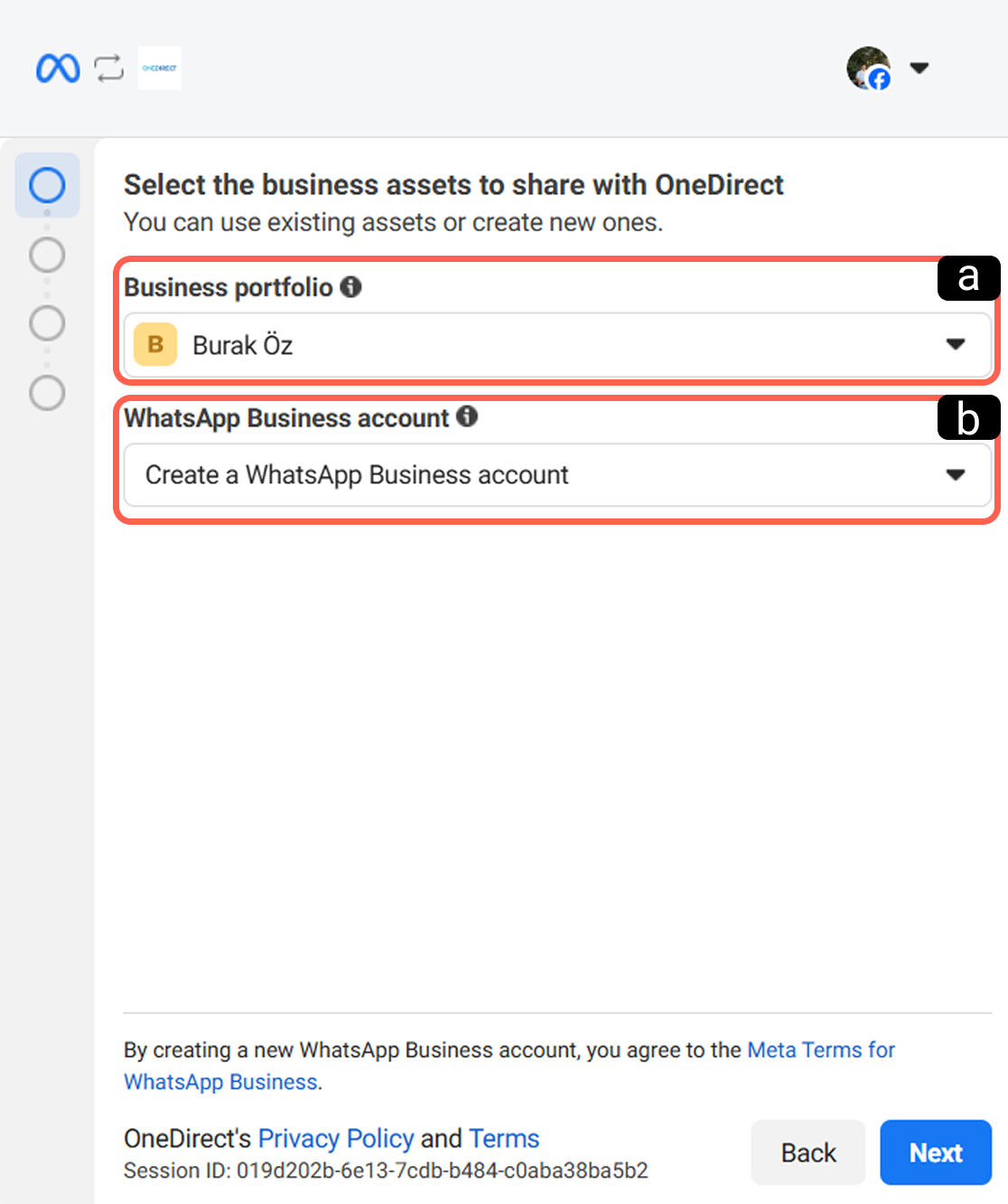
4.c – Portfolio & WhatsApp Account Selection
At this stage, you must determine under which business assets the phone number you are integrating with Supsis AI will be registered. Correct authorization is critical at this step.
-
a – Business Portfolio Selection
Select the Meta Business Manager account (Business Portfolio) to which the number will be connected. If you have multiple businesses linked to your Facebook account, ensure that you select the legal owner of the number. -
b – WhatsApp Business Account Selection
The WABA (WhatsApp Business Account) is the main container where WhatsApp Business phone numbers and message templates are stored. You can either use an existing account or create a new WABA account. -
Use Existing Account: If you have previously created a WABA account, you can select it from the list. This allows you to use the templates already created under that account.
- Create New Account: Select "Create a WhatsApp Business account" to start fresh for this number.
4.d – Business Information
Finally, you must define the identity information that customers will see on your WhatsApp profile.
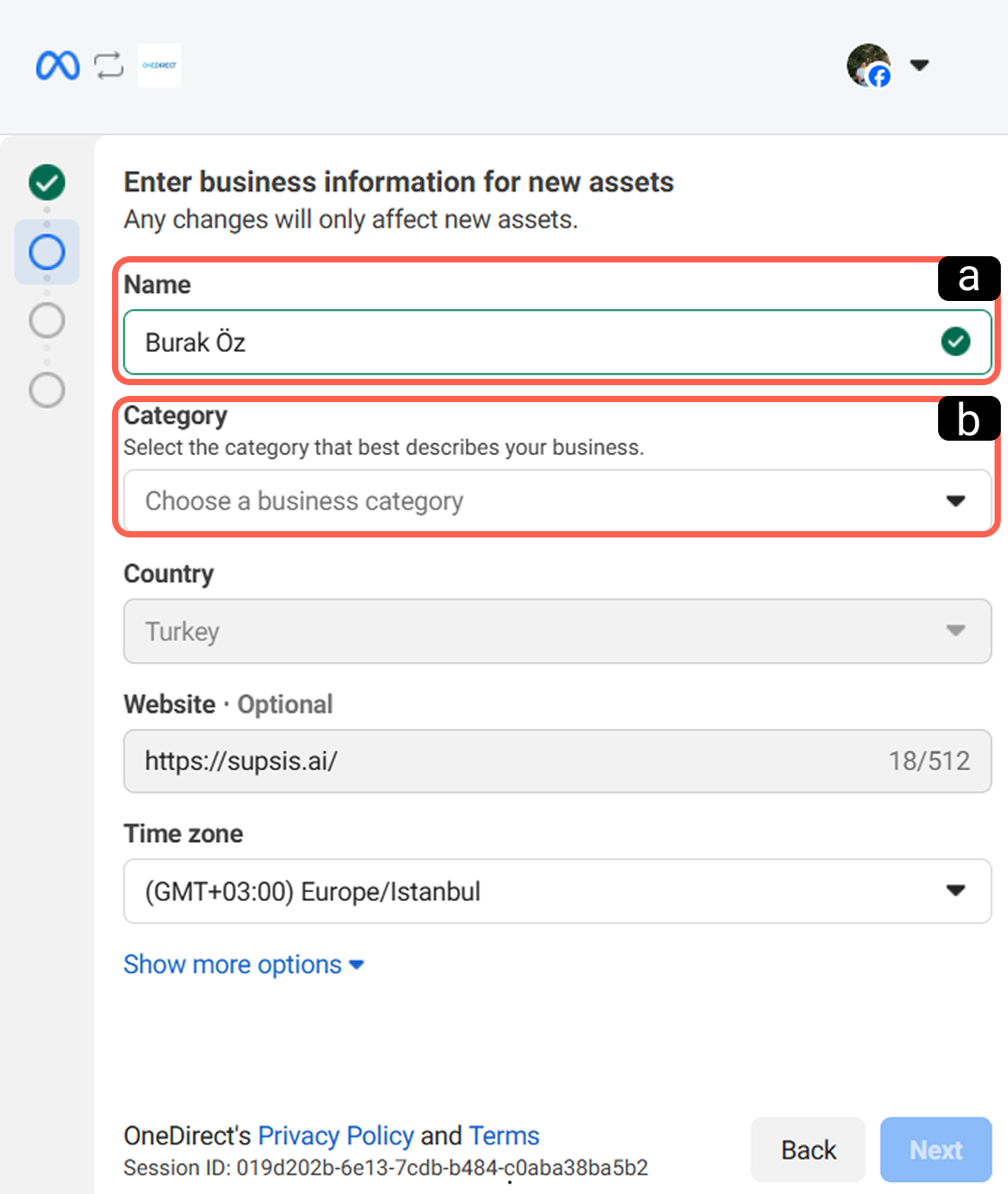
- a – WhatsApp Display Name
This is the name that will appear on your profile when customers chat with you.
If you connect the number through a verified business account, the phone number will not be visible; only the display name entered here will be shown. If connected through an unverified business, customers will see this display name only when they enter your profile.
Important: The name entered here must match your legal company name or brand name. Names that violate Meta’s "Display Name Policies" (e.g., generic terms such as "WhatsApp Support") may be rejected.
- b – Category Selection
Select the category that best describes your business sector. If no suitable option is available, choose “Other”. This information will be displayed on your business profile.
4.e – Number to Be Defined
After entering business information, you will be directed to the screen where you specify the phone number to be used with WhatsApp Business API.
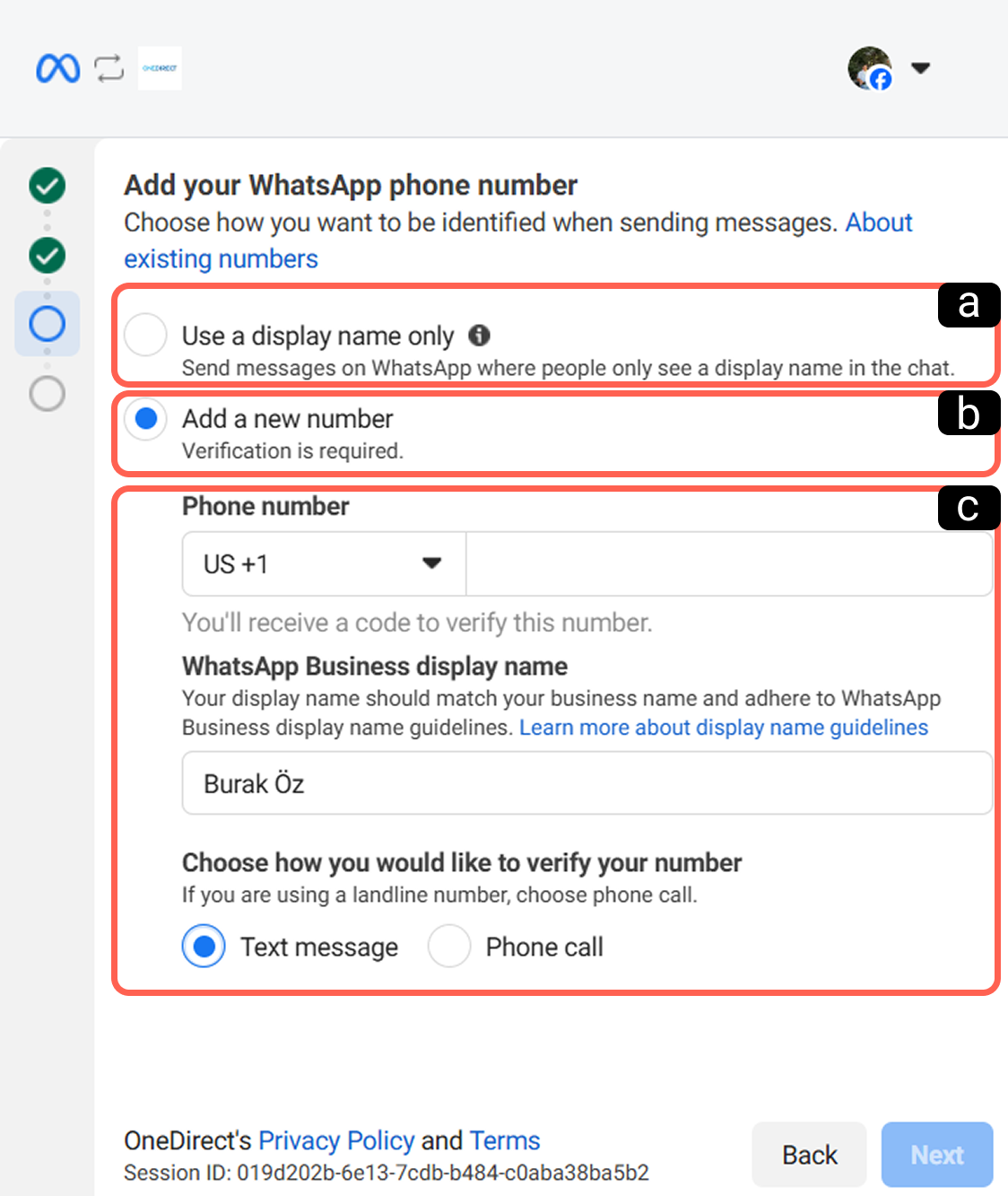
- a – Use Only Display Name
This option is available for portfolios that have completed Business Verification.
How It Works: When selected, Meta assigns you a virtual number (usually with a US area code). In conversations, customers will see your Business Name instead of a phone number.
Use Case: Suitable for global businesses that do not want to connect a physical number and prefer to appear only with their brand name.
Important Distinction: If you already have a verified business and want to communicate using your own local number (e.g., 0850 or 05XX) while still benefiting from the Display Name feature, DO NOT SELECT this option. Use the "Add a New Number" step instead. For verified businesses, the display name feature will still work even if you add your own number.
-
b – Add New Number
Select this option to connect a clean phone line that has not previously been defined in the system. The system will check whether the number complies with WhatsApp Business API standards. -
c – Number and Verification Method
-
Phone Number: Select the country code (e.g., TR +90) and enter your phone number without the leading zero.
- Verification Method: Choose how you would like to receive the 6-digit verification code sent by Meta — via SMS or phone call (voice response).
4.f – Number Verification
After entering your phone number, a 6-digit code will be sent via the selected communication method. Enter this code in the relevant field to verify ownership of the line.
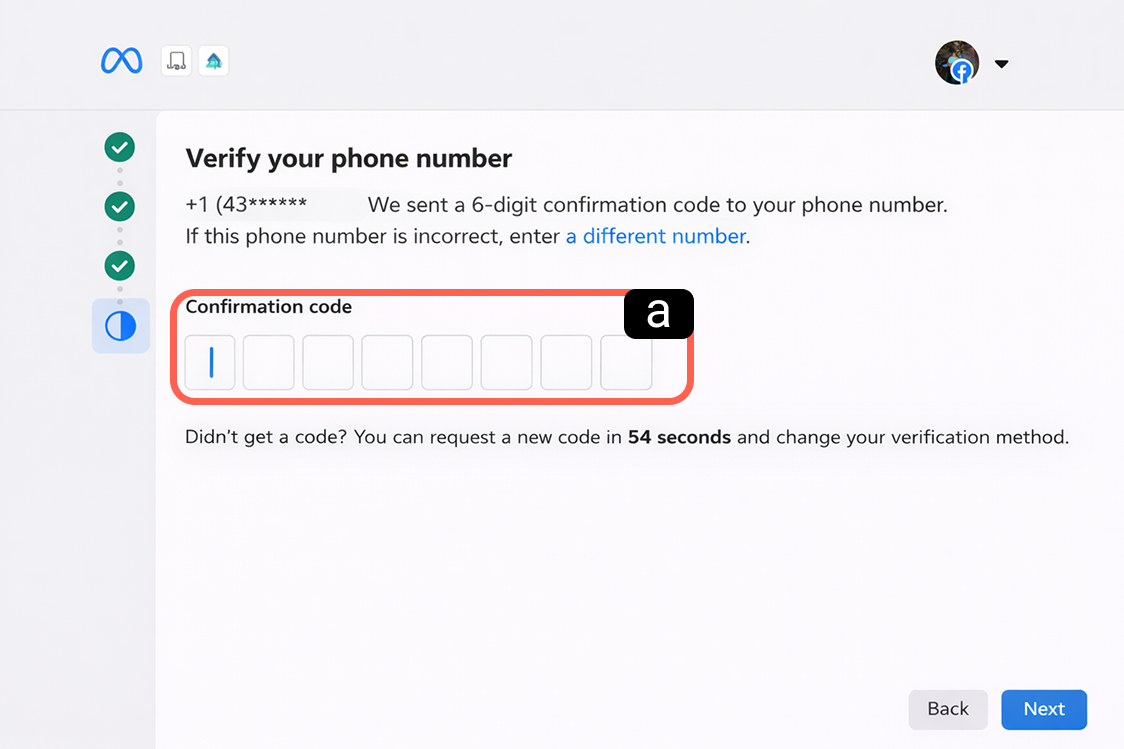
- a – Enter Code
Enter the 6-digit code received via SMS or call. If you did not receive the code, wait until the countdown ends and use the "Resend Code" option.
4.g – Finalizing the Integration
After verifying the number, you will proceed to the final stage where you approve data sharing permissions between Supsis AI and Meta.
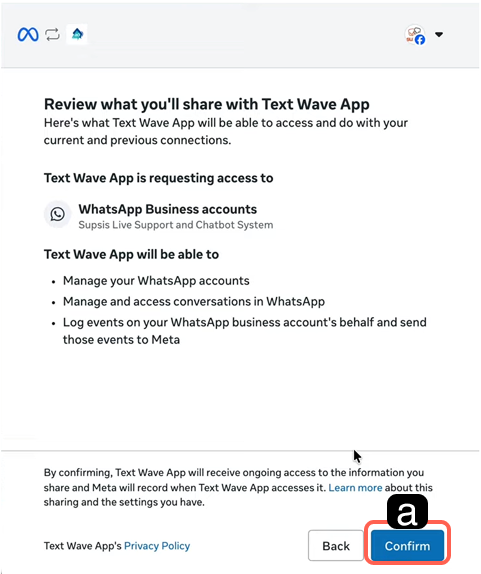
- a – Review Permissions
This screen lists the permissions required for Supsis AI to manage your WhatsApp account and transfer messages to the panel. Click "Confirm" to continue.
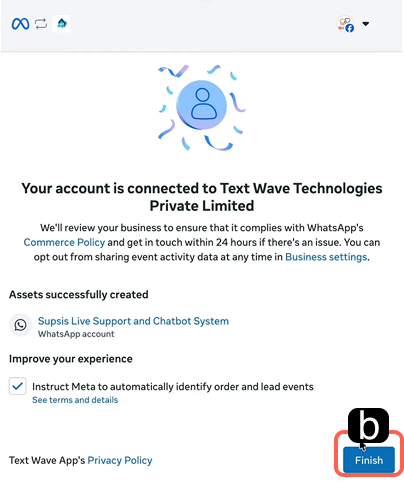
- b – Complete Meta Process
After permissions are granted, a confirmation screen will appear indicating that your account has been successfully connected. Click "Finish" to close the Meta wizard and complete the number connection process.
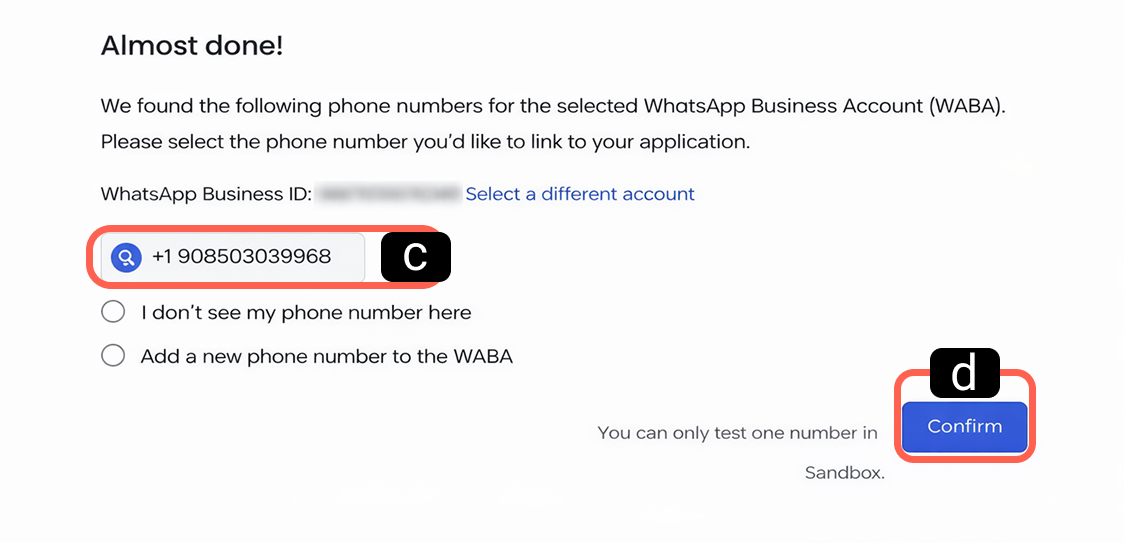
-
c – Select Number
After the Meta window closes, you will be redirected to the Supsis AI integration interface. Under the heading "Almost Done!", the phone number you just verified will be listed. Select the number you wish to complete the integration with by checking the box next to it. -
d – Confirm Number
After ensuring the correct number is selected, click "Confirm" to save the process.
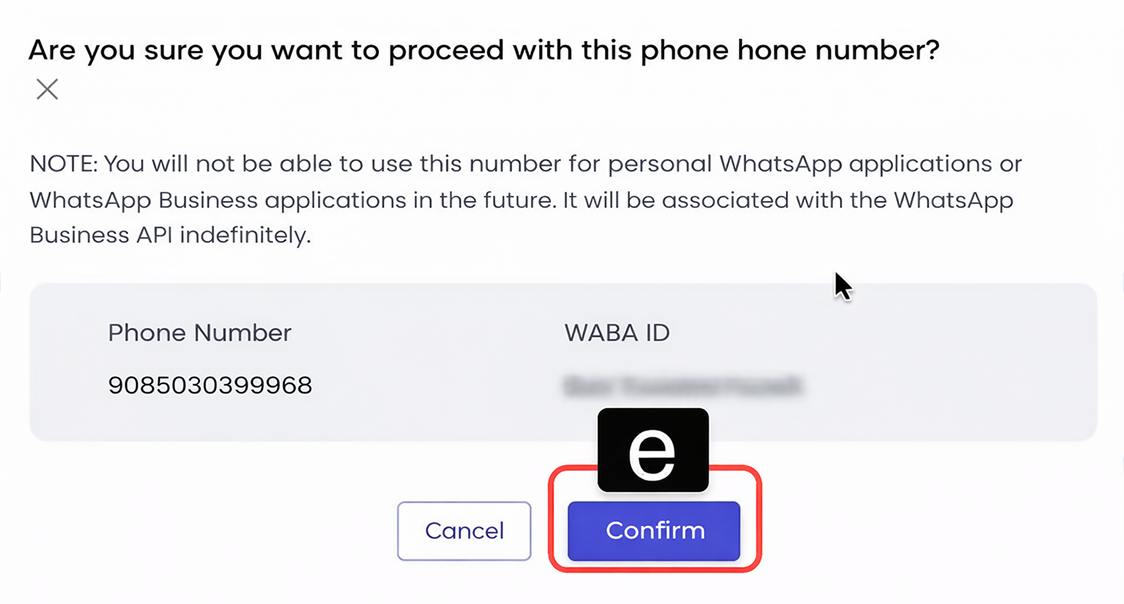
- e – Connection Confirmation
As a final security notice, the system reminds you of the permanence of this action. It states that the number can no longer be used in personal WhatsApp or WhatsApp Business applications and will remain associated with the API infrastructure until removed from the system. Read the warning and click "Confirm" to complete the process.
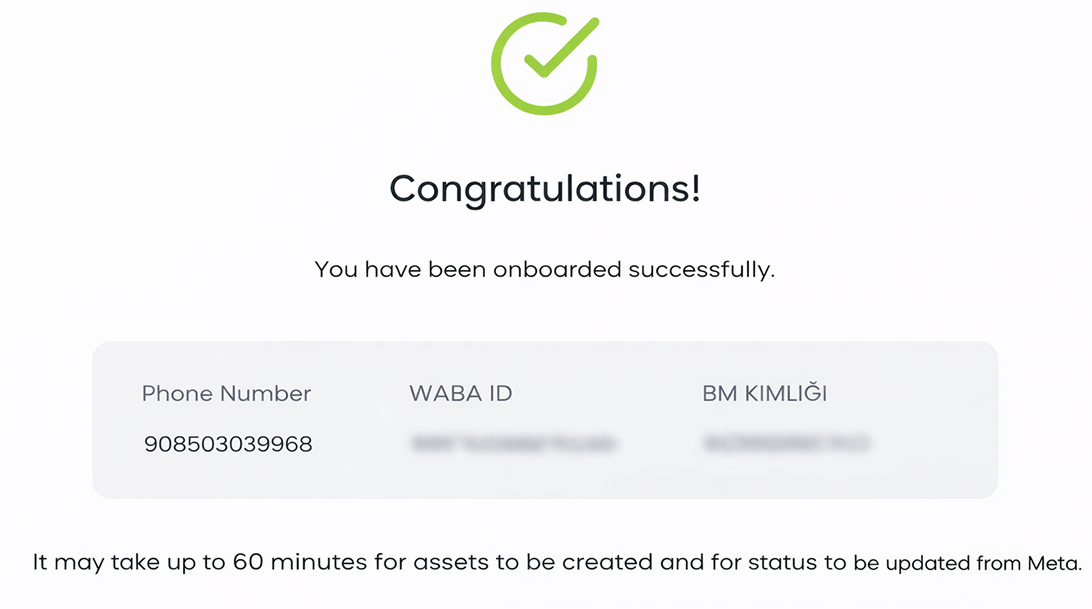
After completing these steps, you will see the relevant screen, and your line will become active in the Supsis AI panel.
5-) Business Verification Steps
The business verification process ensures that the authenticity and ownership of the business are confirmed in order to fully access advanced features such as WhatsApp Business API on Meta platforms. Through these steps, business information is matched with Meta systems and full authorization access is granted.
Important Warning: Without completing this step, access to WhatsApp Business API is limited (Sandbox/Tier-1). In this restricted version:
- The WhatsApp profile displays only the phone number instead of the Business Name.
- The daily limit for initiating conversations is restricted to 250.
To remove these limitations and initiate the "Green Tick" (Optional) process, complete the steps below.
5.a – Access Business Verification
To start the verification process, access the Meta Business Manager panel. You can reach this section via two different menus.
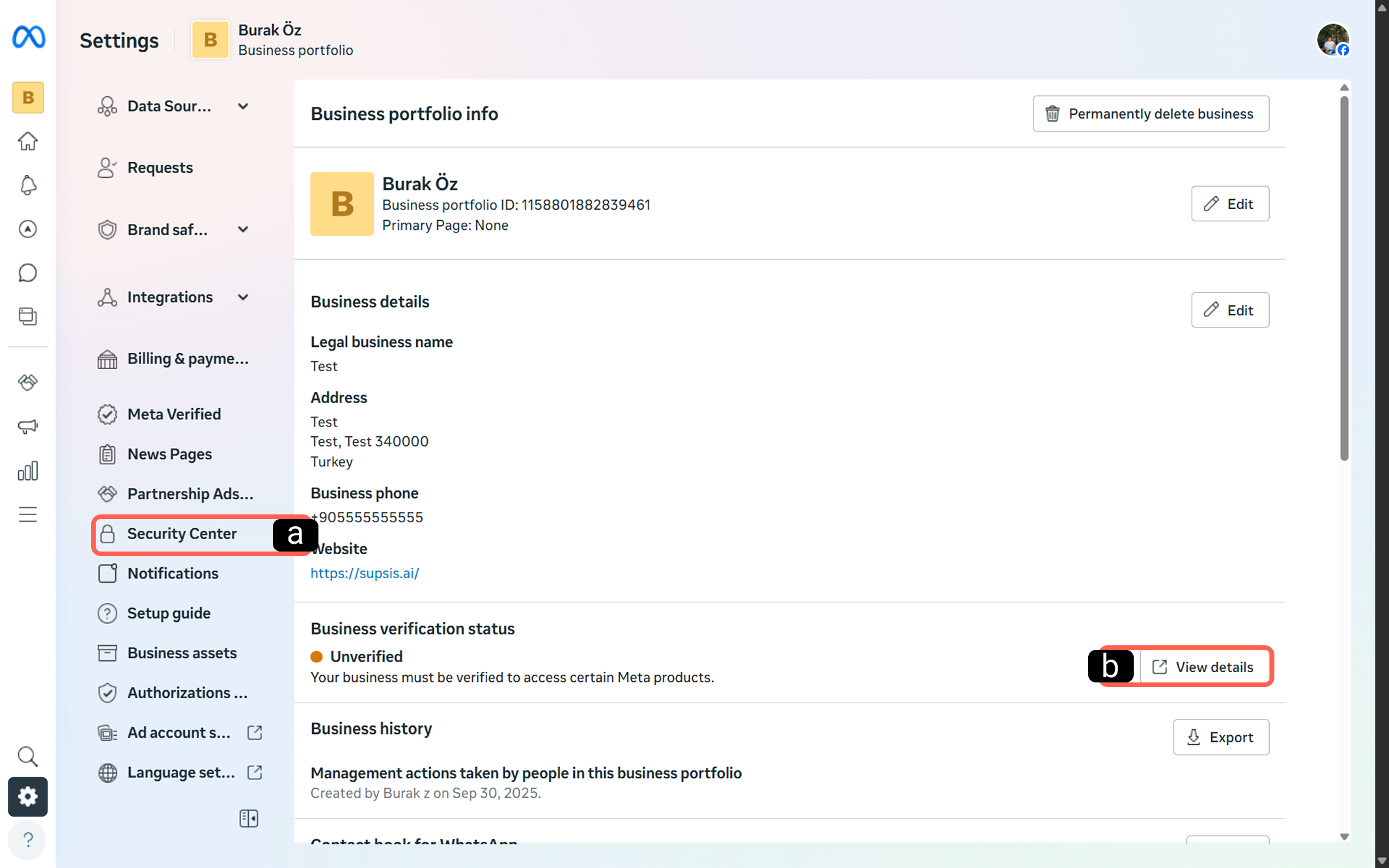
-
a – Access via Security Center
Click on the "Security Center" tab in the left menu to access the main panel where business security and verification processes are managed. -
b – Access via Business Information
Alternatively, click the "See Details" button under the "Business Verification Status" card on the Business Information page to initiate the process.
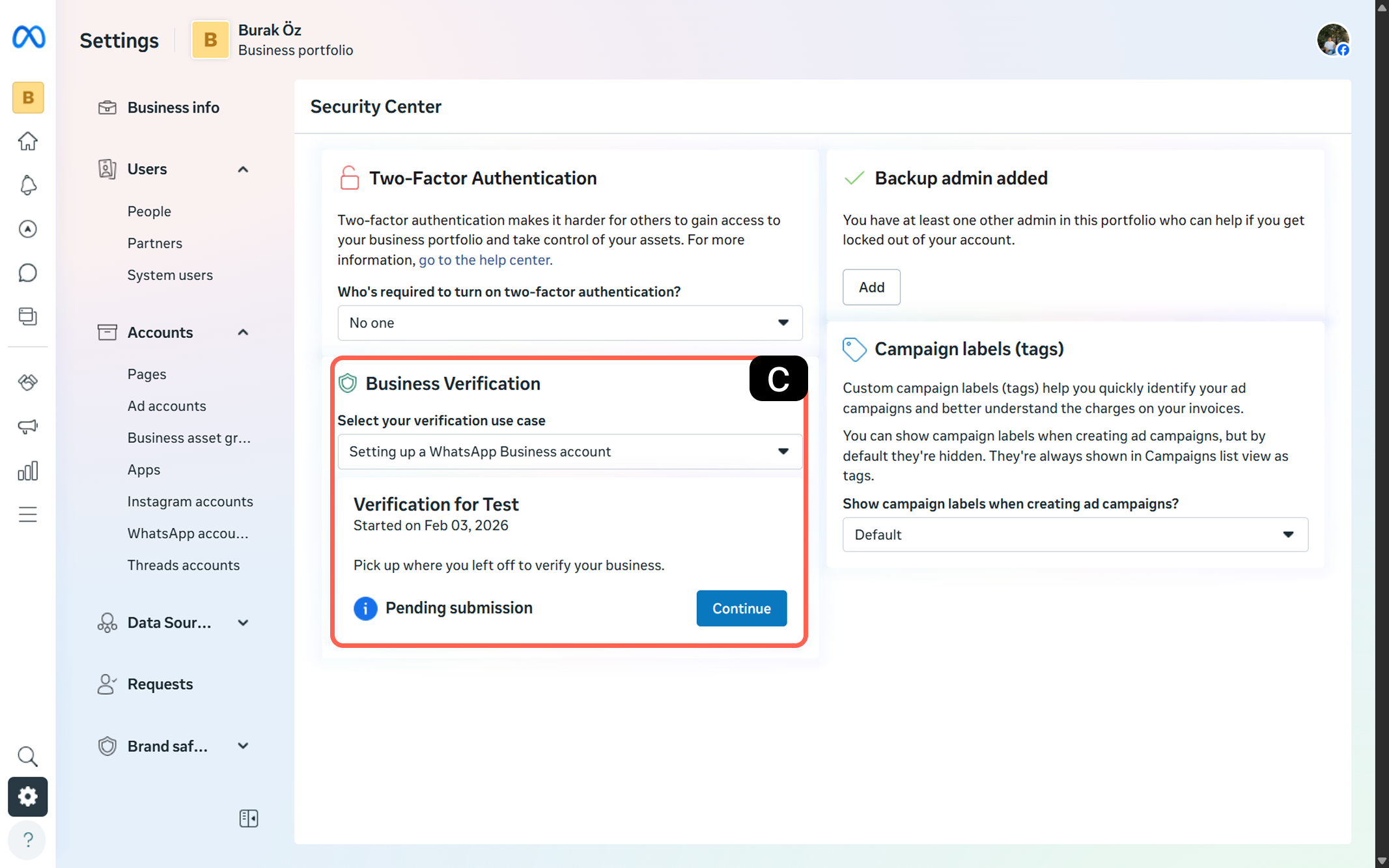
- c – Start Business Verification
In the Security Center, you will see the "Business Verification" card. Click "Continue" or "Start" to launch the wizard. Meta will compare your provided business information with official databases.
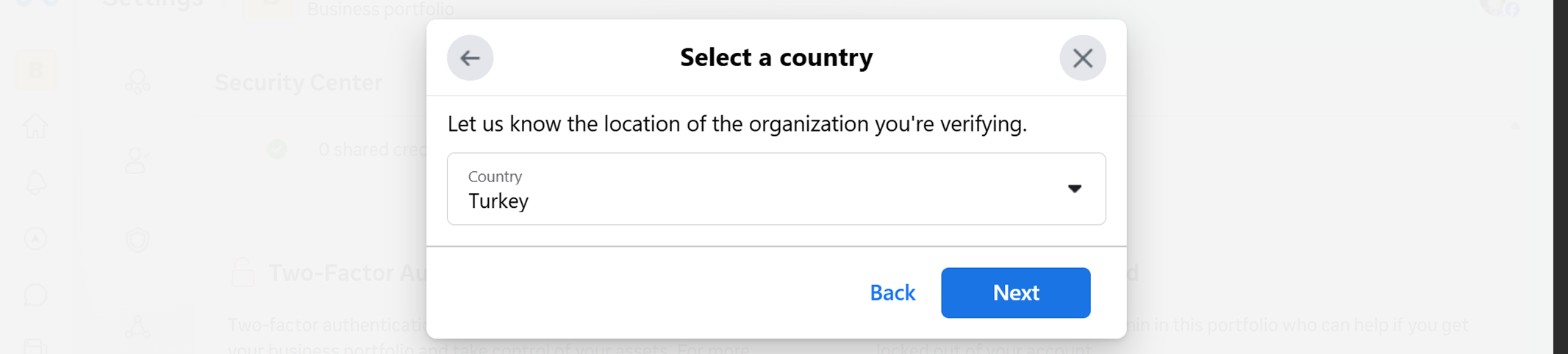
5.b – Country Selection
Select the country where your business legally operates and which is stated on your tax certificate. Verification methods and required documents may vary depending on the selected country’s legal procedures.
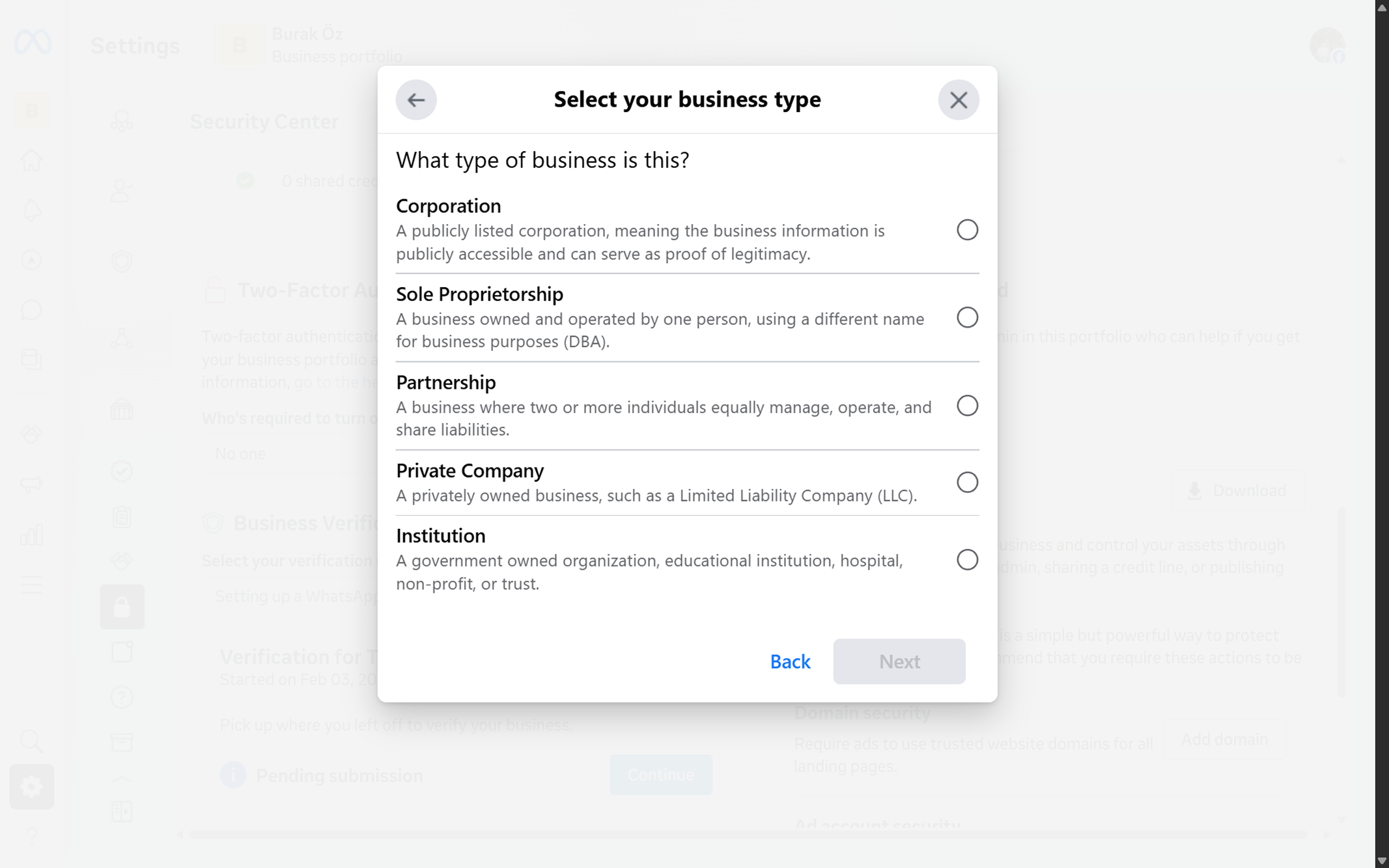
5.c – Business Type Selection
Accurately specify the legal structure (Legal Entity Type) of your business. The selected type determines the document type you will need to upload in the next step.
5.d – Business Name
Enter your Official Business Name exactly as written on your tax certificate or trade registry document.
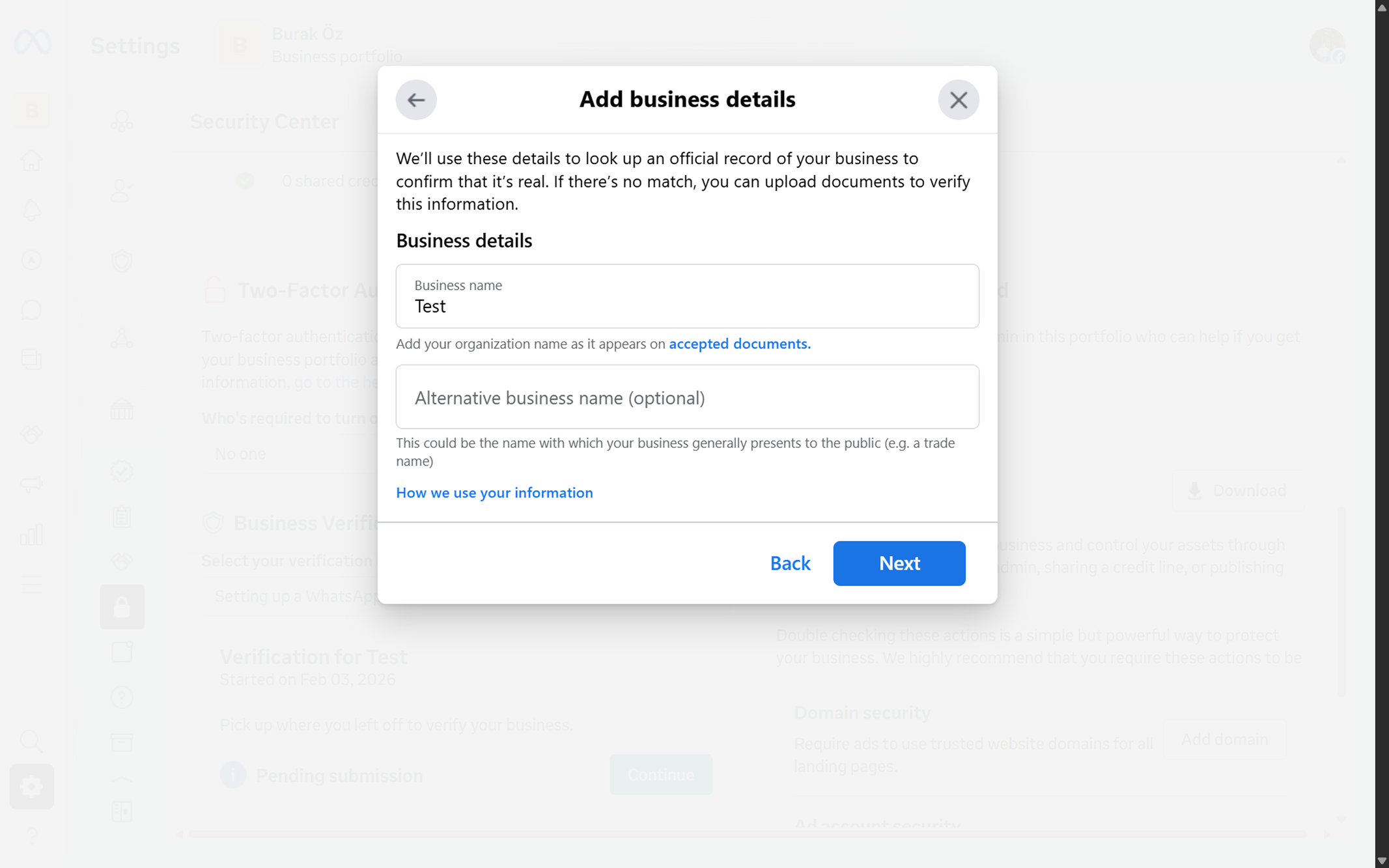
- Alternative Business Name: Optional. If your official name differs from the public-facing brand name (e.g., "Ahmet Yılmaz Food" vs. "Lezzet Durağı"), you may enter the public-facing name here.
5.e – Address
Enter your business’s official registered address.
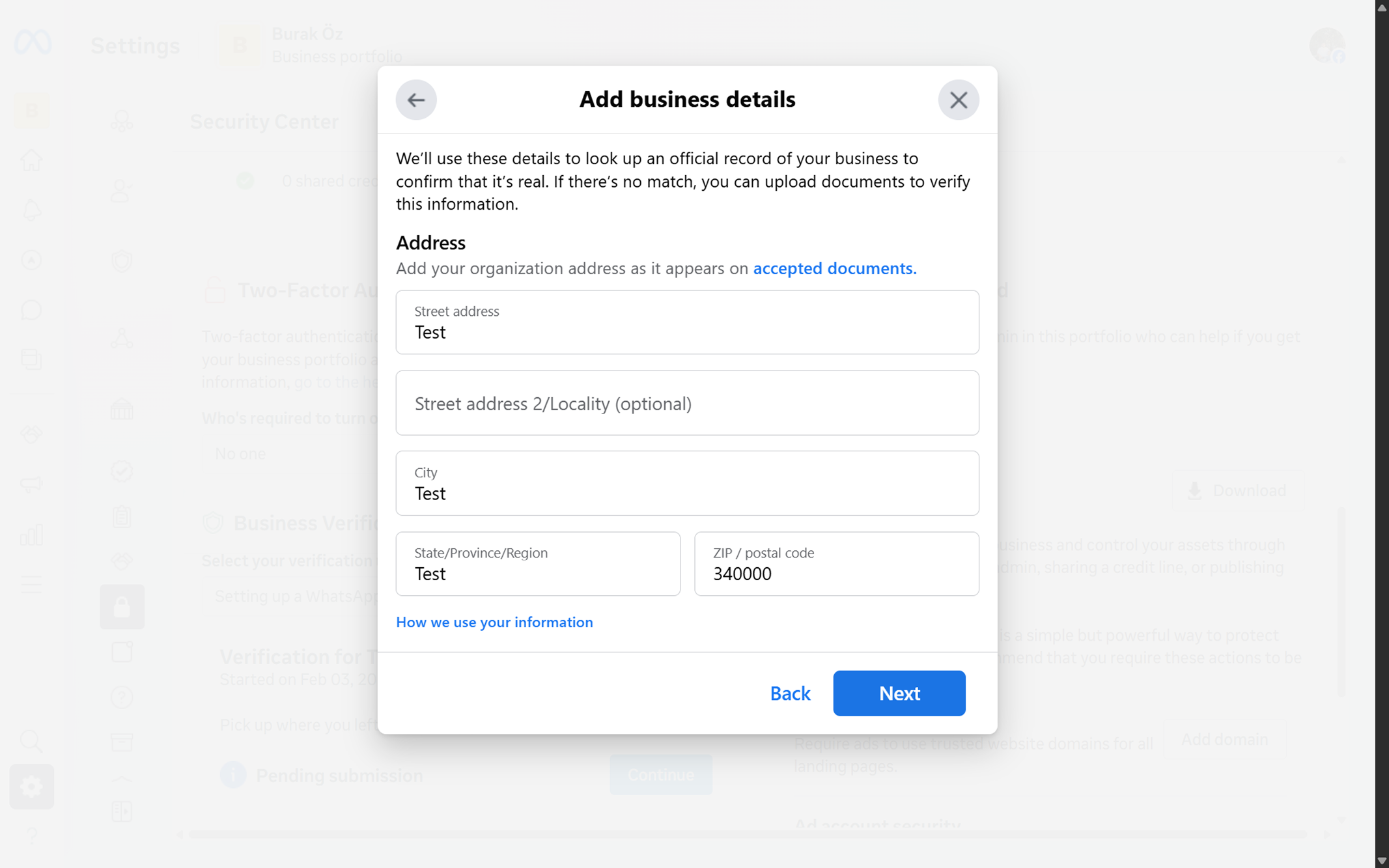
Important: The address entered here must match exactly (character by character) the address on the official documents or invoices you will upload. Even minor spelling differences may result in rejection.
5.f – Contact Information
Define the communication channels through which Meta can reach your business and send verification codes.
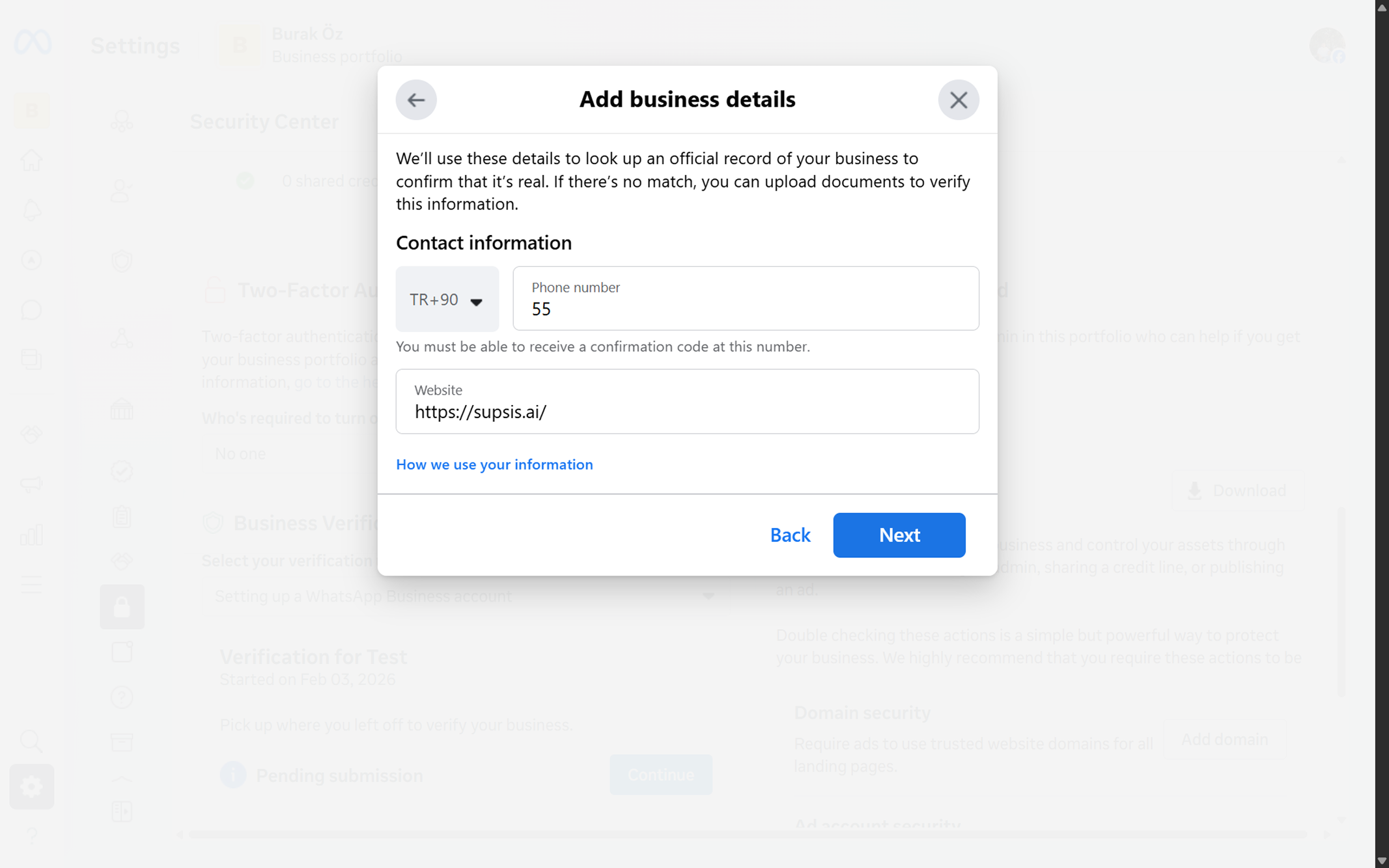
- Phone Number: Enter the official business number, preferably the one listed on your website or Google Maps.
- Website: Add your active business website (starting with https://). Having your legal company name in the footer or contact section increases verification success.
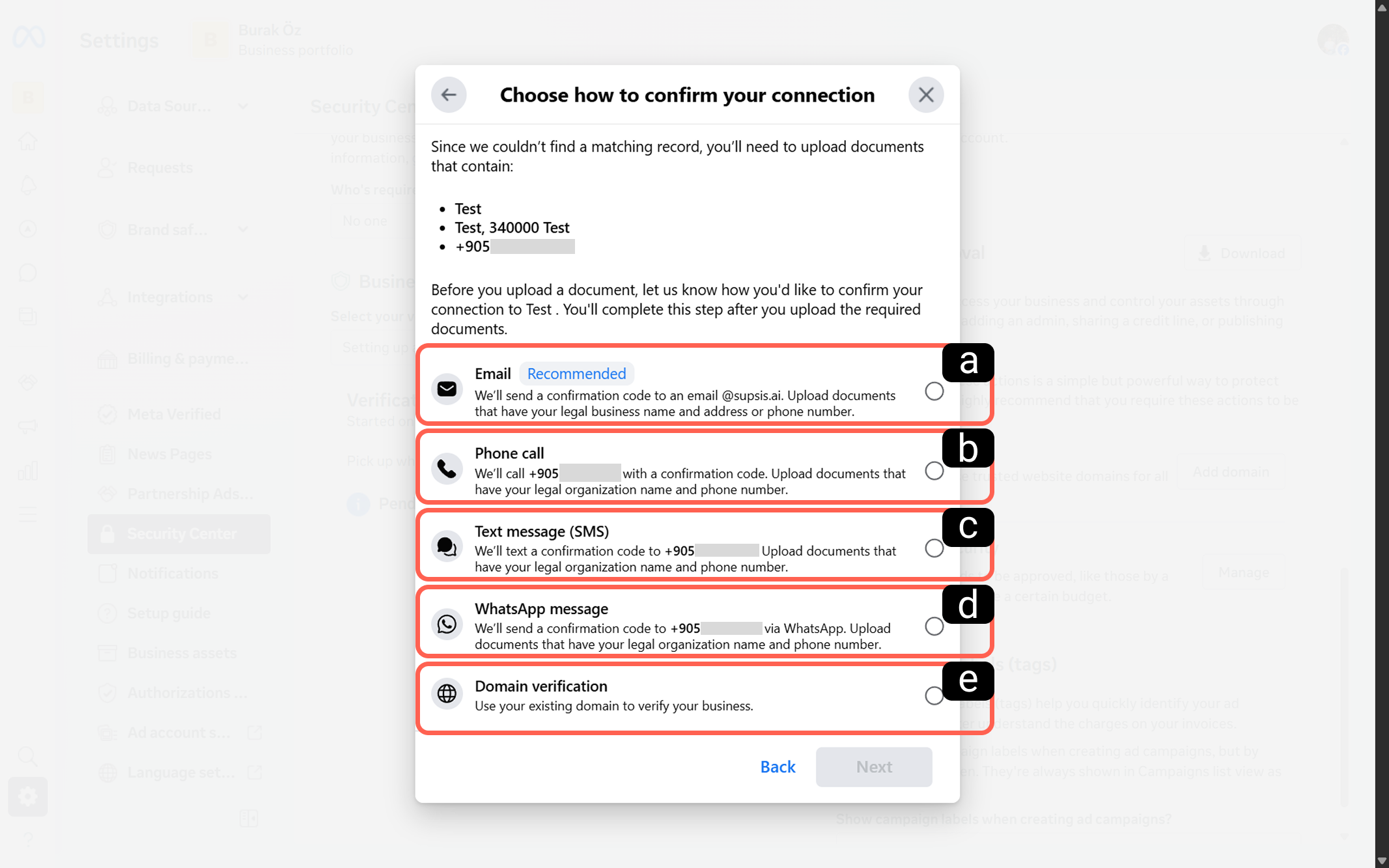
5.g – Verification Method
Meta will send a verification code to confirm that you have access to the provided information. Choose the most suitable method. (Recommended: Email)
-
a - Email (Recommended)
A code is sent to an email address associated with your website domain (e.g., if your website is supsis.ai, the email must end with @supsis.ai). Generic domains like Gmail or Hotmail are not accepted. -
b - Phone Number
An automated call delivers the code verbally to the specified number. -
c - SMS
A code is sent via SMS to the specified mobile number. -
d - WhatsApp Message
If WhatsApp is installed on the specified number, the code is sent via WhatsApp. -
Domain Verification
If you have access to your website’s DNS records, you can instantly verify by adding a TXT record provided by Meta.
5.h – Document-Based Business Verification
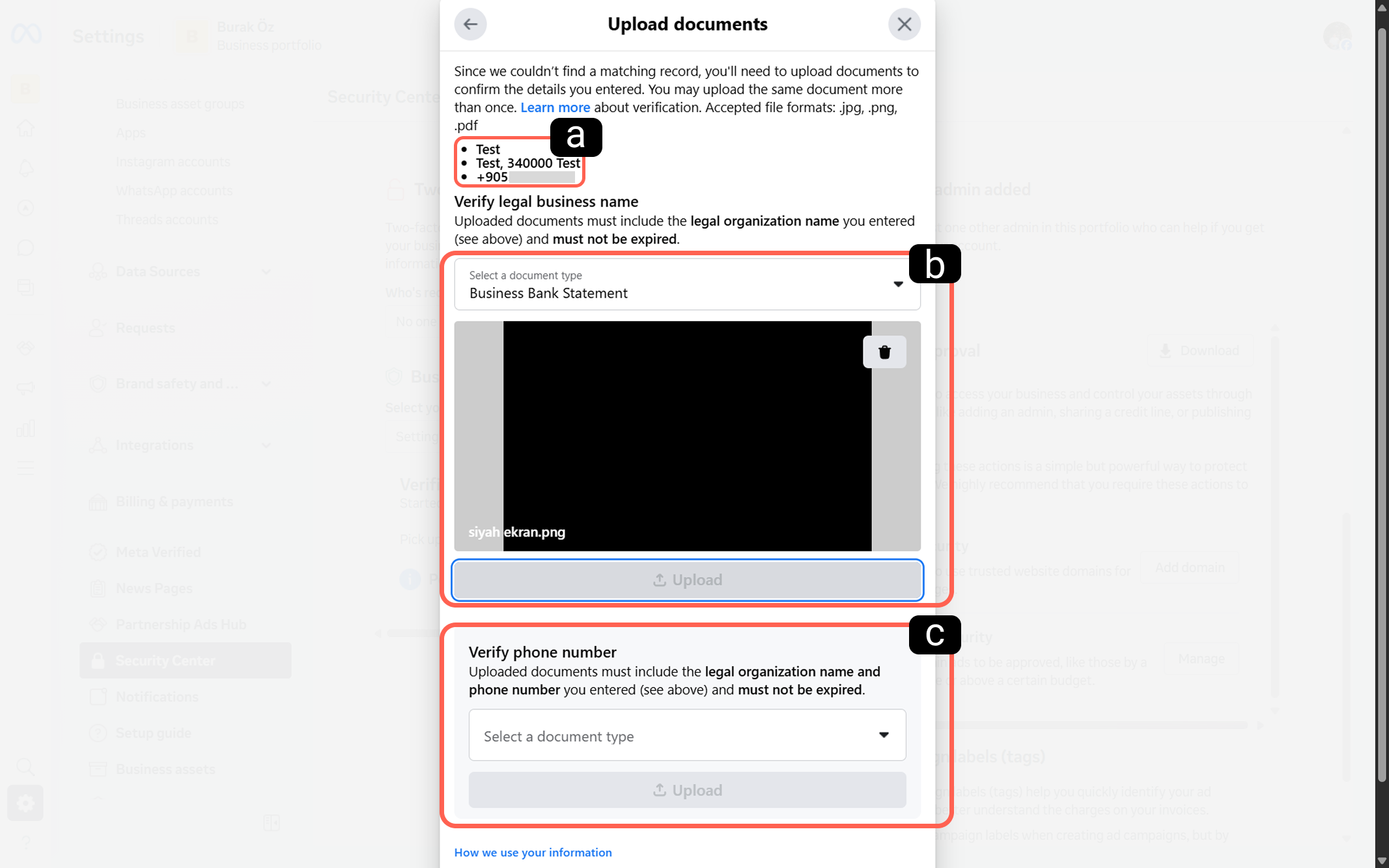
At this stage, you must provide official documents proving the business name, address, and phone number declared earlier. If a single document does not verify all details, you may upload two separate documents. Accepted documents include business bank statements, trade licenses, tax certificates, incorporation documents, and utility bills (electricity, water, gas, or phone).
-
a - Information to Be Verified
This section lists the core data declared earlier (Official Business Name, Full Address, Phone Number). The uploaded documents must match this information exactly. -
b - Document 1 (Recommended: Business Tax Certificate)
Upload the primary document proving the legal existence of your business. This is typically used to verify the business name. -
c - Document 2 (Recommended: Utility Bill)
If the first document does not verify all required details (name, address, phone number), upload a second supporting document here.
Recommended Document Strategy:
For a smooth approval process, it is recommended to use the following combination:
- Document 1: Upload your updated Tax Certificate under "Business Tax Certificate".
- Document 2: Upload a Utility Bill (Electricity, Water, Gas, or Phone) issued in the name of the business.
Note: The address on the selected invoice must exactly match the address listed in section a.
WhatsApp Integration Solutions: Advantages and Disadvantages
This section compares WhatsApp integration options in terms of advantages, disadvantages, and usage differences.
Compared solutions:
- WhatsApp V3 QR
- WhatsApp Business API
- WhatsApp Business API v2
1. WhatsApp V3 QR
WhatsApp V3 QR is a WhatsApp integration solution that works through QR code connection. Its usage logic is similar to WhatsApp Web. It may be preferred because it can be activated quickly and offers a user experience close to the standard WhatsApp application.
Since this solution does not operate on the official WhatsApp Business API infrastructure, it should be carefully evaluated especially for corporate and high-volume usage scenarios.
Advantages
-
Can be activated quickly.
Since the connection is established via QR code, the setup process is usually completed in a short time. -
Easy to use.
It provides a familiar experience close to WhatsApp usage, making it easier for users to adapt. -
Close to the WhatsApp user experience.
Users can work with a structure similar to daily WhatsApp usage. -
Application messages are free.
In the V3 QR structure, application messages are considered free of charge. -
Offers flexible usage.
Usage rules are more flexible compared to official API solutions.
Disadvantages
-
Requires active WhatsApp usage on a phone.
In this model, WhatsApp is expected to remain active on the device. Therefore, continuity depends on the device and session status. -
Not suitable for bulk messaging.
Broadcast/bulk messaging may create a ban risk, so it is not recommended for such usage scenarios. -
There is a risk of account bans.
Since it is not an official solution, intensive usage or policy violations may result in account restrictions. -
Not based on the official WhatsApp Business API infrastructure.
Therefore, it offers less assurance compared to official API solutions. -
Not recommended for corporate and long-term use.
Especially in structures where customer communication is critical, it may create sustainability risks. -
Stability risks may occur in high-volume communication.
It may not perform as reliably as official API solutions in environments with heavy message traffic.
General Evaluation
WhatsApp V3 QR provides a quick start and a user experience close to the WhatsApp application. However, due to the risk of bans in bulk messaging and the lack of official API infrastructure, it is not recommended as the primary choice for corporate, long-term, and high-volume customer communication.
2. WhatsApp Business API
WhatsApp Business API is a corporate integration solution that operates on the official WhatsApp Business infrastructure. Messaging processes follow WhatsApp policies and are especially suitable for companies that want to manage customer communication securely, systematically, and at scale.
In this model, template message charges are deducted from the Supsis wallet. In other words, payment management is tracked through the Supsis wallet structure rather than directly via Meta.
Two different structures can be evaluated within WhatsApp Business API usage:
- Cloud API
- CoEx
What is Cloud API?
Cloud API is the structure where WhatsApp Business API operates directly on the official cloud infrastructure. It is more suitable for customers who do not need to actively use the WhatsApp application and for whom message history visibility inside the app is not critical.
What is CoEx?
CoEx is a structure that supports simultaneous usage of WhatsApp Business API together with the WhatsApp application. This structure provides advantages for customers who want to preserve the app-based experience. However, there may be an approximate 5% risk of message loss when using CoEx.
Advantages
-
Uses the official WhatsApp Business infrastructure.
Provides a reliable structure for corporate use. -
No ban risk.
As long as Meta policies are followed, account restriction risks do not occur. -
Suitable for high-volume customer communication.
Enables systematic and controlled communication with large numbers of customers. -
Can be integrated with CRM, call center, and other systems.
Helps manage customer processes from a single center. -
Cloud API provides a simpler and more stable structure.
Recommended for businesses that do not need active WhatsApp application usage. -
CoEx allows usage together with the WhatsApp application.
Suitable for customers who want to continue using the WhatsApp application actively. -
Payments are tracked through the Supsis wallet.
Template message fees are deducted from the Supsis wallet.
Disadvantages
-
Usage is subject to WhatsApp policies.
Especially template messaging and first-contact processes must follow specific rules. -
Message history inside the WhatsApp application is not prioritized in Cloud API usage.
If app-side message history is critical, this requirement should be evaluated separately. -
Message loss risk may occur with CoEx usage.
There may be an approximate 5% message loss risk in the CoEx structure. -
Setup and migration require planning.
Number management, account configuration, and verification processes must be handled properly.
General Evaluation
WhatsApp Business API is a strong and reliable solution for corporate use. If there is no requirement to actively use the WhatsApp application or if application-side message history is not critical, Cloud API is recommended. If simultaneous WhatsApp application usage is required, CoEx may be evaluated; however, the message loss risk should be considered.
3. WhatsApp Business API v2
WhatsApp Business API v2 is the updated integration model that uses the official WhatsApp Business API infrastructure. The main difference in this solution is the payment method. While template message fees in the standard WhatsApp Business API model are deducted from the Supsis wallet, WhatsApp Business API v2 requires the customer to add their own payment method directly to Meta.
This structure allows payment and billing processes to be managed directly by the customer through Meta. Therefore, it is considered a more sustainable model for long-term and corporate usage.
Two structures can also be evaluated within WhatsApp Business API v2:
- Cloud API
- CoEx
What is Cloud API?
Cloud API is the structure where messaging processes are managed through the official WhatsApp cloud infrastructure. It is recommended for customers who do not need to actively use the WhatsApp application or for whom app-side message history visibility is not important.
What is CoEx?
CoEx is the structure that supports simultaneous usage with the WhatsApp application while using WhatsApp Business API v2. It may provide advantages for customers who want to continue active app usage. However, there may be an approximate 5% message loss risk in the CoEx structure.
Advantages
-
Recommended integration model.
Provides a healthier structure for corporate and long-term use. -
Uses the official WhatsApp Business infrastructure.
Reliable, sustainable, and suitable for corporate usage. -
No ban risk.
As long as Meta policies are followed, account restriction risks do not occur. -
Payment management is handled directly by the customer through Meta.
Customers manage their own billing process by adding their payment method to Meta. -
Cloud API offers a simpler and more stable structure.
More suitable for businesses that do not require active WhatsApp application usage. -
CoEx supports simultaneous WhatsApp application usage.
Provides an alternative for customers who still need app-based usage. -
Suitable for corporate growth.
Offers a more scalable structure for long-term usage, high-volume communication, and integration requirements.
Disadvantages
-
Customers must add a payment method on Meta.
This process must be completed by the customer. -
Usage is subject to WhatsApp policies.
Template messages and first-contact processes must follow Meta policies. -
Message history inside the WhatsApp application is not prioritized in Cloud API usage.
If message history inside the app is critical, this should be evaluated separately. -
Message loss risk may occur with CoEx usage.
There may be an approximate 5% message loss risk in the CoEx structure. -
Some customer-side actions are required during setup.
Adding Meta payment methods and completing necessary account processes are the customer’s responsibility.
General Evaluation
WhatsApp Business API v2 is the recommended solution for corporate customers. Managing payment methods directly through Meta provides a more transparent and sustainable structure for long-term usage.
If visibility of message history inside the WhatsApp application is not important or if active WhatsApp application usage is not required, Cloud API is recommended. If simultaneous WhatsApp application usage is needed, CoEx may be considered; however, the approximate 5% message loss risk should be taken into account.
7-) WhatsApp Business API Message Rates and Price Calculator
Pricing for template and conversation messages sent via WhatsApp Business API (v1 and v2) is based on the updated country and category rates (Marketing, Utility, Authentication, Service) determined by Meta (Facebook).
- Updated Meta Rates: Platform message rates have been updated according to Meta's official country and category pricing guidelines.
- WABA Price Calculator: You can calculate real-time message costs per category and target country using the Supsis WABA Pricing Calculator (wabapricing.supsis.ai).
- Payment Management:
- WhatsApp Business API (v1): Template message fees are deducted from your Supsis wallet balance.
- WhatsApp Business API v2: Template message fees are charged directly to the payment method (credit card) defined in your Meta account.
8-) Opt-Out / Banned Button & Custom Button Label Text in WhatsApp v2 Templates
WhatsApp Business API v2 template creation now offers a Yasakla (Opt-Out) button option that allows recipients to unsubscribe from future campaigns.
* Custom Button Text: Rigid syntax restrictions (#Yasakla#) have been removed. You can enter any custom text into the button label field (e.g., "Unsubscribe", "Stop Messages", "Block").
* Automatic Contact Banning: When a customer clicks this button on WhatsApp, their contact card in Supsis AI is automatically marked as banned and excluded from future broadcast campaigns.

9-) Meta Marketing Messages API (MM Lite) Integration
Supsis AI supports Meta's Marketing Messages API (MM Lite) for marketing and promotional broadcasts sent via WhatsApp Business API. * Delivery & Engagement Optimization: Operating seamlessly alongside WhatsApp Cloud API, this integration leverages Meta's smart delivery algorithms to ensure marketing messages reach recipients at optimal times, boosting open and response rates. * Template & Setup Compatibility: Approved marketing templates and existing WhatsApp phone number setups are fully maintained without requiring additional approval steps. * Campaign Analytics: Track real-time delivery, open, and engagement metrics for all marketing message campaigns directly within Supsis AI analytics dashboards.
10-) WhatsApp 24-Hour Customer Window & Automation SDK Validation
According to WhatsApp Business API rules, a 24-hour customer service window remains active starting from the customer's last incoming message.
* Within Active Window (isWithin24HourWindow === true): If a customer interacted within the last 24 hours, free-form session messages can be sent freely without requiring an approved template. Communication is classified under Meta's Service Conversation category.
* Outside Window (isWithin24HourWindow === false): Once 24 hours have elapsed, free-form messages cannot be delivered; a Meta-approved WhatsApp Template Message must be sent to reopen the conversation window.
* Automation SDK Validation: Using supsis.contact.getMessages in automation code blocks, the script calculates time elapsed since the last incoming message (diffHours < 24) and automatically routes the message type (Free-form vs Template Message).
11-) Using URL Buttons (Static & Dynamic URL - WABA v1 & v2)
In WhatsApp Utility and Marketing message templates, website redirection buttons are configured based on your channel version (WABA v1 vs v2):
* Classic WhatsApp Business API (v1 Channels): Select Button Type URL in the template panel. Enter Button Text and set Select URL type to Static or Dynamic. Enter the base URL in Button Value, and enter a test sample in Sample dynamic URL ({{1}}) to define the dynamic {{1}} parameter at the end of the path.
* WhatsApp Business API v2 (Meta Cloud WABA Channels): Choose "Call to Action" as the button category and "Visit Website" as the action type. Set URL Type to Dynamic URL and append {{1}} to the base URL (e.g. https://yourdomain.com/tracking/{{1}}).
* Parameter Mapping & SDK: Map customer order or tracking attributes to {{1}} during broadcasts or pass buttonParams: ["KR-98765"] in Automation SDK calls.
12-) Wallet Report in WhatsApp Channel Details (Channel-Focused Spending Analytics)
You can analyze periodic wallet expenditures for your WhatsApp channels (WABA, WhatsApp Business API, WhatsApp V2, or Multi-WhatsApp) directly from the respective channel management panel.
- Navigation: Go to
Home → Integrations → WhatsApp Business API → Select Channel → Left Menu → Wallet. - Automatic Channel Filter: When accessed from the channel panel, the wallet report is automatically locked to that specific channel ID (
fixedChannelId). Product tabs and global channel selectors are hidden to focus strictly on that WhatsApp number. - Report Features: For the selected date range (up to 31 days), view messaging costs, Meta template category distributions (Marketing, Utility, Authentication), message direction (Inbound/Outbound), transaction history, chart/table view toggles, and Excel/PNG download options.
For a comprehensive guide on site-wide and channel-level analytics, please review our Wallet & Spending Analytics documentation.
13-) WhatsApp Business API (v2) — Webhook Activities & E-Mail Notification Management
All system status updates (template approvals, deletion requests, integration events) occurring on WhatsApp Business API v2 channels can be tracked in real-time via the Webhook Activities tab and configured for automated email alerts.
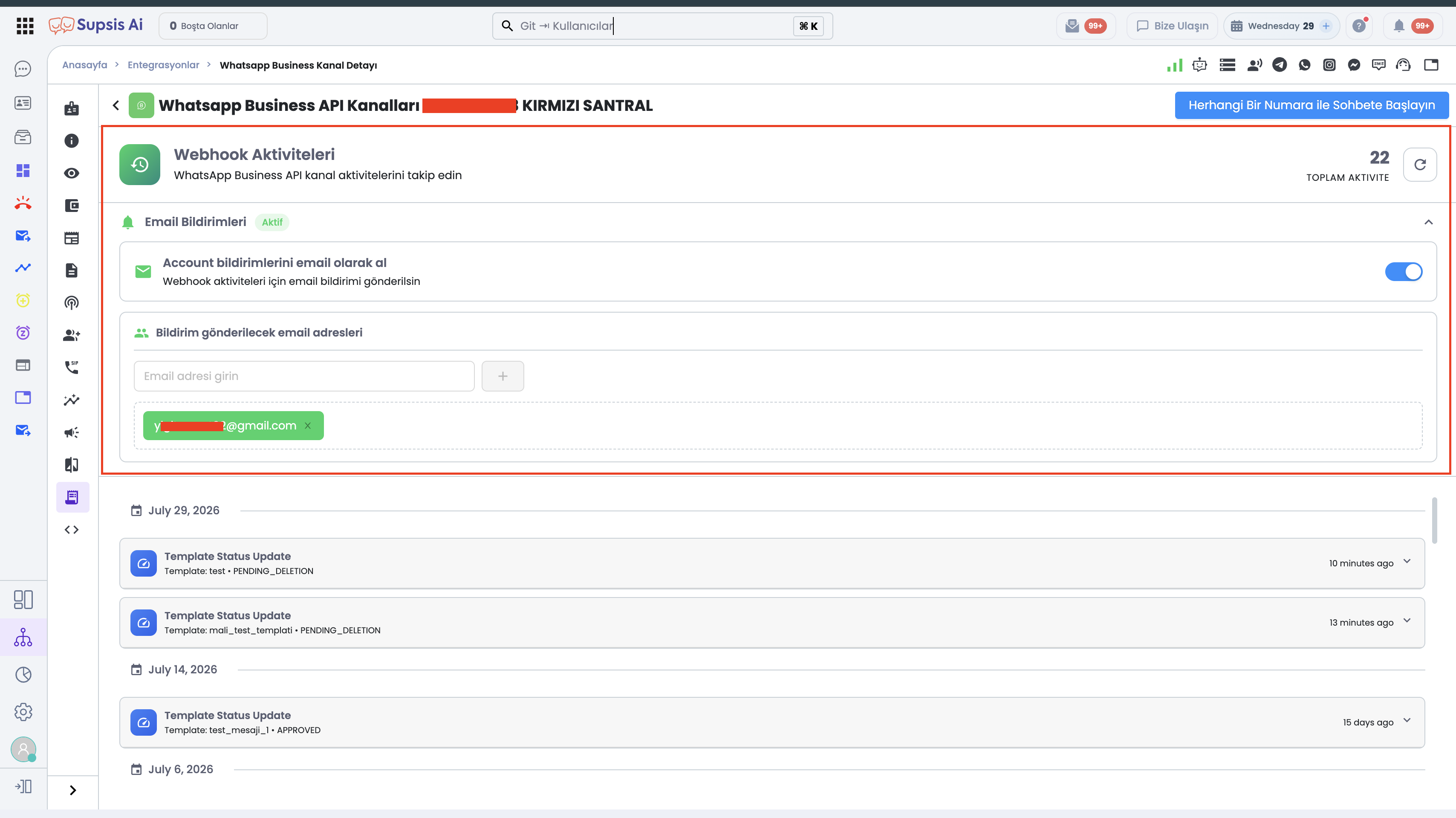
13.a – Webhook Activities Timeline & Logs
- Navigation:
Integrations → WhatsApp Business API → [Channel Details] → Webhook Activities - Real-Time Activity Tracking: All webhook events across the channel are logged in a chronological timeline. The total activity count (
e.g., 22 TOTAL ACTIVITIES) is displayed in real-time and refreshed using the↻button. - Log Entries:
- Template Status Update: Captures Meta status updates for message templates (APPROVED, PENDING_DELETION, REJECTED, etc.) along with relative timestamps (10 minutes ago, 15 days ago).
13.b – E-Mail Notification Management (Webhook Mail Notifications)
Critical channel activities and webhook status changes can be configured to trigger instant email notifications:
- Receive Account Notifications via Email: Toggling the ON/OFF switch enables email notification delivery for all webhook events.
- Notification Email Address Management:
- Enter the recipient email address in the
Enter email addressfield and click+to save. - Added emails are displayed as green pill tags (e.g.,
example@gmail.com ✕). - Clicking the
✕icon next to an email instantly removes it from the notification list. - Multiple email addresses can be added to ensure all technical admins and team members receive real-time webhook updates.
14-) WhatsApp Business API (v2) — CoEx vs Cloud API Badge Display in Channel List
All WhatsApp Business API v2 channels fundamentally run on Meta's Cloud API infrastructure. Whether a channel is connected in CoEx (Co-Existence) mode—allowing simultaneous usage with the WhatsApp mobile application—is indicated via a dedicated badge on the channel selection card.
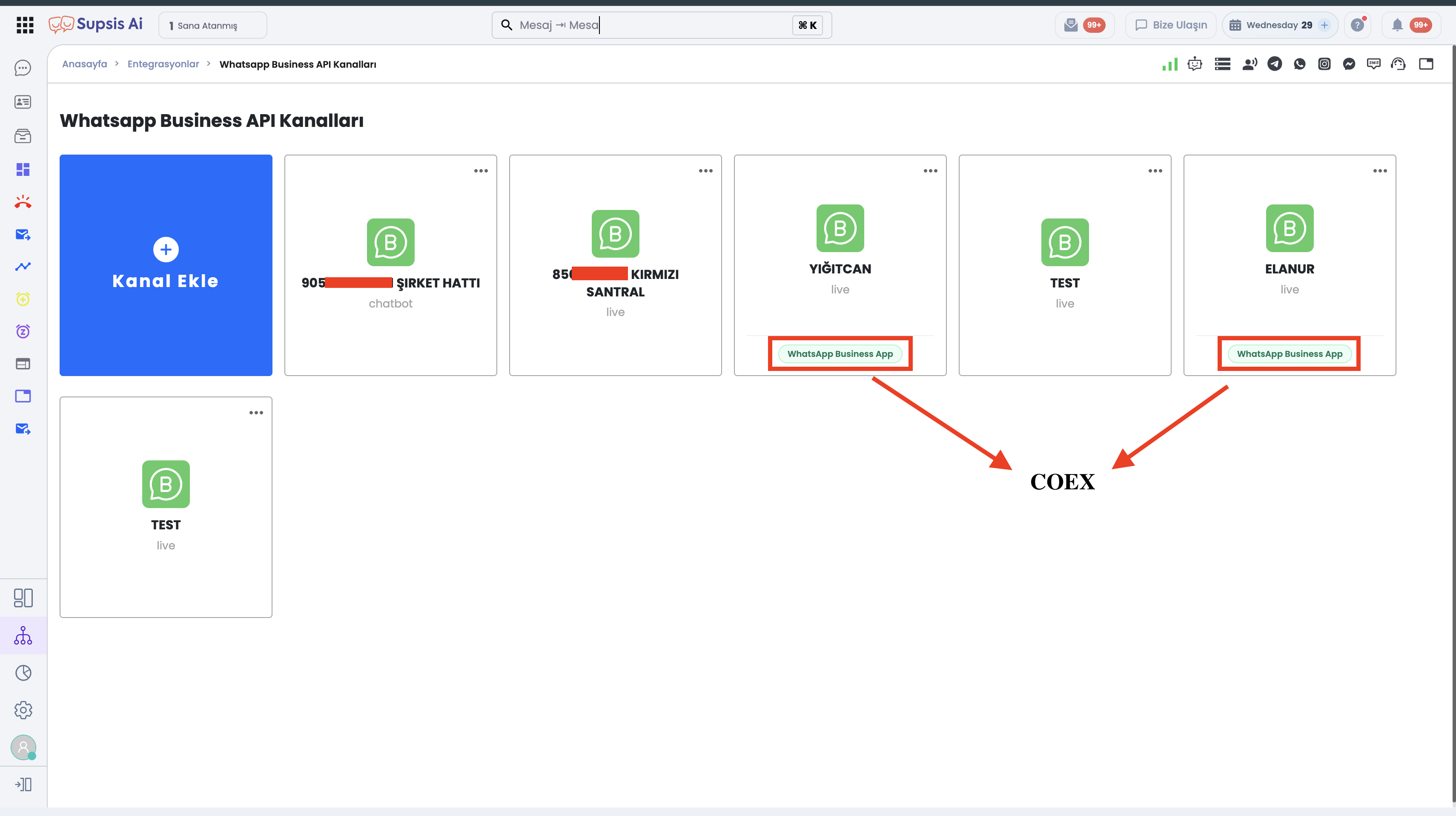
14.a – Channel Card Architecture Indicators
- Navigation:
Integrations → WhatsApp Business API(Channel List Screen) - Channel Card Badge Indicators:
- Green
WhatsApp Business AppBadge (CoEx Channel): If a channel card displays a green ovalWhatsApp Business Appbadge tag at the bottom, the channel operates on the CoEx (Co-Existence) integration model supporting concurrent WhatsApp mobile application usage. - Standard Card without Badge (Cloud API Channel): If no badge tag is present below the status, the channel is a standard Cloud API integration operating directly on Meta cloud infrastructure.
- Business Profile Details: Inside channel settings under
Business Profile → Platform Settings, the Platform Type:CLOUD_APIfield confirms the underlying Meta Cloud API architecture for all v2 channels.