
Channel Contact List - Bulk Contact Transfer Operations
1-) Contact Transfer and Background Operations
This section covers how to transfer the contact list of a deleted or deactivated channel (WhatsApp, Instagram, Messenger, etc.) to an active channel without any data loss via the Supsis Ai panel. The operation runs in the background and does not keep the user waiting or freeze the screen, even with large contact lists. You can monitor the transfer status instantly thanks to the live notifications that appear in the bottom right corner of the screen.
1.a – Accessing the Transfer Tool
To transfer the contacts of a deleted channel, go to the Contacts page from the left menu and open the contact list of the relevant channel. (This feature is only active in deleted/deactivated channels).
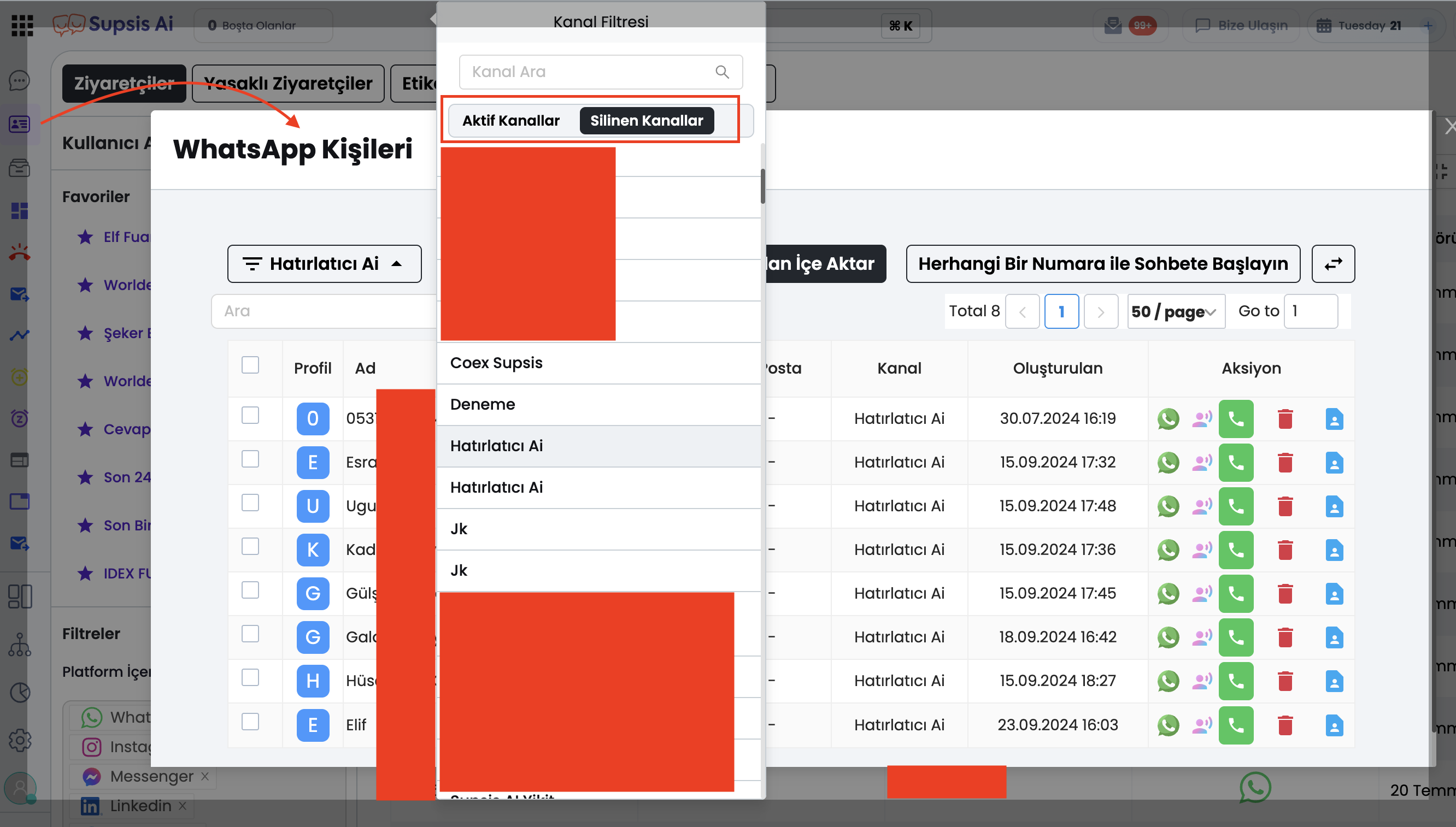
a – Transfer (Swap) Icon
It is the button located on the Channel Contact List toolbar that starts the bulk transfer operation. It only appears when the source channel is in a deleted (isDeleted) status.
1.b – Target Channel Selection and Starting the Operation
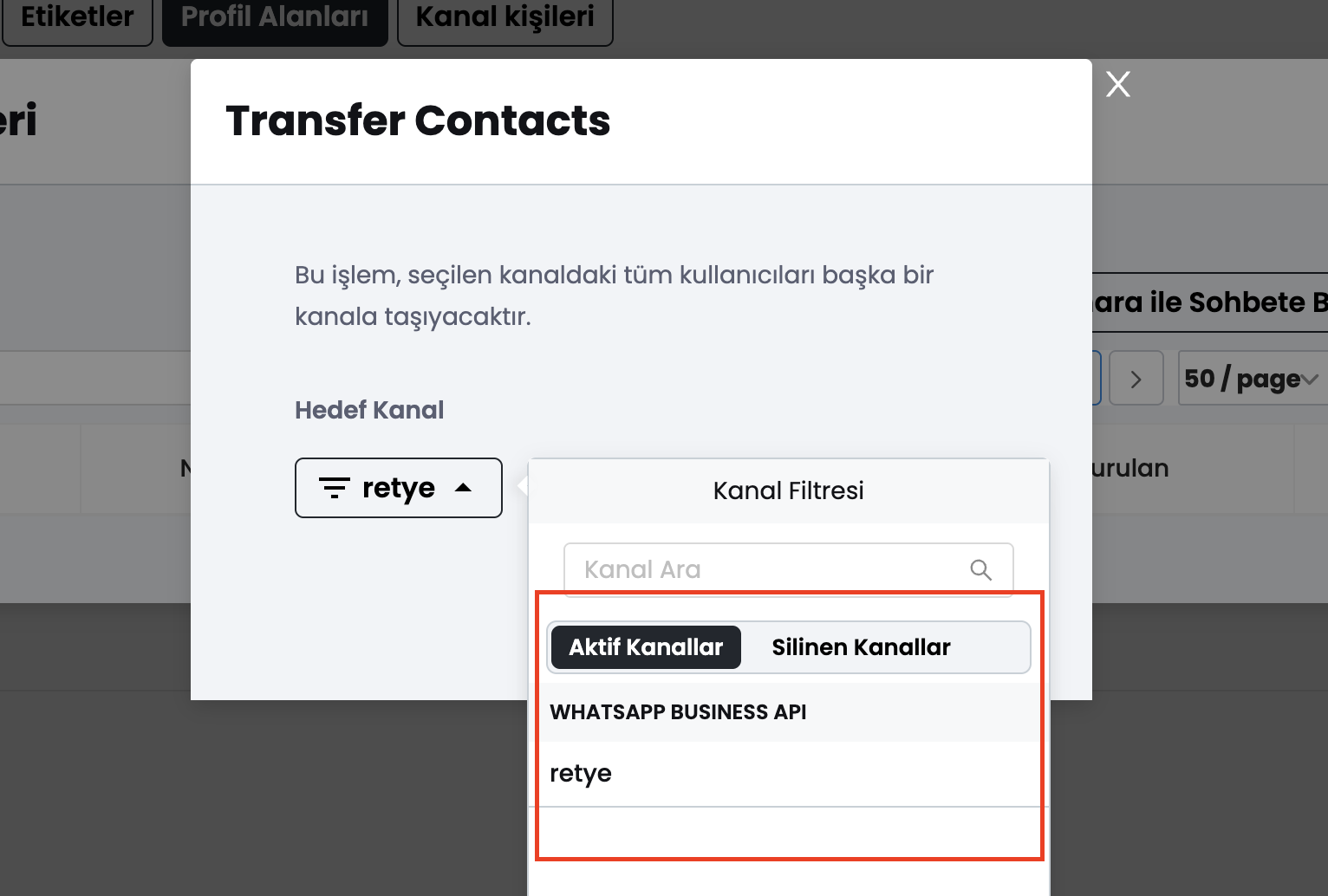
When you click the transfer icon, the "Transfer Contacts" window appears where you will determine the target channel.
b – Target Channel Selection
This is the area where the new and active channel to which the contacts will be moved is selected.
c – Transfer Button
It is the button that starts the transfer operation after the selection is made. This operation cannot be started without selecting the source and target channels.
1.c – Background Process and Live Status Notifications
When the transfer is started, the window closes and the operation immediately starts running in the background (fire-and-forget). This way, you can seamlessly continue your other panel-related tasks while the process is ongoing.
d – In Progress Notification ("Contacts are being transferred")
It is the status card that appears in the bottom right corner of the screen while the operation is running in the background.
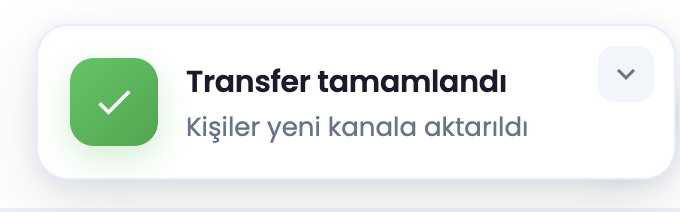
e – Completed Notification ("Transfer completed")
When the transfer operation is successfully completed, the notification is updated, and the relevant contact list is automatically refreshed. (Your socket connection must be active for the notifications to work properly.)
1.d – Example Usage Scenarios
The contact transfer module speeds up your business processes and prevents data loss in the following scenarios:
Channel Cancellation/Deletion: Transferring contacts from a deleted or deactivated channel to an active channel without losing them. Number/Line Change: In case the company switches from one number to another number (channel), moving the entire existing contact base to the new channel. Time Saving: Ensuring that the user can continue their work in other tabs and menus without the system locking up while transferring a large number of contacts.