
The search bar is one of the user-friendly navigation tools of the Supsis panel. It provides fast and effective access to all modules and content within the panel from a single point. Through the search bar, you can directly access the information you need without manually navigating within the panel.
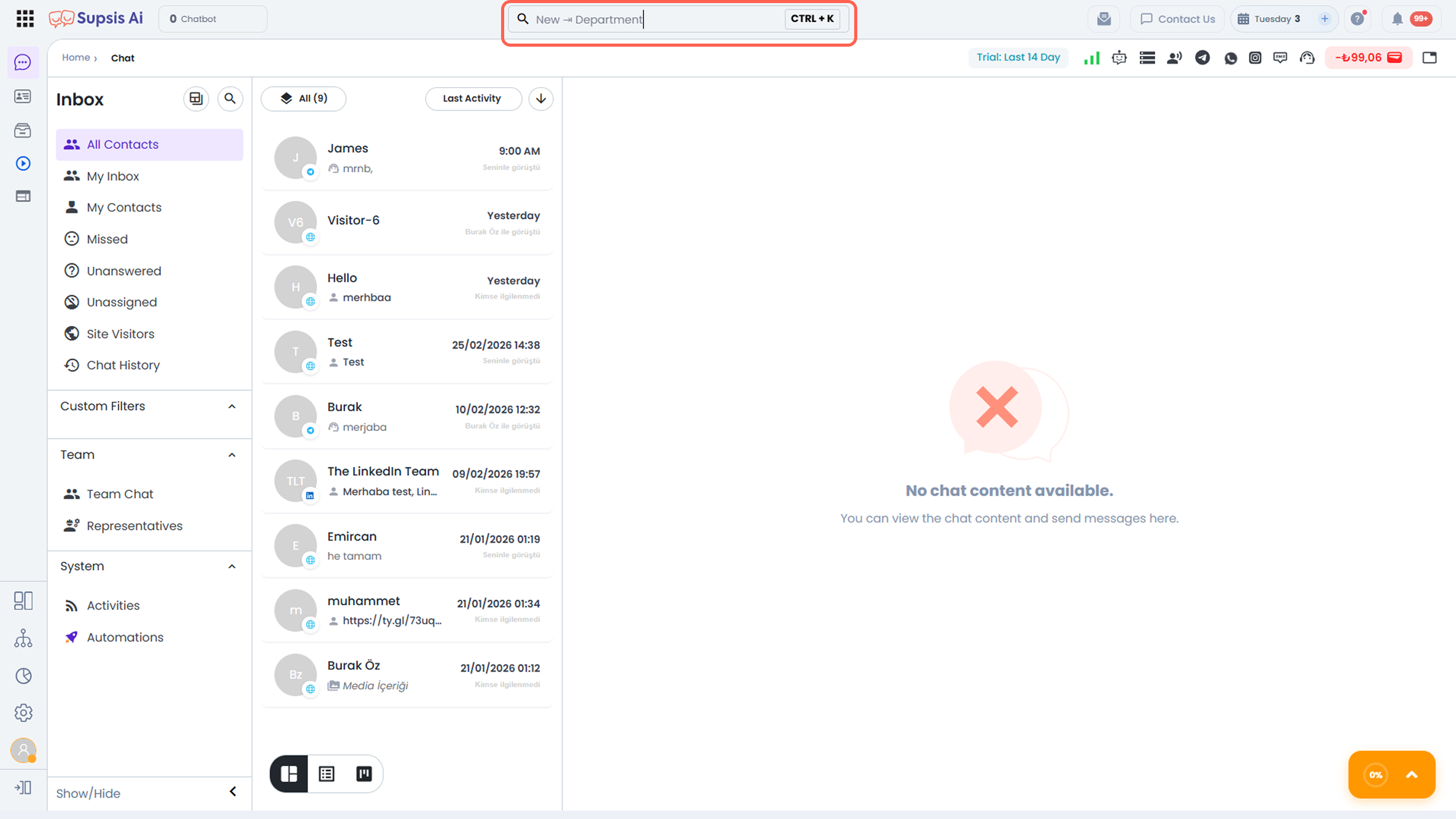
Quick Access Shortcut
The following shortcuts can be used to open the search bar:
- On Mac Devices: Command + K
- On Windows Devices: Ctrl + K
Pressing these key combinations simultaneously activates the search bar.
Functions of the Search Bar:
The Supsis search bar goes beyond being a simple text search field and acts as a comprehensive search engine that operates across the entire panel. Using the search bar, you can search among the following content:
-
Feature and module search:
You can directly search among modules, menus, and submenus within the panel. -
Past chats and message content:
You can search through previously conducted chats using keywords, message content, or contact information. -
Chatbot and automation scenarios:
By searching with chatbot or automation names, you can quickly access the relevant scenarios. -
Contact search:
You can search through information such as name, surname, email, and phone number found in contact cards. -
Search within settings:
You can quickly access the required setting option by searching among sub-features within the Settings menu.
The search bar significantly simplifies your user experience by providing centralized access to all content within the panel.
Clickable Prefix Tags & Module-Focused Search
When the search bar (⌘/Ctrl + K) opens with an empty query, interactive Prefix Tags such as Go, New, Message, Chatbot, Contacts, Settings appear. You can click these tags directly or type the module name and press Tab to lock your search scope.
Specifically, clicking the "Message" tag (or typing message and hitting Tab) switches the engine into platform-wide Atlas Search mode across all customer communications.
Example Usage Scenarios:
- Searching within message content:
ClickMessagetag (or typemessage⇒ Tab) ⇒ enter keyword (e.g., “quote”) ⇒ Enter
⇒ Lists all matching conversations across your account.
- Chatbot / automation scenario search:
ClickChatbottag ⇒ scenario name
⇒ Lists relevant chatbots and automations.
- Contact search:
ClickContactstag ⇒ any contact attribute
⇒ Matches all contact entries.
- Search within settings:
ClickSettingstag ⇒ configuration term
⇒ Restricts results to the Settings module.
!!! tip "Active In-Chat Message Search"
To search within the active customer's specific conversation history and jump directly to messages, press ⌘/Ctrl + F. See our In-Chat and Global Message Search guide for details.
Thanks to this structure, instead of performing a general search, you can conduct targeted and module-based searches, significantly increasing operational speed and efficiency.